
Using a TV as a second monitor is a practical way to expand your workspace without investing in another display. A larger screen can make multitasking easier, improve presentations, and create a more comfortable setup at home. This guide explains how to use TV as second monitor through several proven methods. Each approach includes clear steps and real-world tips, so you can choose the option that fits your devices and daily needs.
How to Use TV as Second Monitor
Yes, you can use a TV as a computer monitor, and turning a TV into a second display follows the same core principle across all methods. You connect the TV to your computer, then configure the display to extend rather than mirror your laptop screen.
Before you begin, make sure:
- Your TV is powered on and set to the correct input
- Your computer supports external displays
- Both devices are updated to avoid compatibility issues
Once these basics are covered, using TV as second monitor becomes a straightforward process.
Method 1: Use HDMI Cable
How to use a TV as a second monitor? Using HDMI is the most stable and beginner-friendly solution. It works across almost all TVs and computers.
Step 1. Turn off your TV and computer.
Step 2. Connect an HDMI cable to your computer.
Step 3. Plug the other end into an HDMI port on the TV.
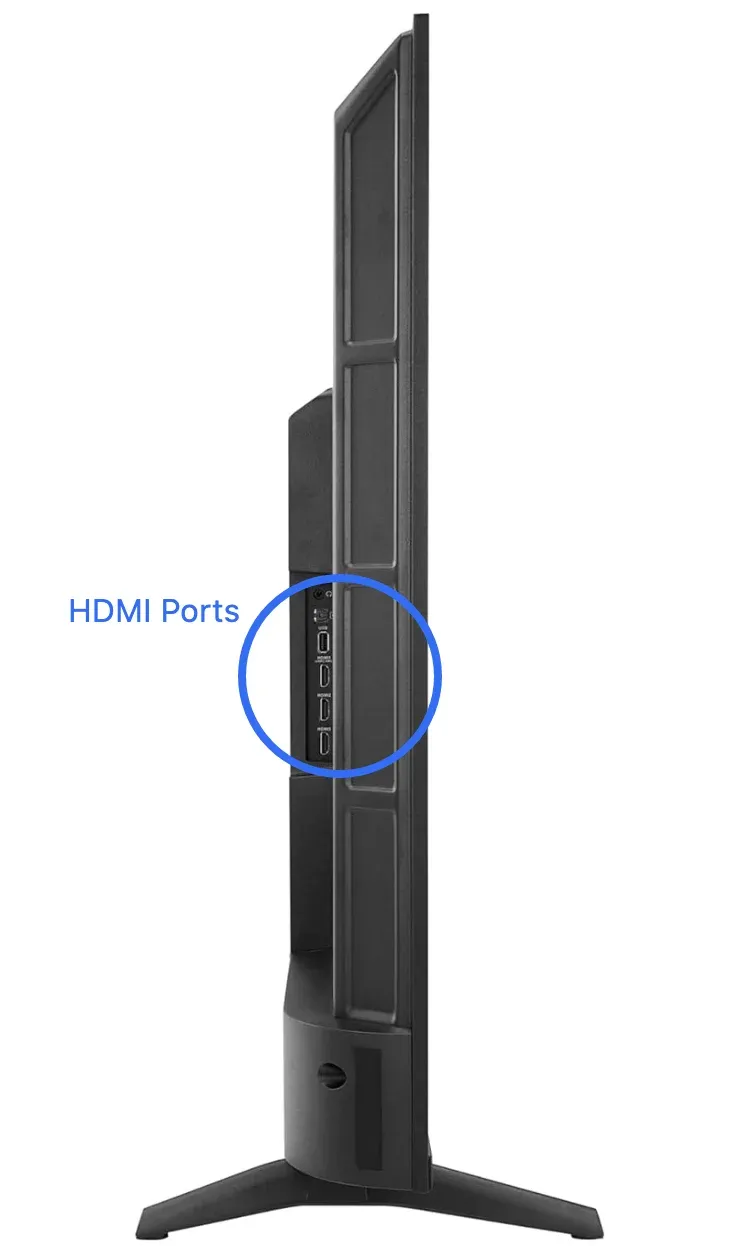
Step 4. Turn on the TV and select the matching input source.
Step 5. Power on your computer.
Most systems will detect the TV automatically. This method is ideal for anyone searching for how to use a TV as a second monitor with HDMI.
Next, you can configure the display for a better experience:
Step 1. Open display settings on your computer.
Step 2. Choose Extended display.
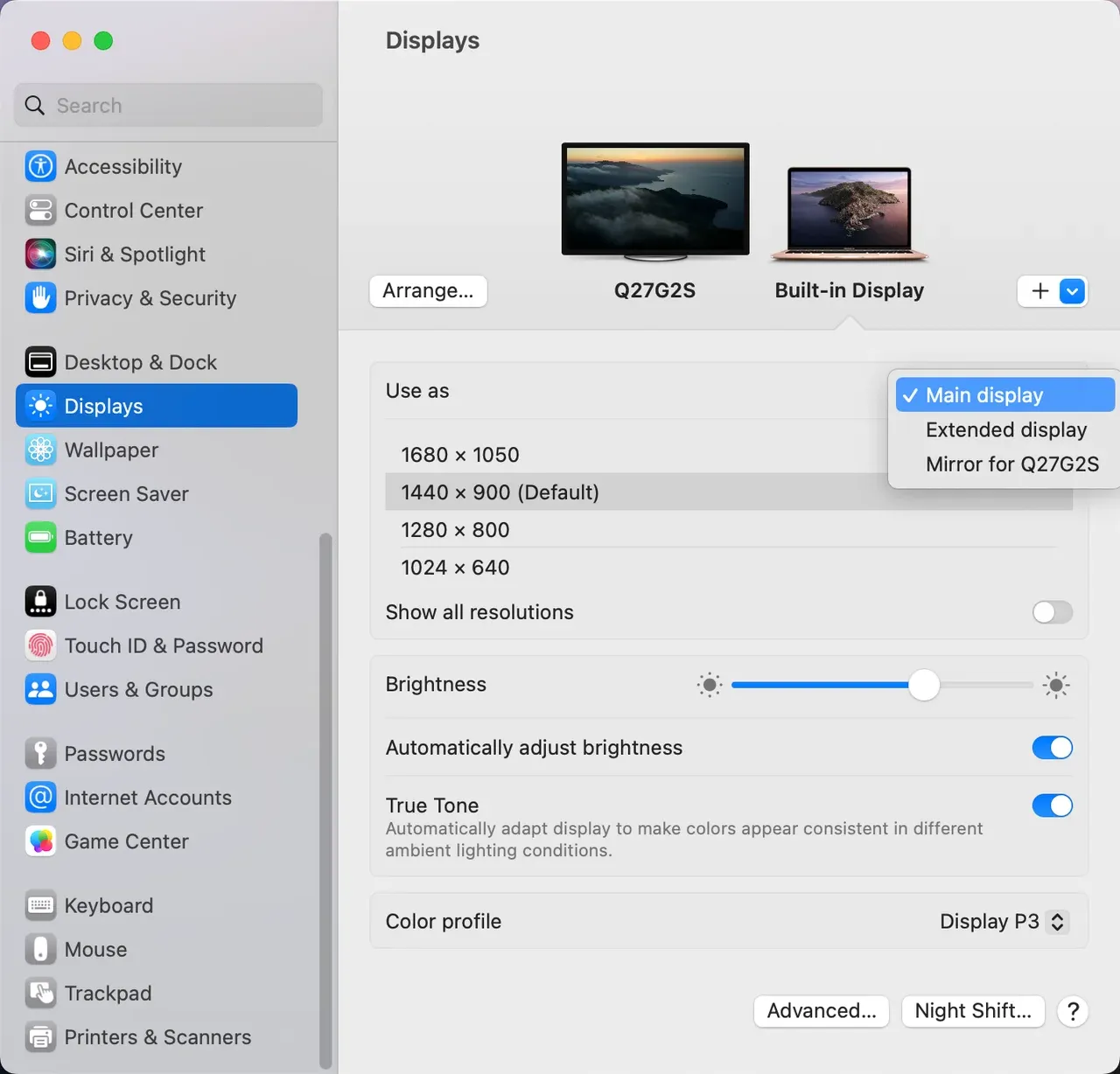
Step 3. Adjust the resolution to match the TV.
Method 2: Use Miracast (for Windows PC)
Miracast on Windows allows you to connect to a compatible TV wirelessly. It is convenient when cables are not an option. Here's how to use TV as second monitor Windows 10:
Step 1. On your TV, go to Settings, and enable Screen Mirroring, Wireless Display, or something like this.
Step 2. Press Windows + P shortcut to open Project settings.
Step 3. Select Connect to a wireless display.
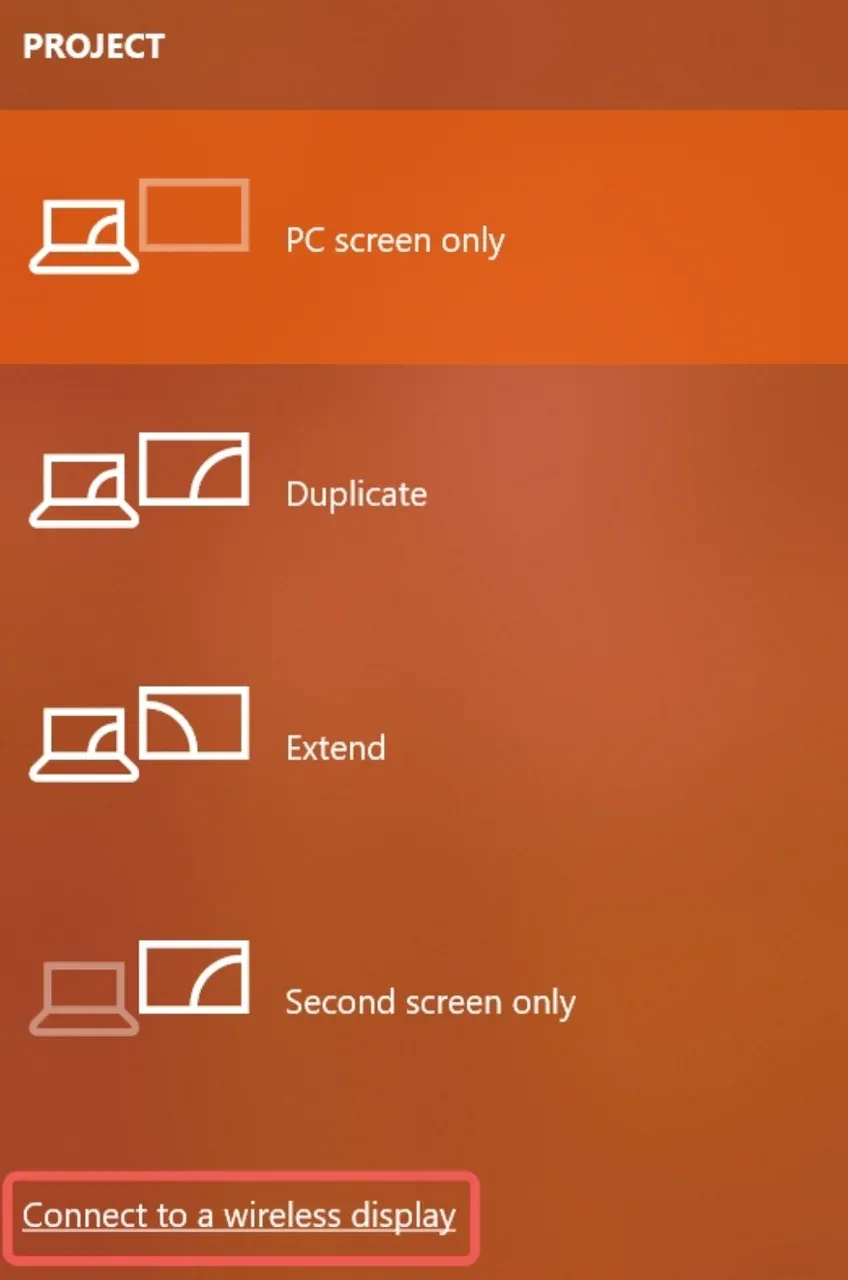
Step 4. Choose your TV from the list to start extending your screen to the TV and use it as a second monitor.
This method is useful if you want to use TV as second monitor without physical cables. Miracast works best for presentations, web browsing, and light tasks. It may introduce slight delay, which is normal for wireless connections.
Method 3: Use AirPlay (for MacBook)
AirPlay is designed for Apple devices and offers a smooth wireless experience within the Apple ecosystem. AirPlay on MacBook allows you to connect to a compatible TV over the same Wi-Fi network.
Here's how to use TV as second monitor for MacBooks:
Step 1. Connect your Mac and TV to the same Wi-Fi network.
Step 2. Open Display settings on your Mac
Step 3. Select the TV as an extended display.
Step 4. Turn off mirroring to extend the screen.
AirPlay is well-suited for macOS users who want a clean setup. While performance depends on network quality, it is a convenient option when using TV as second monitor for creative or casual tasks. However, AirPlay may not work from time to time; if you have an issue with AirPlay, try the next solution.
Method 4: Use PigeonCast (Mirroring Mode)
PigeonCast is a free screen mirroring app that allows you to effortlessly project your phone or laptop screen onto a large TV. Like HDMI mirroring, it supports a wide range of platforms without the need for cables. Similar to Apple AirPlay and Windows Miracast, it works over a Wi-Fi network, offering a more flexible solution that isn't limited by TV compatibility.
Step 1. Ensure your computer (or phone) and TV are connected to the same Wi-Fi network.
Step 2. Download PigeonCast from the Microsoft Store or App Store and set it up with onscreen instructions.


Overall Rating:



Step 3. On your TV, go to the App Store, Amazon Appstore, or Google Play, search for PigeonCast, and install it.
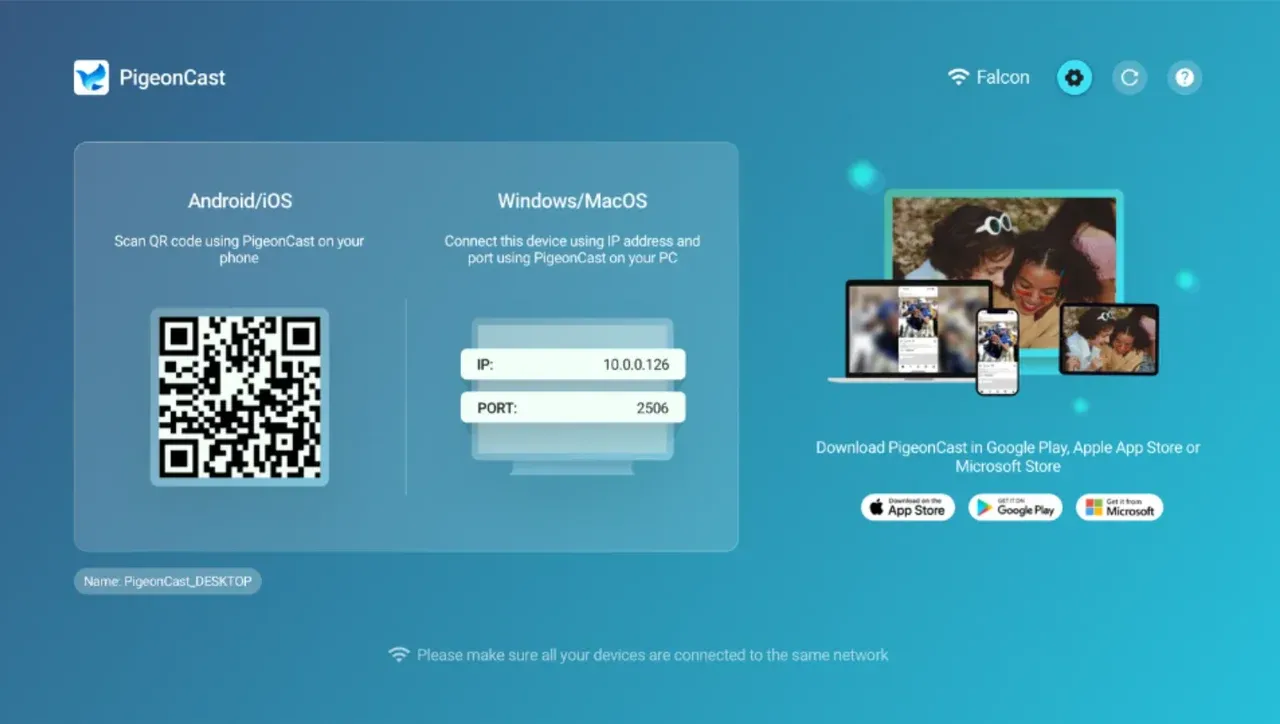
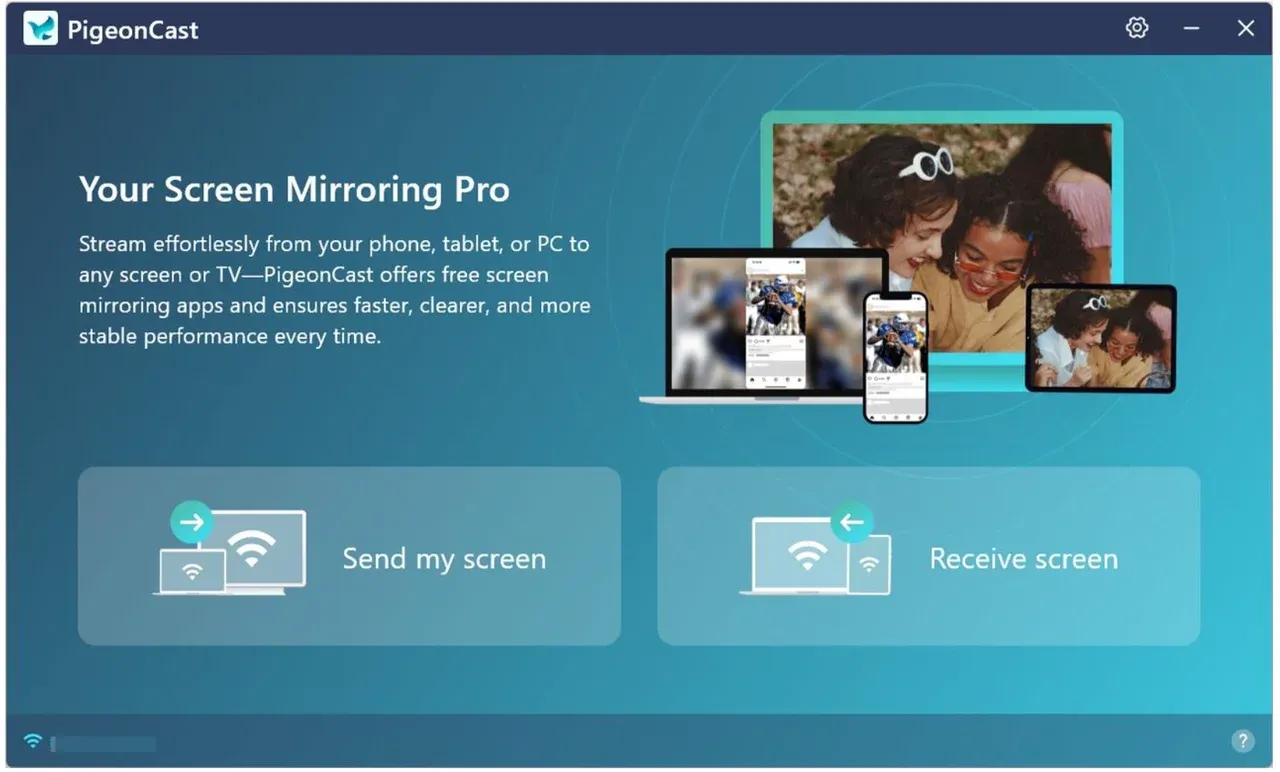
Step 4. Launch PigeonCast on both sides. On your computer, click Send my screen.
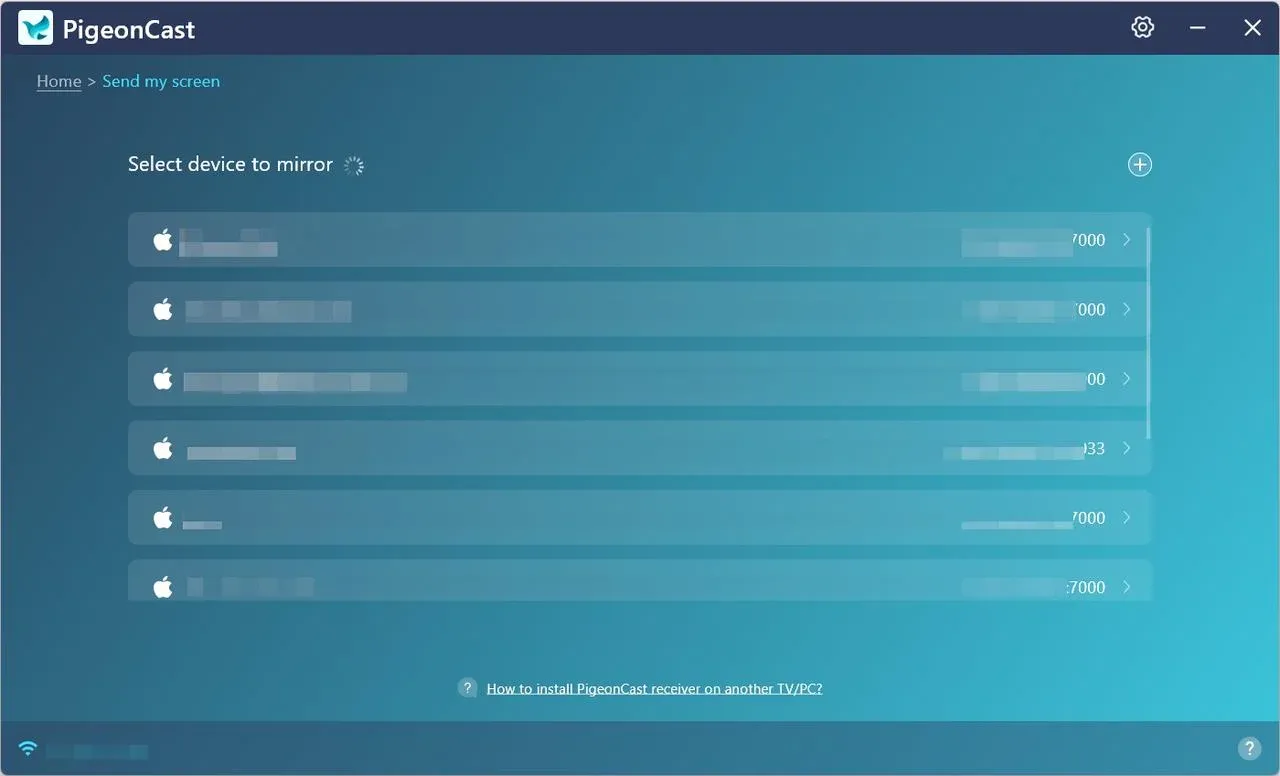
Step 5. Browse the device list and choose your TV.
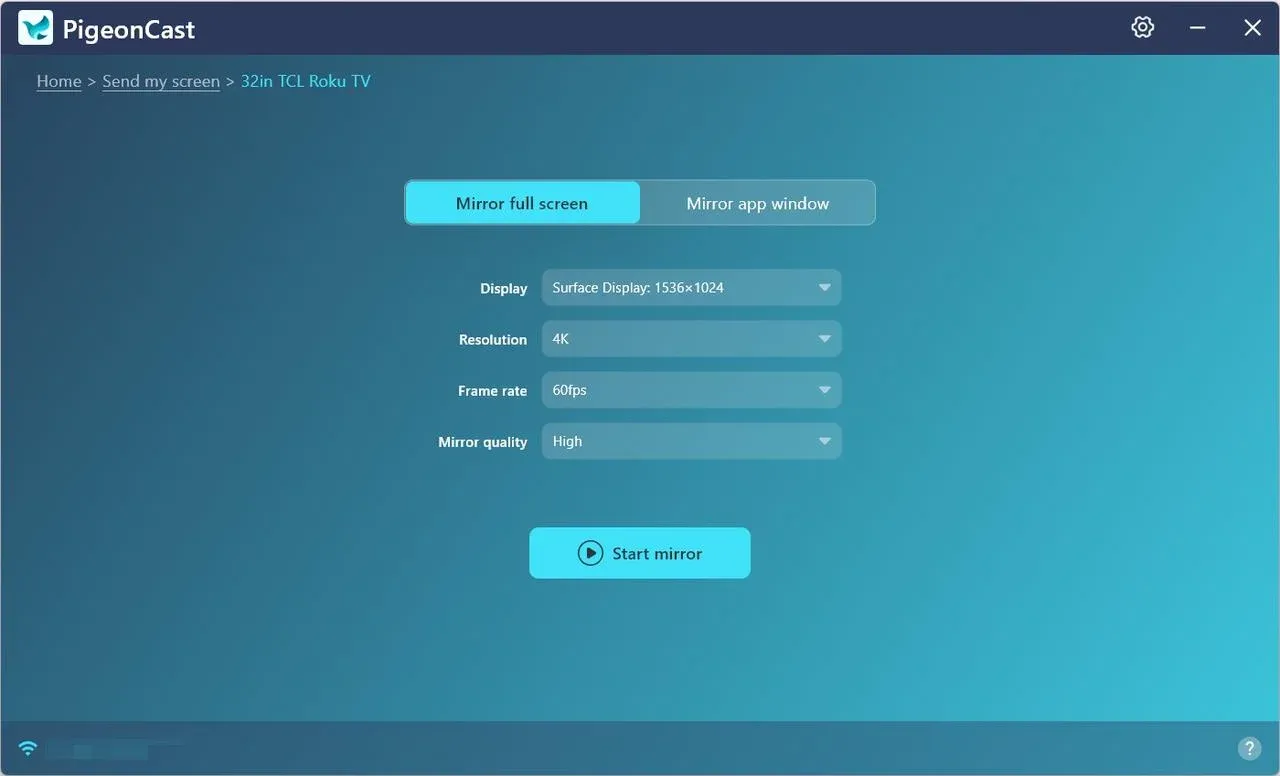
Step 6. Once connected, choose Mirror full screen or Mirror app window, and click Start mirror.
Now, you can view your laptop content on your TV. PigeonCast offers a free, easy, and stable solution for cross-platform streaming.
Final Words
Learning how to use a TV as a second monitor gives you more screen space with minimal cost. Whether you prefer the reliability of HDMI or the convenience of wireless options, each method serves a different need.
If you plan to work for long hours, treat the TV as a secondary display rather than a primary monitor. With the right setup, it can significantly improve productivity and comfort.
How to Use TV as Second Monitor FAQs
How to turn my TV into monitor?
To turn your TV into a monitor, connect it to your computer using an HDMI cable or a wireless display method like AirPlay or Miracast. Once connected, go to your display settings and set the display mode to "Extend" for a seamless second screen setup. This will allow you to use the TV as an extended monitor, not just a mirror of your primary screen.
How to use a TV as a second monitor wirelessly?
You can use wireless display technologies like Miracast, AirPlay, or third-party tools like PigeonCast to use your TV as a second monitor. These methods rely on Wi-Fi to connect your devices, eliminating the need for HDMI cables. Depending on your device and TV, you may need to enable the wireless display feature on both your TV and computer.
How to use TV as second monitor without HDMI?
If your TV lacks an HDMI port, or if you prefer a cable-free setup, Miracast (for Windows) and AirPlay (for Apple devices) are excellent options. These wireless solutions let you extend your desktop to the TV over Wi-Fi. For more flexibility, third-party apps like PigeonCast can also help you connect multiple devices without the need for HDMI cables.
Is there a downside to using a TV as a monitor?
While using a TV as a second monitor can be convenient, there are some drawbacks. TVs typically have lower pixel density compared to monitors, which can result in less sharp text and images. Additionally, TVs may have higher input lag, making them less ideal for fast-paced tasks like gaming or video editing. For general use, however, TVs can be a great cost-effective option.
Why can't USB-C replace HDMI?
While USB-C has many benefits, not all USB-C ports support video output. HDMI, on the other hand, is a dedicated video interface that provides consistent compatibility across a wide range of devices, including laptops, TVs, and monitors. HDMI ensures higher video quality and stability, making it the more reliable choice for screen mirroring and connecting to TVs.
Can I use a TV as a monitor for gaming?
Yes, you can use a TV as a gaming monitor, but be aware of potential issues such as input lag and lower refresh rates. Some modern TVs come with a "Game Mode" that reduces lag and optimizes performance for gaming. However, for competitive gaming, a dedicated monitor with a high refresh rate is usually the better choice.
How to improve display quality when using TV as second monitor?
To improve the display quality, adjust the screen resolution in your computer’s display settings to match your TV’s native resolution. Additionally, enable scaling or overscan features, if available, to ensure a clearer image. If you're using wireless methods like Miracast or AirPlay, make sure both devices are on a fast and stable Wi-Fi network to minimize lag and image degradation.
Does screen mirroring affect performance on my computer?
Screen mirroring, especially over wireless connections, can impact your computer's performance, particularly if your network speed is slow or your system is processing multiple tasks. Wired connections like HDMI generally offer better performance with minimal impact on your system’s resources, making them ideal for more intensive tasks.
Mia Clarke is a technology editor specializing in screen mirroring and casting solutions across multiple platforms. Mia provides clear, practical guides and in-depth insights to help users seamlessly connect their devices. Passionate about enhancing digital experiences, Mia is dedicated to keeping readers updated on the latest trends and tools in cross-platform screen sharing. Whether you’re looking to mirror your smartphone, laptop, or smart TV, Mia’s content delivers reliable, user-friendly advice to simplify your tech setup.