
Many people search for larger, more affordable screens and naturally ask the question: can you use a TV as a computer monitor for work, gaming, or entertainment? The short answer is yes, you can. Modern TVs come with advanced display technologies, high resolutions, and multiple ports that make them compatible with computers. However, using a TV as a monitor requires understanding several technical factors, including pixel density, input lag, viewing distance, and recommended screen sizes. This guide breaks down everything you should know, from setup to limitations, helping you decide whether a TV as computer monitor setup fits your needs.
What You Should Know Before Using a TV as a Monitor
Before you connect your computer to TV, it helps to understand a few key technical ideas. These concepts strongly influence how comfortable your setup feels, how sharp the picture looks, and how smoothly the system responds. Even if you are a complete beginner, the explanations below will make everything clear and easy to follow.
Pixel Density and Screen Size
When people search for answers, such as using a TV as a monitor or can I use a TV as a computer monitor, they often do not realise that pixel density plays a major role. Pixel density tells you how tightly the pixels are packed on a screen. It is measured in pixels per inch (PPI) and directly affects how sharp text and images appear.
Why pixel density matters for everyday work
Computer monitors are designed for close viewing. That means the pixels are packed tightly so that text appears crisp and easy to read. Television screens are different. A TV spreads its pixels over a much larger surface because it is meant to be viewed from across the room. When you sit close, the spacing between pixels becomes noticeable, which may make text look softer than you expect.
Real examples that help you understand the difference
Here are typical pixel densities you would see on common screen sizes:
- A 27-inch 1440p monitor usually reaches about 108 PPI
- A 43-inch 4K TV averages around 102 PPI
- A 55-inch 4K TV drops to roughly 80 PPI
- A 65-inch 4K TV falls even lower at about 67 PPI
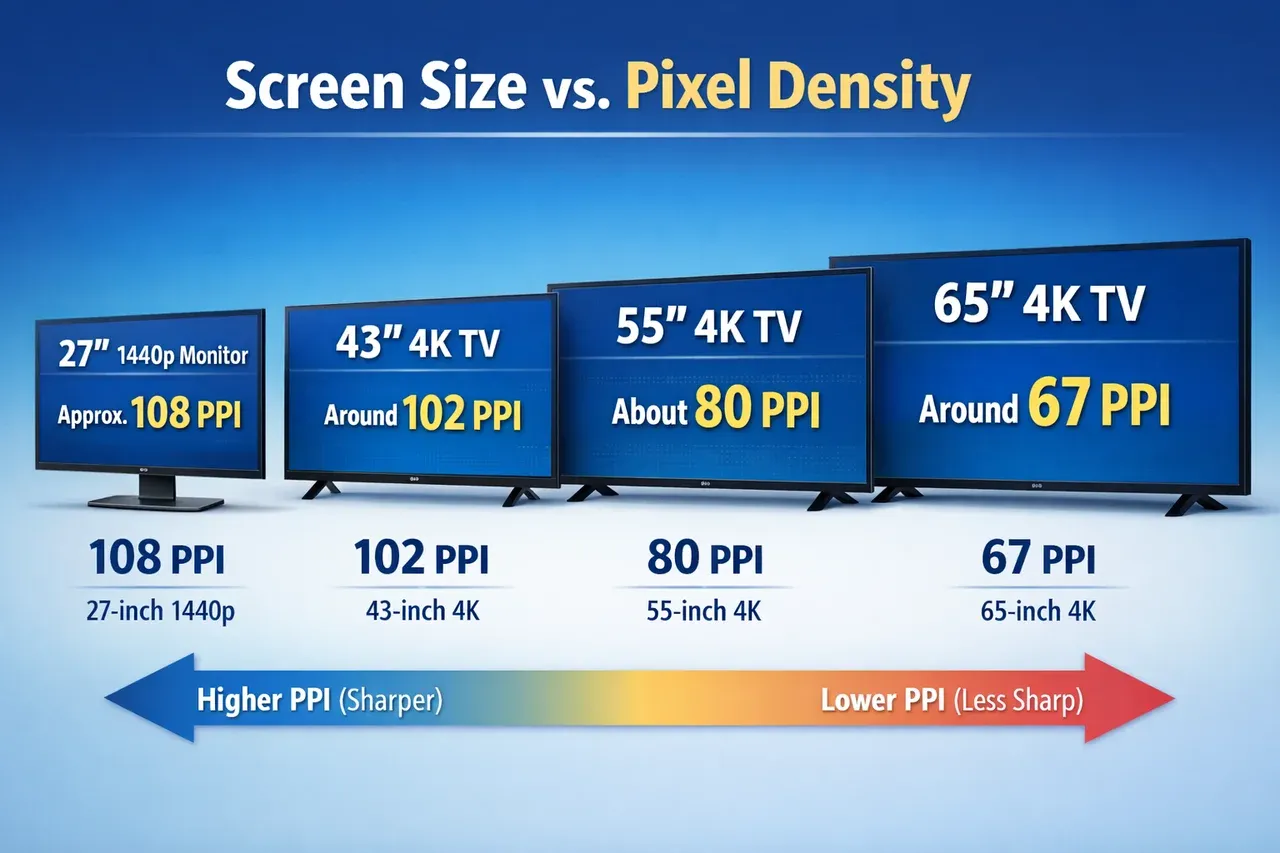
Even though both a 43-inch TV and a 65-inch TV may have 4K resolution, the larger screen spreads out the same number of pixels over a much bigger area. As a result, anything that involves reading or typing may feel less sharp.
How this affects your real-world experience
If you sit at a desk, usually between fifty and seventy centimetres away from the screen, a very large TV can cause eye fatigue. You may notice:
- Slightly blurry text
- Jagged edges around icons
- A less crisp overall image during close work
Most people find that a 43-inch TV is the upper limit for comfortable desk use. Larger sizes become more suitable when you sit farther away, such as on a sofa or in a living room setup.
Input Lag and Response Time
Another important question users ask when considering TV as computer monitor setup is related to input lag. Input lag is the delay between your computer sending a command and the TV showing the result. This delay becomes noticeable the moment you move your mouse.
Imagine sliding your mouse across your desk and waiting a moment before the cursor reacts. That short pause is input lag. A dedicated computer monitor usually reacts almost instantly. A TV, however, often performs several image processing steps that slow down the display of your actions.
Why TVs naturally have more input lag
Televisions are built for movies and shows. To make video content look smooth, TVs often add processing enhancements such as color adjustments and motion smoothing. These extra steps create a small delay. This delay feels unimportant when watching movies but becomes an issue when navigating menus, browsing the web, or playing fast-paced games.
Typical input lag number you should know
- Regular TVs: often between twenty and forty milliseconds
- Good gaming-focused TVs: around ten to twenty milliseconds
- Computer monitors: usually one to five milliseconds
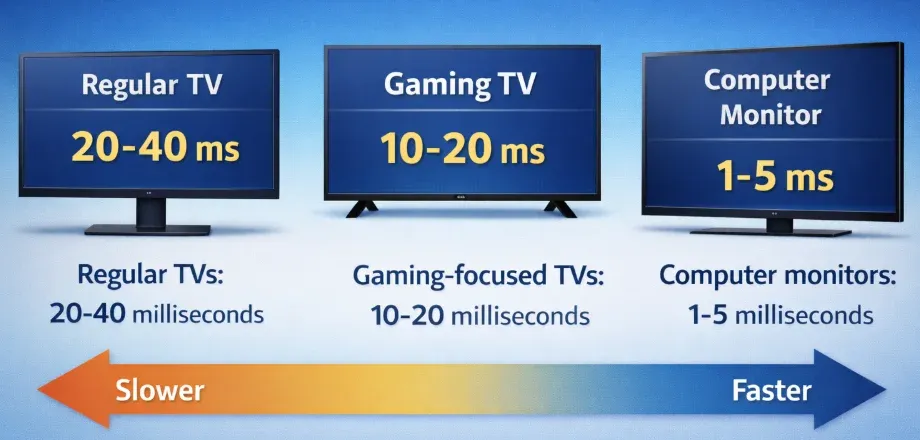
A delay of twenty to thirty milliseconds may feel acceptable for general tasks. However, people who edit videos, draw digitally, or play competitive games will notice the difference quickly.
How to reduce input lag on most modern TVs
The simplest solution is to enable Game Mode in your TV settings. Game Mode disables unnecessary processing and prioritizes speed. Many TVs become significantly more responsive after enabling this feature, creating a smooth experience that feels closer to a traditional monitor.
Refresh Rate Capability
Refresh rate refers to how many times the screen updates every second. This setting affects how smooth motion appears. It also influences gaming performance and the overall user experience when using a TV as a monitor.
What refresh rate means in everyday use
A 60 Hz screen refreshes the picture sixty times each second. That rate is perfectly adequate for office work, browsing, video streaming, and casual gaming. If you play fast-action games or simply enjoy very fluid motion, a higher refresh rate, such as 120 Hz or 144 Hz, creates a noticeably smoother picture.
Typical refresh rates available in today's TVs
- Entry-level televisions usually provide 60 Hz
- Mid-range models can support 120 Hz
- Newer high-end models sometimes reach 144 Hz
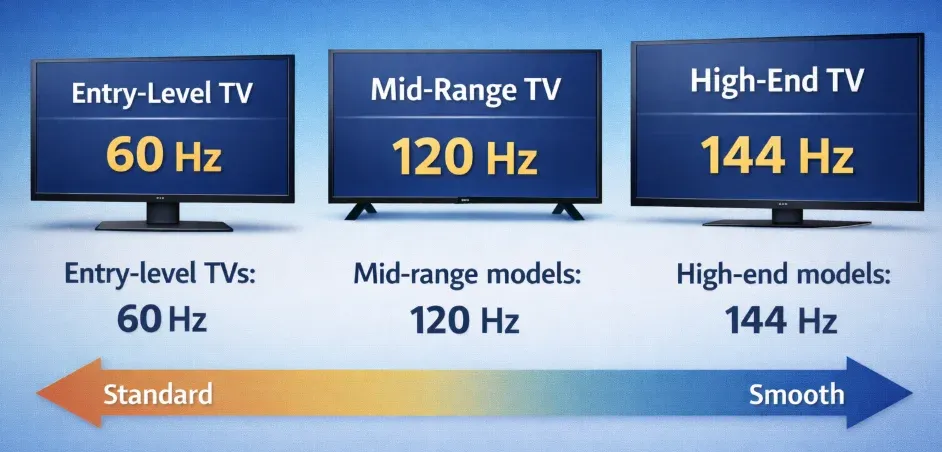
While monitors commonly support a wide range of refresh rates, televisions that support high refresh rates are becoming easier to find, especially in screen sizes above 40 inches.
The role of HDMI in refresh rate performance
To enjoy high refresh rates at 4K resolution, the TV must support HDMI 2.1. Older HDMI versions may limit your refresh rate to 60 Hz even if the panel itself is capable of more. This is one of the reasons some TVs cannot deliver true high frame rate gaming without the correct HDMI port.
How to decide what refresh rate you really need
If you mainly write, browse, or watch videos, 60 Hz is more than enough. If gaming is one of your priorities, choose a TV with a true 120 Hz panel and HDMI 2.1 support. This combination creates a much smoother experience and may make the TV the best TV to use as a monitor for gaming and entertainment.
Is It Good to Use a TV as a Monitor
A TV can work well as a monitor in certain setups, but it also comes with limitations you should understand before switching. To help you make a practical decision, the following sections break down both the advantages and disadvantages of using a TV as a monitor, with clear explanations and real-world examples.
Advantages of Using a TV as a Monitor
Modern TVs deliver impressive picture quality, large screen sizes, and strong entertainment features that make them appealing alternatives to traditional monitors.
- Large, immersive display
A 55-inch 4K TV gives you almost four times the viewing area of a 27-inch monitor, creating a comfortable workspace for multitasking, video editing, or couch-based computing. The bigger screen also makes shared viewing easier in group settings.
- Cost-effective for large sizes
When size matters, TV delivers excellent value. A 55-inch 4K TV often costs less than half the price of a 32-inch 4K monitor, making it a budget-friendly choice for users who want a large display without paying on premium.
- Multi-function device
A TV doubles as an entertainment hub. You can stream movies, play console games, mirror your iPhone or Android, or use built-in apps, all on the same screen. This versatility is ideal for living rooms or multipurpose setups.
Disadvantages of Using TV as Computer Monitor
Despite the benefits, a TV is not a perfect replacement for a dedicated monitor. These limitations matter depending on how you work.
- Lower pixel density up close
Because TVs are designed for distance viewing, text and icons may look softer when you sit close. This becomes more noticeable on large screens above 43 inches, especially if your desk is shallow.
- Higher input lag
TVs often add image processing that slows response time. Without Game Mode, mouse movement can feel sluggish, which affects fast gaming, precise editing, or detailed spreadsheet work.
- Limited ergonomics
Most monitors offer height, tilt, and rotation adjustments, while TVs usually do not. Unless you use an adjustable wall mount, it can be hard to position the screen at an ergonomic height for long work sessions.
- Potential color inaccuracy
TV picture modes often enhance movies but distort accuracy. Colors may appear oversaturated or slightly processed, which is fine for entertainment but not reliable for design or color-critical tasks.
How to Use a TV as a Monitor
Once you understand the pros and cons of using a TV as a monitor, the next step is learning how to set it up correctly. The process is straightforward, but your experience depends heavily on choosing the right connection method and adjusting your display settings. Below are the most reliable ways to connect your computer to a TV as a computer monitor.
Wired Methods for Connecting a TV as Monitor
Wired connections provide the most stable performance, especially for work and gaming. These methods also ensure that a TV as a monitor setup delivers the best clarity and lowest latency.
Way 1: HDMI Connection
HDMI is the simplest and most reliable way to connect your computer to a TV. Nearly all modern TVs and laptops support HDMI, making it a universal choice.
How to use TV as monitor with HDMI cable:
Step 1. Plug the HDMI cable into your computer's HDMI output port.
Step 2. Connect the other end to any HDMI input on your TV.
Step 3. Switch your TV to the correct HDMI input channel.
Step 4. Open your display settings and select extend or duplicate mode, depending on your preference.
This method is ideal for everyday use, movies, presentations, and general productivity.
Way 2: DisplayPort to HDMI
If your computer uses DisplayPort, you can still connect to a TV using a DisplayPort to HDMI adapter.
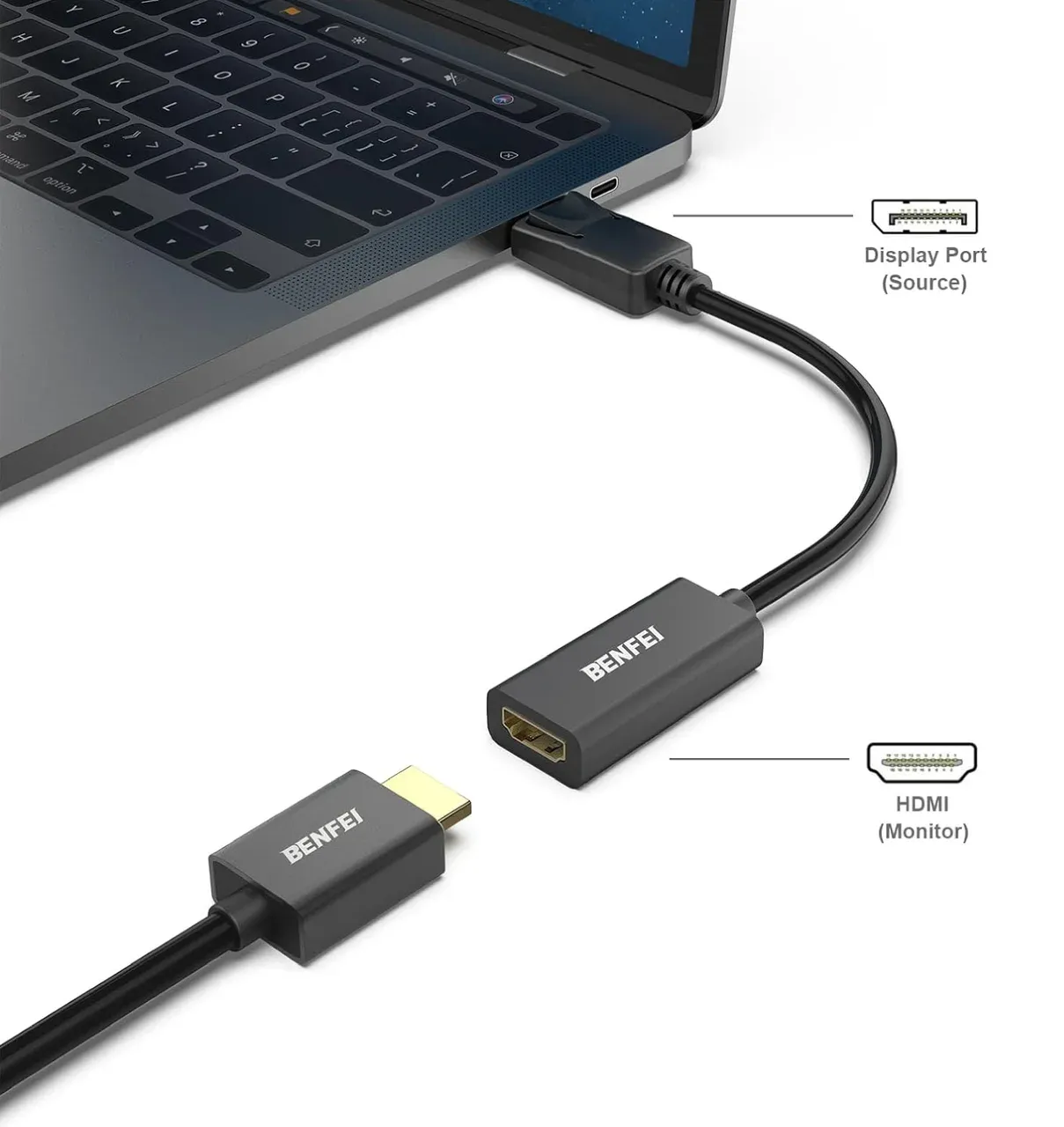
Use your TV as computer monitor:
Step 1. Attach the DisplayPort end to your PC.
Step 2. Connect an HDMI cable between the adapter and your TV.
Step 2. Switch your TV input and adjust your display settings.
This method is great for desktops or workstations that lack a native HDMI port.
Way 3: USB-C to HDMI
Many modern laptops support video output through USB-C. A USB-C to HDMI adapter lets you connect directly to your TV.
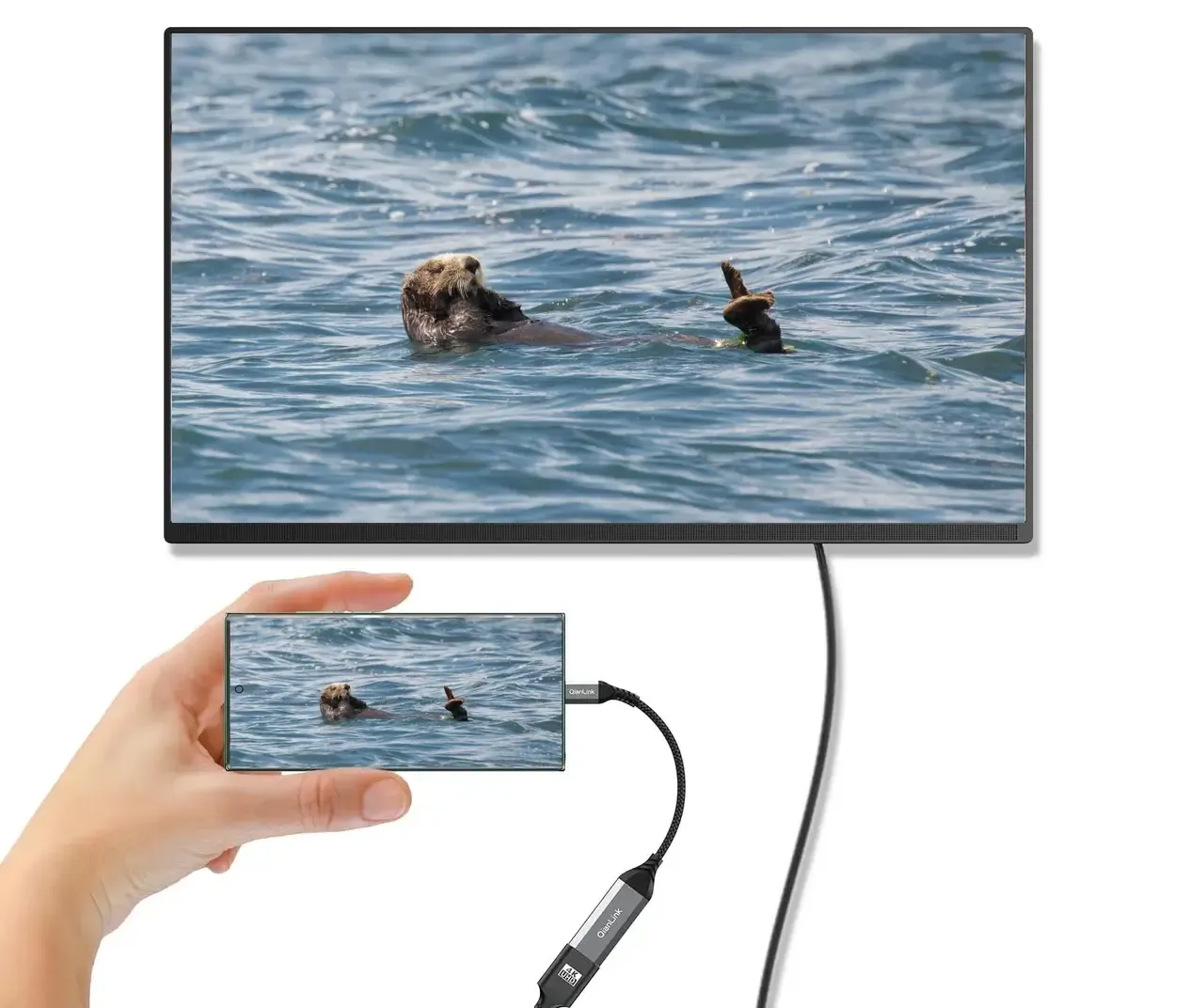
Here's how:
Step 1. Plug the USB-C adapter into your laptop.
Step 2. Connect an HDMI cable to the adapter and TV.
Step 3. Select the corresponding input and adjust the resolution to match your TV.
This way is best for MacBooks, ultrabooks, and slim laptops that no longer include full-size HDMI ports.
HDMI connections are stable, but they can be inconvenient, and some users may experience issues with HDMI not working on Windows PCs. If you encounter problems with the wired connection, consider switching to a wireless solution.
Wireless Methods for Connecting a TV as Computer Monitor
Wireless connections are becoming more popular, especially in homes where cables are inconvenient. However, not all wireless options perform equally well. Below are the most common ways to connect laptop to TV without HDMI, including a practical alternative for cross-platform casting.
Way 1: Built-In Wireless Display Options
Many smart TVs support screen mirroring technologies that let you cast your computer display without cables. Common standards include:
- Miracast for Windows PC
- AirPlay for Mac and iPhone
- Chromecast built in for Google TV and Android TV
Here is how to use a TV as a wirelss monitor for your computer:
Step 1. Make sure your TV and computer are connected to the same WiFi network.
Step 2. Enable the wireless display feature on your TV (AirPlay, Miracast, Cast Screen, Wireless Display).
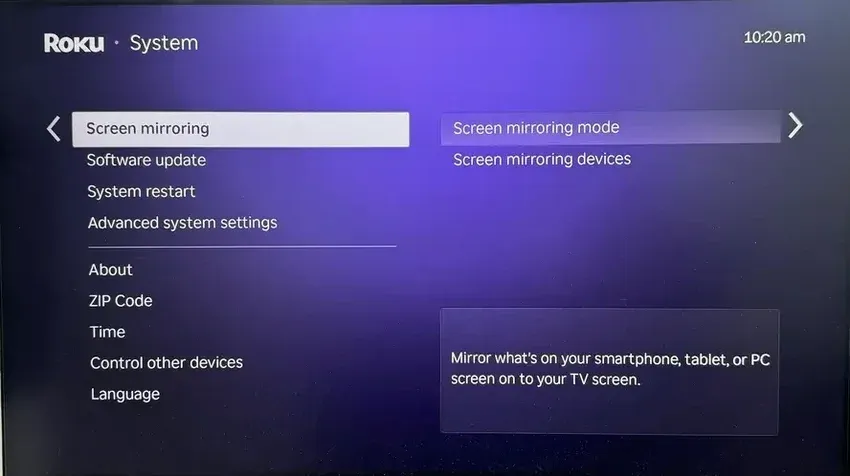
Step 3. Open the casting menu on your computer and choose your TV from the list.
Way 2: Use PigeonCast
While built-in casting options work, they can be limited by platform compatibility. PigeonCast offers a more flexible way to mirror your screen wirelessly, especially when connecting Windows, Mac, iPhone, or Android to TVs that do not support your native casting method.
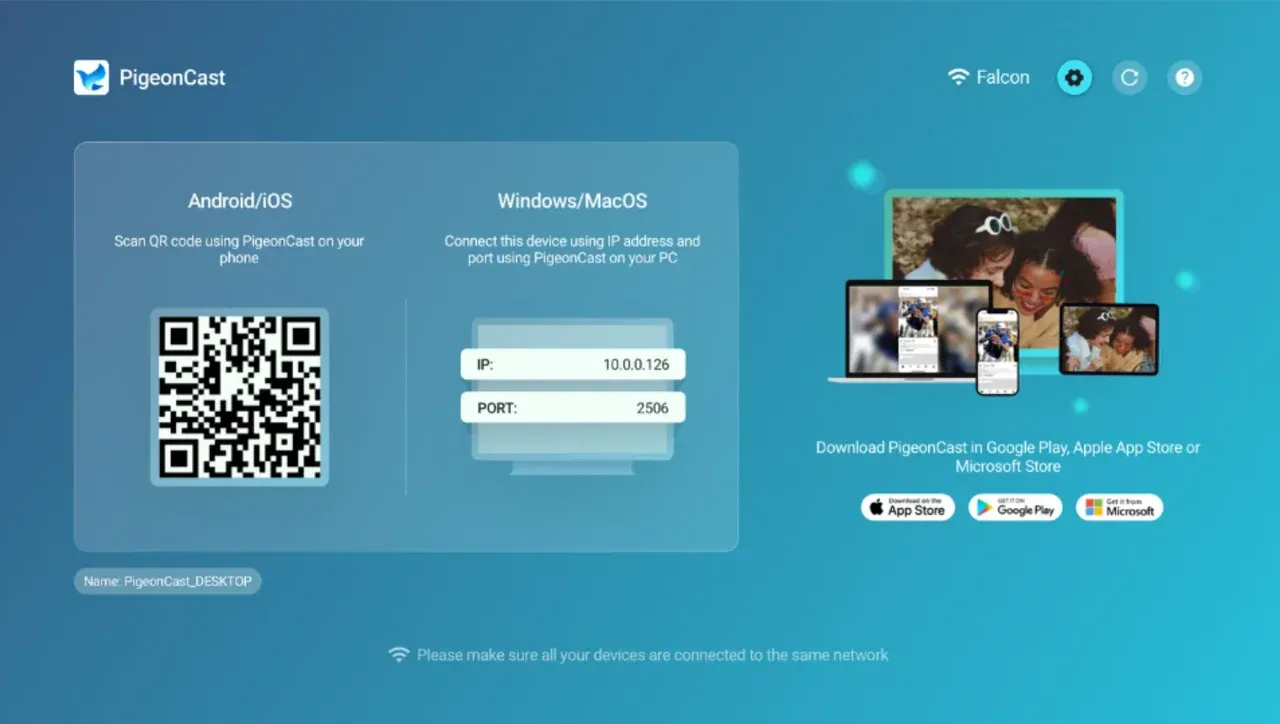
The third-party screen mirroring app is free and safe to use:
Step 1. Install PigeonCast on your computer and your smart TV or streaming device.


Overall Rating:



Step 2. Connect both devices to the same WiFi network.
Step 3. Open PigeonCast and select the device you want to mirror to.
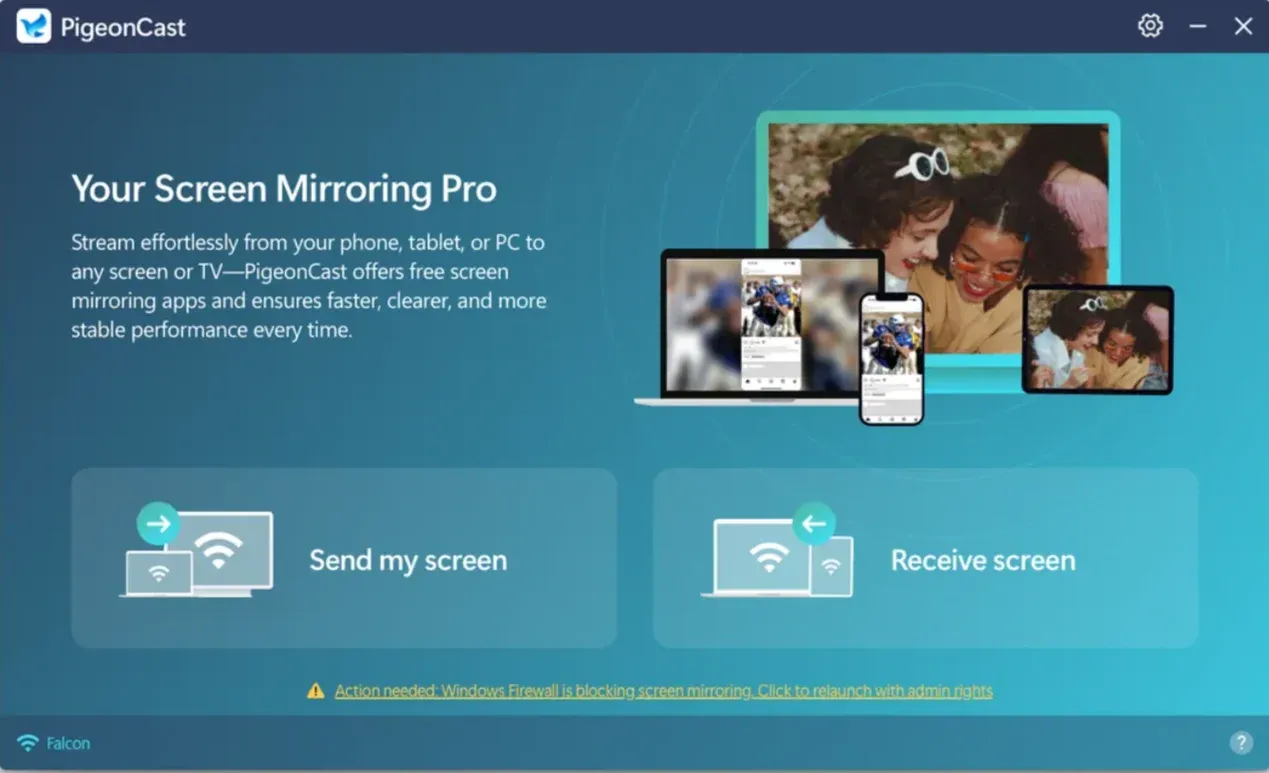
Step 4. Choose full-screen or app-based mirroring, depending on your task.
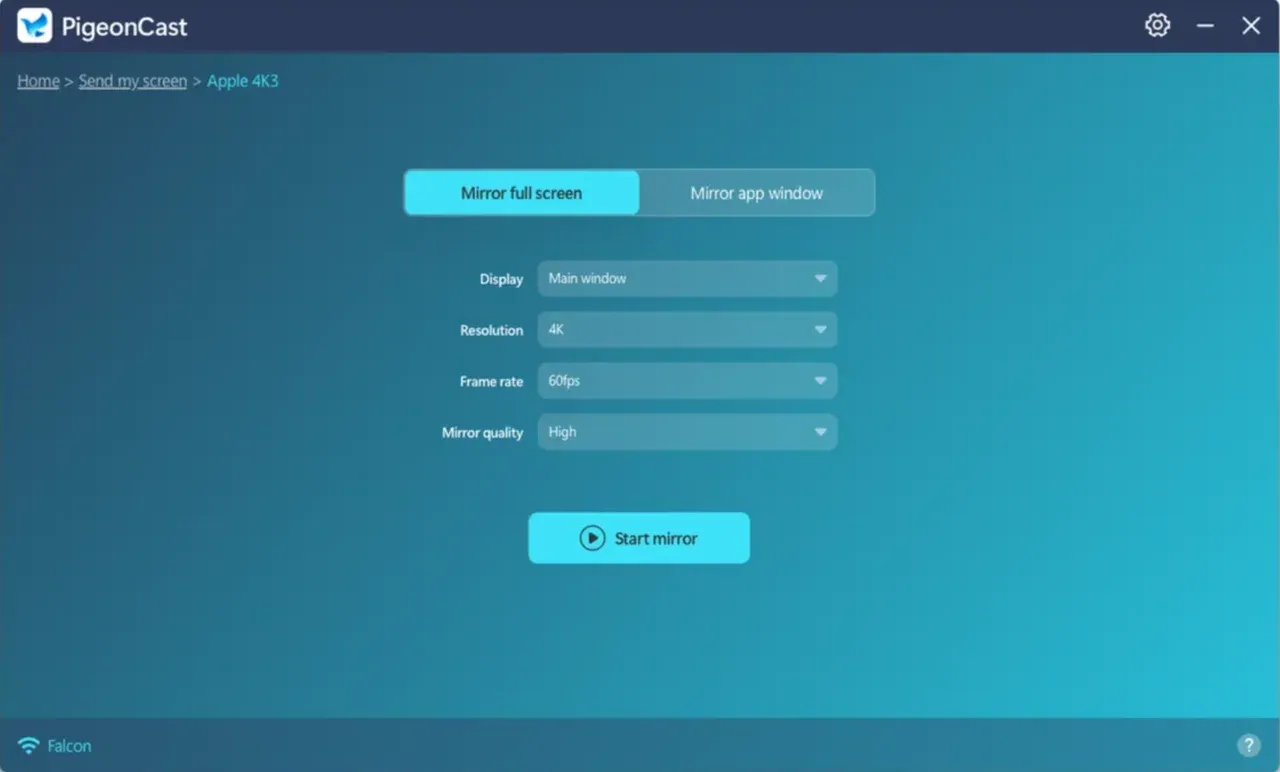
PigeonCast provides smoother performance than many built-in options, supports cross-platform connections, and reduces lag for general use.
How to Optimize Your TV as a Computer Monitor
Once connected, you should fine-tune your display settings to ensure clarity and comfort.
- Match your TV's native resolution: Set your computer to 1080p, 1440p, or 4K depending on the TV model. Matching the native resolution reduces blurry text and scaling issues.
- Enable Game Mode or PC Mode: This reduces image processing and lowers input lag, offering much faster response times while working or gaming.
- Adjust scaling and text size: On Windows or macOS, adjust scaling for comfortable text readability, especially on large 4K screens.
- Sit at the right distance: For a 55-inch TV, sitting between 1.2 to 1.8 meters usually provides the best clarity without visible pixelation.
Best TV to Use as a Monitor in 2025
Which is the best TV for computer monitor? When selecting a TV to use as a computer monitor, it's essential to prioritize features that will offer the best performance for your specific needs. Instead of focusing on specific brands or models, it's more useful to choose based on the display category, which ensures long-term compatibility with your computer setup. Here are the key categories and what to look for in each:
| Category | What to Look For | Ideal Size |
|---|---|---|
| Office Work | IPS or high-quality VA panel, 4K resolution, low input lag | 43 inches |
| Gaming | HDMI 2.1, 120 Hz or higher refresh rate, Variable Refresh Rate (VRR) support | 48 to 55 inches |
| Media Creation | Wide color gamut, good uniformity, accurate white balance | 42 to 48 inches |
| Living Room Computing | Large screen, good brightness, decent upscaling capabilities | 55 to 65 inches |
- Office Work: For tasks like writing, spreadsheets, and general productivity, you'll want a TV with an IPS or high-quality VA panel to ensure vibrant colors and wide viewing angles. A 4K resolution is ideal for sharp text, and low input lag is crucial for responsive navigation. The ideal size for this use case is usually between 40 to 43 inches, which balances workspace and comfort without overwhelming the desk setup.
- Gaming: Gamers should prioritize a TV with HDMI 2.1 for high-bandwidth gaming, supporting 120 Hz refresh rate and Variable Refresh Rate (VRR). These features are essential for smooth, stutter-free gaming at higher frame rates. Larger sizes from 48 to 55 inches offer immersive experiences, especially for 4K gaming consoles like the PlayStation 5 or Xbox Series X.
- Media Creation: If you're into photo or video editing, color accuracy is key. Look for a TV with a wide color gamut, good uniformity, and accurate white balance. A screen size between 42 to 48 inches is ideal for creating detailed work without compromising screen real estate. 4K resolution helps you see your work in the highest possible clarity.
- Living Room Computing: If you're using your TV for casual computing or entertainment while sitting back on your couch, larger screens with decent upscaling and good brightness are your best bet. Sizes from 55 to 65 inches will fill the room and give you ample space for multitasking or streaming, but make sure to sit at least 1.5 meters away to avoid pixelation and visual strain.
Conclusion
Using a TV as monitor is entirely possible and often a smart choice when you want a large, affordable display. The experience depends heavily on choosing the right TV size, setting up proper scaling, and optimizing input lag. Whether you ask "can I use a TV as a computer monitor" for gaming, office tasks, or entertainment, the answer is yes with the right preparation.
Wired connections deliver the best clarity, while wireless methods such as PigeonCast offer flexibility for cross-platform mirroring. With the right configuration, a TV as monitor setup can become an impressive, comfortable, and cost-effective alternative to buying a large desktop monitor.
Can You use a TV as a Computer Monitor FAQs
Can you use a Roku TV as a computer monitor?
Yes, you can use a Roku TV as a computer monitor, provided it has the necessary input options, such as HDMI. However, as with any TV, the performance will depend on factors like input lag and resolution. To get the best experience, choose a Roku TV with a 4K resolution and enable Game Mode or PC Mode for reduced input lag.
Can I use a TV as a computer monitor for everyday work?
Yes, many people use TVs as monitors for everyday tasks. It works particularly well with a 43-inch 4K TV, where text clarity remains sharp if the pixel density (PPI) is above 100. Ensure that the display settings are properly adjusted for optimal scaling and resolution to avoid eye strain.
What is the best TV to use as a monitor in a small room?
For small rooms, a 43-inch 4K TV is an ideal choice. It offers a great balance between screen size and clarity while being compact enough to avoid overwhelming the space. Look for models with low input lag to ensure smooth performance. Larger screens might strain your eyes when seated at close distances, so size control is key.
How far should I sit from a 55-inch TV as monitor?
For a 55-inch TV used as a monitor, the recommended viewing distance is around 1.1 to 1.5 meters (about 3.5 to 5 feet). Sitting within this range ensures a comfortable viewing experience without pixelation or strain.
Why does text look blurry on my TV as monitor?
Blurry text on a TV as a monitor is often caused by incorrect resolution settings, sharpness enhancement, or poor scaling. To fix this, make sure the TV's resolution matches the output from your computer, and adjust the sharpness and scaling settings through your PC's display options to ensure text clarity.
Does using a TV as a monitor affect performance?
Using a TV as a monitor can affect performance if the TV has high input lag or low refresh rates, especially for gaming or tasks requiring fast responsiveness. However, for general computing and media consumption, a TV can perform just as well as a dedicated monitor if the settings are optimized. Features like Game Mode and PC Mode can help minimize lag.
Can I plug my PC into a TV with HDMI?
Yes, you can plug your PC into a TV via HDMI. Simply connect your PC's HDMI output to the TV's HDMI input, and select the appropriate input on your TV. This is the most common and easiest way to use a TV as a computer monitor, as most modern TVs have at least one HDMI port.
What is the difference between using a TV and computer monitor?
The main differences between a TV and a computer monitor lie in their resolution, pixel density, input lag, and ergonomics. Monitors are generally designed for close-up work and provide sharper text and images with higher pixel densities (PPI). TVs, on the other hand, are designed for viewing from a distance and often prioritize vibrant colors and larger screen sizes. Additionally, monitors are more ergonomic with height adjustment and tilt options, while TVs are typically stationary with fewer flexible positioning options.
Mia Clarke is a technology editor specializing in screen mirroring and casting solutions across multiple platforms. Mia provides clear, practical guides and in-depth insights to help users seamlessly connect their devices. Passionate about enhancing digital experiences, Mia is dedicated to keeping readers updated on the latest trends and tools in cross-platform screen sharing. Whether you’re looking to mirror your smartphone, laptop, or smart TV, Mia’s content delivers reliable, user-friendly advice to simplify your tech setup.