

If screen mirroring is not working on your TCL TV, the problem can show up in different ways. Your phone may not find the TV, AirPlay may not appear, the Cast button may do nothing, or the screen may connect but stay black. In some cases, the picture works but there is no sound, or the connection drops after a few seconds.
The tricky part is that TCL TVs do not all use the same mirroring setup. A TCL Roku TV, TCL Google TV, TCL Android TV, and TCL Fire TV may rely on different built-in options, while iPhone, Android, Windows, and Mac also connect in different ways. So instead of resetting everything again and again, it helps to narrow down where the problem comes from first.
This guide walks through the most common reasons for TCL TV screen mirroring not working, how to check the right setting for your TV type, and what to try when AirPlay, Cast, or full-screen mirroring still fails.
First, Check What Type of TCL TV You Have
Before you change phone settings or reset the TV again, check which TCL TV system you are using. This matters because TCL TVs do not all receive screen mirroring in the same way. A TCL Roku TV, TCL Google TV, TCL Android TV, and TCL Fire TV may use different built-in options, so the right fix depends on what your TV actually supports.
TCL Roku TV
TCL Roku TV models usually rely on Roku screen mirroring for some Android phones and Windows PCs. Some supported models also work with AirPlay for iPhone, iPad, and Mac. If you have a Roku-based TCL TV, pay close attention to the Roku and AirPlay settings in the fixes below.
TCL Google TV
TCL Google TV models are usually more closely tied to Google Cast. This means casting from apps like YouTube may work differently from full-screen mirroring. If you have a TCL Google TV, test Cast and full-screen mirroring separately instead of assuming they are the same feature.
TCL Android TV
TCL Android TV models often work in a similar way to Chromecast built-in devices. Android phones may be able to cast from supported apps or mirror the screen, but iPhone mirroring may require AirPlay support or a compatible Android TV screen mirroring app.
TCL Fire TV
TCL Fire TV models use Fire TV’s own mirroring options, so Roku TV or Google TV steps may not match what you see on screen. If you are using iPhone, iPad, or Mac, do not assume AirPlay is available by default.
Once you know which TCL TV system you are using, the rest of the troubleshooting becomes easier. Most problems fall into a few common groups.
Common Reasons TCL TV Screen Mirroring Is Not Working
Why can't i mirror my phone to my TCL TV? Before trying each fix, it helps to know what kind of problem you are dealing with. Most TCL TV screen mirroring issues fall into a few common groups.
The first group is a Wi-Fi discovery problem. Your phone, computer, and TCL TV may all be online, but they still may not be able to find each other. This can happen when one device is on a guest network, a VPN is turned on, or the router keeps devices separated.
The second group is a compatibility problem. TCL TVs can use different systems, including Roku TV, Google TV, Android TV, and Fire TV. At the same time, iPhone, Android, Windows, and Mac do not all mirror in the same way. If the TV and the sending device are not using a compatible method, the TV may never appear in the mirroring list.
The third group is a settings or software problem. AirPlay, Cast, or screen mirroring may be disabled, the TV software may be outdated, or the phone may not have the right local network permission.
The last group is an app restriction problem. If the connection works but the video turns black, has no sound, or only fails inside one streaming app, the app itself may be blocking full-screen mirroring.
Fix 1: Make Sure Your Phone and TCL TV Can Find Each Other on Wi-Fi
If your TCL TV not showing up screen mirroring on your device is your problem, start with the Wi-Fi connection. Screen mirroring usually works only when both devices are on the same local network and can find each other nearby.
This does not simply mean both devices have internet access. Your phone may be connected to a guest Wi-Fi network while the TV is on the main home network, or a network feature may be blocking nearby devices from seeing each other.
Start with these checks:
- Connect your phone and TCL TV to the same Wi-Fi name.
- Avoid guest Wi-Fi, hotel Wi-Fi, school networks, office networks, or public Wi-Fi when possible.
- Turn off VPN, iCloud Private Relay, and mobile hotspot mode while testing.
- Restart the router if the TV used to appear but suddenly disappeared.
- Move both devices closer to the router if the connection is weak.
After changing these settings, reconnect your phone and TCL TV to your main home Wi-Fi and try screen mirroring again. If the TV suddenly appears, the problem was probably the network setup rather than the TCL TV itself.
If your phone can find other TVs but not this TCL TV, the issue may be on the TCL TV side or related to how your router handles nearby devices. In that case, continue with the next fixes instead of repeating the same Wi-Fi checks.
Fix 2: Restart Your TCL TV, Phone, and Router
If your TCL TV used to appear in the mirroring list but suddenly disappeared, a simple restart is worth trying before you change deeper settings. Sometimes the TV, phone, or router keeps an old connection state, so the devices stay online but stop discovering each other properly.
Start with a full restart:
- Turn off your TCL TV.
- Unplug the TV from power for 30 to 60 seconds.
- Restart your phone, tablet, or computer.
- Restart your router.
- Connect both devices to the same Wi-Fi again and test screen mirroring one more time.
This fix is most useful for temporary problems, such as the TV disappearing from the device list, the connection getting stuck, or mirroring disconnecting after a short time. If the TCL TV still does not show up after a restart, move on to the TV-specific mirroring settings next.
Fix 3: Turn On the Right Mirroring Option on Your TCL TV
After checking Wi-Fi and restarting your devices, the next step is to check the TV side. TCL TVs do not all use the same menu, so the setting you need depends on whether you have a Roku TV, Google TV, Android TV, or Fire TV model.
On TCL Roku TV
Is your TCL Roku TV screen mirroring not working? If you have a TCL Roku TV, check the screen mirroring and AirPlay settings first.
For Android phones or Windows PCs, go to Settings > System > Screen mirroring.
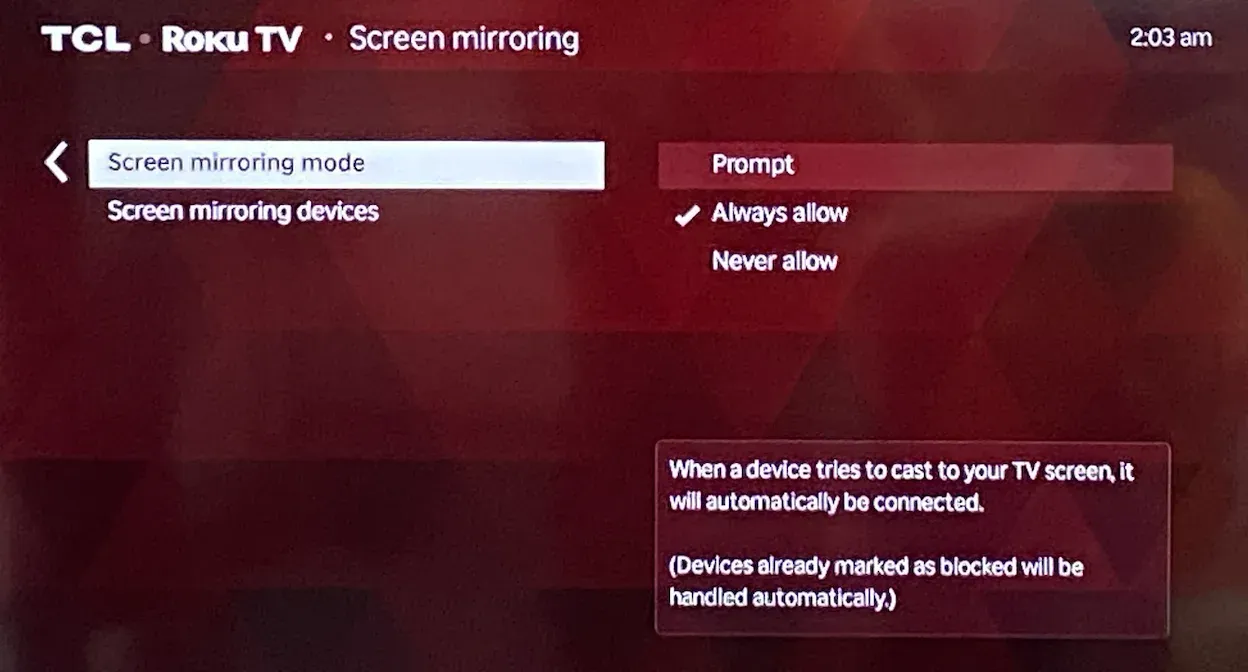
Set the permission mode to Prompt or Always allow. If this setting is too strict, your phone or computer may try to connect but fail before the mirrored screen appears.
For iPhone, iPad, or Mac, also check Settings > Apple AirPlay and HomeKit.
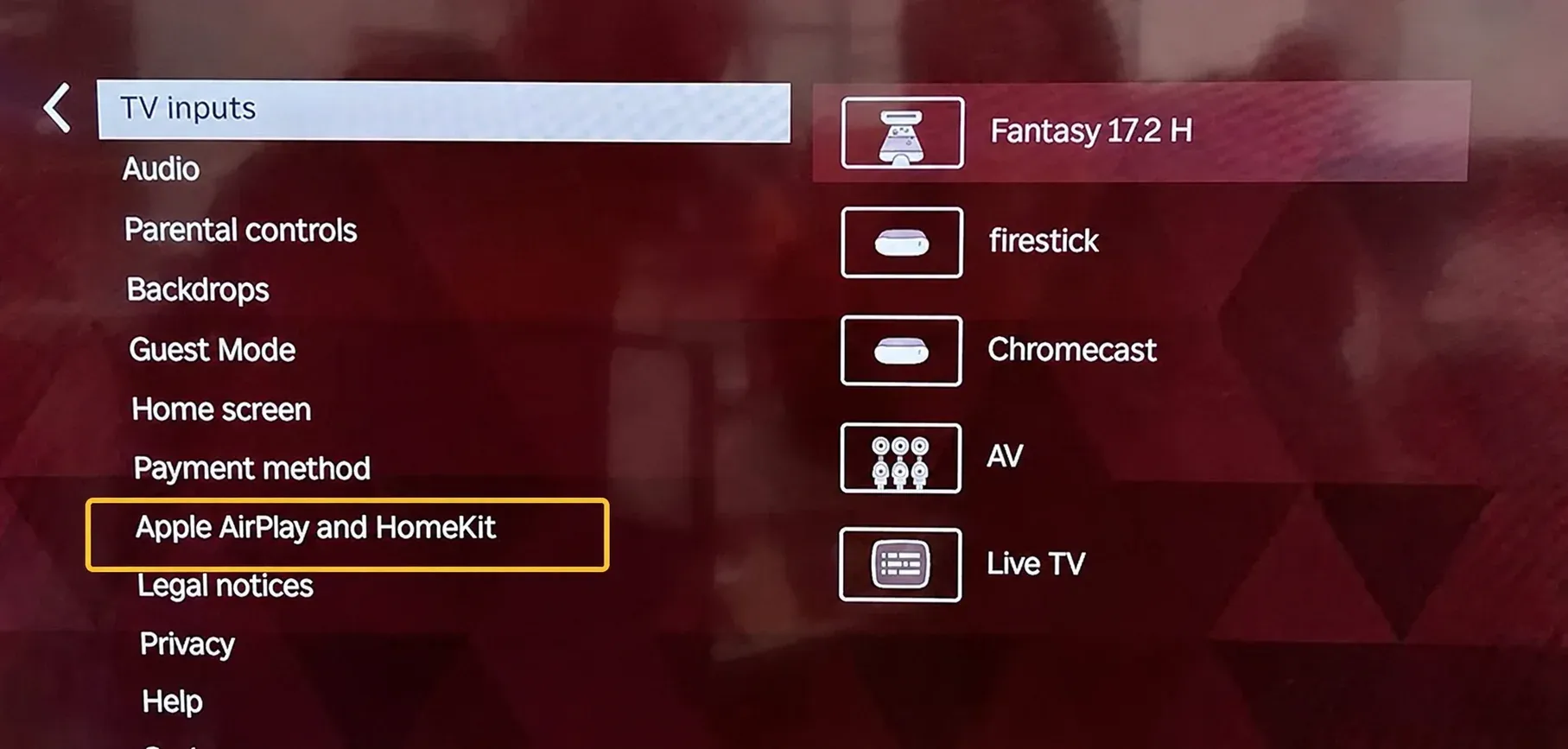
Make sure AirPlay is turned on if your TCL Roku TV supports it. If AirPlay is off or unavailable, your Apple device may not show the TV in the Screen Mirroring list.
On TCL Google TV or Android TV
If you have a TCL Google TV or TCL Android TV, start by testing Google Cast before full-screen mirroring. Open a Cast-supported app, such as YouTube, tap the Cast button, and check whether your TCL TV appears.
This test helps you separate two different problems. If YouTube can cast to the TV but full-screen mirroring still fails, your TV is receiving app casting correctly, but your phone may not be able to mirror the whole screen in the same way.
If neither app casting nor screen mirroring works, check for TV software updates, restart the TV, and make sure both devices are still on the same Wi-Fi.
On TCL Fire TV
If your TCL model uses Fire TV, check whether the built-in display mirroring option is available first. On many Fire TV setups, you can press and hold the Home button on the remote, then select Mirroring from the quick menu. Keep this screen open while connecting, because some Fire TV devices only stay discoverable when the mirroring screen is displayed.
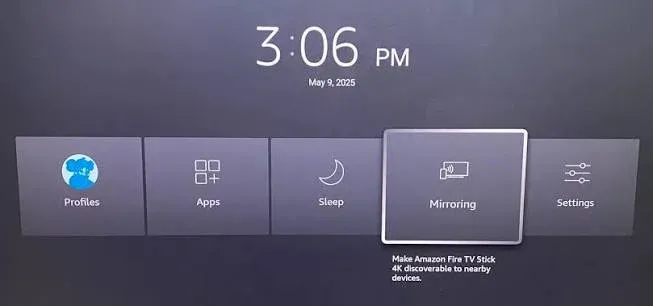
If you are using an Android phone or Windows PC, open the screen casting or wireless display menu on that device and see whether the TCL Fire TV appears. If it still does not show up, restart both devices and test again on the same Wi-Fi.
For iPhone, iPad, or Mac, do not assume AirPlay is available by default. If your TCL Fire TV does not appear in the Screen Mirroring list, you may need an AirPlay-compatible receiver app for your Fire TV.
Fix 4: Check AirPlay If iPhone or Mac Cannot Mirror to TCL TV
If your iPhone, iPad, or Mac cannot find your TCL TV, first confirm that your TCL model actually supports AirPlay. AirPlay availability can vary by TCL TV system, model, region, and software version, so do not assume it is built into every TCL TV.
If your TV has an Apple AirPlay and HomeKit menu, make sure AirPlay is turned on. If there is no AirPlay menu, or the TV still does not appear in the Screen Mirroring list after the basic checks above, you may need to use another mirroring method instead of troubleshooting TCL TV AirPlay not working repeatedly.
Fix 5: Check Chromecast or Google Cast If Android Cannot Cast to TCL TV
How to fix TCL Google TV screen mirroring not working? If you are using an Android phone with a TCL Google TV or TCL Android TV, test Google Cast before full-screen mirroring. Open a Cast-supported app like YouTube, tap the Cast button, and see whether your TCL TV appears.
If app casting works but full-screen mirroring does not, the TV can receive Cast, but whole-screen mirroring may not be supported in the same way. If your TCL TV is a Roku TV or Fire TV model, Google Cast may not be the main method, so use the mirroring option that matches your TV system.
Fix 6: Check Screen Mirroring Settings on Windows PC
If you are trying to mirror a Windows PC to TCL TV, press Windows + K to open the wireless display list. Windows looks for a compatible wireless display, and not every TCL TV can receive that connection directly.
If your TCL TV does not appear in the Windows projection list, it does not always mean your PC is broken. The TV may simply not support the wireless display method Windows expects. In that case, use HDMI for a wired connection or try an app-based screen mirroring option instead.
Fix 7: Update Your TCL TV Software
If your TCL TV used to mirror normally but recently stopped working, check for a software update. TV updates can affect AirPlay, Cast, app compatibility, device discovery, and overall connection stability.
Use the update menu that matches your TCL TV system:
- TCL Roku TV: Settings > System > System update
- TCL Google TV or Android TV: Settings > System > About > System update
- TCL Fire TV: Settings > My Fire TV > About > Check for Updates
After the update finishes, restart the TV and try screen mirroring again. This step is especially important if the problem started after a TV system update, a phone update, or an app update. In that case, the issue may not be your Wi-Fi at all. The TV and the sending device may simply need to get back onto compatible software versions.
Fix 8: Check If the App Blocks Screen Mirroring
If your TCL TV connects but the video area stays black, do not reset everything right away. First check whether the problem only happens inside one app.
Try mirroring something simple, such as your phone’s home screen, Photos app, browser page, or a local video. If those work normally but a streaming app shows a black screen, the issue is probably app protection rather than your TCL TV or Wi-Fi.
This often happens with DRM-protected streaming apps. Some apps allow you to use their own Cast button, but block full-screen mirroring from the phone or computer. In that case, use the app’s built-in Cast option when available, or play the content directly from the TV app instead.
Fix 9: Try a Screen Mirroring App If Built-in Mirroring Still Fails
If you have checked Wi-Fi, restarted your devices, enabled the right TV setting, and confirmed that the app itself is not blocking mirroring, the built-in TCL TV option may simply not be the best fit for your setup.
This often happens in mixed-device homes. One person may use an iPhone, another may use Android, and someone else may want to mirror from a Windows PC or Mac. Since TCL Roku TV, Google TV, Android TV, and Fire TV do not all handle mirroring the same way, switching between AirPlay, Cast, wireless display, and TV-specific settings can get confusing.
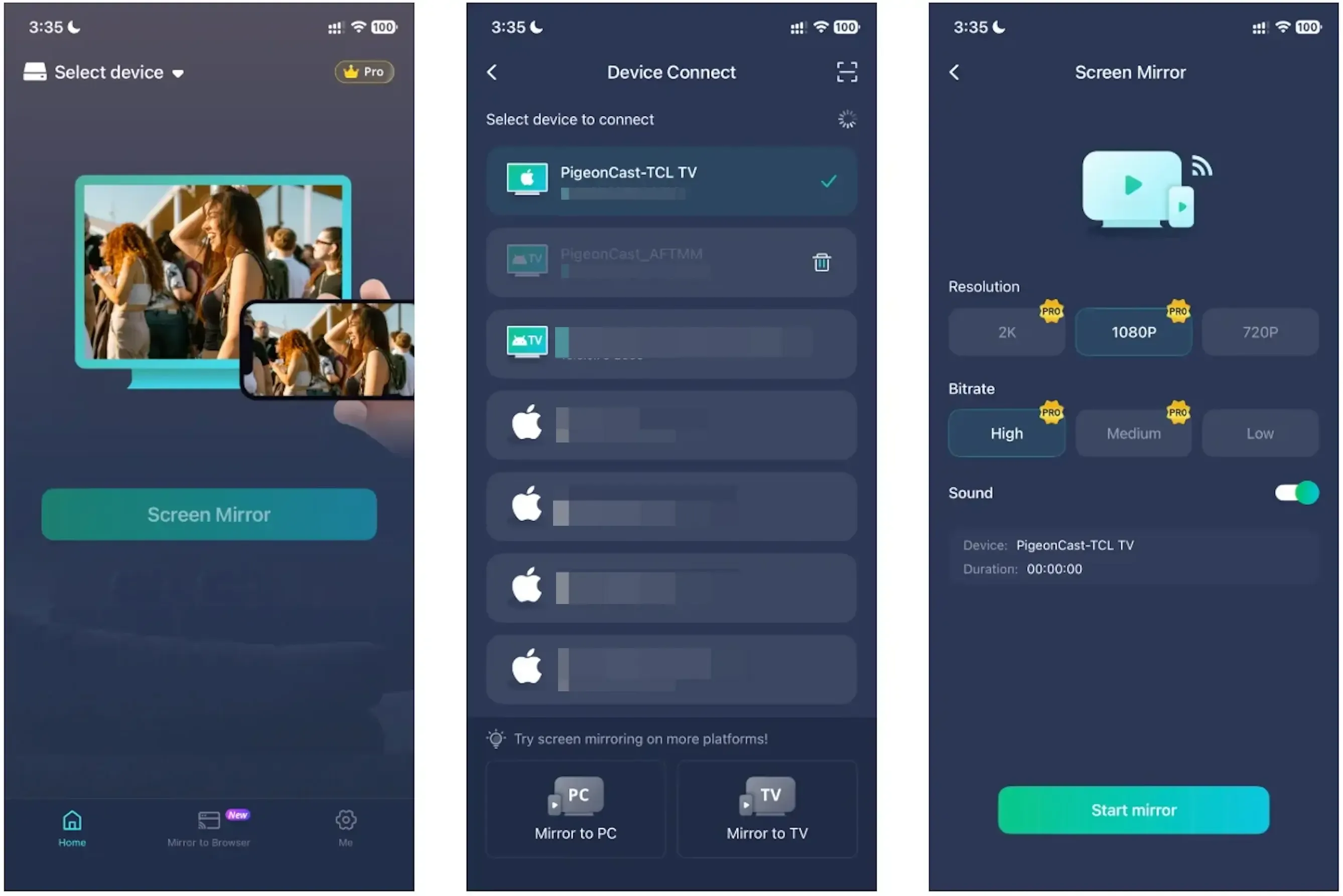
In that case, a dedicated TCL TV screen mirroring app can make the process easier. PigeonCast gives you a more consistent way to mirror from iPhone, Android, Windows, and Mac to supported receivers, so you do not have to rely only on one built-in TCL mirroring option.
You can start with the free trial, which supports 5-minute mirroring sessions, and use it to test whether an app-based setup works better for your TCL TV:
Step 1. Download and install PigeonCast on your sending device and TCL TV.


Overall Rating:



Step 2. Open the app on both devices and ensure they are connected to the same Wi-Fi network.
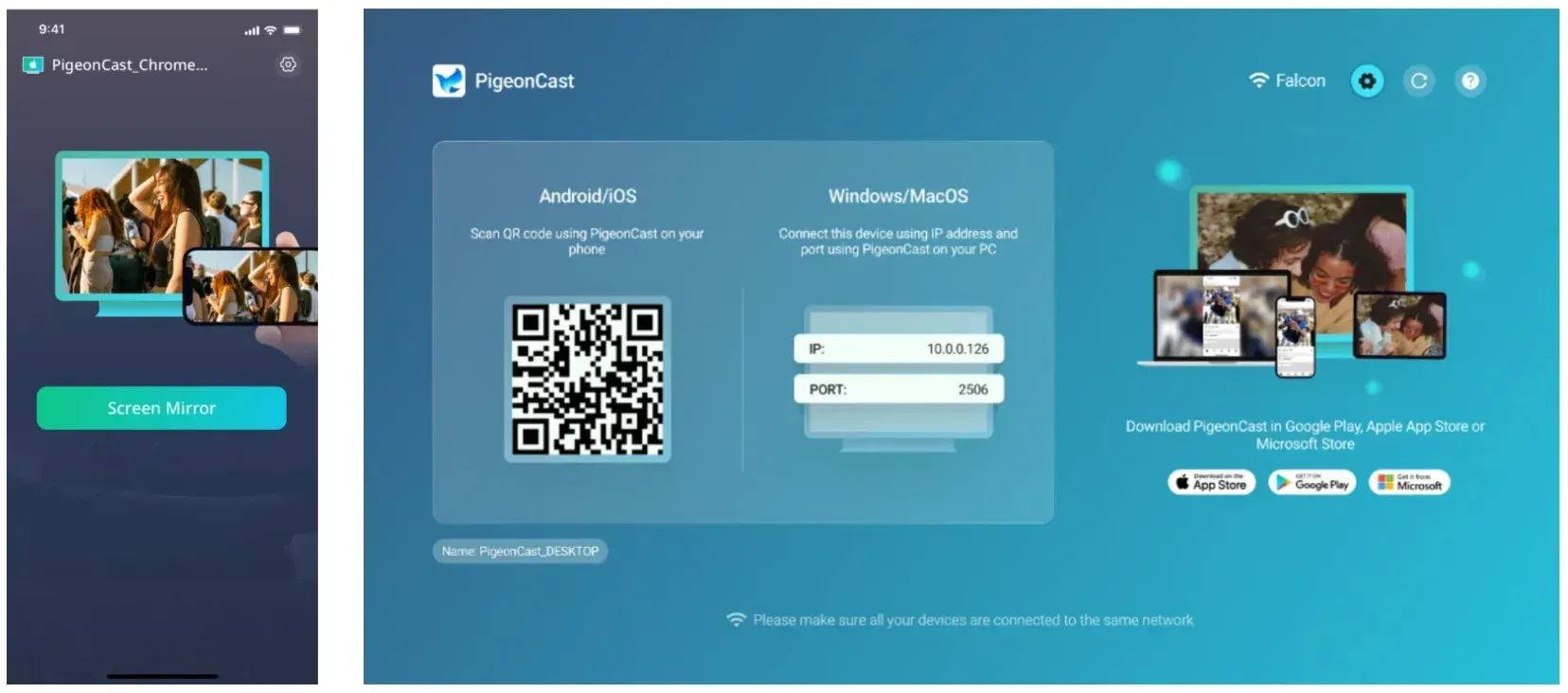
Step 3. On your sending device, choose your TCL TV from the list and start screen mirroring.
TCL TV Screen Mirroring Problems by Device
If you are still not sure where the problem is coming from, use your sending device as the starting point. Different phones and computers often fail for different reasons.
| Device | Common Problem | What to Check First |
|---|---|---|
| iPhone or iPad | TCL TV does not appear in Screen Mirroring | Check whether your TCL TV supports AirPlay, then confirm both devices are on the same Wi-Fi. |
| Android phone | Cast button is missing or the TCL TV is not found | Test a Cast-supported app like YouTube first, especially on TCL Google TV or Android TV. |
| Windows PC | TCL TV does not appear in the wireless display list | Press Windows + K and check whether the TV supports direct wireless display from Windows. |
| Mac | AirPlay cannot find the TCL TV | Check AirPlay support, update macOS and the TV software, and keep both devices on the same Wi-Fi. |
| Samsung phone | Smart View cannot connect to TCL TV | Check whether the TCL TV supports the mirroring method Smart View is trying to use. |
| Chromebook | Cast fails or the TV does not appear | Test Chrome’s Cast option first, then check the TV system and Wi-Fi connection. |
TCL TV Screen Mirroring Not Working Error Scenarios
You can also troubleshoot by symptom. This is useful when the TV appears, but the connection does not work the way it should.
| Problem | Likely Cause | What to Try |
|---|---|---|
| TCL TV not showing up | The devices cannot find each other, or the TV’s receiving option is off | Check the same Wi-Fi, restart both devices, and confirm your TCL TV system. |
| Connects then disconnects | Weak Wi-Fi, router instability, or a temporary connection error | Restart the router, move closer to it, and try again with fewer devices using the network. |
| TCL screen mirroring black screen | The app may be blocking full-screen mirroring | Test the home screen, Photos app, browser, or a local video to see whether only one app fails. |
| TCL screen mirroring no sound | Audio may still be routed incorrectly, or the app may not support mirrored audio | Check TV volume, disconnect Bluetooth headphones, reconnect mirroring, and test another app. |
| Lag or delay | The Wi-Fi connection is unstable or overloaded | Use stronger Wi-Fi, move closer to the router, reduce background downloads, or lower the streaming quality. |
| iPhone cannot find TCL TV | AirPlay is unavailable, disabled, or unsupported on that model | Check the AirPlay menu, update the TV, and confirm that the model supports AirPlay. |
| Android cannot cast | Google Cast is not working, or the TV system uses another mirroring method | Test YouTube Cast first. If the TV is Roku or Fire TV, use the matching mirroring option. |
| Windows cannot project | The TCL TV may not support direct Windows wireless display | Update Windows and drivers, then try HDMI or an app-based mirroring option if the TV still does not appear. |
Final Thoughts
TCL TV screen mirroring problems are easier to solve when you do not treat them as one single issue. Start by checking what type of TCL TV you have, then make sure your phone or computer and TV can find each other on the same Wi-Fi. After that, test the right option for your setup, whether that is AirPlay, Google Cast, Roku screen mirroring, Fire TV display mirroring, or Windows wireless display.
If everything looks correct but the built-in mirroring option still fails, the issue may come from device compatibility, app restrictions, or the way your TCL TV handles screen mirroring. For simple cases, updating the TV or restarting the network may be enough. For mixed-device homes or repeated connection problems, a dedicated screen mirroring app can give you a more consistent way to get your screen onto the TCL TV.
TCL TV Screen Mirroring Not Working FAQ
Why won't my phone connect to my TCL TV?
Your phone may not connect to your TCL TV because the two devices cannot find each other on the same Wi-Fi, the TV does not support the mirroring method your phone is using, or AirPlay, Cast, or screen mirroring is not enabled on the TV. Start by checking your TCL TV system first, then test the matching mirroring option for your phone.
Does TCL support screen mirroring?
Yes, many TCL TVs support screen mirroring, but the method depends on the TV system and model. TCL Roku TV, TCL Google TV, TCL Android TV, and TCL Fire TV may use different built-in options. Some models support AirPlay, some work better with Google Cast, and others may need a screen mirroring app for a more consistent setup.
Does TCL support Chromecast?
Some TCL TVs support Chromecast or Google Cast, especially TCL Google TV and TCL Android TV models with Chromecast built in. This usually lets you cast from supported apps like YouTube. However, TCL Roku TV and TCL Fire TV models may not use Google Cast as their main casting method, so you should check your TV system before troubleshooting Chromecast.
How do I enable cast on my TCL TV?
On TCL Google TV or TCL Android TV, casting is usually available through Google Cast or Chromecast built in. Connect your phone and TV to the same Wi-Fi, open a Cast-supported app like YouTube, tap the Cast button, and select your TCL TV. If your TV does not appear, restart the TV, check for software updates, and confirm that your TCL model supports Cast.
Can I mirror my phone to TCL TV without AirPlay or Chromecast?
Yes. If your TCL TV does not support AirPlay, Chromecast, or the built-in mirroring method you need, you can use a screen mirroring app instead. PigeonCast is useful when you want to mirror from iPhone, Android, Windows, or Mac without switching between different TCL TV settings every time.
Mia Clarke is a technology editor specializing in screen mirroring and casting solutions across multiple platforms. Mia provides clear, practical guides and in-depth insights to help users seamlessly connect their devices. Passionate about enhancing digital experiences, Mia is dedicated to keeping readers updated on the latest trends and tools in cross-platform screen sharing. Whether you’re looking to mirror your smartphone, laptop, or smart TV, Mia’s content delivers reliable, user-friendly advice to simplify your tech setup.