

If you want a free screen mirroring app for TCL TV, the right answer depends less on the app store ranking and more on how your TCL TV actually works. Some setups are fine with the built-in option. Others get easier once you use a third-party app like PigeonCast, LetsView, or another mirroring tool.
That is the real challenge. Some TCL TVs run Roku TV, while others use Google TV or Android TV. The best screen mirroring method depends on both your TV platform and the device you are using. AirPlay works well for many Apple users, while Google Cast is often the simplest option for Android. If those built-in methods are unavailable or unreliable, a dedicated screen mirroring app becomes the better choice.
Can You Screen Mirror to a TCL TV for Free?
Yes, in most cases you can. Many TCL TVs include built-in wireless screen mirroring features, and there are also free third-party apps that work across different TCL TV models.
The best option depends on the devices you want to connect. If your TV already supports the built-in method that matches your phone or computer, that is usually the easiest place to start. If not, a dedicated screen mirroring app can provide a more flexible alternative.
Best Free Screen Mirroring Apps for TCL TV
Here is a quick comparison of the most popular screen mirroring apps for TCL TV. Each app offers a different balance of compatibility, features, and free access.
| Option | Free to Start | Best For | Main Strength | Limitation |
|---|---|---|---|---|
| PigeonCast | Yes | Roku TV & Android TV | Cross-platform support | DRM apps may still block mirroring |
| LetsView | Yes | Casual screen mirroring | Easy to get started | Lower quality in free version |
| AirScreen | Free + Ads | TV receiver app | Supports AirPlay, Cast, and DLNA | Depends on TV-side app |
| ApowerMirror | Trial | Productivity & PC mirroring | More advanced features | Limited free version |
| AirDroid Cast | Yes (Local) | Flexible connections | Local and remote casting | Some features require paid plan |
PigeonCast: Good for Screen Mirroring on TCL TV
PigeonCast is a screen mirroring app for TCL TV that works across both TCL Roku TV and TCL Android TV / Google TV models. Whether you want to mirror from an Android phone, iPhone, Windows PC, or MacBook, it provides one consistent way to share your screen without relying on different built-in mirroring methods.
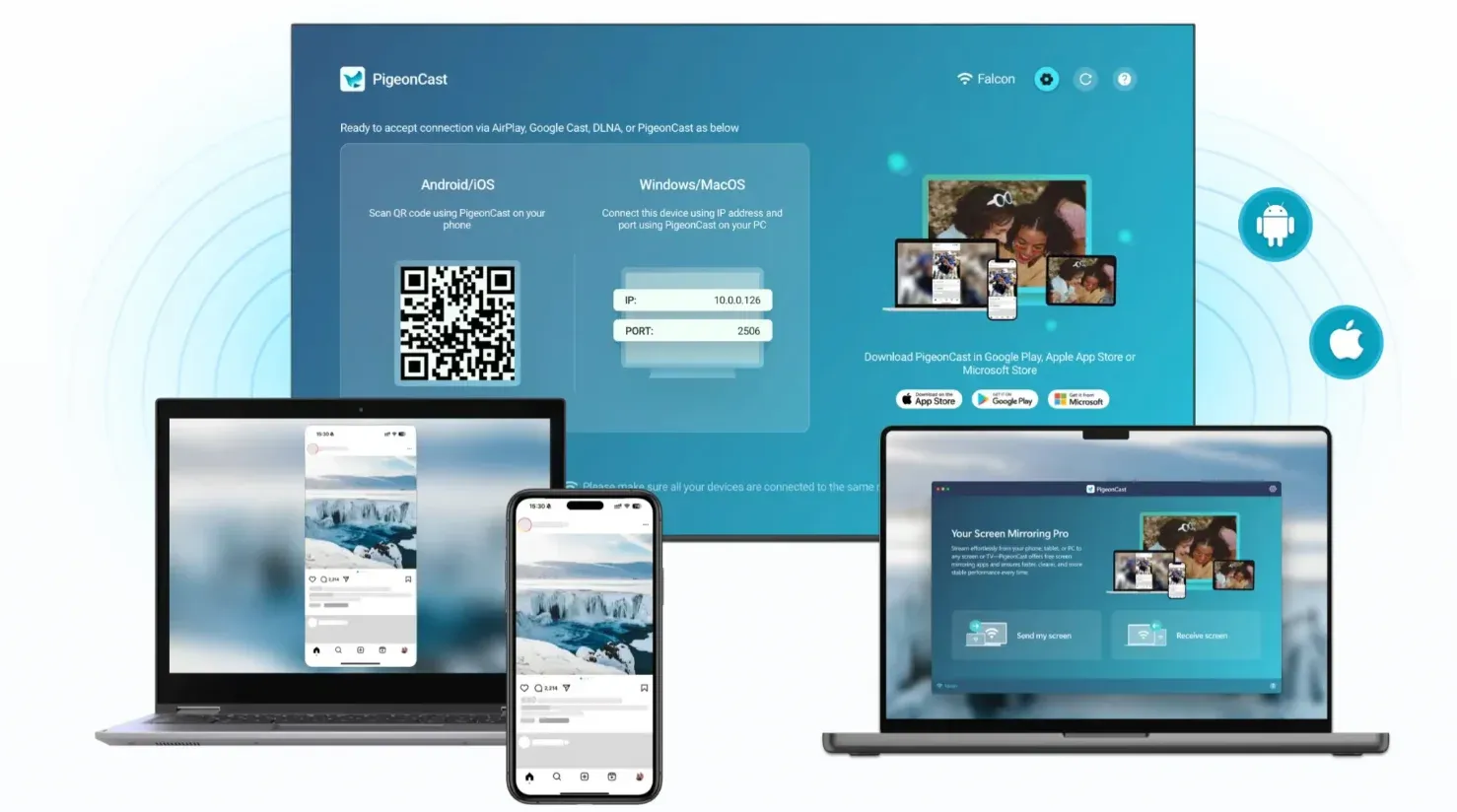
You can use it to show family photos, play mobile games, present slides, share browser pages, or watch local videos on a bigger TCL screen. Instead of relying on different built-in methods for different devices, you can use the same app across your everyday devices.
LetsView
LetsView is a free screen mirroring app that works across phones, computers, and TVs. It supports screen sharing from Android, iPhone, Windows, and Mac, making it a convenient option for everyday presentations, documents, and casual media sharing.
The free version is enough for basic use, although video quality and features are more limited than some paid alternatives. It is a good choice if you simply want to test screen mirroring without installing a more advanced solution.
AirScreen
AirScreen is a receiver app that you install on the TV rather than on the sending device. It supports AirPlay, Google Cast, DLNA, and several other wireless streaming protocols, making it useful when your TCL TV needs broader receiver compatibility.
Because the experience depends on the TV-side app, performance can vary between different TCL models. It is best suited for users who want to expand the built-in receiving capabilities of their TV.
ApowerMirror
ApowerMirror is a full-featured screen mirroring app for phones and computers. It supports Android, iPhone, Windows, and Mac, with additional options such as USB connections, screen recording, and device control.
Its free version has more limitations than some competitors, but it offers more advanced features for users who also mirror between mobile devices and computers. It is a better fit for productivity and desktop workflows than simple TV mirroring.
AirDroid Cast
AirDroid Cast is designed for flexible wireless screen sharing across multiple devices. It supports Android, iPhone, Windows, macOS, and web browsers, allowing you to mirror screens through both local and remote connections.
On TCL Google TV and Android TV models, it can be a useful alternative when the built-in casting options are unavailable or unreliable. It is best suited for users who value flexible connection methods over the simplest setup.
How to Mirror iPhone to TCL TV for Free
If you want to mirror iPhone to TCL TV with a screen mirroring app, PigeonCast is a simple option to use as an example:
Step 1. Download and install an iPhone screen mirroring app like PigeonCast on your iPhone.


Overall Rating:


Step 2. Install or open PigeonCast on your TCL TV, or use the receiver method available for your TV model.
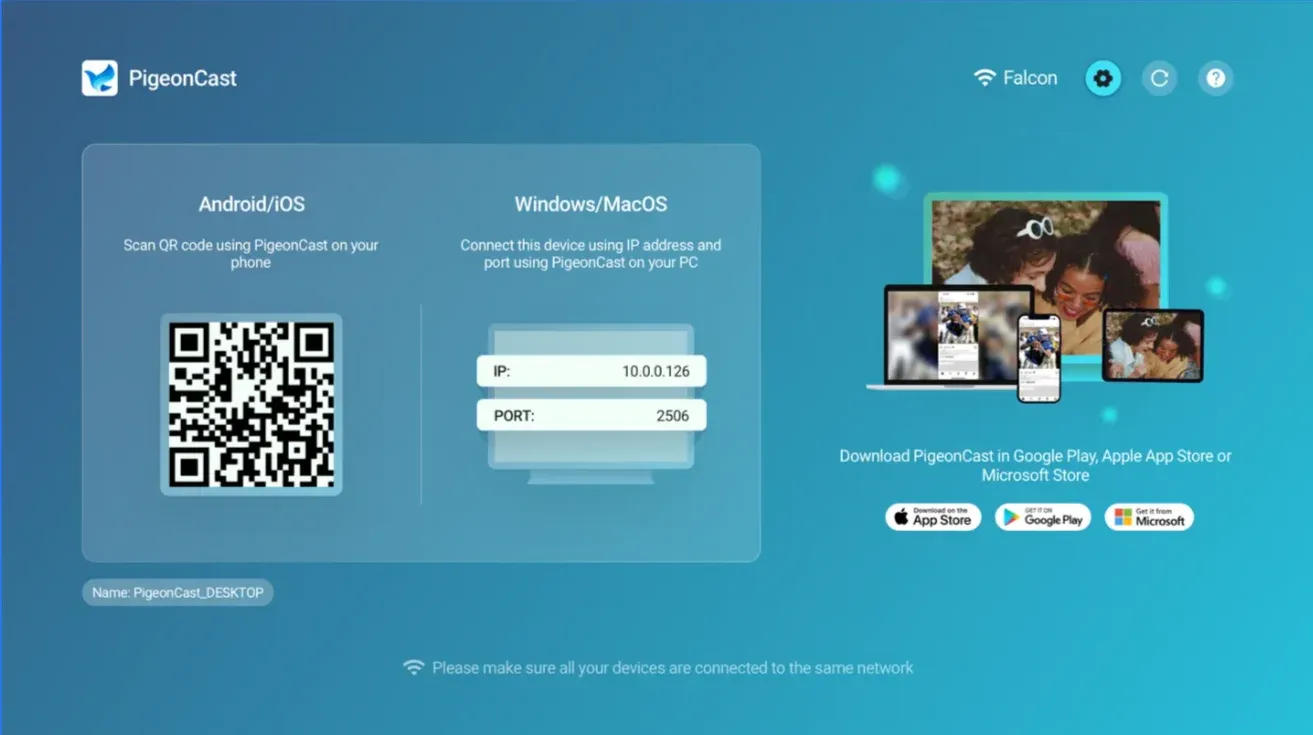
Step 3. Connect your iPhone and TCL TV to the same Wi-Fi network.
Step 4. Open PigeonCast on both devices and choose your TCL TV from the available receiver list.
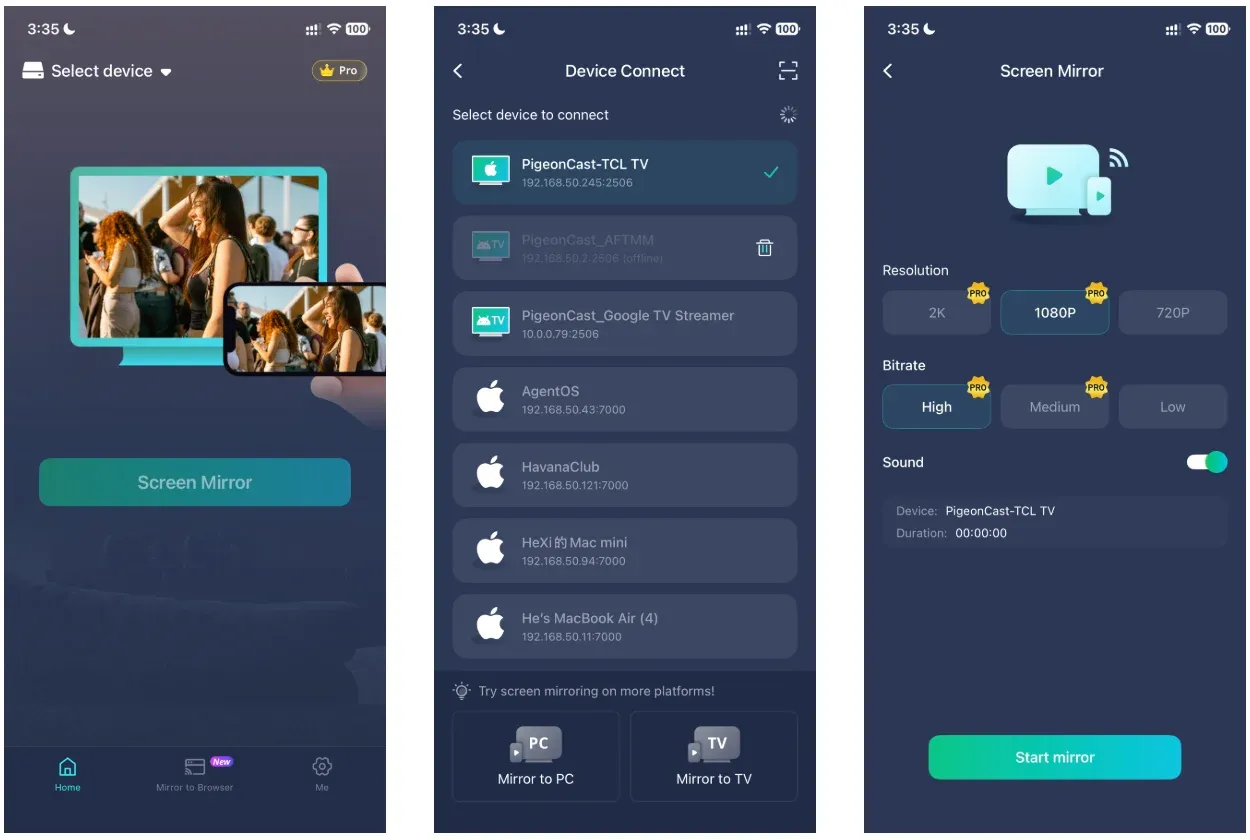
Step 5. Start screen mirroring from your iPhone and share videos, photos, apps, games, presentations, or other content on the TV screen.
If your TCL TV does not appear, check that both devices are on the same network and that the TV-side receiver is open. For smoother mirroring, use a stable Wi-Fi connection and keep both devices close to the router.
How to Mirror Android to TCL TV for Free
You can also use PigeonCast to mirror Android to TCL TV:
Step 1. Download and install an Android screen mirroring app on your Android phone.
Overall Rating:

Step 2. Install or open PigeonCast on your TCL TV, then keep the receiver screen active.
Step 3. Make sure the Android phone and TCL TV are connected to the same Wi-Fi network.
Step 4. Open PigeonCast on both devices and select your TCL TV as the receiving screen.
Step 5. Tap to start screen mirroring and display your Android screen on the TCL TV.
This method is useful for videos, photos, browser pages, documents, games, and everyday app sharing. If the connection is not stable, restart the app, reconnect both devices to the same Wi-Fi, or move closer to the router before trying again.
Built-In Screen Mirroring Options on TCL TV
The steps above use PigeonCast as an app-based method, which is helpful when you want one screen mirroring option across different platforms.
Before installing another app, though, it is still worth checking the built-in screen mirroring option on your TCL TV. Some TCL models already support AirPlay, Google Cast, or Roku screen mirroring. If the built-in option works well with your device, it may be the quickest way to start.
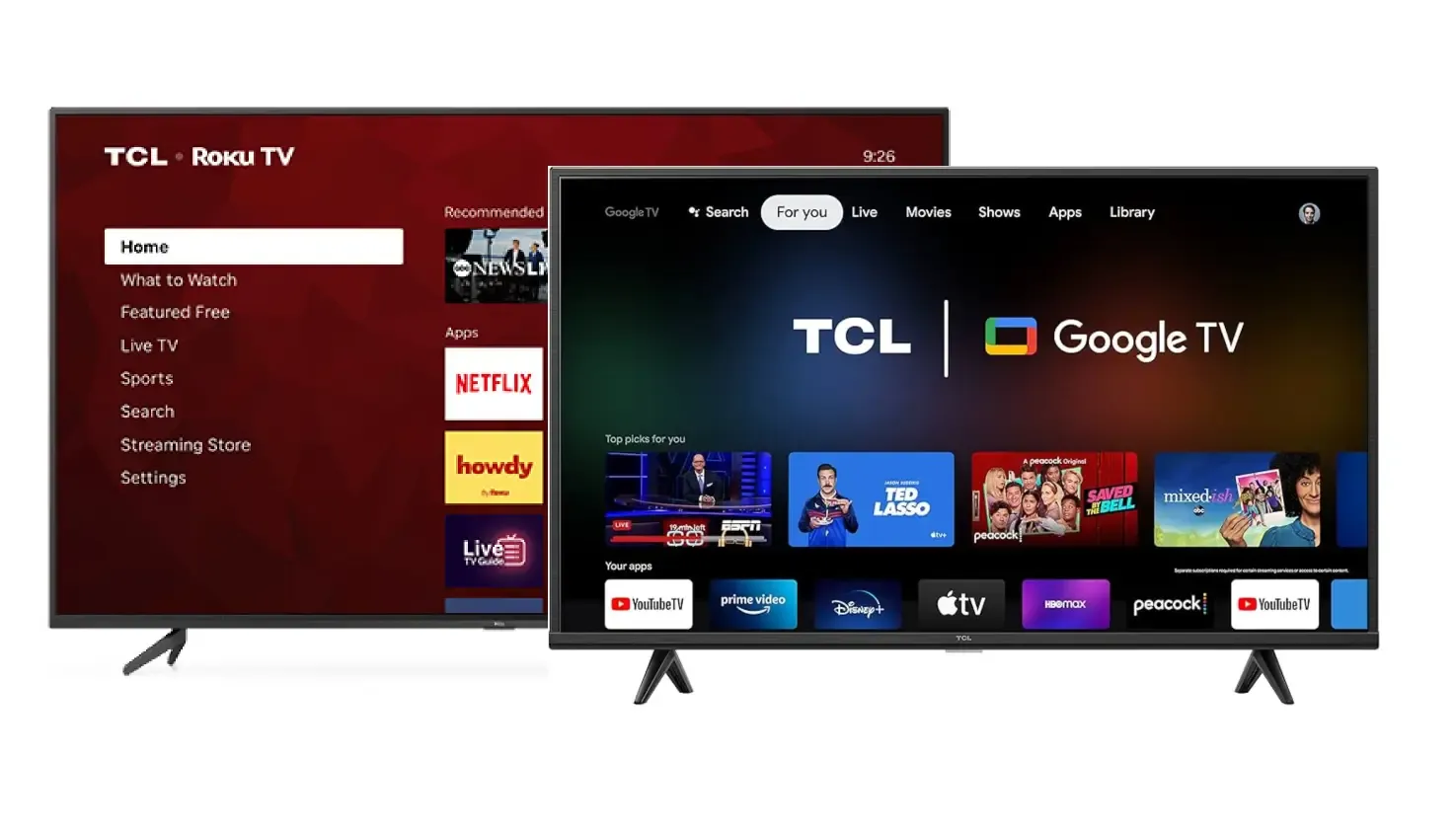
TCL Roku TV
If your TCL TV runs Roku TV, check AirPlay first when you use an iPhone, iPad, or Mac. On supported models, you can open Control Center on your iPhone or Mac, choose Screen Mirroring, and select your TCL Roku TV.
Android and Windows users can also test Roku’s native screen mirroring feature, but the result can vary by device. If your TCL Roku TV does not appear, disconnects often, or only works with some devices, a screen mirroring app may be easier to use.
TCL Google TV or Android TV
If your TCL TV runs Google TV or Android TV, Google Cast is usually the first built-in option to try. It works well with many Android phones, Chrome browser casting, and apps that already include a Cast button.
However, Google Cast is not always the same as full-screen mirroring. It works best when the app supports casting directly. If you need to mirror your entire phone or computer screen, switch between different devices, or connect from iPhone, Android, Windows PC, and MacBook, an app-based method can provide more flexibility.
Free Screen Mirroring App vs Built-In Options
Built-in screen mirroring is usually the best first choice when your TCL TV and sending device already match well. It requires less setup, does not add another app to your TV, and can be enough for simple media sharing.
A screen mirroring app is more useful when your setup involves different devices, repeated connection issues, or full-screen sharing from more than one platform. For example, if you need to mirror from iPhone, Android, Windows PC, and MacBook to the same TCL TV, a screen mirroring app for TCL TV can be easier to manage than switching between separate built-in methods.
| Method | Best for | Main advantage | When to switch |
|---|---|---|---|
| AirPlay | iPhone, iPad, and Mac | Clean Apple-to-TV mirroring | Your TCL TV does not support AirPlay |
| Google Cast | Android phones, Chrome, and supported apps | Easy media casting from compatible apps | You need full-screen mirroring or non-Cast apps |
| Roku screen mirroring | Some Android and Windows devices | Useful on supported TCL Roku TV models | Device support feels inconsistent |
| Screen mirroring app | Mixed-device homes and cross-platform use | One method for iPhone, Android, Windows, and Mac | Protected streaming apps block screen sharing |
The simple rule is this: use the built-in option when it works cleanly for your device. Use a screen mirroring app when you need broader compatibility, full-screen sharing, or a more repeatable way to connect different devices to the same TCL TV.
Which Free Screen Mirroring App for TCL TV Should You Use?
The best free screen mirroring app for TCL TV depends on how you actually use the screen after it connects. If you only cast a video once in a while, the built-in AirPlay, Google Cast, or Roku mirroring option may already be enough.
A dedicated app becomes more useful when your TCL TV is part of daily use. You may want to mirror workout videos from your phone, show family photos on a bigger screen, play mobile games, share browser pages, present slides from a laptop, or switch between iPhone, Android, Windows PC, and MacBook without learning a different method each time.
For that kind of setup, PigeonCast is a practical choice because it works across TCL Roku TV and TCL Android TV / Google TV, while also supporting screen mirroring from phones and computers. It gives you one reusable way to turn your TCL TV into a larger screen for entertainment, work, learning, and everyday sharing.
If your TCL TV is used by more than one device, start with PigeonCast and keep it as your default mirroring path.
Free Screen Mirroring App for TCL TV FAQ
Do I need to install the screen mirroring app on both my phone and TCL TV?
In most app-based setups, yes. You usually need the app on the sending device and a receiver app or receiver mode on the TCL TV. This helps the phone, tablet, or computer find the TV more reliably, especially when built-in AirPlay, Google Cast, or Roku mirroring does not appear.
Does screen mirroring to TCL TV work without Wi-Fi?
For most wireless screen mirroring methods, your phone or computer and TCL TV should be on the same Wi-Fi network. Some TVs and devices may support direct wireless connections, but same-network Wi-Fi is usually easier and more stable. For the best result, use a strong home network instead of public Wi-Fi. Avoid hotel, office, or public Wi-Fi networks that block device discovery.
Can I mirror Windows PC or MacBook to TCL TV?
Yes, you can mirror a Windows PC or MacBook to TCL TV if the TV supports a compatible built-in method or if you use a cross-platform screen mirroring app like PigeonCast. This is useful for presentations, browser pages, online classes, work documents, photos, and local videos that you want to show on a larger screen.
Why is there no sound when I mirror to my TCL TV?
No sound can happen when the app, phone, computer, or TV routes audio to the wrong output. Check the volume on both devices, make sure the TV is selected as the output screen, and restart the mirroring session. Some apps may also limit audio during protected playback.
Can I mirror Netflix, Disney+, or other streaming apps to TCL TV?
Sometimes, but not always. Many streaming apps use content protection, so the screen may turn black or the video may not play during mirroring. This is not usually a TCL TV problem or an app problem. For protected services, it is often better to use the official TV app directly on your TCL TV.
Mia Clarke is a technology editor specializing in screen mirroring and casting solutions across multiple platforms. Mia provides clear, practical guides and in-depth insights to help users seamlessly connect their devices. Passionate about enhancing digital experiences, Mia is dedicated to keeping readers updated on the latest trends and tools in cross-platform screen sharing. Whether you’re looking to mirror your smartphone, laptop, or smart TV, Mia’s content delivers reliable, user-friendly advice to simplify your tech setup.