

If you want TCL TV screen mirroring from MacBook to work quickly, the first thing to check is not the Mac. It is the TV itself. A TCL Roku TV and a TCL Google TV can behave differently for AirPlay visibility, settings, and discovery, so "TCL TV" by itself is not enough to tell you whether the built-in wireless option will work.
In the best case, your TCL TV supports AirPlay, both devices are on the same Wi-Fi network, and your MacBook sees the TV immediately from Control Center. If that does not happen, do not keep retrying the same thing for too long. It is usually better to change methods, either with a screen mirroring app if you still want wireless use, or with HDMI if you just want it to work.
What to Check Before You Mirror MacBook to TCL TV
Before you start screen mirroring MacBook to TCL TV, check these basics first:
- your MacBook and TCL TV are on the same local Wi-Fi network
- the TV is not on guest Wi-Fi or a network with client isolation
- AirPlay is enabled on the TV if the TV supports it
- the MacBook is not using a VPN during the first connection test
- you know whether the TV runs Roku TV or Google TV
That last point matters more than you might expect.
In practice, most screen mirroring MacBook to TCL TV failures happen before you even reach the right setup menu on the television. If your goal is simply a clean MacBook to TCL TV connection, the fastest win usually comes from choosing the right method early.
A Mac can AirPlay to supported smart TVs and to compatible Roku devices, but support still depends on the TV side. Roku explains AirPlay support more clearly for supported Roku TVs and Roku OS versions, while TCL behavior can still vary depending on whether your set is a Roku TV or a Google TV model.
If you skip that compatibility check, it is easy to waste time changing Mac settings when the actual limitation is the TV.
How to Tell Whether Your TCL TV Supports the Built-In Mac Option
The easiest wireless way is still built-in AirPlay support on the TV. The problem is that TCL uses more than one smart TV system.
If you searched for screen mirroring Mac to TCL TV, this compatibility check is the part that usually tells you whether the built-in option will work at all.
TCL Roku TV
TCL Roku TV models are usually easier to figure out because Roku publishes clearer AirPlay support guidance.
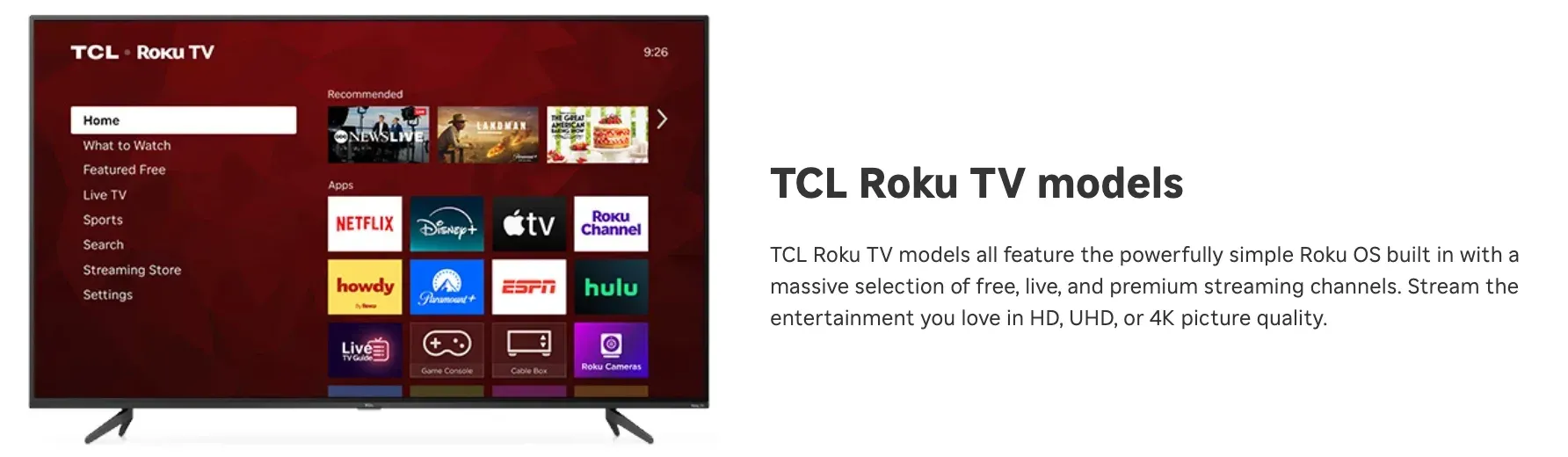
If you are specifically trying to handle screen mirroring Mac to TCL Roku TV, this is usually the first branch to test before you change anything on the MacBook.
If you are comparing menus, screen mirroring Mac to TCL Roku TV is often simpler to diagnose because Roku documents the AirPlay side more clearly than most brand-specific guides do.
What you want to find is:
- an Apple AirPlay and HomeKit section in settings
- a visible AirPlay setting that can be turned on
- current Roku software on the TV
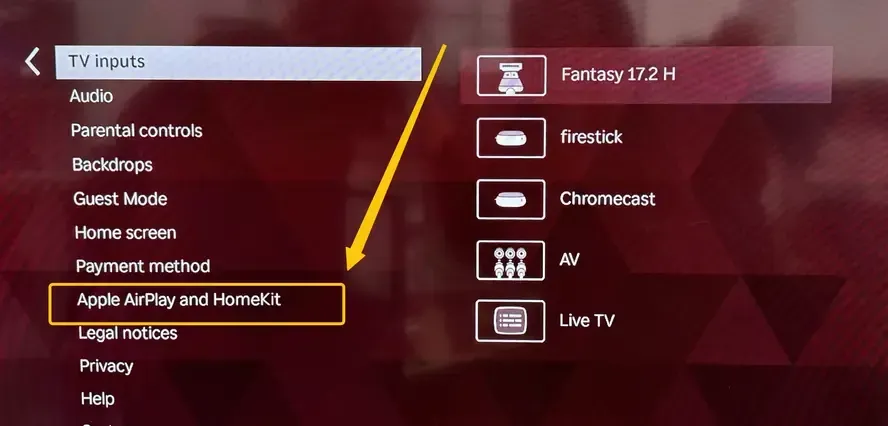
If your TCL Roku TV exposes those settings, the built-in Mac wireless option is often available.
TCL Google TV
TCL Google TV support can feel less predictable because more depends on the exact model family and software build.
What to check:
- an AirPlay or Apple AirPlay and HomeKit option in settings
- Apple-related receiver settings in the network or system menus
- the product page or support page for your exact TV model if the setting is missing
The practical rule is simple: do not assume every TCL Google TV works the same way with Apple devices just because another TCL TV does.
What If You Cannot Find AirPlay at All?
If the TV has no AirPlay setting and no Apple receiver option, stop troubleshooting the MacBook and switch methods. In that situation, the built-in Mac mirroring option may never appear no matter how many times you reopen Screen Mirroring.
If your real goal is simply getting the laptop screen onto a larger display, screen mirroring MacBook to TV covers the broader situation beyond one TV brand.
How to Do TCL TV Screen Mirroring From MacBook
There are three practical ways to handle TCL TV screen mirroring from MacBook. The best one depends on whether the TV supports AirPlay, whether you want to stay wireless, and how much stability matters for what you are doing.
For you, the real task is probably just getting a stable MacBook to TCL TV connection without wasting time on the wrong method first.
That is also why this kind of advice needs to stay specific instead of treating every TCL set like the same receiver.
Method 1: AirPlay From MacBook to TCL TV
This is the best first method when the TV clearly supports AirPlay. It is built into macOS, quick to test, and does not ask you to install anything else.
Use this method when:
- the TCL TV shows AirPlay settings
- both devices are on the same Wi-Fi
- you want the simplest wireless setup
Here is how to start:
Step 1. On the TCL TV, open the relevant settings area and confirm that AirPlay is enabled.
Step 2. Make sure the MacBook and TV are on the same local network.
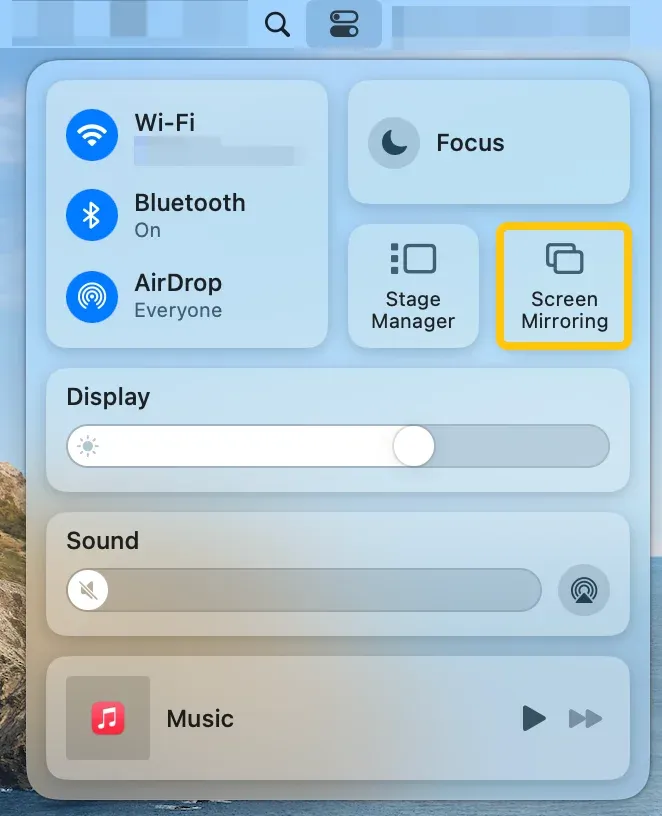
Step 3. On your MacBook, open Control Center and click Screen Mirroring.
Step 4. Select the TCL TV from the device list.
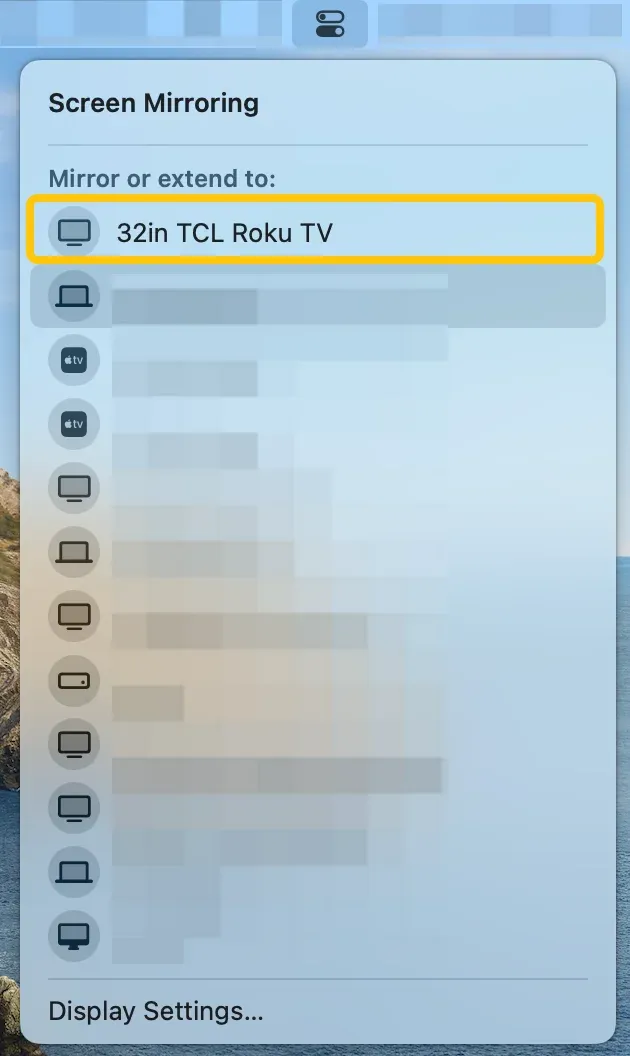
Step 5. Enter the code shown on the TV if prompted.
Step 6. Test text clarity, audio, and playback smoothness before using it for a meeting or video session.
If this method works, it is usually the simplest answer. If the TV never appears, do not keep forcing it. That usually means the issue is TV support, TV settings, or network discovery rather than one hidden Mac switch.
Method 2: Mirror MacBook to TCL TV With PigeonCast
If the TV does not support AirPlay well, if the TV never appears in the Mac list, or if you want a more flexible wireless setup, a free creen mirroring app like PigeonCast is a practical next choice.
This makes more sense when:
- the TCL TV does not expose reliable AirPlay behavior
- you do not want to depend entirely on TCL's own built-in support
- your home mixes Apple, Android, and different TV ecosystems
PigeonCast makes more sense than endless built-in troubleshooting because it gives you an app-based way to connect instead of asking the MacBook to discover the TV as a standard AirPlay receiver.
Use this order:
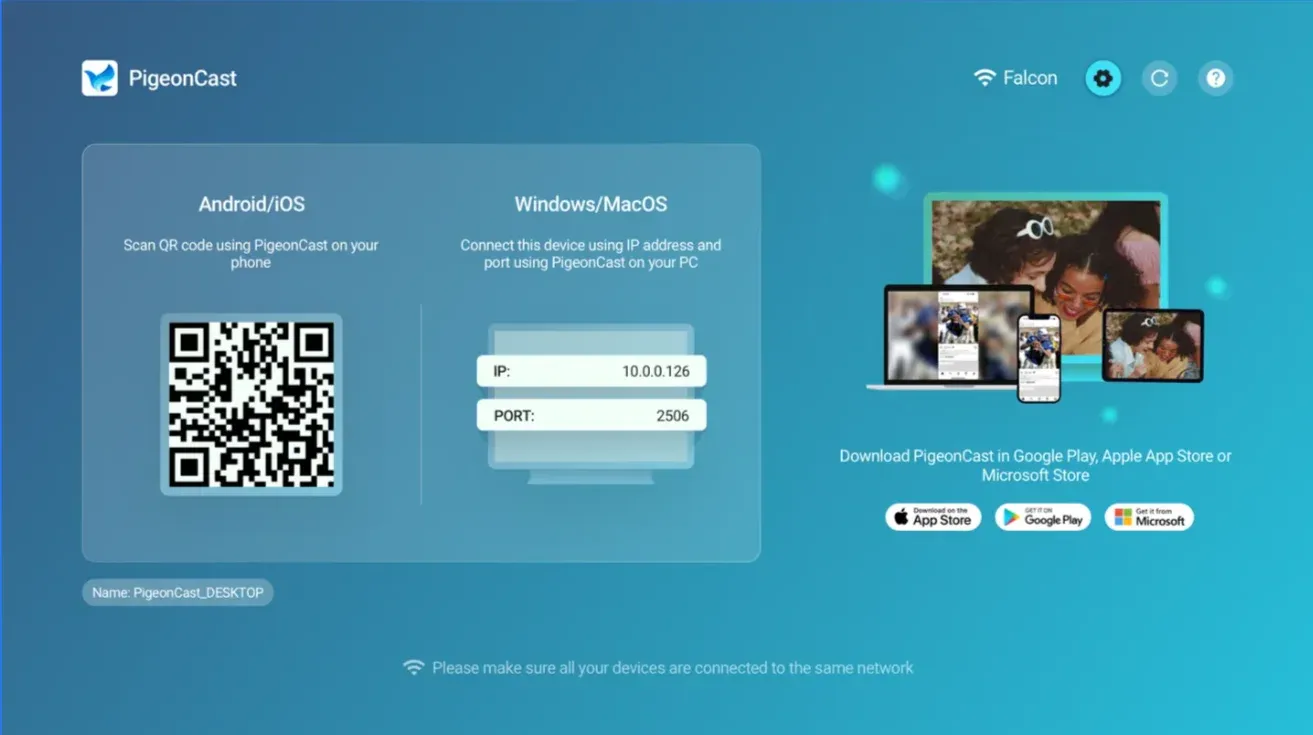
Step 1. Install and open the Mac screen mirroring app and the PigeonCast receiver on the TV.


Overall Rating:



Step 2. Make sure the MacBook and the TV side are connected to the same local network.
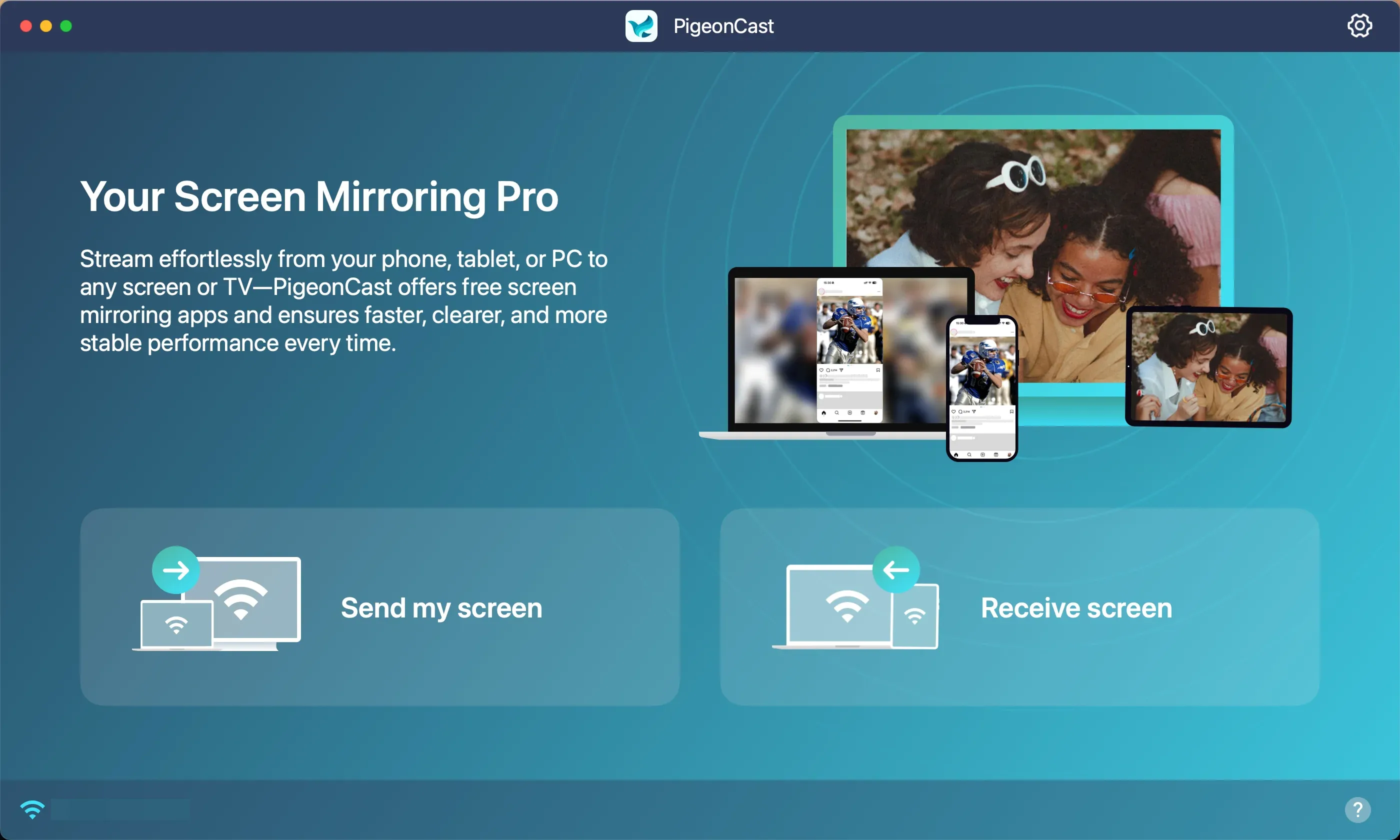
Step 3. On your MacBook, click Send my screen to screen mirroring from MacBook.
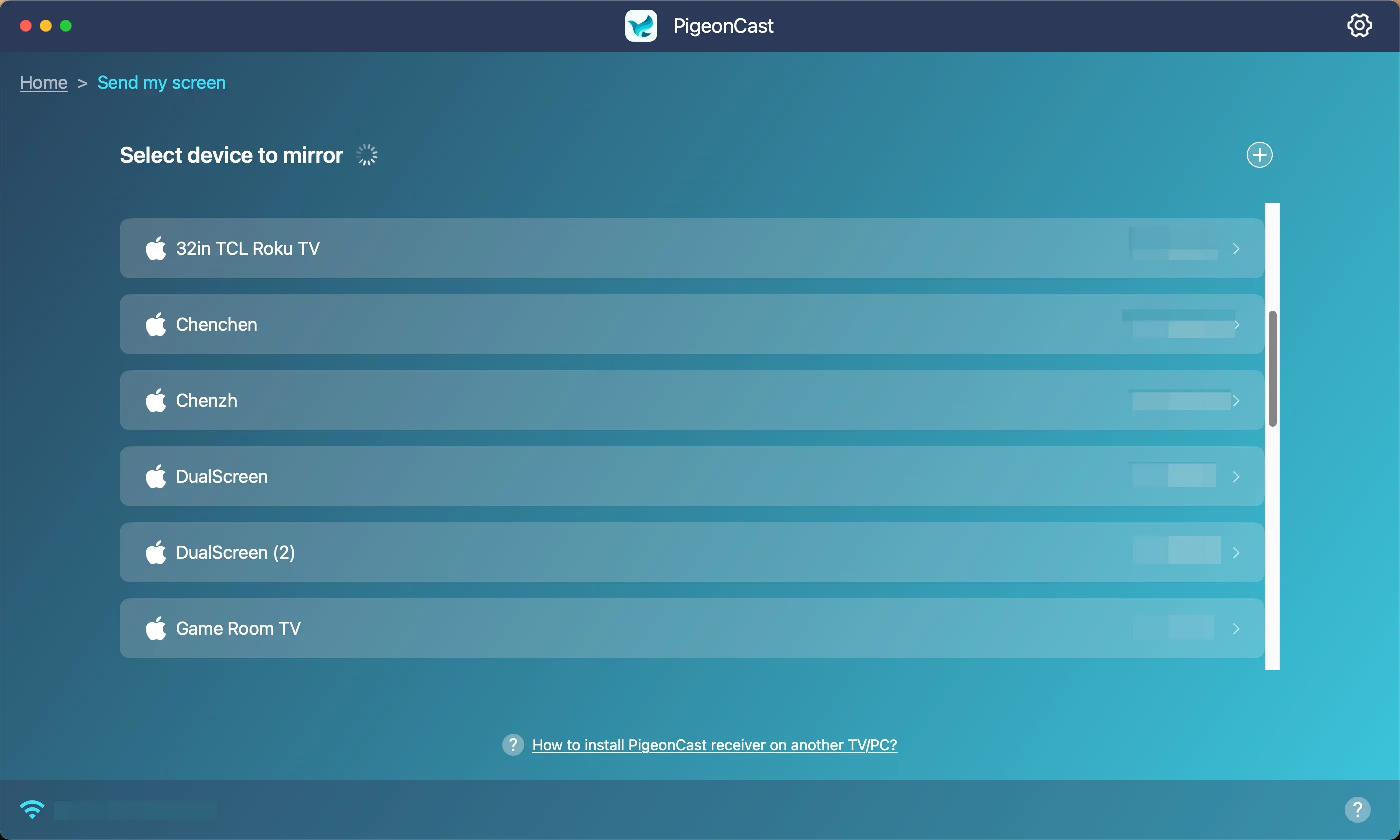
Step 4. Select the available TCL TV target from the app's device list.
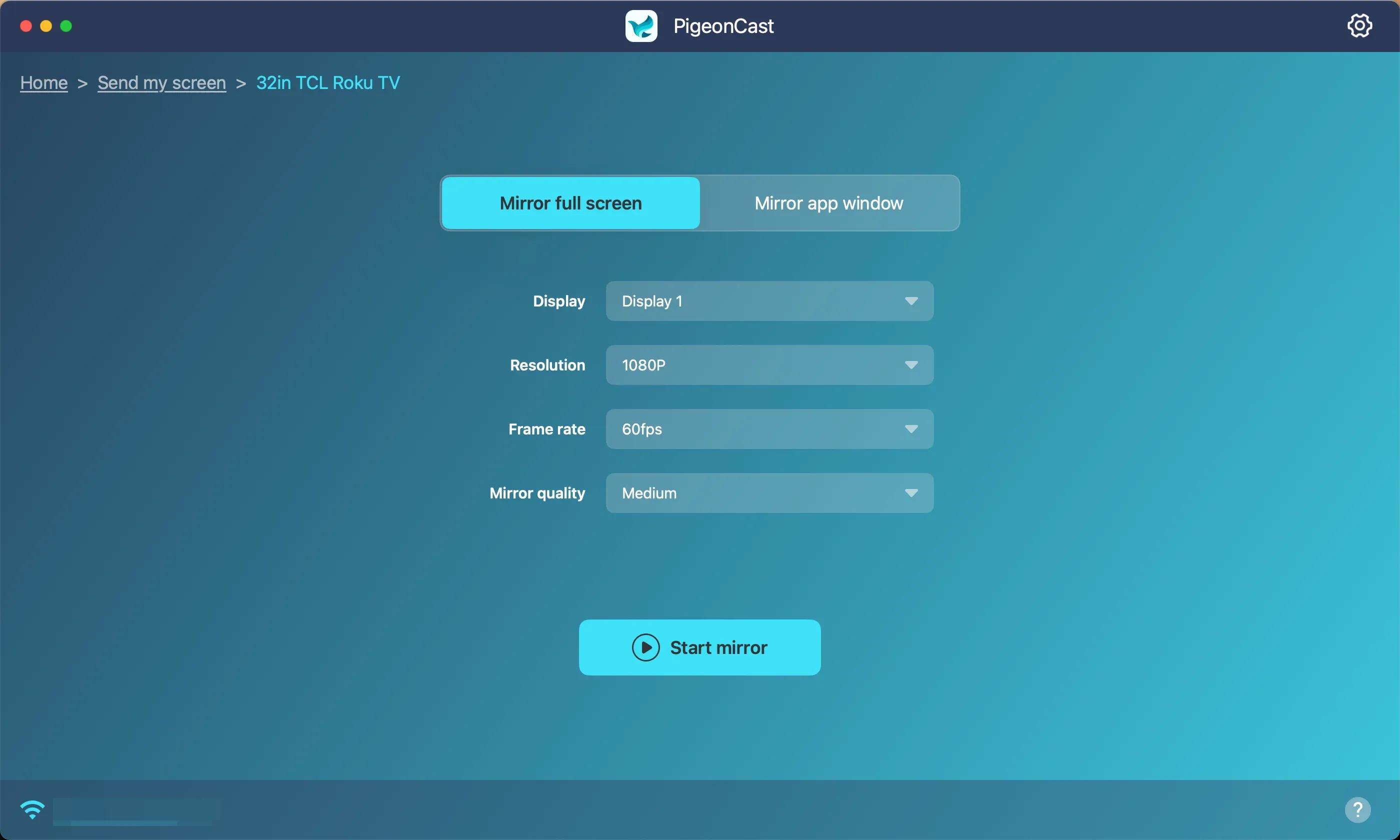
Step 5. Click Start mirror and watch your Mac screen on the TCL TV.
This is the method I would use when you still want wireless mirroring but do not want the whole setup to depend on whether one specific TCL model exposes AirPlay the way you expected.
Method 3: Connect MacBook to TCL TV With HDMI
If reliability matters more than convenience, screen mirroring with HDMI is still the safest answer.
This is the better choice when:
- the Wi-Fi network is crowded
- the TV is older
- you need low delay for presentations or video playback
- wireless discovery keeps failing
Here is the simple setup:
Step 1. Connect the MacBook to the TCL TV with HDMI or the correct USB-C or Thunderbolt adapter.
Step 2. Switch the TV to the right HDMI input.
Step 3. On the MacBook, open display settings and choose mirroring if you want the TV to duplicate the laptop screen.
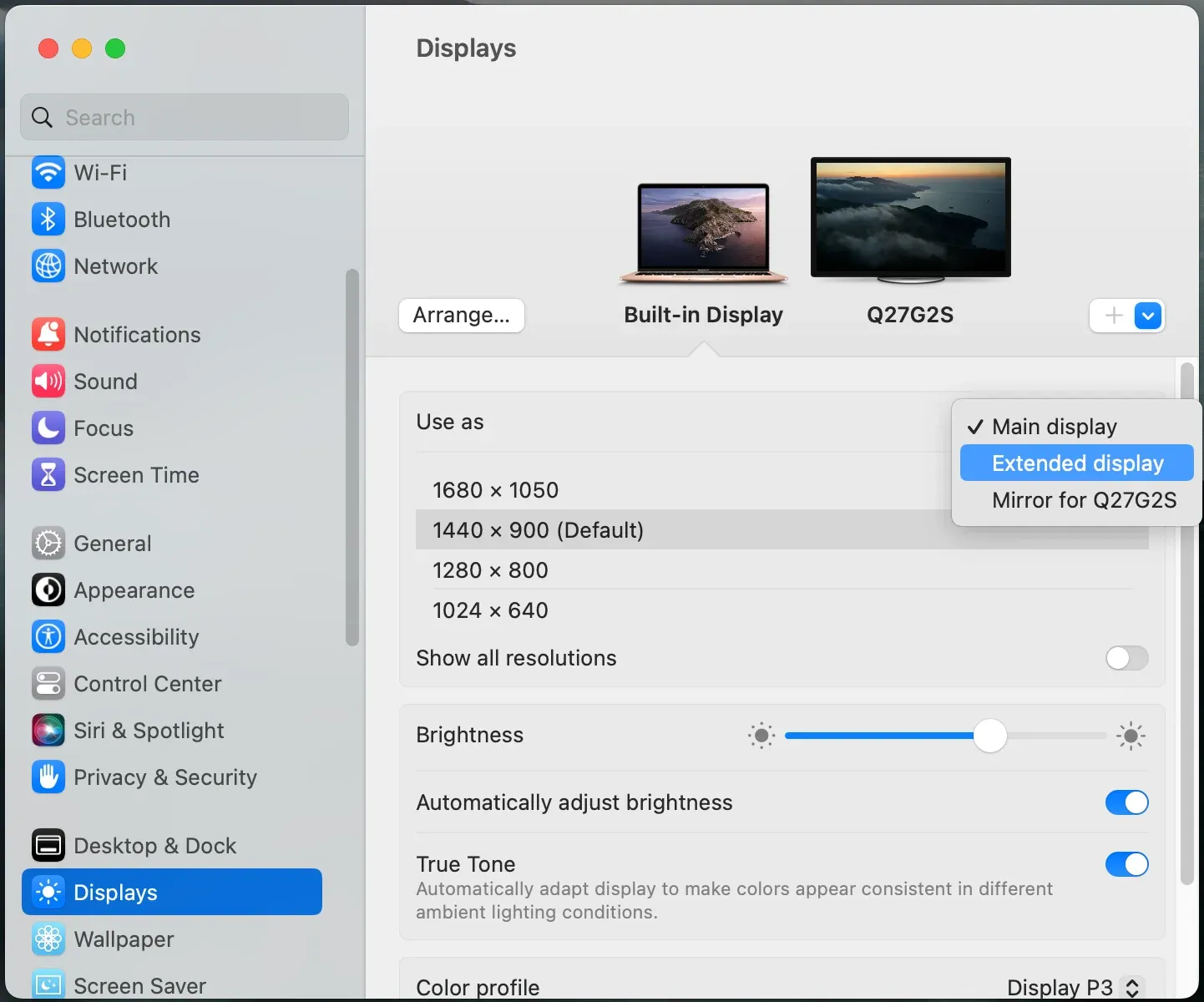
Step 4. Check resolution, scaling, and audio output.
This method is less elegant than wireless mirroring, but it removes most network and compatibility problems at once. If the connection has to work on the first try, HDMI is usually the answer.
AirPlay, PigeonCast, or HDMI: Which Is Best for Screen Mirroring Mac to TCL TV?
There is no universal winner for every TCL TV because the brand spans multiple TV systems and feature sets.
| Method | Best for | Main advantage | Main limitation |
|---|---|---|---|
| AirPlay | Supported TCL TVs with working Apple receiver settings | Fastest built-in wireless method | Depends on exact TV support and network discovery |
| PigeonCast | Wireless use in mixed-device homes | More flexible than relying on the TV's built-in support alone | Requires app-based setup |
| HDMI | Stability and low delay | Most reliable overall | Wired setup is less convenient |
Use AirPlay first when the TV clearly supports it. Use PigeonCast when you still want wireless mirroring but AirPlay is not working or missing. Use HDMI when your priority is simply getting the screen on the TV without more troubleshooting.
If you want a simple decision rule:
- choose AirPlay for supported TCL TVs and casual everyday wireless use
- choose PigeonCast for a more flexible wireless option
- choose HDMI when reliability matters more than convenience
Why Your TCL TV May Not Show Up on MacBook
If screen mirroring MacBook to TCL TV is not working, the problem is usually tied to a few repeat issues, such as both devices being on different Wi-Fi networks, AirPlay being disabled on the TV, outdated software, or a TCL model that uses a different mirroring method. If the TV still does not appear or the connection keeps failing after these basic checks, TCL TV screen mirroring not working can also point to broader TV-side or network compatibility problems.
The TV Does Not Support AirPlay From Mac
This is the biggest one.
Some TCL TVs can receive AirPlay from a Mac. Some cannot. Others may support it only on specific systems, models, or software versions. If the TV does not support AirPlay from Mac, it may never appear in the MacBook device list.
That is why TCL TV screen mirroring MacBook troubleshooting goes faster when you verify the TV type first instead of assuming the Mac side is broken.
That is why compatibility should be the first check, not the last one.
AirPlay Is Off on the TV
Even a supported TV will not show up correctly if AirPlay is turned off.
Reopen the TV settings and confirm:
- AirPlay is enabled
- the TV completed any required setup prompts
- the TV is visible on the local network
The Network Blocks Discovery
This is common in hotels, dorms, offices, and some apartment Wi-Fi setups.
Common blockers include:
- guest Wi-Fi
- VPN traffic on the MacBook
- router isolation between devices
- unstable signal near the TV
If possible, test both devices on a normal home Wi-Fi network first.
You Are Mixing Up TCL Roku TV and TCL Google TV Behavior
This is more common than it sounds.
A tutorial that works for TCL Roku TV may not match the menus or receiver behavior on TCL Google TV, and the reverse is also true. If your TV menus do not match the steps you found online, check the TV system first before assuming the MacBook is at fault.
The Devices Need a Restart
Wireless discovery sometimes gets stuck longer than it should.
If the TV should support AirPlay and the settings look correct, restart both the TV and the MacBook, then retry the connection. It is not the smartest fix, but it often clears stale discovery sessions.
Conclusion
The fastest way to handle TCL TV screen mirroring from MacBook is to match the method to the TV system instead of treating every TCL set the same.
Start with AirPlay only after you confirm that the exact TCL TV supports it. If the built-in option is missing or unreliable, switch to PigeonCast instead of repeatedly retrying the Mac menu. If the connection has to work without drama, use HDMI.
TCL TV Screen Mirroring From MacBook FAQ
Can I mirror my MacBook to a TCL TV wirelessly?
Yes, if the TCL TV supports a compatible wireless receiver option such as AirPlay or if you use an app-based method like PigeonCast. The exact answer depends on whether the TV is a TCL Roku TV or TCL Google TV model and whether the required setting is actually enabled.
Does every TCL TV support AirPlay from MacBook?
No. Support varies by TV system, model, and software version. That is why you should check the exact TV settings or model support details instead of assuming all TCL TVs expose the same MacBook mirroring behavior.
Why is my TCL TV not showing up in Screen Mirroring on Mac?
The most common reasons are lack of AirPlay support, AirPlay being turned off on the TV, both devices being on different networks, guest Wi-Fi isolation, VPN interference, or confusion between TCL Roku TV and TCL Google TV menu paths.
Is TCL Roku TV easier to mirror from MacBook than TCL Google TV?
Often, yes, because Roku publishes clearer AirPlay support guidance and settings steps. TCL Google TV can still work well, but the feature set tends to feel more model-dependent, so it is harder to assume one universal setup method.
Is PigeonCast better than AirPlay for TCL TV?
Not always. If the TV supports AirPlay correctly, AirPlay is the simplest built-in option. PigeonCast becomes the better choice when the TV's own option is missing, unreliable, or too limited for the devices you need to connect.
What is the most reliable way to connect MacBook to TCL TV?
HDMI is usually the most reliable method. It avoids most wireless discovery issues, reduces dependence on TV compatibility, and is the safer choice when the connection needs to work immediately.
Can I mirror a MacBook to TCL TV without Wi-Fi?
Not with the normal wireless AirPlay setup. If there is no shared local wireless connection, HDMI is the simpler answer. Some app-based setups can be more flexible, but for consistent results without normal Wi-Fi discovery, a wired connection is still the safer method.
Mia Clarke is a technology editor specializing in screen mirroring and casting solutions across multiple platforms. Mia provides clear, practical guides and in-depth insights to help users seamlessly connect their devices. Passionate about enhancing digital experiences, Mia is dedicated to keeping readers updated on the latest trends and tools in cross-platform screen sharing. Whether you’re looking to mirror your smartphone, laptop, or smart TV, Mia’s content delivers reliable, user-friendly advice to simplify your tech setup.