
Want to display your iPhone's videos, photos, or apps on your TCL TV? You're in the right place! While TCL TV screen mirroring iPhone may seem tricky due to varying models and technologies, it's actually pretty simple once you know the right method for your setup. Whether your TCL TV supports built-in AirPlay, uses Roku TV, or requires an external device, this guide covers all five reliable ways to connect your iPhone.
How to Mirror iPhone to TCL TV
TCL makes several TV models with different smart platforms, so there isn't one universal method for screen mirroring. The good news is, whether it's built-in technology, free apps, or simple adapters, there are multiple ways to connect. Start by checking your TV's settings for labels like "Roku TV", "Google TV", or an AirPlay logo. Knowing the type of TCL TV you have will help you select the most suitable screen mirroring method.
Use AirPlay to Connect iPhone to TCL TV
AirPlay is Apple's built-in wireless streaming technology, offering the easiest way to mirror your iPhone to an AirPlay-compatible TCL TV. Many newer TCL models (2019 and later), especially those running Roku OS 9.4+ or Google TV, have AirPlay 2 integrated directly into the system. Here's the step on how to connect iPhone to TCL TV:
Step 1. Turn on your TCL TV and ensure it's connected to the same wireless network as your iPhone.
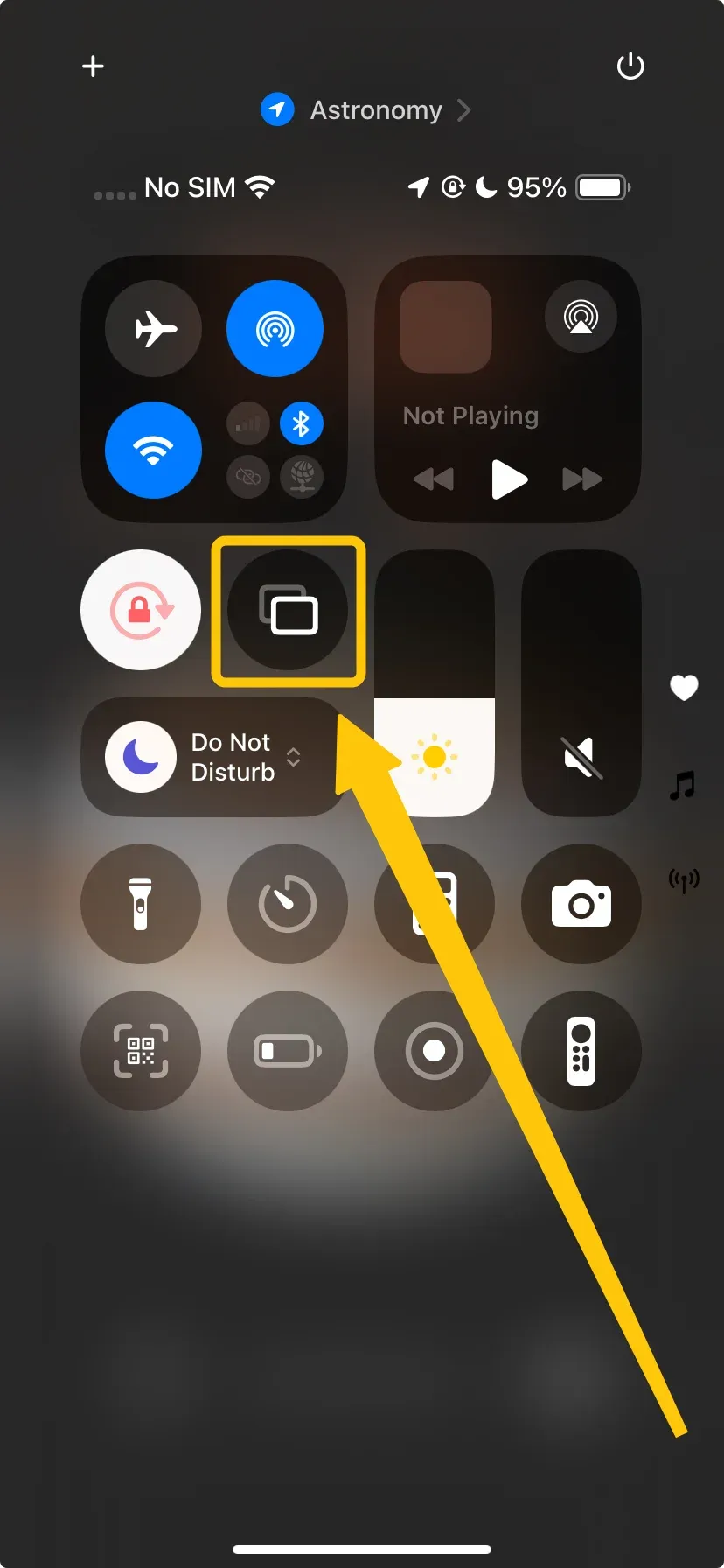
Step 2. Swipe down from the top-right corner of your iPhone screen (or up from the bottom on older models) to open the Control Center and tap Screen Mirror.
Step 3. From the list of available devices, select your TCL TV's name to connect with.
Step 4. If prompted, enter the onscreen code to finish the pairing process.
Step 5. When you succeed, you can then start screen mirroring iPhone on TCL Roku TV.
Use Chromecast to Connect iPhone to TCL TV
How to connect iPhone to TCL TV screen mirroring? Using Google Chromecast is an easy way to cast your iPhone screen to a TCL Google TV. Many TCL smart TVs come with Chromecast built in, so you don't need any extra devices, and it's completely free. Please note that you can only cast from Chromecast-enabled apps or the Chrome browser on your device. Let's follow the steps on how to cast to TCL TV from iPhone:
Step 1. Connect your iPhone and TV to the same Wi-Fi network.
Step 2. Open any Chromecast-enabled video streaming app on your iPhone and choose the content you want to watch.
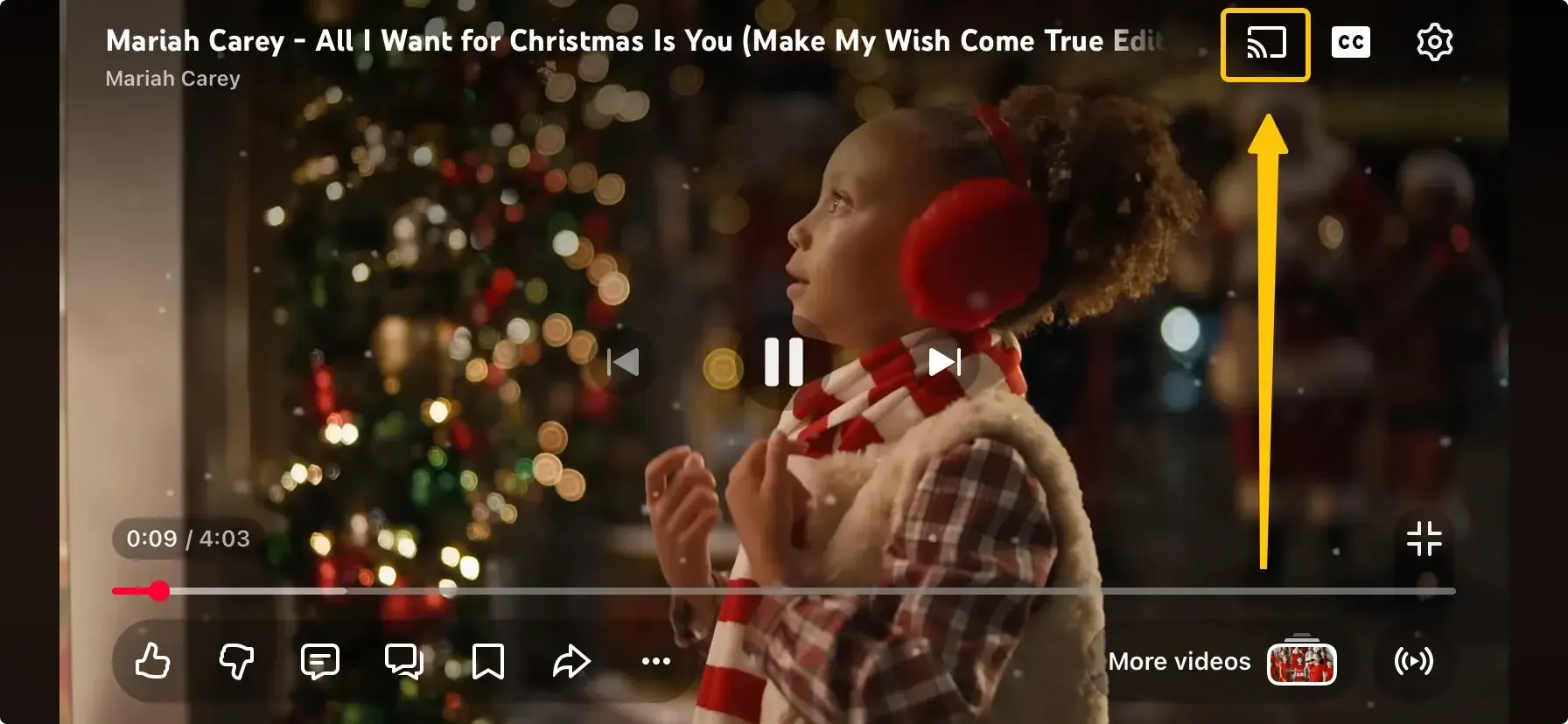
Step 3. Then, look for the Cast icon within the app.
Step 4. Select your TV from the list of available devices. Once the Cast icon changes color, your screen will be mirrored to the TV.
Use PigeonCast to Connect iPhone to TCL TV
PigeonCast is a free screen mirroring app that lets you connect your iPhone to a TCL TV. It works seamlessly across Android, iOS, Windows, Mac, and various TV platforms (like tvOS and Android TV) with no limitations. It's a great choice for device compatibilty issues. Now let's check how to mirror iPhone to TCL TV free:


Overall Rating:


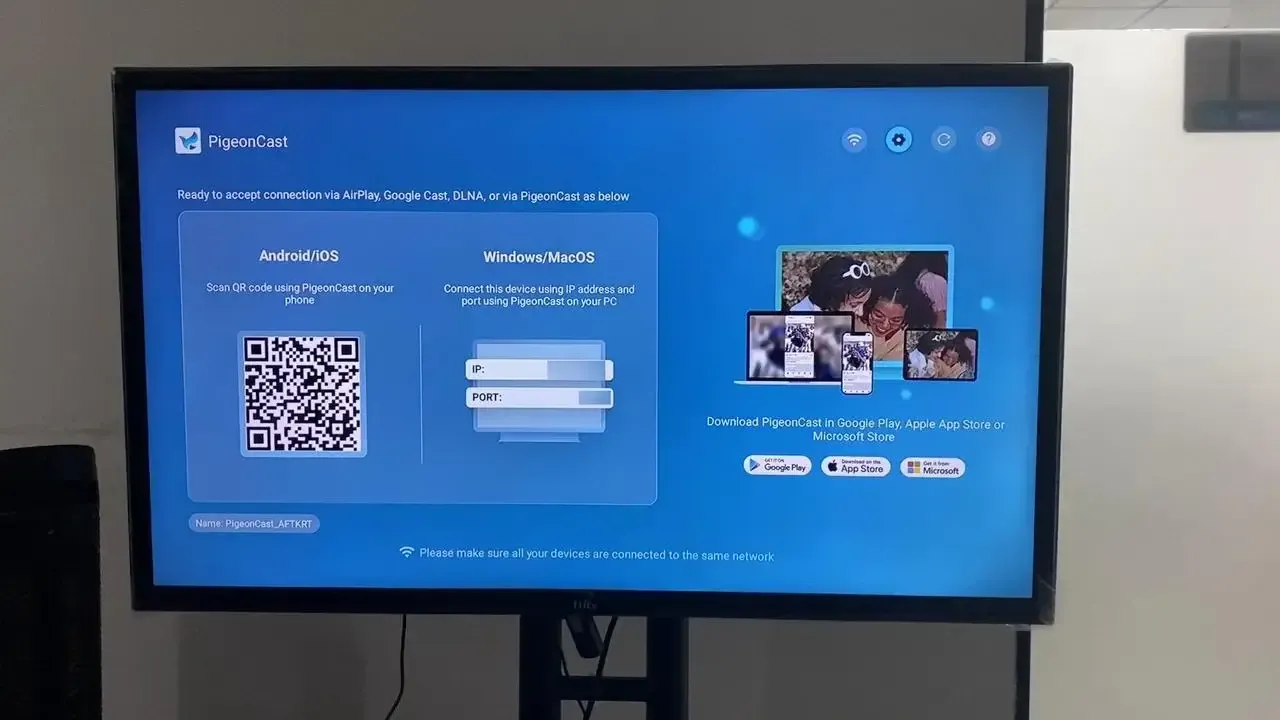
Step 1. Download PigeonCast app on both your iPhone and your TCL TV.
Step 2. Ensure both devices are connected to the same Wi-Fi network.
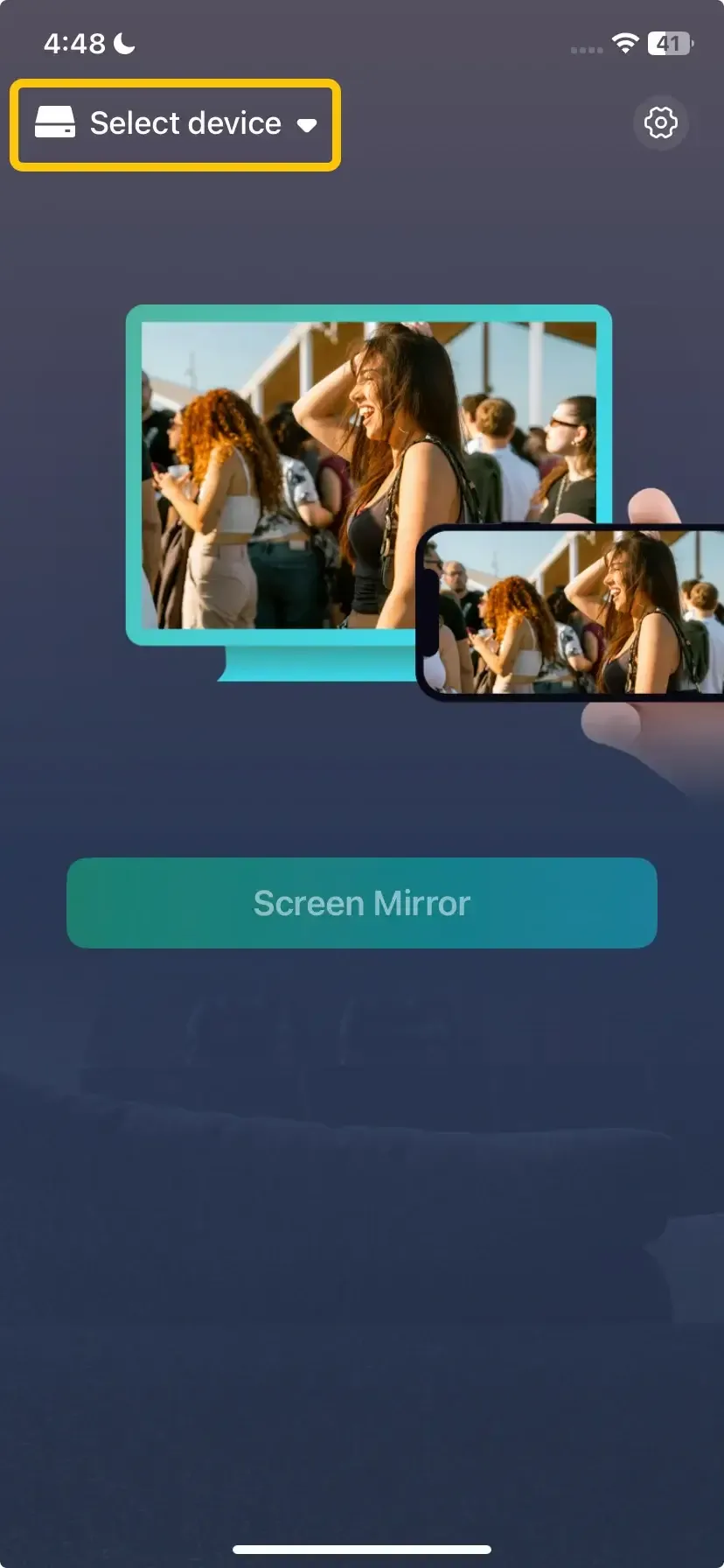
Step 3. Launch the PigeonCast app on your iPhone, tap Select device to choose your TV from the device list (or scan the on-screen QR code).
Step 4. Enter the onscreen PIN code to finish the pairing process.
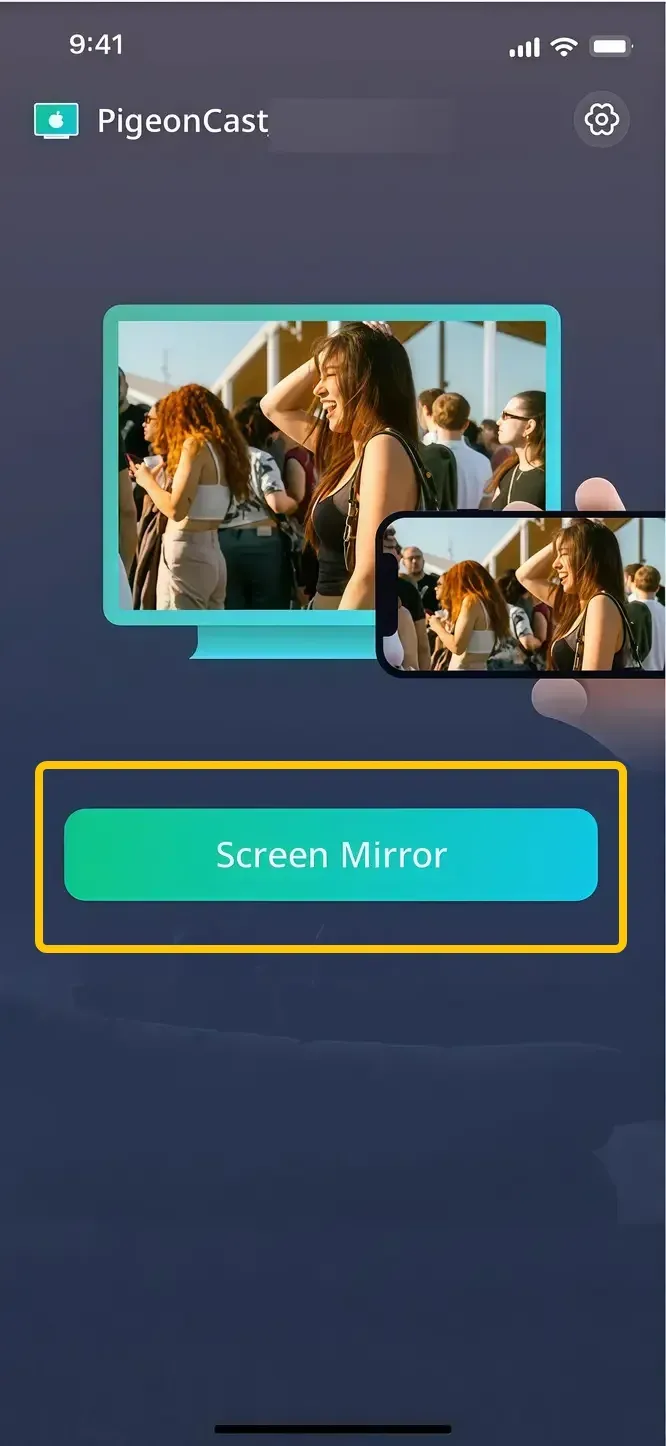
Step 5. Once connected, tap the Screen Mirror button to start iPhone screen mirroring to TCL TV. You can stream content, play music, or display photos with ease.
Use an HDMI Cable to Connect iPhone to TCL TV
How to cast iPhone to TCL TV? If you prefer a wired connection, you can connect your iPhone to your TV using an HDMI cable. To do this, you'll need an Apple Lightning to HDMI adapter (for iPhones with Lightning connectors) or a USB-C to HDMI adapter (for iPhones with a USB-C port). This method ensures perfect audio-video synchronisation with no latency, making it ideal for professional or precision use cases.
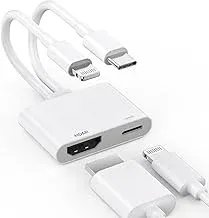
Step 1. Plug the appropriate Apple-certified adapter into your iPhone's charging port.
Step 2. Connect an HDMI cable between the adapter and any available HDMI port on your TCL TV.
Step 3. Using your TCL remote, change the TV's source/input to the corresponding HDMI port.
Step 4. Once connected successfully, the iPhone to TCL TV screen mirroring will also be successful.
To Sum Up
Screen mirroring iPhone to TCL TV is easier than it seems, with several reliable methods to choose from. Whether you prefer a wireless connection via AirPlay or Chromecast, or a wired connection using an HDMI adapter, you can easily display your iPhone's content on the big screen. For device compatibility issues, apps like PigeonCast offer a great alternative.
TCL TV Screen Mirroring iPhone FAQ
How to do screen mirroring on TCL TV with iPhone?
To mirror your iPhone's screen to a TCL TV, use AirPlay (if supported) from the Control Center on your iPhone. If AirPlay isn't available, try Chromecast, PigeonCast, or a wired HDMI connection.
How to connect iPhone to TCL TV wirelessly?
To connect your iPhone to a TCL TV wirelessly:
- AirPlay (for AirPlay-enabled TCL TVs)
- Chromecast (for TCL TVs with built-in Chromecast)
- PigeonCast (for Android TVs)
Why won't my iPhone show my TV on screen mirroring?
Here are the common reasons your iPhone might not show up on screen mirroring:
- Different Wi-Fi networks
- AirPlay disabled on TV
- Outdated software
- Incompatible TV
- Connection interference
- Bluetooth issues
- Screen Mirroring settings
- App compatibility
Clara Rossi is an experienced technology editor and a seasoned expert in screen mirroring and casting technologies. With a keen eye for detail and a deep understanding of how to seamlessly connect devices, Clara excels at optimizing user experiences for effortless sharing and streaming. Whether you're seeking quick fixes or advanced tips, her expertise and responsiveness ensure that every query is met with a well-informed and efficient solution.