
Expanding your workspace from your Mac to a Samsung TV can greatly enhance both productivity and entertainment. Although these devices come from different ecosystems, modern technology offers multiple seamless ways to connect them. This guide will show you how to screen mirror Mac to Samsung TV, ensuring a smooth and efficient experience.
How to Screen Mirror Mac to Samsung Smart TV
The method you choose depends on your TV's age and your preference for wireless or wired connections. The most integrated solution uses Apple's own AirPlay technology, which is now built into many newer Samsung TVs.
Way 1. Use AirPlay
Can a Mac screen mirror to Samsung TV? Yes, as long as your Samsung TV supports AirPlay 2 (usually models from 2018 and newer), you can easily mirror your Mac's screen using AirPlay. If you have an older Samsung TV that doesn't support AirPlay 2, you may need to explore alternative methods. Here's how to screen mirror Mac laptop to Samsung TV:
Step 1. Make sure that both your Mac and your Samsung TV are connected to the same Wi-Fi network.
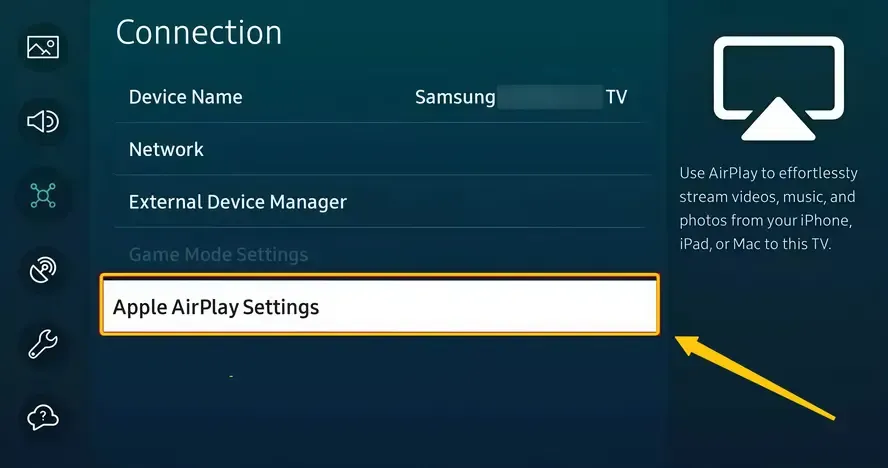
Step 2. Go to the Settings menu on your Samsung TV, then navigate to General > Apple AirPlay Settings and turn AirPlay On.
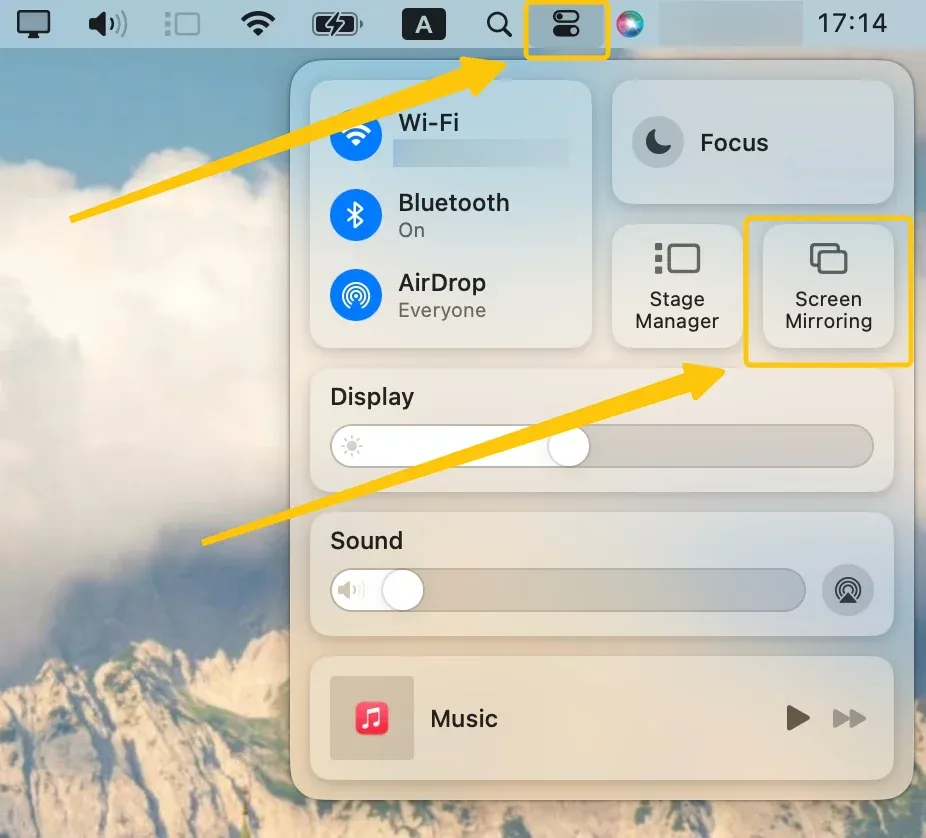
Step 3. On your Mac, click the Screen Mirroring in the menu bar at the top of the screen to choose your Samsung TV.
Step 4. Enter the onscreen PIN code to finish the connection. Once connected, you can mirror your Mac's display on your Samsung TV.
Way 2. Use PigeonCast
How to mirror Mac to Samsung TV? PigeonCast is an excellent app for casting your Mac to a Samsung TV, supporting all Mac models. It allows seamless cross-platform screen sharing, making it easy to mirror your Mac's screen to your TV. Best of all, it's free with unlimited data on the same Wi-Fi network. PigeonCast supports AirPlay and Google Cast, so you can even mirror to Android TVs, giving you maximum casting flexibility.
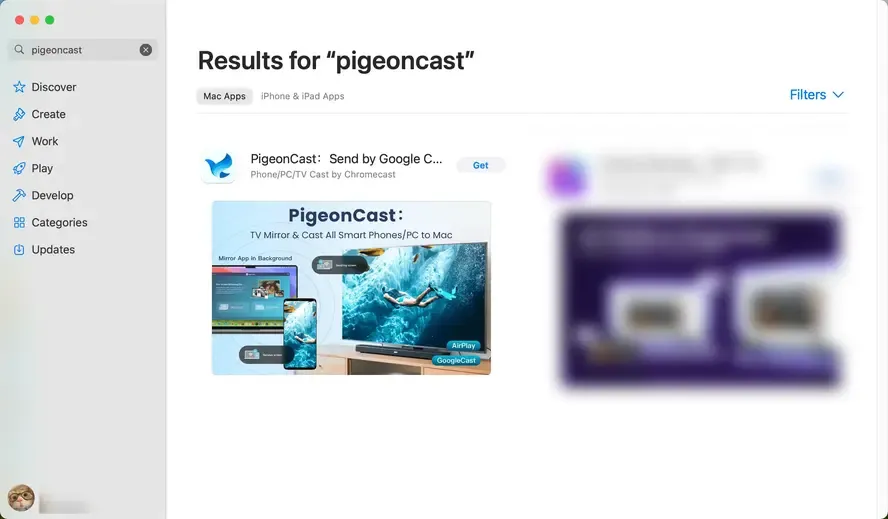
Step 1. Install PigeonCast on your MacBook.

PigeonCast Screen Mirroring

Official Download


Step 2. Ensure your Mac and Samsung TV are covered by the same wireless network.
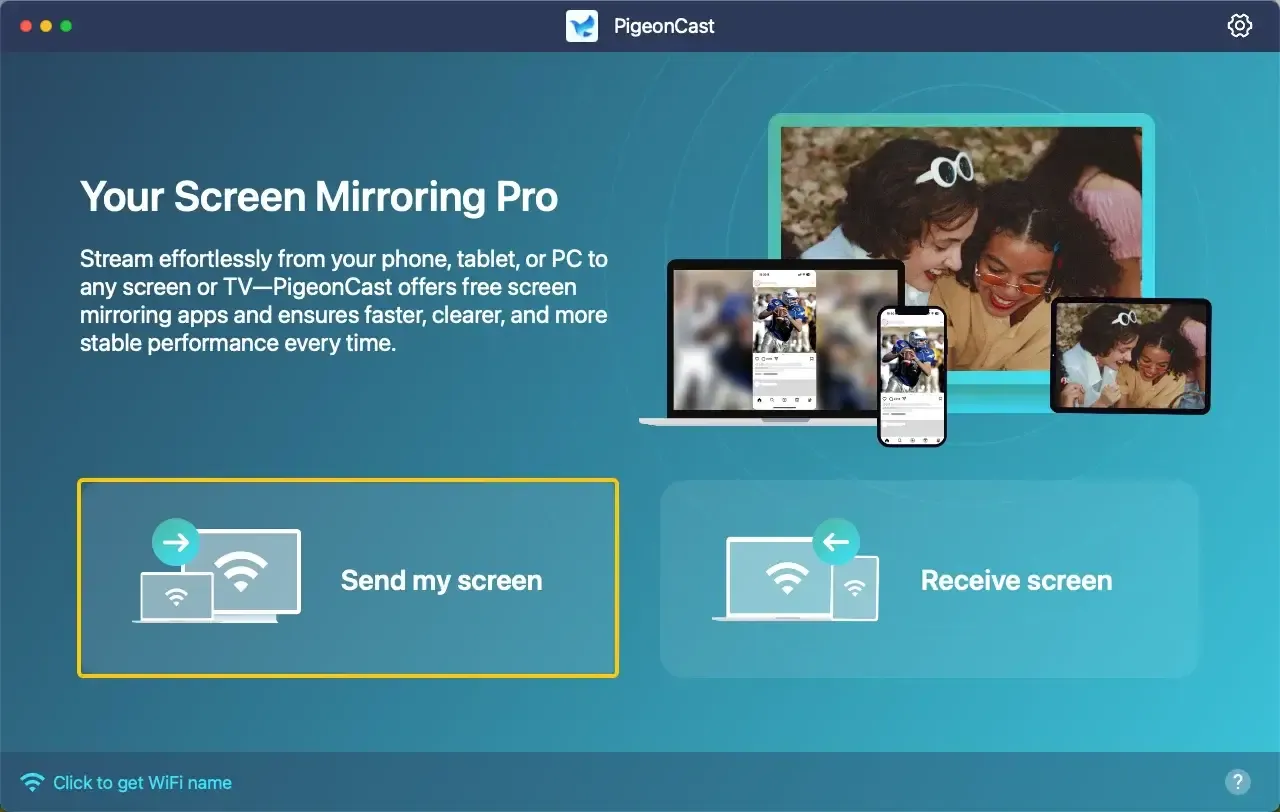
Step 3. Launch PigeonCast on your Mac, and click Send my screen to choose your TV from the available list.
Step 4. If prompted, enter the onscreen code to finish the connection.
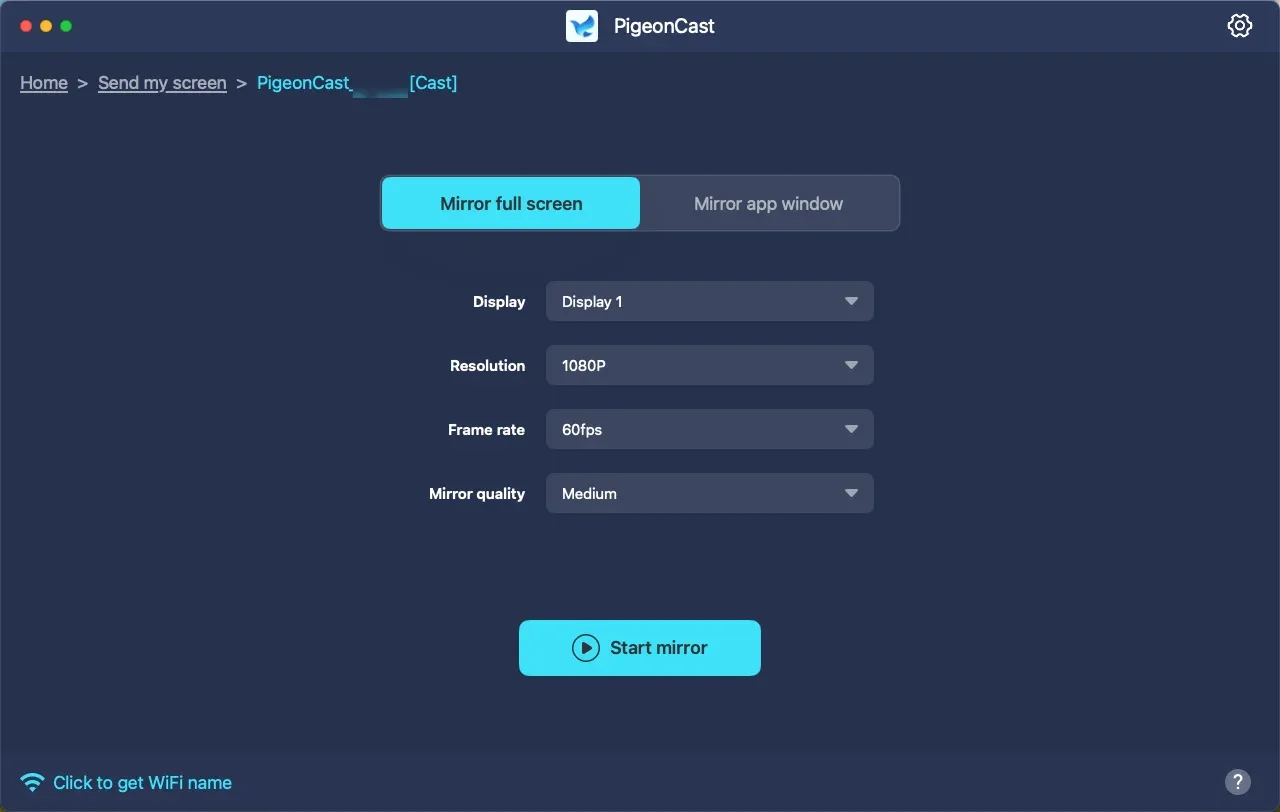
Step 5. When you connect successfully, you can select mirror full screen or mirror app window to start your mirroring performance.
Way 3. Use HDMI
If you prefer a wired connection, using an HDMI cable is a reliable method for screen mirroring your Mac to your Samsung TV. This method ensures a stable connection without worrying about Wi-Fi interference or lag. Here's how to screen mirror Mac Air to Samsung TV via HDMI cable:
Step 1. Plug one end of the HDMI cable into your Mac's HDMI adapter, and plug the other end into an available HDMI port on your Samsung TV.
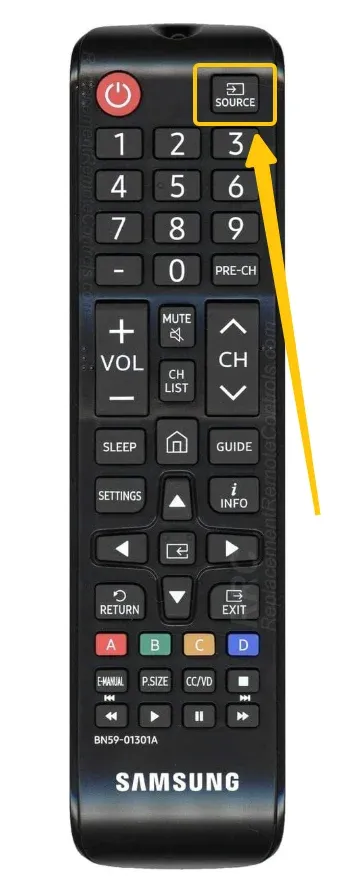
Step 2. Use the Source or Input button on your TV remote to select the HDMI port that your Mac is connected to.
Step 3. Once the HDMI connection is established, your Mac should automatically detect the TV as a second display. Follow the onscreen prompt to start the mirroring activities.
Screen Mirroring Mac to Samsung TV Wireless Not Working
If you're having trouble with wireless screen mirroring from your Mac to your Samsung TV, you're not alone. Sometimes, despite following the right steps, things don't work as expected. In this section, we'll cover some common reasons why wireless screen mirroring might not be working and offer tips to help get your Mac and Samsung TV back in sync.
- Ensure Both Devices are on the Same Wi-Fi Network
This is the most common reason wireless screen mirroring fails. Make sure both your Mac and your Samsung TV are connected to the same network.
- Enable AirPlay on Your Samsung TV
Make sure that AirPlay is turned on in your TV's settings if you're using AirPlay. Go to Settings > General > Apple AirPlay Settings on your Samsung TV and make sure AirPlay is enabled.
- Restart Both Devices
Sometimes a simple restart can fix connectivity issues. Restart both your Mac and Samsung TV to refresh their connections.
- Update Software
Ensure that your macOS and your Samsung TV's firmware are up to date. Outdated software can sometimes cause compatibility issues with screen mirroring.
- Disable Other Devices Using Wi-Fi
Too many devices on the network can interfere with your connection. Try disconnecting other devices to improve performance.
Wrapping Up
How do I screen mirror my Mac to my Samsung TV? Whether you prefer the ease of wireless options like AirPlay and PigeonCast, or a reliable wired connection with HDMI, there are multiple ways to achieve seamless mirroring. If you run into any issues, be sure to check for common troubleshooting solutions. With the right setup, you'll be ready to enjoy your Mac's content on the big screen in no time.
How to screen mirror Mac to Samsung TV FAQ
How to fix Screen Mirroring Mac to Samsung TV not working?
If screen mirroring from your Mac to your Samsung TV isn't working, here are a few common fixes:
- Ensure Both Devices are on the Same Wi-Fi Network
- Enable AirPlay on Your Samsung TV
- Restart Both Devices
- Update Software
- Check for Network Congestion
Can Screen Mirroring Mac to Samsung TV without AirPlay?
Yes, you can mirror your Mac to a Samsung TV without using AirPlay. Alternatives include using an HDMI cable for a wired connection, or third-party apps like PigeonCast, or Mirror for Samsung TV for wireless screen mirroring. Additionally, you can use a Google Chromecast device or Samsung Smart View (if supported) for wireless casting.
Why is Samsung TV not showing up in screen mirroring?
Here are the potential reasons why your Samsung TV might not be showing up for screen mirroring:
- Different Wi-Fi Networks
- Screen Mirroring Not Enabled on TV
- Outdated Software/Firmware
- Connection Interference:
- Bluetooth or Wi-Fi Disabled
- VPN Usage
- Device Compatibility
- App/Software Conflict
- Network Firewalls or Restrictions
Clara Rossi is an experienced technology editor and a seasoned expert in screen mirroring and casting technologies. With a keen eye for detail and a deep understanding of how to seamlessly connect devices, Clara excels at optimizing user experiences for effortless sharing and streaming. Whether you're seeking quick fixes or advanced tips, her expertise and responsiveness ensure that every query is met with a well-informed and efficient solution.