
If you want to master Panasonic TV AirPlay, success starts with a few simple configuration steps. This guide provides a streamlined setup process to help you cast content from your iPhone or Mac with zero lag. Beyond the basic pairing instructions, you will also learn how to verify hardware compatibility and address the four predictable causes of connection failure, ensuring a stable, high-definition mirroring session every time.
Does Panasonic TV Have AirPlay
Before attempting to connect, confirming your Panasonic TV AirPlay support will save time and prevent false troubleshooting. Most AirPlay Panasonic TV setup issues are simple configuration oversights that can be resolved by following this five-point checklist to ensure your devices are ready for pairing.
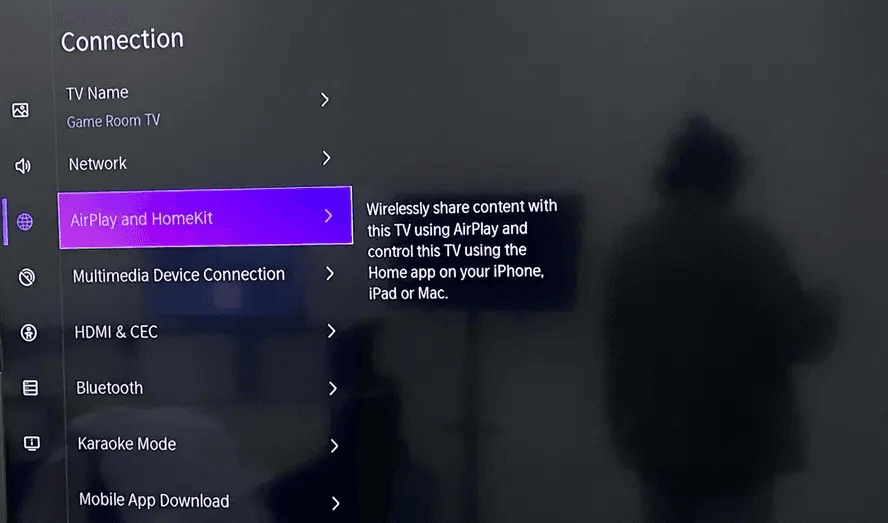
Step 1. Verify your model supports AirPlay 2 by looking for the Apple AirPlay and HomeKit menu in the TV settings.
Step 2. Update all devices to their latest stable versions before the first pairing. A mismatch between TV firmware and iOS or macOS versions is a frequent connection blocker.
Step 3. Connect both the sender and TV to the same primary Wi-Fi network. Avoid guest SSIDs or hotspots, as AirPlay requires local discovery protocols to function correctly.
Step 4. Disable any active VPNs, Private Relay, or strict network isolation settings. These security layers can hide the TV from your iPhone or Mac even when both are online.
Step 5. Assign a unique name to your TV in the settings menu. This ensures you can clearly identify the correct screen when multiple receivers appear in your device list.
How to Use AirPlay on Panasonic TV
Once your AirPlay to Panasonic TV environment is ready, the connection process is fast and intuitive. Depending on whether you are using a mobile device or a computer, follow these specific steps to bridge your content to the big screen.
How to AirPlay to Panasonic TV from iPhone or iPad
Connecting from a mobile device is the most common way to share photos or quick video clips. For the best results, start by using the direct casting feature within your favorite media apps before switching to full screen mirroring for other tasks. Read on to check how to mirror iPhone to TV:
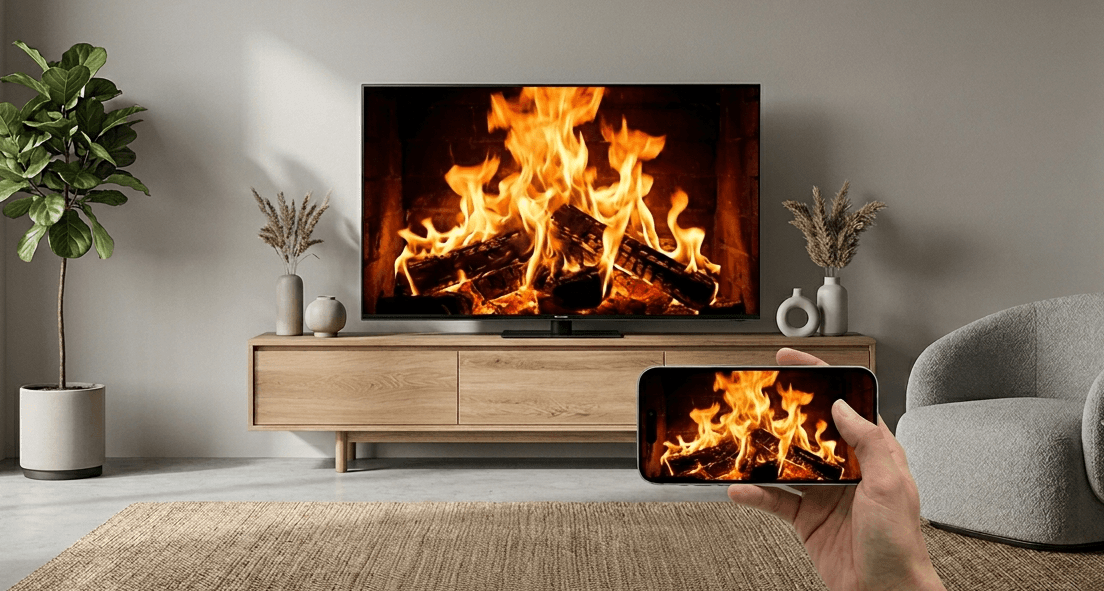
Step 1. On your TV, navigate to Settings > Network > Apple AirPlay and HomeKit. Ensure AirPlay is On and set Require Code to First Time Only to streamline future sessions.
Step 2. On the iPhone, connect to the same Wi-Fi and keep Bluetooth enabled from Settings. AirPlay discovery can fail when Bluetooth is off in some mixed-device environments.
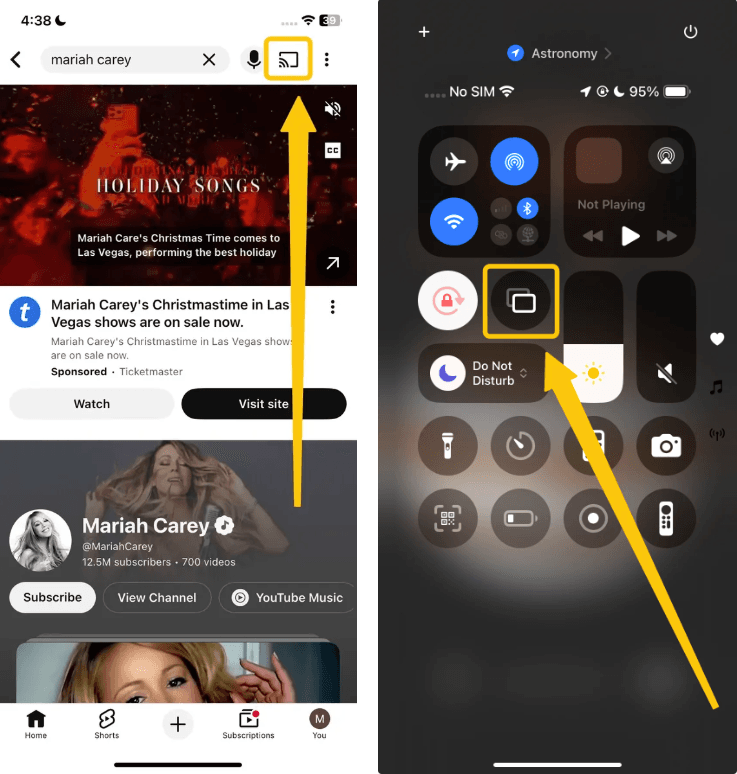
Step 3. Open a media app and tap the AirPlay icon, or swipe to Control Center > Screen Mirroring. Choose your Panasonic TV from the list to initiate the handshake.
Step 4. Enter the four-digit code displayed on the TV into your iPhone. If the prompt loops, cancel the request, wait five seconds, and re-select the TV from the list.
Step 5. Test the connection stability by locking and unlocking your phone once. This confirms the session remains active during background tasks or app switching.
You may find: AirPlay Stops When iPhone Locks? 9 Fixes That Work
How to AirPlay to Panasonic TV from MacBook
Using a computer allows for more advanced configurations, such as extending your desktop or giving presentations. By selecting the correct output mode immediately after pairing, you can turn your TV into a powerful secondary workstation. Here are the steps on Panasonic TV AirPlay MacBook:

Step 1. Verify your Panasonic TV settings first by navigating to Settings > Network > Apple AirPlay and HomeKit. Confirm that AirPlay is enabled and that the TV is connected to the same Wi-Fi SSID as your Mac.
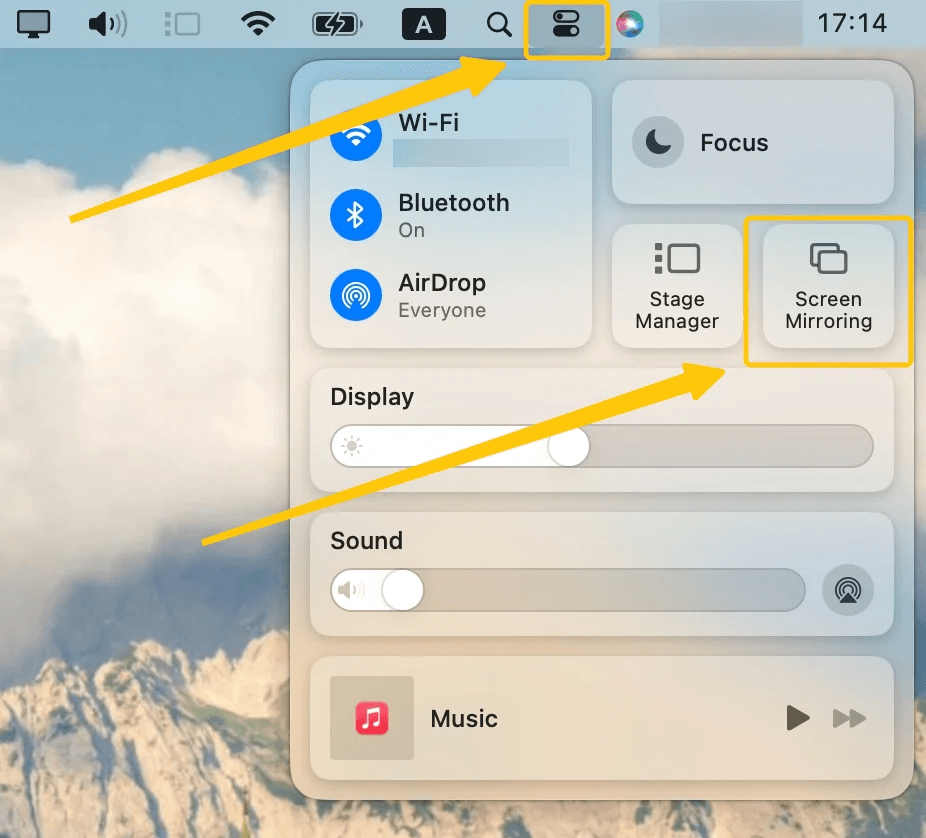
Step 2. Click the Control Center icon in the macOS menu bar and select Screen Mirroring. Choose your Panasonic TV from the device list and enter the pairing code shown on the TV to establish a secure wireless link.
Step 3. Click the Screen Mirroring icon again to choose Mirror Built-in Display to duplicate your desktop, or Use As Separate Display to extend your workspace.
Step 4. Confirm your audio output by going to System Settings > Sound. Select your Panasonic TV in the Output list to ensure the sound plays through the TV speakers instead of the laptop.
Step 5. Test with a local video file first to verify link stability. If local media works but streaming apps show a black screen, the issue is usually related to app-specific DRM policies rather than the setup itself.
Mirror iPhone or Mac to Panasonic TV with PigeonCast
If the native AirPlay process feels too restrictive or fails to discover your TV across different network segments, PigeonCast offers a more robust and professional alternative. Unlike standard system mirroring, PigeonCast acts as a universal bridge that supports not only AirPlay but also Google Cast and DLNA, allowing you to stream 4K content from Windows, Mac, or mobile devices with significantly lower latency.


Overall Rating:



It is particularly effective for users who need a one-click solution that bypasses common pairing code loops and network isolation issues often found in complex home or office environments.
Step 1. Ensure your devices are covered by the same wireless network.
Step 2. Install PigeonCast on your iPhone, iPad or Mac from the App Store. You can also download this app on your Panasonic TV from the corresponding app shop if available.
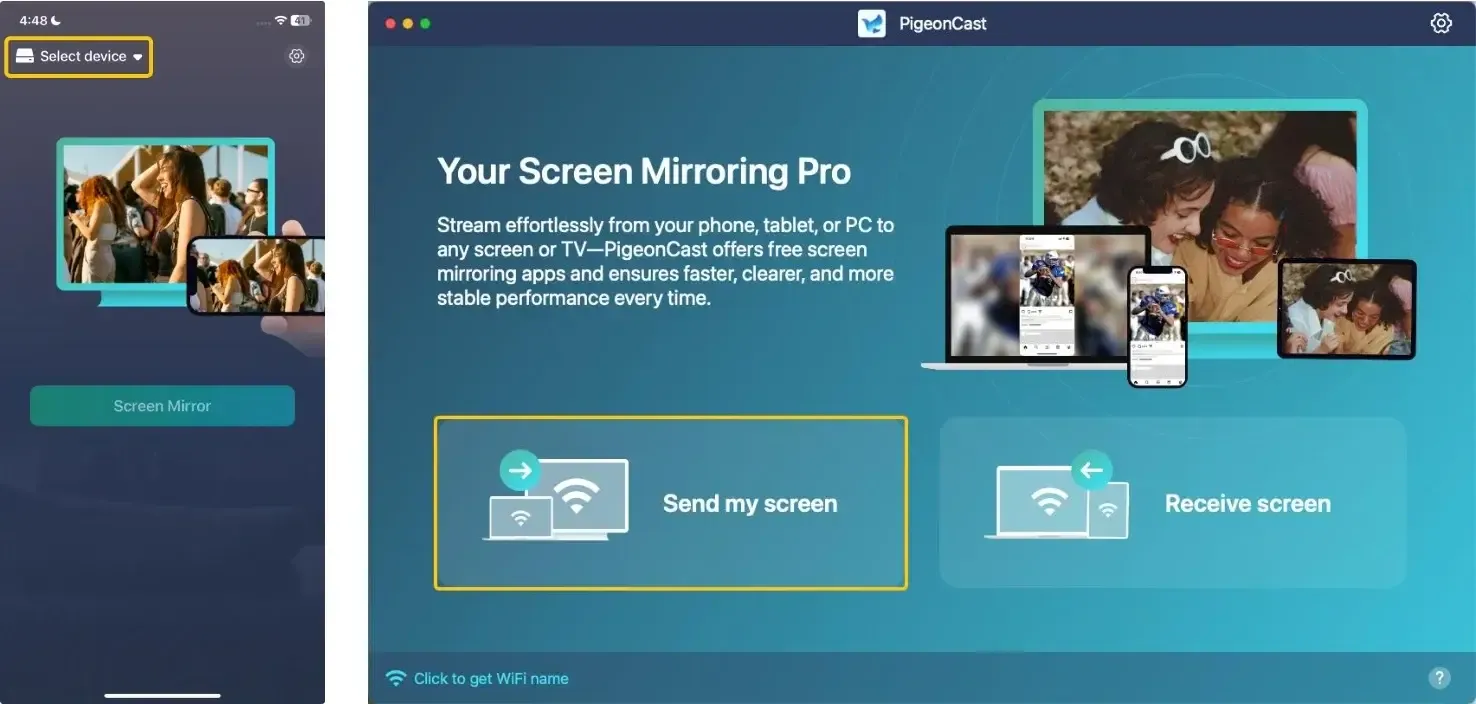
Step 3. Launch the app, tap Select device or Send my screen to choose your TV from the device list.
Step 4. Enter the onscreen PIN code to comfirm the pairing process.
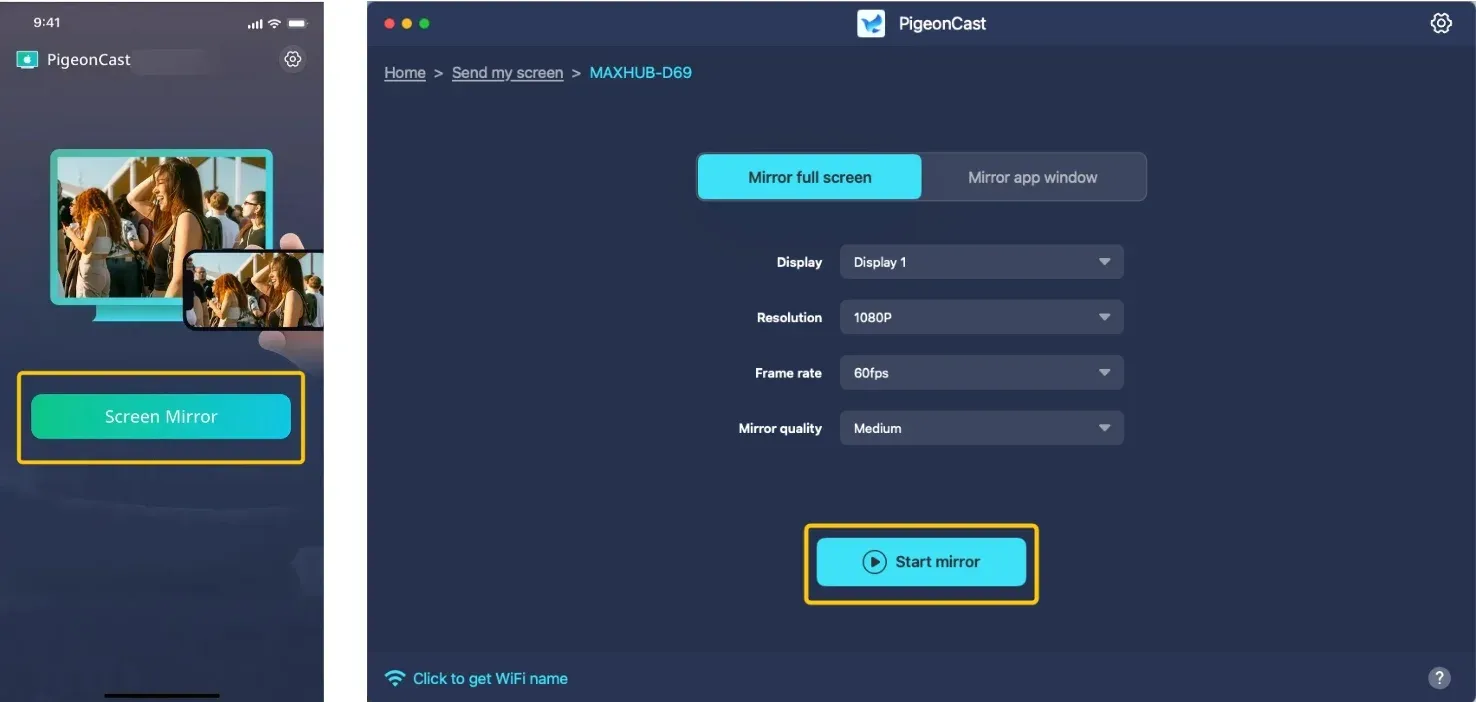
Step 5. When you finish the connection, tap Screen Mirror or Start mirror to AirPlay on Panasonic TV. If you use the laptop, you can freely choose whether to mirror the whole screen or a simple app window.
Panasonic AirPlay 2 TV Not Working
If your AirPlay to Panasonic Smart TV connection fails despite following the standard steps, the AirPlay issue is usually tied to specific network behaviors or software glitches. Identifying the exact symptom, whether it is a discovery error or a playback failure, will help you apply the correct fix quickly.

- TV Name Not Appearing in List
If your iPhone or Mac cannot see the Panasonic TV at all, the discovery protocol is likely blocked. Ensure both devices are on the same Wi-Fi band (avoiding guest networks) and toggle the AirPlay setting Off and then On in the TV menu to refresh its broadcast signal.
When the TV is visible but selecting it doesn't trigger a code, a power cycle is required. Unplug your TV from the wall for 60 seconds and restart your Apple device to clear the communication cache and force a fresh handshake between the hardware.
- Audio Plays But Screen Is Black
If you hear sound but the screen remains dark, you are likely encountering a DRM (Digital Rights Management) restriction. This occurs with certain streaming apps; try playing a local video from your Photos app first to confirm the hardware link is actually functional.
Frequent stuttering usually points to network congestion or distance issues. Move your router closer to the TV, or switch both devices to the 5GHz Wi-Fi band to reduce interference from other household electronics and ensure a higher bitrate for the stream.
- Pairing Code Loops or Keeps Failing
If the TV repeatedly asks for a code but won't connect, go to the AirPlay and HomeKit settings on the TV and select Reset Paired Devices. This wipes old security certificates, allowing your device to establish a completely new and secure pairing session.
Closing Words
How to connect AirPlay to Panasonic TV? Success depends on a unified network and updated firmware to avoid handshake errors. While native settings provide the basics, PigeonCast offers a more professional, low-latency alternative that bypasses common connection loops and supports multiple platforms. With the right configuration or a dedicated tool like PigeonCast, you can ensure a stable, high-definition streaming experience every time.
Panasonic TV AirPlay FAQ
Can you AirPlay to Panasonic TV?
Yes, most modern Panasonic Smart TVs support AirPlay 2, allowing you to stream content or mirror your screen from any iPhone, iPad, or Mac. For users seeking higher stability or cross-platform support across Windows and Android, PigeonCast app offers a professional, low-latency alternative that bypasses common network discovery issues and pairing code loops.
How to cast to Panasonic TV from Android?
Most Panasonic Smart TVs support casting via built-in Chromecast or Miracast. Simply connect your Android device and TV to the same Wi-Fi network, then select your TV from the "Cast" or "Screen Mirroring" menu in your phone's quick settings. For older models, you may need to select "Mirroring" from the TV's Input menu first to enable discovery.
How to connect phone to Panasonic TV wirelessly?
To connect your phone to a Panasonic TV wirelessly, ensure both devices are on the same Wi-Fi network. The method depends on your phone's operating system:
-
For iPhone (AirPlay): Swipe to open the Control Center, tap Screen Mirroring, and select your Panasonic TV from the list. If prompted, enter the code shown on the TV screen.
-
For Android (Cast/Mirroring): Swipe down for Quick Settings and tap Cast, Smart View, or Wireless Projection. Alternatively, press the APPS button on your TV remote, select the Mirroring app, and then pair from your phone's settings.
-
App Casting: For apps like YouTube or Netflix, simply tap the Cast icon (rectangle with Wi-Fi waves) directly inside the app and choose your TV.
Why is Panasonic TV screen mirroring iPhone not working?
If your Panasonic TV is not appearing or fails to mirror your iPhone, it is typically due to a breakdown in communication between the two devices. Below are the primary reasons why this happens:
-
Network Discovery Failures
-
Software & Compatibility Issues
-
Connection & Signal Interference
-
Content Restrictions
How to enable AirPlay on Panasonic TV?
To enable this feature, navigate to the Settings menu on your Panasonic TV, select Network, and then locate Apple AirPlay and HomeKit settings. Ensure that the AirPlay toggle is set to On. Once enabled, you can also adjust your security preferences, such as setting the pairing code to appear "First Time Only" for faster subsequent connections.
How to connect AirPlay to Panasonic TV?
Most modern Panasonic Google TVs come with AirPlay 2 built-in, allowing for seamless integration with Apple devices. To activate it, go to the Dashboard or Settings menu, select Network & Internet, and locate Apple AirPlay and HomeKit settings to ensure the feature is toggled On.
Clara Rossi is an experienced technology editor and a seasoned expert in screen mirroring and casting technologies. With a keen eye for detail and a deep understanding of how to seamlessly connect devices, Clara excels at optimizing user experiences for effortless sharing and streaming. Whether you're seeking quick fixes or advanced tips, her expertise and responsiveness ensure that every query is met with a well-informed and efficient solution.