
Connecting your iPhone to an Apple TV allows you to stream content, mirror your phone's screen, and enjoy videos, music, and games on a larger display. Using AirPlay, Apple's technology, this process is simple and efficient. Understanding how to connect iPhone to Apple TV and the troubleshooting steps ensures you can connect seamlessly, whether you're at home or away.
How to Connect My iPhone to Apple TV
Connecting your iPhone to Apple TV allows you to enjoy all the content on your phone directly on the big screen. You can either use AirPlay or mirror your iPhone's screen for an effortless and high-quality streaming experience. Let's break down these easy ways to connect your iPhone to your Apple TV.
Method 1. Screen Mirroring from Control Center
To begin connecting your iPhone to Apple TV, one of the simplest and most efficient ways is through screen mirroring, which allows you to share your entire iPhone screen with your TV. Using the Control Center, you can easily mirror everything from apps to videos, presentations, or even games. Here's how to connect Apple TV to iPhone via Control Center:
Step 1. Ensure iPhone and Apple TV are covered by the same wireless network.
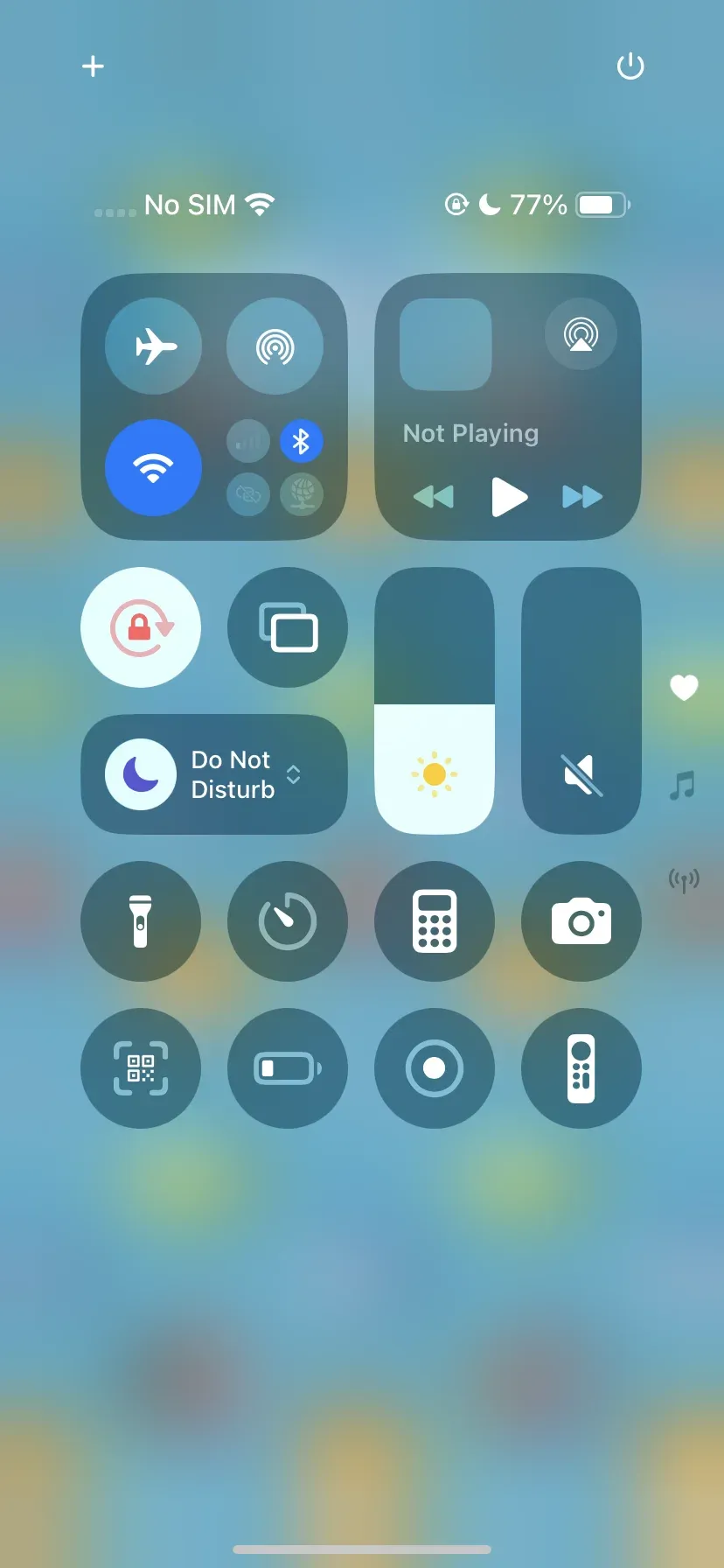
Step 2. Swipe down from the top-right corner of your iPhone screen (on models with Face ID) or swipe up from the bottom (on models with a Home button) to open the Control Center.
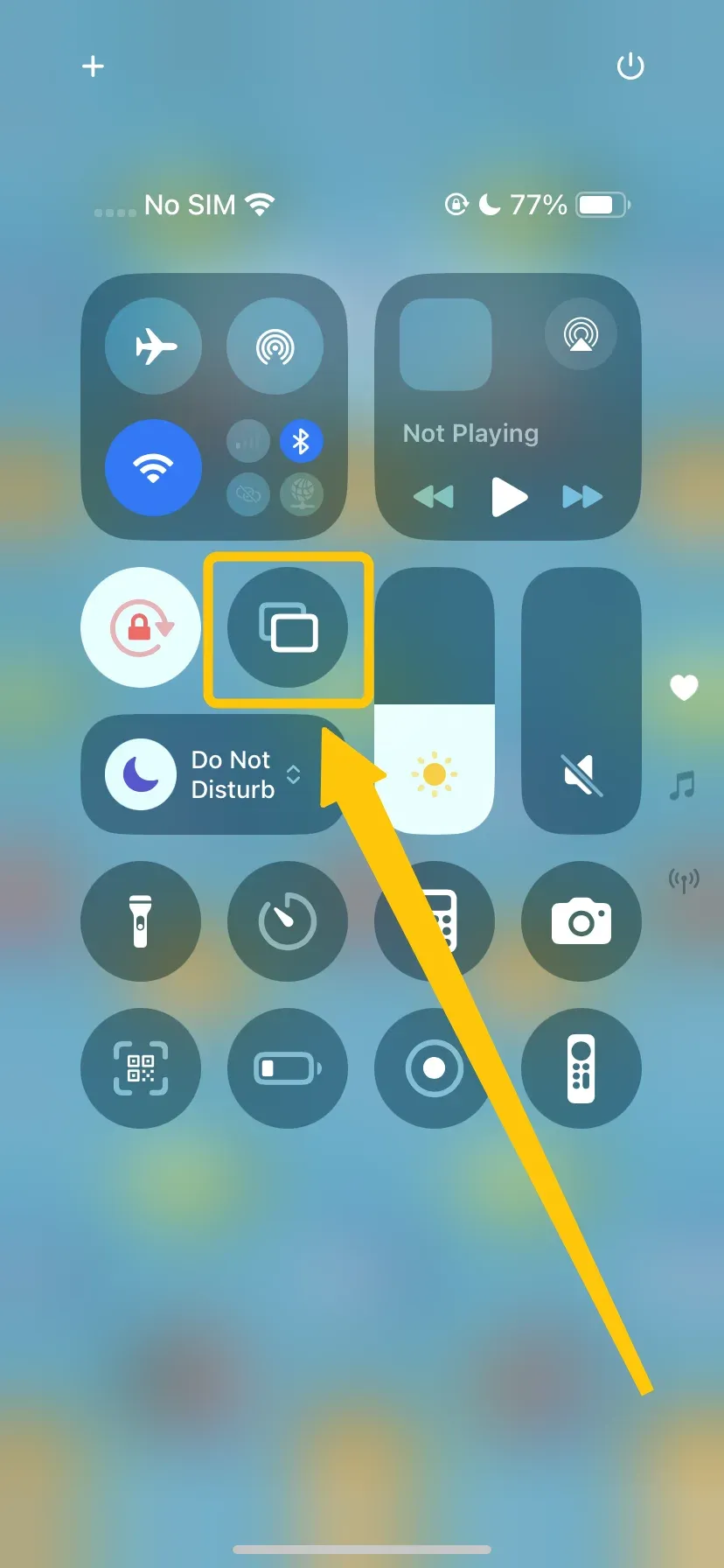
Step 3. Tap the Screen Mirroring button from the Control Center menu.
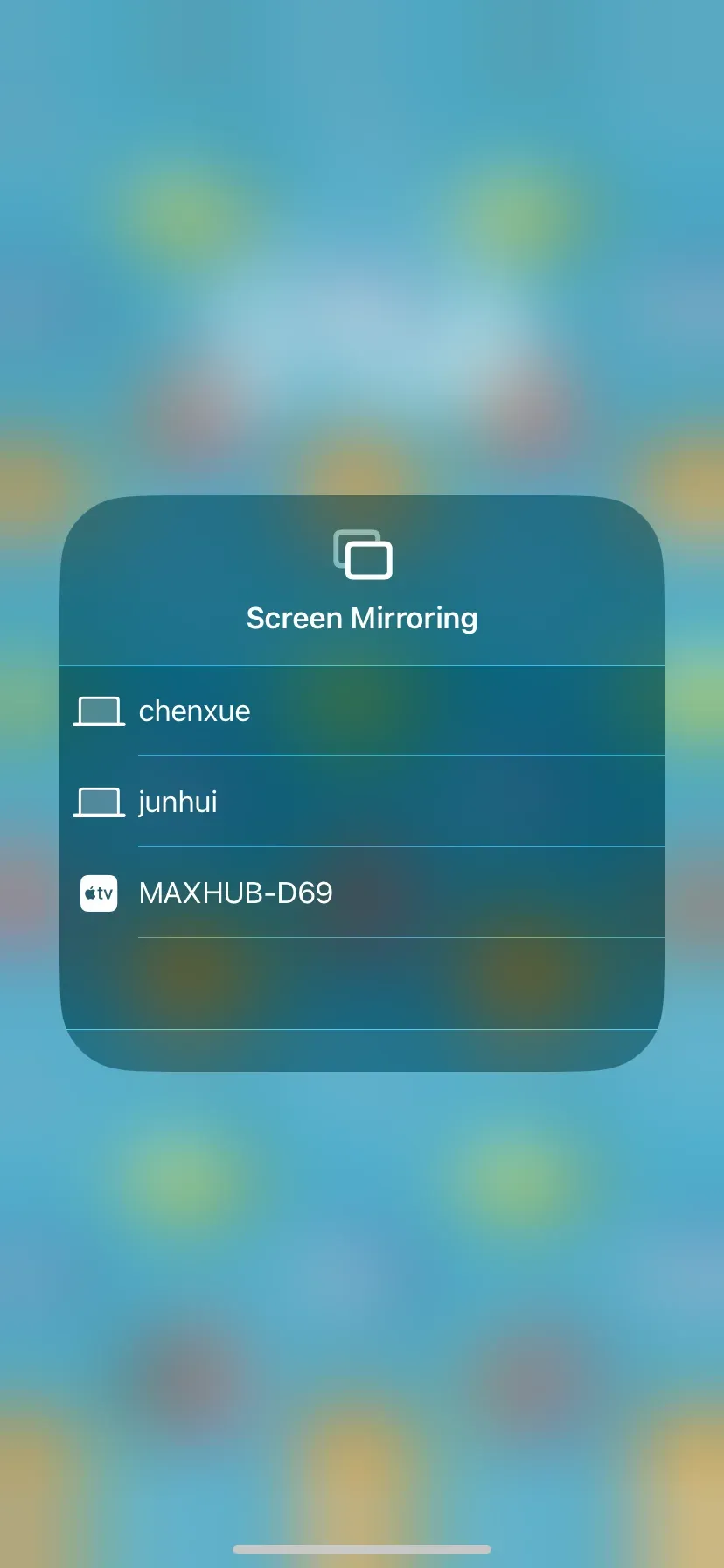
Step 4. Select your Apple TV from the available AirPlay devices on the iPhone.
Step 5. If prompted, enter the onscreen code to finish the connection, and your iPhone screen will now be fully replicated on your TV.
Method 2. AirPlay from iPhone to Apple TV
Many apps have AirPlay integrated into their player controls, allowing you to stream audio and video directly to your Apple TV with AirPlay. This method lets you continue using your iPhone for other tasks without interrupting the stream on your TV. Here's how to connect to Apple TV from iPhone via a specific app's built-in AirPlay:
Step 1. Ensure your devices are connected to the same WiFi network.
Step 2. Open a video, music, or photo in a supported app like YouTube, Netflix, Apple TV+, Photos, or Spotify.
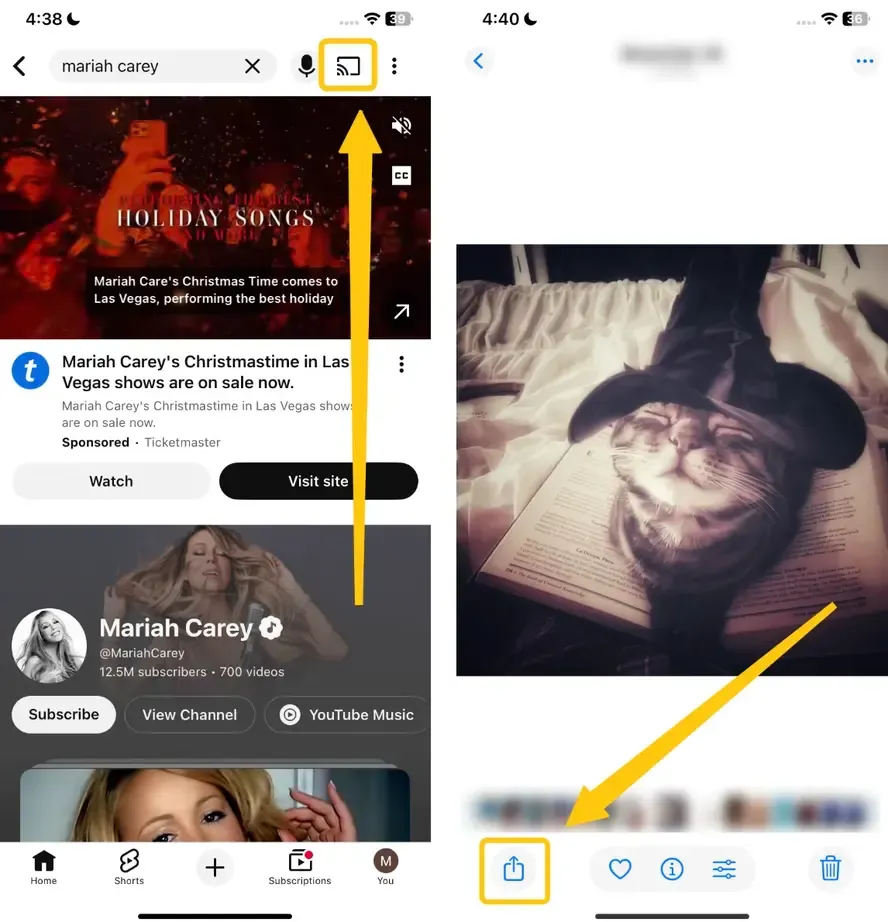
Step 3. Look for the AirPlay icon, typically a rectangle with a solid triangle at the bottom or sometimes part of a Share menu.
iPhone Not Connecting to Apple TV: Use PigeonCast
If you've already checked your Wi-Fi, rebooted your devices, and still see the frustrating "No AirPlay Devices Found" message, PigeonCast could be the solution. This free app is an excellent alternative to AirPlay, offering compatibility with AirPlay, DLNA, and Google Cast for maximum casting flexibility.
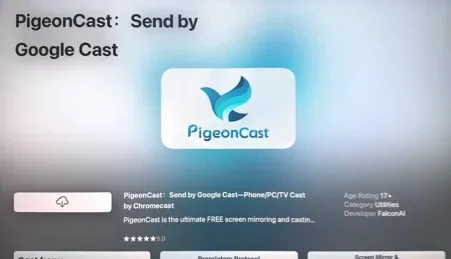
This means you can instantly stream YouTube videos, your photo albums, music playlists, and even supported apps directly from your iPhone to any television or monitor. Once installed, you can even mirror your iPhone to Android TV and Windows, or receive Android and Windows mirroring to the Apple TV. Here's how to connect Apple TV with iPhone via PigeonCast:
Step 1. Confirm your iPhone and Apple TV are under the same WiFi network.


Overall Rating:


Step 2. Install PigeonCast on your iPhone and Apple TV from the App Store. Then open the app.
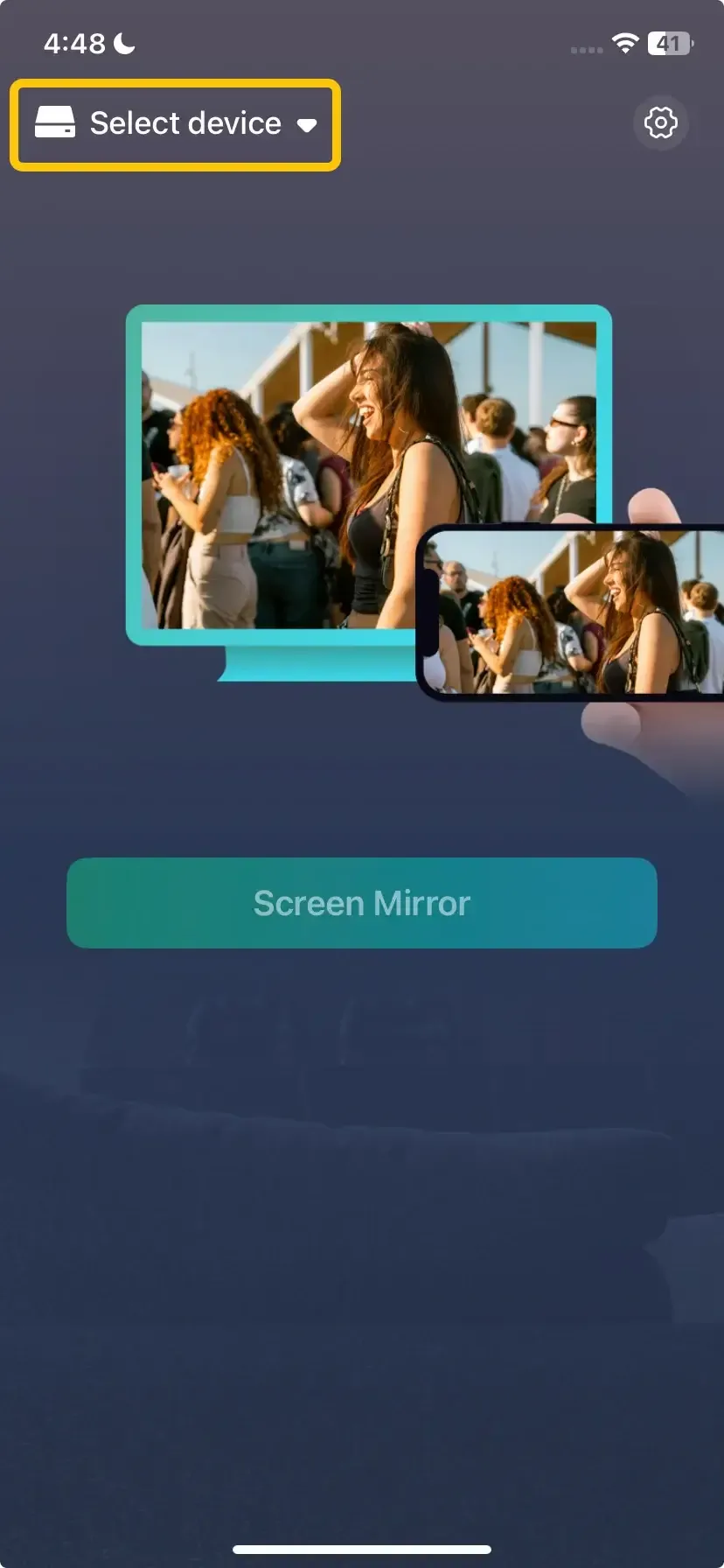
Step 3. On your iPhone, tap Select device to choose your Apple TV from the available list. Alternatively, you can scan the QR Code to create this connection.
Step 4. Enter the onscreen code to confirm your pairing performance.
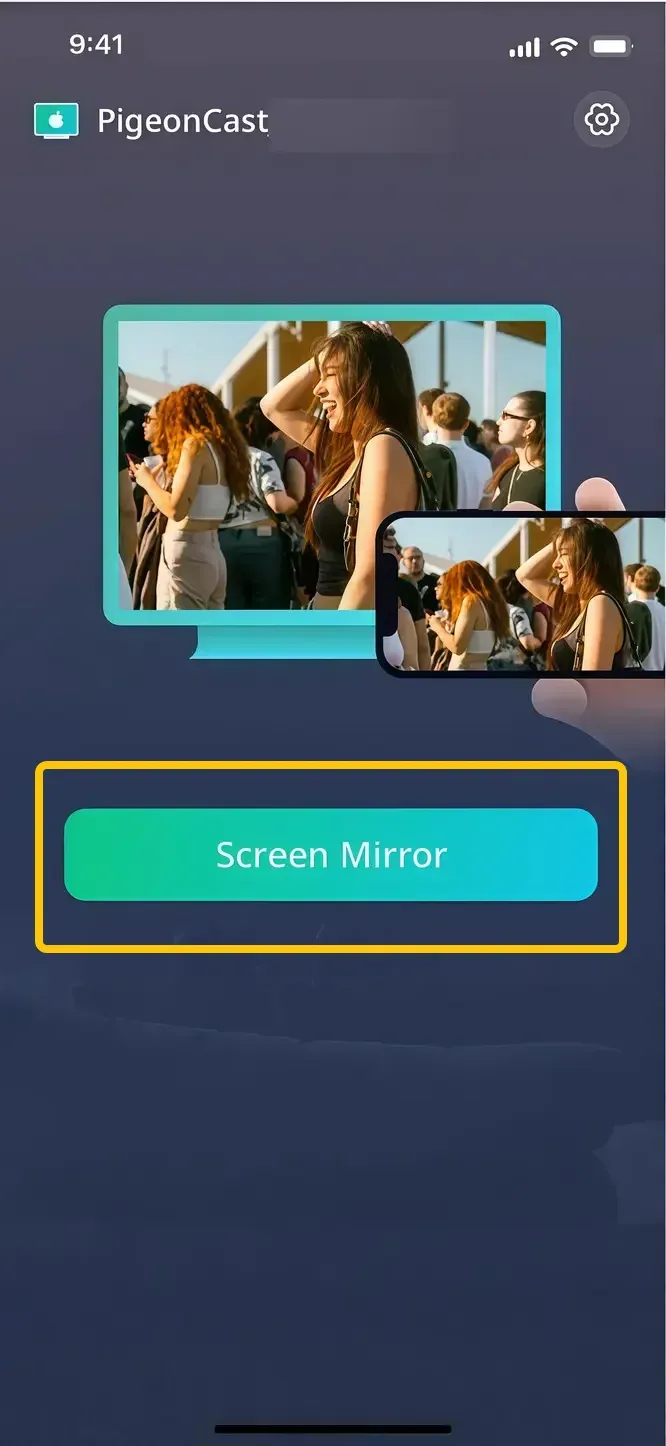
Step 5. When this pairing succeeds, you can then tap the Screen Mirror button to start the mirroring activities.
Bottom Line
How to cast Apple TV from iPhone? Using AirPlay or screen mirroring through the Control Center makes the process simple and efficient. If you encounter connection issues, third-party solutions like PigeonCast provide flexible alternatives for smooth streaming. By understanding these methods and troubleshooting steps, you can ensure a hassle-free experience whenever you want to share your iPhone's content with your Apple TV.
How to Connect iPhone to Apple TV FAQ
Why is my iPhone not recognizing my Apple TV?
Here's a simple list of reasons why your iPhone might not be recognizing your Apple TV:
- Wi-Fi connectivity issues
- AirPlay disabled
- Outdated software
- Network interference
- Bluetooth or connectivity issues
How to connect iPhone to Apple TV via Bluetooth?
To clarify, you cannot connect your iPhone to Apple TV via Bluetooth for screen mirroring or streaming content. Apple TV primarily uses AirPlay for wireless communication with devices like your iPhone. Bluetooth on Apple TV is used for connecting accessories like headphones or game controllers, but not for streaming content or mirroring.
How to connect iPhone to Apple TV wirelessly?
To connect your iPhone to Apple TV wirelessly, you can use AirPlay or Screen Mirroring that allow you to stream or mirror content from your iPhone to your Apple TV. Alternatively, you can use PigeonCast, a free mirroring app that supports cross-platform compatibility on Android, iOS, Windows, Mac, and TVs.
How to disconnect Apple TV from iPhone?
To disconnect your iPhone from Apple TV, simply follow these steps:
- Stop Screen Mirroring via Control Center:
- On iPhone X or later: Swipe down from the top-right corner to open Control Center.
- On iPhone 8 or earlier: Swipe up from the bottom to open Control Center.
Then, tap the Screen Mirroring button and select Stop Mirroring. This will immediately disconnect the iPhone from Apple TV.
- Disconnect via AirPlay (for specific app streaming):
If you were streaming from an app like YouTube, Netflix, or Apple Music, tap the AirPlay icon in the app's player controls (it's usually a rectangle with a triangle at the bottom) and select iPhone to stop casting.
- Turn Off AirPlay on Apple TV:
You can also turn off AirPlay on your Apple TV to prevent automatic connections. Go to Settings > AirPlay and HomeKit on Apple TV and turn off AirPlay.
How to connect iPhone to Apple TV without WiFi?
To connect your iPhone to Apple TV without using Wi-Fi, you can use Peer-to-Peer AirPlay. This feature allows your iPhone and Apple TV to connect directly to each other via Bluetooth and Wi-Fi, without the need for a shared network.
Clara Rossi is an experienced technology editor and a seasoned expert in screen mirroring and casting technologies. With a keen eye for detail and a deep understanding of how to seamlessly connect devices, Clara excels at optimizing user experiences for effortless sharing and streaming. Whether you're seeking quick fixes or advanced tips, her expertise and responsiveness ensure that every query is met with a well-informed and efficient solution.