
Connecting your smartphone to an Apple TV opens up a world of possibilities, turning your TV into a big-screen display for everything from family photos and videos to mobile games and presentations. Whether you're an iPhone user immersed in the Apple ecosystem or an Android fan, there are several easy and reliable ways to connect your phone to an Apple TV. Read on to learn how to connect phone to Apple TV.
How to Connect Your Phone to Apple TV
There are several ways to connect your phone to an Apple TV, whether you're using an iPhone or an Android device. Fortunately, these methods are simple and easy to follow. Let's begin by looking at how to connect phone to Apple TV wirelessly, so you can start streaming content in no time.
How to Connect iPhone to Apple TV via AirPlay
For iPhone users, the easiest way to connect to an Apple TV is through AirPlay. This built-in wireless technology allows you to stream content like videos, music, and photos, or mirror your iPhone's screen to the AirPlay-compatible TV with just a tap, making it perfect for streaming or sharing presentations. Here's the step on how to connect iPhone AirPlay to Apple TV:
Step 1. Make sure your iPhone and Apple TV are connected to the same Wi-Fi network.
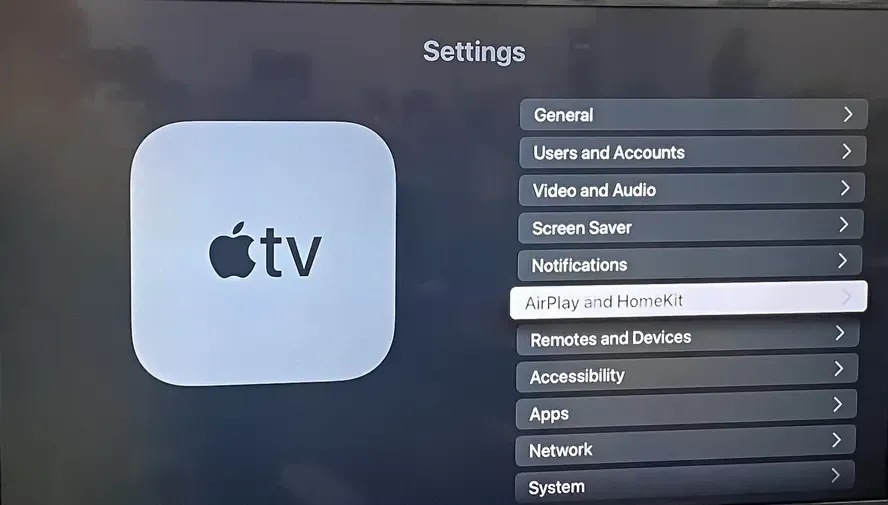
Step 2. On Apple TV, open the Settings > AirPlay and HomeKit, and make sure AirPlay is turned on.
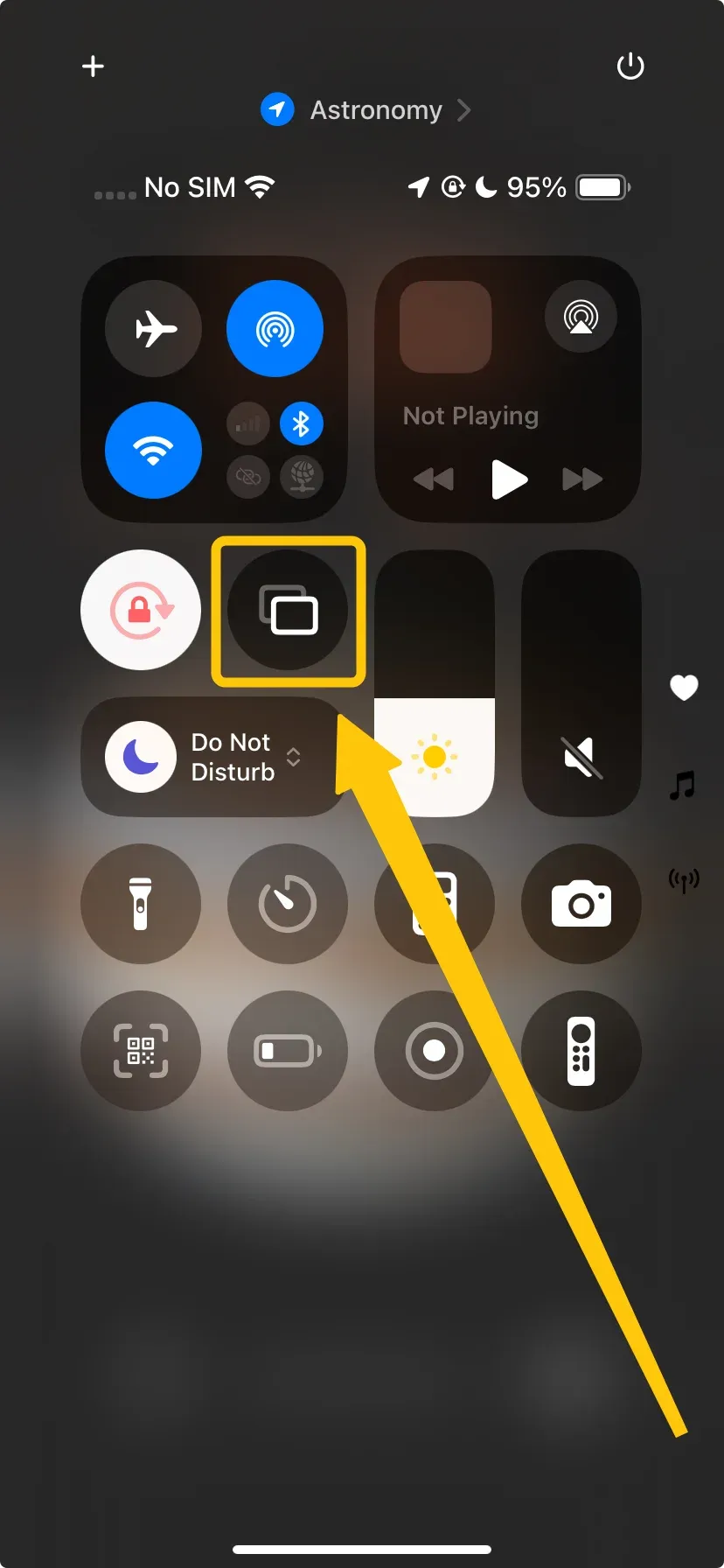
Step 3. Access Control Center on your iPhone:
- For iPhone X or later, swipe down from the top-right corner of the screen.
- For iPhone 8 or earlier, swipe up from the bottom of the screen.
Step 4. Tap the Screen Mirroring button to choose your Apple TV from the available list.
Step 5. If prompted, enter the onscreen code to finish the pairing process.
Step 6. Once connected, you can start streaming content, such as videos from YouTube, Netflix, or Apple Music, or even mirror your phone's screen to the TV.
How to Connect Android Phone to Apple TV via PigeonCast
Since Apple TV doesn't support Google's Chromecast protocol, stream from Android to Apple TV needs an AirPlay alternative solution. The most reliable method is to use a third-party screen-mirroring app like PigeonCast. This free app creates a bridge between the two systems, allowing your Android phone to cast its display to the Apple TV. Now, let's dive into how to cast to Apple TV from Android device.

Step 1. Ensure both your Android and Apple TV are under the same wireless network.


Overall Rating:



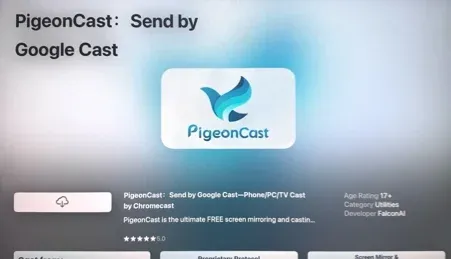
Step 2. Install PigeonCast on Android and Apple TV from the app store. Then launch it.
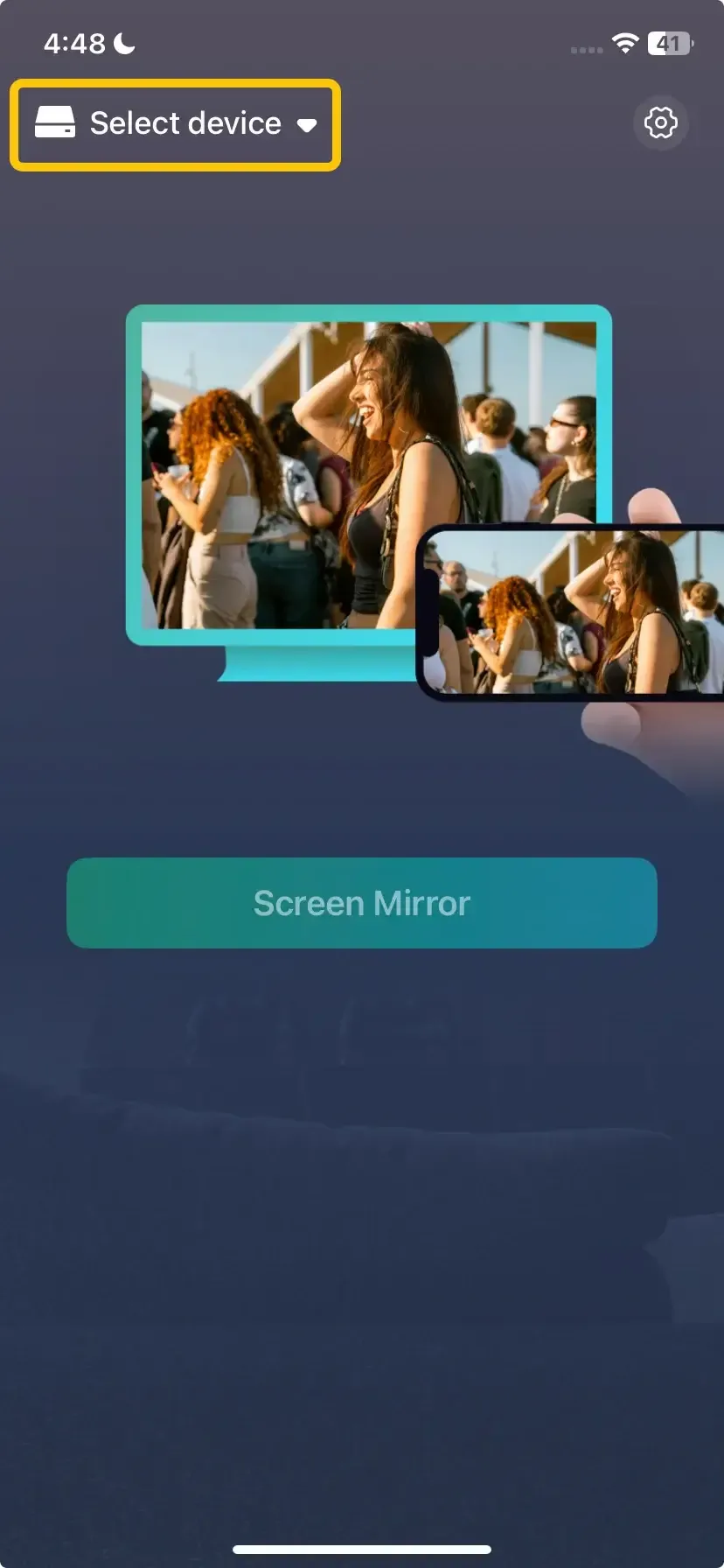
Step 3. On an Android phone, tap Select device to choose your Apple TV from the device list. Or you can scan the QR code to build the connection.
Step 4. Enter the onscreen code to confirm the pairing process.
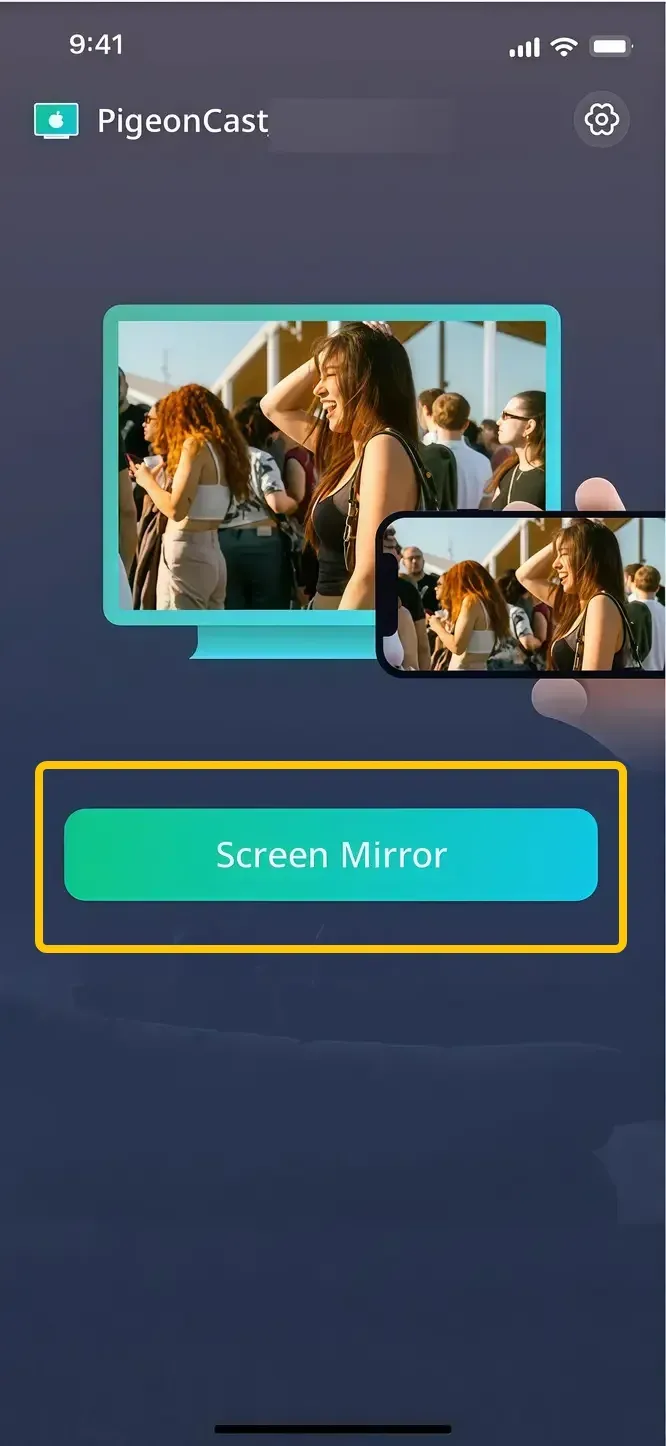
Step 5. When the connection succeeds, tap Screen Mirror to cast Android to Apple TV.
Bottom Line
How to connect my phone to Apple TV? Whether you're using an iPhone or an Android device, connecting to an Apple TV is simple and a great way to enjoy your content on a bigger screen. iPhone users can take advantage of AirPlay for a seamless, wireless connection, while Android users can use third-party apps like PigeonCast to easily bridge the gap.
How to Connect Phone to Apple TV FAQ
How to connect phone to Apple TV without WiFi?
You can connect your phone to Apple TV without Wi-Fi by using Peer-to-Peer AirPlay. This allows you to stream content from your iPhone to Apple TV over Bluetooth and Wi-Fi Direct, without needing a shared Wi-Fi connection. Simply enable AirPlay and Bluetooth on both devices, and your iPhone should detect the Apple TV automatically for mirroring.
How to connect phone to Apple TV box?
To connect your phone to an Apple TV box, simply follow the steps outlined above using AirPlay for iPhones or PigeonCast for Android devices. Both methods work seamlessly, as long as both your phone and Apple TV are on the same Wi-Fi network.
How to connect phone to Apple TV wirelessly?
The easiest way to connect your phone wirelessly to Apple TV is through AirPlay (for iPhone users) or PigeonCast (for Android users). Both methods allow you to stream and mirror content directly to your TV without the need for cables.
How to screen mirror iPhone to Samsung TV?
To screen mirror an iPhone to a Samsung TV, you can use AirPlay (if your Samsung TV supports it) by selecting Screen Mirroring in the Control Center. If your Samsung TV doesn't support AirPlay, you can use third-party apps like PigeonCast to mirror your iPhone screen.
Clara Rossi is an experienced technology editor and a seasoned expert in screen mirroring and casting technologies. With a keen eye for detail and a deep understanding of how to seamlessly connect devices, Clara excels at optimizing user experiences for effortless sharing and streaming. Whether you're seeking quick fixes or advanced tips, her expertise and responsiveness ensure that every query is met with a well-informed and efficient solution.