
If AirPlay stops when phone locks, you are usually dealing with a background playback interruption, power-saving behavior, or a network handoff issue. It can look random at first, but the failure pattern is often consistent once you test in the right order. This guide gives you a direct fix sequence so you can keep AirPlay running after your iPhone screen turns off.
Why Does AirPlay Stop When Phone Locks
When you lock your iPhone, iOS may reduce background activity depending on the app type, playback method, and battery state. This is one reason iPhone's AirPlay shuts off when iPhone locks during video or music playback. AirPlay works reliably only when three parts stay stable at the same time: the sender on your iPhone, the AirPlay 2 comptible receiver, and a consistent local Wi-Fi connection.
In practice, most cases where AirPlay stops when screen locks happen for one of these reasons:
- Auto-Lock or power-saving settings pause or limit the sender app.
- The streaming app does not support stable background playback.
- Wi-Fi changes or weak signal interrupt the AirPlay connection.
- Receiver settings on the TV or Apple TV time out the session.
- Software version mismatches between iOS, tvOS, or smart TV firmware cause connection instability.
How to Keep AirPlay on While Phone Is Locked
If you are wondering how to keep AirPlay going when phone locks, try the fixes below in order and test playback with the phone locked after each step. This helps you find which setting is causing the AirPlay pauses when phone locks problem. If AirPlay stays connected for about five minutes while the phone is locked, the issue is likely fixed.
Way 1. Check Auto-Lock and Power Settings
This check targets the most common cause: background behavior changing after the iPhone locks. Lock and battery settings can interrupt AirPlay sessions before network or TV settings come into play. If the connection drops within the first 10–30 seconds after locking, this step often resolves it.
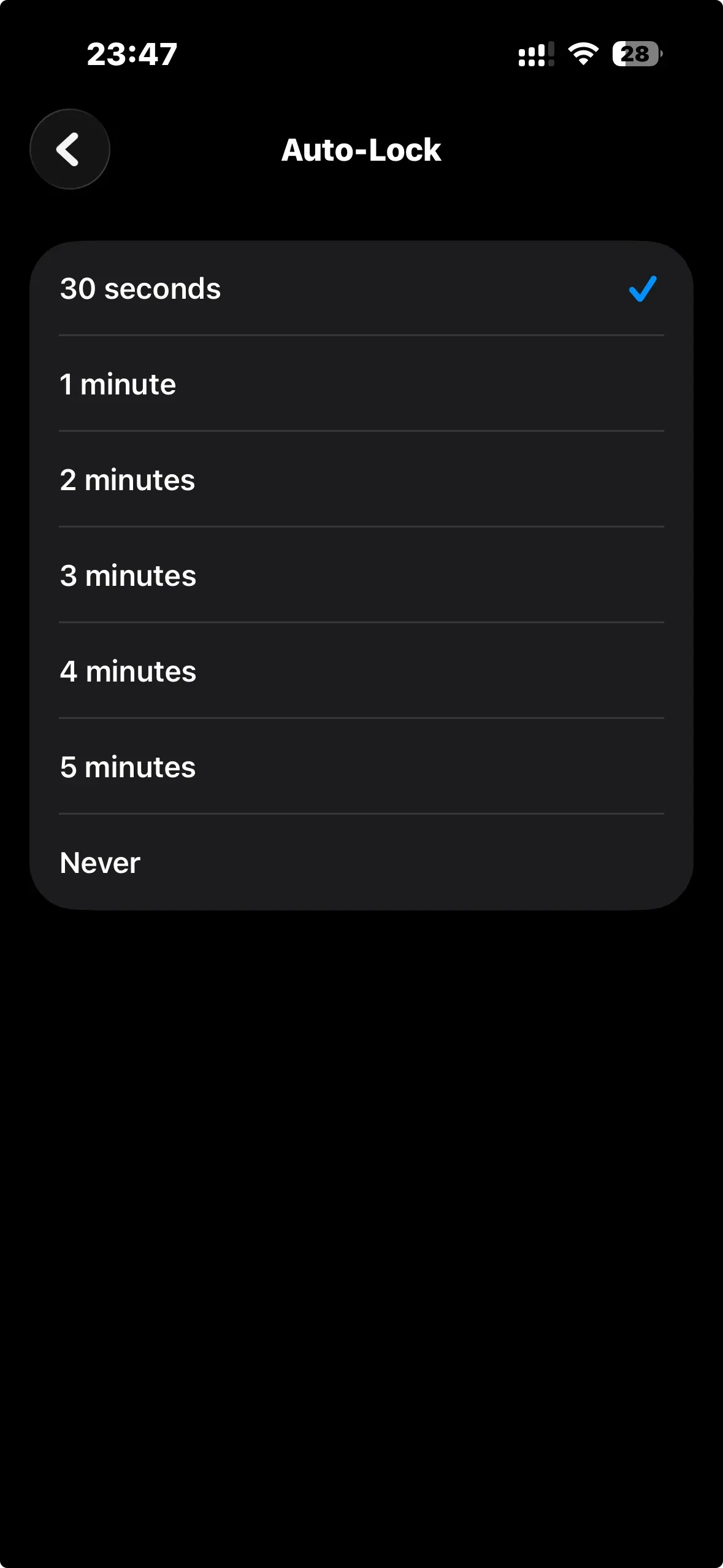
Step 1. On iPhone, open Settings > Display & Brightness > Auto-Lock and set it to 5 Minutes or Never (for testing).
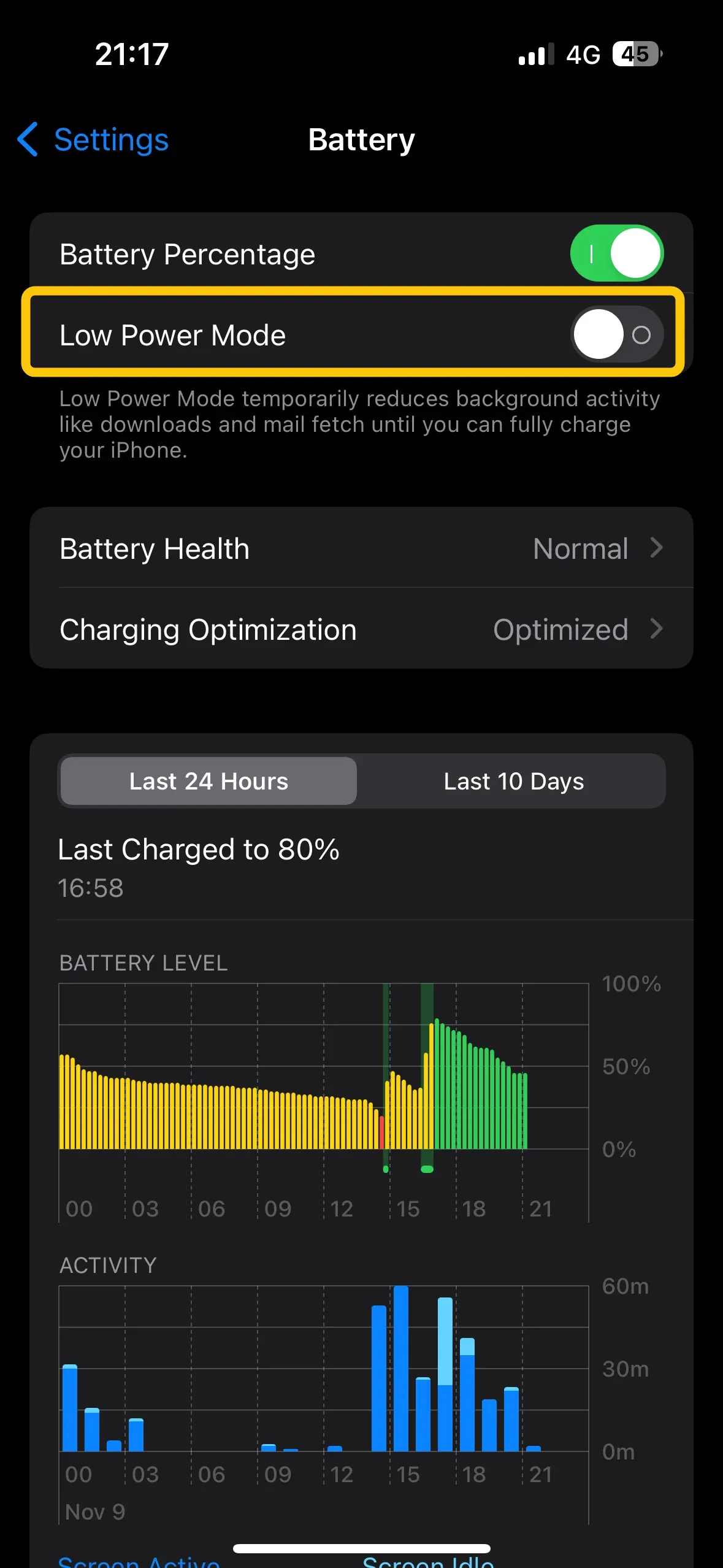
Step 2. Go to Settings > Battery and turn Low Power Mode off during testing.
Step 3. Start playback, wait about 30 seconds, then lock the phone. Check whether AirPlay continues for 2–3 minutes.
Step 4. If playback stays stable, adjust Auto-Lock gradually (for example from Never to 5 Minutes) and test again to find the shortest stable setting.
Way 2. Test Basic AirPlay Playback
After stabilizing lock and power settings, run a simple baseline test to confirm that the AirPlay connection stays active when the phone is locked. This step helps determine whether the issue comes from the network environment or from a specific app.
Step 1. Connect the iPhone and the receiver to the same trusted home Wi-Fi network (same SSID). Make sure neither device is on a guest network.
Step 2. Start a short video and let it play for about 30–60 seconds. Lock the phone and observe whether playback continues for about 5 minutes.
Step 3. Repeat the same test once with no settings changed to confirm the result is consistent.
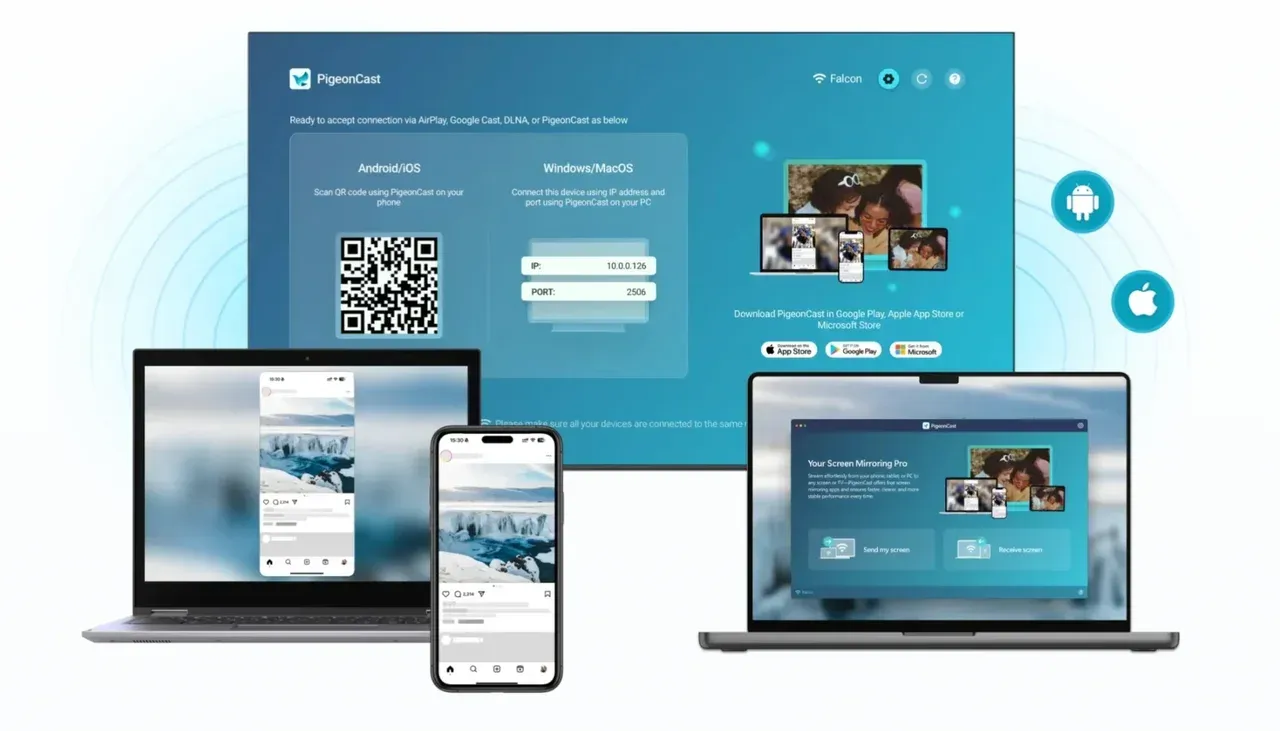
If you often mirror content from your phone to TVs or projectors, a dedicated casting tool can sometimes provide a more stable connection than native AirPlay alone. For example, PigeonCast is designed for cross-device screen casting and can help maintain smoother casting sessions across different apps and display devices.


Overall Rating:



Way 3. Keep the AirPlay Receiver Stable
If the receiver disappears after the phone locks, the problem is usually AirPlay discovery. This step checks whether the iPhone can consistently find the receiver again. The same device should appear in the Control Center within a few seconds each time.
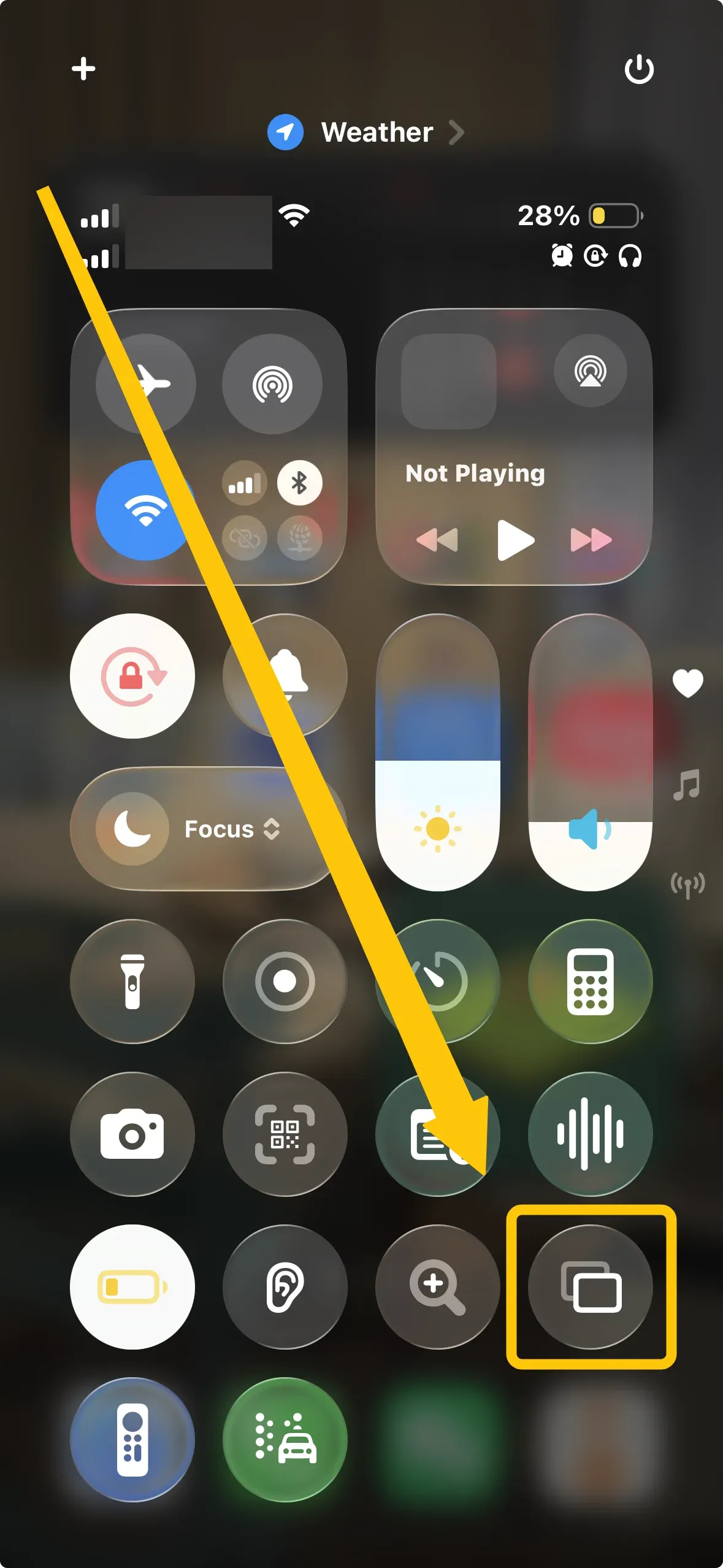
Step 1. After locking or unlocking the phone, open Control Center > Screen Mirroring and check whether the receiver appears within a few seconds.
Step 2. On iPhone, go to Settings > Wi-Fi, turn Wi-Fi off and back on, then check detection again.
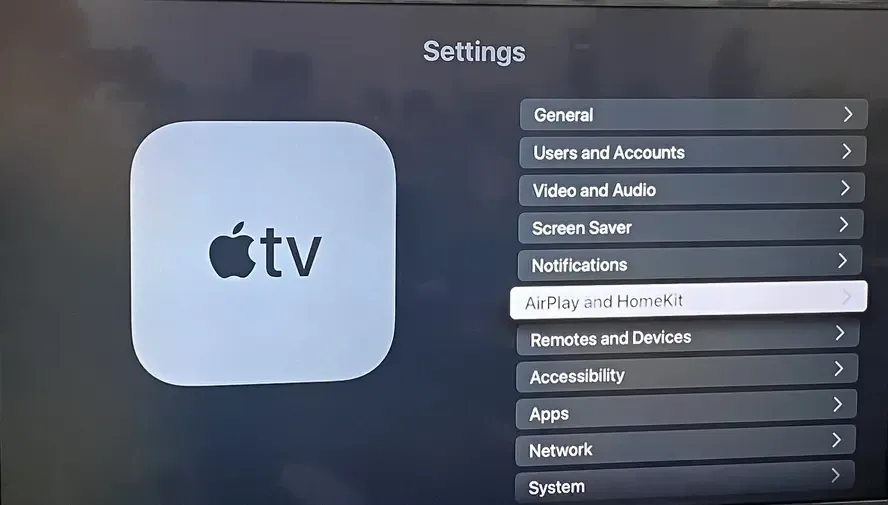
Step 3. On Apple TV or AirPlay-compatible TV, open Settings > AirPlay and HomeKit, turn AirPlay off and back on, then retry from the iPhone.
Step 4. If the receiver still appears inconsistently after repeated lock tests, restart the router once and test again.
Way 4. Fix Black Screen
If the TV turns black after you lock your iPhone, the video may stop showing even though AirPlay is still connected. In normal use, the video should keep playing on the TV even when the phone screen turns off.
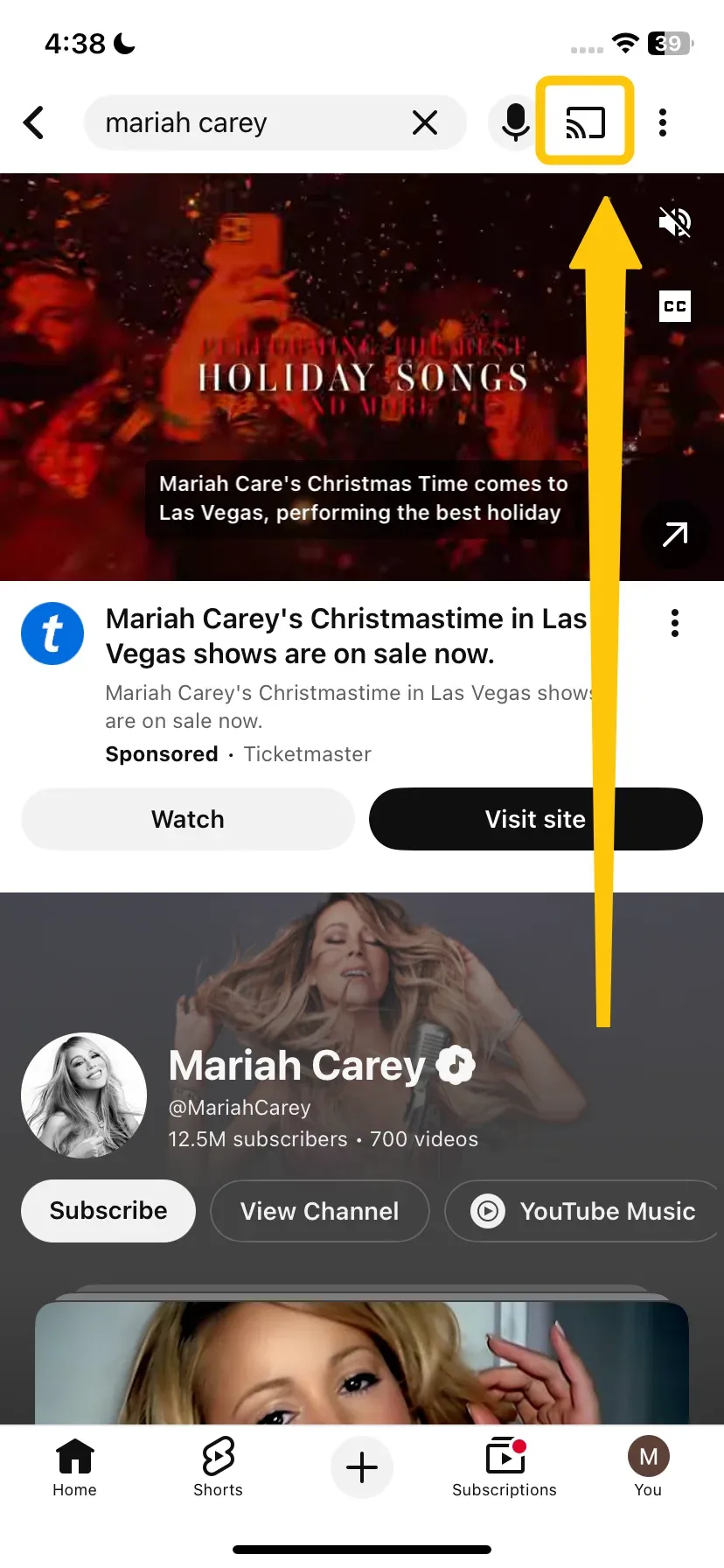
Step 1. Start playback inside the app first, then initiate AirPlay from the active player, not from an idle home screen.
Step 2. Keep playback running for 20-30 seconds, then lock the phone and check whether video remains visible on TV.
Step 3. If black screen appears, stop playback in-app, reconnect AirPlay from the same app, and retry once.
Step 4. Disable in-app data saver or background restriction toggles, then rerun the lock test.
Way 5. Fix AirPlay Lag
If AirPlay stays connected but the video starts to lag or stutter after you lock your iPhone, the problem is usually a weak or busy Wi-Fi connection.
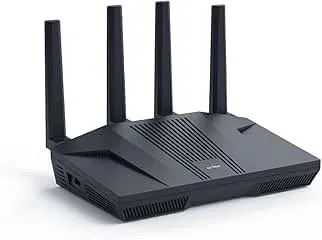
Step 1. Move the iPhone and the receiver closer to the router and test again. A clear line of sight can help improve signal strength.
Step 2. Pause other heavy network activity on the same Wi-Fi, such as large downloads, updates, or cloud backups.
Step 3. In the streaming app settings, lower the playback quality for the test.
Step 4. Lock the iPhone and run a 5-minute playback test to see if the video stays smooth.
Step 5. If lag still appears, restart the router once and repeat the test to check whether the issue continues.
Way 6. Fix AirPlay Audio
If the video keeps playing but the sound disappears after you lock your iPhone, the problem is usually related to the audio output changing or the TV audio settings. This step checks whether AirPlay audio stays active after the phone locks.
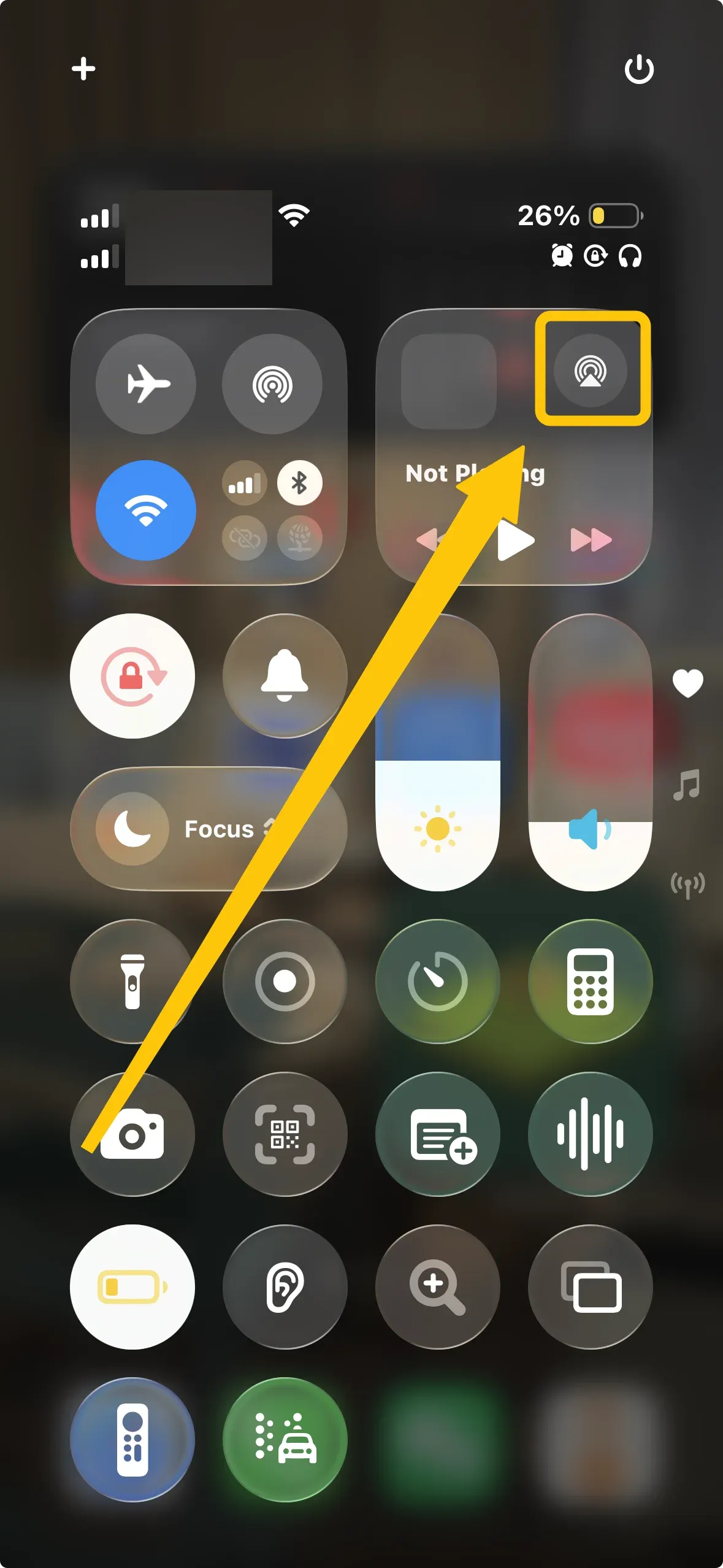
Step 1. On iPhone, open Control Center, tap the audio output selector, and manually select the AirPlay receiver again.
Step 2. On the TV or receiver, make sure mute is off and check the audio mode in the settings menu (for example Auto or PCM).
Step 3. Disconnect AirPlay once, reconnect from the same streaming app, then lock the phone and test whether audio continues.
Step 4. Try playing a different video or audio source to see whether the issue is limited to one app.
Way 7. Keep Video in Fullscreen
If the video exits full screen after you lock your iPhone, the display mode may reset when the phone locks. This step checks whether the video stays in full screen on the TV during and after the lock.
Step 1. Enter full-screen mode in the app before starting AirPlay. Start casting while the video is already in full screen.
Step 2. Let the video play for 20–30 seconds, then lock the phone. After unlocking, check whether the TV is still showing the video in full screen.
Step 3. If the video leaves full screen, rotate the iPhone once, return the video to full screen in the app, and test again.
Step 4. Try the same test in another streaming app to see whether the problem happens in only one app or across multiple apps.
Way 8. Update iOS and Receiver Software
If the previous fixes do not solve the problem, outdated software on the iPhone or the receiver may cause AirPlay not working incorrectly after the phone locks. Updating both devices helps ensure they use compatible AirPlay versions.
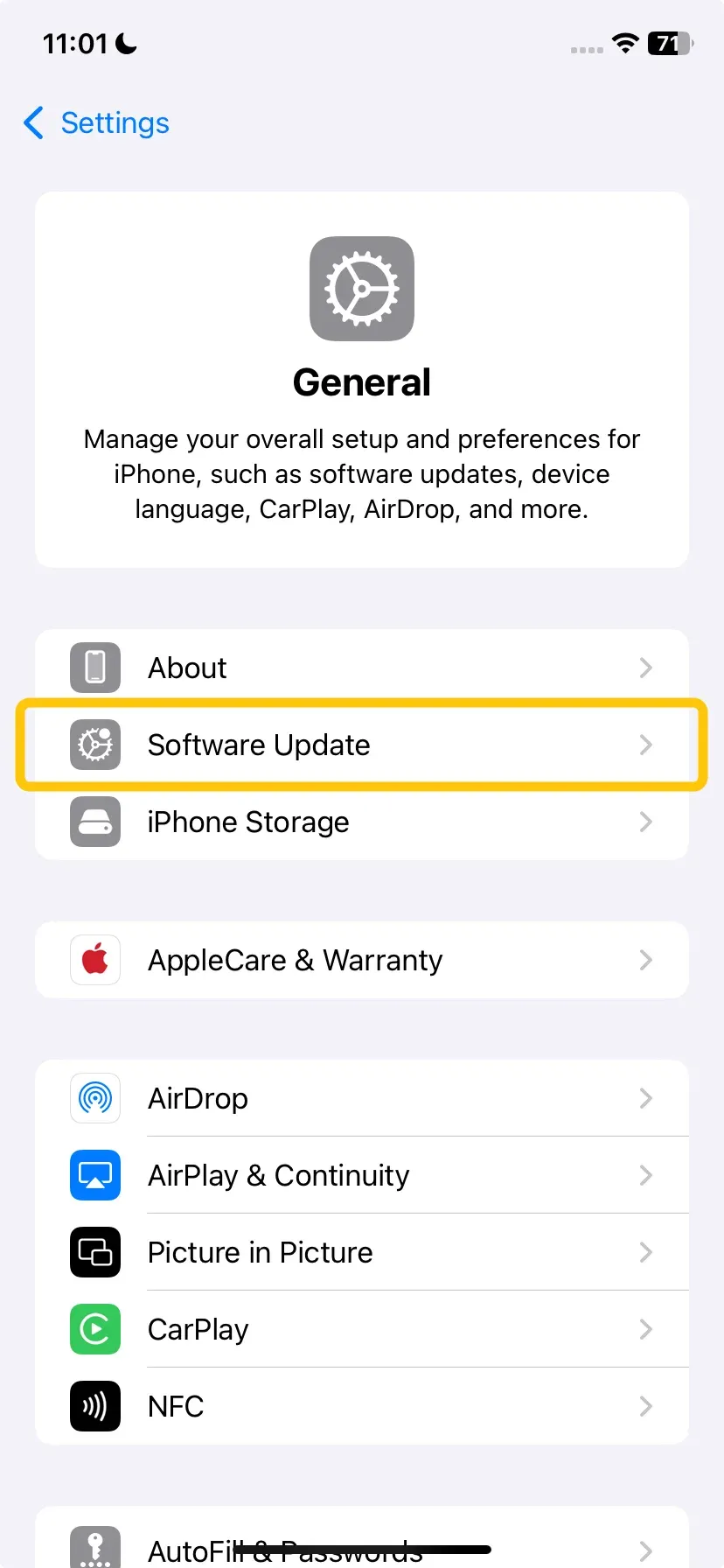
Step 1. On iPhone, open Settings > General > Software Update and install the latest iOS version.
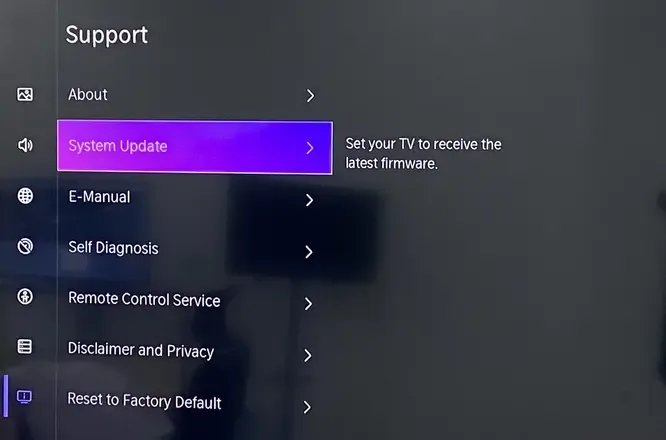
Step 2. On Apple TV or your smart TV, open the system update menu and install the latest firmware.
Step 3. Restart both devices after the updates finish.
Step 4. Repeat the same 5-minute lock-screen playback test using the same media source.
Way 9. Reset Network Settings
Use this step only if the previous fixes did not solve the problem and the issue happens consistently during testing. Resetting network settings clears saved Wi-Fi and connection data that may cause AirPlay to disconnect after the phone locks.
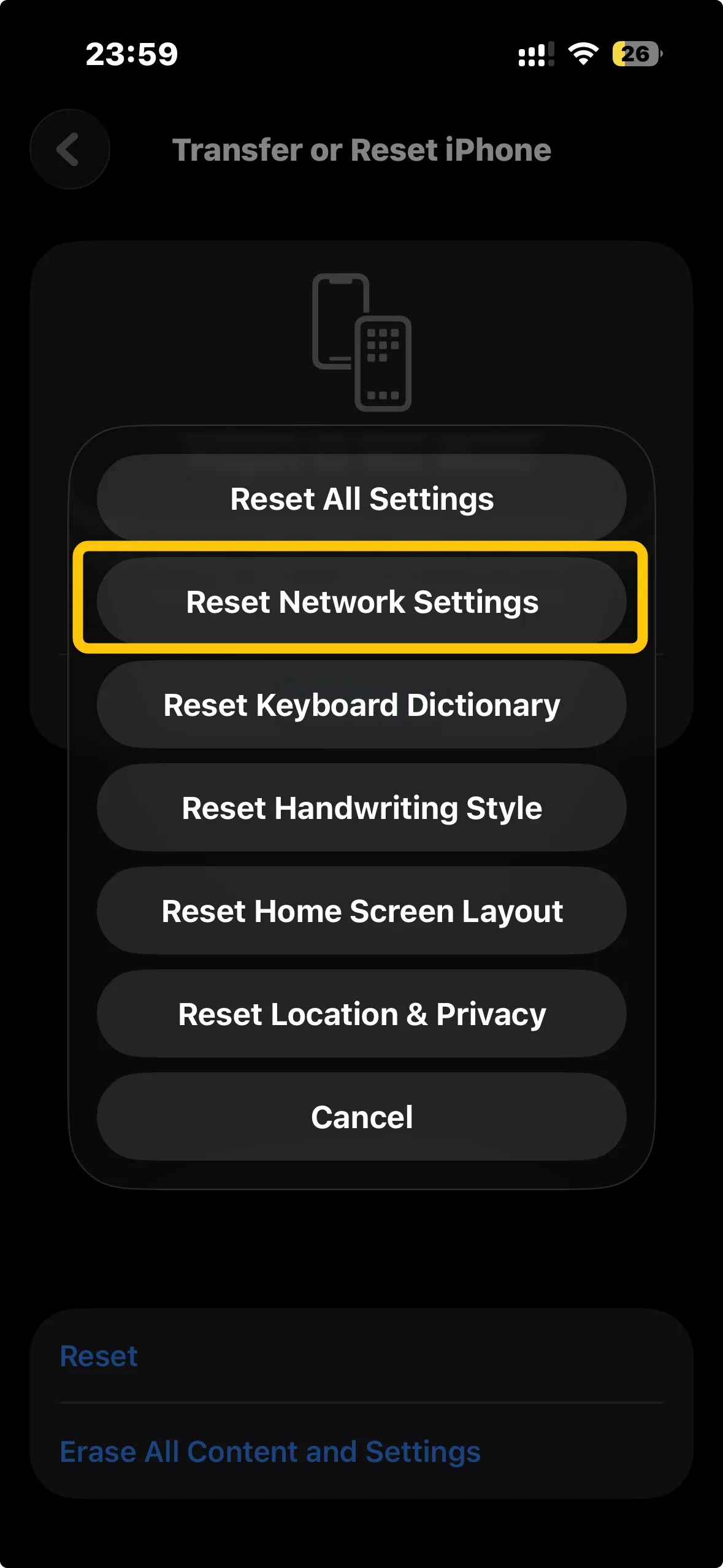
Step 1. On iPhone, open Settings > General > Transfer or Reset iPhone > Reset > Reset Network Settings.
Step 2. Reconnect the iPhone to your main Wi-Fi network, and make sure any VPN is turned off during testing.
Step 3. Restart the router and the AirPlay receiver (Apple TV or smart TV).
Step 4. Run the same 5-minute lock-screen playback test using the same app and media as before.
Step 5. If the issue still happens, note when the disconnect occurs (for example, 18 seconds after locking the phone) before contacting device support.
To Sum Up
When AirPlay turns off when phone locks, the cause is usually related to power settings, Wi-Fi stability, or receiver behavior. Start by checking Auto-Lock and Low Power Mode, then review your Wi-Fi and receiver settings, and update software if needed. Test playback after each change so you can quickly find what fixes the issue. Once the sender, network, and receiver stay stable, AirPlay should keep playing normally even when the phone screen turns off.
AirPlay Stops When Phone Locks FAQ
Why does my Apple AirPlay keep stopping?
Common reasons Apple AirPlay keeps stopping include:
- Weak or unstable Wi-Fi connection
- Devices connected to different Wi-Fi networks
- Low Power Mode limiting background activity
- Auto-Lock causing the sending device to change playback behavior
- Streaming app not supporting stable background AirPlay playback
- Outdated iOS, tvOS, or smart TV firmware
- Temporary network interference or bandwidth congestion
- Receiver (Apple TV or smart TV) losing the AirPlay session
- Router settings blocking device discovery (Bonjour / local network discovery)
How to keep AirPlay from timing out?
To keep AirPlay from timing out, make sure the connection stays stable and the sending app can continue playback.
- Use a stable Wi-Fi network and keep both devices on the same network.
- Disable Low Power Mode so the iPhone does not limit background activity.
- Increase Auto-Lock time to prevent the phone from interrupting playback too quickly.
- Start AirPlay from the active video or audio player, not from the home screen.
- Keep iOS, tvOS, and smart TV firmware updated for better compatibility.
- Reduce network congestion by pausing large downloads or backups during streaming.
Why is AirPlay stops when switching apps?
Common reasons AirPlay stops when switching apps include:
- The streaming app does not support background AirPlay playback
- The AirPlay session is tied to the original media player
- iOS pauses or limits the app when it moves to the background
- Low Power Mode restricting background activity
- The new app takes control of the audio or video output
- Temporary loss of the AirPlay connection during the app switch
- Receiver (Apple TV or smart TV) resetting the playback session
- Network instability during the transition between apps
How to fix AirPlay disconnects when iPhone sleeps?
To fix AirPlay disconnects when the iPhone sleeps, check the settings and conditions that allow AirPlay to keep running while the phone is locked.
- Increase Auto-Lock time in Settings > Display & Brightness > Auto-Lock.
- Turn off Low Power Mode in Settings > Battery.
- Start AirPlay from the active video or audio player, not from the home screen.
- Keep both devices on the same stable Wi-Fi network.
- Update iOS, tvOS, or your smart TV firmware to the latest version.
- Restart the iPhone, router, and AirPlay receiver to refresh the connection.
How to AirPlay while phone is locked?
To AirPlay while your phone is locked, make sure the playback can continue in the background and the connection stays stable.
- Start playback in the app first, then enable AirPlay from the active video or audio player.
- Increase Auto-Lock time in Settings > Display & Brightness > Auto-Lock.
- Turn off Low Power Mode in Settings > Battery.
- Keep both devices on the same stable Wi-Fi network.
- Lock the phone after playback has been running for a few seconds so the AirPlay session stays active.
How do I turn the auto lock off during AirPlay?
To turn Auto-Lock off during AirPlay, change the Auto-Lock setting on your iPhone: Open Settings on your iPhone, tap Display & Brightness > Auto-Lock > Never.
Can I use a casting app instead of AirPlay?
Yes. If AirPlay continues to disconnect when your phone locks, you can try a dedicated casting tool. Apps like PigeonCast are designed for stable screen mirroring across different devices and networks, which can help reduce interruptions during long playback sessions.
Clara Rossi is an experienced technology editor and a seasoned expert in screen mirroring and casting technologies. With a keen eye for detail and a deep understanding of how to seamlessly connect devices, Clara excels at optimizing user experiences for effortless sharing and streaming. Whether you're seeking quick fixes or advanced tips, her expertise and responsiveness ensure that every query is met with a well-informed and efficient solution.