
Have you ever wanted to show your favorite vacation photos on a bigger display or stream a mobile game for everyone in the room to see? Panasonic TV screen mirroring is the perfect solution. It allows you to beam your phone's display directly onto your television wirelessly.
Whether you want to cast to Panasonic TV for a movie night or for a work presentation, this guide covers everything you need to know about screen mirroring Panasonic TV from iPhone or Android device.
Does Panasonic TV Have Screen Mirroring
Yes, most modern Panasonic Smart TVs come equipped with built-in features to share your screen. However, the method depends on your specific TV model and its operating system (such as My Home Screen, Android TV, or Fire TV).
- Panasonic Viera TVs: Many Viera models feature a built-in Mirroring app using Miracast technology for wireless screen sharing.
- Panasonic Android TVs / Google TVs: These newer models often have Chromecast built-in, letting you cast apps and content directly from your phone or tablet.
- AirPlay Support: Some Panasonic Smart TVs also support Apple AirPlay, making it easy to mirror your iPhone, iPad, or Mac screen without extra apps.
- Older Models: If your TV doesn't support Miracast, Chromecast, or AirPlay, using a dedicated Panasonic TV screen mirroring application can provide a more stable connection.
How to Screen Mirror on Panasonic TV
Screen mirroring on a Panasonic TV can vary depending on your device and TV model. Here’s a complete overview:
How to Connect iPhone to Panasonic TV
Connecting an Apple device can be slightly different because Panasonic TVs traditionally didn't support AirPlay natively. However, newer Panasonic Fire TV models (2024–2026) often include Panasonic TV AirPlay support.
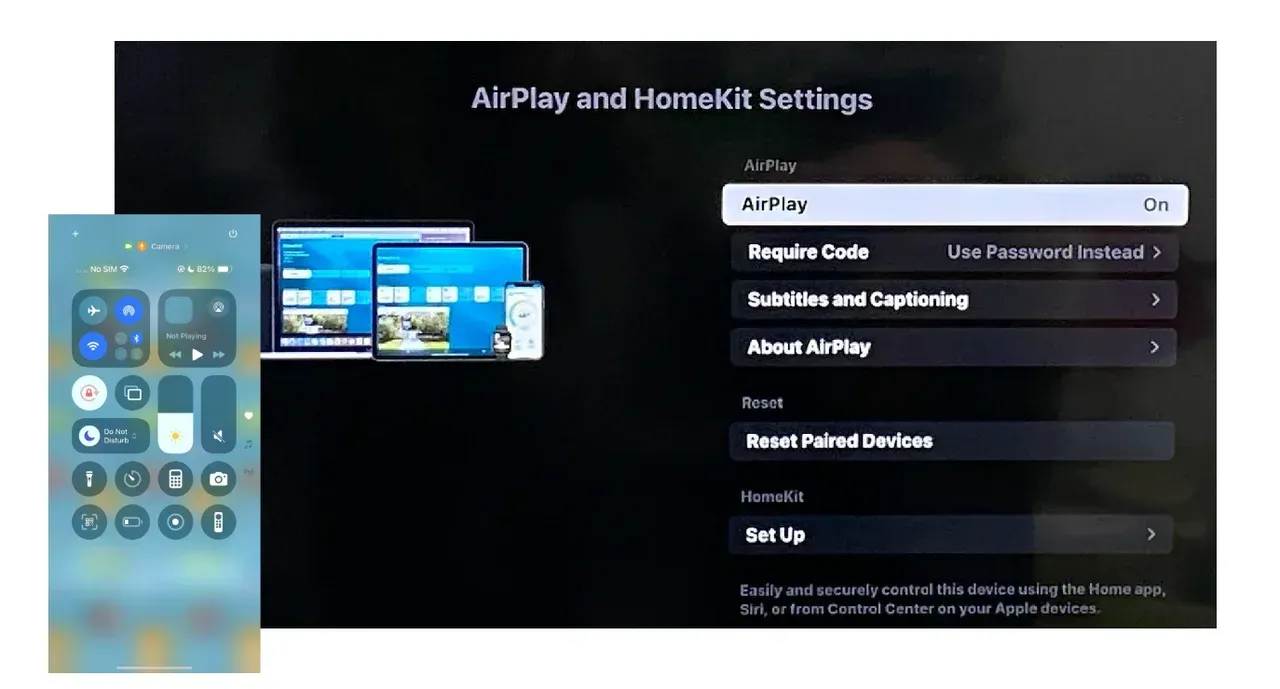
Steps for AirPlay-Compatible Models:
- Connect your iPhone and Panasonic TV to the same Wi-Fi network.
- On the TV, navigate to Settings > Display & Sounds > AirPlay & HomeKit and ensure AirPlay is turned On.
- On your iPhone, swipe to open the Control Center.
- Tap the Screen Mirroring icon (two overlapping rectangles).
- Select your Panasonic TV from the list. If a code appears on the TV, enter it on your iPhone.
How to Connect Android to Panasonic TV
Android users usually have the easiest time figuring out how to screen mirror on Panasonic TV because most Panasonic sets support the Miracast standard used by Android.
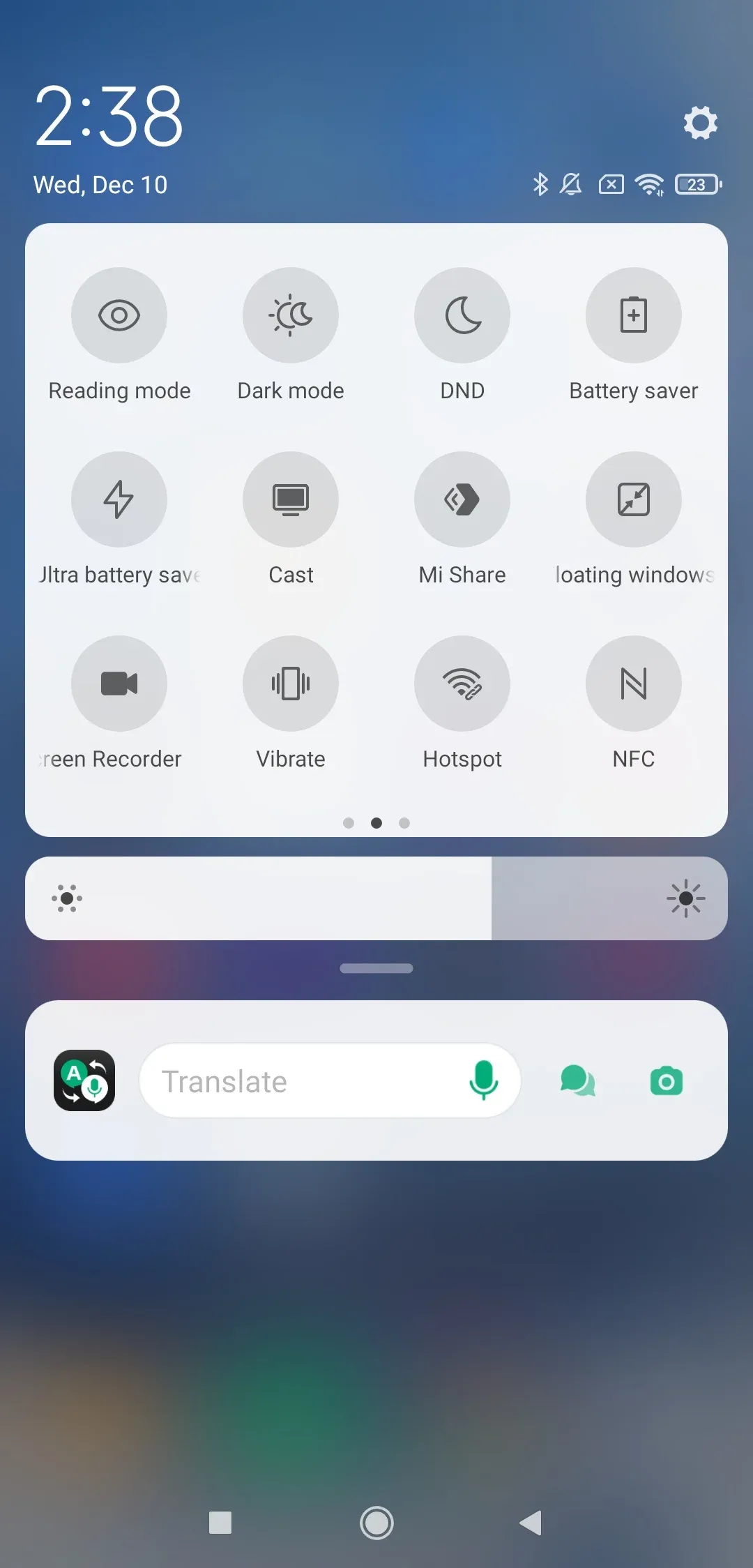
- Press the APPS button on your remote and select the Mirroring app. Confirm "Yes" to start waiting for a connection.
- On your phone, swipe down to access the Quick Settings and look for Cast, Smart View, Wireless Display, or Screen Mirroring.
- Your phone will scan for devices. Tap on your Panasonic TV (often listed by its model number).
- If prompted on the TV, select "Yes" to allow the phone to cast to Panasonic TV.
How to Connect Any Phone to Panasonic TV
While "mirroring" copies your entire screen, Google Cast (or casting) is a universal way to send specific videos, music, or apps from any phone to your TV. This is the best method if you want to keep using your phone for other tasks while a movie plays on the big screen.
Here's how:
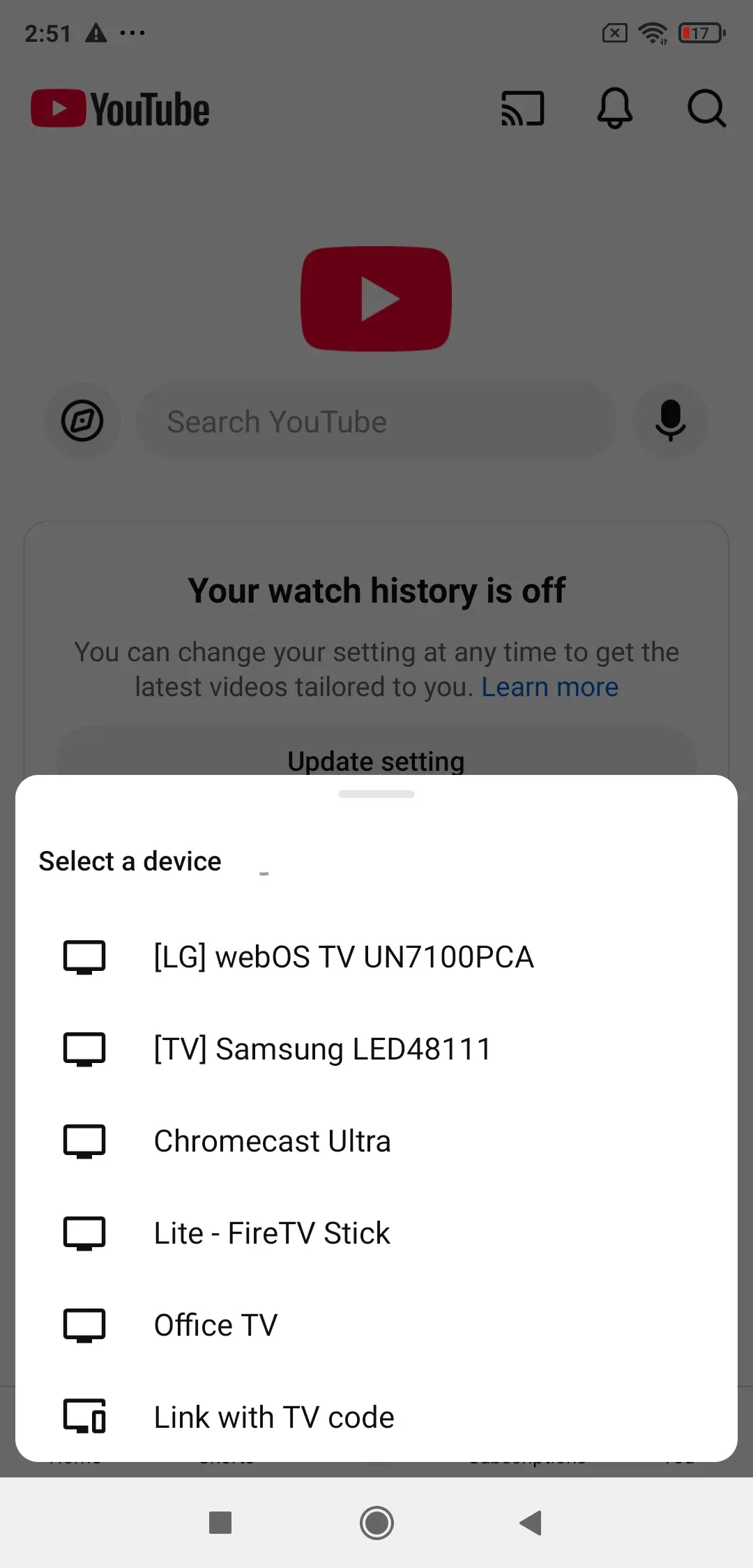
- Open a cast-supported app like YouTube, Netflix, or Spotify on your phone.
- Look for the Cast icon (a rectangle with Wi-Fi waves in the corner), usually located at the top right of the app.
- Tap the icon and choose your Panasonic TV from the list.
- The video will start playing on your TV.
- You can now lock your phone or use other apps, and the video will continue to play on the TV independently.
How to Fix Panasonic TV Screen Mirroring Not Working
It's frustrating when you're ready to watch something and the "No Signal" or "Connection Failed" message pops up. Connection drops and lag are common, but they are usually easy to fix.
Common Issues and Simple Fixes
- Mismatched Wi-Fi: Ensure both the phone and TV are on the same network. Some routers separate 2.4 GHz and 5 GHz bands; make sure both devices are on the same one.
- Mirroring Not Enabled: On Panasonic TVs, you often have to manually open the "Mirroring" app or enable "DMR" (Digital Media Renderer) in the Network > Application settings.
- Update Firmware: Outdated software causes glitches. Check Settings > System Update on your TV to ensure you have the latest version.
- Disable VPN**:** If you are using a VPN on your iPhone or Android, screen mirroring will likely fail. Turn it off before trying to connect.
- Restart Everything: The "Golden Rule" of tech—unplug your TV for 30 seconds and restart your phone to clear the cache.
Use PigeonCast as a Backup Plan
If the native screen mirroring Panasonic TV features are being stubborn, the PigeonCast Screen Mirroring App is a fantastic backup solution.
PigeonCast is a cross-platform app designed to handle mirroring when built-in options fail. It supports AirPlay, DLNA, and Google Cast protocols, as well as a self-developed protocol, meaning it works seamlessly for both iPhone and Android.
How to use PigeonCast for Panasonic TV Screen Mirroring:


Overall Rating:



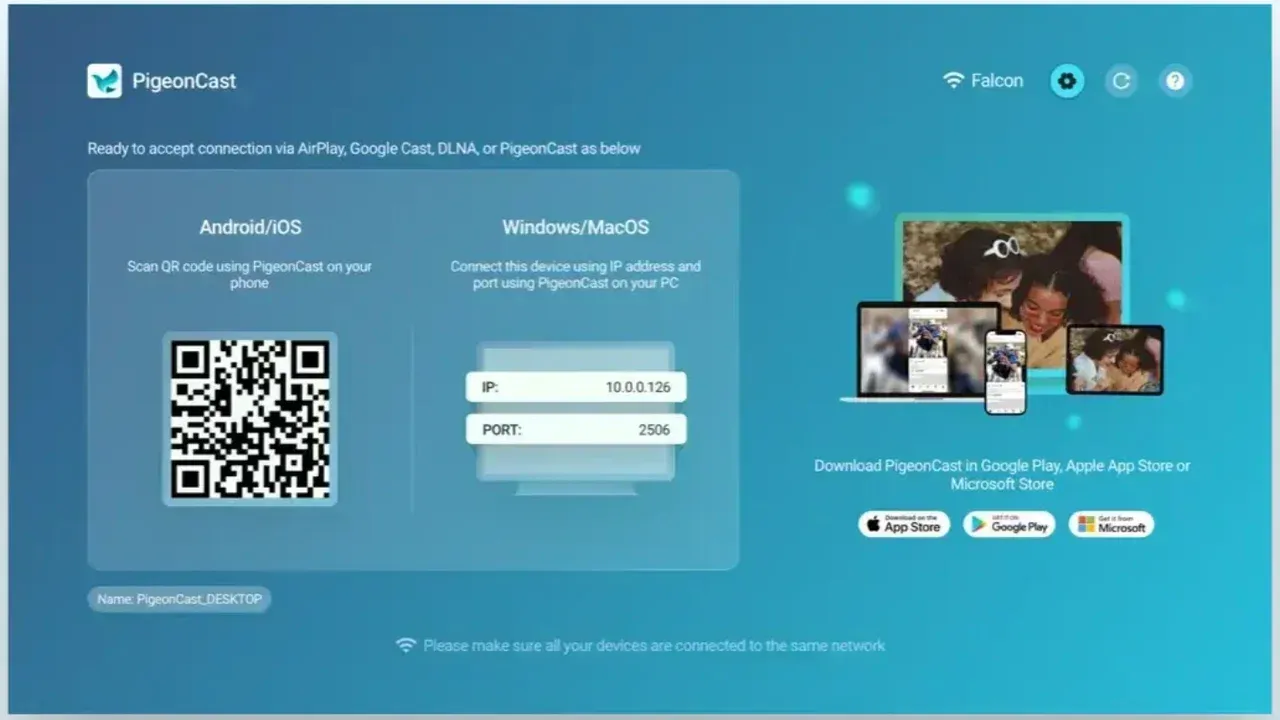
- Download and install PigeonCast on your phone (or computer) and TV.
- Ensure your two devices are on the same network.
- Open the screen mirroring app on both ends.
- On your phone, choose your TV from the device list or scan the QR code displayed on your TV.
- Once connected, tap Screen Mirror and follow the onscreen instructions to view your phone screen on your TV.
The End
In summary, Panasonic TV screen mirroring and casting are versatile tools that have evolved significantly. Whether you have a classic Viera model using Miracast or a brand-new 2026 model with native Google Cast or AirPlay, there is always a way to get your content onto the big screen.
By following these steps and keeping our troubleshooting tips in mind, you can enjoy a seamless viewing experience. If the built-in features ever feel too restrictive, remember that a dedicated tool like the PigeonCast Screen Mirroring App provides a reliable, high-performance alternative to keep your entertainment moving. Now that you know how to screen mirror on Panasonic TV, you're ready to share your world with the whole room!
Panasonic TV Screen Mirroring FAQs
Can you connect a Panasonic TV to a phone?
Yes! You can connect almost any modern smartphone to a Panasonic TV wirelessly using built-in mirroring features, Chromecast, or third-party apps like PigeonCast.
How do I screen mirror on Panasonic TV from iPhone?
To mirror your iPhone, check if your TV supports Panasonic TV AirPlay in the settings. If it doesn't, you can download a Panasonic TV screen mirroring app to broadcast your screen via the TV's network connection.
How do I screen mirror on Panasonic TV from Android?
- Open the "Mirroring" app on your Panasonic TV first.
- On your Android device, go to the Quick Settings menu.
- Select Cast or Smart View to find and connect to your TV.
Does every Panasonic TV have screen mirroring?
Not every model. While most Smart TVs made after 2012 have some form of mirroring (like DLNA or Miracast), older or "non-smart" models will require an external device like a Chromecast or Roku.
What is the best Panasonic TV screen mirroring app?
There are several great options, but PigeonCast is highly recommended for its cross-platform support. It allows both iPhone and Android users to cast with high-definition quality and minimal lag.
Why is my Panasonic TV screen mirroring not working?
The most common reason is that the devices are on different Wi-Fi networks. Other causes include disabled mirroring settings on the TV, active VPNs on the phone, or outdated system firmware.
Can I use Panasonic TV AirPlay without an Apple TV?
Yes, if your Panasonic TV is a newer model (specifically those running Fire TV or certain 2024+ global models), AirPlay is built-in. For older models, you would need an Apple TV box or a third-party app.
How to connect phone to Panasonic TV without Wi-Fi?
If you don't have Wi-Fi, you can use a physical HDMI to USB-C or Lightning adapter. This creates a wired connection between your phone and the TV's HDMI port, which doesn't require an internet connection.
Mia Clarke is a technology editor specializing in screen mirroring and casting solutions across multiple platforms. Mia provides clear, practical guides and in-depth insights to help users seamlessly connect their devices. Passionate about enhancing digital experiences, Mia is dedicated to keeping readers updated on the latest trends and tools in cross-platform screen sharing. Whether you’re looking to mirror your smartphone, laptop, or smart TV, Mia’s content delivers reliable, user-friendly advice to simplify your tech setup.