
AirPlay is a great way to stream content from your Apple device to your TV, but sometimes users encounter an issue like AirPlay subtitles not working. If you're frustrated by this problem, you're not the first one. Many users face this issue, and in this article, we'll walk you through the common causes of this problem and the steps to resolve it.
Why Don't Subtitles Work on AirPlay
When AirPlay subtitles are not working, it can be due to several reasons. Understanding these common causes will help you fix AirPlay issues more effectively. Here are some reasons for subtitles not working on AirPlay:
- Incompatible file formats: The file or app you are streaming from may not support subtitles through AirPlay.
- Subtitle settings: The subtitle feature may be turned off in your media player or AirPlay settings.
- Network issues: A slow or unstable Wi-Fi connection can interrupt the subtitle streaming process, leading to missing captions.
- Outdated software: If either your device (iPhone, iPad, Mac) or Apple TV is running outdated software, this can prevent subtitles from displaying properly.
- AirPlay settings: Incorrect AirPlay settings or configurations might also prevent subtitles from showing.
How to Fix AirPlay Subtitles Not Working
If AirPlay subtitles are not showing or AirPlay no subtitles are appearing on your TV, follow these steps to troubleshoot and fix the issue.
#1: Check Subtitles Settings
Subtitles may not appear on AirPlay if they are not enabled on your device. Here's how to ensure that subtitles are properly set up on your iPhone, iPad, or Mac.
- On iPhone or iPad:
Step 1. Tap the Settings app.
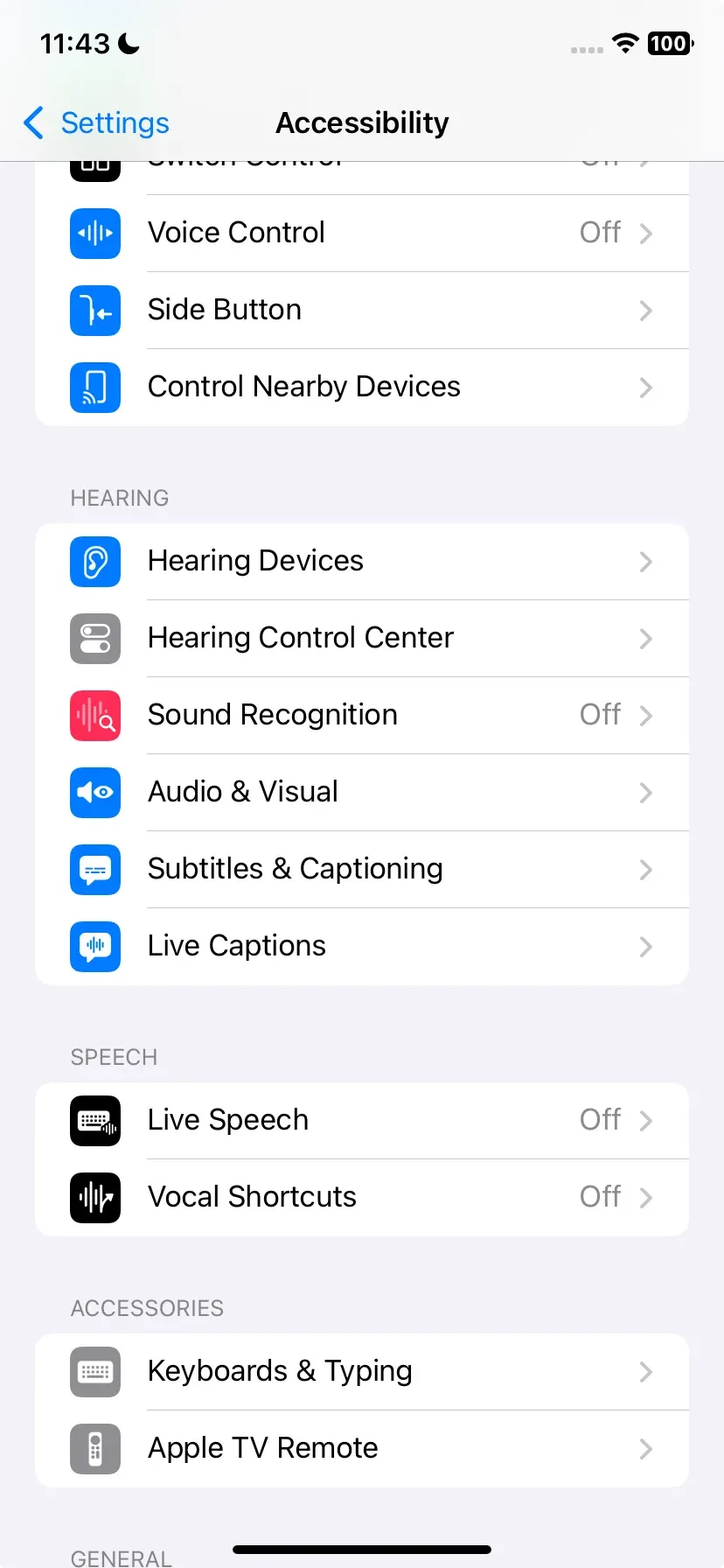
Step 2. Scroll down and tap Accessibility.
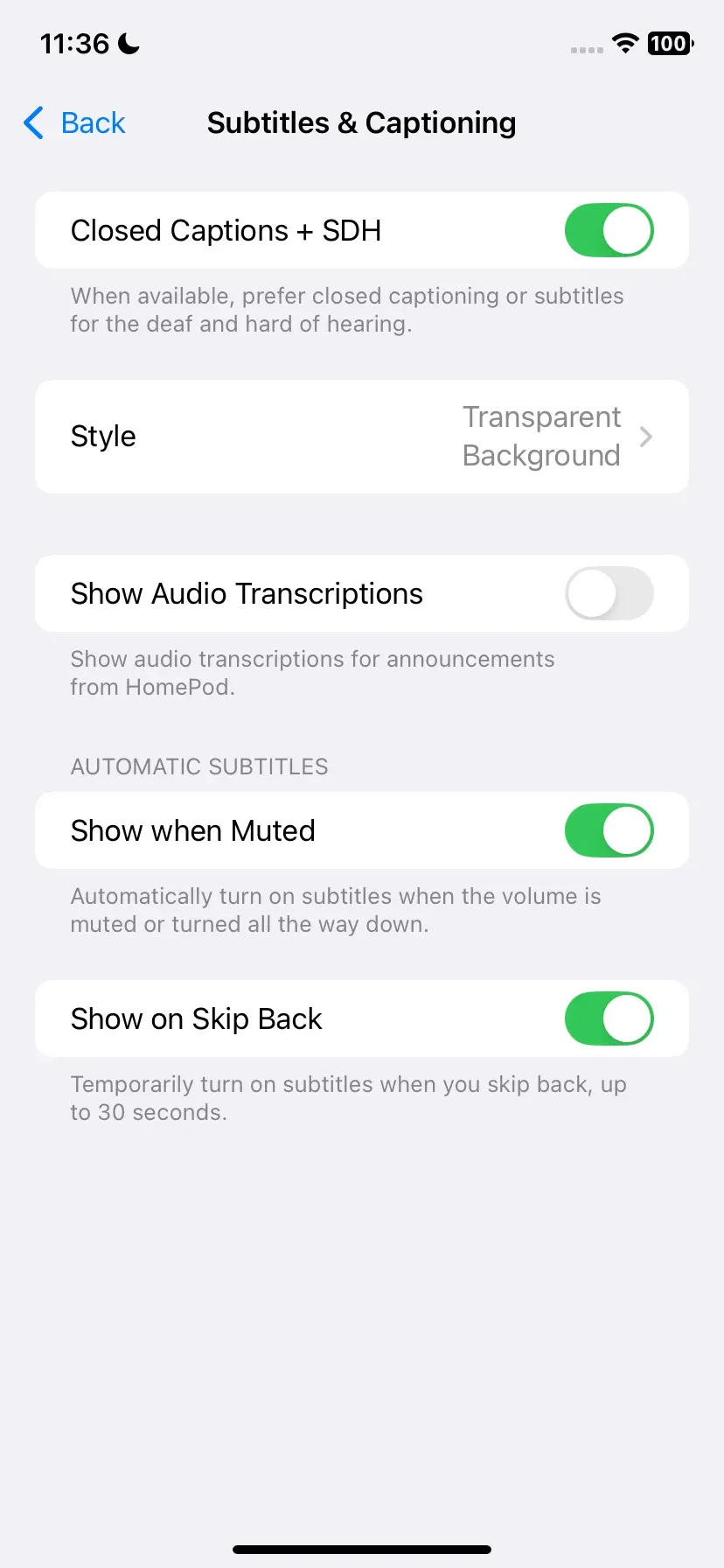
Step 3. Under the Hearing section, tap Subtitles & Captioning, and turn it on.
Step 4. Enable Closed Captions + SDH. This will ensure that subtitles are displayed in supported apps.
- On MacBook:
Step 1. Click the Apple logo in the top-left corner of your screen and select System Preferences.
Step 2. In the System Preferences window, click Accessibility.
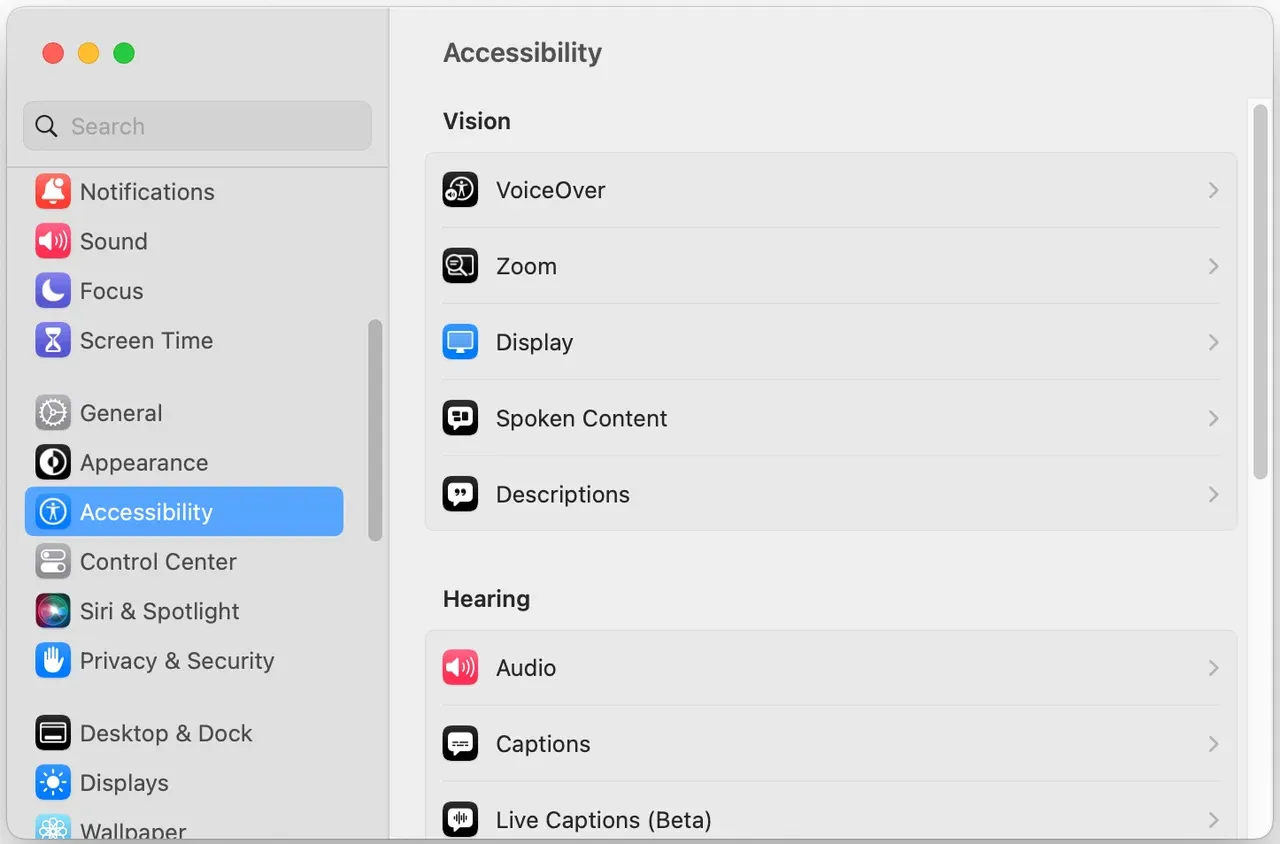
Step 3. On the left sidebar, select Captions.
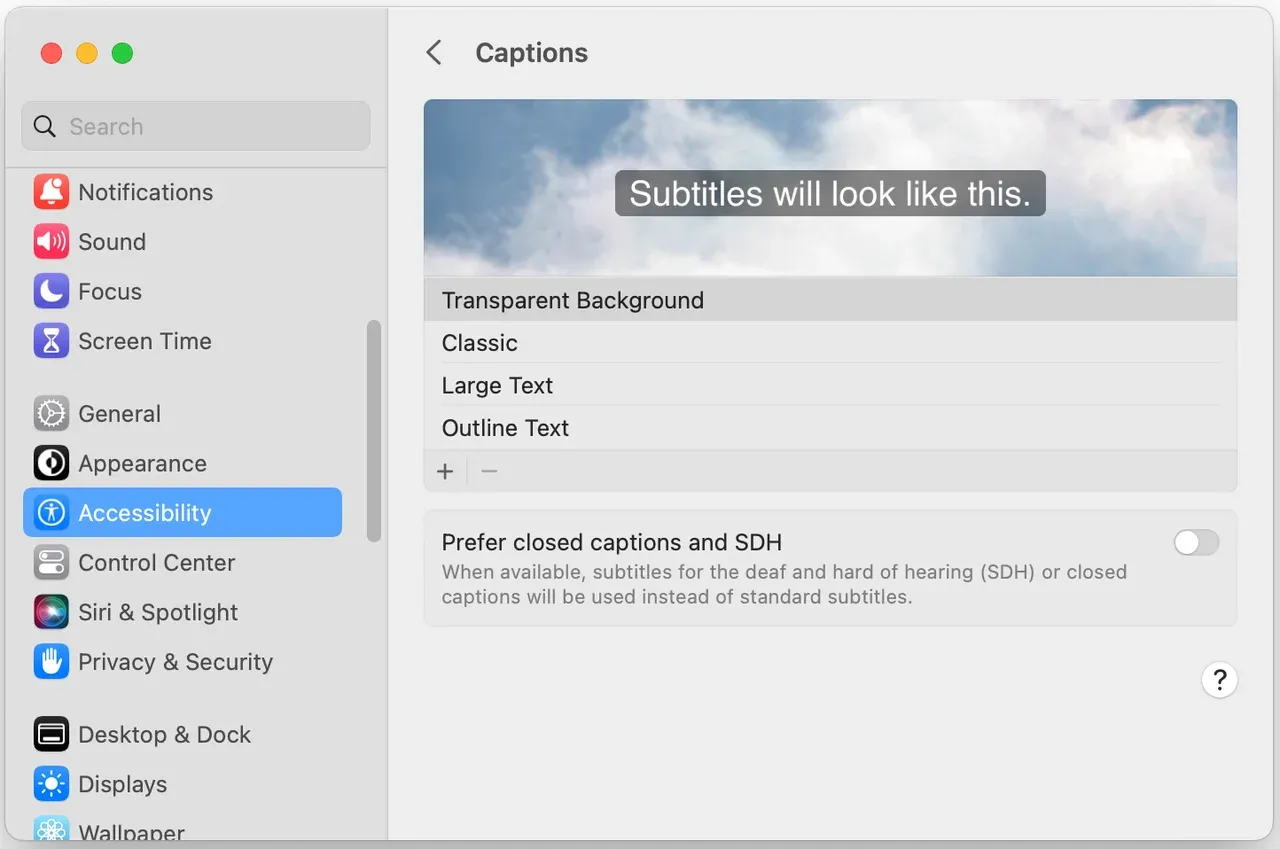
Step 5. Enable Prefer closed captions and SDH. You can also customize the appearance of the captions if needed.
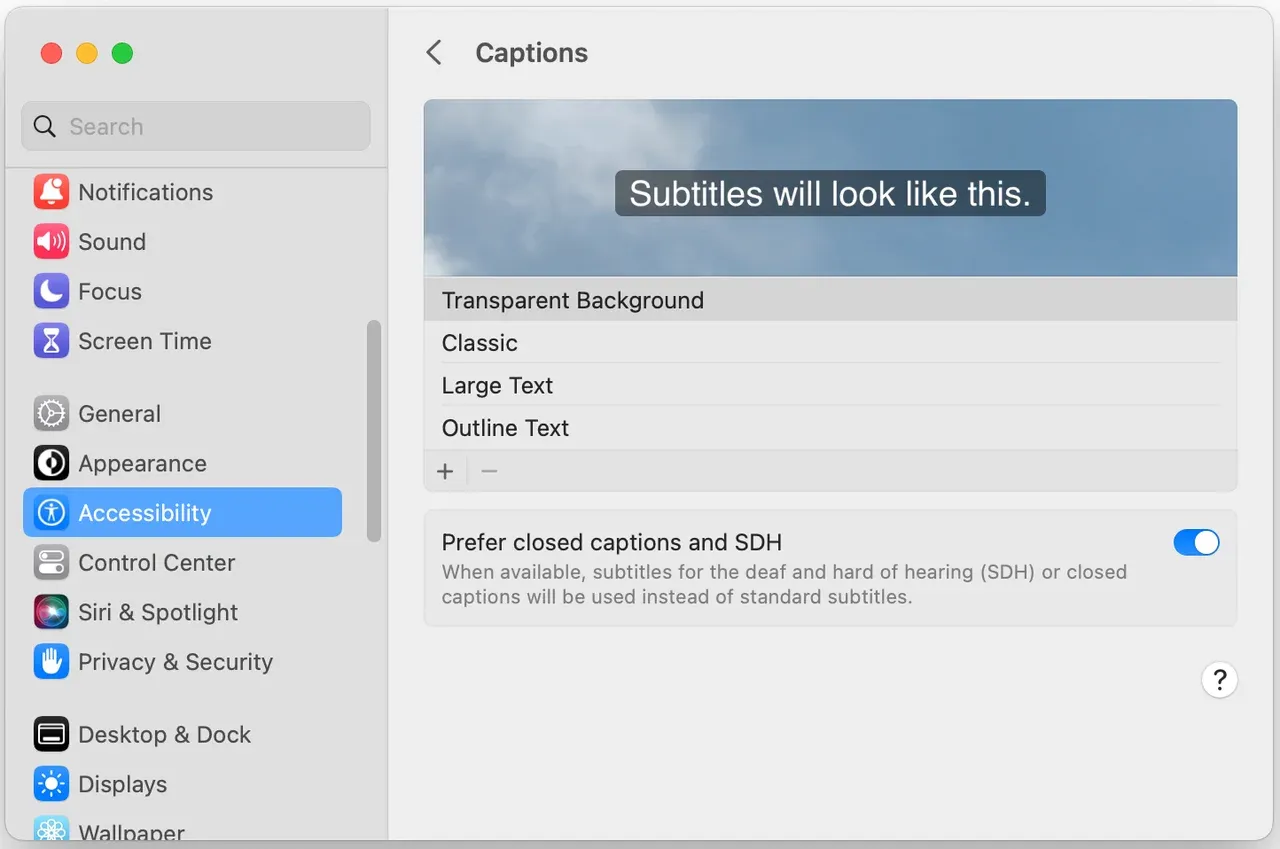
Tip: Once these settings are enabled, try streaming content again via AirPlay to see if the subtitles appear.
#2: Restart Your Devices
Sometimes, the simplest solution is the most effective. Restarting your devices can resolve many issues, including AirPlay not showing subtitles.
- Restart iPhone or iPad:
Step 1. Press and hold the Power button (or the Volume + Power button on newer iPhones) until the slide to power off slider appears.
Step 2. Slide to power off, then wait 30 seconds.
Step 3. Press and hold the Power button again to restart your device.
- Restart MacBook:
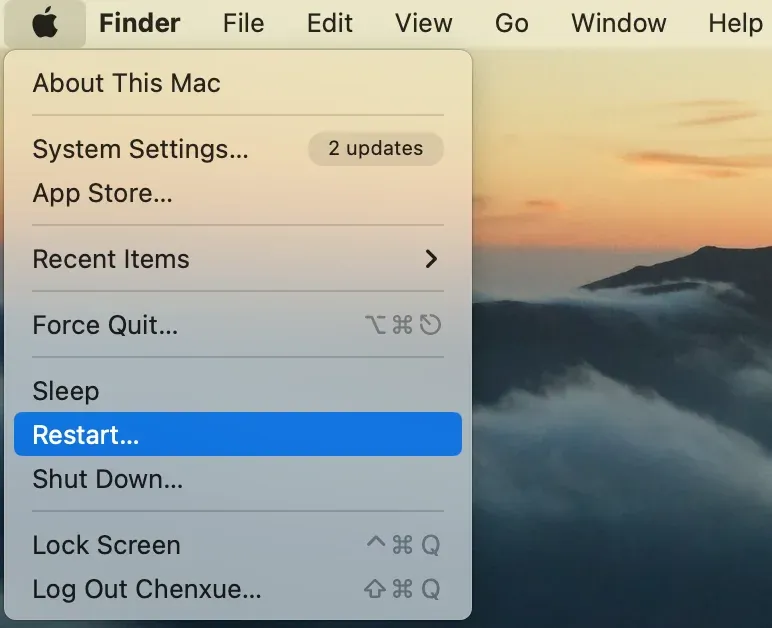
Step 1. Click the Apple logo in the top-left corner and select Restart.
Step 2. Wait for your Mac to reboot and reconnect to AirPlay.
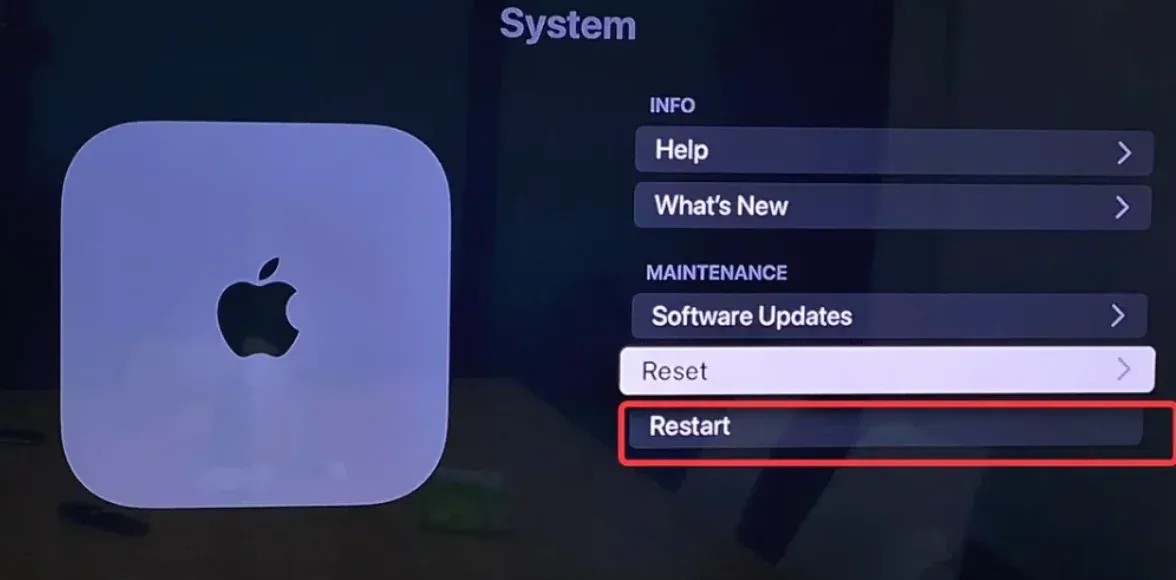
- Restart Apple TV:
Step 1. From the Apple TV Settings menu, select System.
Step 2. Choose Restart to reboot your Apple TV.
#3: Check AirPlay Settings
Still subtitles not showing on AirPlay? Ensure that AirPlay is properly configured on both your streaming device and Apple TV. Misconfigured settings could be the reason subtitles are not showing.
- On Apple TV:
Step 1. Go to the Settings app on your Apple TV.
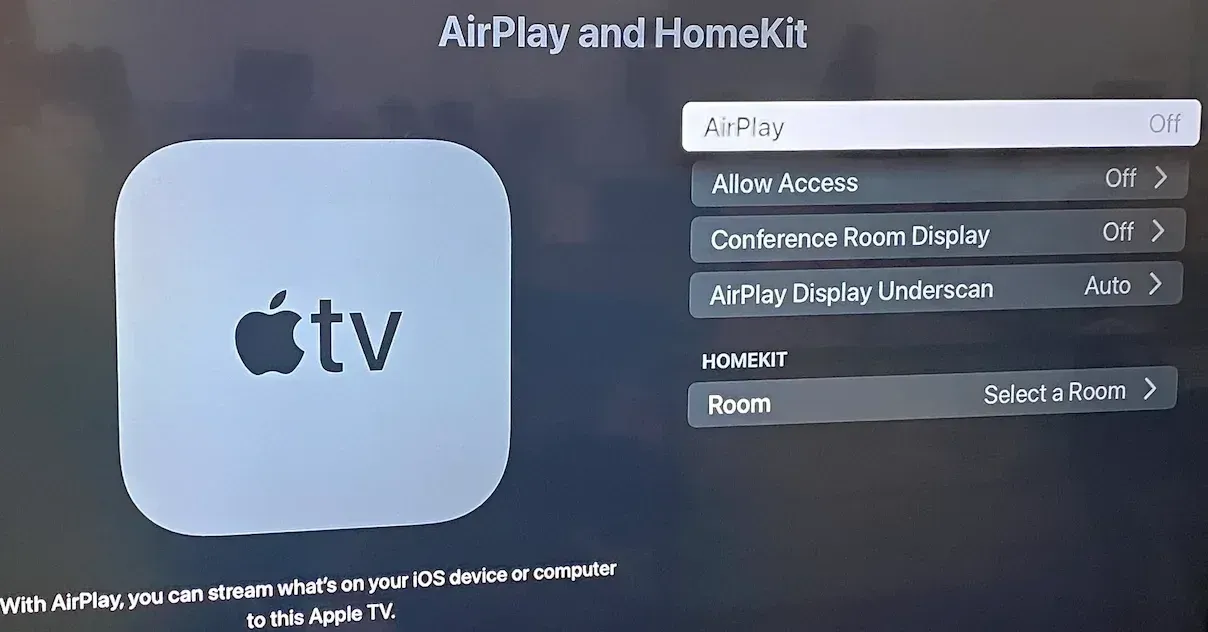
Step 2. Scroll down and select AirPlay.
Step 3. Ensure that AirPlay is turned on. If it's off, toggle it to On.
- On iPhone/iPad/Mac:
Step 1. Check Wi-Fi connection and ensure both your streaming device and Apple TV are on the same Wi-Fi network.
Step 2. Open the Control Center, tap Screen Mirroring, and select your Apple TV.
Tip: If it's already selected, tap Screen Mirroring again to disconnect and then reconnect.
#4: Update Your Software
Outdated software on your devices is a common cause of AirPlay problems, including subtitle issues. It's important to keep both your Apple TV and iOS/macOS devices updated to ensure optimal compatibility.
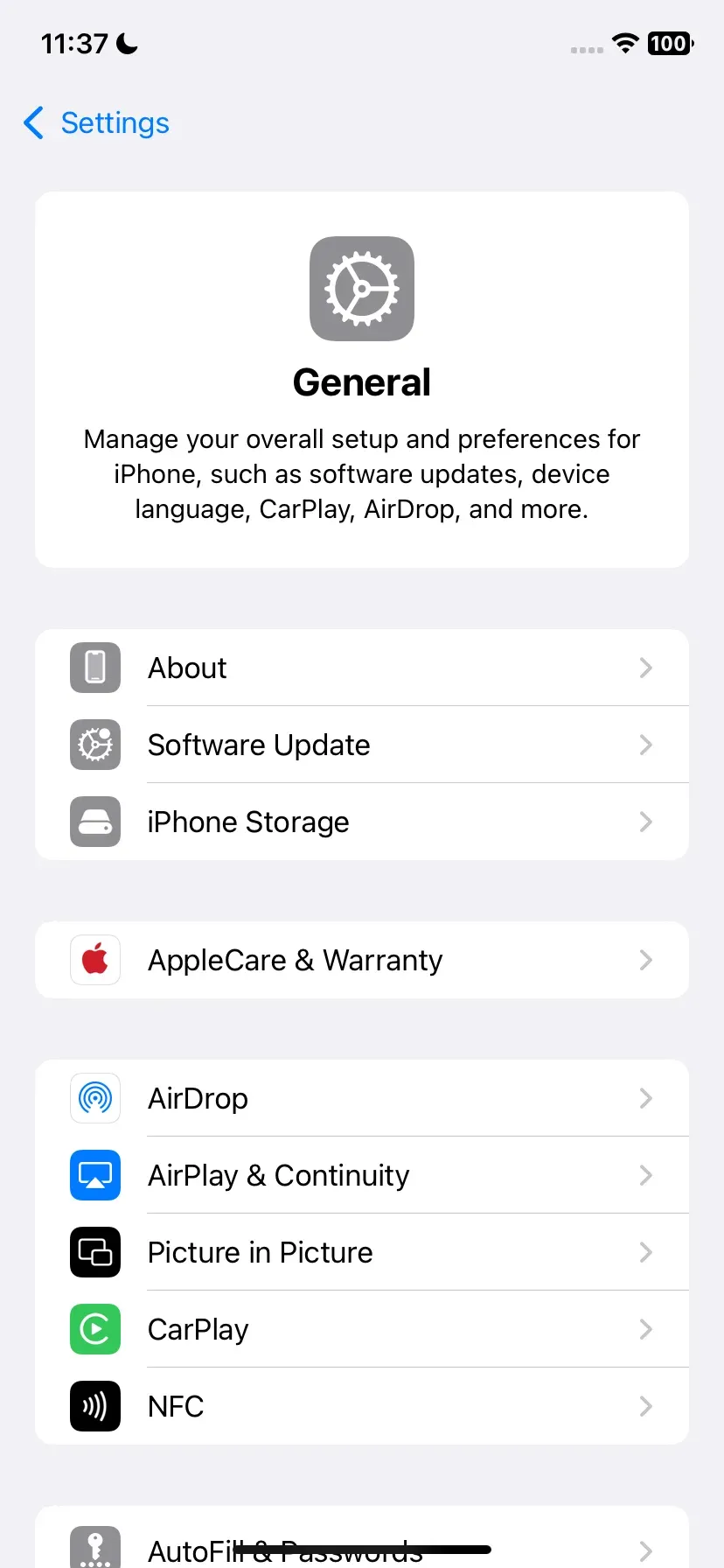
- On iPhone or iPad:
Step 1. Open Settings.
Step 2. Choose General > Software Update.
Step 3. If an update is available, tap Download and Install.
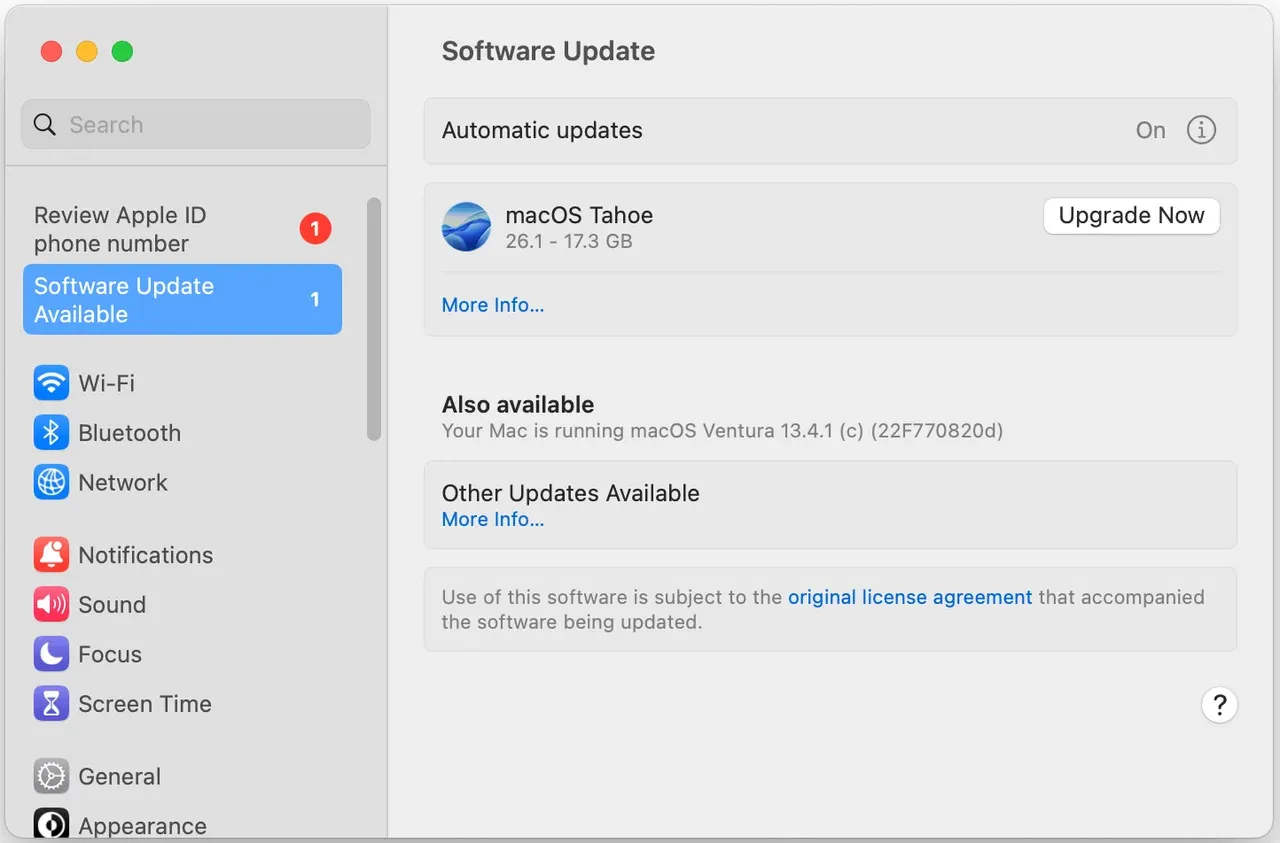
- On MacBook:
Step 1. Click the Apple logo in the top-left corner and select System Preferences.
Step 2. Click Software Update.
Step 3. If there's an update available, follow the prompts to install it.
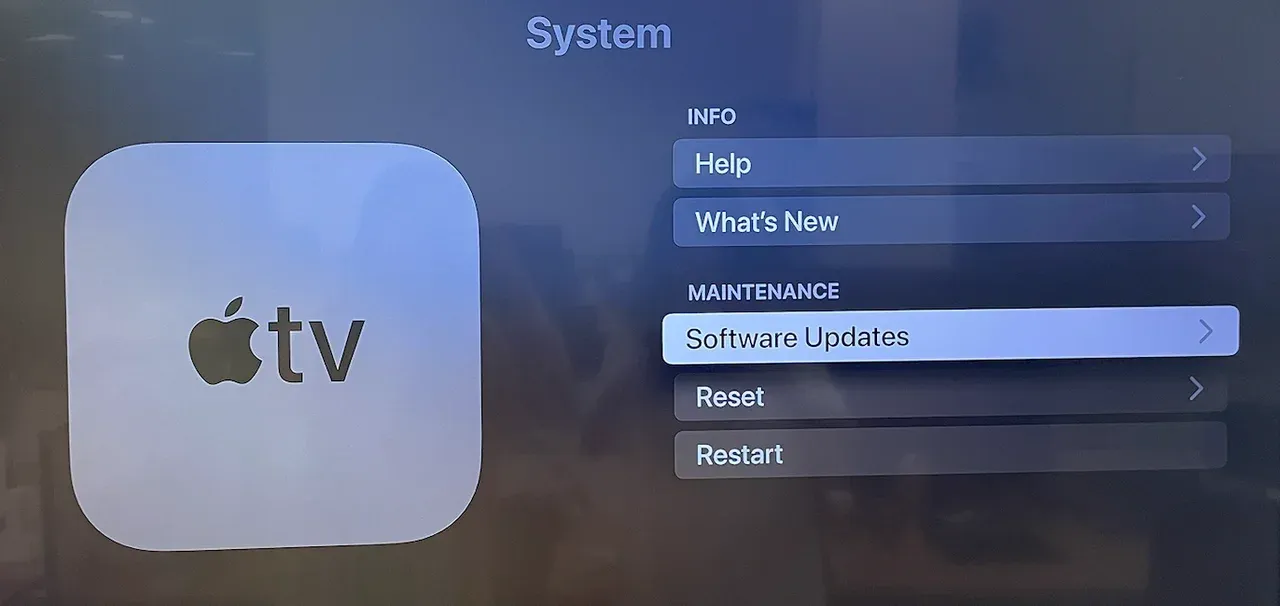
- On Apple TV:
Step 1. Open Settings on your Apple TV.
Step 2. Go to System.
Step 3. Select Software Updates.
Step 4. If an update is available, select Download and Install.
#5: Use a Different App
If subtitles still aren't showing on AirPlay after you've tried the above steps, the problem may be app-specific. Some streaming apps have better AirPlay support than others, especially when it comes to subtitles.
- Apple TV+: Apple's own streaming service typically offers strong support for AirPlay subtitles.
- YouTube: YouTube also supports subtitles, but make sure you've enabled them in the app before AirPlaying.
- Netflix: Netflix supports subtitles, but be sure to check your subtitle settings within the app.
If the 5 methods can't solve your issue, please contact Apple Support for further assistance.
Bonus: Try Free PigeonCast App for Casting
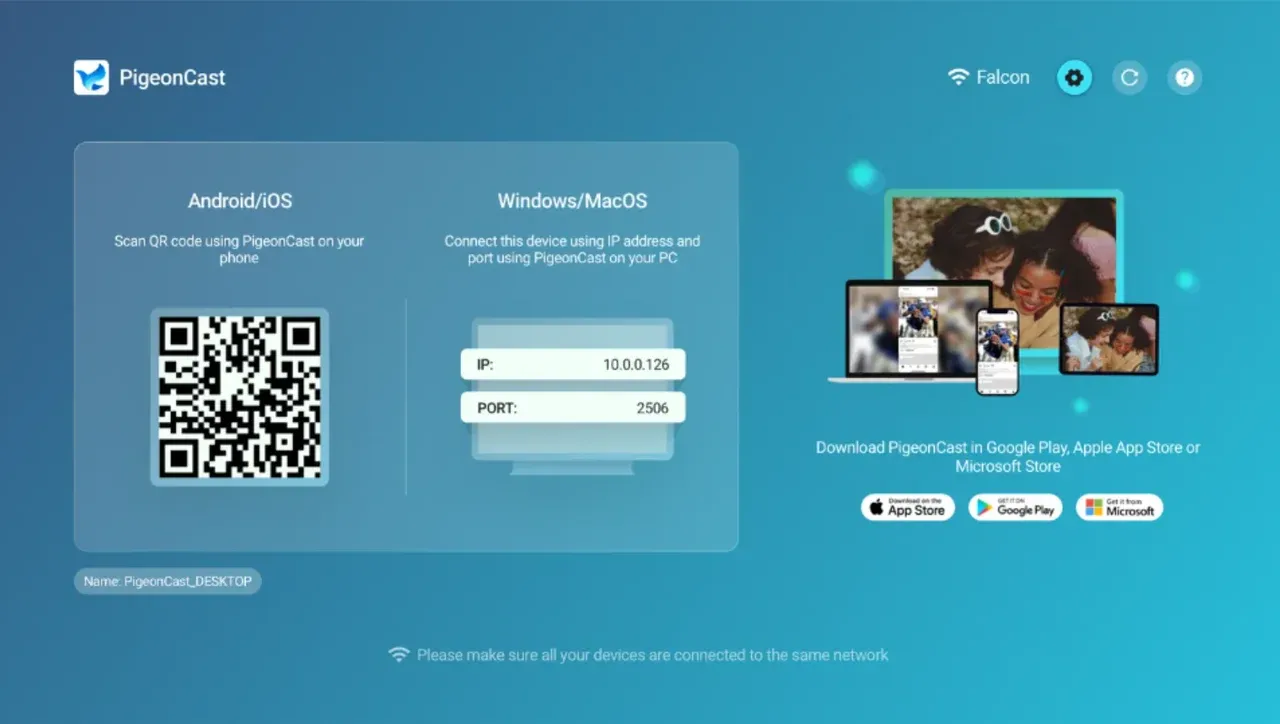
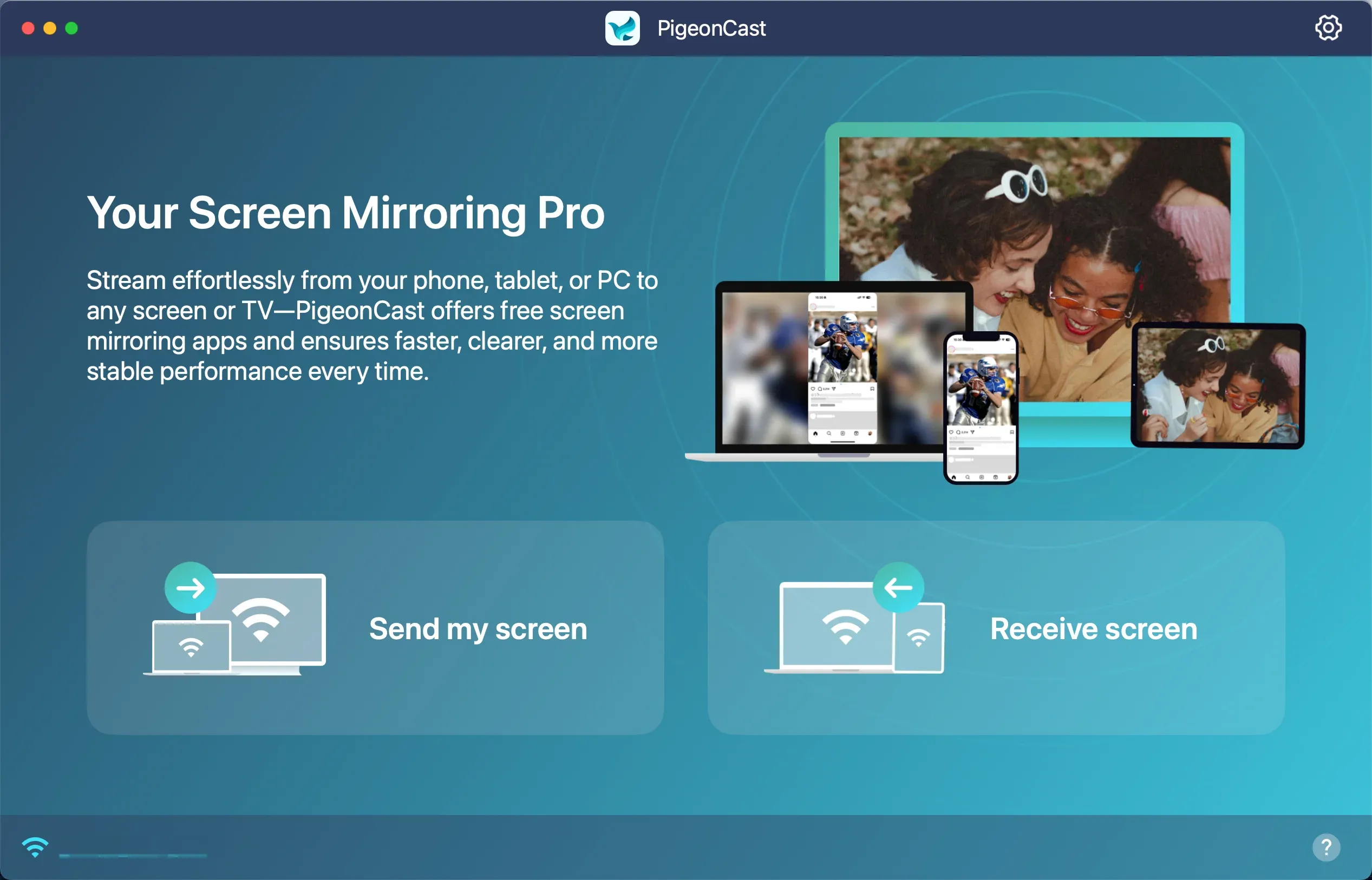
If you continue to experience problems with AirPlay subtitles not working, you may want to consider using a third-party screen mirroring app like PigeonCast. This free app allows you to wirelessly mirror your device's screen to another display, bypassing the potential AirPlay bugs that might be preventing subtitles from showing up.


Overall Rating:



To use PigeonCast, you just need to:
Step 1. Download and install Pigeoncast on your sending device and receiving device, and launch it.
Step 2. Ensure both your devices are connected to the same Wi-Fi network.
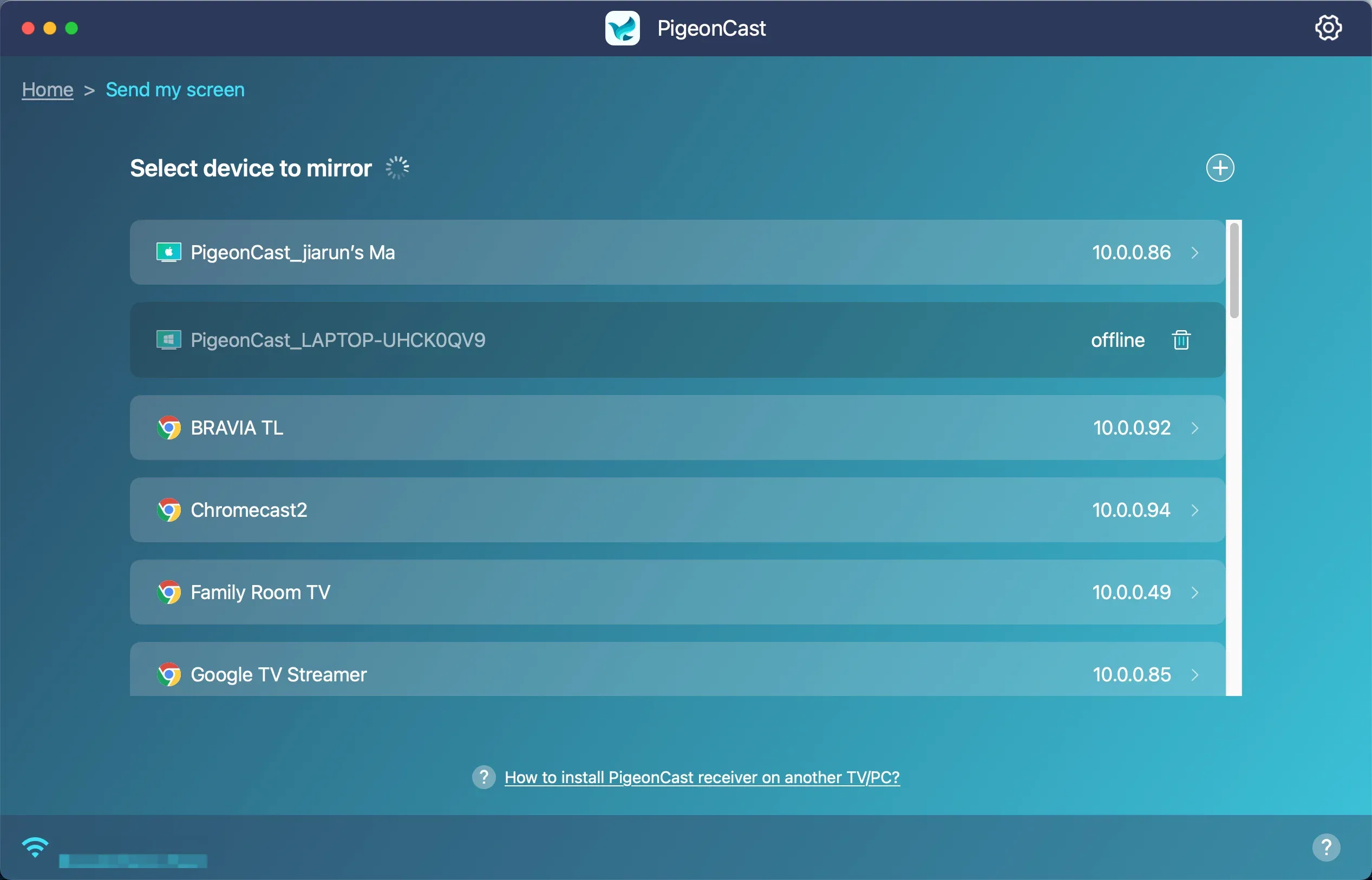
Step 3. On the sending device, choose the other device, and start mirroring.
Conclusion
If you're experiencing issues with AirPlay subtitles not working, it's usually related to settings or software problems that are easy to fix. By checking your settings, updating software, and troubleshooting AirPlay, you should be able to get subtitles working again. In some cases, using a third-party app like PigeonCast can be an effective solution if AirPlay continues to cause issues.
AirPlay Subtitles Not Working FAQs
How do I turn on AirPlay captions?
To enable AirPlay captions (subtitles), make sure that subtitles are enabled in your device's Accessibility settings:
- On iPhone/iPad: Go to Settings > Accessibility > Subtitles & Captioning, and turn on Closed Captions + SDH.
- On Mac: Go to System Preferences > Accessibility > Captions and check Show captions. Ensure both your streaming device and Apple TV are on the same Wi-Fi network for AirPlay to work correctly.
How do I add subtitles when casting?
To add subtitles when casting via AirPlay or other methods (like Chromecast or Roku), follow these steps:
- On AirPlay (iPhone/iPad to Apple TV): Start playing your video, open Control Center, and select Screen Mirroring to connect to your Apple TV. Tap the Subtitles (CC) icon to enable captions.
- On Chromecast (iPhone, Android, or PC): Cast your video to your Chromecast device, and while playing, look for the subtitles icon in the video controls to turn on captions.
Why are subtitles not working on AirPlay?
- Subtitles are not enabled in your device's settings.
- Your devices are not on the same Wi-Fi network.
- The streaming app you're using doesn't support AirPlay subtitles.
- Your Apple TV or streaming device software is outdated.
Does AirPlay support subtitles with all apps?
No, not all apps support subtitles via AirPlay. Apps like Netflix, Apple TV+, and YouTube generally work well with subtitles when cast via AirPlay. However, some third-party apps may have limited subtitle support.
Can I add subtitles to videos that don't have them when using AirPlay?
If your video doesn't have subtitles but you want to add them while casting via AirPlay, you can manually add subtitle files (like .srt files) to the video if you're using a media player that supports them.
How do I troubleshoot when AirPlay subtitles aren't syncing with video?
If AirPlay subtitles aren't syncing properly:
- Ensure your internet connection is stable and fast enough for streaming.
- Restart both your Apple TV and streaming device.
- Try switching the subtitle language or turning subtitles off and on again.
- Check if the video file itself has syncing issues.
Mia Clarke is a technology editor specializing in screen mirroring and casting solutions across multiple platforms. Mia provides clear, practical guides and in-depth insights to help users seamlessly connect their devices. Passionate about enhancing digital experiences, Mia is dedicated to keeping readers updated on the latest trends and tools in cross-platform screen sharing. Whether you’re looking to mirror your smartphone, laptop, or smart TV, Mia’s content delivers reliable, user-friendly advice to simplify your tech setup.