
If you need to fix connections to Bluetooth audio devices and wireless displays in Windows 10, this guide gives clear, practical steps you can follow right now. Many connection problems stem from simple causes, including sleeping devices, mismatched Wi-Fi bands, or driver hiccups, so this article focuses on quick checks first, then deeper fixes. You'll also find short troubleshooting flows for Bluetooth and wireless display (Miracast) issues, plus a reliable alternative PigeonCast, if built-in methods fail or your devices are cross-platform.
What Causes Bluetooth Audio Device & Wireless Display Connection Issues in Windows 10
Connection failures usually happen for a handful of repeatable reasons, whether the question is "why won't my Bluetooth connect?" or "why won't my wireless display connect?".
- Wi-Fi or Bluetooth interference: Overcrowded channels, physical obstructions, or co-channel interference degrade discovery and streaming.
- Power-saving settings: Windows or device power rules may put adapters to sleep and break pairing.
- Outdated or missing device: Old Bluetooth / wireless drivers often fail to establish or maintain connections.
- Device compatibility limits: Some TVs, dongles, or headsets don't fully support the necessary profiles (for example, Miracast).
- App or DRM restrictions: Certain streaming apps restrict casting or mirroring for protected content.
- Incorrect output or input selected: Windows may route audio to another device, or the TV might be on the wrong input.
- Temporary software glitches: Cached sessions or hung services can create the illusion of a connection that doesn't actually stream.
Fix Connection to Bluetooth Audio Devices in Windows 10
A few ordered steps fix most "Bluetooth not connecting" problems: recheck basics, run the troubleshooter, update drivers, then reset or reinstall the adapter. Follow them in order and stop when your device works.
Ensure Bluetooth Is Enabled
Before trying deeper fixes, make sure Bluetooth is turned on in both Windows and your device.
Step 1. Press Windows + I shortcut to open Settings.
Step 2. Go to Devices > Bluetooth & other devices.
Step 3. Turn Bluetooth on (if it's off).
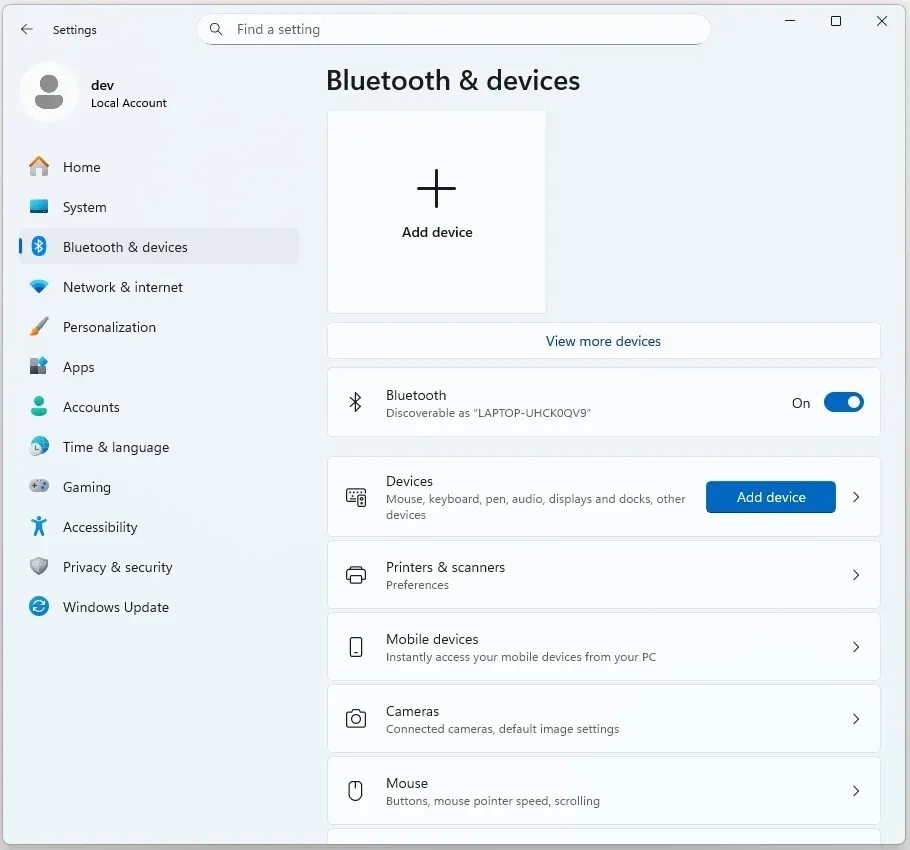
Step 4. On your headset or speaker, enable pairing mode.
Step 5. Try reconnecting from your PC's Bluetooth menu.
Check the Bluetooth Audio Device
Sometimes the problem isn't the computer but the Bluetooth audio device itself. So, check if the device is on, charged, and paired.
Step 1. Ensure the audio device is fully charged or connected to power.
Step 2. Confirm it's in pairing mode (usually by holding the power button until an LED flashes).
Step 3. Remove old pairings on phones or other computers that might auto-connect first.
Step 4. On Windows, go to Settings > Bluetooth & other devices > Add Bluetooth or other device > Bluetooth, then select your audio device.
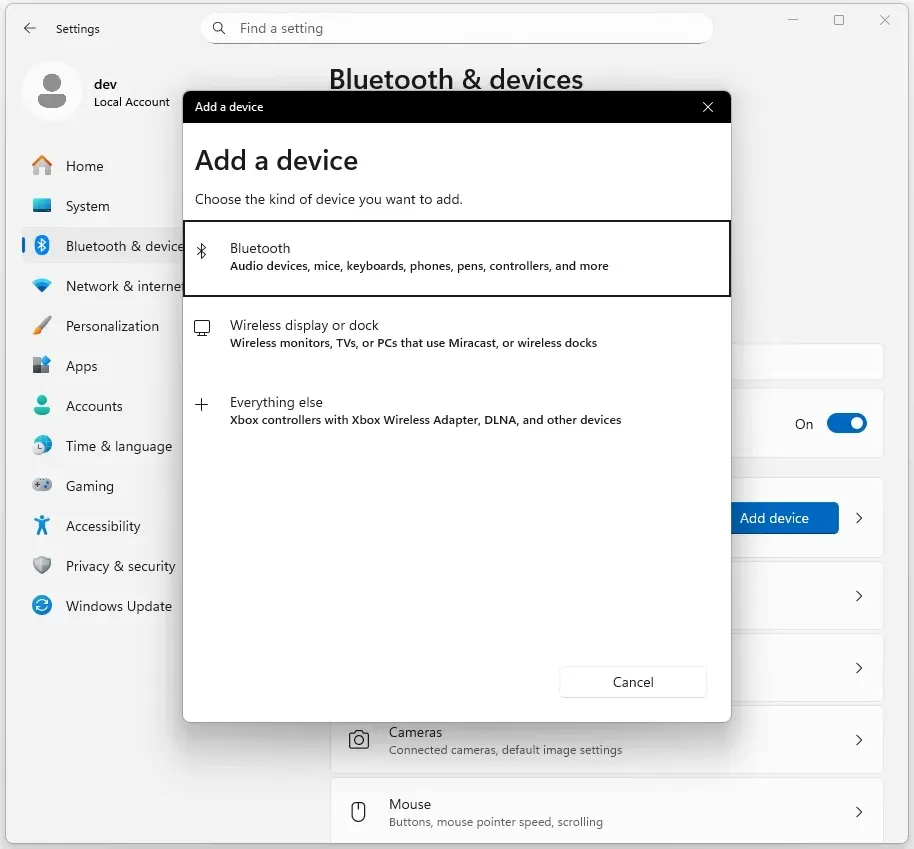
Check the Volume and Audio Output Settings
How to fix Bluetooth not working Windows 10? Your Bluetooth device might be connected, but Windows could be routing audio elsewhere. So, check the volume and audio output settings on your PC:
Step 1. Click the Volume icon on the taskbar.
Step 2. Select the arrow text to the output name and choose your Bluetooth speaker/headphones.
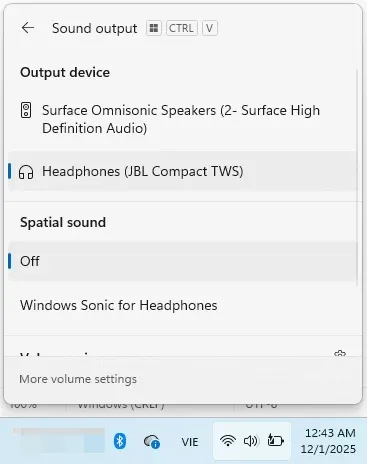
Step 3. Open Settings > System > Sound, and under Output, select your device.
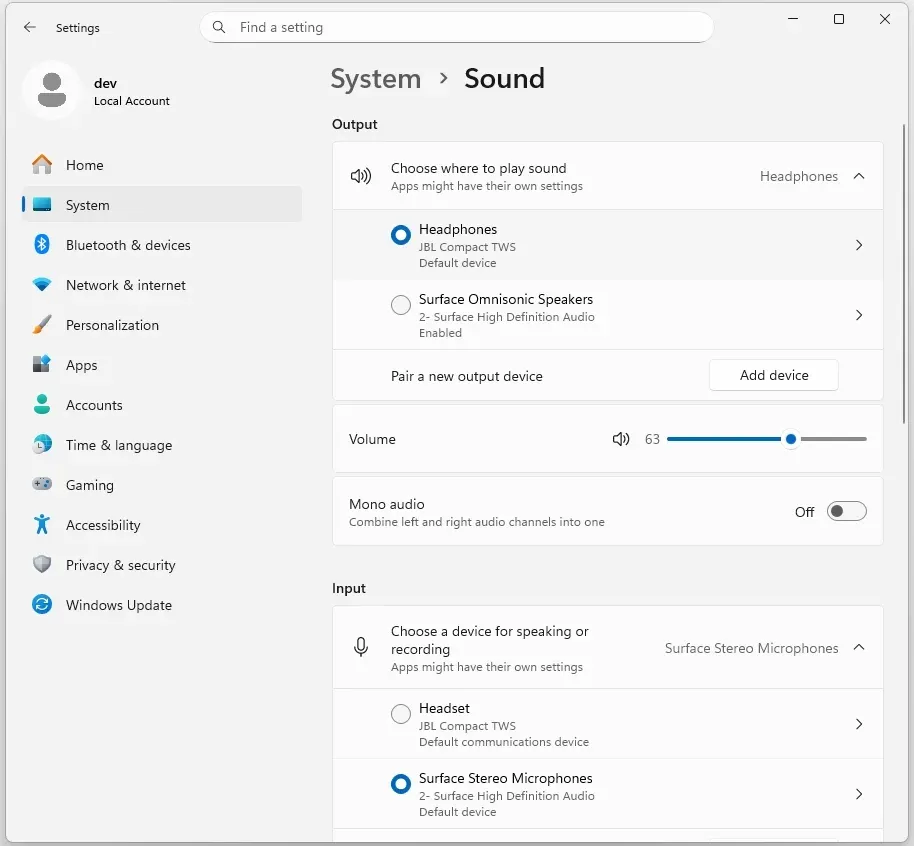
Step 4. Adjust volume levels in both Windows and the connected device.
Adjust the Audio Quality
Improper audio quality settings can affect connection stability or cause sound drops. So, to fix connections to Bluetooth audio devices and wireless displays in Windows 10:
Step 1. Go to Settings > System > Sound > More sound settings.
Step 2. Select your Bluetooth device, then choose Properties > Advanced tab.
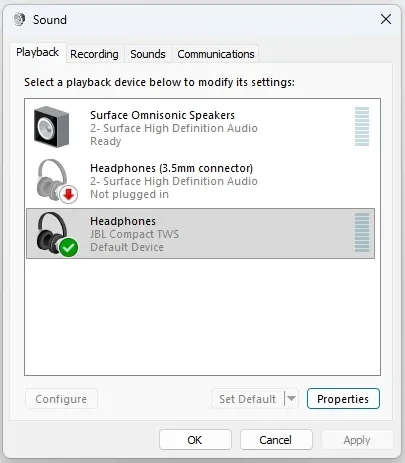
Step 3. Choose 16-bit, 44100 Hz (CD Quality) or a lower format for better quality.
Step 4. In the Services tab, uncheck Hands-free Telephony if sound quality is poor.
Disable Energy-Saving Features
Windows may disable your Bluetooth adapter to save power, causing connections to break.
Step 1. Press Windows + X, then choose Device Manager from the menu.
Step 2. Expand Bluetooth, right-click your adapter, and choose Properties.
Step 3. Go to the Power Management tab.
Step 4. Uncheck Allow the computer to turn off this device to save power.
Step 5. Click OK and reconnect your Bluetooth device.
Run the Bluetooth Troubleshooter
Still can't connect Windows 10 to a Bluetooth audio device? The built-in troubleshooter can automatically detect and fix basic connection problems.
Step 1. Open Settings, then go to Update & Security > Troubleshoot > Additional troubleshooters.
Step 2. Select Bluetooth > Run the troubleshooter.
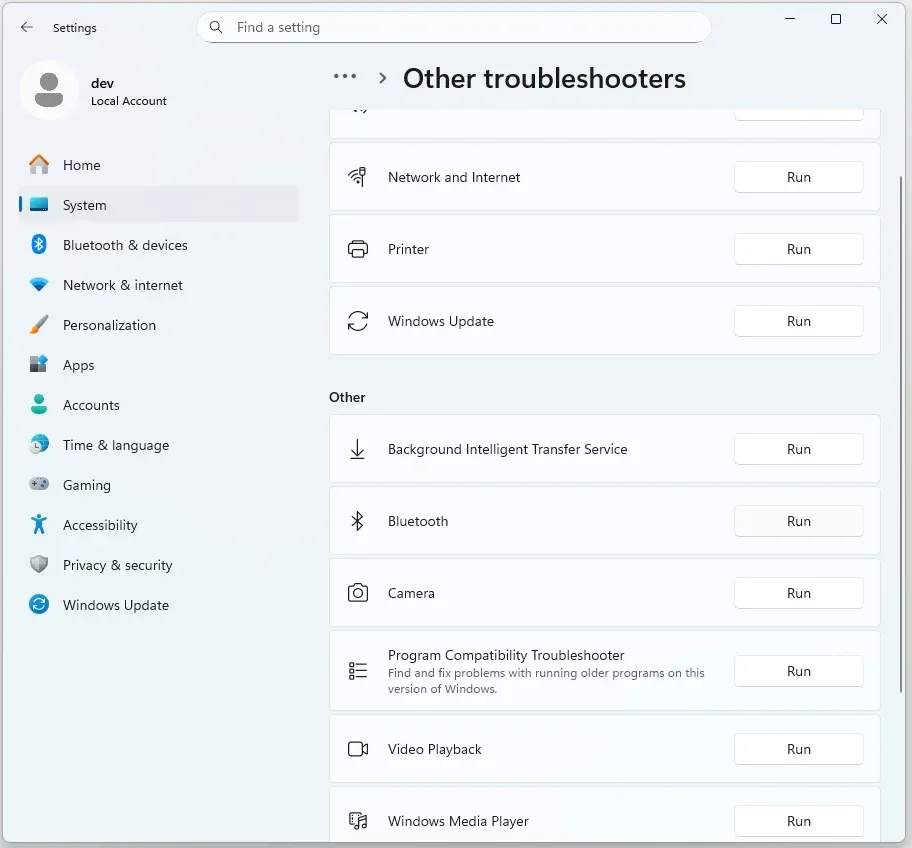
Step 3. Follow on-screen instructions and apply any suggested fixes.
Restart the Bluetooth Service
Restarting services clears temporary connection caches.
Step 1. Press Windows + R, type services.msc, and press Enter.
Step 2. Scroll down to Bluetooth Support Service.
Step 3. Right-click it and choose Restart.
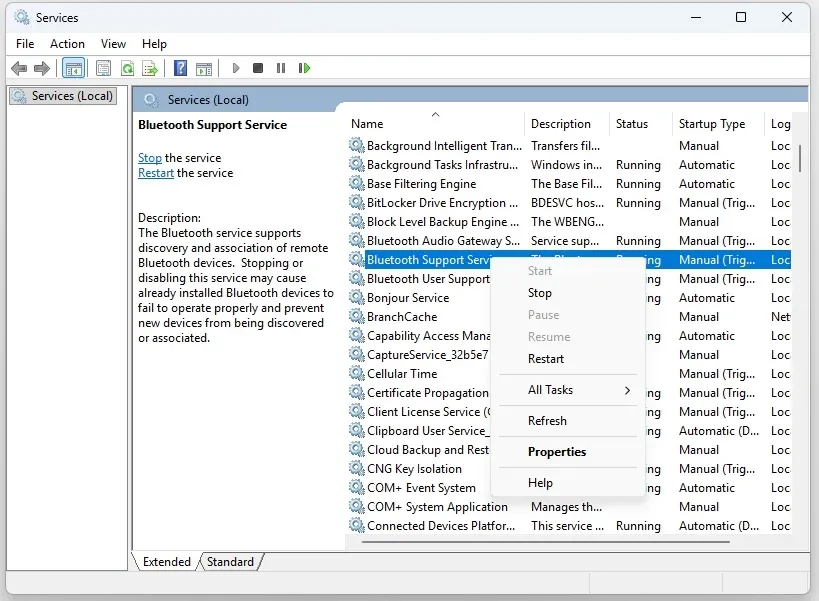
Step 4. If the Startup type is set to Manual, change it to Automatic.
Update the Bluetooth Drivers
Old or faulty drivers often cause pairing issues.
Step 1. Open Device Manager > Bluetooth.
Step 2. Right-click your Bluetooth adapter > Update driver.
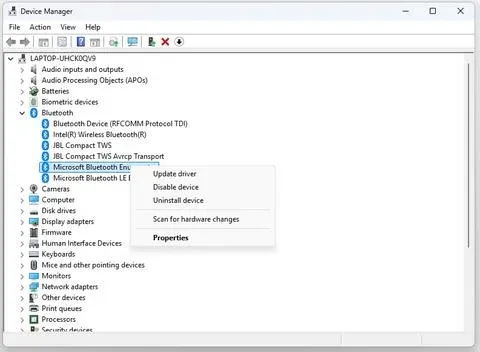
Step 3. Choose Search automatically for drivers.
Step 4. If none are found, visit your PC or Bluetooth chip manufacturer's site and install the latest version manually.
Uninstall the Bluetooth Adapter
If nothing else works, remove and reinstall the adapter to reset it completely.
Step 1. Open Device Manager > Bluetooth.
Step 2. Right-click your Bluetooth adapter > Uninstall device.
Step 3. Restart your PC. Windows will reinstall the driver automatically.
Fix Connection to Wireless Display Issues in Windows 10
Wireless display errors, such as Windows 11 wireless display not working, often stem from compatibility or network misconfiguration. These steps help re-establish Miracast or Wi-Fi Display connections safely.
Check Miracast Compatibility
Your PC and TV must both support Miracast. If you see the "Your device doesn't support Miracast" message, you'll need another solution. The same check matters when you connect Lenovo laptop to TV wirelessly, since many Lenovo models use Windows wireless display instead of HDMI.
Step 1. Press Windows + R, type dxdiag, and press Enter.
Step 2. Click Save All Information and open the saved text file.
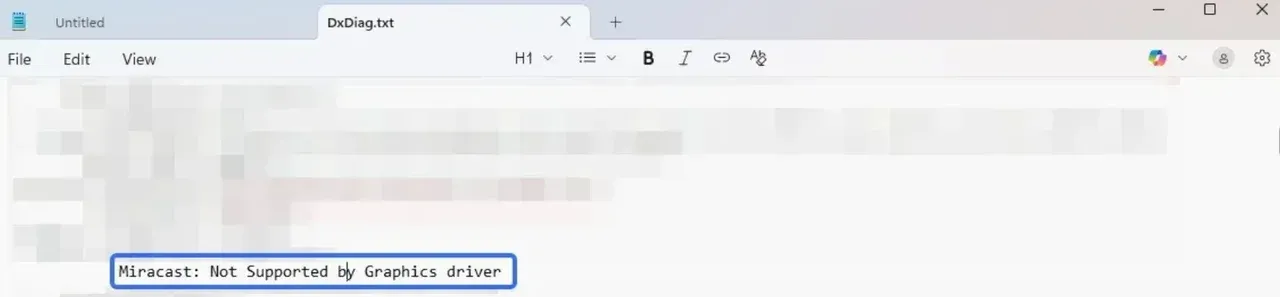
Step 3. Search for Miracast. If it says "Available", your device supports it.
If Miracast is unavailable on your Windows PC, try PigeonCast to mirror your PC to TV wirelessly.
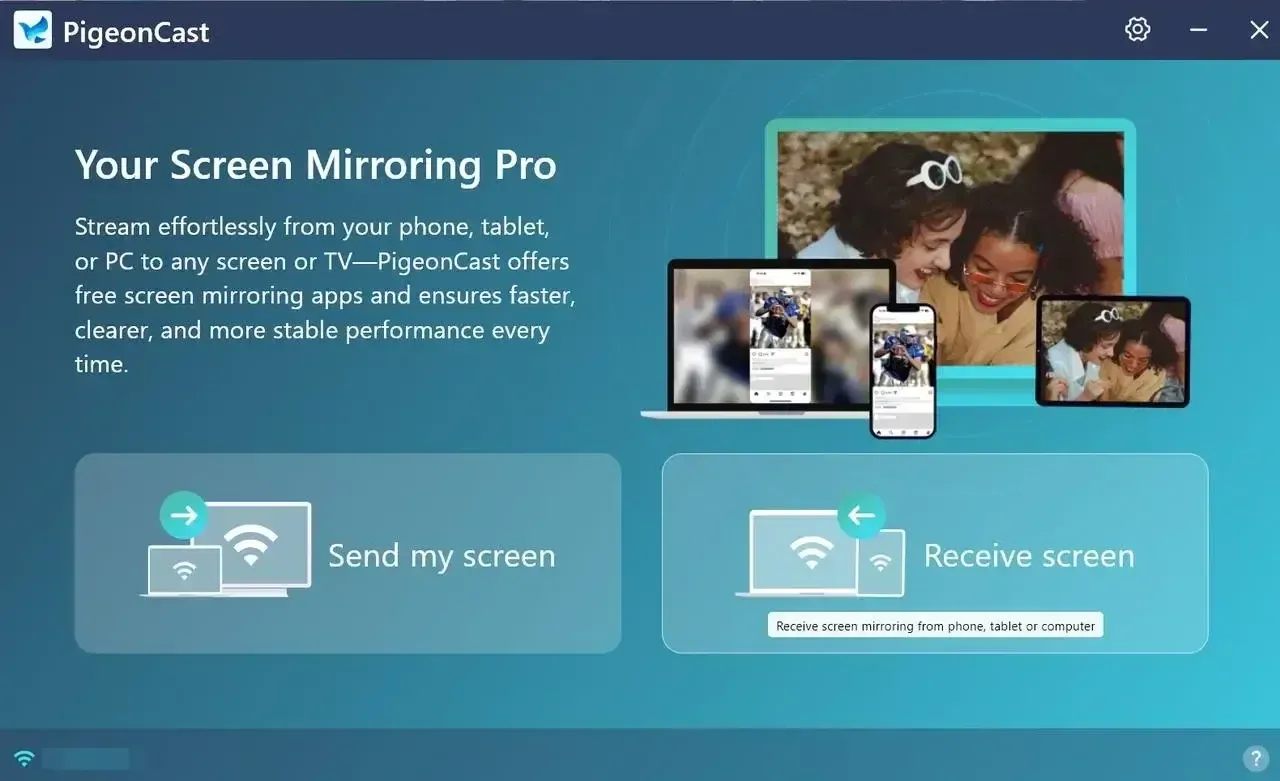
PigeonCast is a free and versatile alternative to Miracast. Unlike Miracast, this third-party tool lets you connect your Windows PC to a MacBook, smart TV, or streaming device seamlessly. It's an excellent choice for cross-platform users who want a reliable and easy way to mirror or cast wirelessly across different devices.

PigeonCast Screen Mirroring

Official Download



Step 1. Set up PigeonCast on your Windows PC and MacBook or TV.
Step 2. Ensure the two devices are connected to the same Wi-Fi network.
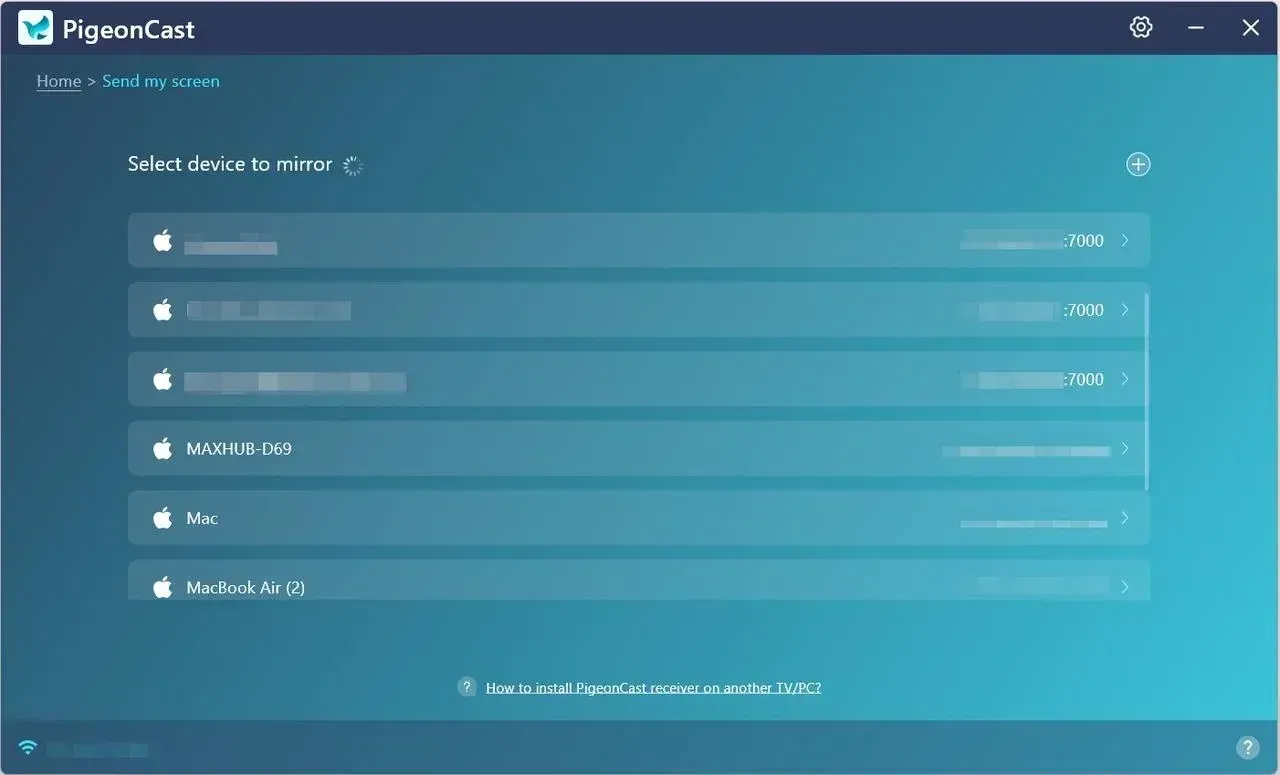
Step 3. Launch PigeonCast on both devices. On your Windows PC, choose the other device.
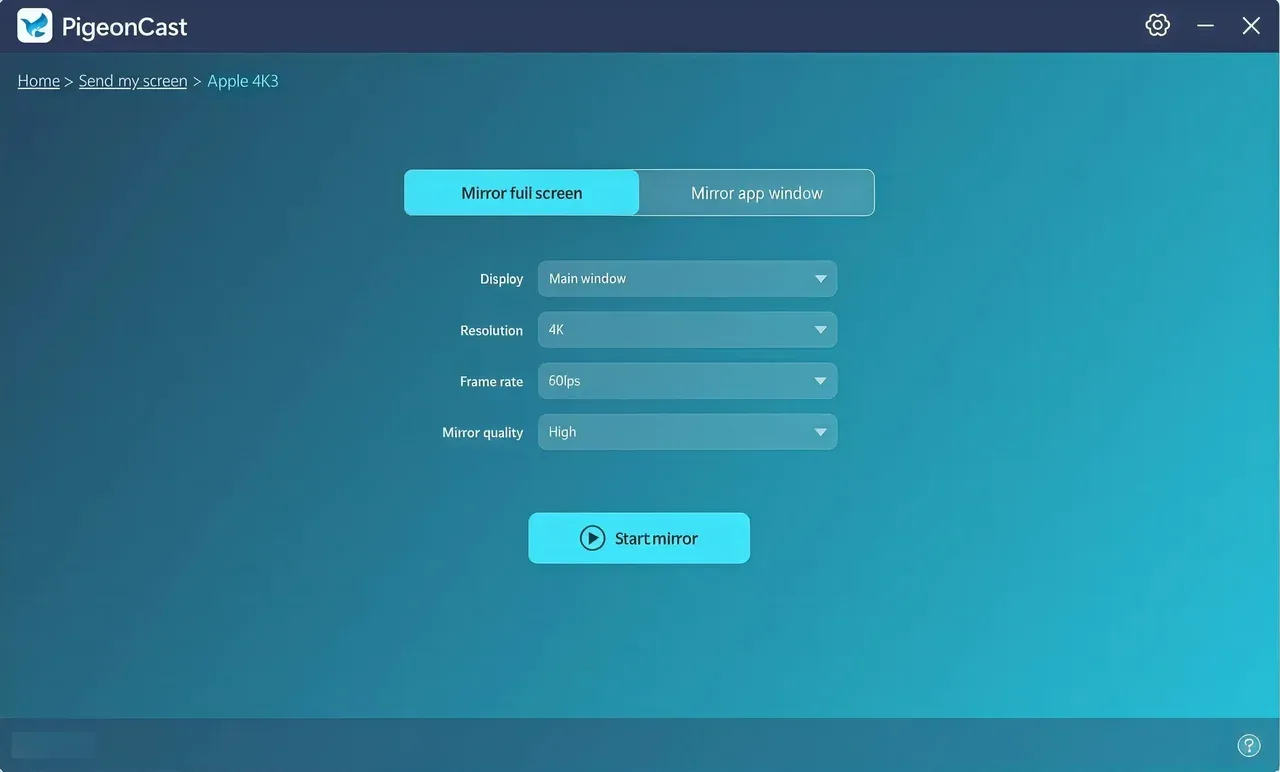
Step 4. Choose to mirror the entire screen or cast an app window and start streaming.
Restart PC and Wireless Display
Temporary bugs are often cleared by a simple restart.
Step 1. Turn off your TV, Miracast dongle, or wireless display device.
Step 2. Wait 10 seconds, then power it on again.
Step 3. Restart your PC and attempt to reconnect using Settings > Display > Connect to a wireless display.
Check the Wi-Fi Connection
Stable, shared Wi-Fi is critical for connecting your laptop to TV successfully.
Step 1. Ensure both PC and TV use the same Wi-Fi network and band (preferably 5 GHz).
Step 2. Avoid public or guest networks.
Step 3. Move the devices closer to your router to strengthen signal.
Reconnect the Wireless Display
Is Windows 11 wireless display not working? Re-adding the device refreshes the Miracast handshake.
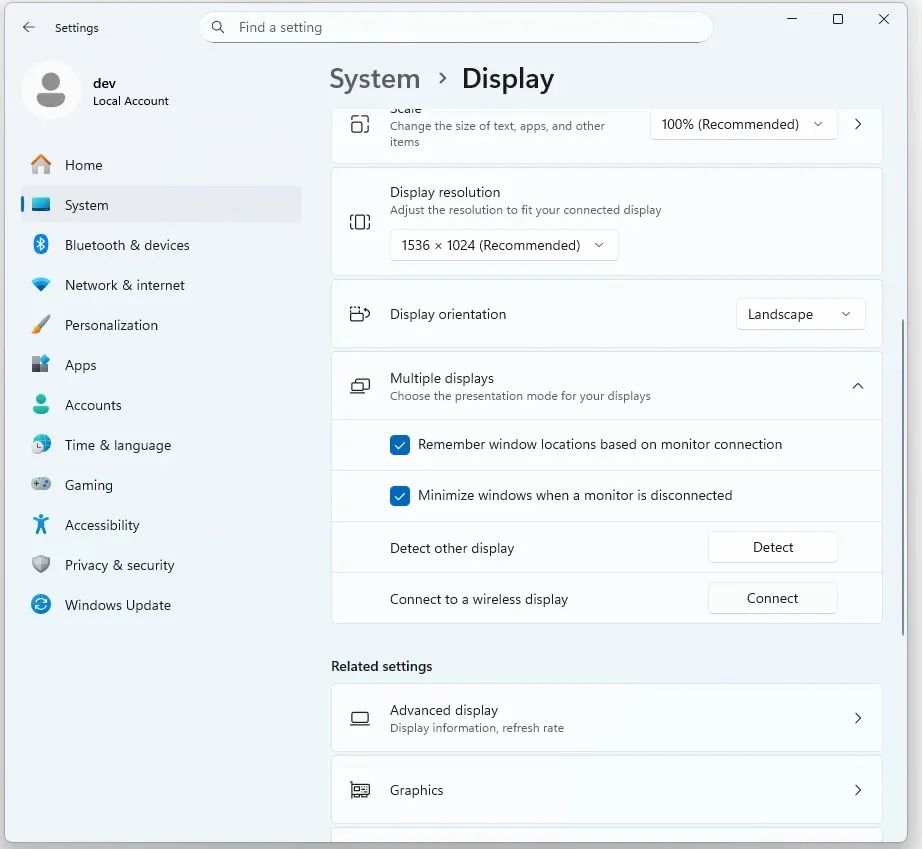
Step 1. Go to Settings > System → Display.
Step 2. Click Connect to a wireless display.
Step 3. If the display is already listed, remove it first.
Step 4. Click Connect, select your TV or dongle again, and follow prompts.
Check the Input on the Wireless Display
Incorrect input is a frequent oversight, and follow the steps to confirm the input source on your wireless display, like TV:
Step 1. On your TV remote, press Input or Source.
Step 2. Select the port or option labelled Screen Mirroring, Wireless Display, or the HDMI port for your dongle.
Step 3. Wait a few seconds to see if your PC reconnects automatically.
Temporarily Disable Firewall
A strict firewall may block discovery or communication. So, turn off firmware or security apps on your Windows 10 to verify:
Step 1. Open Windows Security > Firewall & network protection.
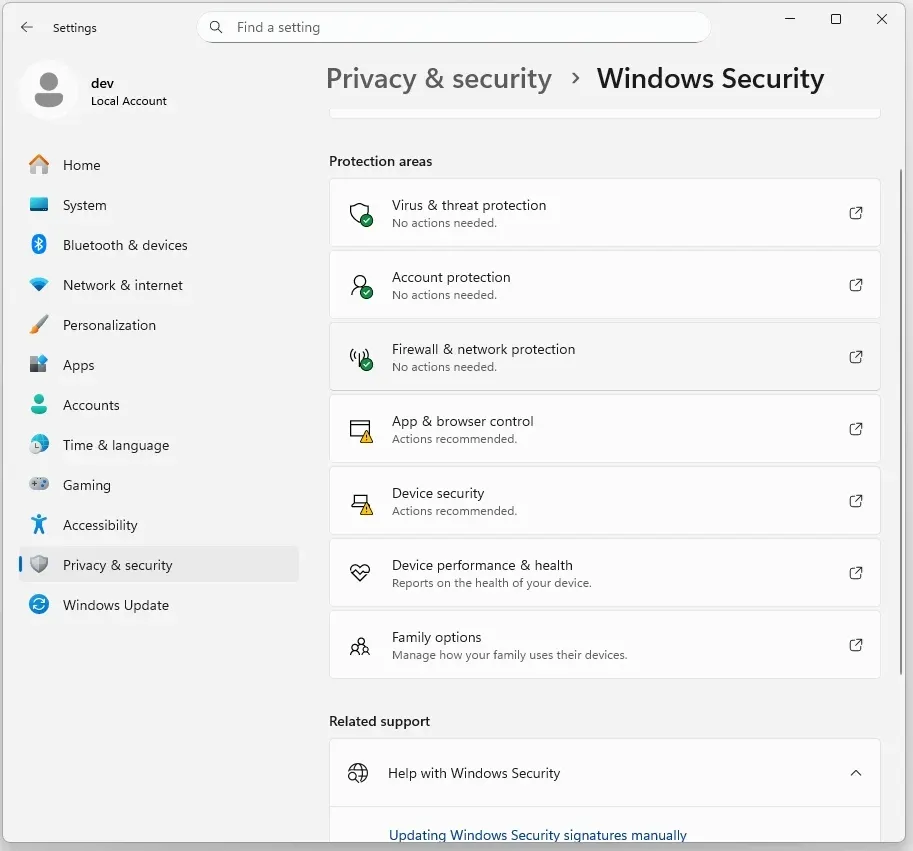
Step 2. Choose your active network > toggle Microsoft Defender Firewall off temporarily.
Step 3. Try reconnecting the wireless display.
Step 4. If it works, add an exception for the Wireless Display service and re-enable your firewall immediately
Final Words
To fix connections to Bluetooth audio devices and wireless displays in Windows 10, start with the basic checks: power, pairing mode, Wi-Fi, and input, then move on to driver updates or service resets if necessary. If all these steps can't resume the connection, please contact Microsoft or the manufacturer of your Bluetooth audio device or wireless display.
To mirror your PC wirelessly, try PigeonCast, which provides a reliable way to mirror screens across Windows, macOS, Android, and smart TVs without configuration hassles.
Fix Connections to Bluetooth Audio Devices and Wireless Displays in Windows 10 FAQs
Why is my wireless display not connecting?
Verify Miracast compatibility, ensure both devices are on the same Wi-Fi, and check the TV’s input source. Restarting both devices often solves it.
How do I fix Bluetooth connections on Windows 10?
Toggle Bluetooth, run the troubleshooter, disable power-saving settings, and update drivers to the newest version.
How to fix wireless interference with Wi-Fi and Bluetooth?
Use the 5 GHz band for Wi-Fi, move devices closer, and limit the number of active Bluetooth accessories nearby.
Why is my wireless display not connecting after update?
Driver or network changes can block Miracast. Reinstall the Wireless Display feature in Settings > Apps > Optional features > Add a feature.
Mia Clarke is a technology editor specializing in screen mirroring and casting solutions across multiple platforms. Mia provides clear, practical guides and in-depth insights to help users seamlessly connect their devices. Passionate about enhancing digital experiences, Mia is dedicated to keeping readers updated on the latest trends and tools in cross-platform screen sharing. Whether you’re looking to mirror your smartphone, laptop, or smart TV, Mia’s content delivers reliable, user-friendly advice to simplify your tech setup.