
Mirroring your Samsung phone to a Roku TV lets you share photos, play mobile games on the big screen, stream apps not available on Roku, or give presentations directly from your phone. While the process isn't always a one-click solution, Roku offers built-in features that make wireless screen sharing easy. This guide will show how to mirror Samsung phone to Roku TV and alternative methods for situations where Wi-Fi isn't available.
How to Mirror Samsung Phone to Roku TV
The primary and most convenient method for mirroring uses your home WiFi network. Roku supports Miracast, a screen mirroring standard that's built into most Android devices, including modern Samsung Galaxy phones (S, Note, A, M series, Tabs). This allows for a seamless, direct wireless connection between devices. Read on to check how to mirror Samsung phone to Roku TV wirelessly:
Step 1. Ensure both your Samsung phone and Roku TV are covered by the same wireless network.
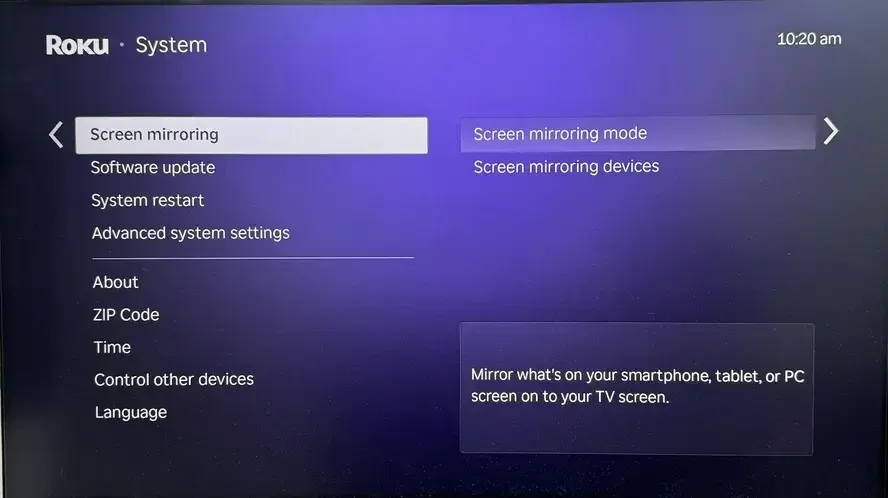
Step 2. On your Roku TV, go to Settings > System > Screen Mirroring. Set the mode to Prompt (to approve each time) or Always allow.
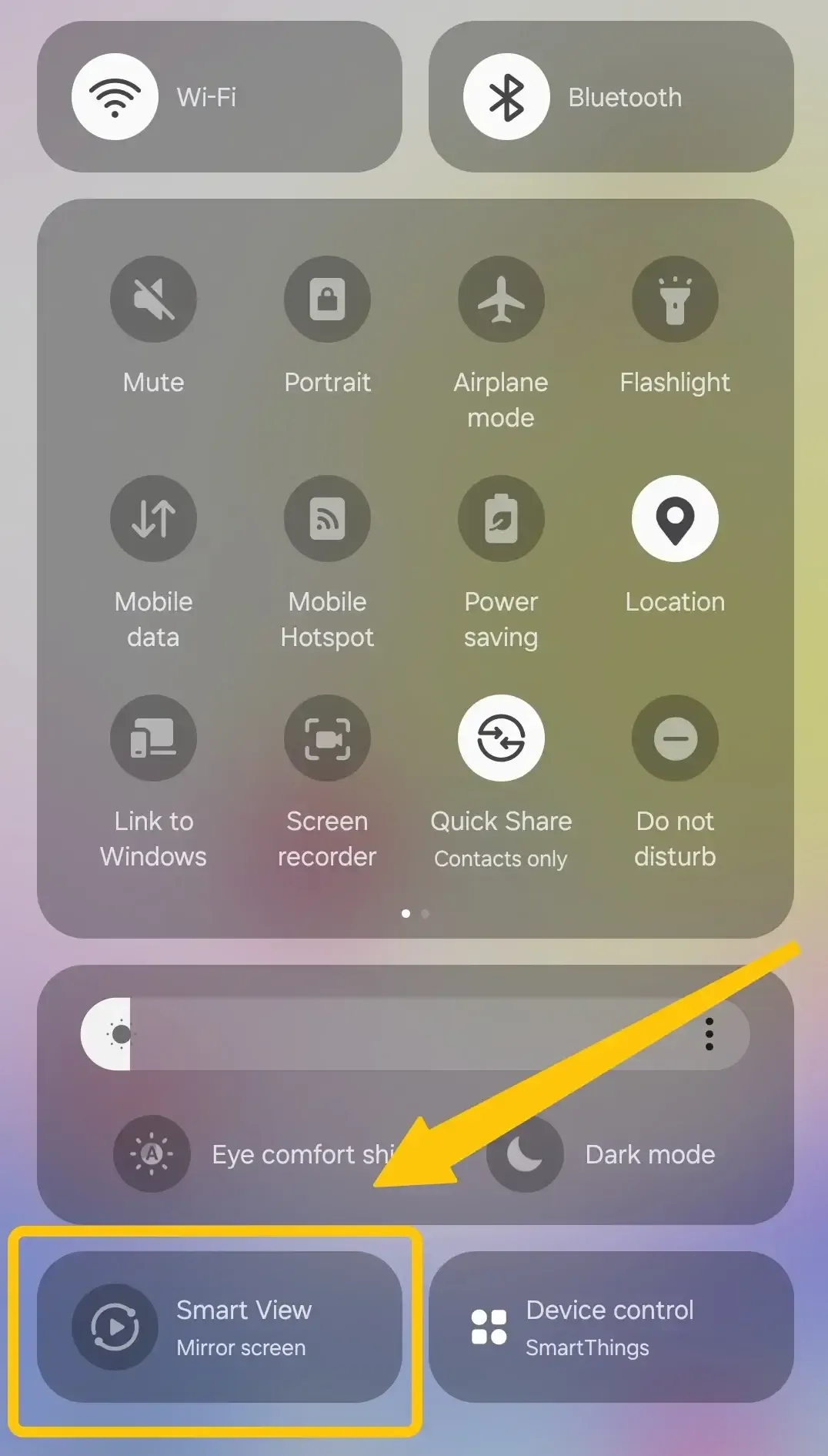
Step 3. On your Samsung phone, swipe down from the top of the screen to access the Quick Settings menu and tap the Smart View button.
Step 4. Select your Roku TV from the list to start the mirroring process.
Step 5. Once connected, your Samsung phone's screen will be displayed on your Roku TV. You can now enjoy streaming videos, apps, photos, and more on the big screen.
Tip: If you encounter any compatibility issues, consider trying PigeonCast, a free and versatile mirroring tool that works across multiple platforms, including Android, iOS, Windows, macOS, and Android TVs. With no ads to interrupt your experience, PigeonCast ensures secure data transmission and supports 4K resolution with minimal latency, providing a smooth and high-quality mirroring experience.



Overall Rating:


To connect your phone to your TV without Wi-Fi, you can use alternative methods like a mobile hotspot or HDMI cable. Whether you're looking to mirror your Samsung phone to a Roku TV or another device, these solutions allow you to enjoy your content without the need for a wireless network.
Way 1. Use a Mobile Hotspot
If your Roku TV and Samsung phone can't connect via a traditional Wi-Fi network, you can set up a mobile hotspot on your phone and connect both your Samsung phone and Roku TV to it. However, keep in mind that using your mobile hotspot may incur additional data charges depending on your mobile plan.
Step 1. Go to Settings on your Samsung phone and select Connections > Mobile Hotspot and Tethering.
Step 2. Turn on the Mobile Hotspot and set up the Wi-Fi network name and password.
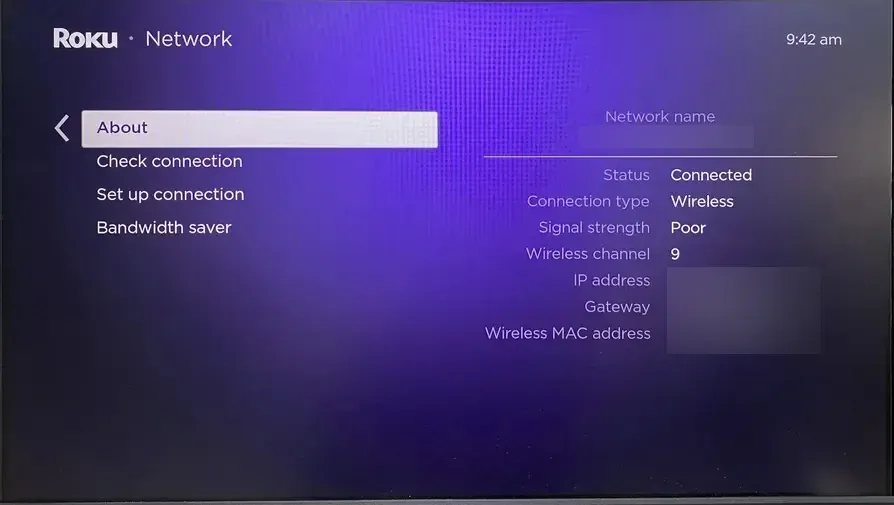
Step 3. On your Roku TV, go to Settings > Network > Set Up Connection, select the Mobile Hotspot network you just created, and enter the password.
Step 4. After both devices are connected to the hotspot, you can follow the same steps for screen mirroring as mentioned in the previous section.
Way 2. Use an HDMI Cable
If you prefer a wired solution or have trouble connecting wirelessly, using an HDMI cable can be a quick and reliable option to mirror your Samsung phone to your Roku TV. Here's how to connect phone to TV with HDMI cable:
Step 1. Depending on your Samsung phone's port, you'll need either a USB-C to HDMI adapter (for newer models) or a Micro-USB to HDMI cable (for older models).
Step 2. Plug the USB-C or Micro-USB end of the adapter into your Samsung phone, and the HDMI end into one of your Roku TV's HDMI ports.
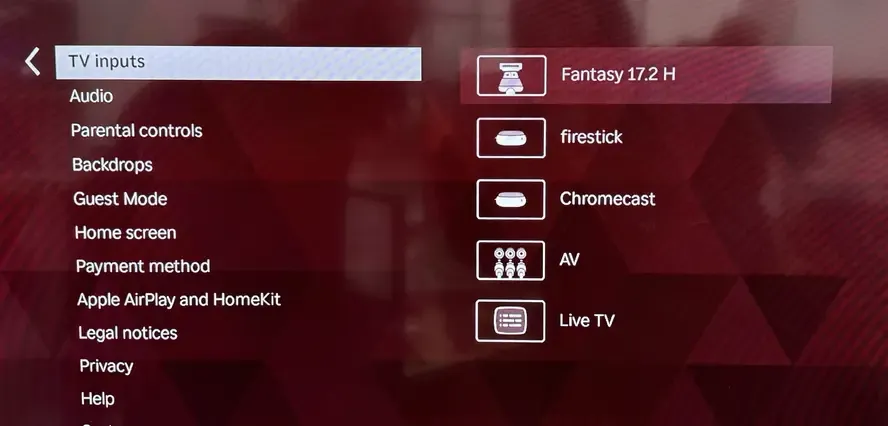
Step 3. Use your Roku remote to navigate to the TV input settings, then select the HDMI port to which your phone is connected.
Step 4. Your Samsung phone's screen will automatically appear on the TV. From here, you can easily mirror content, watch videos, play games, or browse photos directly on the big screen.
Closing Words
How to mirror my Samsung phone to my Roku TV? While the process may vary depending on your network setup, Roku's built-in features like Miracast make wireless screen sharing a simple task. If you're without Wi-Fi, alternative methods such as using a mobile hotspot or an HDMI cable offer reliable options for seamless mirroring.
How to Mirror Samsung Phone to Roku TV FAQ
How do I mirror my Samsung phone to TV?
To mirror your Samsung phone to your TV, follow these steps:
- Ensure both devices are connected to the same Wi-Fi network.
- On your TV, enable screen mirroring (this option might be called Miracast, Cast, or Screen Share, depending on the TV model).
- On your Samsung phone, swipe down to access the Quick Settings menu and select Smart View or Screen Mirroring.
- Select your TV from the list of available devices.
- Once connected, your phone's screen should appear on the TV.
Why can't I screen mirror to my Roku TV?
Here are some potential reasons why you can't screen mirror on your Roku TV:
- Roku Model Compatibility
- Different Wi-Fi Networks
- Screen Mirroring Disabled
- Outdated Software
- Phone Incompatibility
- Connection Interference
- Device Overload
- Permissions Denied
How to mirror Samsung phone to TCL Roku TV?
To mirror your Samsung phone to a TCL Roku TV, follow these steps:
- Make sure your Samsung phone and TCL Roku TV are connected to the same Wi-Fi network.
- On your Roku TV, go to Settings > System > Screen Mirroring.
- Choose Screen Mirroring Mode and set it to Prompt or Always Allow.
- Swipe down from the top of your Samsung phone to open the Quick Settings menu.
- Tap Smart View or Screen Mirroring (the name may vary depending on your phone model).
- In the Smart View menu, your TCL Roku TV should appear in the list of available devices. Tap on it to begin mirroring.
- If you set the Roku TV to Prompt mode, you may need to confirm the connection on the TV screen.
Can you mirror Samsung phone to Roku TV?
Yes, you can mirror your Samsung phone to a Roku TV, as long as both devices support Miracast (which most Roku TVs do). However, there are a few important things to keep in mind for it to work properly:
- Miracast Support: Roku TVs support Miracast, which is the technology used for screen mirroring. Make sure your Roku TV is compatible with this feature.
- Network Connection: Both your Samsung phone and Roku TV need to be connected to the same Wi-Fi network for the mirroring to work.
- Screen Mirroring Settings: On your Roku TV, screen mirroring must be enabled in the settings.
How to mirror from an Android phone to a Roku TV?
To mirror from an Android phone to a Roku TV, you can use screen mirroring with Miracast technology. Here's how to do it:
- Make sure both your Roku TV and Android phone are connected to the same Wi-Fi network.
- Press the Home button on your Roku remote, go to Settings > System > Screen Mirroring.
- Open the Quick Settings menu by swiping down from the top of the screen.
- Look for an option called Cast, Screen Mirroring, or Smart View (the name may vary based on the phone model) and tap the option.
- Find and tap on your Roku TV in the list of available devices.
- If your Roku TV is set to Prompt, you may need to approve the connection on the TV screen.
- Once connected, your Android phone's screen will be mirrored on the Roku TV.
Clara Rossi is an experienced technology editor and a seasoned expert in screen mirroring and casting technologies. With a keen eye for detail and a deep understanding of how to seamlessly connect devices, Clara excels at optimizing user experiences for effortless sharing and streaming. Whether you're seeking quick fixes or advanced tips, her expertise and responsiveness ensure that every query is met with a well-informed and efficient solution.