
Whether you're presenting, streaming, or providing tech support, the right mirror app for iPhone can make all the difference. While Apple's AirPlay is great for connecting to Apple TVs, it falls short when trying to connect to non-Apple devices like Windows PCs, Android TVs, or Smart TVs from brands like Samsung or LG. In this guide, we'll explore six of the best third-party mirroring apps that go beyond the Apple ecosystem, comparing their features and strengths to help you find the perfect app for your needs.
6 Best Mirror Apps for iPhone: Which is Best for You
Choosing the right iPhone mirroring app depends on your needs. Whether you want a free option for occasional use, advanced features like remote control, or compatibility with devices like a FireStick or Windows PC, each app offers something different. Some are simple, while others have more features or bypass Apple's restrictions. Below, we break down the top options, starting with our pick for most users.
Top 1. PigeonCast
After testing the top screen-sharing tools, we've found PigeonCast to be the best free option for iPhone. It stands out for its seamless screen mirroring and casting across multiple platforms. PigeonCast supports TVs (Android TV, tvOS), PCs (Windows, Mac), and mobile devices (Android, iOS/iPadOS), working with GoogleCast, AirPlay, DLNA, and its own PigeonCast protocol.

Perfect for both home entertainment and work settings, PigeonCast is easy to use with no technical skills required, making it a flexible and reliable solution for content sharing across devices. It stands out for its simplicity and reliability, designed to work with minimal setup. Compatible with iOS 15.0 and above, it ensures seamless screen mirroring from iPhone and iPad to smart TVs.
Pros:
- Easy Setup: PigeonCast features a simple and intuitive interface, making it easy for both beginners and experienced users to navigate.
- Free to Use: Enjoy all the features of PigeonCast without any cost, making it an accessible option for everyone.
- Multiple Device Support: It supports mirroring to a wide range of devices, including smart TVs, PCs, and other compatible devices.
- Low Latency: PigeonCast is renowned for its smooth streaming and low-latency performance, making it ideal for watching videos or gaming without delays.
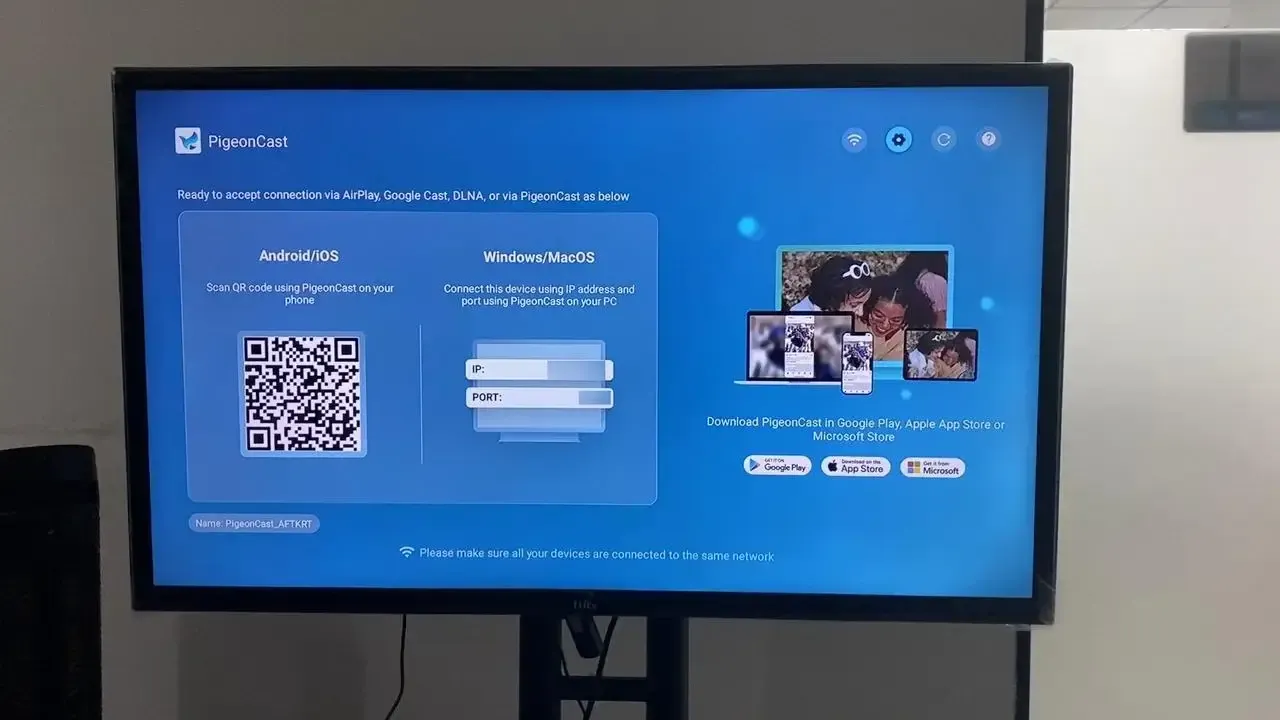
- Reliable Connection: Devices are discovered via LAN Wi-Fi, mirroring codes, and QR codes, ensuring stable connections. Dynamic codes prevent accidental connections to unknown devices, speeding up the process and improving efficiency.
- HD Quality Mirroring: Stream content in stunning 4K resolution with minimal latency, delivering the best viewing experience.
- Unlimited Media Streaming: Stream a variety of content, including YouTube videos, photos, music, and apps, from your devices to any screen.
Cons:
- Lacks advanced features: It doesn't offer capabilities like remote control or screen recording.
- Network dependency: Primarily designed for local network use, its performance heavily depends on the quality of your wireless network.
Now that you have a clear understanding of PigeonCast, let's walk you through how to use this free iPhone screen mirroring app to mirror your iPhone:


Overall Rating:



Step 1. Install PigeonCast on your iPhone and receiver device. Then launch it.
Step 2. Ensure both your devices are under the same wireless network.
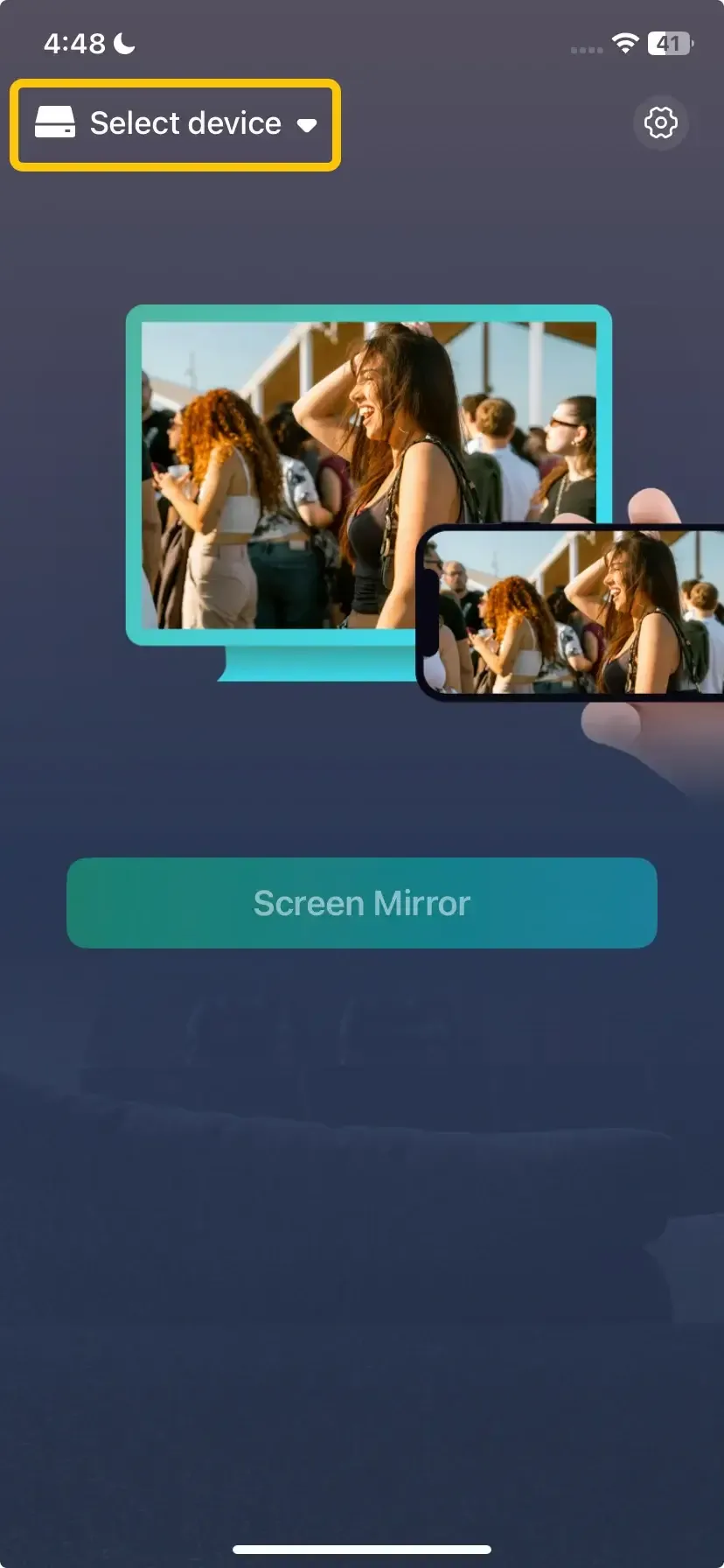
Step 3. On the iPhone, tap Select device to select your TV from the available list to connect. Or you can scan the onscreen QR code to build the pairing.
Step 4. Enter the onscreen PIN code to confirm the connection.
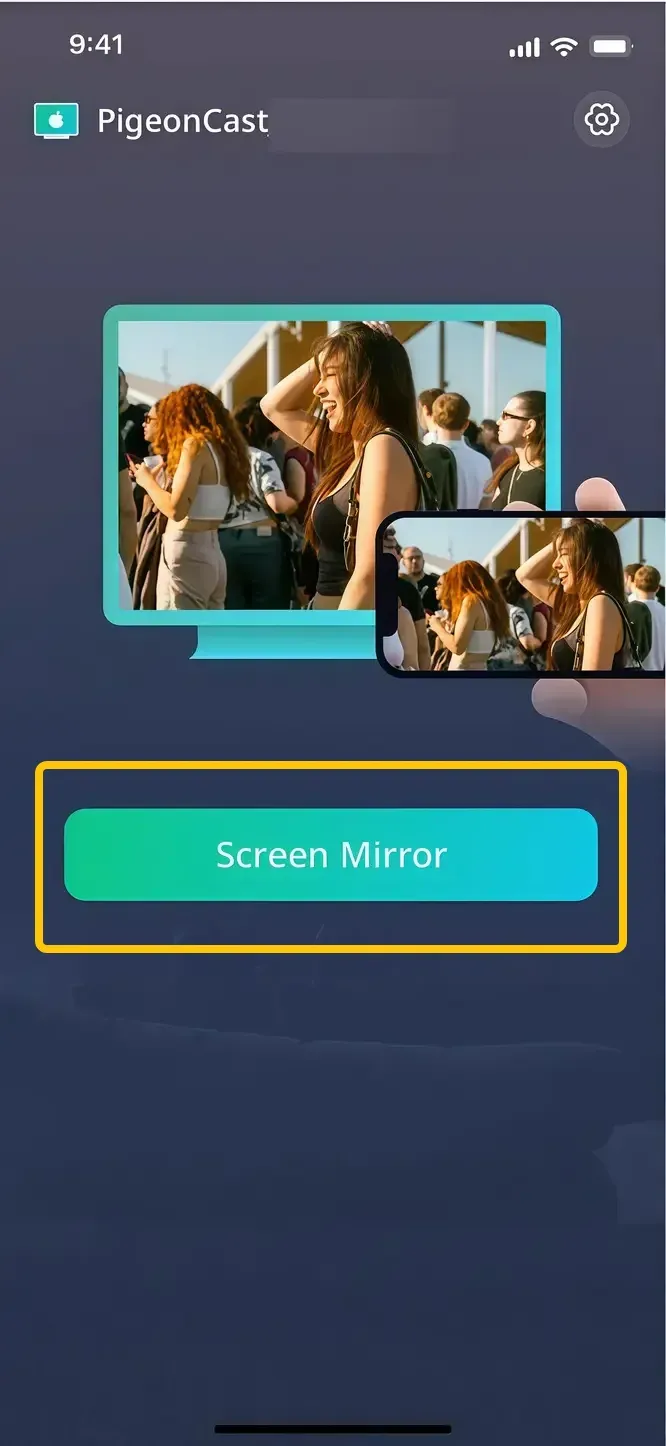
Step 5. When you finish the connection, simply tap Screen Mirror to begin the mirroring activities.
Top 2. Docast
DoCast offers reliable iPhone screen mirroring to Chromecast and Fire TV, allowing users to seamlessly stream media like music, videos, and photos to their TV. It supports easy mirroring from iPhones and iPads to a variety of TVs, including Fire TV and Android TVs. With minimal setup required, it ensures smooth performance and a hassle-free experience.

Compatible with Chromecast, Google Cast-powered TVs, and various Fire TV devices, the screen mirroring app for iPhone provides an outstanding screen-sharing experience. Whether you're streaming your favourite content or sharing photos, it offers flexibility across multiple platforms, making it a versatile solution for all your media-sharing needs.
Pros:
- Cross-Platform Support: Seamlessly connects iPhone, iPad, and other devices to a variety of smart TVs and PCs.
- Customizable Settings: Allows you to adjust settings for audio/video quality and casting preferences.
- No Account Required: Does not require you to create an account, offering instant access to its features.
- Automatic Device Discovery: Automatically detects compatible devices within your network for quick connection.
- Free Trial Available for Premium Features: Offers a free version with optional premium features for advanced functionality.
Cons:
- Limited Free Usage: Screen mirroring is only available in the premium version. Only 15 minutes of free mirroring.
- Network Dependent: Requires a strong, stable Wi-Fi connection; can experience lag on poor networks.
- Basic Functionality: Lacks advanced features like remote control or multitasking.
- Device Compatibility Limits: Only works with Google Cast receivers; doesn't support older protocols.
How to use:
Step 1. Connect your iPhone and Chromecast device to the same Wi-Fi network.
Step 2. Download DoCast on your iPhone from the App Store and launch it.
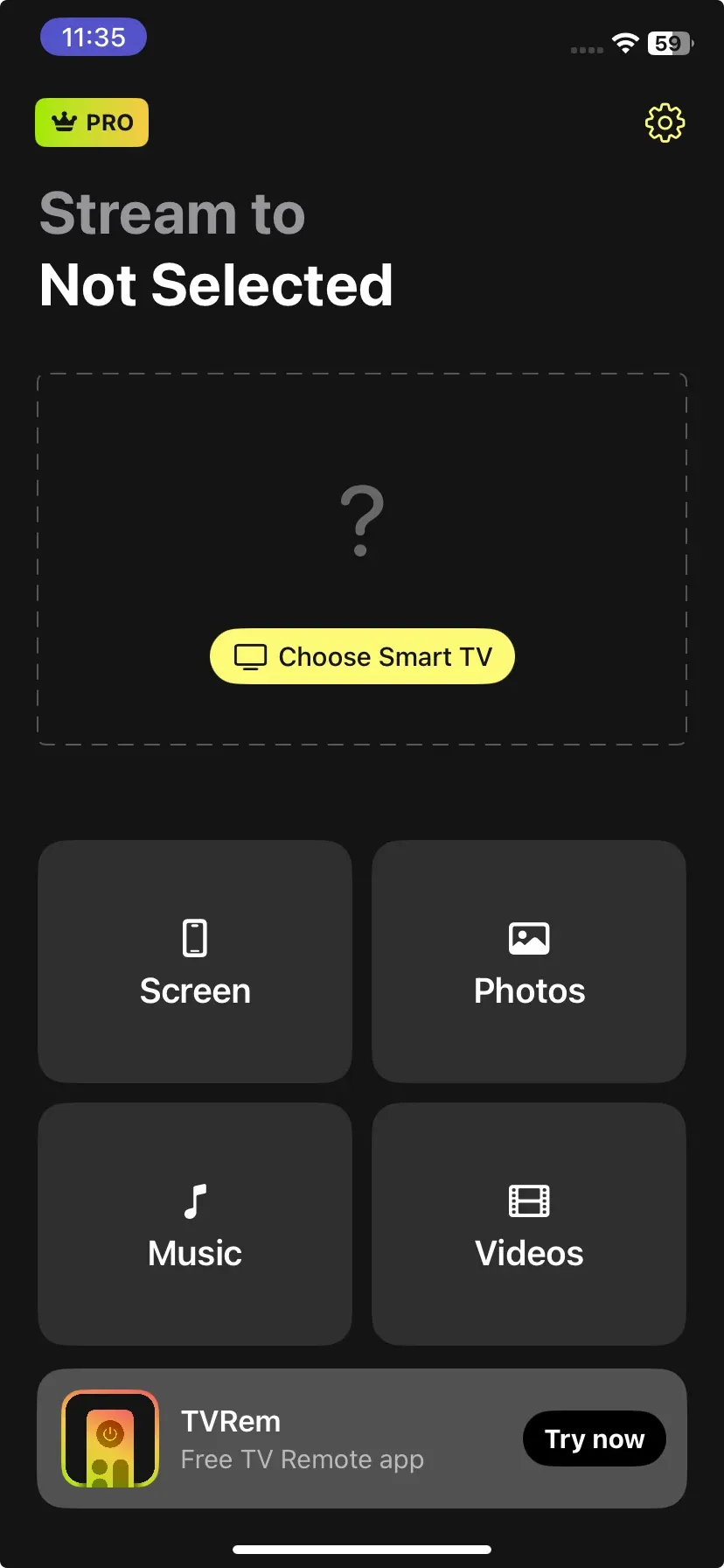
Step 3. In the main menu, tap the Choose Smart TV button and select your Chromecast from the list of devices.
Step 4. Follow the onscreen instructions to start your iPhone mirroring activities.
Top 3. LetsView
LetsView is a free, easy-to-use screen mirroring app that supports wireless casting across Windows, macOS, iOS, and Android devices. It works seamlessly with iPhones, from the latest iPhone 14 Pro to older models like iPhone 8.

You can mirror your iPhone to Windows PCs, Android TVs, or iPads without cables or network issues. The app is popular with educators for its browser-based access and real-time whiteboard for team collaboration. It also offers features like personal file casting and remote casting, though remote functions require a paid plan. Here are the key pros and cons of the iPhone mirror app:
Pros:
- Cross-Platform Functionality: LetsView supports both iOS and Android devices, ensuring versatility across different platforms.
- No Additional Software Required: Simply download the app, connect to your devices, and start mirroring—no extra software or setup needed.
- Screen Recording: LetsView also allows users to record their screen while mirroring, adding value for presentations or tutorials.
- High-Quality Streaming: Provides smooth streaming at up to 1080p resolution for an enhanced viewing experience.
Cons:
- Watermark & Interruptions: The free version may include watermarks and experience occasional connection disruptions.
- Premium Features: The paid version is required to control PCs remotely and to access full remote casting, which is charged per minute.
- Device Compatibility Issues: Some devices may experience connection problems.
- Mirroring Delays: Users may encounter significant delays when mirroring content.
How to use:
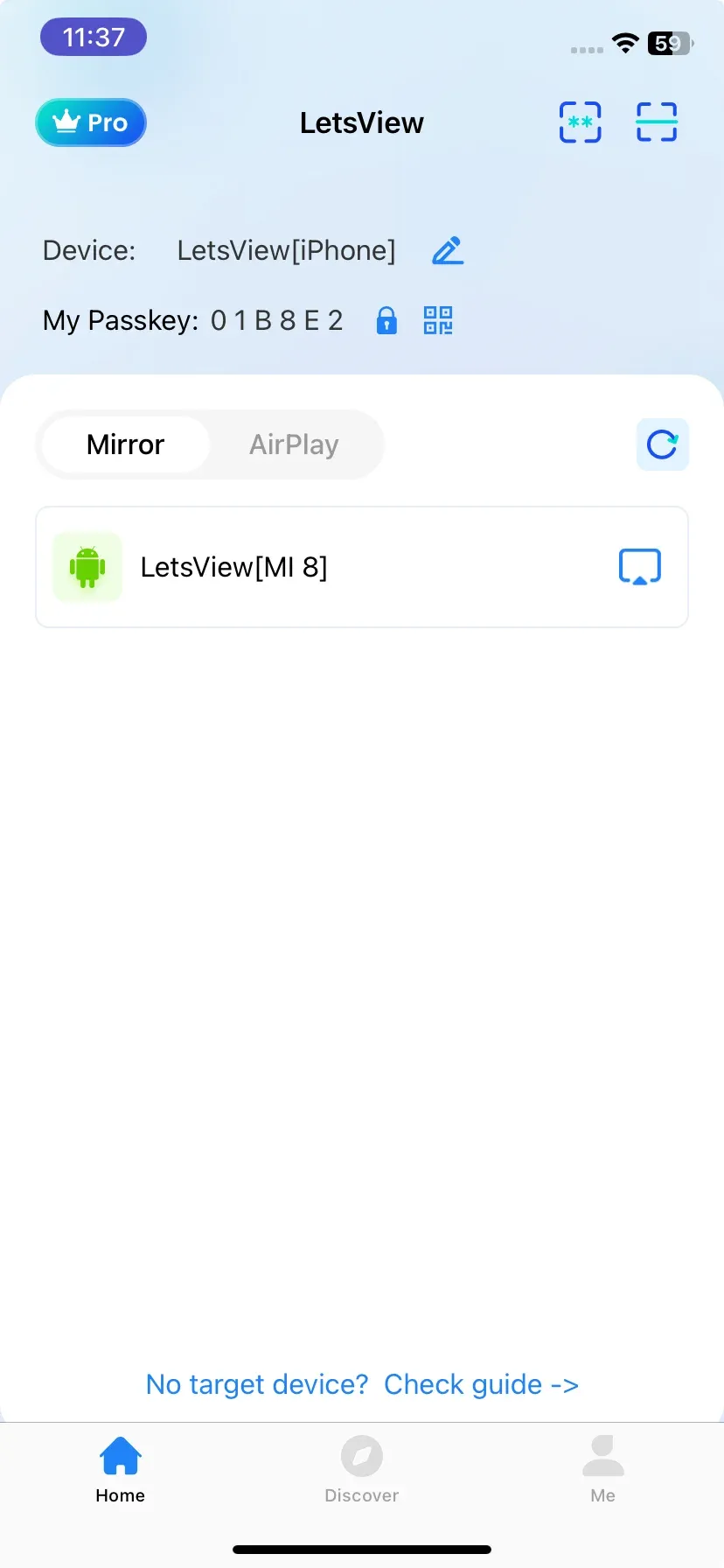
Step 1. Install LetsView from the App Store on your iPhone, and open it.
Step 2. Ensure that both your iPhone and receiver device are connected to the same WiFi network.
Step 3. On your phone, tap Screen Mirroring and choose your device.
Step 4. Follow the onscreen guide to finish the pairing process.
Top 4. AirDroid Cast
AirDroid Cast is a free, versatile screen mirroring app compatible with Android, iOS, Windows, and smart TVs. It features two-way audio, making it ideal for presentations, remote collaboration, or gaming. With a simple setup through its web version and free trial, the app delivers high-quality mirroring with minimal latency.

While it generally performs well, some users experience lag or sync issues on older devices or weak networks. A few also report a slight learning curve and occasional pop-up ads. For an ad-free experience, PigeonCast is a better option. Overall, AirDroid Cast stands out for its easy-to-use interface, full-screen support, and flexible mirroring options via WLAN, AirPlay, or USB.
Pros:
- Cross-platform compatibility: Seamlessly mirror screens across Android, iOS, Windows, and smart TVs.
- Two-way audio: Perfect for presentations, remote support, or collaborative sessions.
- High-quality mirroring: Supports full-screen mode, screen rotation, and smooth visuals for a superior experience.
- Easy setup: The free web version and same-WiFi functionality simplify the setup process, making it ideal for professionals, educators, and casual users.
- File transfer: Effortlessly transfer files between devices while mirroring.
- Remote control: Control the mirrored device remotely for easier management and troubleshooting.
Cons:
- Performance issues: Older devices or slow networks may cause lag or audio-video sync problems.
- Learning curve**:** The interface may take some time to get used to, and occasional pop-up ads for upgrades can be disruptive.
- Limitations in the free version: The free version has reduced resolution, a watermark, and many premium features are locked behind a paid subscription.
- Remote control limitations: The remote control feature doesn't work for controlling the iPhone itself.
How to use:
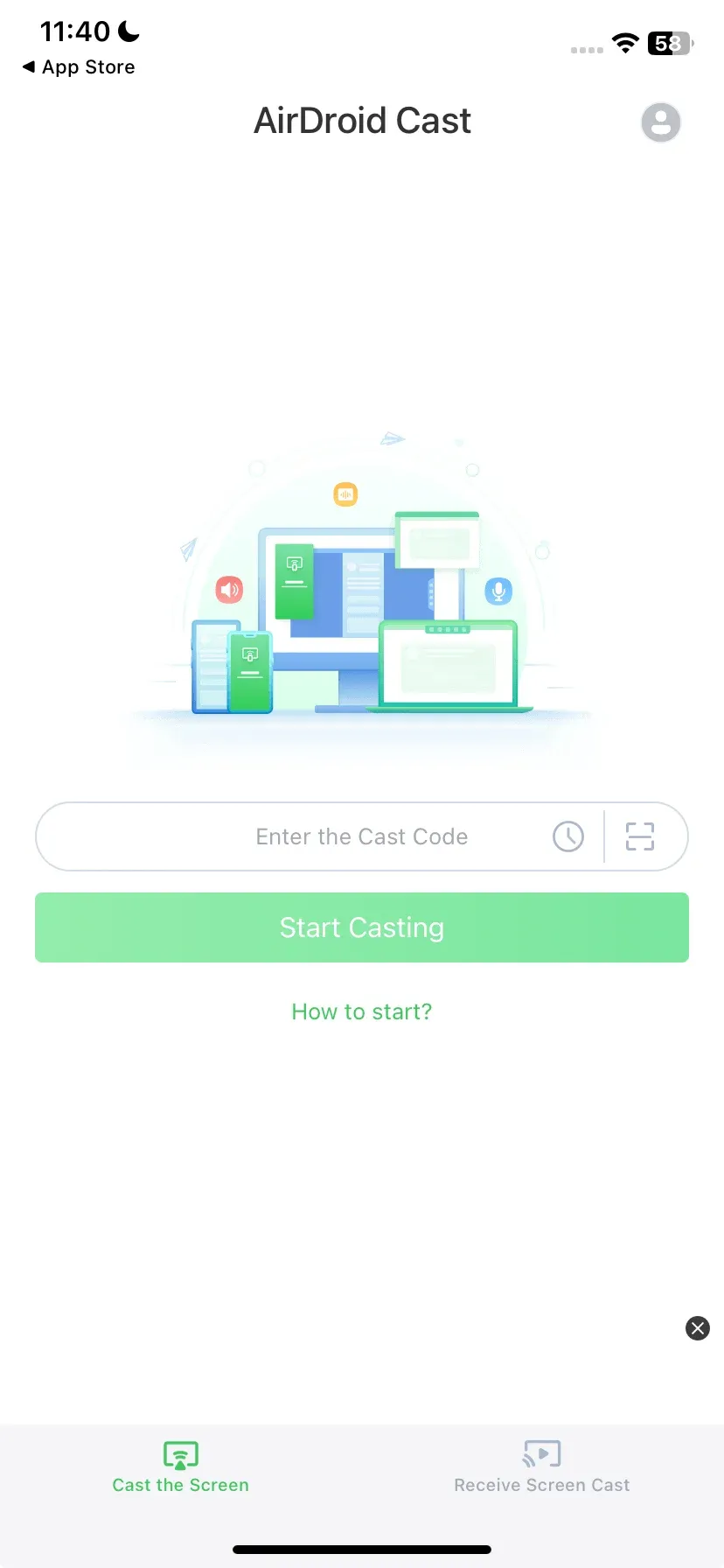
Step 1. Install AirDroid Cast on both your devices and launch it.
Step 2. Ensure your iPhone and receiver device are covered by the same wireless network.
Step 3. Launch AirDroid Cast on your iPhone, and select Scan QR Code or Enter Code Manually.
Step 4. Follow the onscreen instructions to finish the pairing process.
Top 5. ApowerMirror
Unlike the kind of free screen mirror app for iPhone that relies solely on wireless connections, ApowerMirror offers the unique advantage of supporting both wired and wireless options, providing users with more flexibility for screen casting.

Widely used for cross-platform mirroring, ApowerMirror supports both iPhone and Android devices, offering high-quality performance, features like PC or Mac control of your iPhone, whiteboard collaboration, and the ability to mirror screens from up to four devices simultaneously.
Pros:
- Screen recording: Capture and record your screen directly from your computer while mirroring.
- Wired and wireless connections: Supports both Wi-Fi and USB for flexible connectivity options.
- Real-time mirroring with audio: Provides smooth, lag-free screen mirroring with synchronised sound.
- Control iPhone from PC/Mac via USB: Manage your iPhone directly from your computer, making it easy to interact and troubleshoot.
- Multiple device mirroring: Mirror your screen to several devices simultaneously for enhanced collaboration.
Cons:
- Complex setup: USB control can be difficult to configure, especially for beginners.
- Limited free version: Most features require a paid license, and the free version has restrictions.
- Outdated interface: The design can be confusing and unintuitive for new users.
- Expensive pricing: Subscription and one-time purchase options may be too costly for casual users.
- Short free mirroring time: Free users are limited to just 10 minutes of mirroring.
How to use:
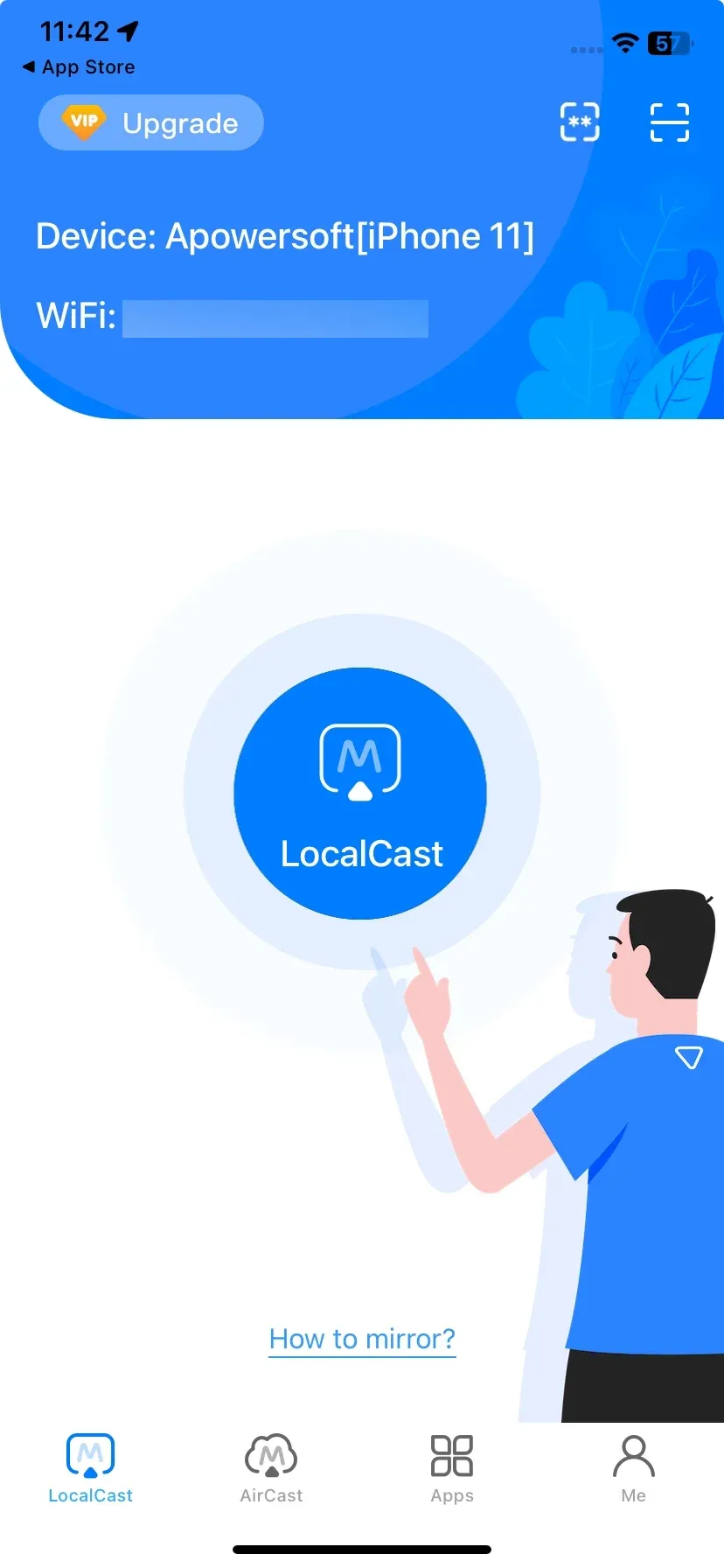
Step 1. Download ApowerMirror on both your iPhone and your PC and launch it.
Step 2. Ensure that your iPhone and PC are both connected to the same Wi-Fi network.
Step 3. On the iPhone, tap LocalCast to find your computer from the device list to connect.
Step 4. Follow the onscreen setup guide to finish the connection.
Top 6. Anydesk
AnyDesk is perfect for IT support, remote work, and cross-device file transfers. It enables smooth screen mirroring across Windows, Mac, Linux, Android, and iOS devices, even on slow networks. IT teams can quickly troubleshoot issues, guide users, and solve problems with clear visuals and fast response times. Its secure encryption, screen drawing tools, and USB-portable access make it easy to work remotely without complicated setups.

While free for personal use, advanced features like multi-monitor support and mass deployments require a paid subscription. The setup can be overwhelming for new users, and configuring unattended access may be tricky for non-technical users. Despite this, its speed and versatility make it a top choice for remote desktop solutions.
Pros:
- Lightning-fast performance: Ideal for real-time tasks like video editing, live server management, or any work requiring high speed and reliability.
- Cross-platform compatibility: Supports Windows, macOS, Android, iOS, allowing you to access your system from virtually any device.
- Robust security: With two-factor authentication, TLS 1.2 security, and 256-bit encryption, your data remains fully protected.
- Portable and flexible: Perfect for on-the-go IT repairs or working within restricted corporate environments, providing seamless access from anywhere.
- Comprehensive features: Packed with tools that cater to both everyday use and complex tasks, making it a versatile solution for a wide range of needs.
Cons:
- Premium features behind a paywall: Advanced tools and customizations are only available through paid subscriptions.
- Steep learning curve**:** The platform can be complex, especially for new or average users.
- Limited support and customization: The free tier offers minimal user support and customization options.
- Expensive plans: Paid plans, especially with add-ons, can become costly.
How to use:
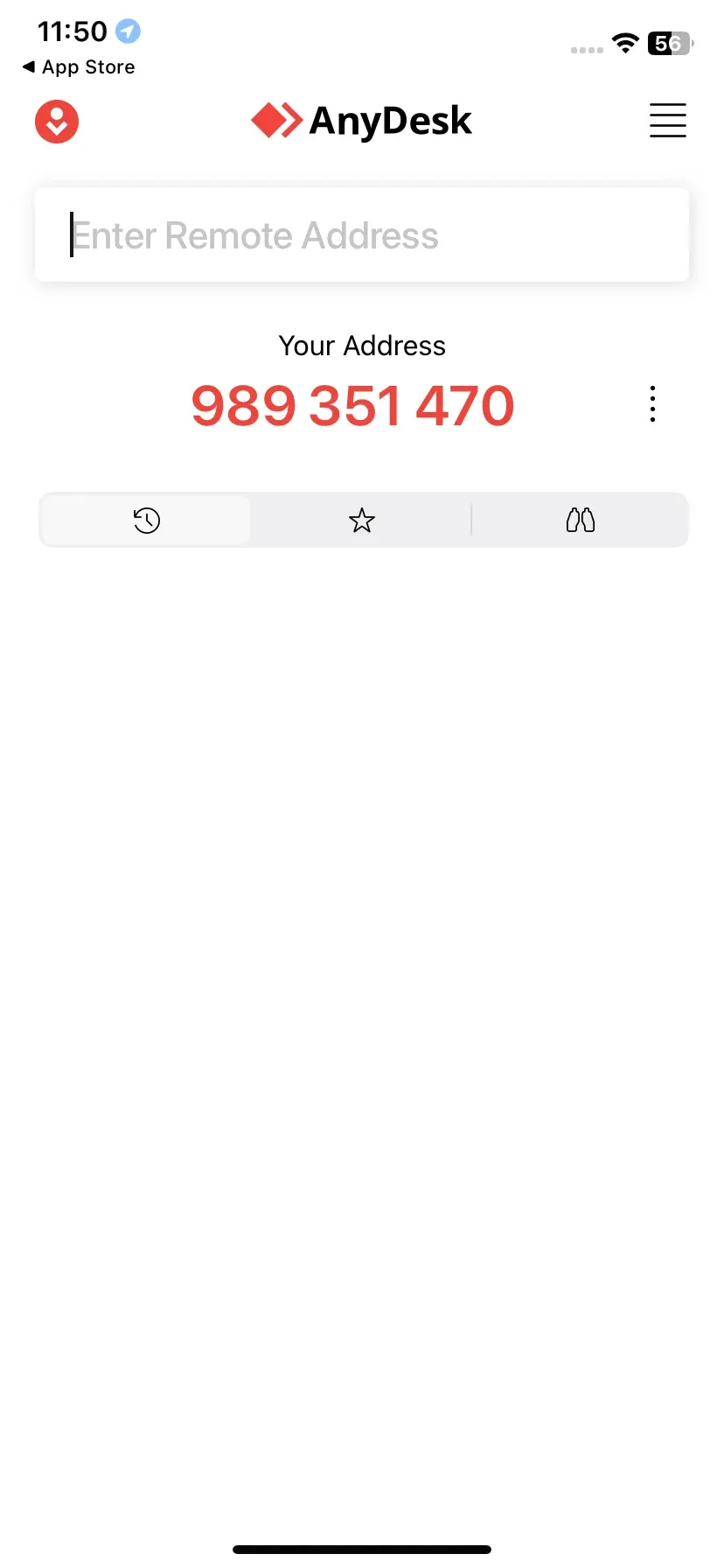
Step 1. Install the AnyDesk app on both your iPhone and the remote computer.
Step 2. On the remote computer, open AnyDesk to find its unique AnyDesk ID.
Step 3. Open the AnyDesk app on your iPhone and enter the remote computer's ID into the Remote Address field.
Step 4. Tap the connect button and wait for the person on the other end to accept the connection request.
Comparison Table: Best Screen Mirror App for iPhone
To help you choose the best screen mirroring app for iPhone, we've compiled a comparison of the top options available. Each app offers unique features, from ease of use to advanced functionalities. Whether you're looking for seamless wireless connections, high-quality performance, or additional features like screen recording, our comparison table will guide you in selecting the best tool to meet your needs.
| App | Platform Compatibility | Key Features | Pros | Cons | Best For |
|---|---|---|---|---|---|
| PigeonCast | iOS, Android, Windows, Mac, Android TV, tvOS, fire OS | Free, HD Mirroring, Multiple Device Support, Low Latency, No Account Required | Easy setup, Multiple device support, Free to use, Low latency, Reliable connection, HD streaming | Lacks advanced features, network dependency, Limited to local network usage | Home entertainment, Casual users, Occasional mirroring |
| Docast | iOS, Chromecast, Fire TV, Android TV | Free trial, Cross-platform support, No account required, Customizable settings | Cross-platform support, Auto-device discovery, Easy to use | Limited free usage, Basic functionality, Network-dependent, Only works with Google Cast receivers | Chromecast & Fire TV users, Basic streaming needs |
| LetsView | iOS, Windows, Android, macOS | Free, Cross-platform, Screen recording, 1080p Streaming | Cross-platform functionality, Screen recording, and High-quality streaming | Watermarks & interruptions in the free version, Premium features locked, Device compatibility issues | Educators, Presentations, Screen recording |
| AirDroid Cast | iOS, Android, Windows, macOS, Smart TVs | Two-way audio, File transfer, Remote control, High-quality mirroring | Cross-platform compatibility, Two-way audio, Remote control, Easy setup, File transfer | Lag on older devices, Learning curve, Free version limitations, Remote control issues | IT support, Presentations, Remote collaboration |
| ApowerMirror | iOS, Windows, Mac, Android | Screen recording, Wired & wireless connections, Real-time mirroring with audio | PC/Mac control of iPhone, Multi-device mirroring, High-quality mirroring, Flexible connections | Complex setup, Limited free version, Outdated interface, Expensive pricing, Short free mirroring time | Professionals, Multi-device collaboration, Advanced users |
| AnyDesk | iOS, Windows, macOS, Linux, Android, Raspberry Pi | Fast performance, Two-factor authentication, Cross-platform access | Lightning-fast performance, Comprehensive features, Portable & flexible, Robust security | Premium features behind a paywall, Steep learning curve, Expensive plans, and limited free support | IT support, Remote work, Cross-device file transfers |
Final Verdict
Choosing the best screen mirroring app for your iPhone depends on your needs, whether it's a free and simple solution like PigeonCast, cross-platform streaming with Docast, or advanced features such as screen recording with LetsView or remote control with AirDroid Cast and ApowerMirror. For IT support or remote work, AnyDesk offers fast performance and strong security. Each app has its strengths, so consider what features matter most to you, whether that's ease of use, device compatibility, or advanced functionalities.
Mirror App for iPhone FAQ
Where is the mirror on an iPhone?
To access the mirror feature, swipe down from the upper-right corner of your iPhone screen (or up from the bottom on older models) to open the Control Center. Tap Screen Mirroring, then select the device you want to mirror to.
Is there a free mirror app for iPhone?
Yes, there are several mirror apps available on the App Store, like PigeonCast, LetsView, and ApowerMirror, that allow you to mirror your iPhone's screen to a larger device
Can someone mirror my iPhone without me knowing?
No, someone can't mirror your iPhone without you knowing. iOS requires explicit user consent for screen sharing. Any app must first be granted Screen Recording permission in Settings, and whenever mirroring is active, a persistent, unmistakable, colored indicator appears in the status bar that cannot be hidden.
Clara Rossi is an experienced technology editor and a seasoned expert in screen mirroring and casting technologies. With a keen eye for detail and a deep understanding of how to seamlessly connect devices, Clara excels at optimizing user experiences for effortless sharing and streaming. Whether you're seeking quick fixes or advanced tips, her expertise and responsiveness ensure that every query is met with a well-informed and efficient solution.