
If you searched for Miracast Chromebook, you are likely trying to mirror your Chromebook to a TV and keep hitting dead ends. The short answer is that most Chromebooks do not natively support Miracast in the same way many Windows and Android devices do. The good news is that you still have reliable ways to cast your Chromebook to TV, and this guide walks you through the fastest path.
Does Chromebook Support Miracast
No. Modern Chromebooks do not support Miracast. ChromeOS briefly experimented with Miracast around 2014, but Google later removed the feature and stopped maintaining it. Instead, ChromeOS focuses on Google Cast (Chromecast) for wireless display.
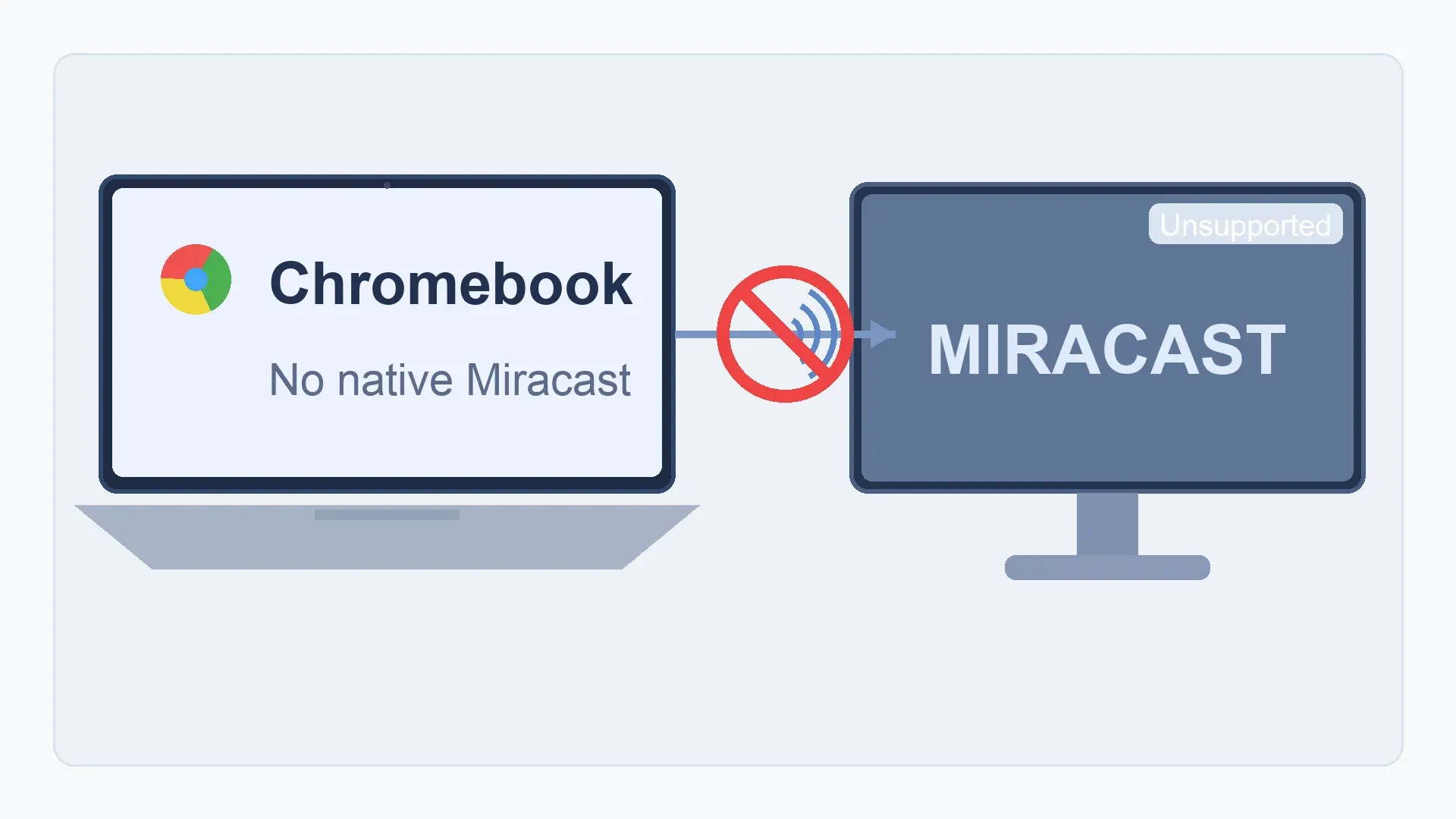
Because Miracast uses Wi-Fi Direct while ChromeOS relies on network-based casting, Miracast devices usually won't appear in a Chromebook's cast menu. For screen mirroring, Chromebooks work best with Chromecast-enabled displays, HDMI connections, or cross-protocol casting tools.
How to Use Miracast on Chromebook
Since Chromebooks don't support Miracast well, the best approach is to focus on ways that still get your Chromebook screen onto a TV. Instead of trying to force Miracast, use the casting method your device actually supports. Follow the options below in order to find the one that works for your setup.
Method 1. Cast Chromebook to TV with Google Cast
If your TV has Chromecast built in or you're using a Chromecast device, this is the easiest way to mirror your Chromebook screen rather than Chromebook Miracast. Google Cast is the native casting method in ChromeOS, so it usually works smoothly. As long as your Chromebook and TV are connected to the same Wi-Fi network, you can start casting in just a few clicks.
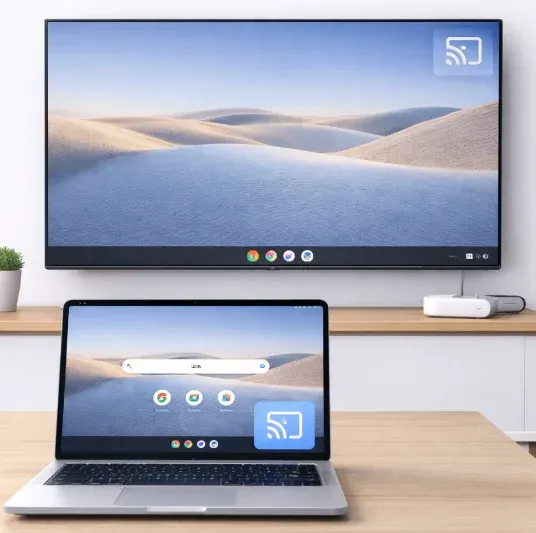
Step 1. Ensure your Chromebook and TV/Chromecast connects to the same Wi-Fi.
Step 2. Select the time in the bottom right corner, and click Cast Devices Available.
Step 3. Choose your TV or Chromecast from the available list to confirm the connection.
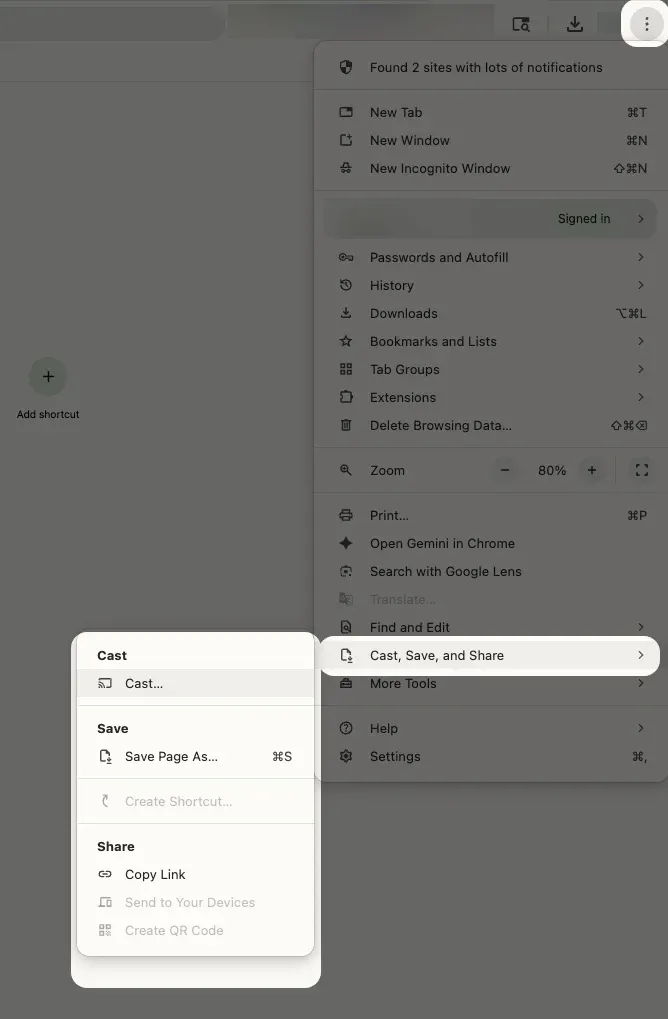
Alternatively, you can launch Chrome browser, click the three-dot menu and choose Cast. Select Cast tab or Cast screen based on your use case, then pick your TV or Chromecast device.
Method 2. Cast Chromebook to TV with PigeonCast
If you are searching for Miracast for Chromebook because your TV (like a Fire TV) doesn't natively support Google Cast, PigeonCast can be a simple alternative. While it doesn't use the Miracast protocol, installing this app on your TV allows your Chromebook to "see" and mirror to devices it normally couldn't. It works with a wide range of displays and devices, including Android, iOS, Windows, Mac, and TVs, Android TV, etc.
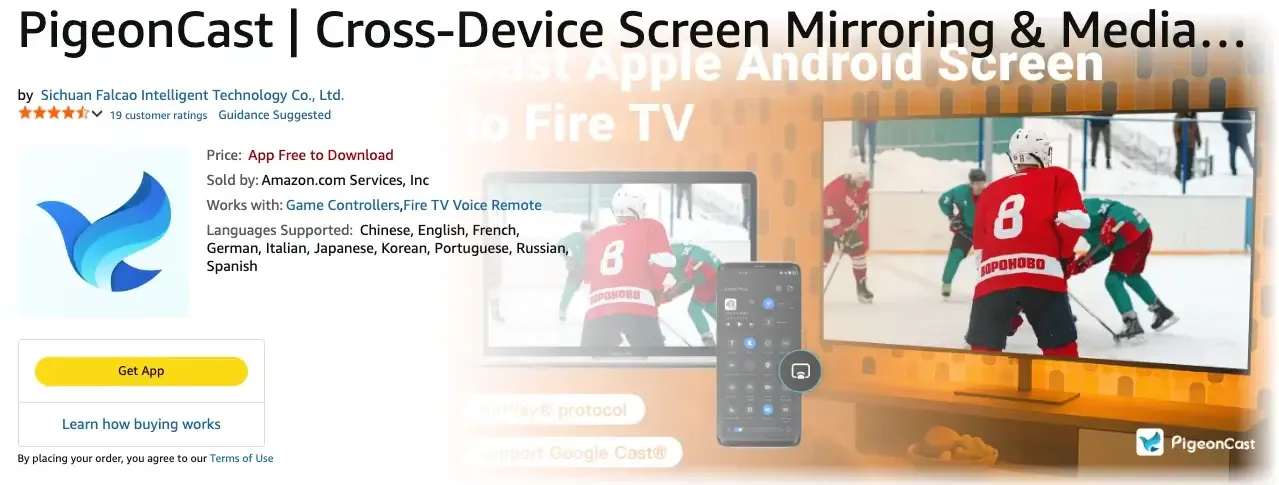
Step 1. Ensure your Chromebook and TV are under the same WiFi network.


Overall Rating:



Step 2. Install PigeonCast on your Apple TV, Fire TV, or Android TV from the App Store or Google Play.
Step 3. Launch the app, then you can find this TV in your Chromebook's device list.
Step 4. If prompted, enter the onscreen PIN code to finish the connection without needing native Miracast Chromebook to TV.
Method 3. Cast Chromebook to TV with HDMI
Once wireless casting isn't working or your TV doesn't support compatible casting methods, using an HDMI for screen mirroring is the most reliable option. It doesn't depend on Wi-Fi, casting protocols, or device compatibility.
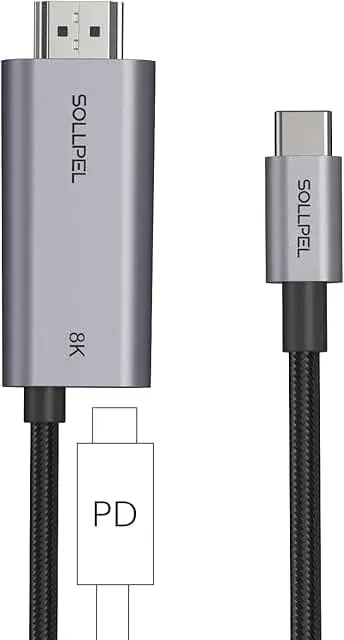
Step 1. Connect Chromebook to TV with USB-C-to-HDMI or HDMI cable.
Step 2. Switch TV input to the right HDMI port.
Step 3. Open Chromebook display settings and choose mirror or extended mode. Adjust resolution if text or video quality looks wrong.
Now that you've seen the casting methods, the next step is choosing the one that works best for your setup. Instead of trying every option, a quick comparison can help you decide faster. The table below shows the main differences in stability, setup time, and compatibility.
| Method | Setup Difficulty | Wireless / Wired | Devices Required | Best Use Case |
|---|---|---|---|---|
| Google Cast (Chromecast) | Easy | Wireless | Chromecast device or TV with Chromecast built-in | Best option if your TV supports Chromecast |
| PigeonCast | Easy | Wireless | PigeonCast installed on Apple TV, Android TV, or Fire TV | Good alternative when Chromecast is unavailable |
| HDMI Connection | Very Easy | Wired | HDMI cable or USB-C to HDMI adapter | Most stable option when wireless casting fails |
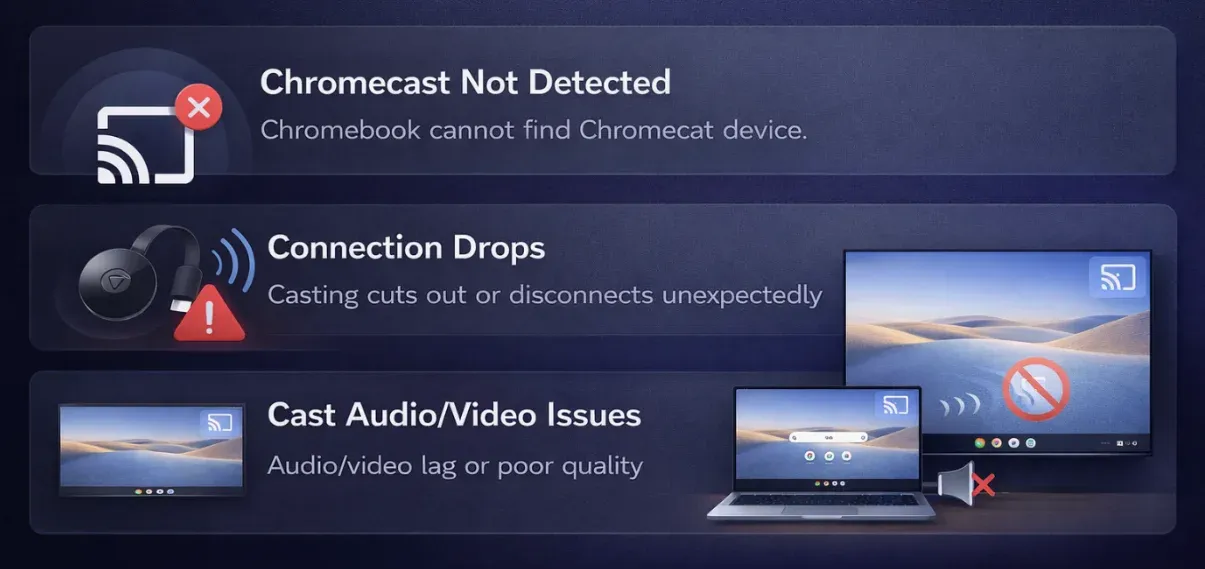
How to Fix Chromebook Casting Issues
Once you've chosen a casting method, most connection problems are usually caused by setup issues rather than protocol limitations. The best approach is to check your network, device status, and software step by step, then test the connection again.
-
Check same network requirements
-
Make sure your Chromebook and TV or receiver are connected to the same Wi-Fi network and subnet, since casting usually won't work across different networks.
-
Avoid using guest Wi-Fi, which often blocks device discovery.
-
If your router automatically switches devices between 2.4 GHz and 5 GHz, try connecting both devices to the same band and test again.
-
-
Disable VPN or strict firewall temporarily
-
VPN connections often block local network discovery, which can prevent your Chromebook from finding casting devices.
-
Some firewall configurations may also block multicast traffic, which casting relies on.
-
Turn off the VPN or loosen the firewall settings temporarily, then try casting again.
-
-
Restart every casting endpoint
-
Reboot your Chromebook and power cycle the TV, Chromecast, or receiver you're casting to.
-
After restarting, wait until all devices are fully powered on and reconnected to the network before trying to cast again.
-
-
Update ChromeOS and receiver firmware
-
Make sure your Chromebook is running the latest version of ChromeOS by installing any pending updates.
-
You should also update the firmware or related apps on your TV, Chromecast, or receiver. After updating, restart the devices and test the casting connection again.
-
-
Verify receiver mode and TV input
-
Make sure your TV is set to the correct input source and that cast or receiver mode is enabled on the device.
-
If the connection was previously paired, remove any old or inactive pairings and reconnect your Chromebook to the receiver.
-
-
Run a controlled test
-
Start by casting a single browser tab to confirm the connection works.
-
Try casting the full screen or playing a video. This helps you determine whether the problem affects all casting or only specific apps or content.
-
Conclusion
How to Miracast on Chromebook? The main thing to know is that Chromebooks don't support Miracast. Instead, you can mirror your screen using other methods. Google Cast (Chromecast) is the easiest option if your TV supports it. If not, PigeonCast can be a simple wireless alternative, and HDMI is the most stable wired solution. By choosing the method that fits your setup, you can still cast your Chromebook to a TV quickly and easily.
Miracast Chromebook FAQ
Do Chromebooks allow screen mirroring?
Yes. Chromebooks do allow screen mirroring, but not through Miracast. ChromeOS mainly supports Google Cast (Chromecast) for wireless screen mirroring. If your TV has Chromecast built-in or you use a Chromecast device, you can mirror your Chromebook screen over the same Wi-Fi network.
How do I mirror my Chromebook to my TV wirelessly?
You can mirror your Chromebook to a TV wirelessly using Google Cast (Chromecast), which is the native casting method in ChromeOS. Here are the steps:
-
Connect your Chromebook and TV (or Chromecast) to the same Wi-Fi network.
-
Click the time area in the bottom-right corner of your Chromebook.
-
Select Cast devices available.
-
Choose your TV or Chromecast from the list to start mirroring.
How do I cast my screen to Miracast?
To cast your screen using Miracast, your device and display must both support Miracast (Wi-Fi Direct screen mirroring). Here are steps to Cast with Miracast (Windows example)
-
Turn on Screen Mirroring, Miracast, or Wireless Display mode on your TV or adapter.
-
On Windows, press Win + K or go to Settings > System > Display > Connect to a wireless display.
-
Choose your TV or receiver from the device list.
-
If prompted, enter the PIN shown on the TV to start screen mirroring.
How to cast Chromebook to TV without Chromecast?
You can cast a Chromebook to a TV without Chromecast using a few alternative methods.
-
Use a Screen Mirroring App: Install a screen casting app, like PigeonCast that works across devices (for example, apps that support Android TV or Apple TV).
-
Use an HDMI Cable: A wired HDMI connection is the most stable option.
-
Use a Compatible Smart TV Feature: Some smart TVs support browser-based casting or built-in screen mirroring apps. If available, open the casting option on the TV and connect from the Chromebook browser.
How to connect Chromebook to TV with Bluetooth?
You generally cannot connect a Chromebook to a TV with Bluetooth for screen mirroring. Bluetooth on Chromebooks is mainly designed for audio devices, keyboards, and mice, not for transmitting video.
What is the fastest alternative to Miracast to Chromebook?
The fastest alternative to Miracast for a Chromebook is usually Google Cast (Chromecast). It's the native casting technology built into ChromeOS, so it typically connects faster and works more reliably than trying to use Miracast.
Clara Rossi is an experienced technology editor and a seasoned expert in screen mirroring and casting technologies. With a keen eye for detail and a deep understanding of how to seamlessly connect devices, Clara excels at optimizing user experiences for effortless sharing and streaming. Whether you're seeking quick fixes or advanced tips, her expertise and responsiveness ensure that every query is met with a well-informed and efficient solution.