
Thankfully, casting your PC screen to a Chromecast is not as complicated as it might seem. There are multiple ways to stream from PC to Chromecast, ranging from simple browser clicks to dedicated software solutions. Below, we break down the 4 most effective methods to help you enjoy your PC content on the larger display, whether you want to watch movies, share presentations, play music, or mirror your desktop.
Before Casting from PC to Chromecast
To successfully cast from your PC to TV, you need three things: a Chromecast device plugged into your TV (or Google TV) and powered on, a stable WiFi network that both your devices are connected to, and a method of transmission, like a browser or an app. Once those are in place, you can choose the technique that best suits your needs.
Way 1. Use a Windows Casting App: PigeonCast
If you want to cast to Chromecast from PC, PigeonCast for PC Mirroring is a straightforward and reliable option. This free tool lets you easily mirror your desktop, whether you want the single app window or the whole screen. With HD quality and secure streaming, you'll love it. Plus, it works with multiple protocols like AirPlay, DLNA, and Google Cast for smooth casting.

Step 1. Ensure your Windows PC and TV with Chromecast are covered by the same wireless network.


Overall Rating:



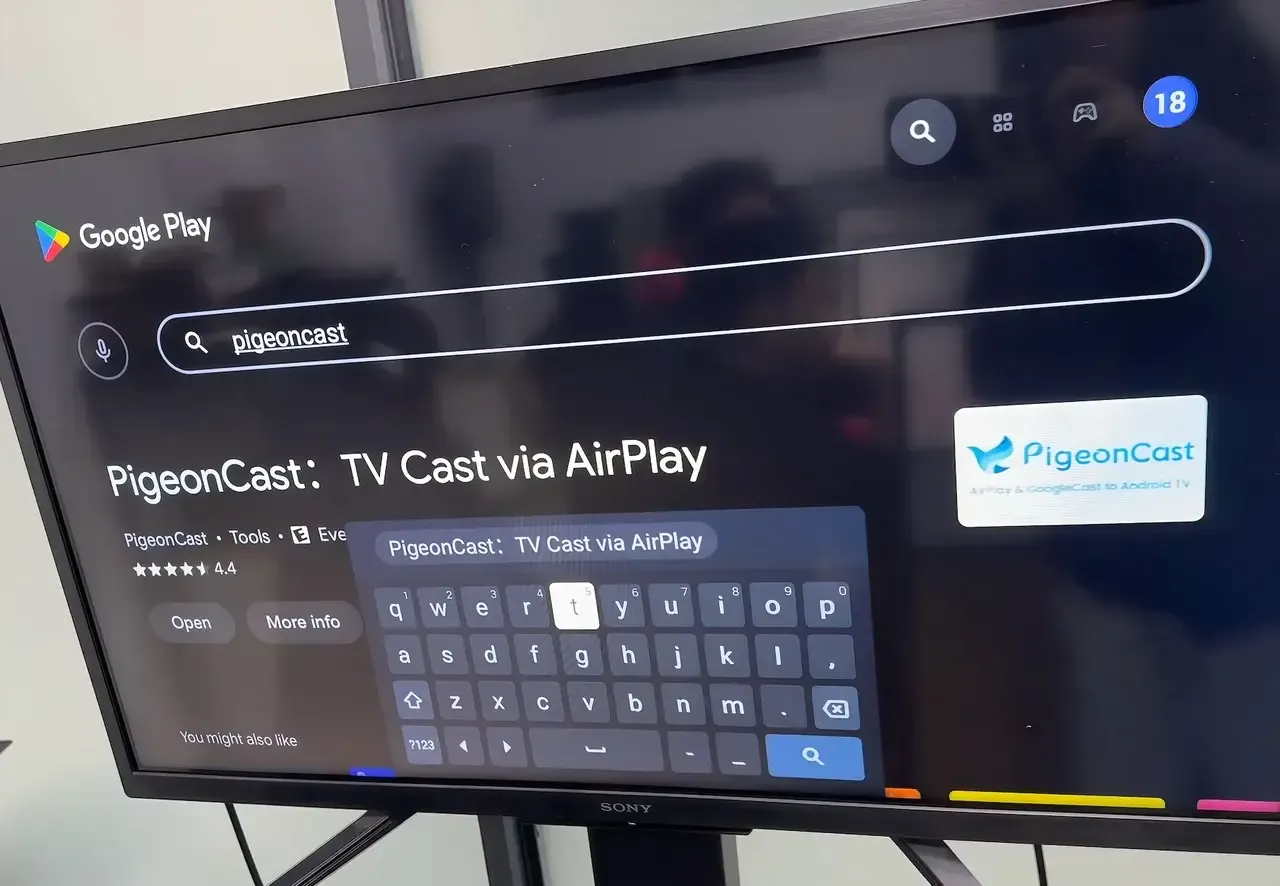
Step 2. Install PigeonCast on your Windows from the Microsoft Store, and download PigeonCast on your TV from the app store if available.
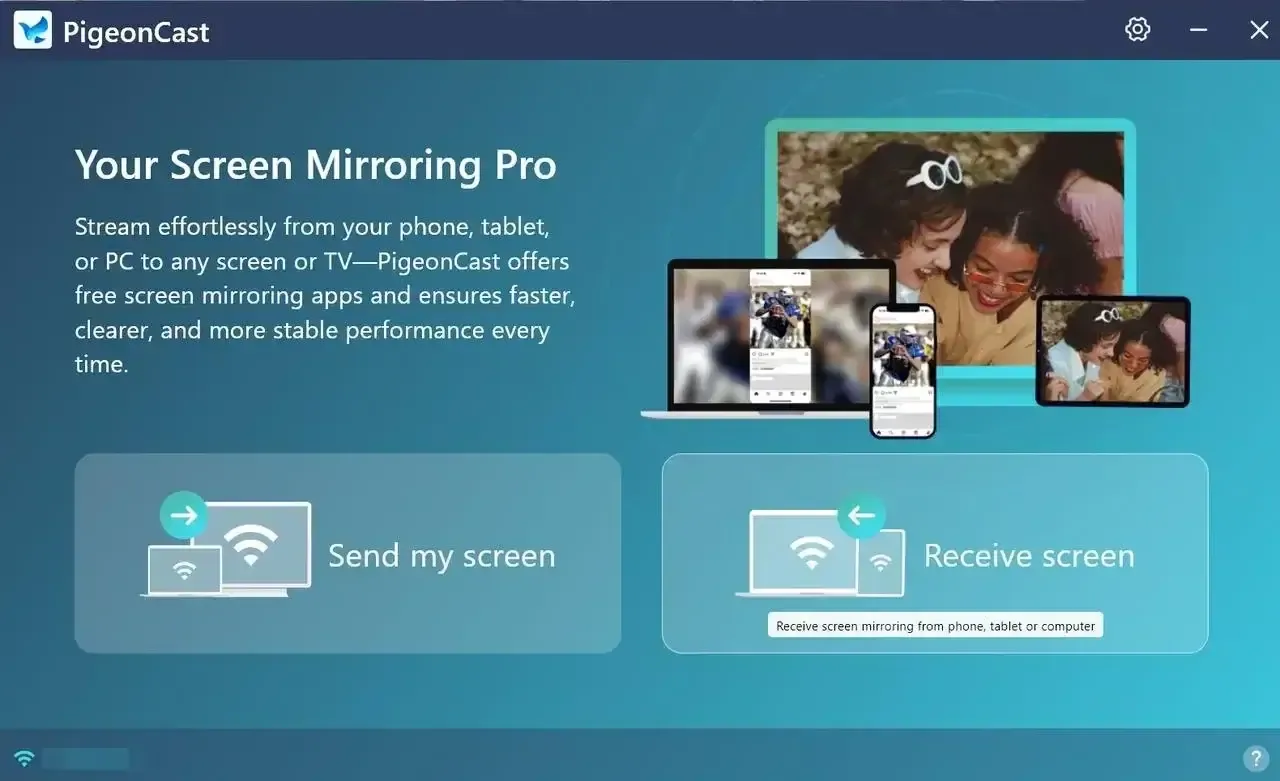
Step 3. Launch the app, select Send my screen to choose your TV from the available list.
Step 4. Enter the prompted PIN code to confirm your pairing requisition.
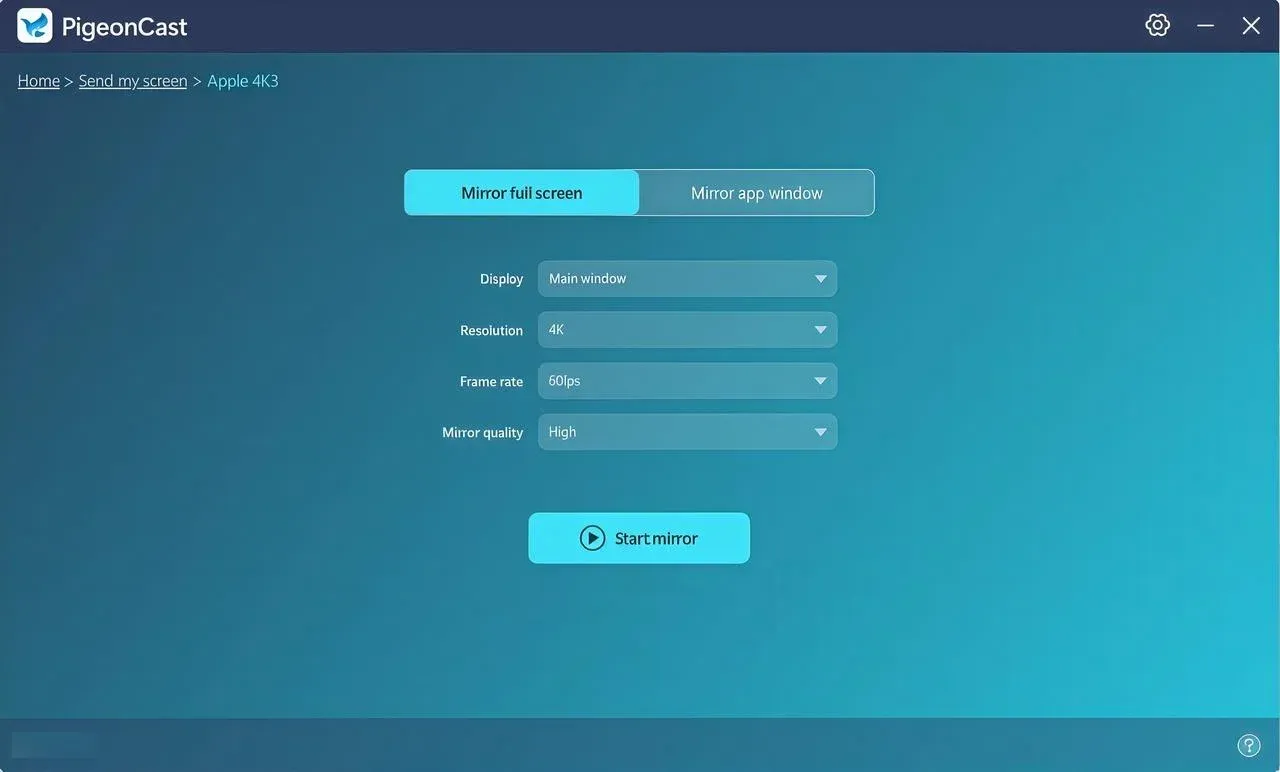
Step 5. Once connected successfully, you can click Start mirror to Chromecast PC to TV. Here you can choose to mirror a single window or the full screen from Windows to the TV.
Way 2. Use Google Chrome Browser
Alternatively, the Google Chrome browser casting offers an accessible and versatile casting feature built directly into the browser. Chrome allows you to cast either a specific tab or your entire desktop, providing flexibility for different needs.
Step 1. Ensure your Windows computer and TV connect to the same wireless network.
Step 2. Install and open Google Chrome on your Windows PC.
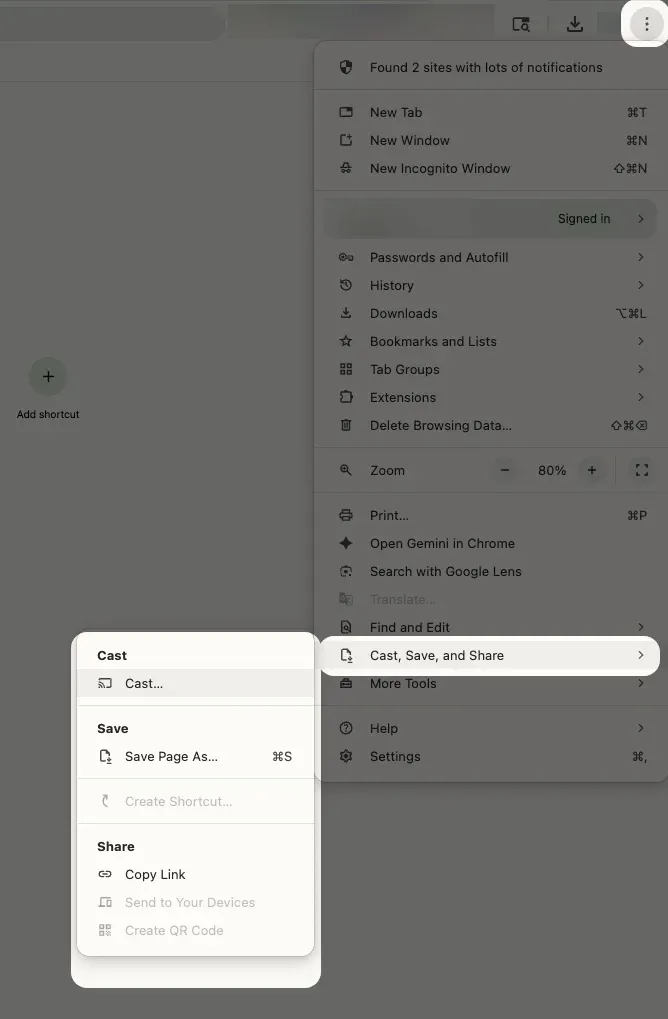
Step 3. Click the three-dot menu in the top-right corner and select Cast... from the dropdown menu.
Step 4. A small window will appear, showing you a list of available Chromecast devices on your network. Click on the device you want to connect to.
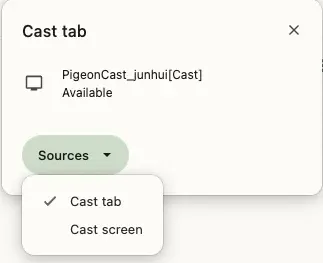
Step 5. Then click Sources and select the Cast tab or Cast desktop according to your decision.
Step 6. Chrome will immediately cast Windows to Chromecast on your TV.
Way 3: Use Chromecast-Enabled Apps
Some apps and streaming services include a built-in Cast button, allowing you to send content to Chromecast without manually selecting a browser tab or desktop screen.
On Windows PCs, however, many web services such as YouTube still use Google Chrome’s built-in casting feature rather than a separate desktop program. You can check this guide to see whether you need a Chromecast app for Windows 10 and what options are available.
Step 1. Connect your Windows PC and Chromecast device to the same Wi-Fi network.
Step 2. Open a supported app or service and start playing the video, podcast, or music you want to watch.
Step 3. Click the rectangular Cast icon and select your Chromecast device.
Step 4. Once connected, your PC acts as a remote control while the content streams directly to the TV.
Way 4. Use an HDMI Cable
If you're experiencing connection issues or prefer a stable wired solution, using an HDMI cable is a reliable alternative. Although this method does not technically use Chromecast, it allows you to screen mirror without Wi-Fi. This is the preferred method for gamers who need low latency, or for business presentations where a dropped signal could be disastrous.
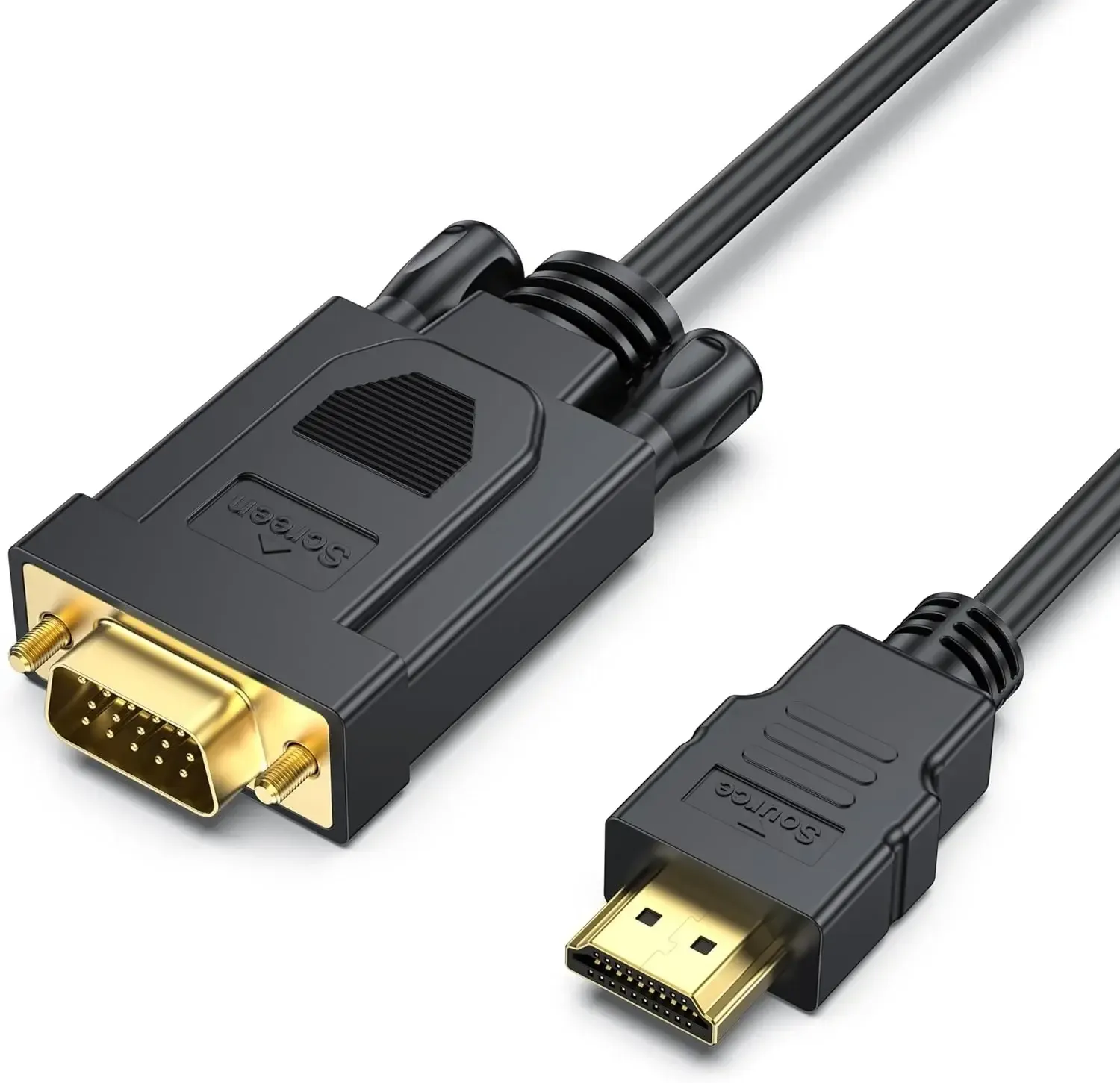
Step 1. Plug one end of the HDMI cable into your PC, and connect the other end to your TV.
Step 2. Switch your TV input to the corresponding HDMI port.
Step 3. Your TV should instantly mirror or extend your computer's display.
Wrapping Up
How to Chromecast from PC? Whether you choose a third-party tool like PigeonCast, use Chrome's built-in casting feature, rely on Chromecast-enabled apps, or connect via HDMI, each method offers unique advantages. For full desktop mirroring and local file playback, PigeonCast may offer the most flexibility. For quick web streaming, Chrome works perfectly. And for streaming services, native Chromecast support inside apps provides the smoothest experience.
Stream from PC to Chromecast FAQ
Can I stream my PC to my Chromecast?
Yes, you can do Windows cast to Chromecast using Google Chrome's built-in Cast feature, third-party software like PigeonCast, or Chromecast-enabled apps. Make sure both devices are connected to the same Wi-Fi network.
How to cast to Chromecast from PC to Firefox?
Firefox does not have built-in Chromecast support like Chrome. To cast from Firefox, you can:
- Use Chrome instead
- Install third-party casting software like PigeonCast
- Mirror your entire desktop using Windows display settings
How to cast music to Chromecast from PC?
You can cast music from a Windows PC by:
- Using Chrome to cast a tab with a music streaming website
- Using a Chromecast-enabled music app (like Spotify)
- Streaming local audio files through PigeonCast
What's the best way to stream from PC to Chromecast?
The best method depends on your needs:
- For browser content: Chrome's built-in Cast feature
- For local videos or full desktop mirroring: PigeonCast
- For streaming services: Chromecast-enabled apps
- For maximum stability**:** HDMI cable
Why can't I cast my desktop on Chromecast?
You may not be able to cast your desktop to Chromecast due to one of the following reasons:
- Outdated Chrome version
- Incorrect casting selection
- Network connectivity issues
- Hardware limitations
- Permissions or security settings on your PC
- Chromecast firmware or software not updated
- Browser extensions or conflicts affecting casting
- Incompatible graphics drivers on your PC
- Firewall or antivirus blocking casting features
- Chromecast device not properly connected or initialized
How do I cast my PC screen?
To cast your entire PC screen:
- Open Google Chrome.
- Click the three-dot menu, select Cast > Sources > Cast desktop.
- Select your Chromecast device, and your screen should now appear on your TV.
Clara Rossi is an experienced technology editor and a seasoned expert in screen mirroring and casting technologies. With a keen eye for detail and a deep understanding of how to seamlessly connect devices, Clara excels at optimizing user experiences for effortless sharing and streaming. Whether you're seeking quick fixes or advanced tips, her expertise and responsiveness ensure that every query is met with a well-informed and efficient solution.