
Miracast connection setup is one of the easiest ways to mirror your screen from Windows or Android without cables, but it often fails due to pairing issues, device not found errors, or unstable connections. The key is to follow the right steps and understand how Miracast works. This guide shows you how to set it up correctly and fix common issues like audio problems, lag, and dropouts.
What Is Miracast Connection
Miracast works differently from normal casting because it creates a direct wireless connection between your device and the TV. It does not rely on your router in the same way as apps like YouTube or Chromecast. For Miracast to work, both sides must be ready and compatible. Before you start, check the following:
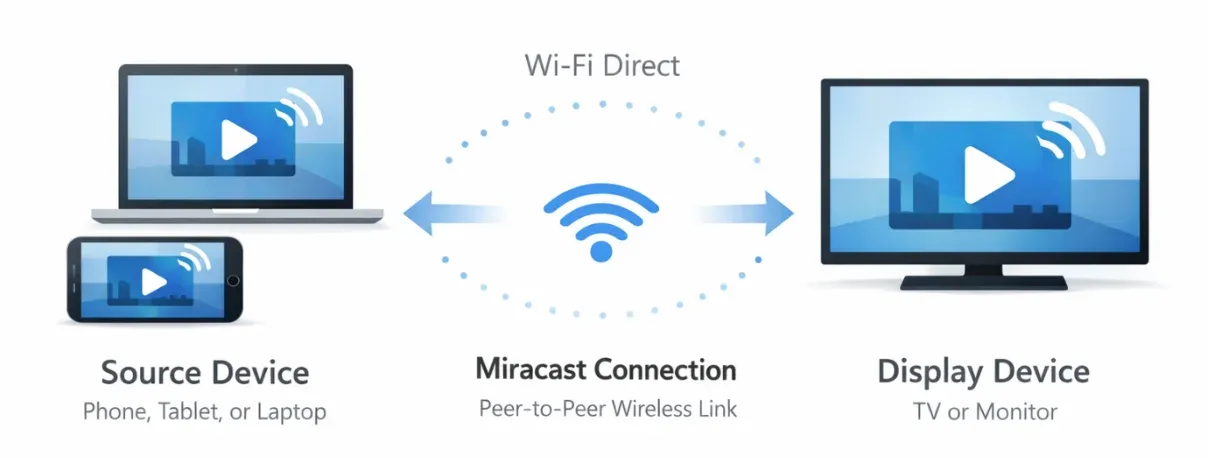
- Your Windows PC or Android phone supports Wireless Display or Miracast. On Windows, Miracast became the standard wireless display method after earlier technologies such as Intel Wireless Display.
- Your TV or receiver has Screen Mirroring or Wireless Display mode turned on.
- Both devices have Wi-Fi enabled and are not in power-saving or sleep mode.
- There are no system restrictions, such as work or school device policies, blocking screen sharing.
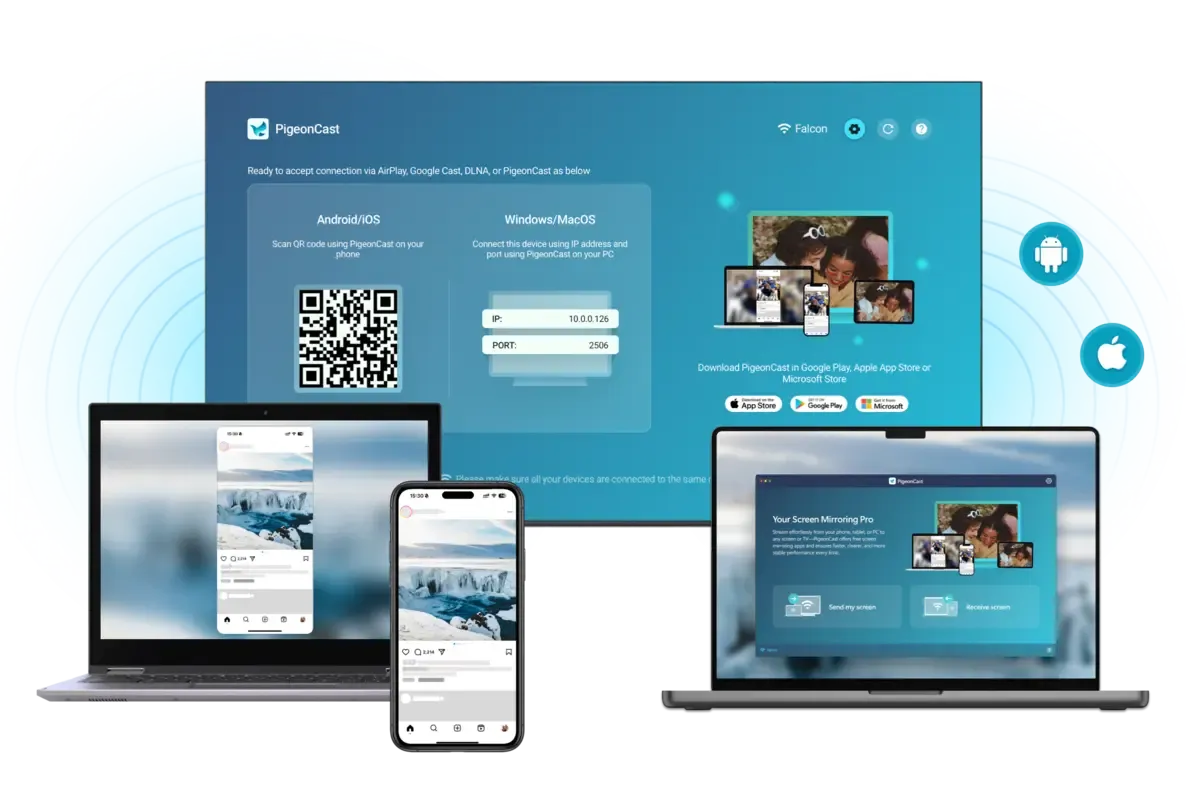
However, Miracast only works when both devices support the same protocol, which can be limited to some TVs or networks. If you want a more flexible solution, you can use tools like PigeonCast, which integrates AirPlay, DLNA, and Google Cast in one app. This allows you to mirror or cast across different devices and platforms without worrying about protocol compatibility.


Overall Rating:



How to Set Up Miracast on Windows
Windows is one of the easiest devices for Miracast, as long as wireless display is supported and enabled. Start by checking support, then connect, and adjust display and audio if needed. Follow these steps on Windows Miracast connection setup to TV below:
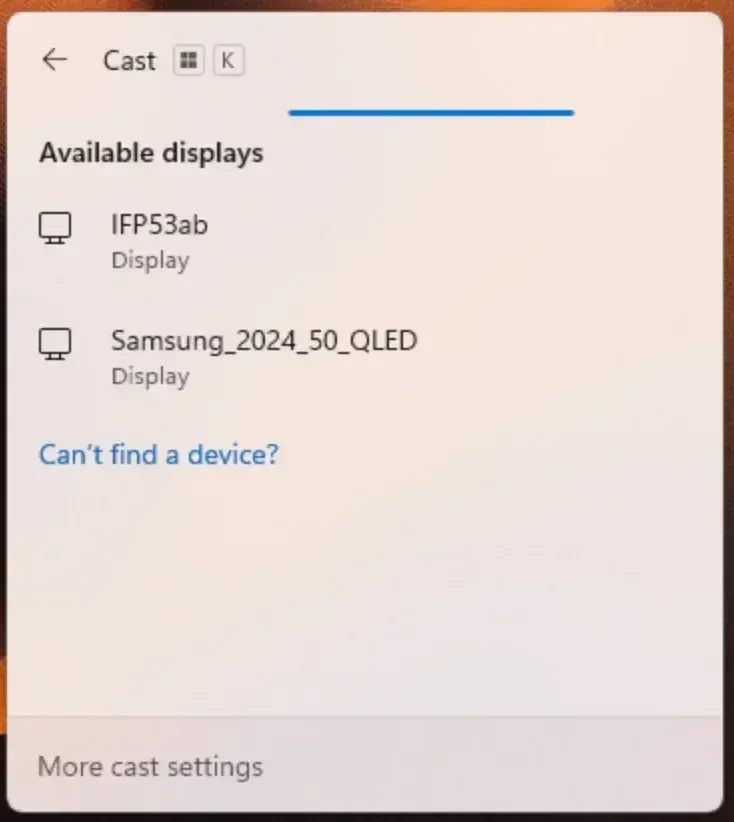
Step 1. Check if your PC supports wireless display: Press Win + K.
-
If the connection panel opens and shows Connect, your PC supports Miracast.
-
If nothing appears, install Wireless Display from Settings > Apps > Optional features, then restart your PC.
Step 2. Turn on your TV and activate Screen Mirroring/Wireless Display mode in the Settings menu
Step 3. Press Win + K again, wait for your TV to appear, then select it from the list.
Step 4. Accept the connection request on the TV if prompted.
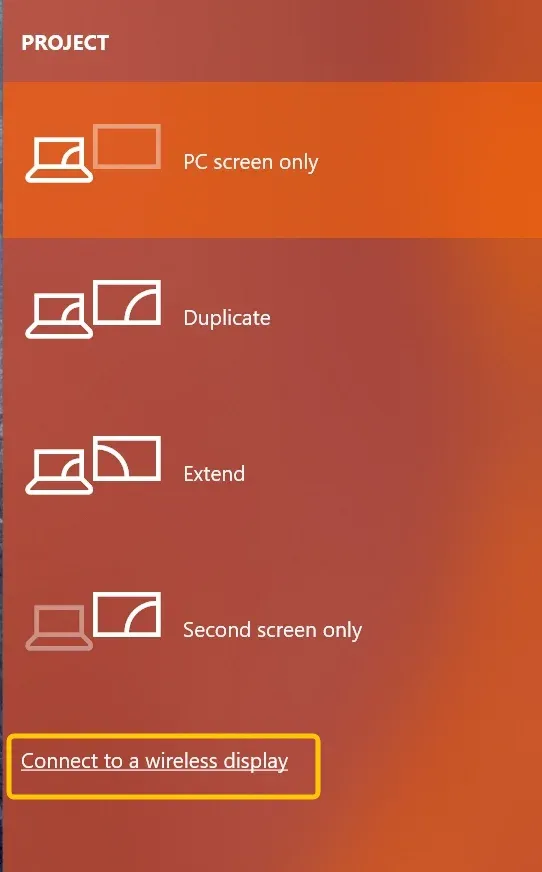
Step 5. After connecting, press Win + P and choose how you want to use the screen:
-
Duplicate to mirror your screen
-
Extend to use the TV as a second display
Step 6. If needed, click the sound icon on the taskbar and select the TV as the audio output.
How to Set Up Miracast on Android
Android devices support Miracast through a casting or screen-sharing feature, but the name may vary by brand, such as Cast, Smart View, Screen Share, or Wireless Display. Here's how to connect to Miracast from Android:
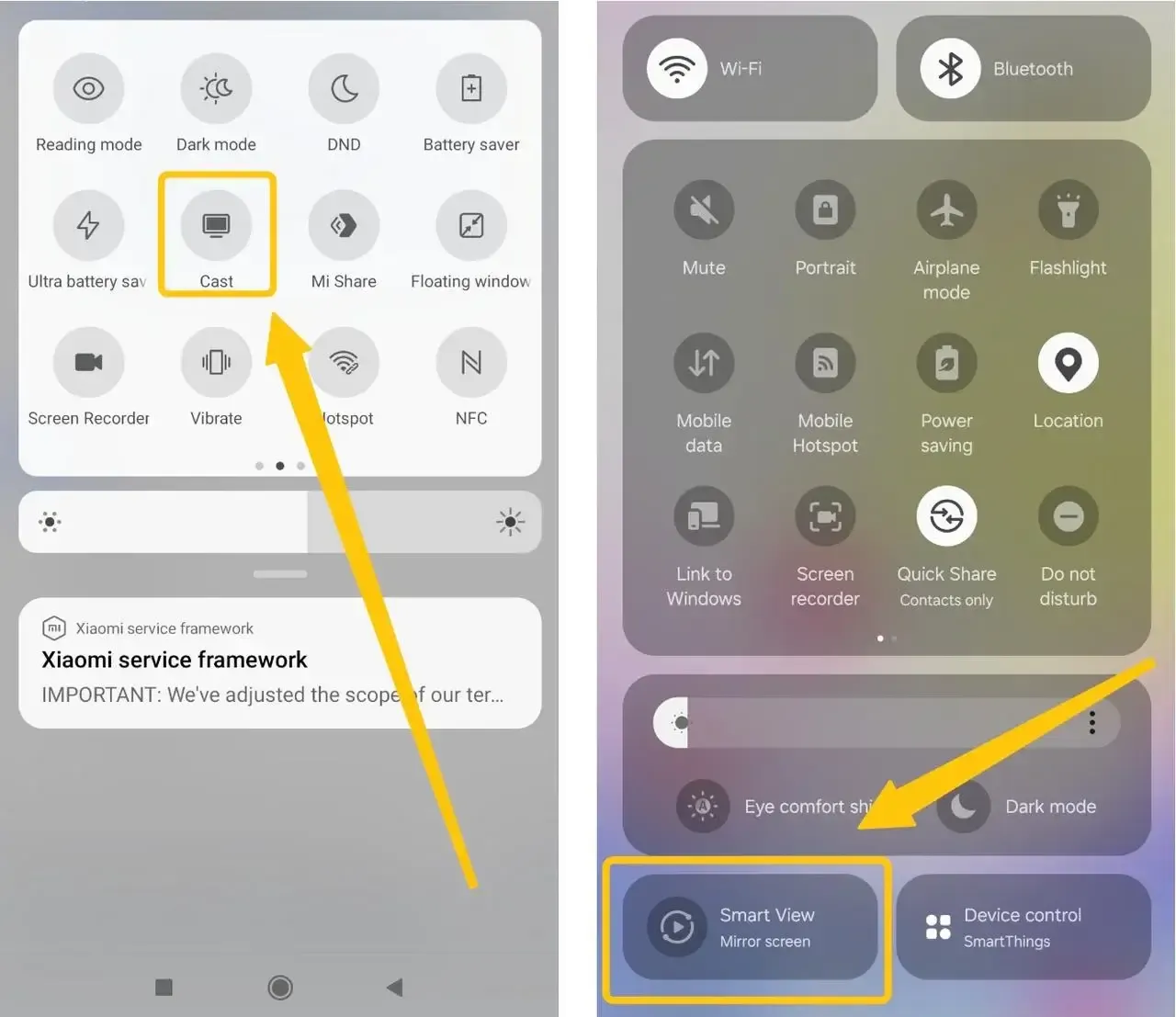
Step 1. Swipe down to open Quick Settings, then tap Cast, Smart View, or Screen Cast (name may vary). If you do not see it, check Settings > Connected devices or Display.
Step 2. Make sure your Sharp TV is on Screen Mirroring/Wireless Display mode and stays on that screen.
Step 3. Select your TV from the list and confirm the connection if prompted.
Step 4. After connecting, check that the screen displays correctly. Rotate your phone if needed and wait a moment for resolution to adjust.
Step 5. When finished, stop casting from the same menu on your phone.
Choose the Right Miracast Receiver
The receiver matters as much as the sender. The best choice depends on your hardware and how often you plan to use Miracast. Use the table below to identify your setup before moving to the setup steps.
| Receiver Type | Best For... | Pros | Limitations |
|---|---|---|---|
| Smart TV | Everyday home use | No extra hardware; simple setup. | Performance depends on TV firmware updates. |
| HDMI Adapter | Older TVs or Monitors | Works on almost any display. | Requires external power and extra cables. |
| Projector | Meetings & Classrooms | Great for large-scale presentations. | Often requires manual approval for each session. |
Once you have identified your receiver, follow these standardized steps to prepare it for a connection.
Prepare the Receiver Source
-
For Smart TVs: Open the Screen Mirroring, Cast, or Wireless Display input. Some TVs place this in the "Source" list, while others hide it in the "Network" or "Connection" menu.
-
For HDMI Adapters: Plug the adapter into an HDMI port and connect its USB power cable. Ensure the TV is switched to the corresponding HDMI input.
-
For Projectors: Select the Wireless Display or Miracast input. Note that some business projectors will display a PIN or connection code on the screen that you will need later.
Ensure Stability and Power
-
Update Firmware: If pairing is unreliable, check for system updates. A receiver with outdated software may appear in your device list but fail as soon as the sender tries to connect.
-
Check Power: If using an HDMI adapter, ensure it is plugged into a high-output USB port or a wall brick. Many connection failures happen simply because the adapter isn't receiving enough current.
Initiate the Handshake
-
Stay on the Screen: Keep the receiver on the Miracast/Pairing screen until the session starts. If the TV or projector switches back to a different input too early, the sender will report a "Connection Failed" error.
-
Approve Prompts: Keep an eye on the receiver screen. Many projectors and smart TVs require you to manually "Accept" or "Approve" the pairing request using the remote before the image will appear.
Why Won't My Miracast Connect
Miracast problems tend to repeat in a few specific ways, which is helpful because each symptom usually points to a narrow set of causes. Start with the receiver state, then the sender feature support, and then move into driver, audio, and policy checks.
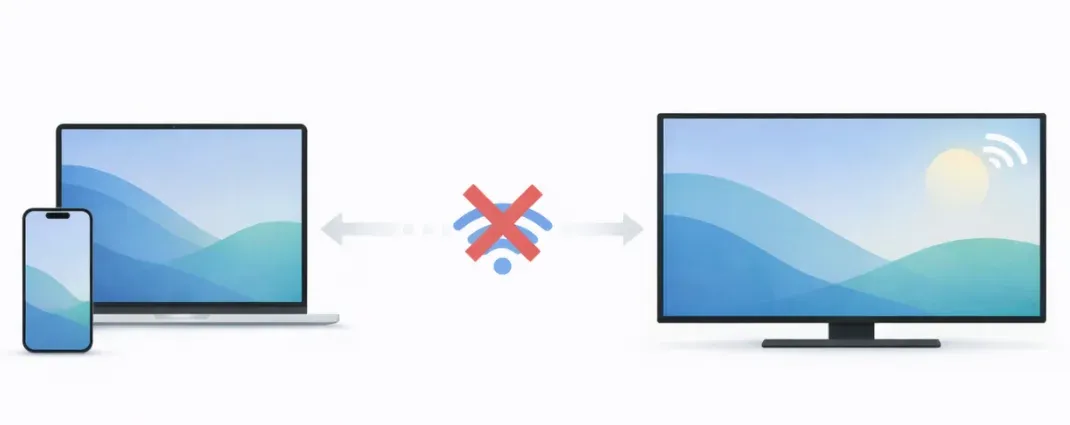
Pairing fails
If the connection fails right away, the TV or receiver is usually not in Screen Mirroring/Wireless Display mode, or the sender does not support Miracast.
-
Make sure the TV stays on the mirroring screen before connecting
-
On Windows, install Wireless Display from Optional Features if missing
-
Restart both devices and try again
Device not found
If your TV does not appear in the list, the issue is usually discovery, not pairing.
-
Turn on Wi-Fi on both devices
-
Keep the TV on the mirroring screen (not the home screen)
-
Move devices closer together
-
On Windows, update Wi-Fi and graphics drivers
-
On Android, allow casting permissions and turn off battery saver
Lag or stuttering
If the mirroring connection works but feels slow or choppy:
-
Reduce distance between devices
-
Close heavy apps or downloads
-
Use Duplicate mode instead of Extend on Windows
-
Switch to HDMI if you need stable video
No sound on TV
If video works but audio does not:
-
Set the TV as the audio output device on your PC or phone
-
Reconnect the session if audio does not switch automatically
-
Check the TV volume and mute status
Connection drops
If the connection disconnects after a few seconds:
-
Turn off sleep mode and battery saver
-
Keep both devices powered on
-
Move closer to reduce interference
-
Test again in a different location
Blocked by system or work policy
If Miracast options are missing or never work:
-
Check if your device is managed by work or school policies
-
Try with a personal device to confirm
-
Contact IT if projection is restricted
Wrapping Up
How to enable Miracast? Miracast provides a convenient way to mirror your screen from Windows or Android without cables, but it only works when both the sender and receiver support the same protocol and are properly configured.
By understanding how Miracast works, checking device compatibility, and following the correct setup steps, most connection issues can be resolved quickly. For cases where Miracast is not supported or remains unstable, alternatives like HDMI or cross-platform tools such as PigeonCast offer more flexible and reliable screen mirroring options.
Miracast Connection Setup FAQ
Does Miracast setup require internet access?
No, Miracast does not need internet access for the actual screen-sharing link. It uses a direct wireless connection between the sender and receiver, so the home router is not the main path. You still need compatible wireless hardware, though, and both devices must support Miracast or Wi-Fi Direct.
Does Miracast carry sound as well as video?
Yes, Miracast can carry both video and audio. The catch is that Windows or Android may leave sound on the sender instead of switching it to the display automatically. If that happens, choose the wireless display as the output device and reconnect the session so the new audio route takes effect.
How to Miracast connection setup iPhone?
You cannot set up a Miracast connection on an iPhone because iPhones do not support Miracast. Instead, Apple devices use AirPlay for screen mirroring. To mirror your iPhone, make sure your TV supports AirPlay, connect both devices to the same Wi-Fi network, open Control Center, tap Screen Mirroring, and select your TV.
Can company policy block Miracast?
Yes, enterprise policy can block Miracast completely. Managed Windows devices can hide projection features, remove the wireless display component, or prevent peer-to-peer discovery. If your personal device works but the office laptop does not, policy enforcement is the most likely reason.
How to Miracast connection setup Sharp TV?
-
Make sure your TV supports Screen Mirroring or Wireless Display and turn that mode on in the TV settings.
-
Then, connect your Windows PC or Android device to the same network, open the casting feature (Win + K on Windows or Cast/Smart View on Android), and select your Sharp TV from the list.
-
Confirm any pairing prompt on the TV, and the screen will start mirroring once the connection is established.
Is Miracast good for gaming or fast-motion apps?
No, Miracast is usually not the best choice for gaming. It is fine for slides, browsing, and most video playback, but the added latency can make fast input feel delayed. If input response matters, HDMI is still the safer option.
Clara Rossi is an experienced technology editor and a seasoned expert in screen mirroring and casting technologies. With a keen eye for detail and a deep understanding of how to seamlessly connect devices, Clara excels at optimizing user experiences for effortless sharing and streaming. Whether you're seeking quick fixes or advanced tips, her expertise and responsiveness ensure that every query is met with a well-informed and efficient solution.