
What happens when you're in a location with no reliable Wi-Fi or no network at all, and you need to use Miracast to share your screen? Can you still Miracast without WiFi? In this post, we'll explore exactly how Miracast works in offline scenarios and what you need to know to successfully mirror your screen even when there's no internet connection. Keep reading to find out everything you need to get started.
Can I Miracast Without WiFi
Yes, in theory, it's possible, but there are a few important caveats.
Miracast uses Wi-Fi Direct technology, which allows two compatible devices to establish a direct, peer-to-peer connection without needing a Wi-Fi router or access point. This means you can connect your Windows laptop directly to a compatible TV or projector, and your Android phone can mirror its screen to a display adapter, all without joining a shared network.
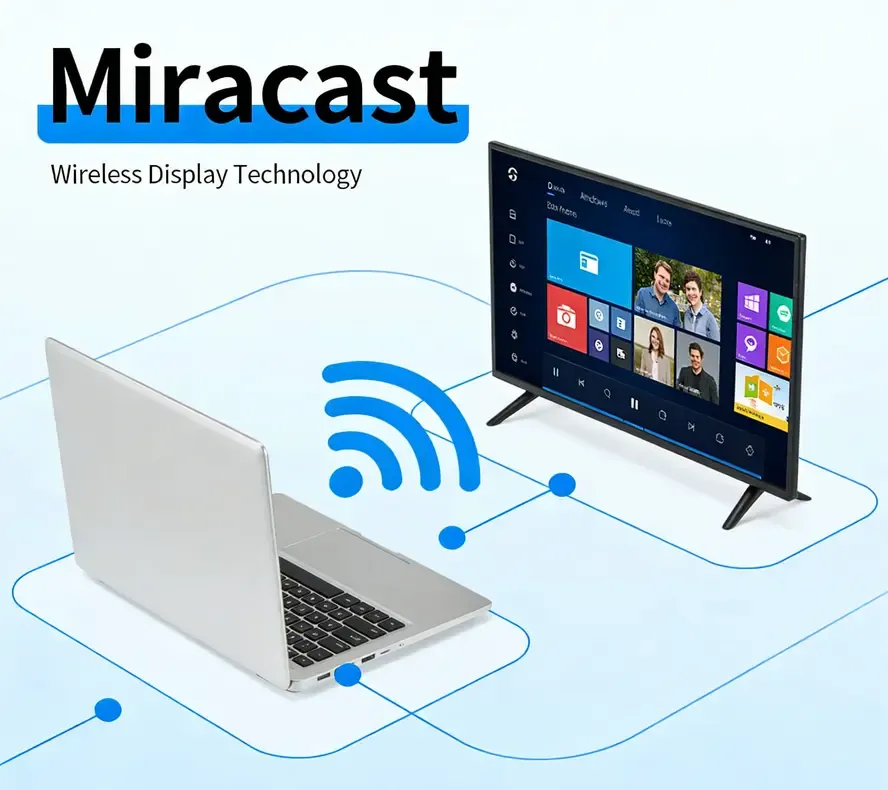
However, while the "Miracast without WiFi connection" feature sounds convenient, it comes with some notable limitations:
- Connection Instability: Wi-Fi Direct connections are typically less stable than traditional Wi-Fi. They can be more vulnerable to interference, which can lead to lag or even disconnections.
- Setup Complexity: Getting devices to recognize and connect directly can be tricky and varies by manufacturer. The setup process isn't always intuitive, which can be frustrating.
- Limited Functionality: Advanced features, such as switching between multiple devices or collaborative presentations, are usually not supported when using direct connection mode.
- Compatibility Issues: Not all devices support Wi-Fi Direct or Miracast in the same way, leading to inconsistent experiences. This can cause compatibility problems and impact performance.
How Does Miracast Work Without WiFi
When you use Miracast, the devices involved create their own direct connection to communicate with each other, without needing an active Wi-Fi network. This makes Miracast ideal for situations where you want to mirror your phone, laptop, or tablet to a TV or monitor without an internet connection. Here's how to use Miracast without WiFi:
Step 1. Check that both your source device (e.g., Windows laptop or Android phone) and the target device (e.g., TV or projector) support Miracast and Wi-Fi Direct.
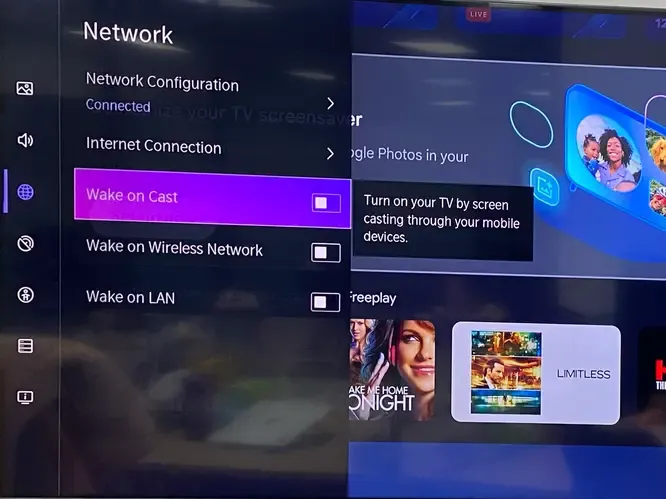
Step 2. On your target device (TV or projector), enable the Screen Mirroring or similar option from the settings menu to allow it to accept incoming Miracast connections.
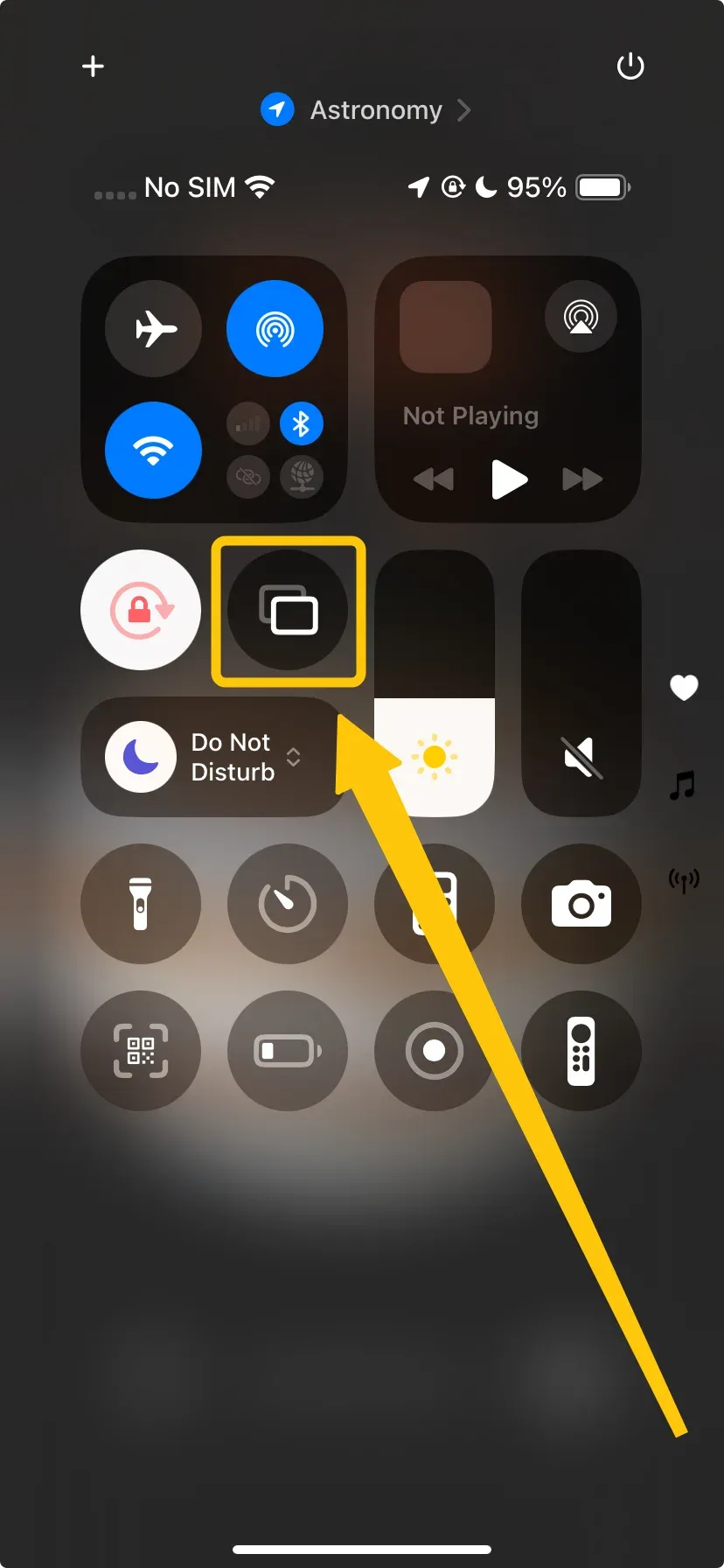
Step 3. On your source device (Android phone or Windows laptop), open the Cast or Screen Mirroring option and select the target device (TV or projector) from the list of available devices.
Step 4. Once connected, you can begin mirroring content or sharing your screen directly to the target device, with video and audio transmitted over the peer-to-peer connection.
PigeonCast: The Smart Miracast Alternative (But Requires Wi-Fi)
Using Miracast without Wi-Fi can be handy in an emergency, but it comes with some limitations that are hard to avoid. Fortunately, there's a better alternative to Miracast solution for screen mirroring designed for Android, Apple, Windows, and smart TV: PigeonCast. This free, ad-free app allows you to wirelessly mirror your mobile screen to a laptop or TV over Wi-Fi. It supports a range of devices, including iOS, Android, Mac, Windows, and TVOS.

Step 1. Ensure your devices are connected to the same wireless network.


Overall Rating:



Step 2. Install PigeonCast on both your devices from the App Store.
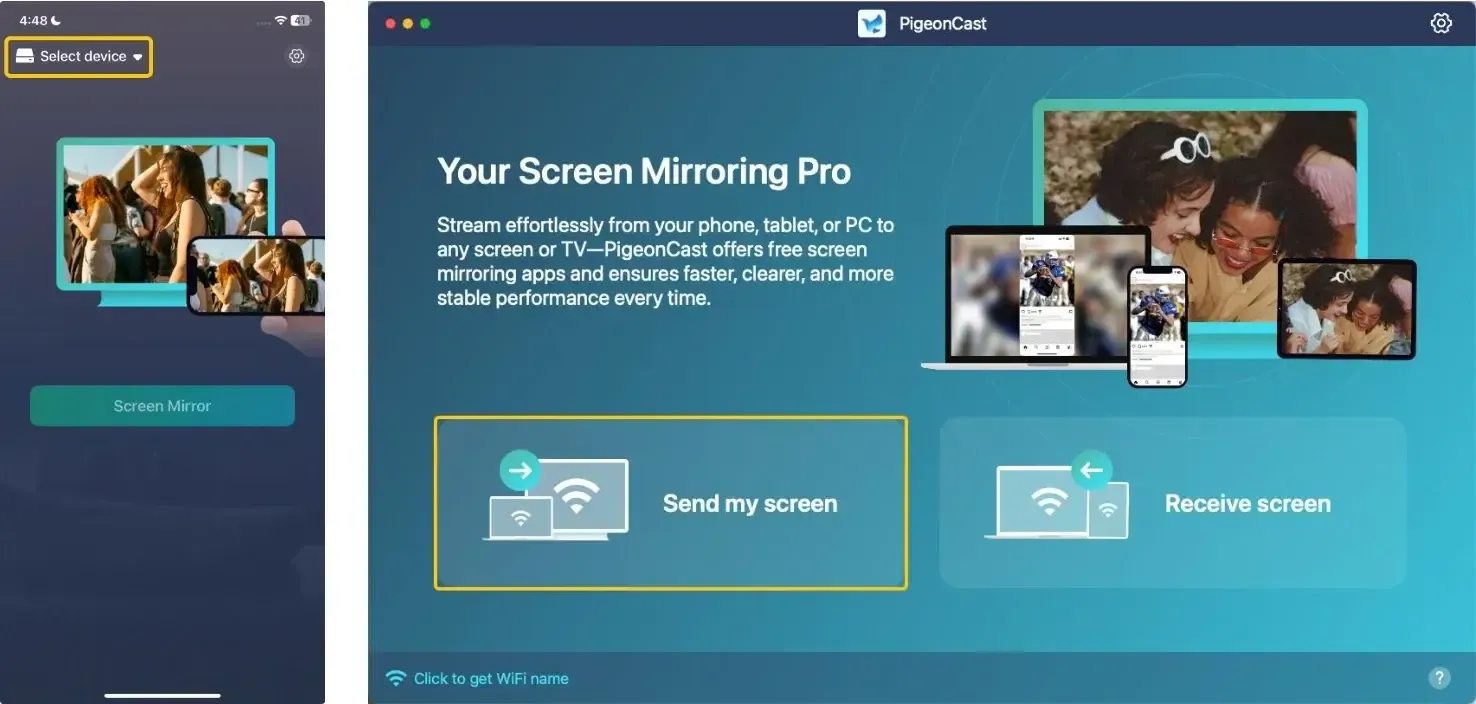
Step 3. Open the app, tap Select device or Send my device to choose your receiver device from the list.
Step 4. Enter the onscreen Pin code to confirm the pairing process. Or you can scan the onscreen QR code to build the connection.
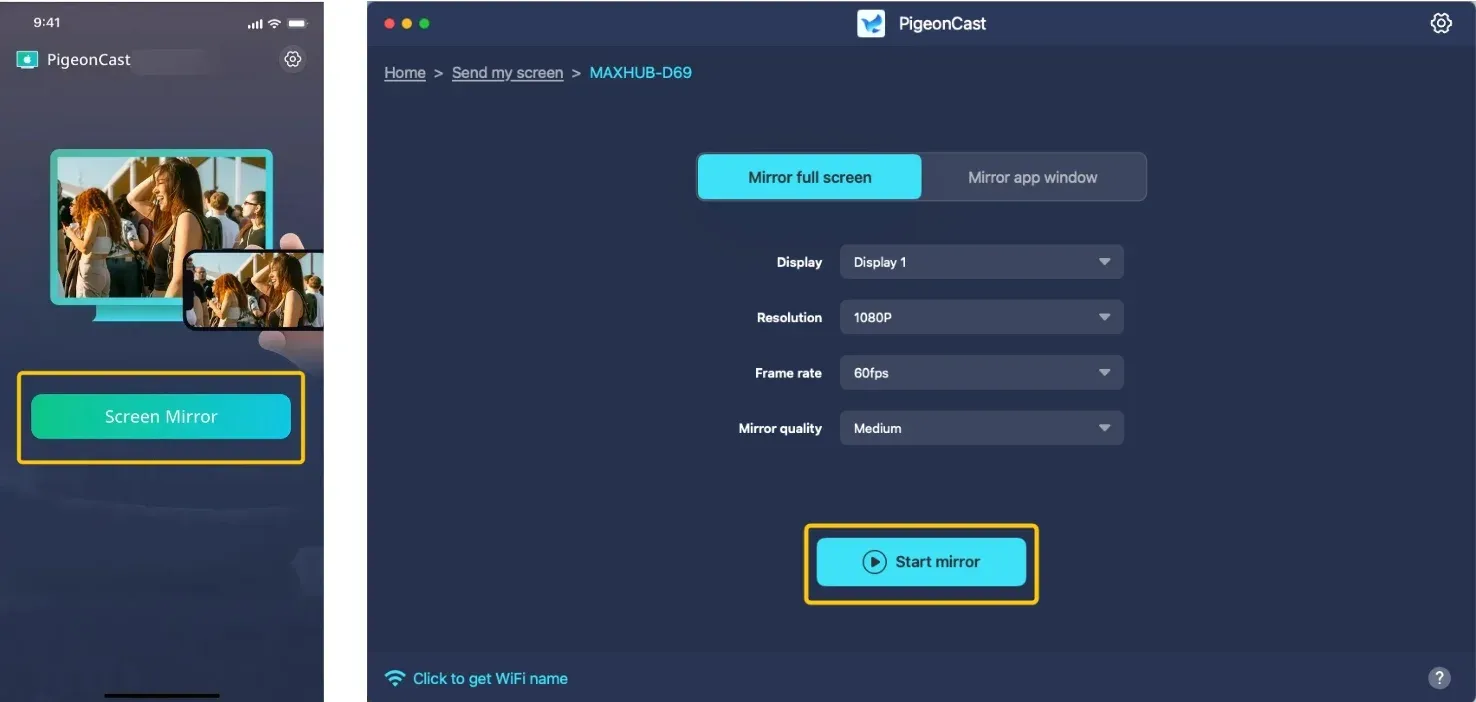
Step 5. When the connection succeeds, tap Screen Mirror or Start mirror to start the mirroring activities. If you use a laptop, you can choose whether to mirror the full screen or a single app window.
Miracast Vs PigeonCast
While both Miracast and PigeonCast allow users to mirror their screen, they function in different ways. Here's a quick comparison to help you understand the key differences:
| Miracast | PigeonCast | |
|---|---|---|
| Platform Compatibility | Supported: Windows, Android, most Smart TVsNot Supported: iOS, macOS (limited support)Works via: Wi-Fi Direct protocol | Supported: Windows, macOS, Android, iOS, and Smart TVsConnection Method: Requires a standard Wi-Fi networkUniversal Access: Browser-based guest join available |
| Network Requirements | often has a bit of a learning curve, especially if device compatibility is an issue. However, once connected, it's relatively easy to use, and no Wi-Fi network is necessary. | generally easier to use, with an intuitive interface and seamless integration across platforms. The only catch is the need for a Wi-Fi connection. |
| Connection Stability & Quality | Stability: Susceptible to interference in crowded wireless environmentsLatency: Variable, can be high in suboptimal conditionsResolution: Typically up to 1080p, depending on device capability | Stability: Network-managed with error correctionLatency: Optimized for smooth presentation flowResolution: Supports up to 4K streaming on capable networks |
| Collaboration Features | Presenter Switching: Not supported - requires disconnectionMulti-Device: One-to-one connection onlyAudience Interaction: No built-in features | Presenter Switching: Not supported - requires disconnectionMulti-Device: One-to-one connection onlyAudience Interaction: No built-in features |
Conclusion
Can you use Miracast without WiFi? Yes, but it comes with limitations like unstable connections and setup challenges. If you need a more reliable and feature-rich solution, PigeonCast is a great alternative. It works over Wi-Fi, supports more devices, and offers extra features like screen recording and higher-quality streaming. Use Miracast for quick offline mirroring, or PigeonCast for a smoother, more versatile experience.
Miracast Without WiFi FAQ
Will Roku Miracast without WiFi?
If you're using a Roku device, Miracast can be used to mirror content from compatible devices. However, Miracast on Roku relies on Wi-Fi Direct. So even though Roku doesn't need an active Wi-Fi network, it does need the Wi-Fi Direct feature to work properly, which is still a form of connection that doesn't require a full Wi-Fi network but does require Wi-Fi Direct functionality.
Does Windows Miracast without WiFi?
Yes, Windows PCs can use Miracast without a traditional WiFi router through Wi-Fi Direct. However, Miracast Windows 10 without WiFi requires:
- A Miracast-compatible wireless adapter in your PC that specifically supports Wi-Fi Direct.
- The display/receiver (TV, projector, or adapter) must also support Miracast.
- Both devices must have their wireless adapters enabled.
Can you Miracast iPhone without WiFi?
No, iPhones cannot use Miracast under any circumstances. Apple devices use a completely different technology called AirPlay. To mirror an iPhone screen without WiFi, you would need:
- A hardware adapter that converts AirPlay to HDMI (like Apple's Lightning Digital AV Adapter with a cable).
- Or a third-party adapter that creates its own direct wireless network for AirPlay.
Can you Miracast Android without WiFi?
Yes, most modern Android devices can use Miracast without a WiFi network through Wi-Fi Direct. Here's how to Miracast without WiFi:
- Swipe down for Quick Settings and tap "Cast" or "Smart View".
- Enable screen mirroring on your TV or receiver.
- Select your display from the list.
Does Miracast need WiFi or Bluetooth?
No, Miracast does not require an active Wi-Fi network or Bluetooth. It works via Wi-Fi Direct, creating a direct connection between devices without using a traditional Wi-Fi router or Bluetooth.
Can Miracast over Ethernet without WiFi?
This is technically possible but complex and device-dependent. Since Miracast fundamentally relies on WiFi radio signals, you cannot use pure Ethernet. However, some workarounds exist:
- Wireless Display Adapters with Ethernet: Some dedicated Miracast receivers (like Microsoft Wireless Display Adapter v2) can connect to Ethernet while still receiving Miracast signals wirelessly.
- PC with Ethernet + WiFi Adapter: Your PC can be on Ethernet for the internet while using its WiFi adapter for Miracast.
- No "Ethernet-only Miracast": There's no way to send Miracast signals through Ethernet cables directly - the protocol is designed for wireless transmission.
Clara Rossi is an experienced technology editor and a seasoned expert in screen mirroring and casting technologies. With a keen eye for detail and a deep understanding of how to seamlessly connect devices, Clara excels at optimizing user experiences for effortless sharing and streaming. Whether you're seeking quick fixes or advanced tips, her expertise and responsiveness ensure that every query is met with a well-informed and efficient solution.