
Want to bring your smartphone games or PC presentations to the big screen? If you own an LG Smart TV, Miracast is the built-in technology that makes this possible without a single cable. In this guide, we'll show you exactly how to set up a Miracast LG TV connection and what to do if things aren't working as expected.
Does LG TV Support Miracast
Yes, most modern LG Smart TVs natively support Miracast. On LG's webOS platform, this technology is officially integrated into the Screen Share feature. While many users look for a "Miracast" button, LG simplifies the experience by bundling it under the Screen Share app. This allows for high-definition wireless mirroring, meaning every action on your smartphone, tablet, or laptop is reflected instantly on the TV screen.
Why Use Miracast on Your LG TV
Using a Miracast LG Smart TV connection offers several advantages over traditional streaming or wired setups:
-
No Internet Required: Unlike Chromecast, Miracast uses Wi-Fi Direct to create a localized, peer-to-peer connection between your device and the TV. You don't even need a router or an active data plan.
-
Low Latency: Optimized for webOS, it provides a stable connection for streaming local videos, displaying photos, or giving presentations.
-
Zero Cables: It eliminates the need for expensive HDMI adapters, keeping your home entertainment setup clean and clutter-free.
How to Enable Miracast on LG TV
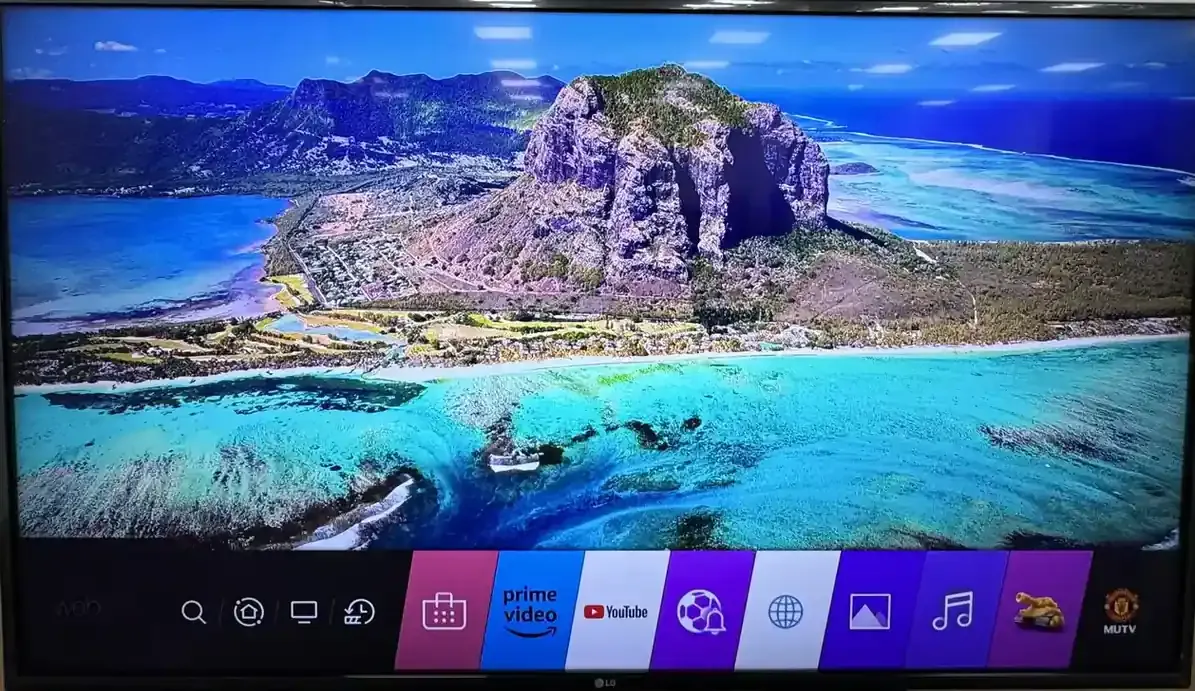
Before you can start mirroring, you need to ensure your TV is ready to receive the signal. On most LG models, finding the LG TV Miracast settings is easy once you know that the feature is housed within the "Screen Share" app. Press the Home button on your LG Magic Remote, select Screen Share to make your TV "discoverable".
- What to do if your device doesn't support Miracast
If you use a Google Pixel or your phone doesn't support Miracast, LG Screen Share probably won't work. With support for AirPlay, DLNA, and Google Cast, PigeonCast lets you mirror both Android and iPhone to your LG TV without relying on Miracast. It works across different devices and lets you stream your screen in up to 4K quality without device restrictions.


Overall Rating:



How to Miracast LG Android
Before following the steps, check if your device actually supports the Miracast TV LG standard. While most Android phones built after 2013 (Android 4.2+) technically have the hardware, the software support varies by brand:
-
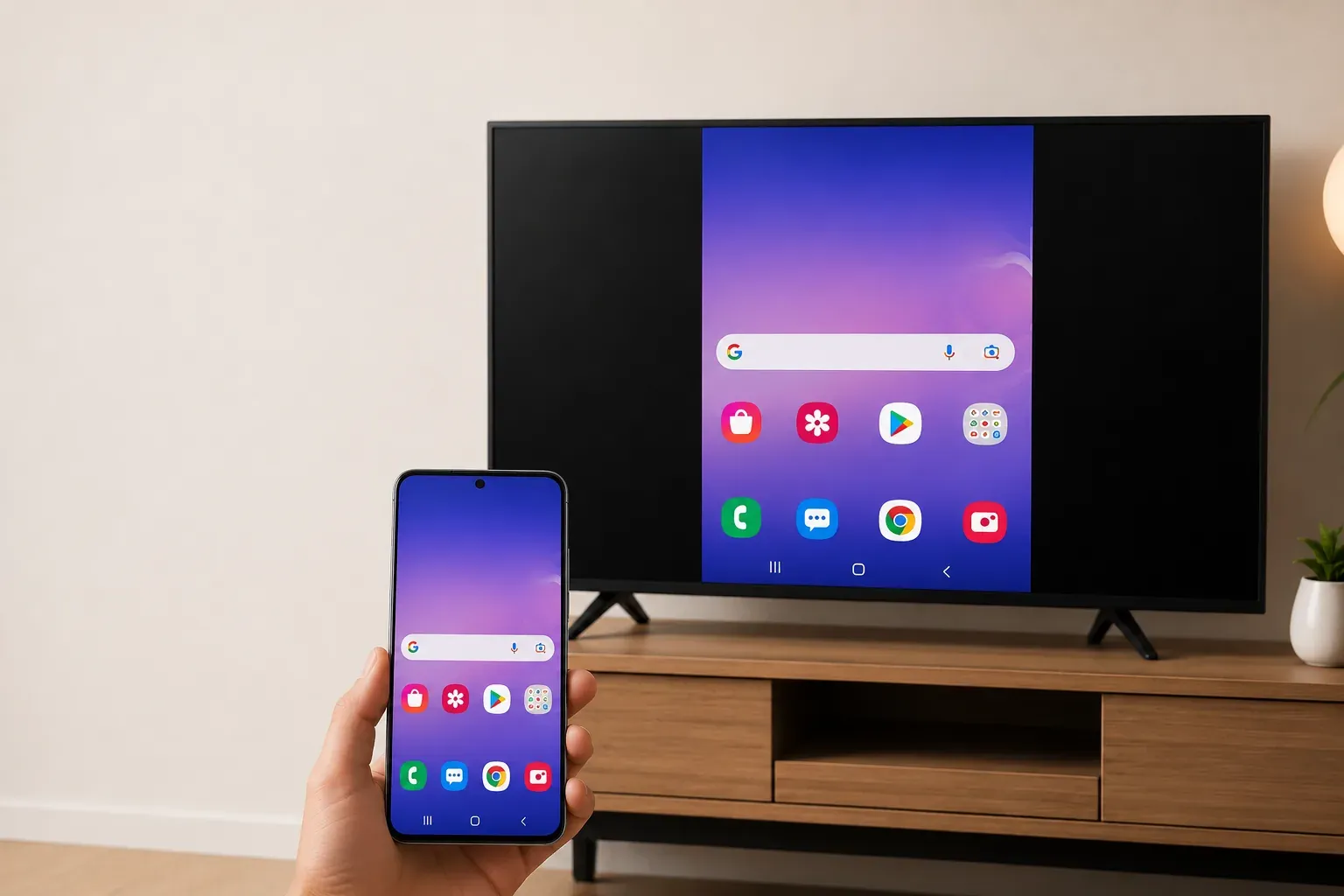
Native Support: Samsung (Galaxy S/A/Note series), Huawei (P/Mate series), Xiaomi, and OnePlus have kept Miracast support in their systems (look for "Smart View" or "Wireless Projection").
-
The "Pixel" Trap: Google removed Miracast support from Pixel phones (starting from Pixel 1) and most "Android One" devices to promote Chromecast. If you own a Pixel, you cannot use Miracast natively.
-
Version Rule: If your device is running Android 12, 13, or 14, your manufacturer (like Samsung or Oppo) must have specifically kept the feature in their "Skin". If it's missing from your Quick Settings, your phone likely doesn't support it.
Once you've confirmed your phone is compatible, use these steps to start mirroring:
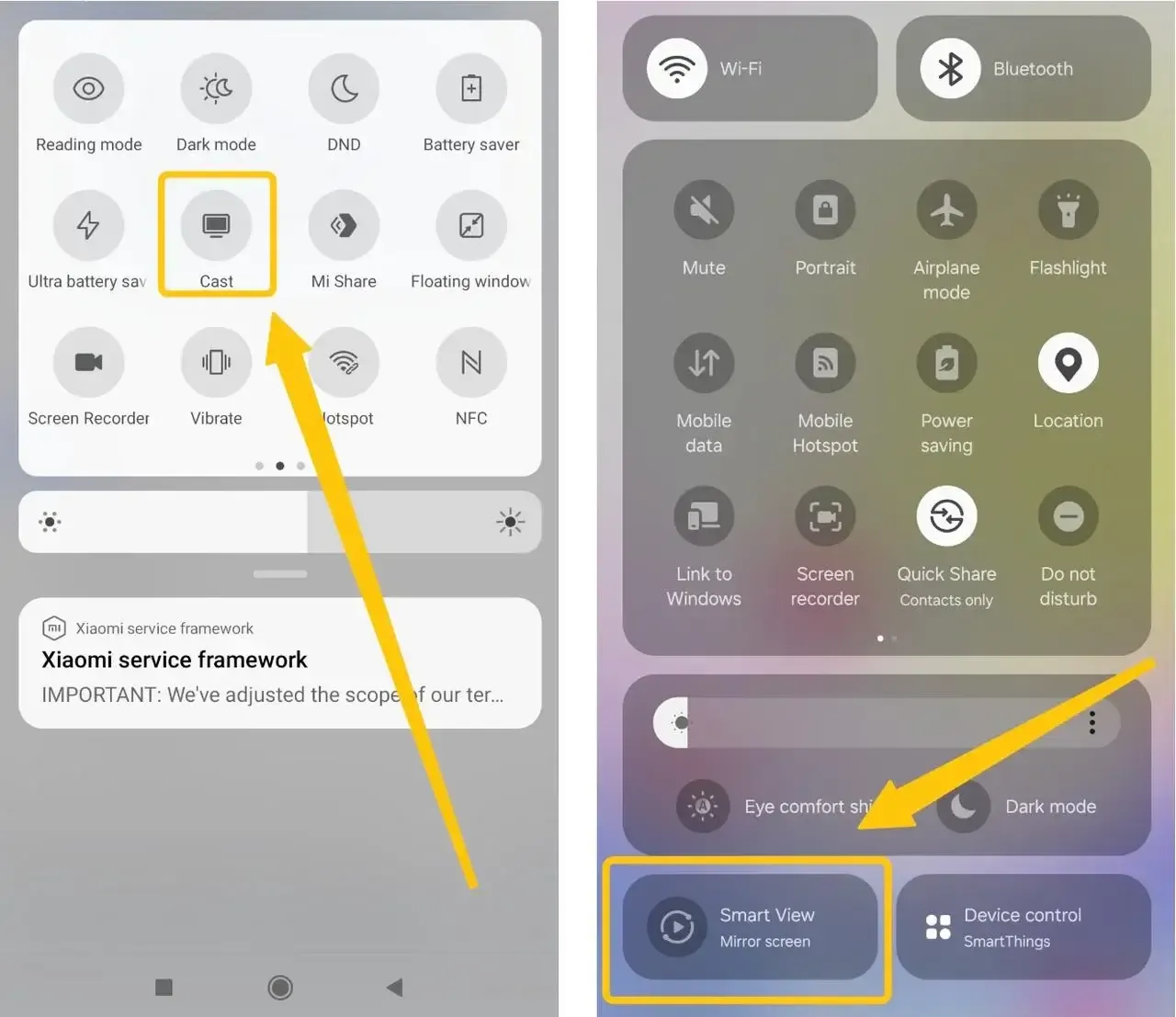
Step 1. Swipe down your notification bar to open the Quick Settings panel.
Step 2. Tap the mirroring icon. It may be named Smart View (Samsung), Cast (Xiaomi), or Wireless Projection (Huawei).
Step 3. Select your LG TV from the list of detected devices.
Step 4. If a prompt appears on your TV, click Accept using your remote.
How to Miracast LG Windows 10
Miracast is much more consistent on Windows, but your hardware must meet certain wireless standards to work with an LG TV. Most laptops sold with Windows 10 or 11 pre-installed are Miracast-ready. However, older desktops without a dedicated Wi-Fi card or those using an external USB Wi-Fi dongle may not support it. Here's how to Miracast Windows:
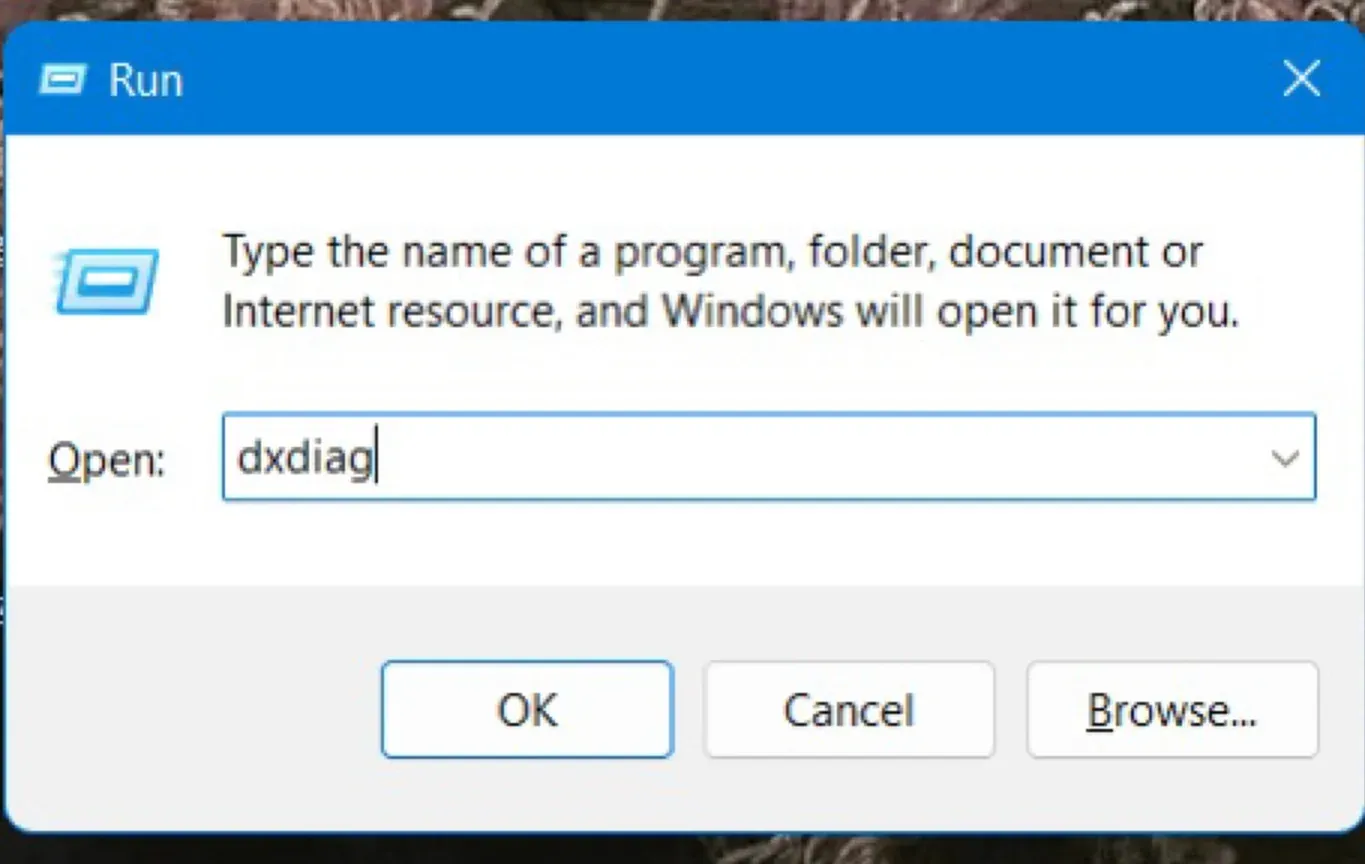
Step 1. Press Win + R, type dxdiag, save the info to a text file, and search for "Miracast". If it says "Available", you are good to go.
Step 2. Ensure your LG TV is on the Screen Share screen.
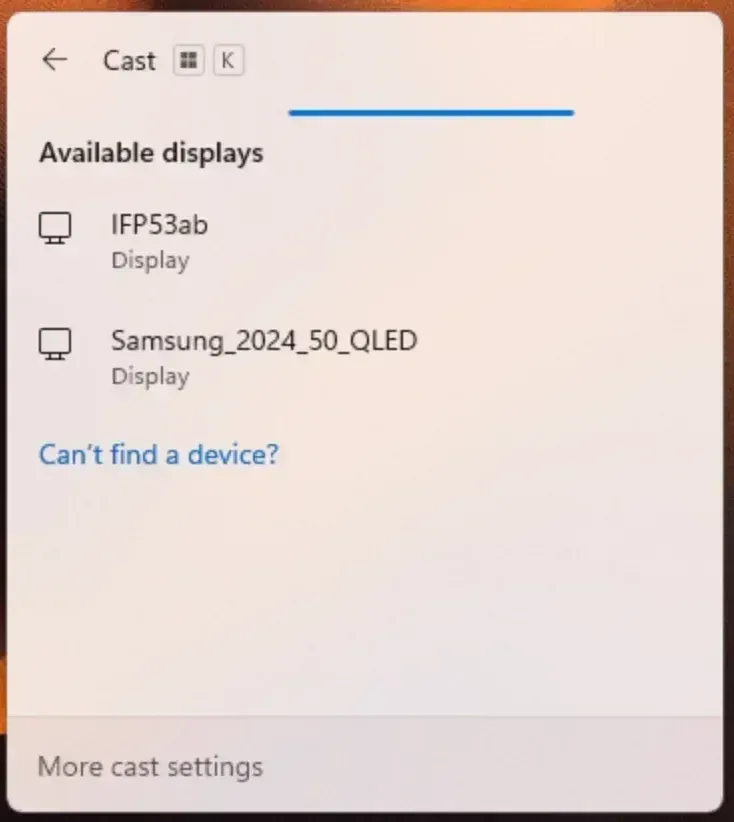
Step 3. On your keyboard, press Win + K.
Step 4. A "Connect" pane will appear on the right side of your laptop screen.
Step 5. Select your LG TV from the list. Your desktop will be projected to the TV instantly.
How to Miracast LG iPhone
If you are an iPhone or iPad user, you've probably noticed the Miracast options mentioned above are missing from your settings. This is because Apple uses its own proprietary protocol called AirPlay. You don't need a Miracast for iPhone workaround. Since 2019, LG has integrated AirPlay 2 into almost all webOS models, allowing iOS users to mirror their screens with even higher stability than Miracast.
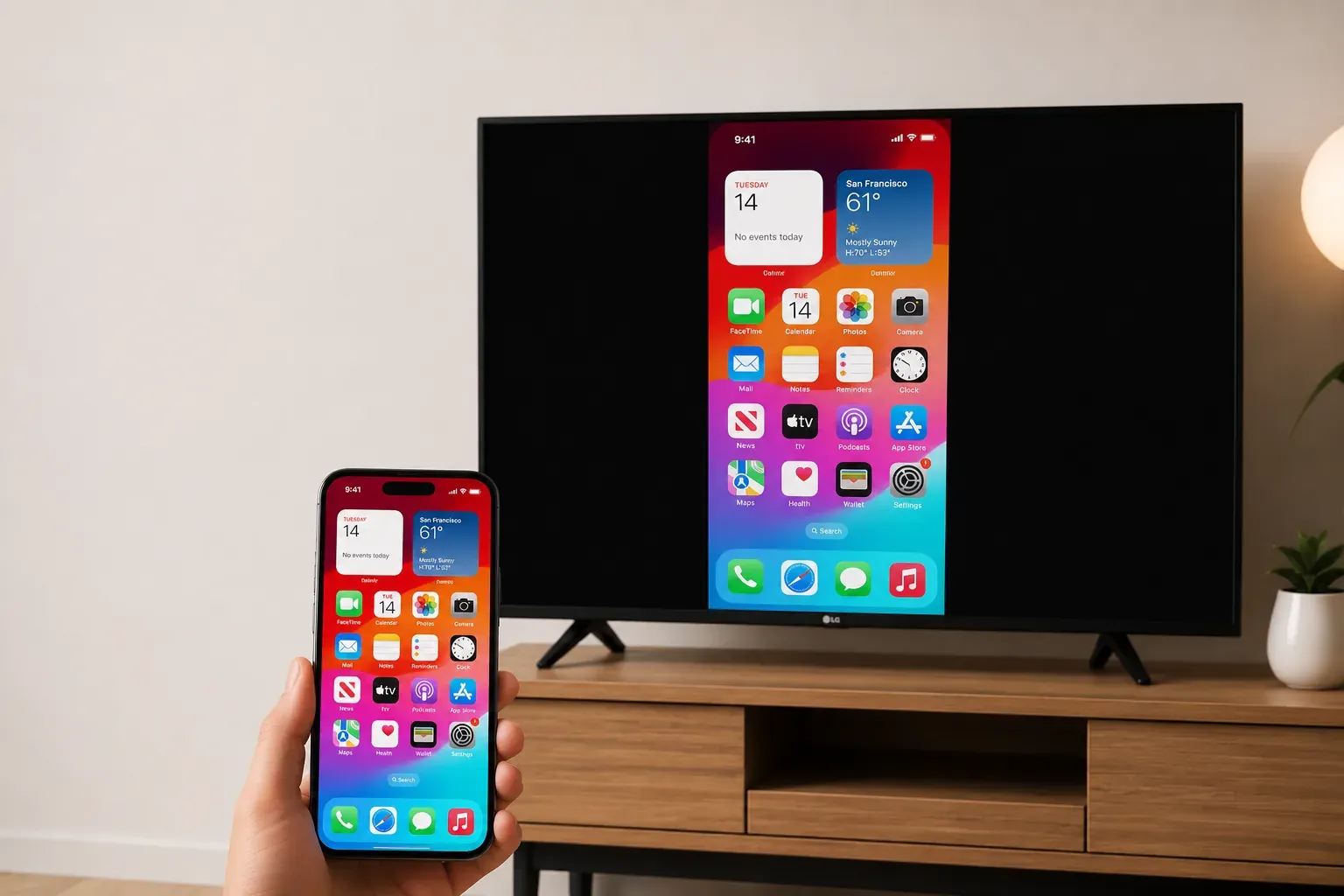
Unlike the Miracast LG TV from Android mobile device, you don't necessarily need to open the Screen Share app first.
Step 1. Ensure AirPlay is toggled 'On' in your TV's Home Dashboard or Connection settings.
Step 2. Ensure your iPhone and LG TV are on the same Wi-Fi network.
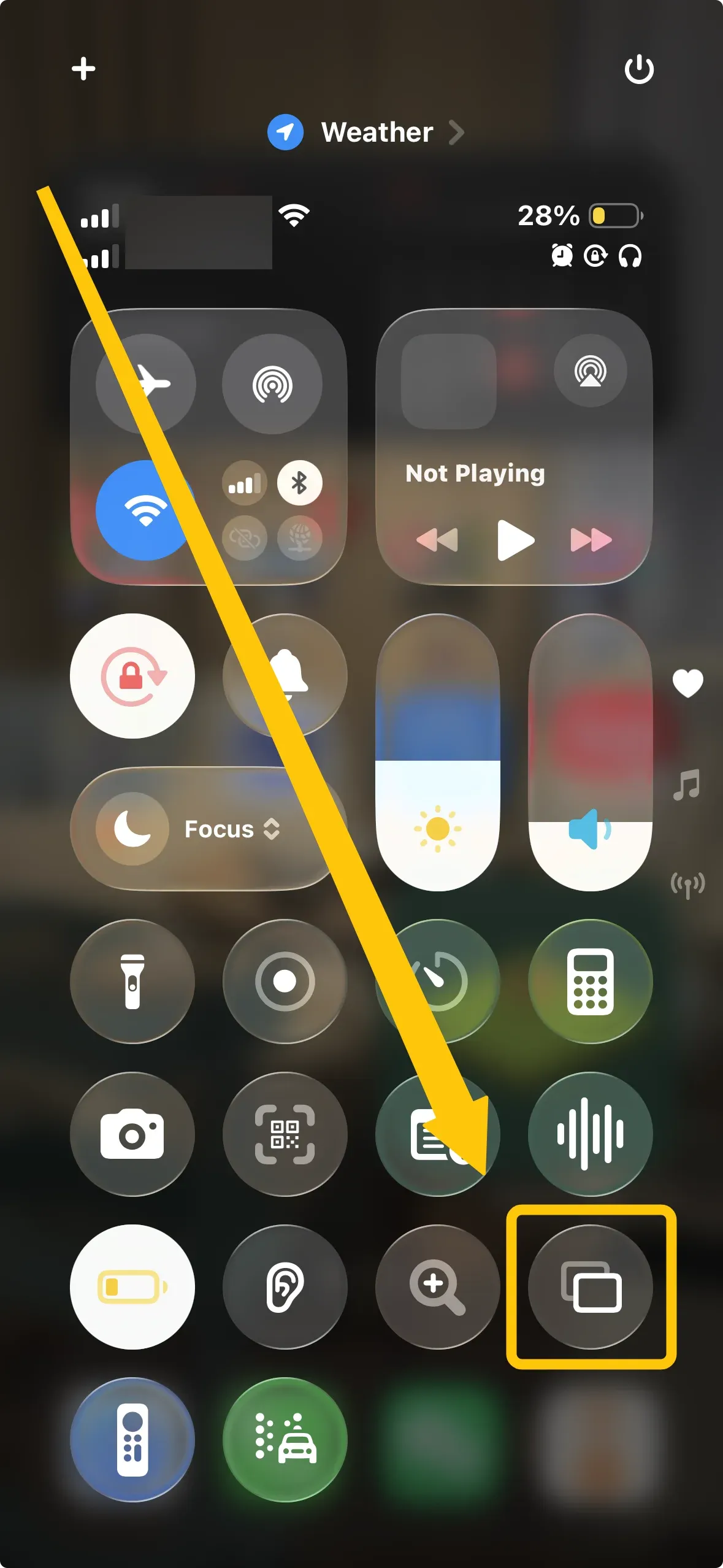
Step 3. Swipe down from the top-right corner of your iPhone screen to open Control Center.
Step 4. Look for the icon with two overlapping rectangles, then tap this Screen Mirroring icon to select your LG TV from the list.
Step 5. A 4-digit code will appear on your TV screen. Type this into your iPhone to establish a secure link.
LG Miracast Won't Connect
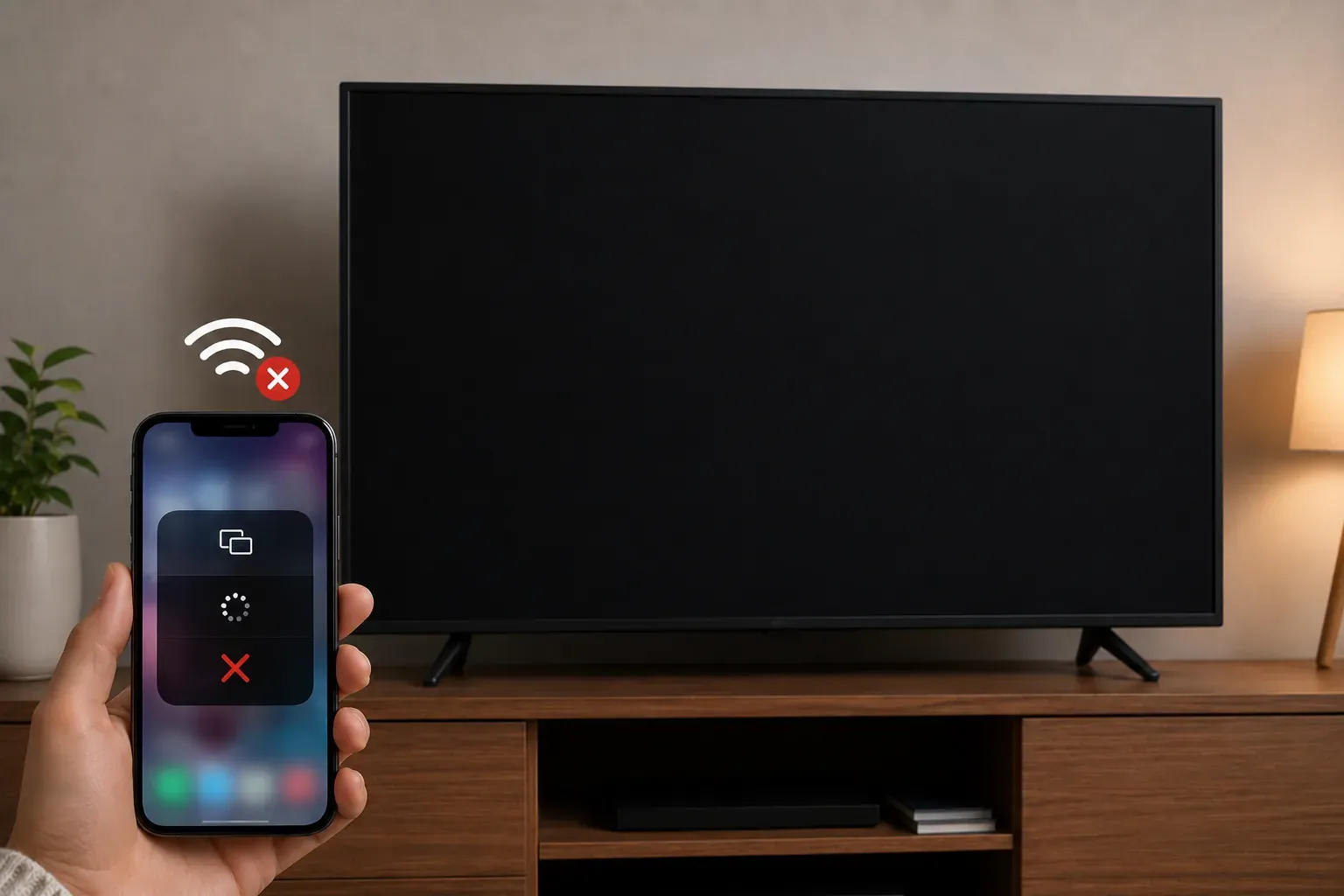
Sometimes, even with the right hardware, the "handshake" between your device and the TV fails. If you're stuck on Miracast connection, try these quick fixes:
- The "Cold Boot" Trick
LG TVs often keep background apps running even when the screen is off. If Screen Share is glitchy, unplug your TV from the wall for 60 seconds, then plug it back in. This clears the system cache and restarts the Miracast service.
- Check the 2.4GHz vs. 5GHz Band
Miracast uses Wi-Fi Direct, but it can struggle if your phone is on a crowded 2.4GHz band while the TV is on 5GHz. For the smoothest experience, set both devices to the 5GHz band on your router settings.
- Clear Pairing History
If you've connected before but it's failing now, your TV might be holding onto a "corrupt" pairing profile. Go to Settings > Connection > Screen Share Settings and select Delete Pairing History. Now, try the connection again as if it were the first time.
- Update Your Drivers (Windows Users)
If your PC says "Miracast is not supported" despite having the hardware, your graphics driver is likely outdated. Visit the Intel, NVIDIA, or AMD website to download the latest drivers; this often "unlocks" Miracast capabilities that were previously disabled.
Final Verdict
Setting up LG Smart TV Miracast (officially known as Screen Share) is the perfect way to enjoy wireless mirroring from your Android or Windows devices in high definition. By utilizing Wi-Fi Direct, it creates a seamless connection for streaming movies or sharing presentations without the need for any messy cables.
Miracast LG TV FAQ
Why is my Disney+ Miracast LG TV showing a black screen?
The Disney+ Miracast LG TV black screen issue occurs primarily due to the following technical reasons:
-
DRM (Digital Rights Management) Restrictions
-
HDCP Handshake Failure
-
App-Level Blocking
-
Protocol Incompatibility
Do I need a Miracast dongle for LG TV?
If you have an older model or a device that doesn't natively support the miracast LG TV standard, using a miracast dongle for LG TV is the most effective way to upgrade your setup. These external receivers plug into an HDMI port and provide a dedicated wireless bridge for your devices, bypassing any software limitations or outdated webOS versions.
Can iPhone Miracast to LG TV?
The short answer is no, iPhones do not natively support Miracast. While Android and Windows devices use the Miracast protocol, Apple uses its own proprietary technology called AirPlay 2. Because of this, you won't find a "Miracast" button in your iPhone's settings.
How can I connect my phone to my LG Smart TV?
Connecting your phone to an LG Smart TV is seamless using built-in protocols or dedicated apps depending on your device type.
-
Android (Miracast): Open the Screen Share app on your TV, then select Smart View or Cast from your phone's Quick Settings.
-
iPhone (AirPlay 2): Ensure both devices are on the same Wi-Fi, open Control Center, and tap Screen Mirroring to select your TV.
-
LG ThinQ App: Download the official app to mirror your screen and control TV functions directly from your smartphone.
-
PigeonCast: Use this as a high-performance alternative to bypass protocol restrictions (like Google Pixel's lack of Miracast) for a more stable connection.
-
HDMI Adapter: Use a USB-C or Lightning to HDMI cable for a zero-latency wired connection.
Where is Miracast in settings?
Miracast is rarely labeled as "Miracast" in your device's settings menu. Instead, it is usually found under various names depending on your operating system and brand. Here is exactly where to find it:
- On Windows 10 & 11
Press Win + K on your keyboard to open the "Cast" or "Connect" pane directly. Go to Settings > System > Display > Multiple displays and click Connect next to "Connect to a wireless display".
- On Android Phones
The location varies by manufacturer, but it is typically in the Quick Settings panel (swipe down from the top twice): Look for Smart View on Samsung. Look for Cast or Wireless Projection on Xiaomi/Huawei. Look for Screen Mirroring on Sony/LG.
- On LG Smart TV
Miracast isn't hidden in deep settings; it is an app on your dashboard: Press the Home button and select the Screen Share app. Go to Settings > All Settings > Connection > Screen Share Settings to manage discoverability and pairing history.
Why won't my iPhone mirror to my LG TV?
Your iPhone may fail to mirror to your LG TV due to several technical and environmental factors:
-
Network Mismatch
-
AirPlay Disabled
-
Model Incompatibility
-
Software Version Conflict
-
DRM Restrictions
-
Network Isolation
Clara Rossi is an experienced technology editor and a seasoned expert in screen mirroring and casting technologies. With a keen eye for detail and a deep understanding of how to seamlessly connect devices, Clara excels at optimizing user experiences for effortless sharing and streaming. Whether you're seeking quick fixes or advanced tips, her expertise and responsiveness ensure that every query is met with a well-informed and efficient solution.