
Roku devices are known for their wide app selection and ease of use, but when it comes to wirelessly mirroring your laptop, phone, or tablet, many wonder if Miracast Roku is supported. This guide will explain how Miracast works with Roku, walk you through the built-in mirroring options, and introduce an alternative solution for seamless screen sharing across devices.
Does Roku Support Miracast
Yes, most modern Roku TVs and streaming players support Miracast, which allows you to wirelessly mirror your screen from compatible Android or cast screen from Windows PC to Roku. This means you can cast your entire screen to the TV. However, some older Roku models or specific devices, like Google Pixel phones, may have limitations.
In addition to Miracast, Roku also offers other casting options like Google Cast, which allow you to cast specific apps (e.g., YouTube) rather than mirroring your entire screen. While this isn't the same as Miracast, it achieves similar results for supported content.
To check if your Roku device supports screen mirroring via Miracast or other casting features, go to Settings > System > About and verify your model. You can also check for a "Screen Mirroring" option in your device's settings. Keep in mind that older models, like the original Roku Express (3700), may not support these features.
How to Enable Miracast on Roku TV
Enabling Roku Miracast is a simple process, but there are a few important steps to follow to make sure everything works smoothly. Think of your Roku as a receiver that needs to be set up correctly to receive screen mirroring signals. This setup is usually a one-time process. Here's how to turn on Miracast on Roku TV:
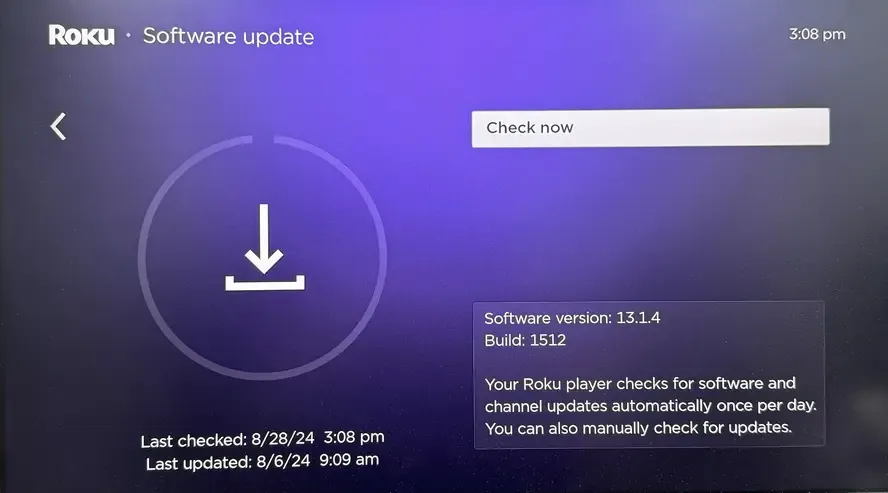
Step 1. Before attempting to enable Miracast, make sure your Roku TV is running the latest firmware. Go to Settings > System > System Update to check for updates and install them if necessary.
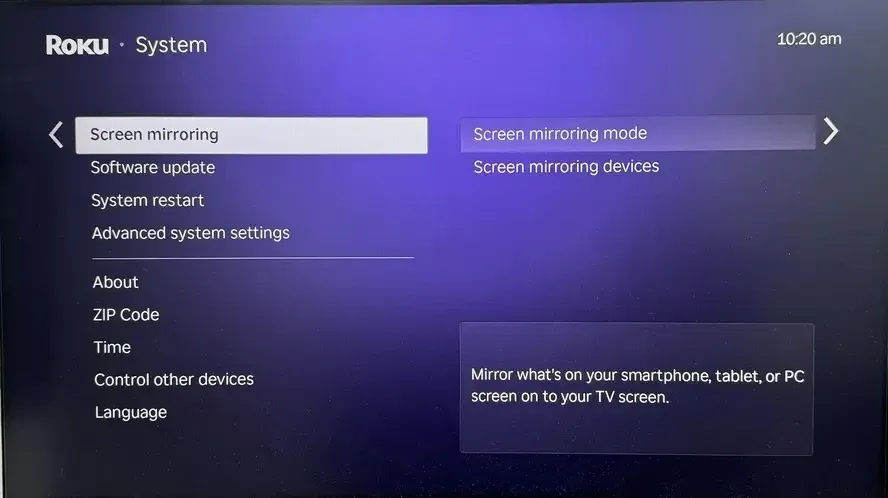
Step 2. Go back to Settings > System > Screen mirroring, choose either Prompt or Always Allow.
Step 3. Once screen mirroring is enabled, go to your Miracast-enabled device (Android, Windows, or other compatible devices). Open the screen mirroring settings and select your Roku TV from the list of available devices. Your device should now wirelessly cast to your TV.
Use PigeonCast to Screen Mirror Across Platforms
PigeonCast is a practical screen mirroring solution even when your device doesn't support Miracast. It works with most Roku models and supports Windows, macOS, iOS, and Android, including setups where you need to cast a Google Pixel to a Roku TV without relying on native Google Cast support.
With PigeonCast, you can stream YouTube videos, photos, music, apps, and other content to a larger screen. Whether you are sharing media or giving a presentation, it provides a straightforward and reliable way to connect your device to Roku.

Step 1. Ensure your device and Roku are under the same wireless network.


Overall Rating:



Step 2. Install PigeonCast on your mobile device, such as an iPhone, Android, tablet, Mac or Windows PC, then open it.
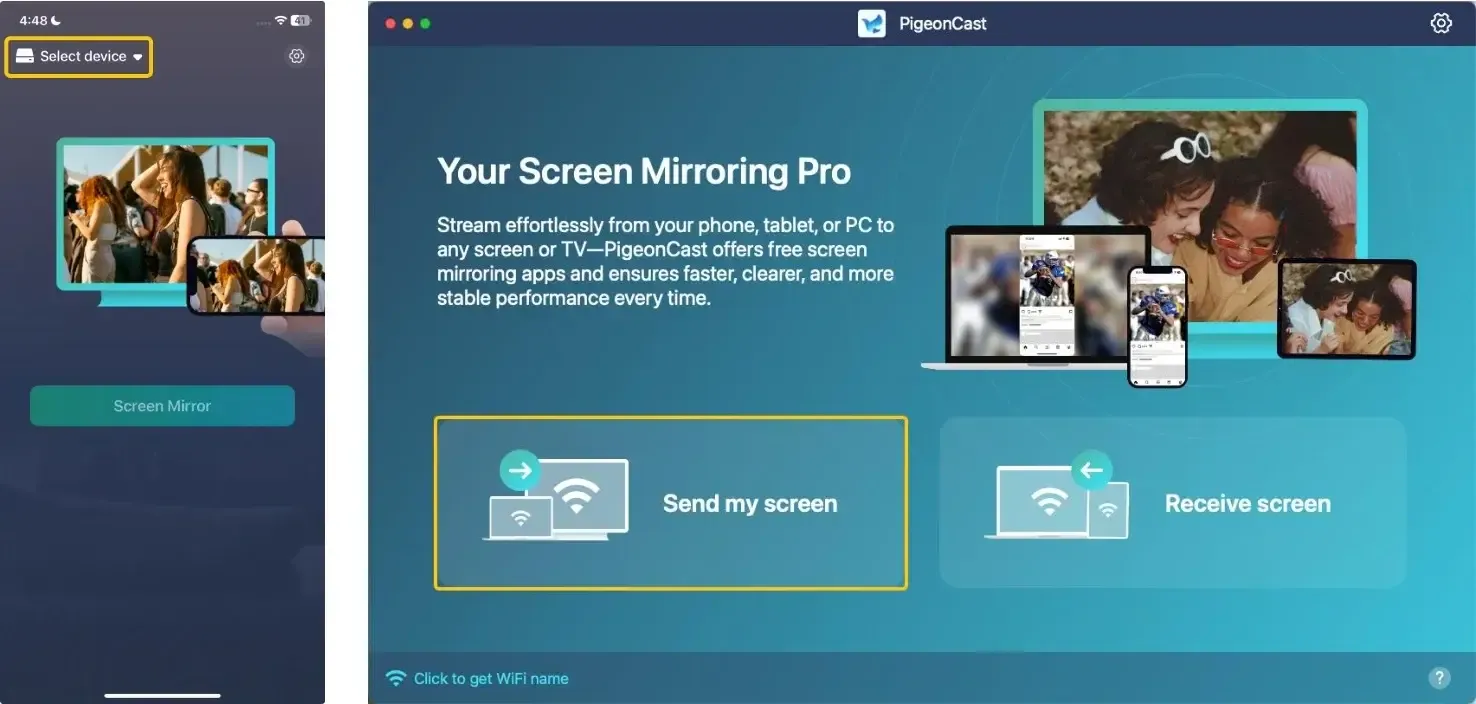
Step 3. Tap Select device or Send my screen to choose your Roku from the available list. If you use an Android device, you can choose to cast the specific app from the corresponding button.
Step 4. Enter the onscreen PIN to confirm the mirroring requisition.
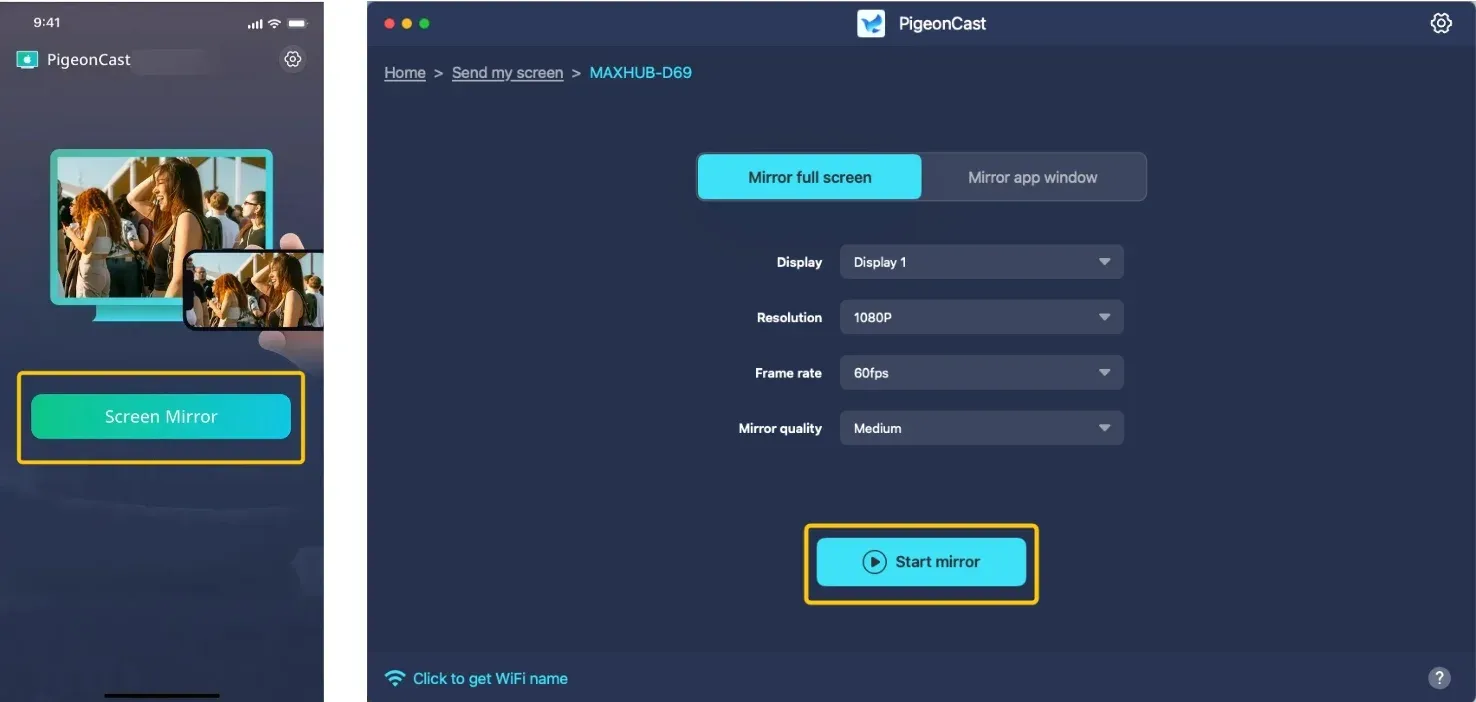
Step 5. Click the Screen mirror or Start mirror to start your mirroring activities on Roku. If you use a laptop, you can choose mirror the full screen or only a single app window.
Closing Words
Does Roku TV support Miracast? Yes, most modern Roku TVs and streaming devices do support Roku TV Miracast, allowing you to wirelessly mirror your screen from compatible Android and Windows devices. However, if your device doesn't support Miracast, PigeonCast offers a great alternative for seamless screen sharing across a wide range of devices, including Windows, macOS, iOS, and Android.
Miracast Roku FAQ
Did Roku remove screen mirroring?
No, Roku has not removed screen mirroring. It remains a core feature found in Settings > System > Screen Mirroring on supported models. The feature is actively maintained and improved.
Can I add Miracast to my TV?
If you have a non-Roku TV or an older Roku model without support, you can add Miracast capability with an external adapter. A Miracast dongle (such as the Microsoft Wireless Display Adapter) plugs into your TV's HDMI port, creating a separate Miracast receiver that your Windows and Android devices can connect to.
Can you cast directly to Roku?
Yes, you can cast directly to Roku using screen mirroring. This is possible from Miracast-enabled devices, such as Android phones and Windows computers, without the need for additional apps or devices. Simply follow the steps outlined in the post to enable Miracast on your Roku and start casting.
Why is my Miracast not working on Roku?
Here are the possible reasons why Miracast might not be working on your Roku device:
- Incompatible Roku model
- Outdated Roku firmware
- Screen Mirroring not enabled
- Network connection issues
- Device compatibility issues
- Miracast is not supported on device
- Weak Wi-Fi signal
- Device-Specific software limitations
- Router or interference issues
- Device Firewall or VPN
Can I mirror my iPhone or iPad to Roku using Miracast?
No, iPhones and iPads do not support Miracast. Instead, Apple uses AirPlay for casting content. Roku has integrated AirPlay support, so you can mirror your iOS device to Roku by enabling AirPlay on both your Roku TV and iOS device.
Why is the quality of my Miracast connection poor on Roku?
- Weak Wi-Fi Signal: Ensure that your Wi-Fi signal is strong and that both devices are close to the router.
- Network Congestion: If other devices are using the same network, it may cause lag or reduced quality.
- Device Limitations: The quality of screen mirroring can also depend on the capabilities of your source device and Roku.
Clara Rossi is an experienced technology editor and a seasoned expert in screen mirroring and casting technologies. With a keen eye for detail and a deep understanding of how to seamlessly connect devices, Clara excels at optimizing user experiences for effortless sharing and streaming. Whether you're seeking quick fixes or advanced tips, her expertise and responsiveness ensure that every query is met with a well-informed and efficient solution.