
You are not doing it wrong if Miracast Android to Android keeps failing. In most cases, the sending phone is fine, but the target phone cannot act as a receiver, so the connection never becomes stable. This guide helps you verify support fast, avoid wasted troubleshooting, and choose the setup path that can actually mirror screen to screen.
Miracast Roles: Why Most Phones Can't Receive
The Miracast setup standard requires two specific roles to work: a Source (Sender) and a Sink (Receiver). If your devices are not connecting, it is usually because the Android system on your target phone is missing the Sink software layer.
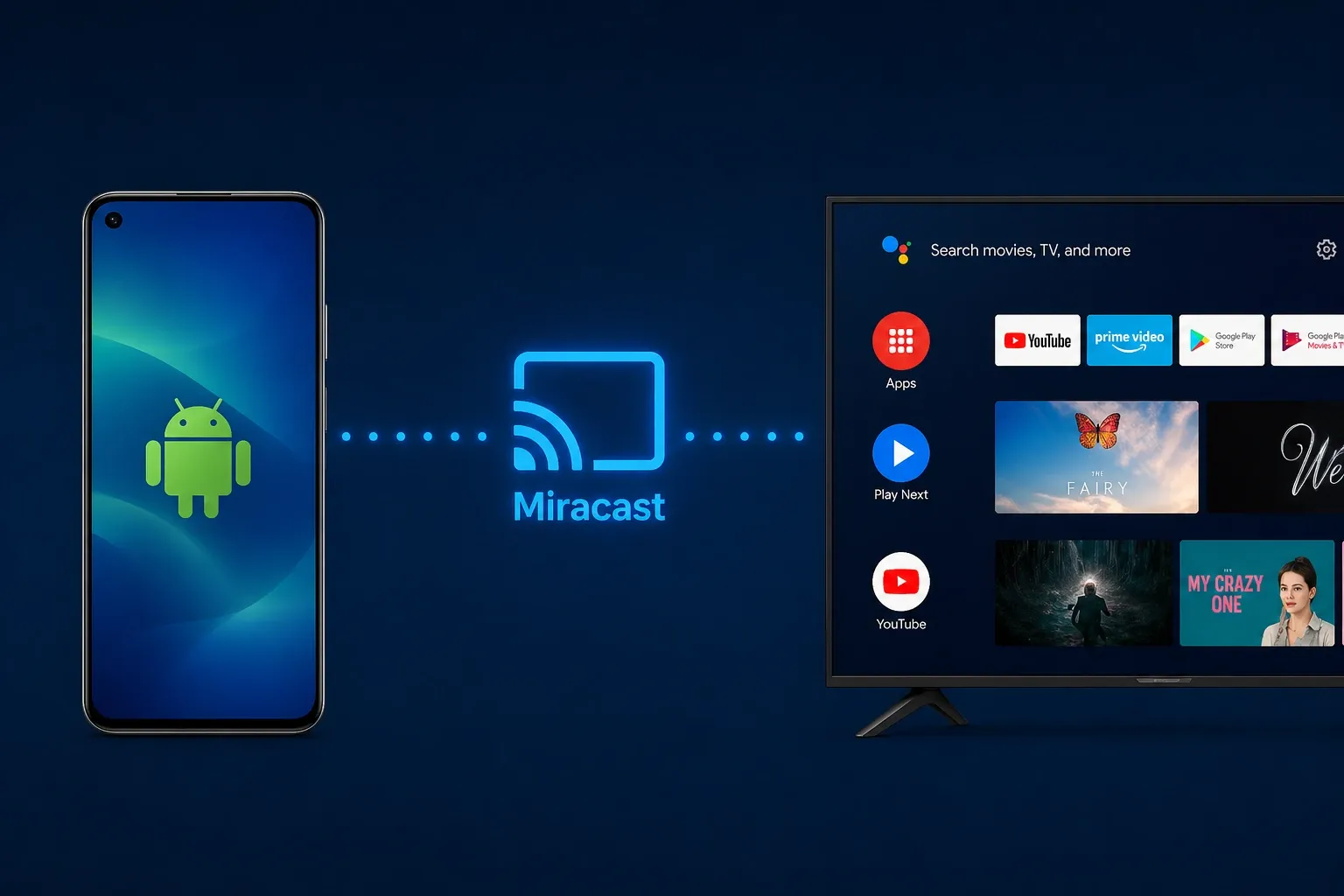
- Sender (Source): This is the standard capability built into almost all Android chips. It allows a phone to encode its screen and broadcast it.
- Receiver (Sink): This is the required software that allows a device to listen for, decode, and display an incoming stream. In 2026, most manufacturers intentionally remove this Sink code from phones to save memory or force users toward proprietary ecosystems (like Google Chromecast).
- The Conflict: Even when hardware is capable, brands like Google (Pixel) and Samsung often use proprietary software layers that prevent their native Sink mode from talking to a different brand's Source.
30-Second Self-Check: Stop Wasting Time
Before touching advanced settings, run this Two-Gate check. If your target phone does not have the Receiver role, native mirroring will never work.
Gate 1: Check the Sender
On the phone you want to share from, go to Settings > Connection > Cast (or Smart View).
- The Test: If the phone starts scanning and can see a nearby Smart TV, the Sender (Source) role is active and working.
Gate 2: Check the Receiver
On the target phone (the one you want to project to), search Settings for Receive Mode, Projection-in, or Wireless Display Receiver.
- The Reality: Most phones will return zero results. This means the Sink software is missing.
- Exceptions: Some Samsung tablets and Xiaomi Pro devices still keep this feature under Second Screen or Collaboration settings.
No Native Receiver? Use PigeonCast for a Reliable Fix
When native receiver support is missing, a powerful mirroring app is a practical workaround built for cross-platform casting across Android, iOS, Windows, macOS, Apple TV, and Android TV. It is not limited to phone-to-TV casting and supports flexible sender/receiver usage across device types.
- Cross-Platform Coverage: Works across major phone, desktop, and TV platforms from one product family.
- Multi-Protocol Support: Supports AirPlay, Google Cast, and DLNA, which helps when one protocol path is blocked on your device pair.
- Wireless Setup Focus: Designed for cable-free pairing and quick connect flows.
- Quality and Stability Focus: Product pages emphasize high-quality, low-latency mirroring and stable connections.
Mirror Android to Android via PigeonCast
Here are steps to establish a stable connection in under a minute. This process bypasses system restrictions and ensures you are not fighting with buggy firmware.


Overall Rating:


Step 1. Download and open the PigeonCast app on your Android devices from the App Store or Google Play.
Step 2. Connect both your Android devices to the same Wi-Fi network.
Step 3. On your Android TV, open Settings > Device Preferences and select Screen Mirroring or Cast.
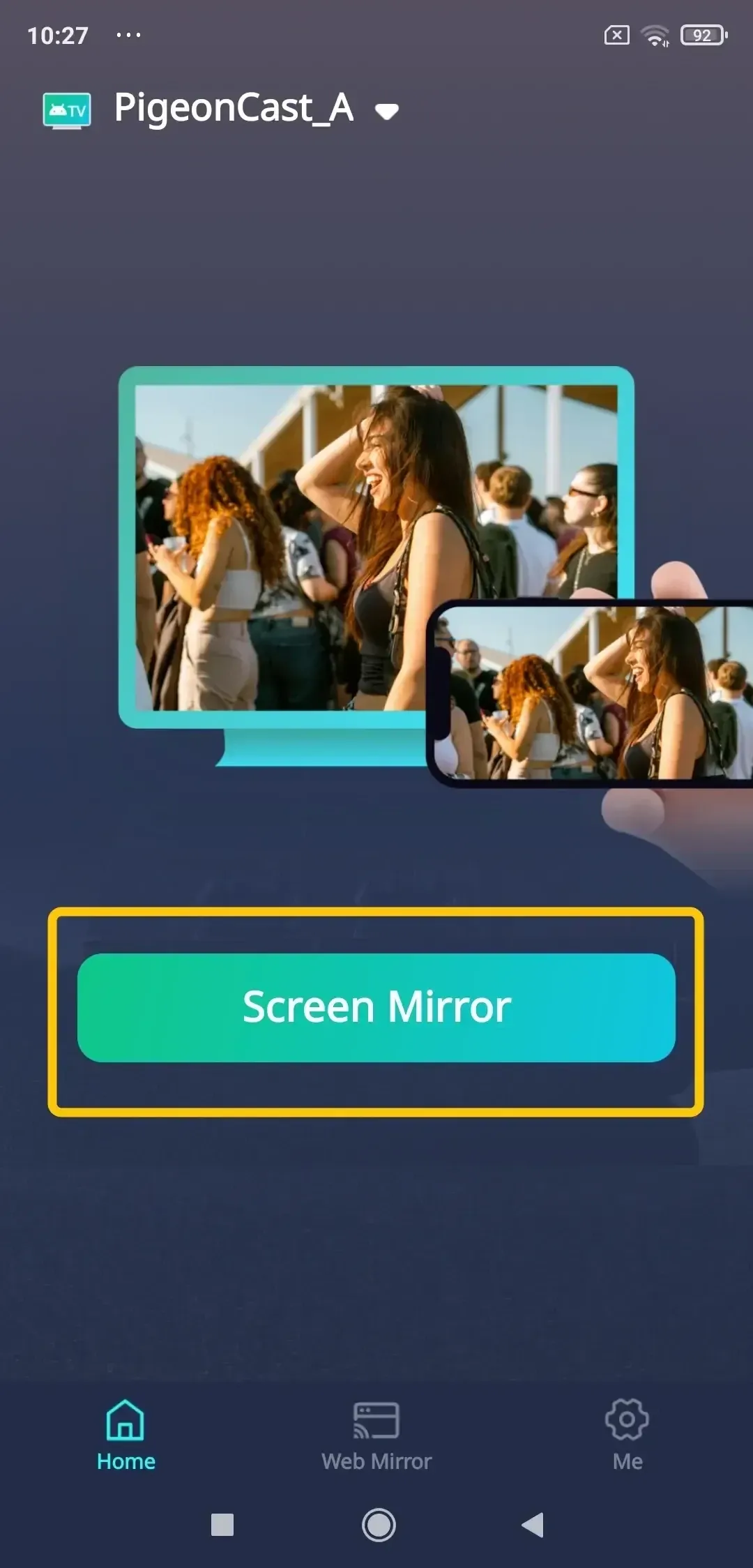
Step 4. Launch the app, tap Select device to choose your Android TV from the available list. Or you can scan the onscreen QR code to build the connection.
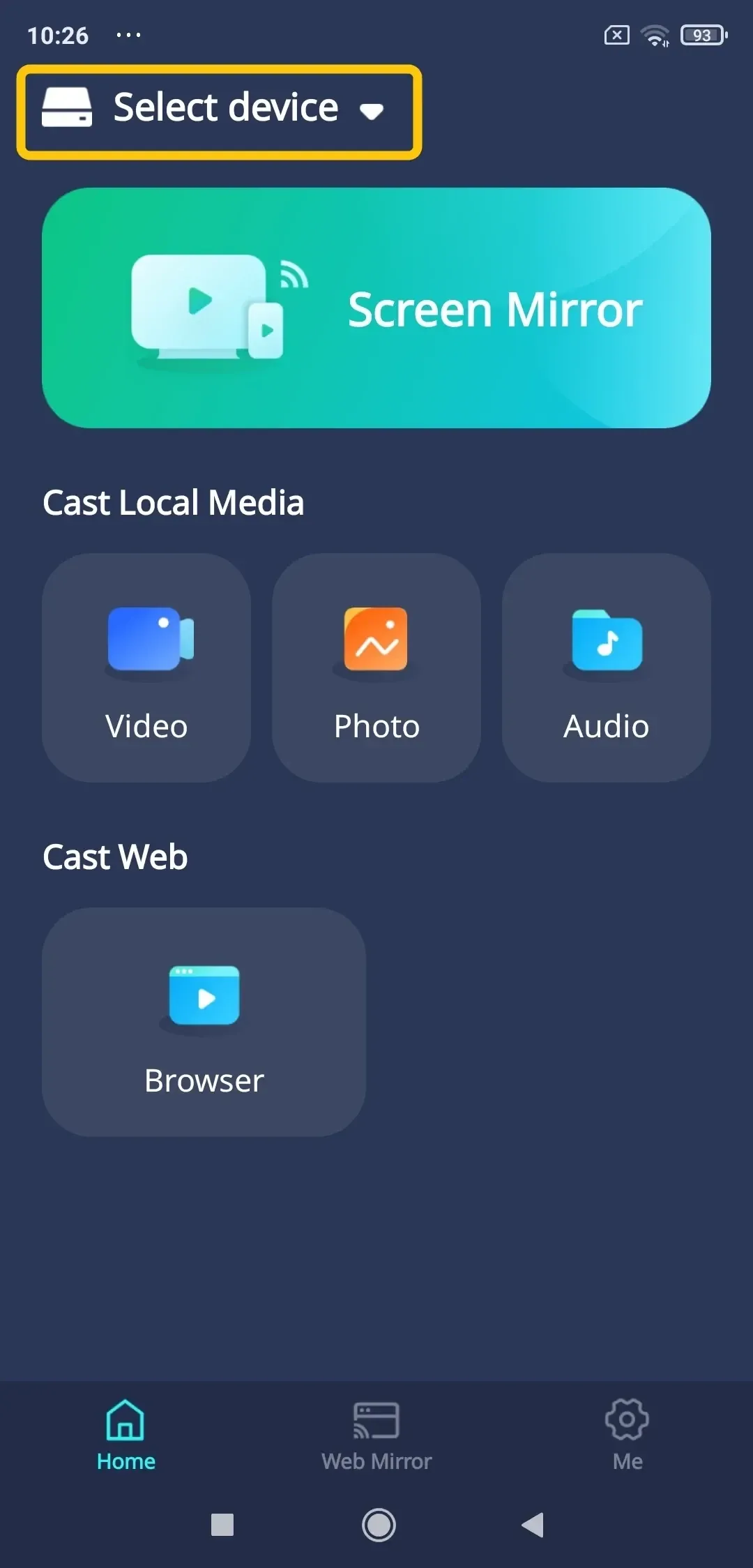
Step 5. When you finish the connection, tap Screen Mirror to start your mirroring activities between your Android devices.
Connection Fixes for Lag, Drops, and Discovery Failures
Hardware is compatible but the stream is still glitchy? Don't waste time on a full reset. Identify your symptom below to fix the specific blocker immediately.
Devices Can't See Each Other
This usually means the Wi-Fi Direct stack is stale. Restart both phones and toggle Airplane Mode once. Ensure both devices are on a stable Wi-Fi frequency (preferably 5GHz) to avoid discovery lag.
Connection Drops Quickly
Aggressive power management is the main culprit. Disable Battery Optimization for your Android casting app and keep both screens awake. If the connection breaks after a few minutes, check whether Data Saver mode is restricting background traffic.
Lag, Stutter, or Frozen Frames
High-resolution mirroring requires heavy bandwidth, so reduce runtime pressure first.
- Lower the sender resolution if the stream is stuttering.
- Lock the screen to Landscape orientation to stop constant UI re-rendering.
- Close heavy background apps like social feeds or large downloads.
Pro Tips: Stay Safe While Mirroring
To avoid privacy slip-ups during demos, follow these three habits:
- Stealth Mode: Turn on Do Not Disturb before you start to hide private texts and sensitive notifications.
- Security First: Stick to trusted networks. PigeonCast adds a stronger permission layer than open Miracast-only flows.
- Wipe the Trail: Periodically clear device history in app settings so your phone does not auto-pair with the wrong target later.
Conclusion
In 2026, Android-to-Android mirroring is rarely "plug-and-play" because most phones lack the native Miracast Sink software. Instead of fighting these system limits, use PigeonCast to bridge the gap. It bypasses brand barriers instantly, turning any browser into a high-performance receiver so you can sync screens in seconds.
Miracast Android to Android FAQ
Does Miracast Android to Android need internet?
No, internet is not required for native Miracast. You only need Wi-Fi turned on for both devices (do not enable Airplane Mode-only state), with both screens unlocked during pairing. If discovery fails, first check three items in order: target device has a real Receive mode, both devices are within short range, and hotspot/VPN is off on both devices.
Why does one Android model work and another fail?
- Vendor ROMs expose different Miracast role support at system level.
- Many phones keep Source (sender) but remove Sink (receiver) components.
- Device firmware policies can block cross-brand role handshakes even when hardware is capable.
- Carrier/region firmware variants may disable receiver features on the same phone model.
Can an old Android phone become a monitoring side screen?
Yes, if the old device can act as a receiver and keep a stable decode session. In practical use, this works best for monitoring dashboards, reference screens, and low-interaction viewing rather than high-frame-rate gaming.
- Check receiver capability on the old phone: open Settings and search for Receive Mode, Projection-in, or Wireless Display Receiver.
- If no native receiver option exists, install a receiver-capable app on the old phone and keep its receiver screen open.
- Place both devices on stable Wi-Fi, keep screens unlocked, and disable battery saver before pairing.
- Start casting from the main phone, accept prompts on the old phone, then run a 30-second test to confirm it holds connection and frame stability.
Why can I cast to TV but not to another Android phone?
- Most smart TVs ship with receiver services enabled by default for casting protocols.
- Many Android phones expose sender-only casting and do not include active receiver modules.
- TV firmware is optimized for sustained display decoding, while phone firmware prioritizes app runtime and power limits.
- Cross-device discovery on phones is more affected by vendor ROM restrictions than TV receiver stacks.
- TV chipsets are validated for long-duration media rendering, while phone thermal policies throttle performance under continuous mirroring load.
- Some phone builds disable background receiver listeners when the screen state or battery policy changes, which interrupts receiver-side continuity.
Is Miracast Android to Android reliable for long meetings or classes?
Usually not as a first-choice setup for long sessions. It can handle short demos, but 30+ minute use is more likely to hit thermal throttling, background process kills, and reconnect interruptions on phones. For class or meeting use, treat phone-to-phone Miracast as a backup path, not your primary screen pipeline.
What is the fastest way to know if native setup is impossible?
Check whether the target device exposes a real receive mode in display or connection settings. If that option is absent, native phone-to-phone Miracast is usually not available on that device.
Clara Rossi is an experienced technology editor and a seasoned expert in screen mirroring and casting technologies. With a keen eye for detail and a deep understanding of how to seamlessly connect devices, Clara excels at optimizing user experiences for effortless sharing and streaming. Whether you're seeking quick fixes or advanced tips, her expertise and responsiveness ensure that every query is met with a well-informed and efficient solution.