
The world of streaming can be overwhelming, and selecting the right device for your TV is a crucial first step. Two leading options are Google's Chromecast and Amazon's Fire TV Stick. Both turn a regular TV into a smart one, but they do so in different ways. This guide breaks down the Chromecast vs FireStick comparison feature by feature to help you choose the best fit for your home entertainment setup.
What Are Chromecast and FireStick
Before comparing features and performance, it helps to understand what these devices are and how they work. Both Chromecast and Fire TV Stick serve the same core purpose: bringing streaming apps and smart features to your TV, though they do so in slightly different ways.
What Is Chromecast
A Chromecast is a small device from Google that plugs into your TV's HDMI port, turning any standard TV into a smart TV. Its main function is "casting", which means you use your phone, tablet, or laptop as a remote control.
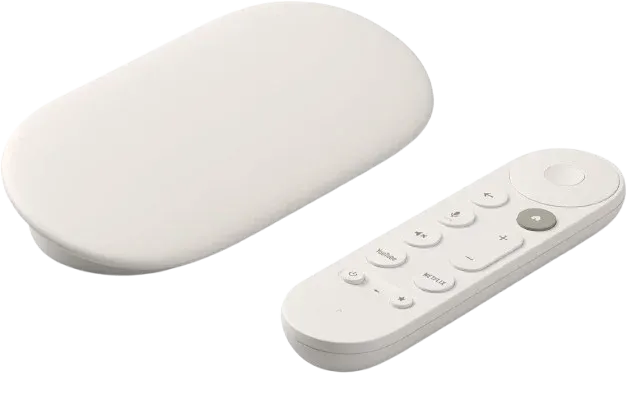
You simply tap the Cast button inside an app like YouTube or Netflix, and it sends the video or music directly from your personal device to play on the big screen. While newer models include a physical remote, this seamless casting ability remains its core purpose.
What Is FireStick
An Amazon FireStick is a portable device you plug into your TV's HDMI port, giving it smart capabilities. Unlike the phone-centric Chromecast, the FireStick comes with its own remote and a full, standalone interface on your TV screen called Fire OS.
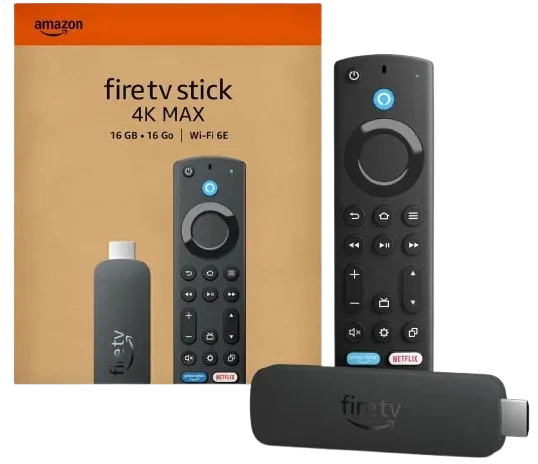
You navigate through menus to open apps like Netflix and Prime Video directly on the TV, much like using a smart TV or a gaming console. It's a complete entertainment platform that puts all the controls in your hand with a remote and integrates deeply with Amazon's Alexa voice assistant.
Google Chromecast vs FireStick
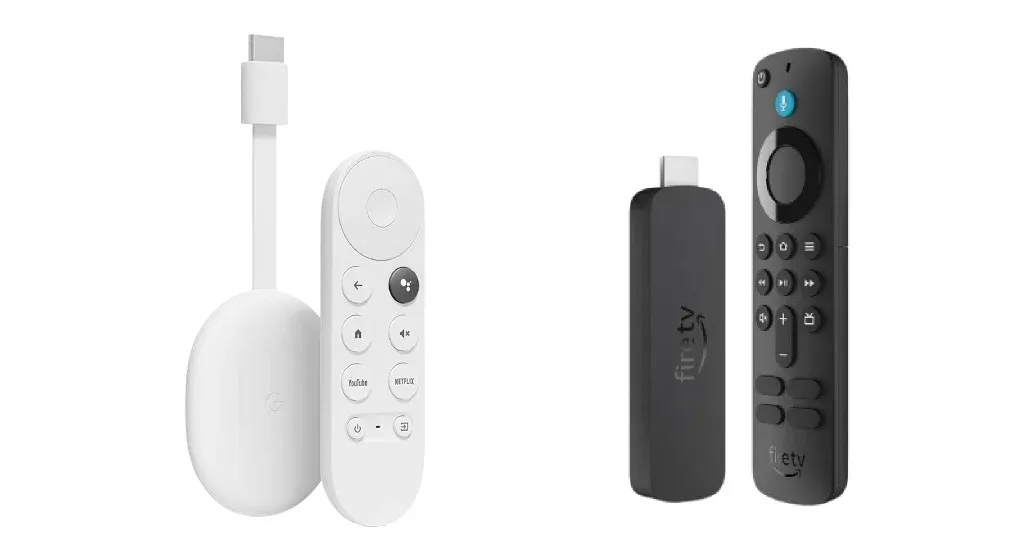
Now that we've covered the basics, let's dive into a detailed comparison. Here, we'll look at Chromecast with Google TV vs FireStick 4K, examining key factors like performance, interface, content options, and usability to help you determine which device is the better fit for your streaming setup.
Casting
While both devices handle casting, their native capabilities have clear strengths and weaknesses. Chromecast vs FireStick for casting: Chromecast's "Cast" button is ubiquitous and reliable, but it's often limited to supported apps. The FireStick's screen mirroring works but can be laggy and unreliable for high-quality video.

This is where a dedicated app like PigeonCast becomes a game-changer. PigeonCast is a free screen mirroring app that can cast your mobile phone, tablet, or even laptop on your TV within seconds. This means you can stream content from your mobile device and enjoy it on the big television screen. Here are the steps to mirror your TV via PigeonCast:
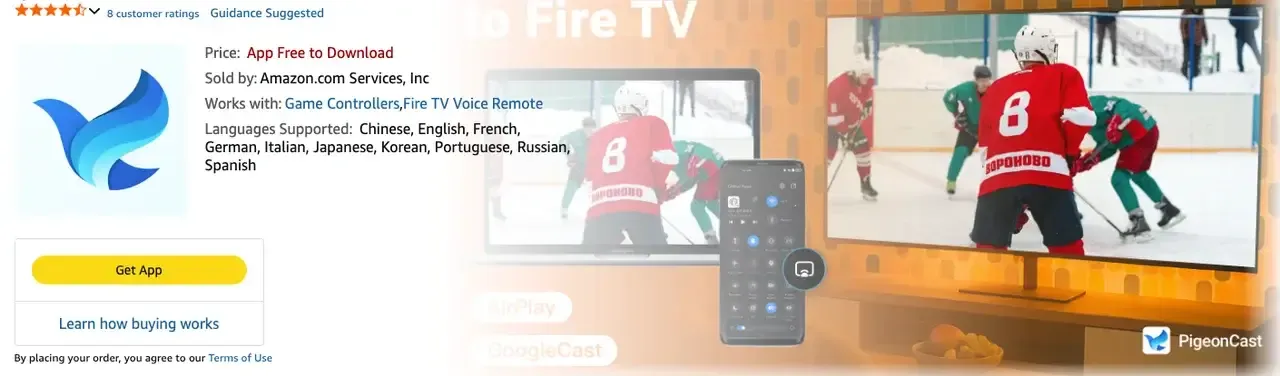
Step 1. Install PigeonCast on your Fire TV Stick or TV with Chromecast.

PigeonCast Screen Mirroring

Official Download



Step 2. Install PigeonCast on your mobile device, such as smartphone, tablet, or laptap.
Step 3. Ensure your mobile device and TV are connected to the same wireless network.
Step 4. Launch the app on your devices, follow the onscreen introductions to connect them.
Step 5. If prompted, enter the onscreen PIN code to finish the pairing process. Once you succeed, you can simply mirror your mobile screen displaying on your television screen.
Price and Specifications
FireStick vs Google Chromecast, in terms of price and specifications, will give you a clear picture of what each device offers and how they stack up against each other in value and performance.
- Price: Both devices are consistently priced within a few dollars of each other, often sitting at or around $50-$60, making this a tie. Both offer excellent value.
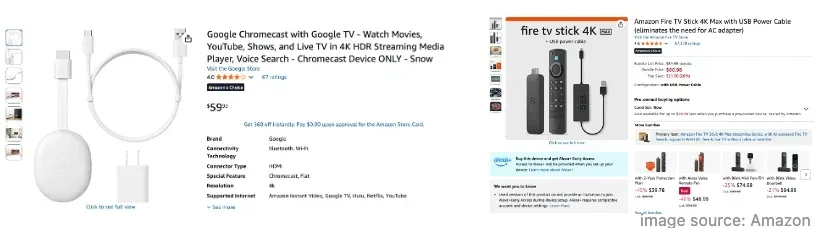
- Specifications:
- Resolution: Both support 4K Ultra HD, HDR10, HDR10+, and Dolby Vision, offering a top-tier picture quality.
- Audio: Both support Dolby Atmos for immersive sound.
- Processing Power: The FireStick 4K Max has a slight edge in raw processing power, which can result in slightly faster menu navigation and app loading times. However, for the average user, Chromecast's performance is more than sufficient and feels smooth.
- Storage: Both have 8GB of storage for apps, which is adequate for a large collection of streaming services.
Ease of Use
Comparing FireStick vs Chromecast in terms of ease of use, FireStick wins for ease of use due to its simplicity and built-in remote control.
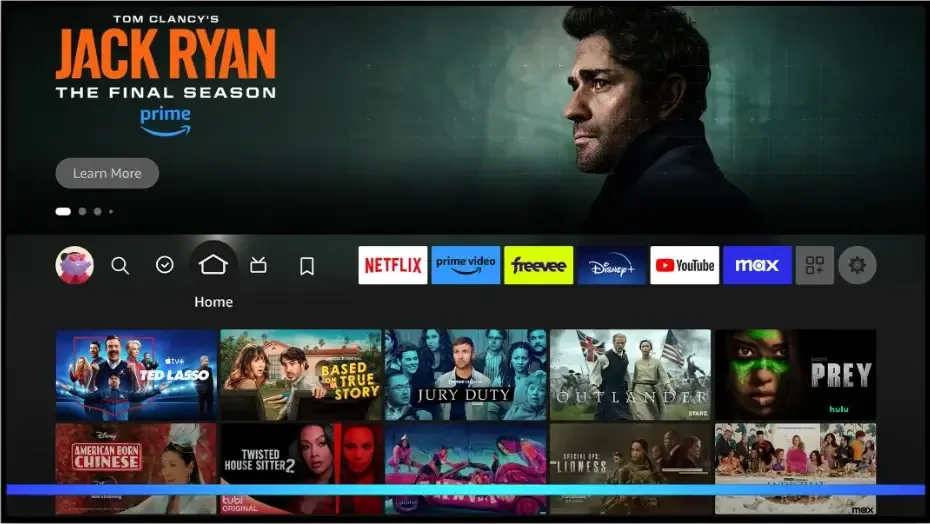
- FireStick: It's designed for a traditional TV experience. You turn on the TV, use the physical remote to navigate the on-screen menus, and open apps like Netflix or Disney+ directly. It's intuitive for anyone who has used a cable box or a smart TV menu. The home screen is filled with recommendations and content rows, making it easy to browse for something to watch without knowing what you want.
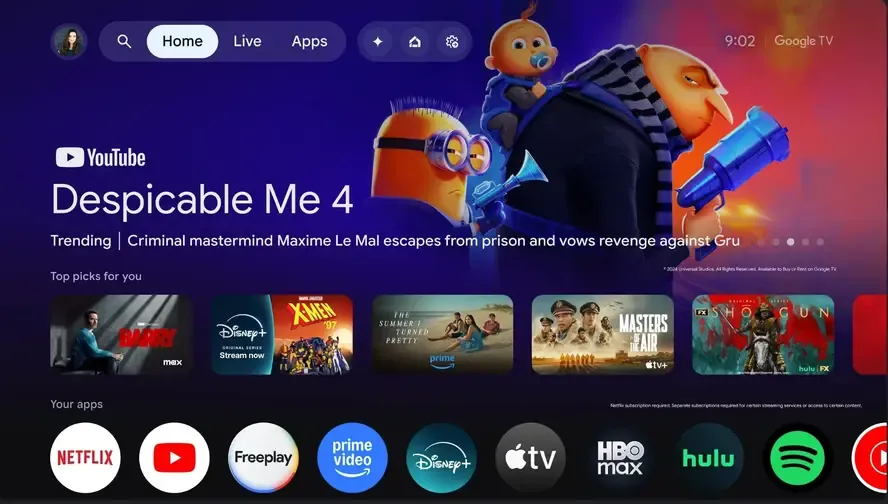
- Chromecast: Modern Chromecasts now offer a similar on-screen interface (Google TV) that is also very user-friendly and remote-controlled. However, its unique advantage is casting. If you primarily watch content on your phone and want to cast it to the big screen, the Chromecast is seamless. You find the video on your phone in an app like YouTube and tap the Cast button. This is incredibly easy for smartphone-savvy users.
Voice and Remote Control
Let's take a closer look at how these devices handle control. Comparing Fire Stick vs Chromecast: Both devices offer strong voice control, but Firestick is more hands-on with its remote, while Chromecast with Google T combines voice and a remote in a more Google-centered experience.
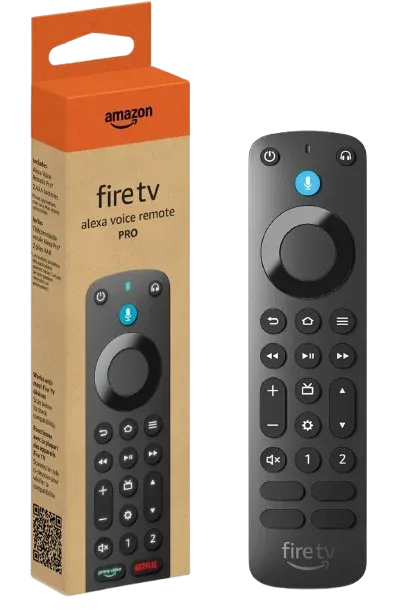
- FireStick Remote: Features dedicated power and volume buttons for your TV/receiver, which is a major convenience. It has a button for Amazon Alexa. You can use it to search for movies, launch apps, control playback, and even ask about the weather. It's deeply integrated with the Amazon ecosystem.
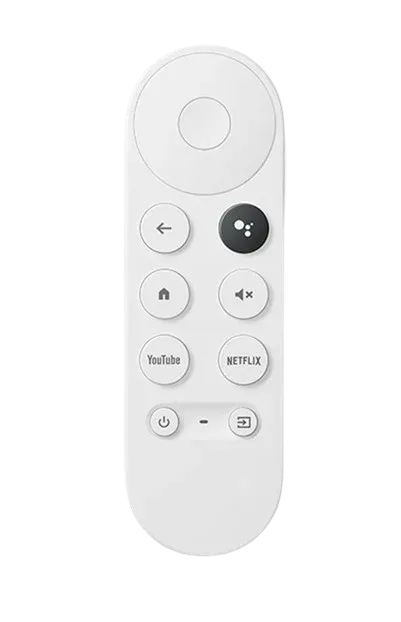
- Chromecast Remote: Also a simple and effective remote, but it features a button for Google Assistant. This allows for a more powerful universal search that can find results across all your subscribed services at once. It's also the better choice if you use Google-based smart home devices (Nest, etc.), as you can control them directly from your TV.
Streaming Services and Channels
Comparing Chromecast vs Fire Stick, FireStick provides a more seamless, all-in-one experience with its native apps. Chromecast is great for users who prefer casting from their devices.
FireStick: Has excellent support for all major services like Netflix, Disney+, Hulu, and Max. Its clear advantage is seamless integration with Amazon's own services, including Prime Video and Freevee. Historically, there have been disputes with Google, sometimes making YouTube apps slower to update or harder to find, though they are available.
- Chromecast: Also has all the major apps. Its strength is flawless integration with Google's services like YouTube and YouTube TV. The casting feature also means that if an app on your phone has a cast button (which thousands do), you can watch it on your TV, sometimes bypassing the need for a dedicated TV app altogether.
Compatibility
For the compatibility of Chromecast vs FireStick 4K, Firestick offers better compatibility. However, Chromecast is more versatile if you want to cast from multiple types of devices and services, especially within the Google ecosystem.
- FireStick Compatibility:
- Smart Home: Excellent integration with the Amazon Alexa ecosystem. If you have Echo devices, smart plugs, or Ring cameras, you can view camera feeds on your TV with a voice command.
- Mobile OS: Works with both iOS and Android devices primarily for app-based remote control and screen mirroring, though the mirroring feature can be laggy.
- File Formats: Less flexible for playing local file formats from a network or USB drive without using a third-party app like VLC.
- Chromecast Compatibility:
- Smart Home: Built for the Google ecosystem. It works seamlessly with Google Nest speakers and displays, allowing you to use your speaker to control playback on the TV.
- Mobile OS: Casting is a universal standard that works flawlessly across both iOS and Android. The experience is more integrated and reliable than the FireStick's mirroring.
- File Formats: While it also requires workarounds for local files, the ability to cast from a Chrome browser on a computer or use apps like PigeonCast provides a very versatile way to play almost any video format on your TV.
Here's a comprehensive comparison between the Google Chromecast with Google TV and the Fire TV Stick 4K, highlighting performance, interface, content options, usability, and compatibility. This breakdown helps you evaluate key factors like casting capabilities, device integration, and overall ease of use.
| Feature | Google Chromecast | Amazon FireStick 4K |
|---|---|---|
| Casting Capability | Chromecast excels at seamless casting from mobile devices and PCs. A universal "Cast" button makes it easy for users to stream content directly from apps like YouTube, Netflix, and more. | FireStick has built-in screen mirroring, but it can be laggy and unreliable for high-quality video, especially for complex apps. |
| Price | Typically priced around $50 - $60 | Priced similarly at $50 - $60 |
| Resolution & Picture Quality | Supports 4K UHD, HDR10+, Dolby Vision, and Dolby Atmos for top-tier picture and sound quality. | Also supports 4K UHD, HDR10, HDR10+, Dolby Vision, and Dolby Atmos, ensuring excellent picture and audio. |
| Audio Support | Dolby Atmos support for immersive sound, especially if paired with compatible audio systems. | Dolby Atmos supports high-quality audio on supported content and compatible sound systems. |
| Processing Power | Chromecast offers smooth performance, although it may be slightly slower than the FireStick in some areas. | FireStick 4K Max is faster with better processing power, ensuring quicker navigation and load times. |
| Storage | 8GB of internal storage for apps, providing a decent amount of space for various streaming services. | 8GB of storage, similar to Chromecast, is enough for streaming apps but limited for large local file storage. |
| Interface & Usability | Google TV interface is modern, app-centric, and integrates voice search with Google Assistant. Easy to use, especially for Android and Google services users. | FireStick uses a traditional TV-style interface. Easy to navigate using the remote, with strong integration with Amazon services like Prime Video and Freevee. |
| Remote Control | Google Assistant button for voice commands and smart home integration, perfect for Google Home users. Simple and effective remote design. | Alexa voice control, including TV power and volume control. Supports a wide range of Amazon ecosystem devices (Echo, Ring, etc.). |
| Voice Control | Google Assistant is deeply integrated, allowing you to search content, control playback, and even control Google smart home devices. | Alexa voice control supports searches, app launches, and smart home device integration, with a focus on Amazon services. |
| Streaming Services & Apps | Strong support for major streaming services like Netflix, YouTube, Disney+, and HBO Max. Seamless integration with Google services like YouTube and YouTube TV. | Excellent support for Netflix, Disney+, Hulu, and Amazon Prime Video. Strong integration with Amazon services, but occasionally slower updates for YouTube apps. |
| Compatibility with Smart Home | Perfect integration with Google smart home devices like Nest and Google Assistant-enabled devices. | Works seamlessly with Amazon Alexa-enabled devices like Echo, Ring, and more. |
| Mobile OS Compatibility | Works well with both iOS and Android devices. The casting feature is especially intuitive on Android phones and tablets. | Also works with iOS and Android devices for app-based remote control and screen mirroring. |
| File Format Support | Limited local file support, but casting from the Chrome browser or using third-party apps like PigeonCast allows for versatile file playback. | Limited support for local file formats, but it works well with third-party apps like VLC for streaming from USB or network drives. |
| Content Discovery | Google TV's recommendations are based on personal preferences and Google ecosystem data, offering a more personalized experience. | FireStick's recommendation engine is largely driven by Amazon's content, including Prime Video and Freevee, though it also supports other services. |
| Setup & Installation | Easy setup with a Google account and automatic app recommendations from the Google Play Store. | Quick setup with Amazon account integration, especially if you are already using Amazon services. |
| Device Ecosystem | deal for users already in the Google ecosystem (Google Home, Nest, YouTube, etc.). | Best for users deeply embedded in the Amazon ecosystem (Alexa, Ring, Echo, Fire TV). |
Closing Words
Choosing Chromecast or Fire Stick depends on your streaming habits and ecosystem preferences. Chromecast is great for casting from mobile devices and works seamlessly with Google services, while FireStick offers a full on-TV interface with a remote and strong integration with Amazon's ecosystem. Both deliver a smart TV experience, so the best choice comes down to how you like to watch. For a smoother, more stable, and secure screen-mirroring experience, consider using PigeonCast!
Chromecast vs FireStick FAQ
Which is better Chromecast or FireStick?
There's no absolute winner. Chromecast is better if you frequently cast from mobile devices and use Google services, while FireStick is ideal if you prefer a full on-TV interface with a remote and Amazon ecosystem integration. The best choice depends on your viewing habits and ecosystem preference.
What are the disadvantages of Chromecast?
Some disadvantages of Chromecast include limited standalone functionality, since it relies heavily on a phone, tablet, or computer to cast content. The remote and on-TV interface are less central than on devices like FireStick, which can feel less intuitive for traditional TV users. Additionally, some apps may not support casting, and advanced features like playing local files often require third-party tools.
Is Chromecast being discontinued?
Yes, Google has officially discontinued the Chromecast line. As of August 6, 2024, the company announced the end of production for all Chromecast devices, including the Chromecast with Google TV (both 4K and HD models). These devices are now available only while supplies last.
Does a FireStick work as a Chromecast?
No, a Fire TV Stick does not work exactly like a Chromecast. While both devices allow streaming to your TV, a Fire TV Stick runs its own operating system and allows you to install apps directly, whereas Chromecast relies on casting content from a smartphone, tablet, or computer. The Fire TV Stick offers a more independent experience, while Chromecast functions as a bridge for streaming from other devices.
Is there a better option than Chromecast?
Yes, there are alternatives to Chromecast, depending on your needs. For example, PigeoCast offers a similar casting experience but with more flexibility, allowing you to mirror content from your mobile device or computer to your TV. If you're looking for a more integrated streaming experience with apps and a user interface, options like the Amazon Fire TV Stick, Roku, or Apple TV might be better.
What is the downside of a FireStick?
The primary downsides of a FireStick are its user interface, which includes prominent advertisements and Amazon-centric content, and its ecosystem, which is less open than pure Android TV, sometimes requiring extra steps to install apps not found on the Amazon Appstore. Additionally, the remote may lack certain dedicated buttons like volume control found on competitors' devices.
Is PigeonCast free and safe for screen mirroring?
Yes, PigeonCast is free for basic screen mirroring and is generally considered safe to use, as it operates on a direct peer-to-peer connection that doesn't route your data through external servers; for optimal security, always download the app from official stores and use it on a trusted private network.
Clara Rossi is an experienced technology editor and a seasoned expert in screen mirroring and casting technologies. With a keen eye for detail and a deep understanding of how to seamlessly connect devices, Clara excels at optimizing user experiences for effortless sharing and streaming. Whether you're seeking quick fixes or advanced tips, her expertise and responsiveness ensure that every query is met with a well-informed and efficient solution.