
TCL TV screen mirroring Android can be simple, but the right method depends on your TCL TV system. A TCL Google TV or Android TV may work with built-in Cast, while a TCL Roku TV uses a different screen mirroring setting. If you only want to play a video, app casting may be enough. If you need to show your full phone screen, photos, browser, files, or mobile apps on the TV, this guide will help you choose the best way to connect your Android phone to a TCL TV.
Can You Screen Mirror Android to TCL TV?
Yes. Most TCL Google TV and TCL Android TV models can receive Android screen mirroring through Cast or a similar wireless display feature. TCL Roku TV uses a separate Roku screen mirroring setting, so the steps are different.
| Your goal | Best method |
|---|---|
| Show your full Android screen | Screen mirroring |
| Play videos or photos from one app | App casting |
| Mirror to a TCL Roku TV | Roku screen mirroring |
| Avoid Wi-Fi or wireless errors | HDMI |
Casting sends content from one supported app to the TV. Screen mirroring shows your full Android phone screen, including apps, browser pages, photos, files, and notifications. Before you start, connect your phone and TCL TV to the same Wi-Fi network and turn off VPN if the TV does not appear.
Use Built-in Cast on TCL Google TV or Android TV
If you have a TCL Google TV or TCL Android TV, try the built-in Cast option first. It does not need an extra cable, and it works well for many Android phones when both devices are on the same Wi-Fi network.
Step 1. On your TCL TV, open Settings and look for Cast, Chromecast built-in, Screen Mirroring, Wireless Display, or a similar option. Make sure the mirroring or casting feature is turned on if your TV shows this setting.
Step 2. Keep your TCL TV on the Home screen.
Step 3. Connect your Android phone and TCL TV to the same Wi-Fi network.
Step 4. On your Android phone, swipe down from the top of the screen to open Quick Settings.
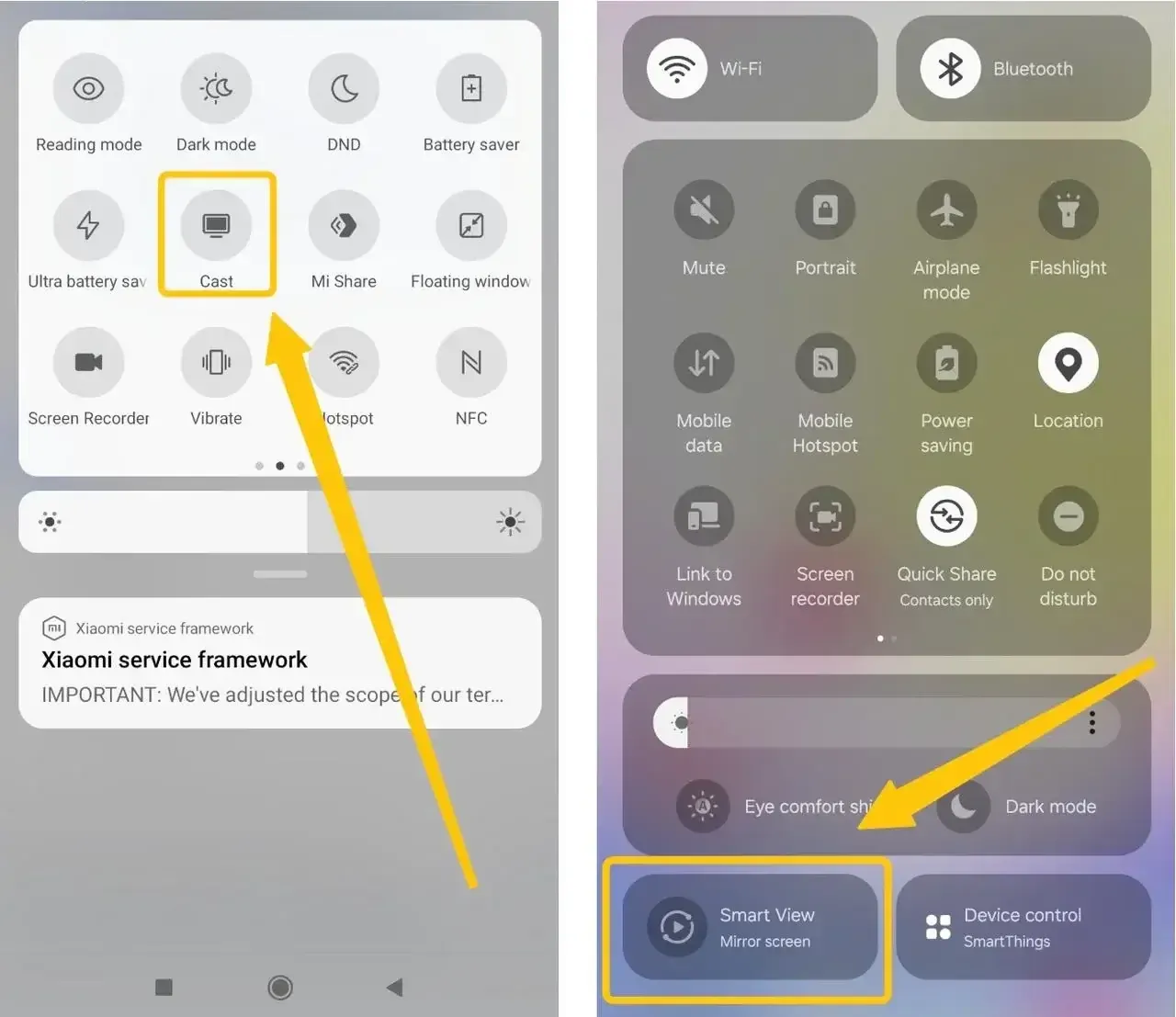
Step 5. Look for Cast, Screen Cast, Smart View, Wireless Projection, or Screencast. The name depends on your phone brand.
Step 6. Tap the casting option and choose your TCL TV from the device list.
Step 7. Accept the connection prompt on your TCL TV if it appears.
If the TV does not show up, wait a few seconds and refresh the device list. You can also restart Wi-Fi on your phone, turn off VPN, and make sure your TCL TV is not connected to a Guest Network.
Cast from Apps Like YouTube or Google Photos
If you only want to play a video, photo, or music from one supported app, app casting is usually easier than full screen mirroring. Your phone stays free for playback controls, while the content plays on your TCL TV.
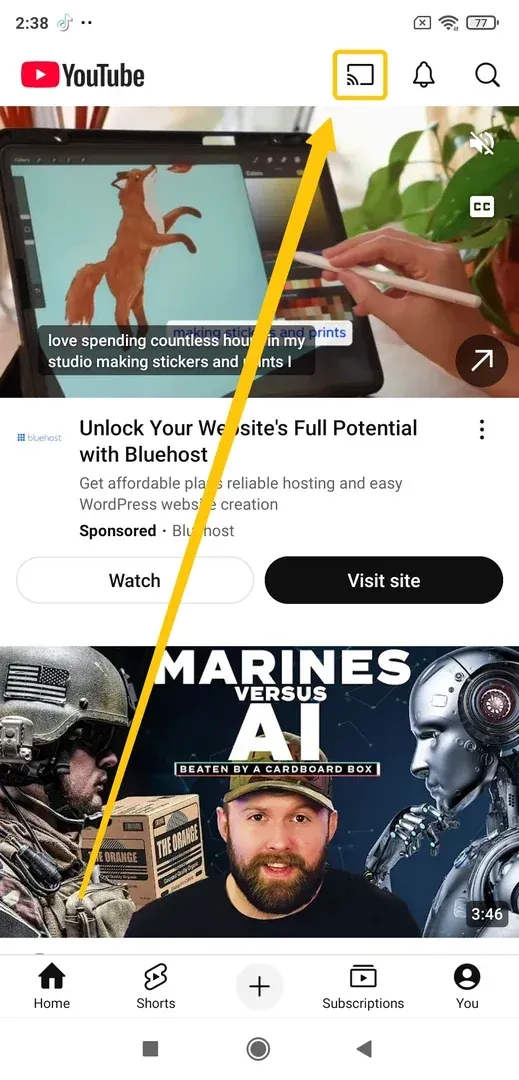
Step 1. Connect your Android phone and TCL TV to the same Wi-Fi network.
Step 2. Open a supported app, such as YouTube, Google Photos, or another app with a Cast button.
Step 3. Tap the Cast icon inside the app.
Step 4. Choose your TCL TV from the device list.
Step 5. Use your phone to pause, skip, adjust volume, or stop casting.
Use PigeonCast When Native Mirroring Fails
If you want a simpler app-based way to mirror Android to a TCL TV, PigeonCast is a practical option. It works over Wi-Fi, so you do not need HDMI cables, adapters, Chromecast devices, or extra hardware. It also gives you a clear connection path when Android phone menus use different names like Cast, Smart View, Wireless Projection, or Screencast.
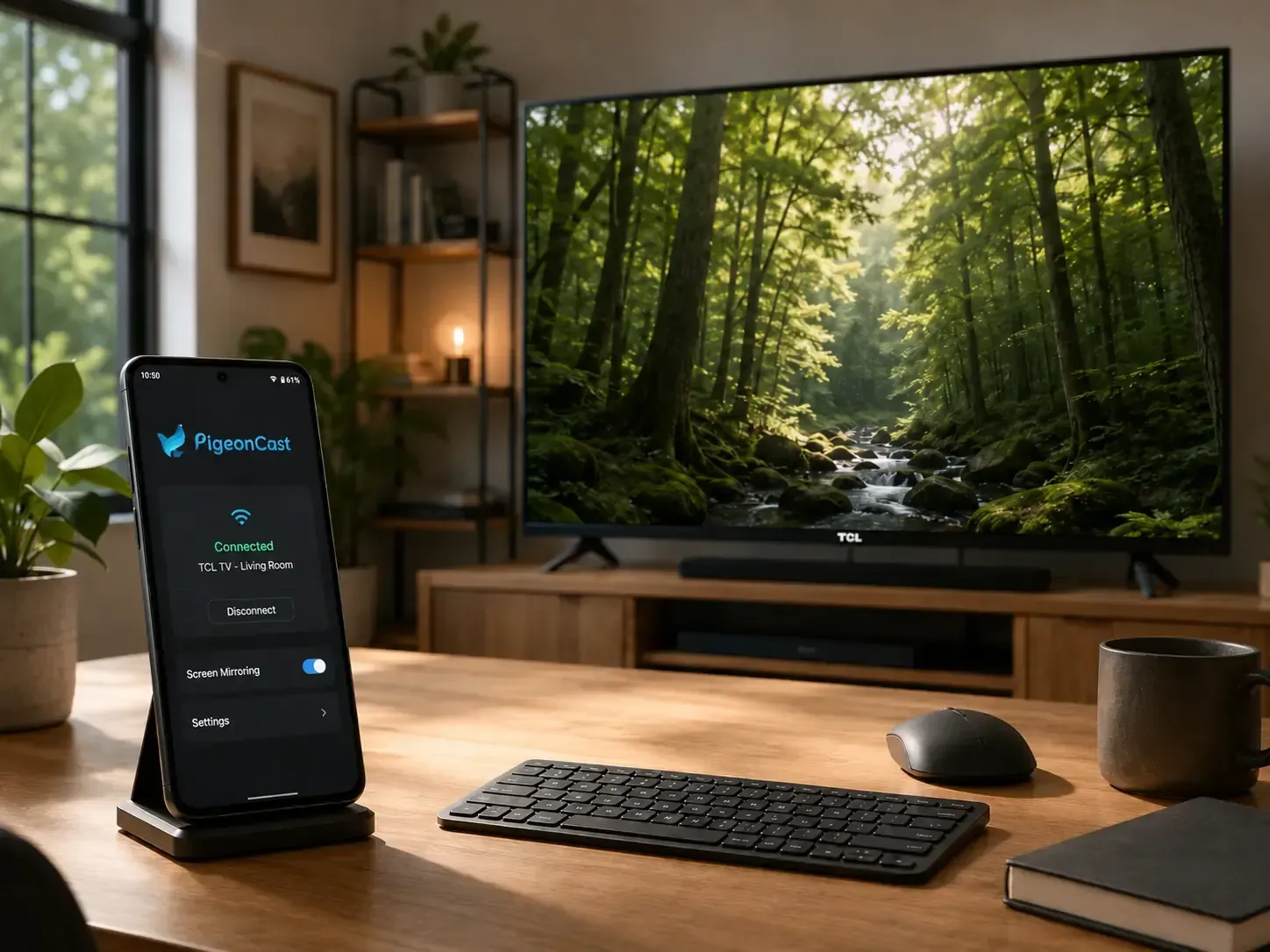
Step 1. Ensure your Android and TCL TV are covered by the same wireless network.


Overall Rating:


Step 2. Download PigeonCast on your Android phone from the app shop, and you can also install the app on the TCL Android TV or TCL Google TV from app store if available.
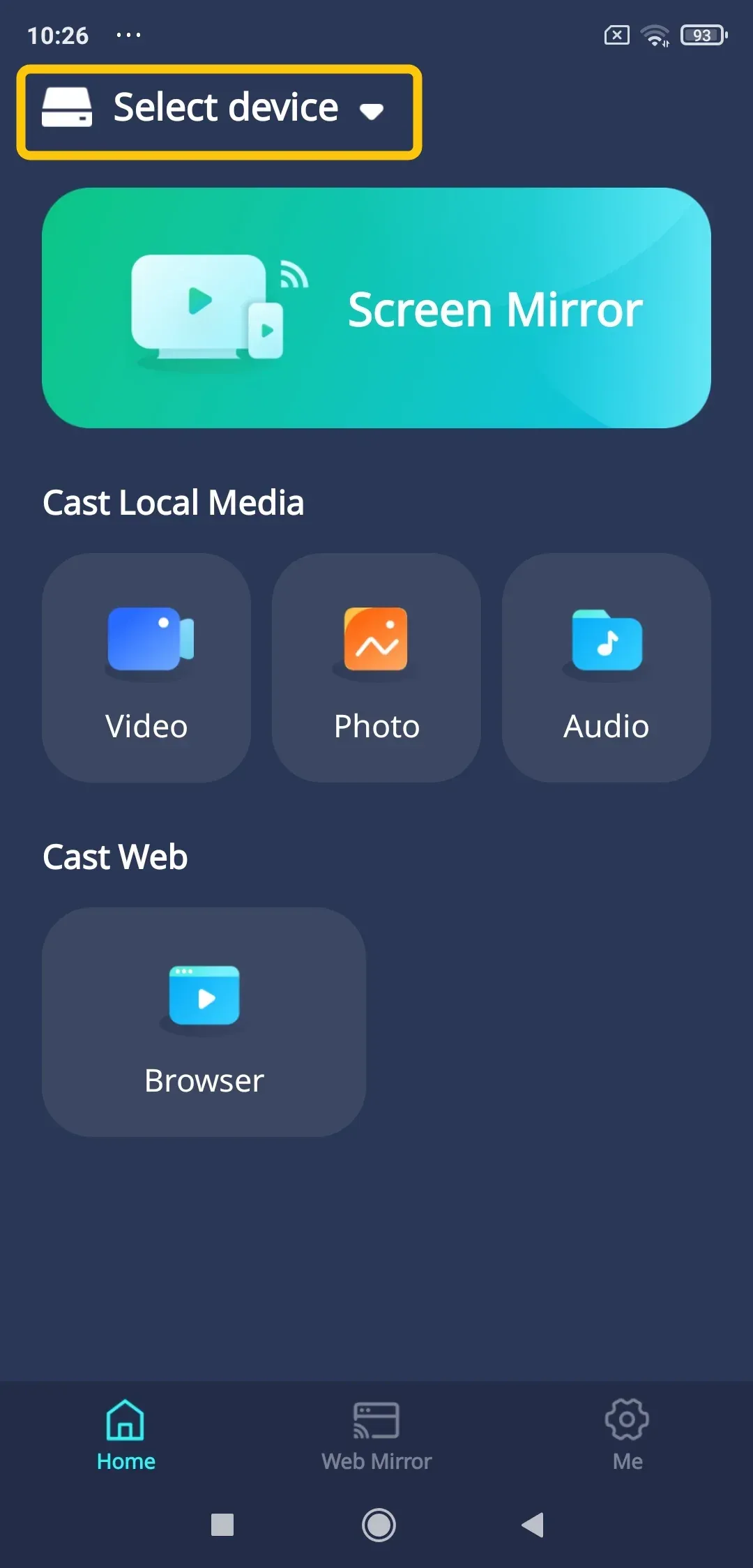
Step 3. Open PigeonCast, tap Select device to choose your TCL TV from the device list.
Step 4. Enter the onscreen PIN code to finish the pairing process.
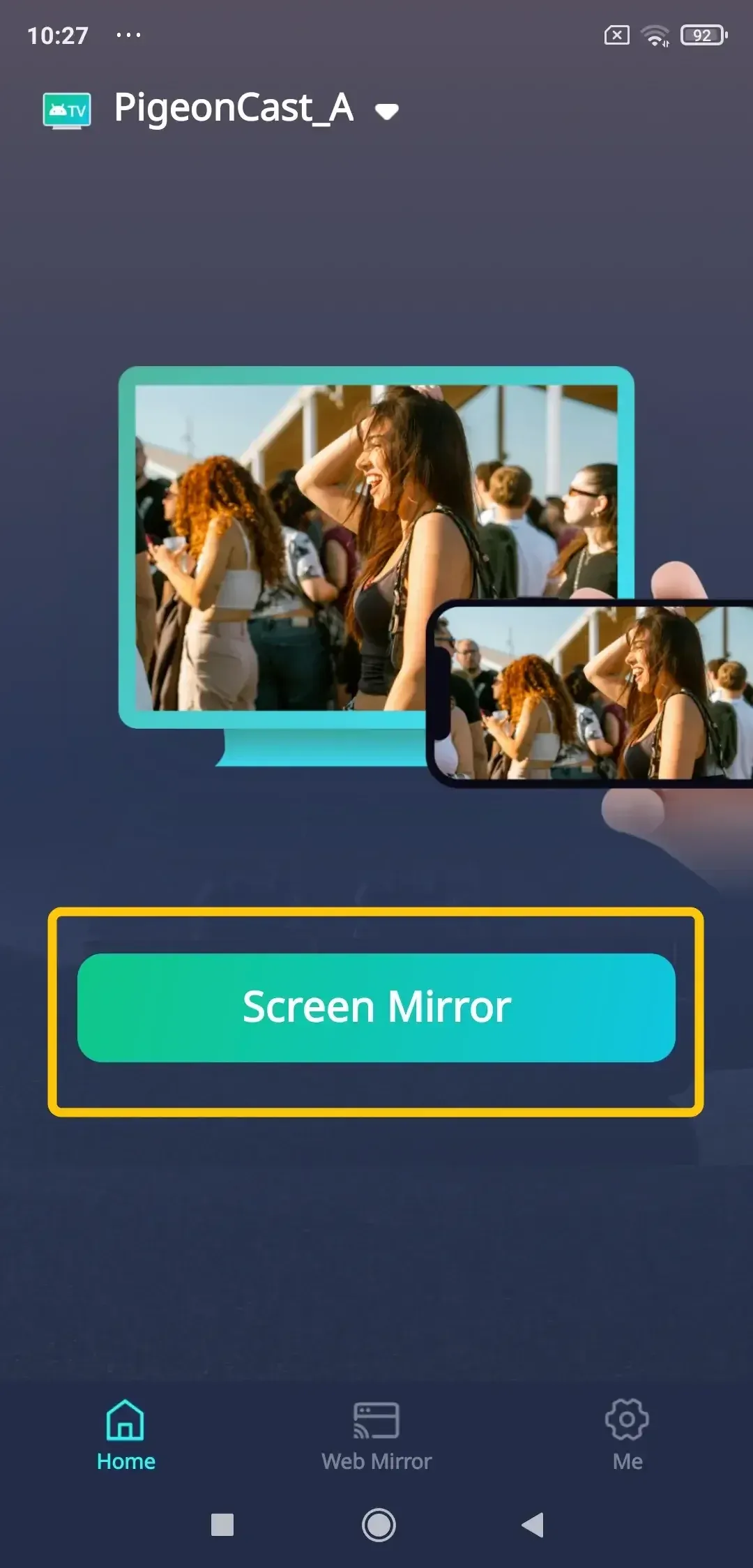
Step 5. When you finish the connection, tap Screen Mirror to start mirroring.
PigeonCast is not limited to fixing a failed Cast connection. You can mirror photos, videos, apps, browser pages, and presentations from your Android phone to a bigger TCL TV screen. It also supports common screen mirroring and casting protocols, including AirPlay, Chromecast, and DLNA, so it fits homes with different phones, computers, and TV devices.
Mirror Android to TCL Roku TV with Screen Mirroring
If you have a TCL Roku TV, do not use the same path as TCL Google TV or Android TV. Roku has its own screen mirroring setting, and your Android phone and TCL Roku TV should be on the same wireless network before you connect.
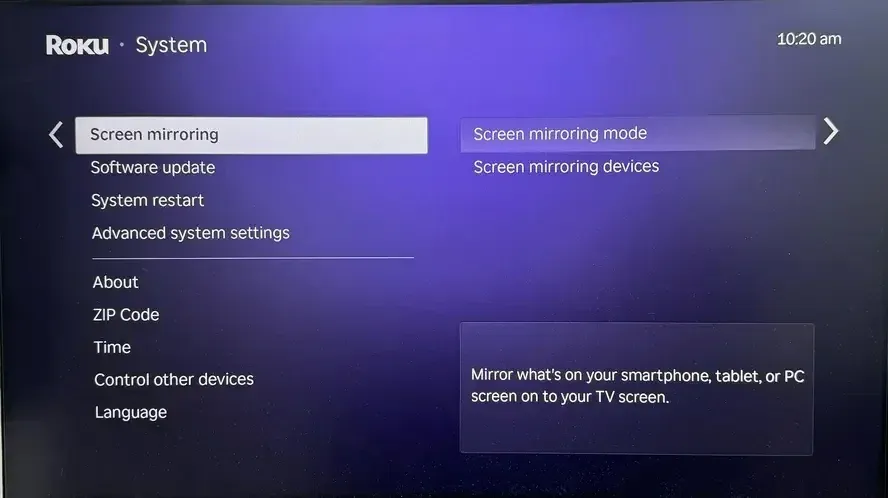
Step 1. On your TCL Roku TV, press Home on the remote.
Step 2. Go to Settings > System > Screen mirroring.
Step 3. Open Screen mirroring mode and choose Prompt or Always allow.
Step 4. Connect your Android phone and TCL Roku TV to the same wireless network.
Step 5. On your Android phone, open Quick Settings > Cast, Screen Cast, Smart View, Wireless Projection, or Screencast.
Step 6. Select your TCL Roku TV from the device list.
Step 7. Accept the connection prompt on your TV if you set the mode to Prompt.
Connect Android to TCL TV with HDMI
If you can't screen mirror to TCL TV with Wi-Fi, HDMI is the most stable way to show your Android phone on a TCL TV. It is useful when the TV does not appear in the cast list, the Wi-Fi connection is weak, or you want to avoid wireless delay.
Step 1. Check the port on your Android phone:
- If it has a USB-C port, use a USB-C to HDMI adapter.
- If it has a Micro USB port, check whether the phone supports MHL before buying an adapter.
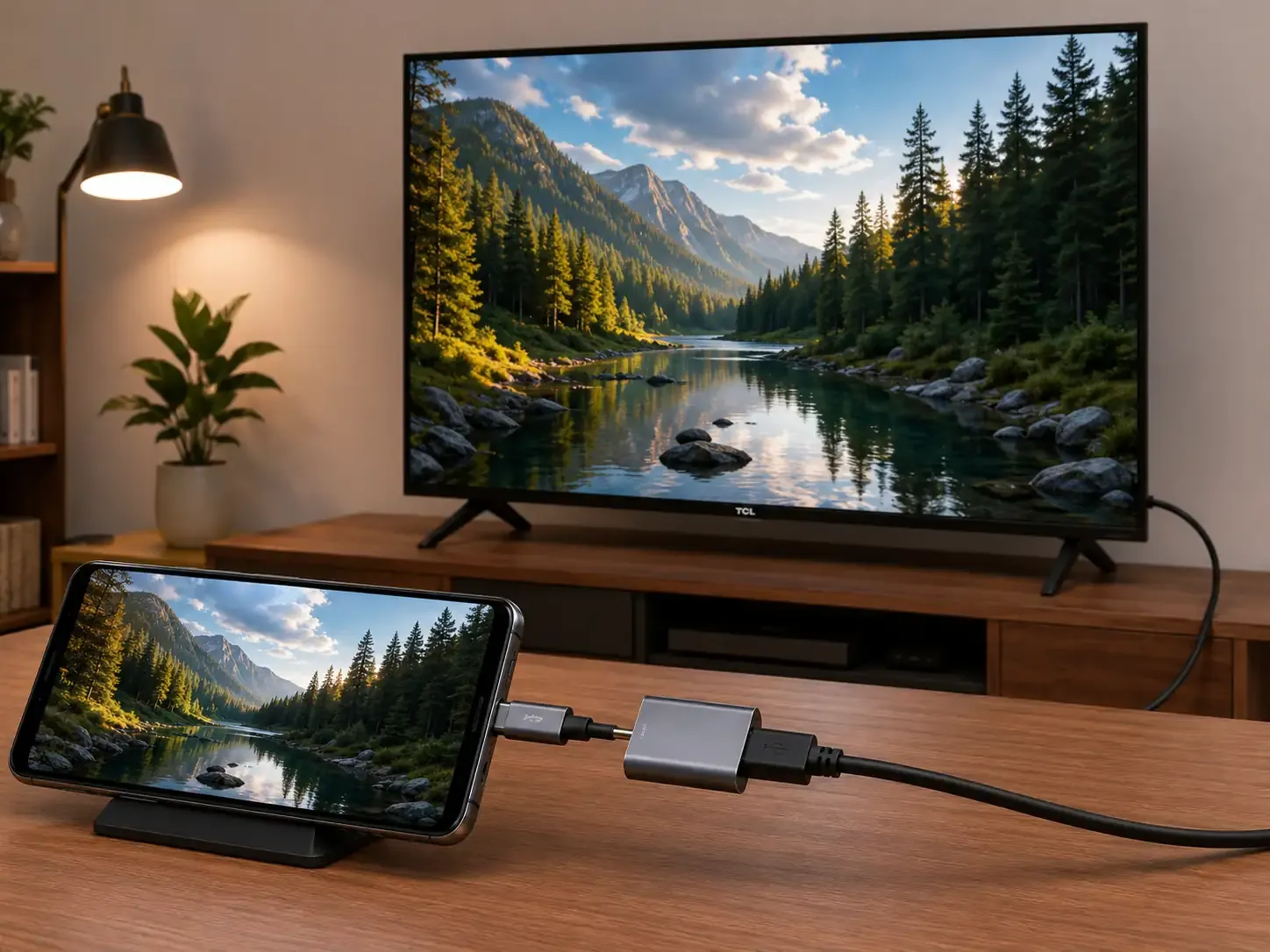
Step 2. Prepare the right adapter and an HDMI cable, then plug the adapter into your Android phone.
Step 3. Connect the HDMI cable from the adapter to an HDMI port on your TCL TV.
Step 4. On your TCL TV remote, press Input or Source, select the correct HDMI input.
If nothing appears on the TV, your Android phone may not support video output through its charging port. In that case, changing the HDMI cable will not solve the issue, and you should use wireless casting instead.
Bottom Line
The best way to mirror Android to a TCL TV depends on your TV system and what you want to show. Use built-in Cast for TCL Google TV or TCL Android TV, app casting for supported videos and photos, Roku screen mirroring for TCL Roku TV, PigeonCast when native discovery fails, and HDMI when you need a stable wired connection. Start with the method that matches your TCL model, then switch only if the TV does not appear or the connection is not stable.
TCL TV Screen Mirroring Android FAQ
Why is my Android screen delayed on TCL TV?
Screen delay usually comes from Wi-Fi quality, router distance, background apps, or high-resolution video playback. For casual viewing, a small delay is normal. For gaming or fast touch control, wireless mirroring may feel less responsive than a wired connection.
Can I mirror protected streaming apps from Android to TCL TV?
Some streaming apps may block full screen mirroring and show a black screen, audio only, or an error message. In that case, open the same streaming app directly on the TCL TV or use the app’s built-in casting feature if it is available.
Can I use Bluetooth to mirror Android to TCL TV?
No. Bluetooth is not designed for full screen mirroring. It can connect remotes, headphones, speakers, or keyboards, but it cannot send your Android screen to a TCL TV. Use Wi-Fi-based mirroring, app casting, or HDMI instead.
Is TCL TV screen mirroring Android the same on Samsung, Xiaomi, and Motorola phones?
No. The basic idea is similar, but the button name and location change by brand. Samsung often uses Smart View, while other Android phones may use Cast, Screen Cast, Wireless Projection, or Screencast. If you cannot find the setting, search your phone settings for "cast" or "wireless display".
Why does my Android phone connect to TCL TV but disconnect quickly?
The connection may be unstable if the router is far away, the TV is on a weak Wi-Fi band, or your phone switches between Wi-Fi and mobile data. Battery saver can also interrupt mirroring. Keep both devices near the router, turn off battery saver during mirroring, and avoid locking the phone too quickly.
Can I screen mirror Android to TCL TV without internet?
You may not need internet access for local screen mirroring, but both devices usually still need to be on the same local network. If your router has no internet but still creates a local Wi-Fi network, mirroring may still work. Streaming videos, cloud photos, and online apps will still need internet to load content.
Clara Rossi is an experienced technology editor and a seasoned expert in screen mirroring and casting technologies. With a keen eye for detail and a deep understanding of how to seamlessly connect devices, Clara excels at optimizing user experiences for effortless sharing and streaming. Whether you're seeking quick fixes or advanced tips, her expertise and responsiveness ensure that every query is met with a well-informed and efficient solution.