
It's incredibly frustrating when YouTube AirPlay not working interrupts your streaming with "Unable to Connect" errors or persistent black screens. These failures usually stem from network glitches, firmware mismatches, or hidden app settings between your device and the TV. This guide provides 7 professional fixes to troubleshoot these connection drops and restore your 4K viewing experience instantly.
Quick Checks: The "Must-Haves" for AirPlay
Before moving to deeper settings, ensure these three foundational requirements are met. Often, mirroring failures are simply a result of a minor communication oversight:
-
Network Synchronization: Both devices must be on the exact same Wi-Fi SSID. If your iPhone is on 5GHz and your TV is on 2.4GHz, your router might prevent them from seeing each other.
-
Local Network Permissions: On your iOS device, go to Settings > YouTube and confirm that Local Network is toggled ON. Without this, the app is digitally "blind" to your TV.
-
Bluetooth Handshake: Ensure Bluetooth is active on your phone. While Wi-Fi carries the video data, AirPlay uses Bluetooth for initial device discovery.
Why Your TV Isn't Showing Up on YouTube AirPlay
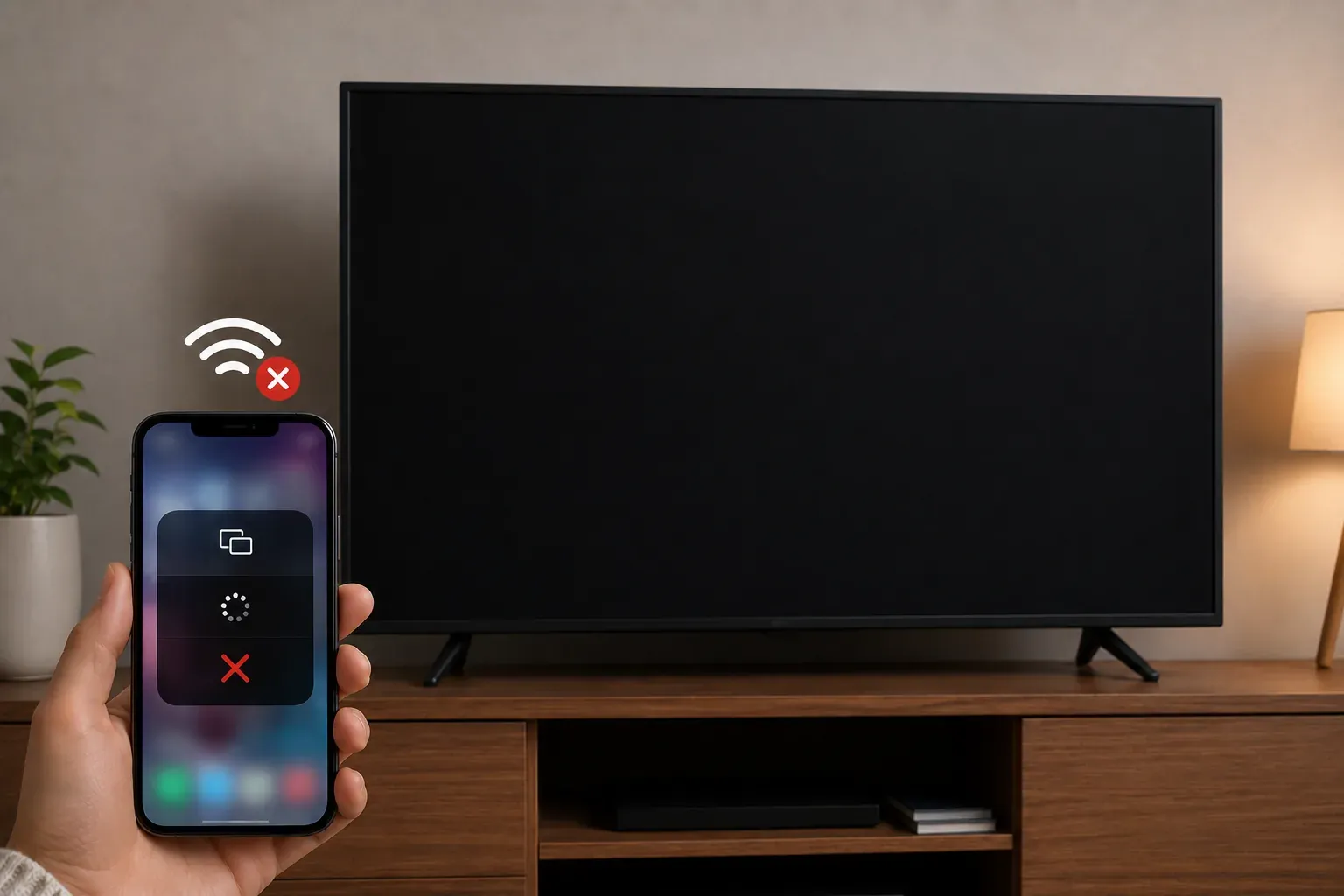
Understanding the technical "why" behind helps prevent them from recurring. In 2026, streaming isn't just about sending a signal, but a complex multi-layered communication. Here are the core reasons:
-
Protocol Mismatches: AirPlay 2 relies on perfect synchronization between Apple's proprietary software and your TV's manufacturer. Even a minor YouTube app update can break this link if the TV's internal receiver hasn't been optimized for the latest streaming standards.
-
HDCP & DRM Glitches: YouTube's premium content uses HDCP (Digital Content Protection). If your network has even a micro-stutter, the security connection fails, resulting in a black screen where only audio is audible.
-
Network Masking (VPN/Private Relay): Tools like iCloud Private Relay or active VPNs mask your device's IP address. This effectively hides your phone from your TV, making a direct local link impossible.
-
mDNS Discovery Failure: AirPlay uses a protocol called Bonjour (mDNS) to find devices. Many routers have "mDNS Snooping" disabled or "AP Isolation" enabled by default, which silences the signal your TV sends out to announce it's ready for AirPlay.
-
Cache Congestion: Both the YouTube app and your TV's OS store "tokens" from previous sessions. If a token becomes corrupted, the system may try to connect using old credentials, leading to a persistent "Unable to Connect" loop.
-
Hardware Resource Limits: On some Smart TVs, if too many apps are running in the background, the TV may de-prioritize the AirPlay receiver service to save memory, causing the TV to disappear from your device list entirely.
Before changing advanced AirPlay or router settings, open YouTube directly on the television. If the YouTube app is not working on your TV even without AirPlay, the problem is more likely related to the TV app, firmware, cache, account, or internet connection than to AirPlay discovery. Fix the TV-side playback issue first, and then test AirPlay again.
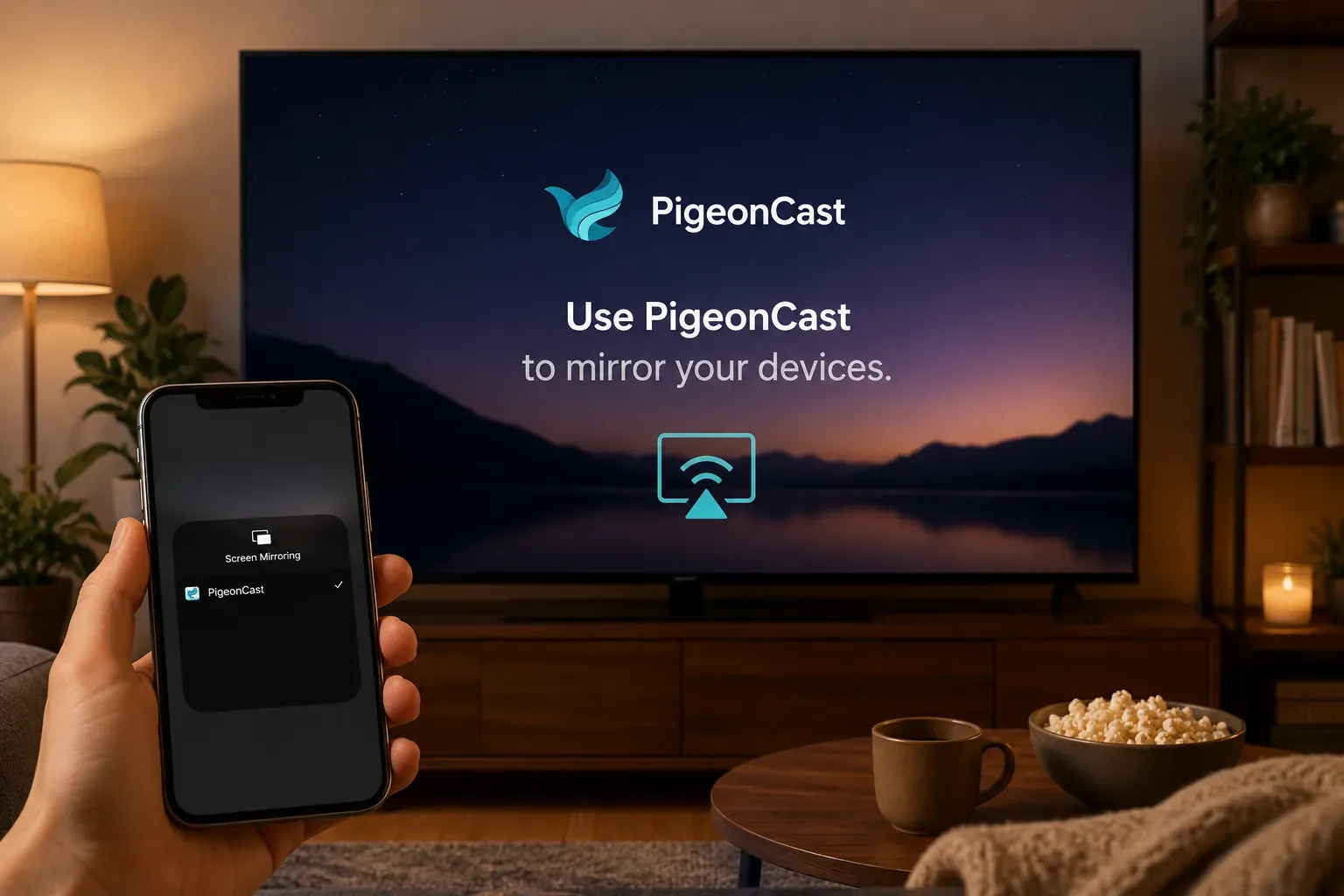
If you don't want to spend the next 10 minutes digging through router settings and restarting devices, PigeonCast is the straightforward alternative. It's a professional receiver app built to fix exactly what standard AirPlay gets wrong.


Overall Rating:



-
Works with Everything: It combines AirPlay, Google Cast, and DLNA into one tool. No matter what TV or PC you have, it shows up instantly.
-
Better Performance: Using its own optimized protocol, PigeonCast supports 4K at 60fps with almost zero lag, much smoother than standard mirroring.
-
No Configuration Headache: It bypasses the common network discovery bugs that cause the "TV not found" error.
How to Solve YouTube AirPlay Not Available
If the initial checks didn't restore your link, these specific troubleshooting steps will address the deeper software and network conflicts causing connection drops.
Way 1: Perform a "Cold Boot" Power Cycle
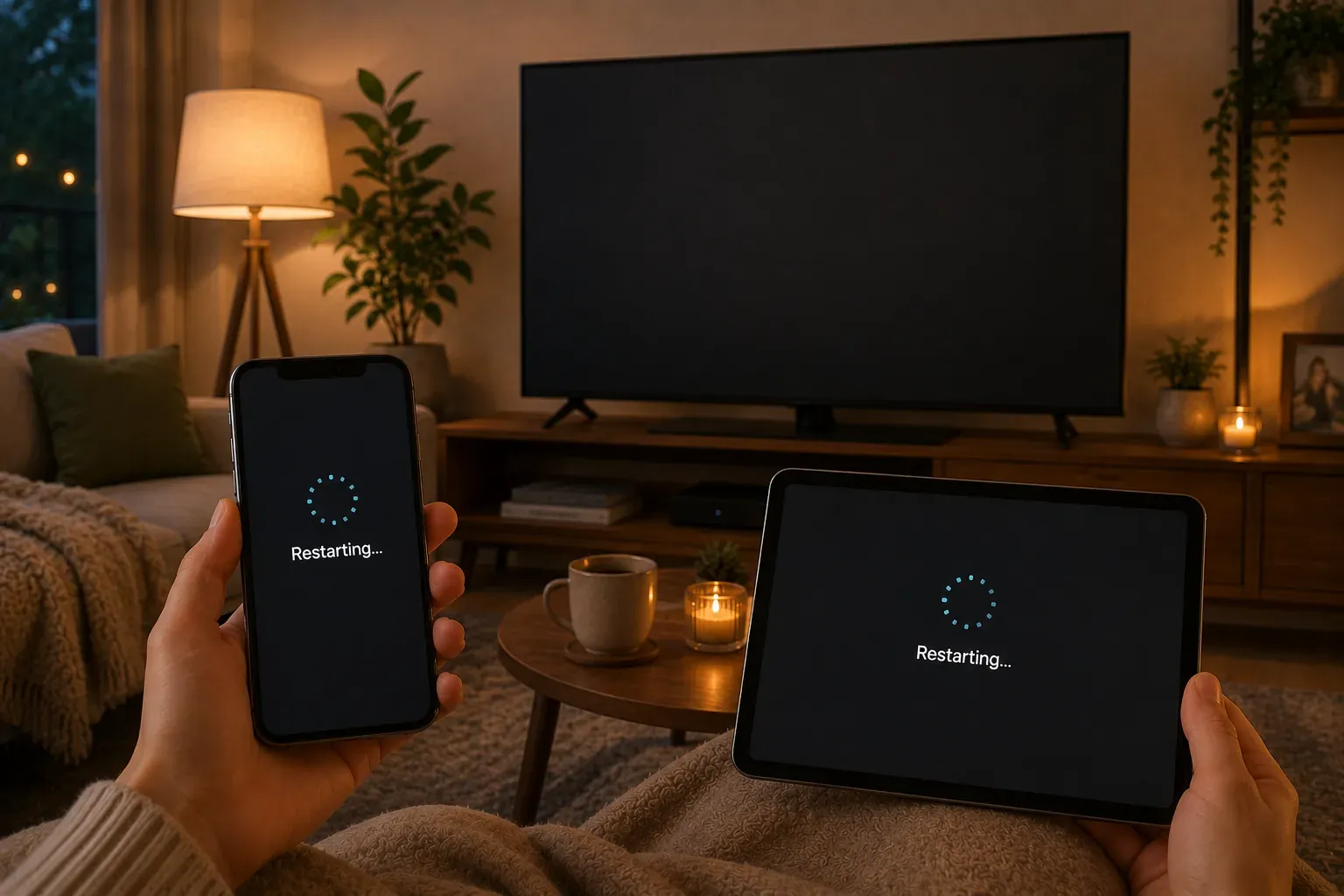
Many users simply turn their TV off and on with the remote, but this only puts the device into standby, keeping the glitched AirPlay service active in the background. A cold boot clears the system's temporary memory (RAM) and resets the wireless receiver.
-
Unplug the power: Remove your TV's power cord directly from the wall outlet.
-
Drain residual power: Wait for at least 60 seconds. (Pro Tip: Press and hold the physical Power button on the TV for 15 seconds while it's unplugged).
-
Restart: Plug the TV back in and wait for the Wi-Fi to fully reconnect before trying to AirPlay the YouTube video again.
Way 2: Update Your App and TV Software
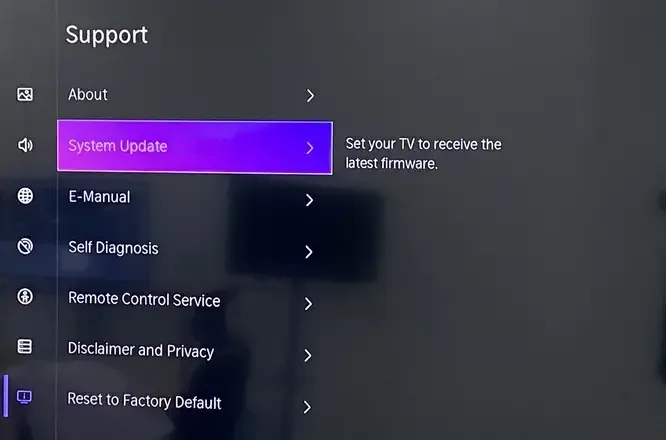
In 2026, streaming protocols evolve rapidly to support higher bitrates. If your YouTube app has updated but your TV's system software is lagging behind, the two won't be able to "speak the same language," leading to an immediate "Unable to Connect" error.
-
Update the YouTube App: Open the App Store, tap your profile icon, and pull down to refresh. Ensure YouTube is running the latest version to support current AirPlay patches.
-
Update the TV Firmware: Navigate to Settings > System > Software Update on your TV. Manufacturers often release specific patches to fix AirPlay 2 bugs.
-
Refresh the Session: After updating, it's a good idea to log out of the YouTube app and log back in. This refreshes your security tokens and ensures a clean start for your next stream.
Way 3: Turn Off VPNs and Private Relay
These privacy features act as digital "blinders" for your iPhone. While they protect your data online, they often hide your phone from other devices on your own Wi-Fi, making it impossible for the YouTube app to find your TV.
-
Disable iCloud Private Relay: Go to Settings > [Your Name] > iCloud > Private Relay and toggle it OFF.
-
Disconnect VPN Apps: Open your VPN app and ensure the connection is fully terminated, not just "on demand."
-
Reset Connection: After turning these off, toggle your phone's Airplane Mode on and off. This forces your device to rejoin the local network without any encrypted "tunnels" blocking the view.
Way 4: Reset the AirPlay Receiver on Your TV
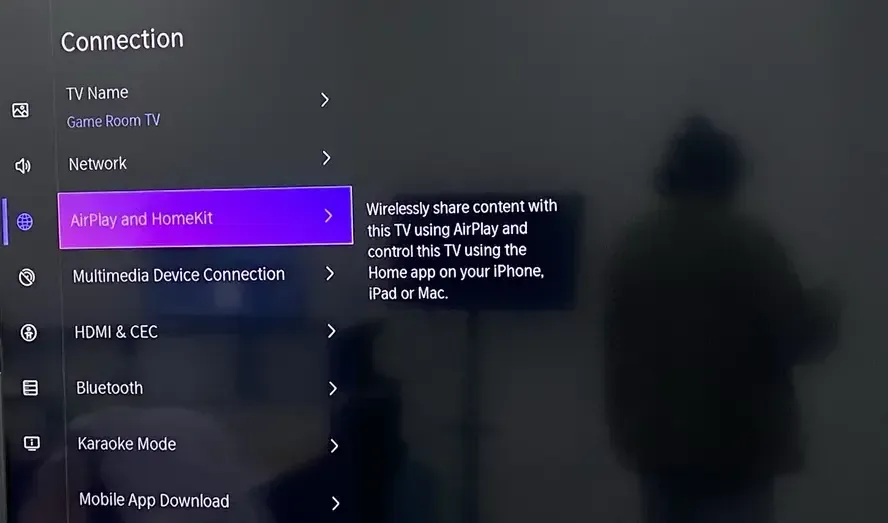
If your TV appears in the list but fails to connect, the TV's internal "pairing" service might be stuck. Forcing a fresh authentication can clear out old, glitched session data.
-
On your TV, go to Settings > AirPlay & HomeKit.
-
Toggle AirPlay OFF, wait 5 seconds, and turn it back ON.
-
Change the Require Code setting to First Time Only. This triggers a fresh pairing prompt on your iPhone screen, which often bypasses persistent connection timeouts.
Way 5: Use the "Offload" Trick to Refresh the App
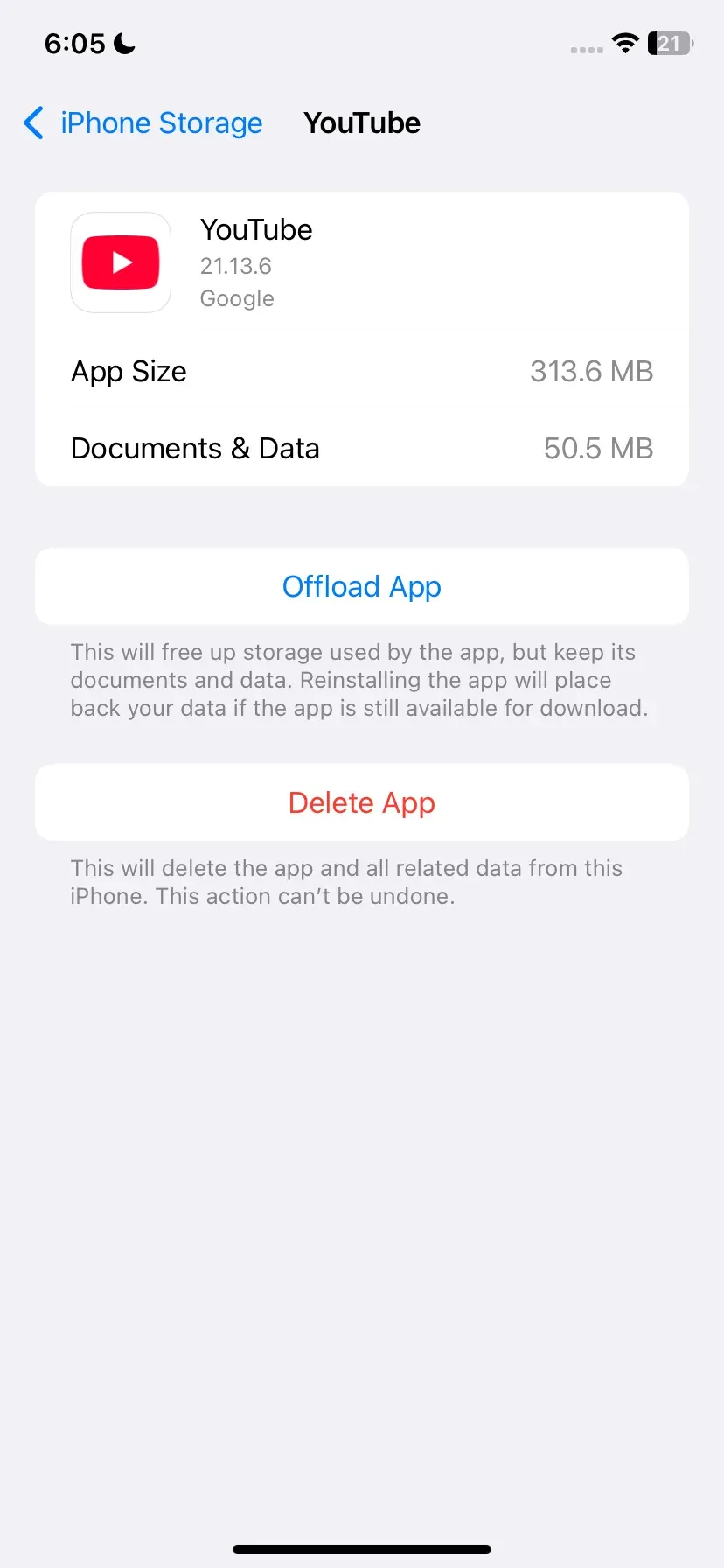
When the YouTube app itself becomes sluggish or buggy, a standard restart might not be enough. You can force iOS to replace the app's core files without losing your settings or history.
-
Go to Settings, navigate to General > iPhone Storage > YouTube.
-
Tap Offload App to deletes the app's system files but keeps your data safe.
-
Tap Reinstall App to downloads a fresh, clean version of YouTube from the App Store, effectively flushing out any "ghost" bugs that were preventing the AirPlay signal from triggering.
Way 6: Disable Screen Time Restrictions
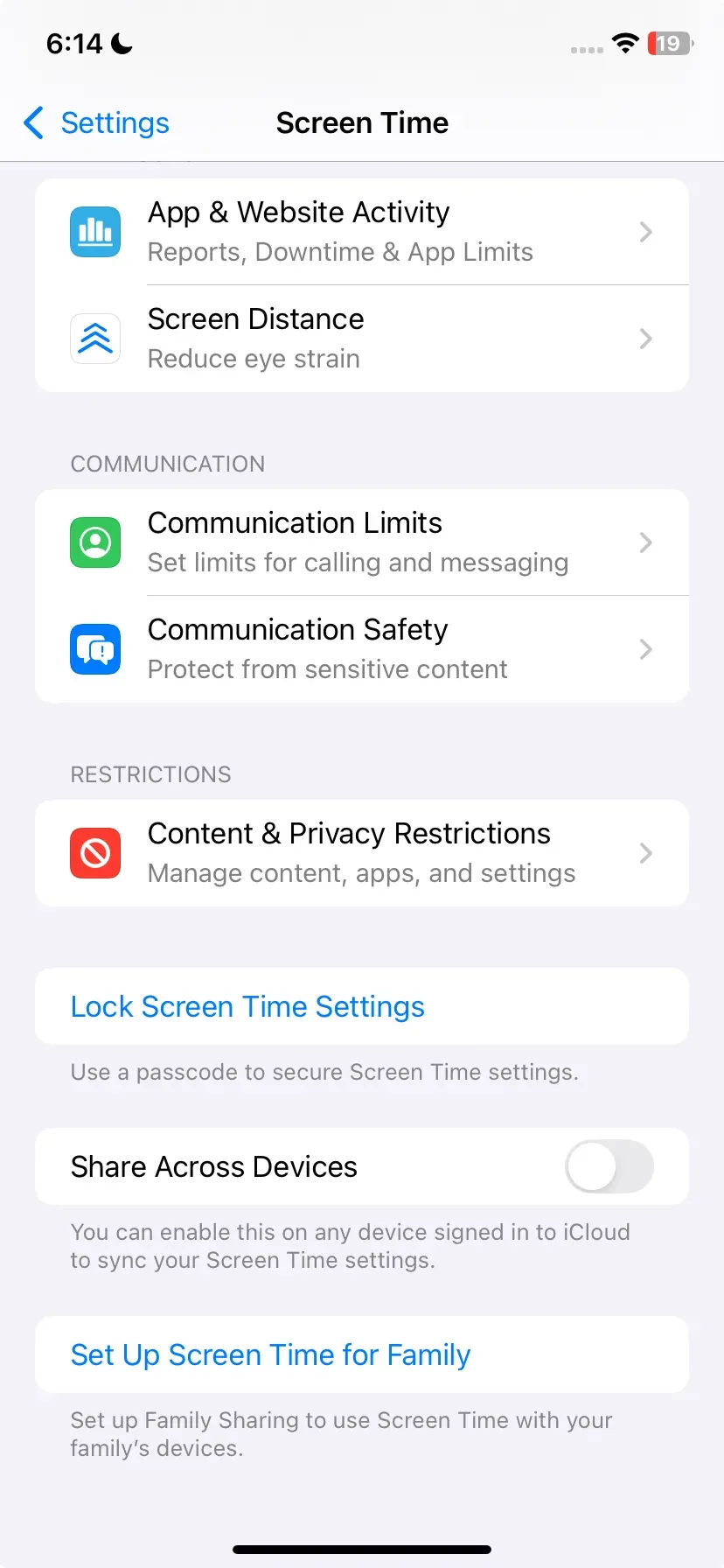
Sometimes, iOS "Screen Time" settings can inadvertently block content streaming or AirPlay functionality as a privacy or parental control measure.
-
Go to Settings > Screen Time > Content & Privacy Restrictions.
-
If this is ON, tap Allowed Apps and ensure AirPlay (or mirroring-related features) is enabled.
-
Check Content Restrictions > Wireless Data to make sure the YouTube app has unrestricted access to your home network.
Way 7: Check Your Router's "Isolation" Settings
If your TV simply won't appear in the device list, your router might be purposely keeping your devices apart. This is a common security feature on "Guest" networks or high-security router setups.
-
Disable AP Isolation: Log into your router's admin panel and ensure AP Isolatio (or Access Point Isolation) is turned OFF. This setting prevents Wi-Fi devices from "talking" to each other.
-
Enable mDNS/Bonjour: AirPlay uses a protocol called mDNS to discover devices. Ensure your router has this enabled. If it's disabled, your iPhone will never "find" the TV, even if they are on the same Wi-Fi.
-
Avoid Guest Networks: Ensure neither device is on a "Guest" Wi-Fi network, as these are designed to prevent device discovery and local communication for security reasons.
Wrapping Up
To fix YouTube AirPlay not available errors, you typically need to clear network interference or reset the system cache on your hardware. While manual troubleshooting like cold booting or checking router isolation can restore a missing connection, PigeonCast offers a much more reliable alternative. It bypasses the common bugs that cause your TV to disappear from the list, ensuring a stable, high-definition stream every time you hit the cast icon.
YouTube AirPlay Not Working FAQ
Why does AirPlay work in Photos but fail in YouTube?
This indicates your AirPlay connection is functional, but the YouTube app is hitting a specific bottleneck. While the Photos app sends simple local files, YouTube requires a complex stream authorization that can fail due to a software version mismatch, corrupted app cache, or digital rights management (DRM) errors.
Is YouTube Cast the same as AirPlay?
No. AirPlay streams video directly from your iPhone to the TV, which uses more battery and relies on your local Wi-Fi strength. YouTube Cast tells the TV's app to play the video from the cloud, using your phone only as a remote. This makes YouTube Cast more stable and battery-efficient, while AirPlay is better for mirroring your entire screen.
Why does YouTube AirPlay lag in the evening?
Evening lag is caused by Wi-Fi congestion and signal interference as more people in your area use the network at once. Because AirPlay sends a heavy, constant stream of data from your phone to your TV, it is highly sensitive to the traffic spikes and "bufferbloat" that happen when your household or neighbors are all streaming at the same time.
Can DNS or ad-blocking tools break YouTube AirPlay?
Yes. Custom DNS, Pi-hole, or network-level ad blockers often flag the telemetry URLs YouTube uses to initiate a video. If these tools block the specific verification requests required by Apple or Google, the connection will fail or hang on a black screen. To fix this, whitelist YouTube's domains or temporarily switch to a standard DNS like 8.8.8.8.
Will reinstalling the YouTube app help?
Yes. Offloading or reinstalling the YouTube app clears corrupted cache and "ghost" bugs that often block device discovery. This replaces the app's core software with a clean version, which is frequently enough to force a fresh, functional connection to your TV without losing your personal settings.
Do I need to reset my TV every time AirPlay fails?
No. Most issues can be resolved without a full system reset. You should only perform a power cycle (unplugging for 60 seconds) if your TV has completely disappeared from the device list or if the connection keeps timing out. For most daily glitches, simply toggling AirPlay OFF and ON in your TV's settings or restarting the YouTube app on your phone is enough to refresh the connection and fix the error.
Clara Rossi is an experienced technology editor and a seasoned expert in screen mirroring and casting technologies. With a keen eye for detail and a deep understanding of how to seamlessly connect devices, Clara excels at optimizing user experiences for effortless sharing and streaming. Whether you're seeking quick fixes or advanced tips, her expertise and responsiveness ensure that every query is met with a well-informed and efficient solution.