
Setting up a Disney Plus Chromecast stream is the most popular way to enjoy the library on a large screen. Whether you are using a dedicated Google device or looking for ways to cast without any extra hardware, there are several professional methods to achieve a high quality 4K connection. This guide provides the exact steps for every major device and explores the best alternatives for those without a Chromecast dongle.
Can You Chromecast Disney Plus
Yes, Disney Plus fully supports Chromecast technology. You can cast movies and shows from the Disney Plus app on Android and iOS devices or via the Google Chrome browser on a computer. Not every Chromecast model offers the same performance, so the quality of your Disney Plus Chromecast stream depends on the specific device and connection settings you use.
To ensure a smooth experience, your setup should meet these specific standards:
-
Compatible Chromecast Models: Use a 2nd Generation Chromecast or newer for standard streaming. For 4K Ultra HD and HDR content, you must use a Chromecast Ultra or a Chromecast with Google TV.
-
Built in Devices: Many Smart TVs from Sony, Vizio, and Hisense TV are compatible with Chromecast technology integrated directly into the hardware, meaning no extra dongle is required.
-
Internet Speed Requirements: A minimum speed of 5 Mbps is needed for high definition, while at least 25 Mbps is required for a stable 4K stream.
-
Content Protection and HDCP: Disney Plus uses advanced digital rights management to protect its library. Your Chromecast must be plugged into an HDCP 2.2 compatible HDMI port to view content in the highest resolution.
How to Chromecast Disney Plus
To establish a stable Disney Plus Chromecast link, your control device must meet specific OS requirements to ensure the Cast icon appears. Android devices generally require OS 6.0 or later, while iPhones and iPads should run iOS 16.5 or newer to maintain full compatibility with the app's security protocols.
Cast from an Android or iOS
Before starting the stream, ensure your Chromecast is powered by a wall outlet rather than the TV USB port. This provides the consistent voltage required to handle the high bitrate of Disney Plus content without the app crashing.
Step 1. Launch the Disney Plus app on your phone or tablet and log in to your profile.
Step 2. Browse the library and select the movie or show you wish to watch.
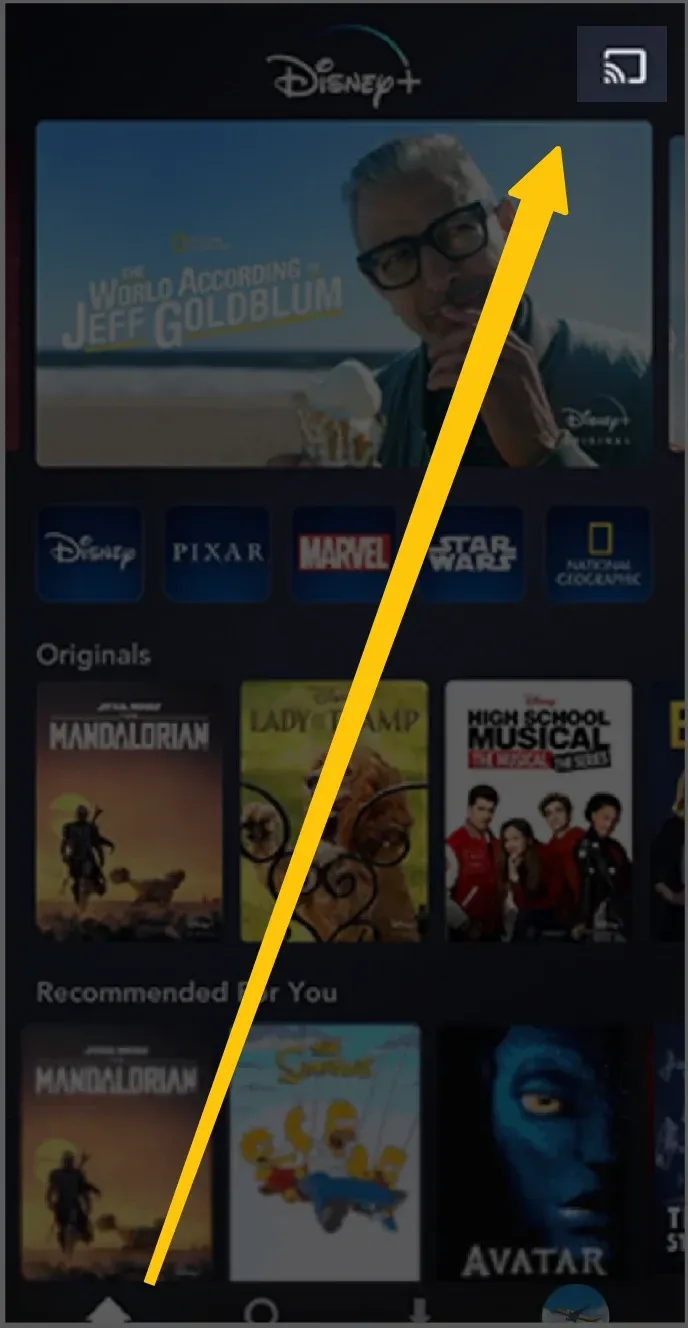
Step 3. Tap the Cast icon in the top right corner of the screen, which looks like a rectangle with three signal waves.
Step 4. Select your Chromecast device from the list of available receivers.
Step 5. Wait for the Disney Plus logo or a "Ready to Cast" message to appear on your television.
Step 6. Press Play on your mobile device to start the video on the big screen.
Cast from a Computer (Chrome Browser)
Before you begin, ensure your Chrome browser is updated to the latest version. This guarantees compatibility with the digital rights management software Disney Plus uses to protect its content.
Step 1. Open the Google Chrome browser and navigate to the Disney Plus website.
Step 2. Log in to your account and select the title you wish to stream.
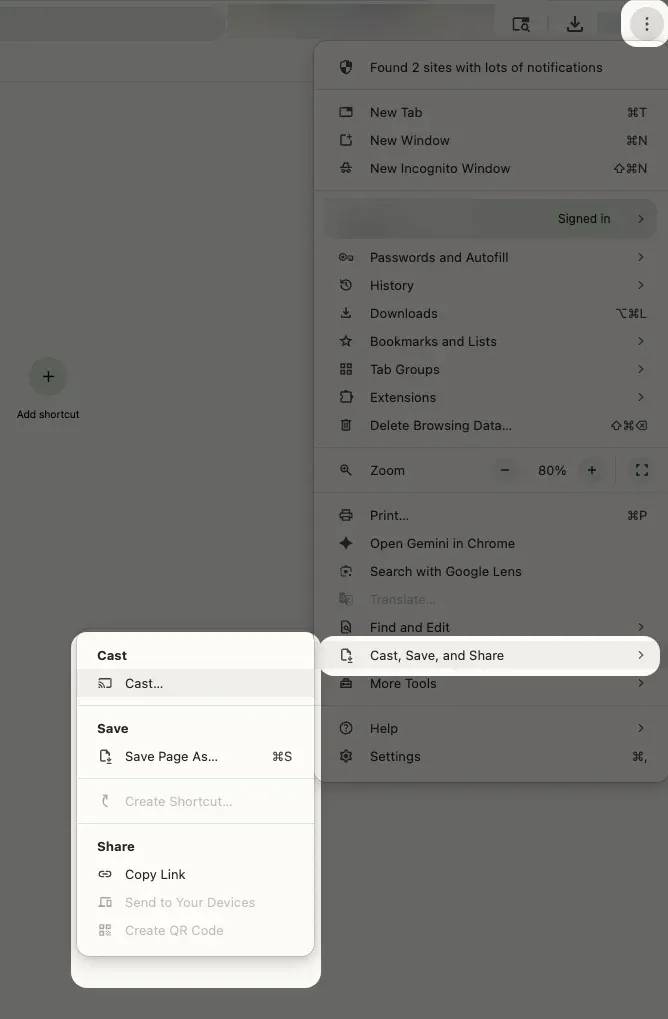
Step 3. Click the three vertical dots in the top right corner of the Chrome browser window to open the menu, then select the Cast option from the list.
Step 4. Choose your Chromecast device from the pop-up window.
Step 5. In the Sources menu at the bottom of the device list, ensure that Cast tab is selected for the most stable audio and video synchronization.
How to Cast Disney Plus to TV Without Chromecast
If you do not own a Chromecast or your Chromecast is failing to connect, you can still enjoy Disney Plus on a large screen through several reliable software and hardware alternatives. These methods focus on bypassing hardware restrictions and bridging the gap between different device ecosystems.
Method 1. Use PigeonCast for Cross-Platform Casting
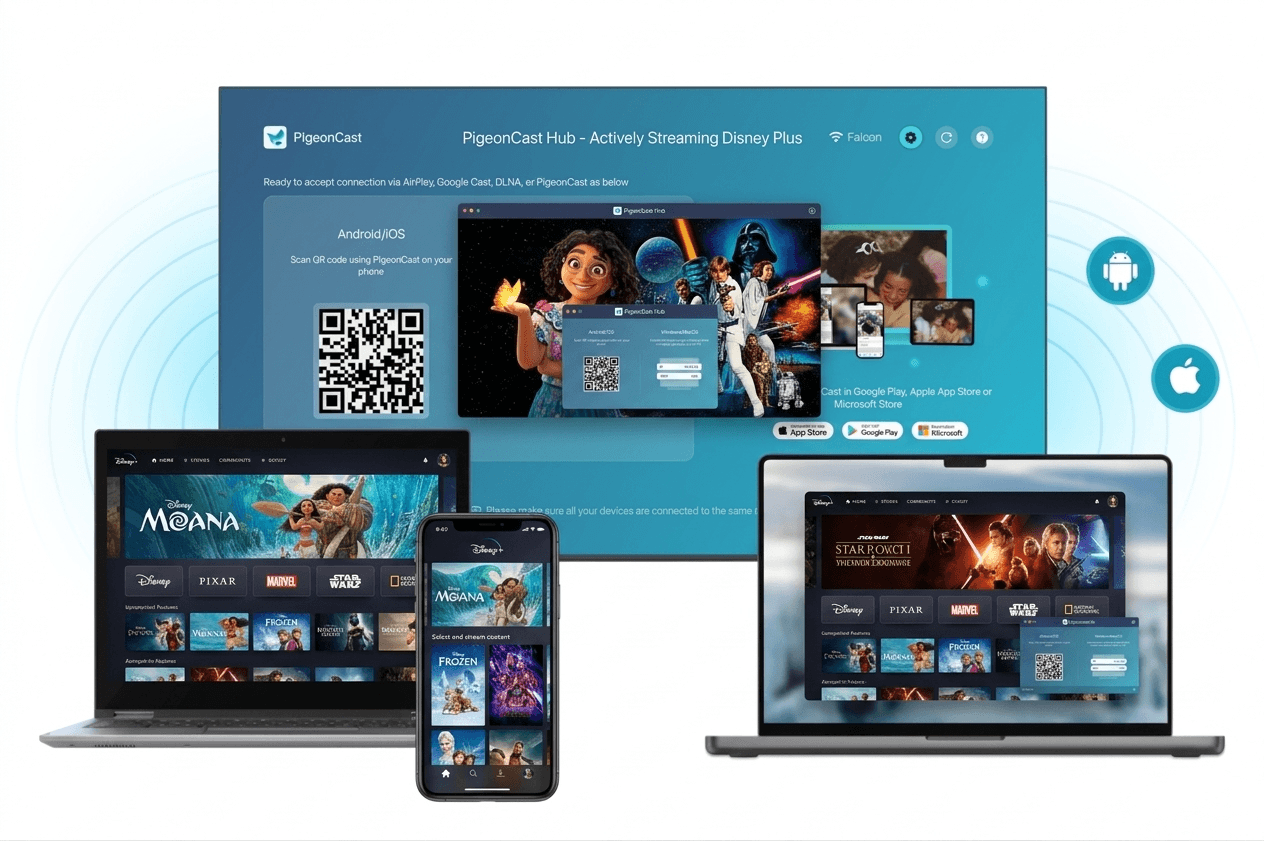
When you face compatibility issues between different brands, such as trying to cast an iPhone to an Android TV, PigeonCast is the most effective software-based solution and also a mighty Chromecast alternative tool. It transforms your existing devices into universal receivers without the need for additional dongles.


Overall Rating:



-
Universal Protocol Support: PigeonCast bridges the gap between Google Cast and AirPlay. This allows you to watch Disney Plus from an Android phone mirroring to an Apple TV or from an iPhone to an Android-based television effortlessly.
-
High Performance Streaming: The app supports resolutions up to 4K at 60fps. This ensures that the cinematic quality of Disney Plus content is preserved with fluid motion and sharp detail.
-
Simplified Setup: You do not need to deal with complex wiring or expensive hardware upgrades. By simply installing the app on your receiving device and using a QR code or local network search, you can establish a stable connection in seconds.
Method 2. Use Native Smart TV Apps
Most modern televisions from Samsung, LG, and Sony feature a built-in Disney Plus app. This is often the most stable method because the video decodes directly on the television hardware. Simply navigate to your TV app store, search for Disney Plus, and log in using the on-screen activation code to start watching without any external device.
Method 3. Direct HDMI Connection
A physical HDMI cable remains the most dependable fallback when wireless networks are unstable or unavailable. This hardwired approach bypasses all wireless handshakes and potential encryption errors.
-
Laptops: Use a standard HDMI cable to link your computer directly to the TV.
-
Mobile Devices: Use a USB-C to HDMI adapter or a Lightning Digital AV adapter to connect your phone to the television. After connecting the cable, switch your TV input to the corresponding HDMI port to view your device screen in real time.
Bottom Line
Learning how to cast Disney Plus to Chromecast effectively requires the right hardware and a fast connection for 4K quality. While the answer to "Does Disney Plus work with Chromecast" is yes, using the correct setup or software alternatives ensures you bypass compatibility issues. Whether through a dongle or a flexible receiver, you can enjoy a stable and high-definition experience on any screen.
Disney Plus Chromecast FAQ
How do I cast Disney Plus from my iPhone to a Chromecast?
-
To start your stream, ensure your iPhone and Chromecast are on the same Wi-Fi network.
-
Open the Disney Plus app, select your movie, and tap the Cast icon at the top of the screen.
-
Select your device from the list and wait for the "Ready to Cast" screen to appear on your TV before pressing play.
Why is Chromecast icon not showing on Disney Plus?
If the Chromecast icon is not showing on Disney Plus, it is typically due to a failure in the "handshake" process between your app and the casting hardware. Here are the primary reasons why this happens:
-
Network and Connectivity Conflicts
-
Software and Permission Barriers
-
Hardware and Power States
Why won't Disney Plus cast Chromecast?
If you are wondering why Disney Plus won't cast to Chromecast, the failure is typically caused by technical barriers involving security, power, or network configuration. Here are the primary reasons the connection fails:
-
Security and Licensing Restrictions: HDCP 2.2 Incompatibility, DRM Protocol Mismatch, Geographic IP Mismatches
-
Hardware and Power Failures: Insufficient Voltage, Thermal Throttling
-
Network Communication Barriers: mDNS Packet Loss, Bandwidth Drops, AP Isolation
Is Disney Plus a Chromecast app?
Technically, Disney Plus is not a "Chromecast app" in the sense that it doesn't live inside a traditional app store on the dongle itself (with the exception of the newer Chromecast with Google TV). Instead, it is a Cast-enabled application.
How to get Disney Plus on Chromecast?
Getting Disney Plus on your Chromecast is simple. Here is the easiest way to do it:
Mobile
-
Make sure your phone and Chromecast are on the same Wi-Fi.
-
Open Disney Plus on your phone and start a movie.
-
Tap the Cast icon (the rectangle with signal waves) at the top of the screen.
-
Choose your Chromecast name from the list.
Computer
-
Go to the Disney Plus website in your Chrome browser.
-
Click the three dots in the top right corner.
-
Select Cast... and then pick up your Chromecast device.
App Install (For Chromecast with Google TV)
If your Chromecast has a remote, you don't need your phone:
-
Go to the Apps tab on your TV home screen.
-
Search for Disney Plus and select Install.
-
Open the app and log in to start watching.
Does Disney Plus have Chromecast?
Yes, Disney Plus supports Chromecast. It works in two primary ways:
-
Casting: You can use the Disney Plus app on your mobile device (Android or iOS) or the Chrome browser on your computer to "cast" content directly to a Chromecast-enabled TV.
-
Native App: On newer models like Chromecast with Google TV, you can download and install the Disney Plus app directly onto the device and use a remote to browse.
Clara Rossi is an experienced technology editor and a seasoned expert in screen mirroring and casting technologies. With a keen eye for detail and a deep understanding of how to seamlessly connect devices, Clara excels at optimizing user experiences for effortless sharing and streaming. Whether you're seeking quick fixes or advanced tips, her expertise and responsiveness ensure that every query is met with a well-informed and efficient solution.