
If an app blocks screen mirroring, it is usually due to content-rights or security policies rather than a technical bug. Instead of troubleshooting a "glitch", the most effective solution is to switch to supported playback paths. This guide will show you how to bypass screen mirror block legally using in-app casting, native Smart TV apps, or HDMI connections to get your content back on the big screen.
Do Some Apps Block Screen Mirroring
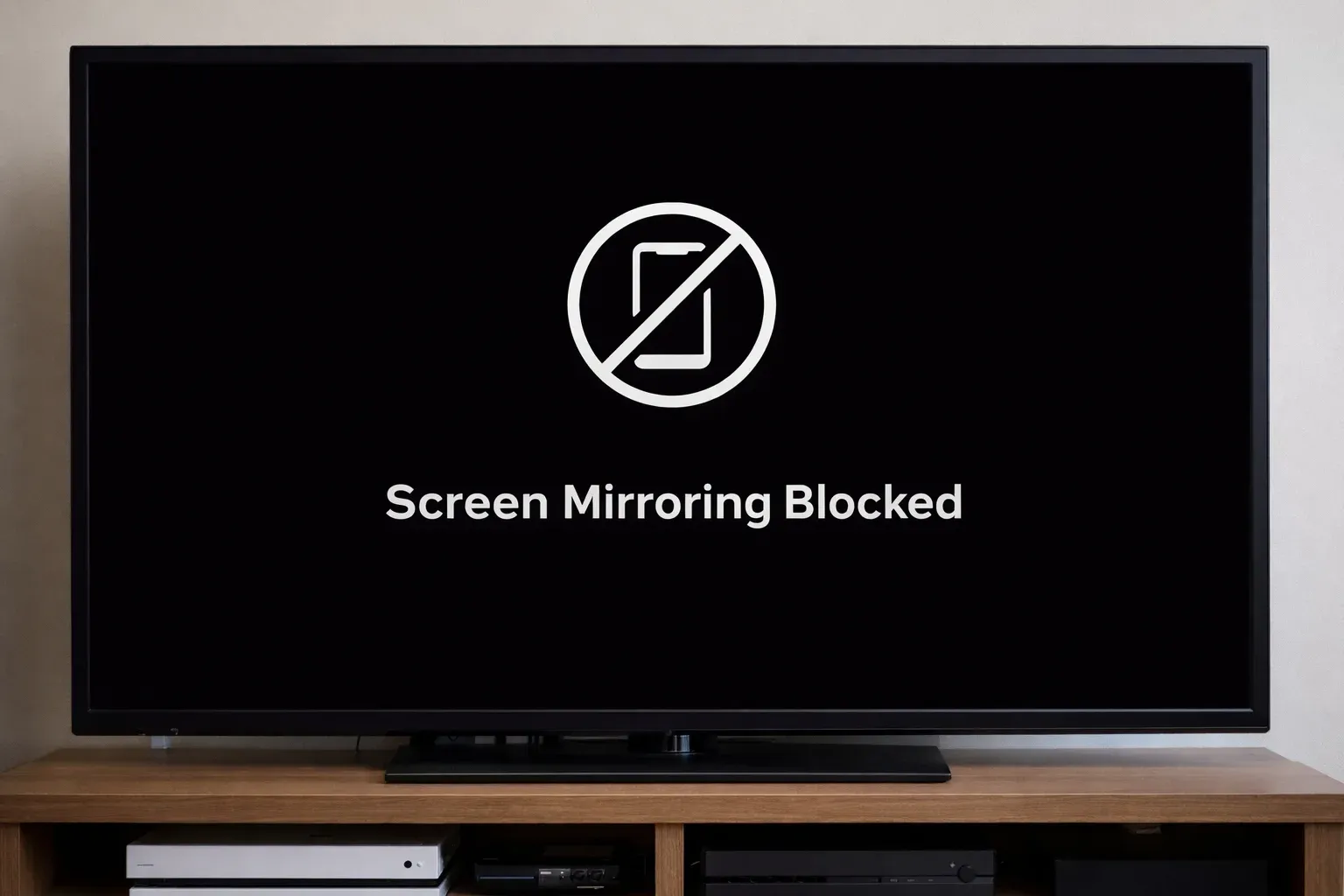
Yes. If you've ever tried to beam a movie to your TV from phone only to see a progress bar over a pitch-black background, you've hit a deliberate restriction. In 2026, many high-value apps strictly prohibit mirroring to enforce subscription tiers and licensing agreements. It's important to recognize that this is a built-in security feature, not a glitch with your phone or TV.
-
Common Apps With Mirroring Restrictions:
-
Premium Streamers: Netflix, Disney+, Apple TV+, and Max (HBO).
-
Live Sports: NFL Sunday Ticket, NBA App, and regional sports networks.
-
Encrypted Communication: High-security meeting tools like Zoom (in certain modes) or specialized enterprise dashboards.
-
Ad-Supported Tiers: Many "Basic with Ads" plans now specifically disable mirroring to ensure ad-tracking remains on the primary device.
-
Why Is Your Screen Mirroring Blocked
If you can hear the audio but the video is missing, your devices are likely failing a "security handshake" in the background. Here is the technical breakdown of what is happening:
-
DRM (Digital Rights Management): This is the software "policeman." Apps like Netflix use DRM (such as Widevine or FairPlay) to encrypt the video stream. If the app detects you are trying to "copy" the screen (mirroring) instead of "sending" the file (casting), it cuts the video feed to prevent potential piracy.
-
HDCP (High-bandwidth Digital Content Protection): This is the hardware requirement. HDCP is a protocol that ensures the connection between your device and your TV is encrypted end-to-end. Wireless mirroring often lacks the advanced HDCP "handshake" required for 4K or copyrighted content, resulting in an automatic blackout.
-
Native vs. Mirroring Protocols: Many developers code their apps to allow Native Casting (where the TV pulls the video from the cloud) but strictly disable Pixel Duplication (mirroring your phone's screen). This is because mirroring is much harder for the app to secure against unauthorized capture.
How to Bypass Screen Share Block
While searching for how to bypass screen mirroring block errors, it's important to prioritize your device's security. Avoid cracked apps, DRM removal tools, or disabling core system security; these "hacks" often lead to malware, account bans, and broken playback after the next app update. Instead, use these four verified, high-quality alternatives:
Use In-App Casting (The Pro Choice)
Many apps that block full-screen mirroring (pixel duplication) fully support Native Casting. This method sends the video URL directly to your TV's player rather than streaming your phone screen.
-
How to do it: Open your content > Tap the Cast(Chromecast) or AirPlay icon inside the app player > Select your TV.
-
Why it's better: It offers superior stability, supports 4K/HDR, and allows you to use your phone for other tasks while the movie plays.
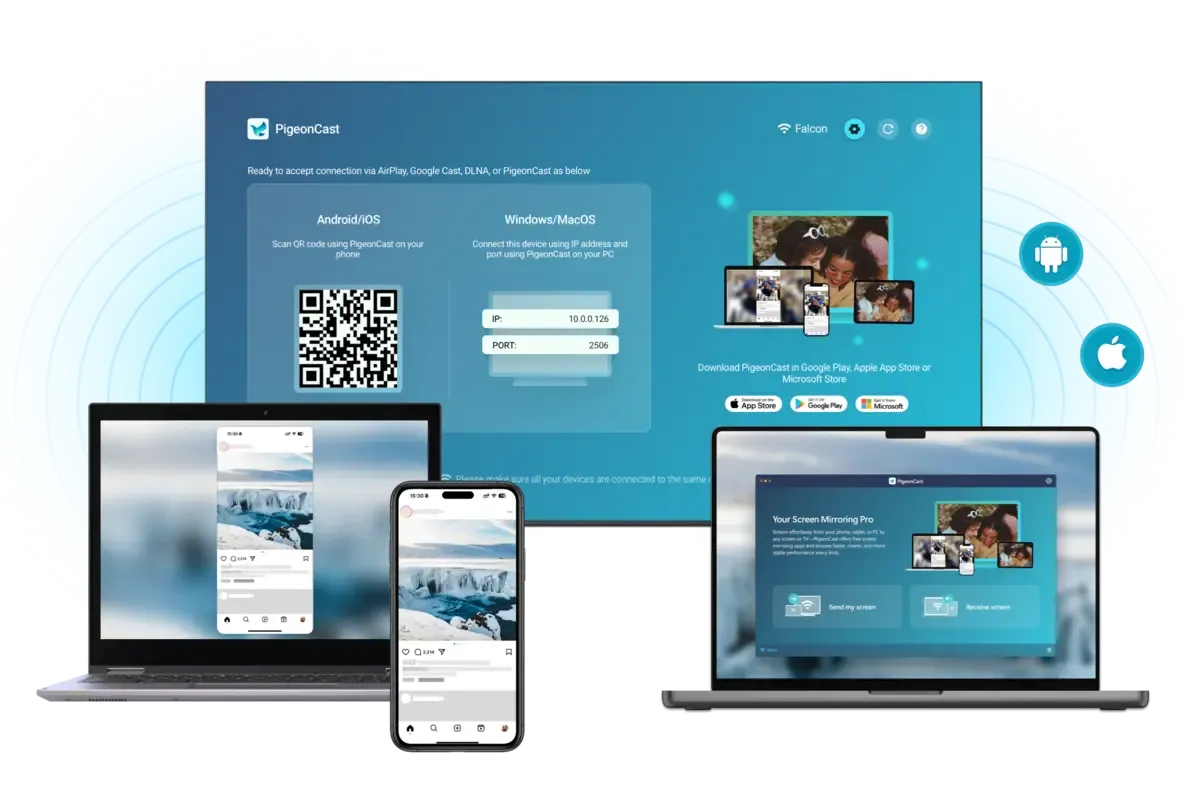
Tip: If you are streaming from a browser and finding it difficult to trigger the native cast protocol, tools like PigeonCast can help. It optimizes the casting protocol between your web browser and your TV, ensuring you can use the more stable "native cast" route instead of the restricted "screen mirror" path.


Overall Rating:



Install the Official TV App
How to bypass mirroring restrictions? If your Smart TV (Google TV, Fire TV, Roku, Apple TV, or Samsung/LG) has the app in its store, native installation is always the winner. Here are the top benefits:
-
Max Resolution: Direct access to the highest bitrate and Dolby Atmos/Vision.
-
Zero Latency: No lag or stuttering common with wireless mirroring.
-
Battery Saver: Your phone stays offline, preserving battery life.
Use a Wired HDMI Connection
When wireless options fail, a wired HDMI screen mirroring setup is the cleanest legal workaround for network interference or app blocks.
-
Setup: Connect your laptop directly via HDMI, or use an official HDMI adapter for your phone/tablet.
-
Pro Tip: Always use High-Speed HDMI cables to ensure HDCP (High-bandwidth Digital Content Protection) compliance, which is often the silent culprit behind black screens.
Troubleshooting: Account & Device Audits
How to unblock screen mirroring? Before assuming a technical block, check these four critical "invisible" factors that can trigger a screen mirror block:
| Checkpoint | Why it matters |
|---|---|
| Subscription Tier | Some "Mobile-Only" plans (like Netflix or Disney+ Basic) strictly disable TV output. |
| App Updates | Ensure the app is updated on both your phone and TV to sync DRM certificates. |
| Clock Sync | If your device's Date & Time are off by even a minute, DRM token verification will fail. |
| Region Settings | Some content is licensed for mobile viewing only in specific geographic regions. |
Final Verdict
How to get around screen mirroring block? Getting around a "Screen Mirroring Blocked" message doesn't require risky hacks. By shifting from pixel mirroring to professional casting tools, you can enjoy your content in full quality. For a seamless experience that bridges the gap between your web content and the big screen, give PigeonCast a try—it's designed to make legal casting simple, stable, and blackout-free.
How to Bypass Screen Mirror Block FAQ
How to get around Netflix screen mirror block?
Netflix blocks screen mirroring due to content protection and licensing requirements. This is an intentional restriction, not a technical issue. Instead of trying to bypass it, the recommended approach is to use supported viewing methods such as the official Netflix app on your TV, casting via supported devices, or using a compatible streaming device (e.g., Chromecast, Fire TV, Apple TV).
Does Netflix block screen mirroring?
Yes, Netflix does block screen mirroring in many cases. This is due to digital rights management (DRM) and licensing agreements with content providers. As a result, when you try to mirror Netflix, you may see a black screen or playback may not work. The restriction is intentional and applies to certain devices, apps, and connection methods, especially basic screen mirroring.
Does Disney block screen sharing?
Yes, Disney+ also restricts screen sharing or mirroring. This is enforced through content licensing and DRM policies, which may stop playback or hide video when screen sharing is detected.
How to bypass screen mirror block on iPhone?
Screen mirroring blocks on iPhone are usually caused by DRM and content protection policies, and they're intentionally enforced by apps. I can't help with bypassing those restrictions, but the recommended approach is to use supported options, such as:
-
AirPlay to a compatible TV or device (if the app allows it)
-
The app's official TV version (e.g., Smart TV apps)
-
Streaming devices like Apple TV, Roku, or Fire TV
These methods ensure proper playback without restrictions.
How to bypass screen mirror block Android?
Screen mirroring blocks on Android are typically caused by DRM and content protection policies, and they are intentionally enforced by apps. The recommended approach is to use supported playback methods, such as:
-
Casting via Chromecast (if supported by the app)
-
Using the app directly on a smart TV
-
Streaming through compatible devices like Fire TV or Android TV
Does using a VPN help bypass screen mirroring blocks?
Usually, no. A VPN changes your location, but it does not change your hardware's security protocol. If an app blocks mirroring due to copyright rules, it will do so whether you are on a VPN or not. However, a VPN is useful if the content is blocked due to regional restrictions.
Clara Rossi is an experienced technology editor and a seasoned expert in screen mirroring and casting technologies. With a keen eye for detail and a deep understanding of how to seamlessly connect devices, Clara excels at optimizing user experiences for effortless sharing and streaming. Whether you're seeking quick fixes or advanced tips, her expertise and responsiveness ensure that every query is met with a well-informed and efficient solution.