
If you're trying to cast your favorite Disney+ show to the big screen but it won't connect, you're not alone. This issue affects users on various platforms like Chromecast, Roku, and Samsung Smart TVs, and it can be frustrating when a service designed for larger screens refuses to cooperate. This guide will explain why Disney Plus won't cast to TV and provide simple, step-by-step solutions to help you get back to streaming.
Why Can't I Screen Mirror Disney Plus
If you're struggling to cast Disney+ to TV, several key factors might be causing the issue. Understanding these common problems can help you troubleshoot more effectively. Here are the main reasons why Disney Plus won't cast:
- DRM Protection: Disney+ uses digital rights management (DRM) to prevent unauthorized sharing of content. This can block legitimate casting attempts.
- Compatibility Issues: Your casting device, TV, or streaming device may not be fully compatible with Disney+ DRM requirements, causing casting failures.
- Network Problems: Inconsistent Wi-Fi or weak connections can interrupt the casting process.
- Outdated Software: If your device or app is outdated, it might not work with Disney+ casting features.
- Temporary Glitches: Sometimes, a simple glitch in the app or device can cause casting to fail.
6 Solutions to Disney Plus Not Casting to TV
When Disney+ refuses to cast to your television, there's a logical sequence of troubleshooting steps that typically resolves the issue. Starting with the simplest solutions and progressing to more involved methods will save you time and frustration. Now, let's dive into how to fix Disney Plus not connecting to TV:
#1. Check Compatibility
Not all devices support Disney Plus casting the same way. The service requires specific technical features to handle DRM-protected content, so if your TV or streaming device doesn't meet these requirements, casting may fail before it even starts. Here we list the common supported devices:
- Google Chromecast (2nd generation and newer)
- Chromecast built-in TVs (most models from 2016 onward)
- Roku devices (most models)
- Amazon Fire TV devices
- Apple TV (with AirPlay from Apple devices)
- Smart TVs from brands like Samsung, LG, Sony, Vizio, and others with official Disney+ apps
Additionally, you can follow these steps to further verify compatibility:
Step 1. Check the Disney+ official supported devices list on their website.
Step 2. Confirm your sender device (phone, tablet, etc.) and TV are both compatible with screen mirroring.
Step 3. Make sure your mobile device is running a supported OS (iOS 13+ or Android 6.0+).
#2. Check Network Connection
Why can't I screen mirror Disney Plus to my TV? Casting to Disney+ requires a stable and consistent network connection between your casting device and your TV or streaming device. Even minor network issues can disrupt the casting process and prevent it from working properly. Here's the step to help you check the network:
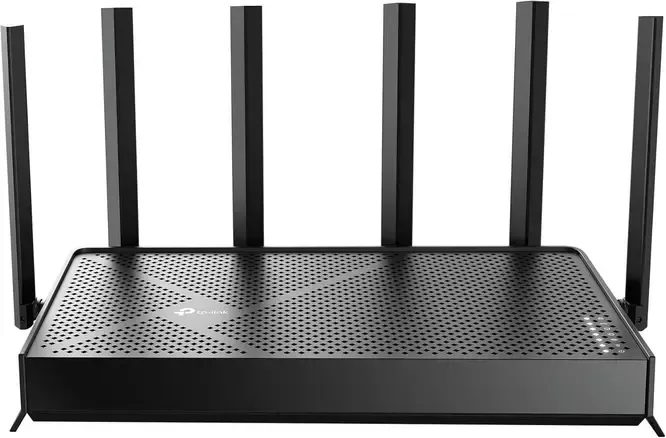
Step 1. Ensure both your casting device (phone/tablet) and your TV/streaming device are connected to the same Wi-Fi network.
Step 2. Log in to your router settings and combine both the 2.4GHz and 5GHz bands under a single network name (SSID).
Step 3. Remove any interference between your devices and move them closer to the router.
Step 4. Restarting your router can often improve connection stability and resolve any temporary issues.
#3. Check for Update
Alternatively, outdated apps, operating systems, or firmware can create compatibility gaps that prevent Disney+ from casting properly. Updates frequently include bug fixes for casting issues that developers have identified and resolved.
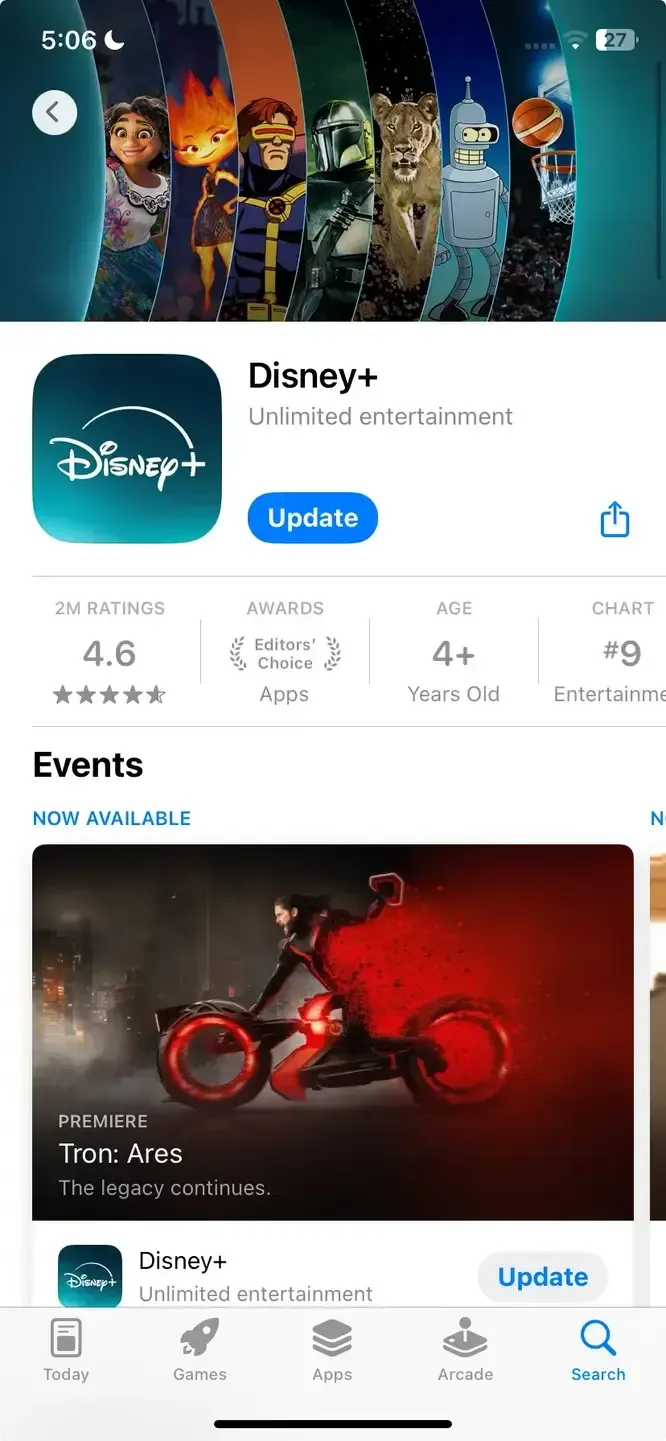
Step 1. Visit the App Store (iOS) or Google Play Store (Android) and check your Disney + app for updates.
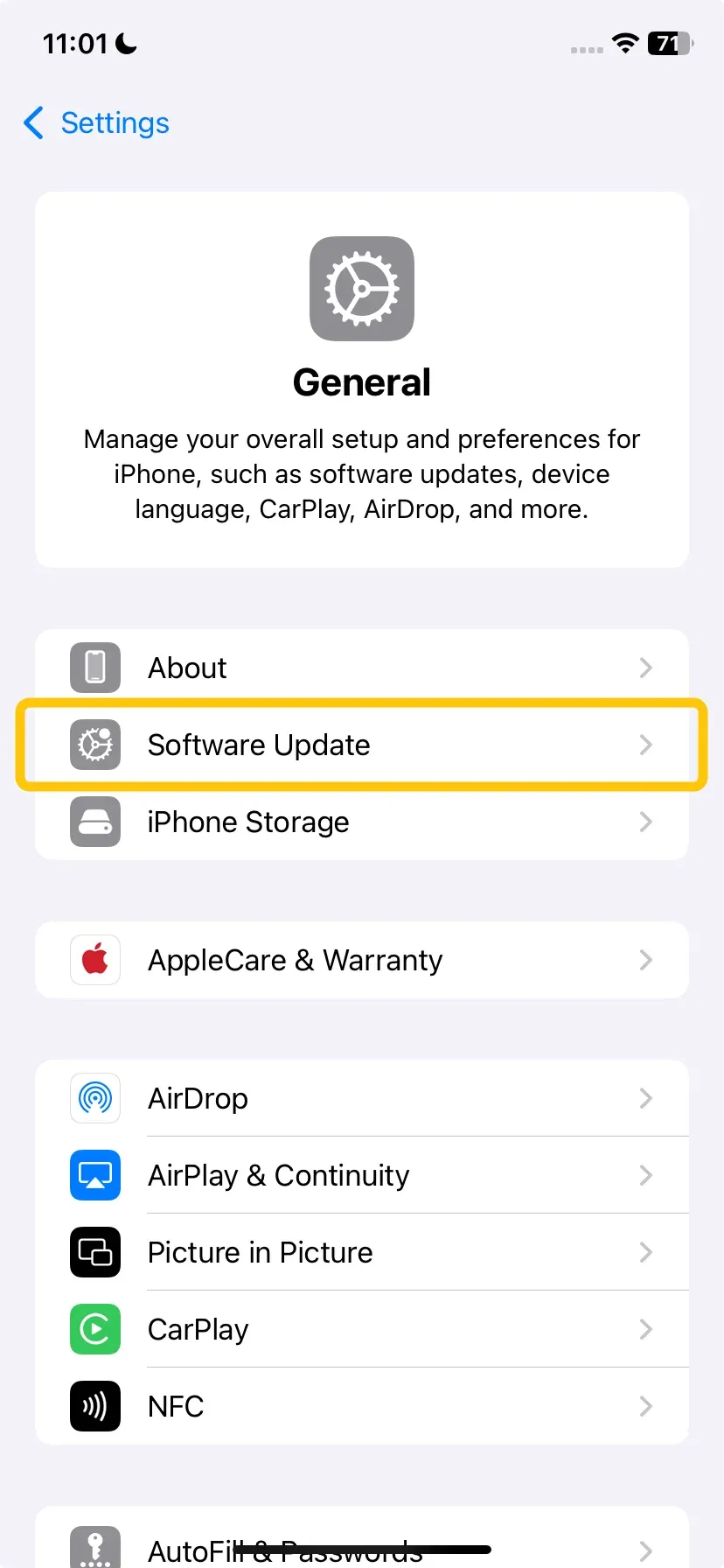
Step 2. Ensure your phone/tablet is running the latest iOS or Android version from the Settings menu.
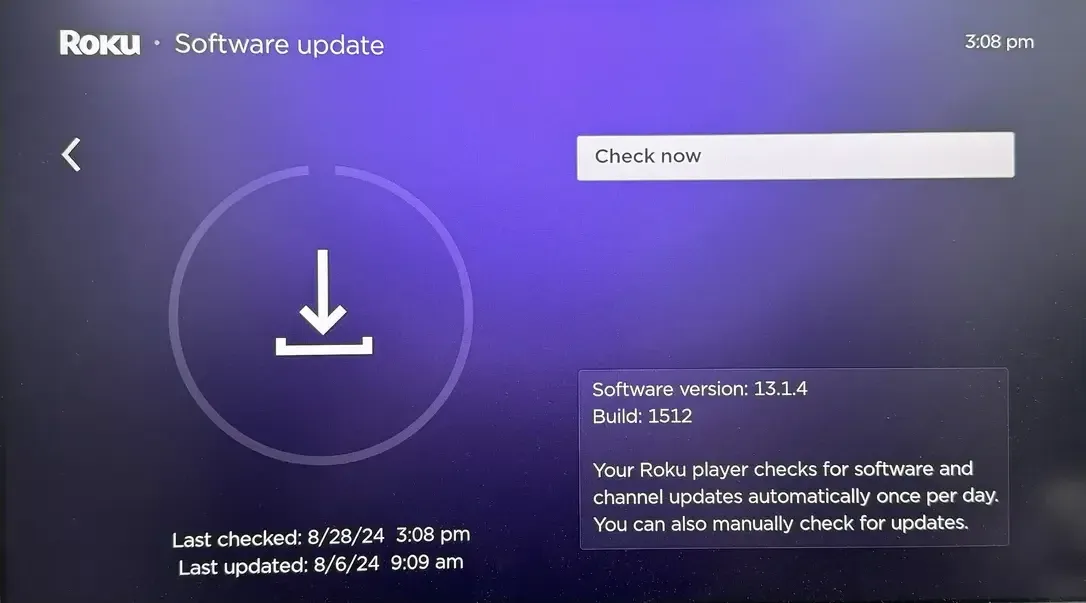
Step 3. Look for the system updates option in your TV's Settings or System menu.
#4. Restart Devices
The classic "turn it off and on again" solution remains remarkably effective because it can't cast Disney Plus to TV issues. Restarting clears temporary caches, resets network connections, and often resolves software conflicts that prevent Disney+ from casting.
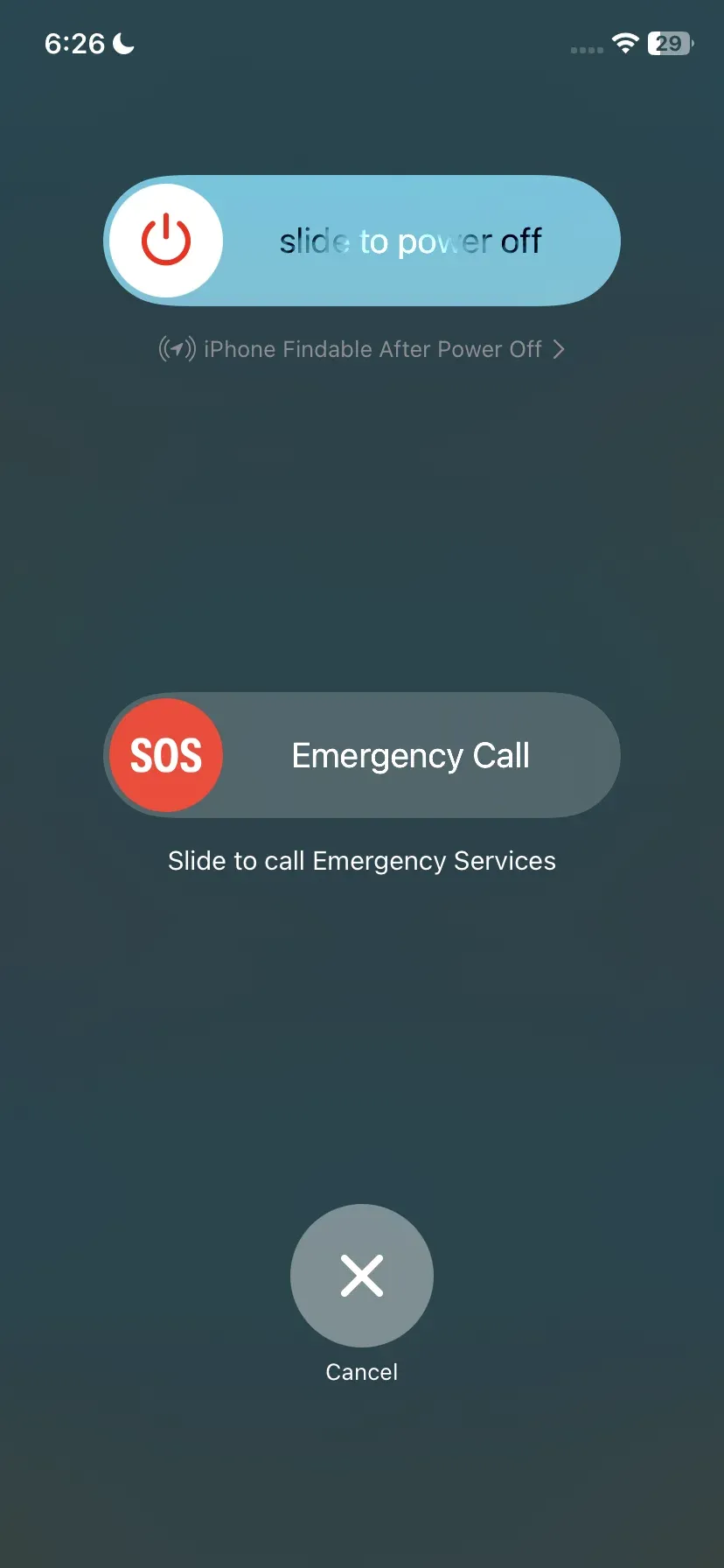
- For iPhone/iPad (iOS): Hold the Side button and either Volume button until the power off slider appears. Slide to power off, and wait for the screen to go completely black.
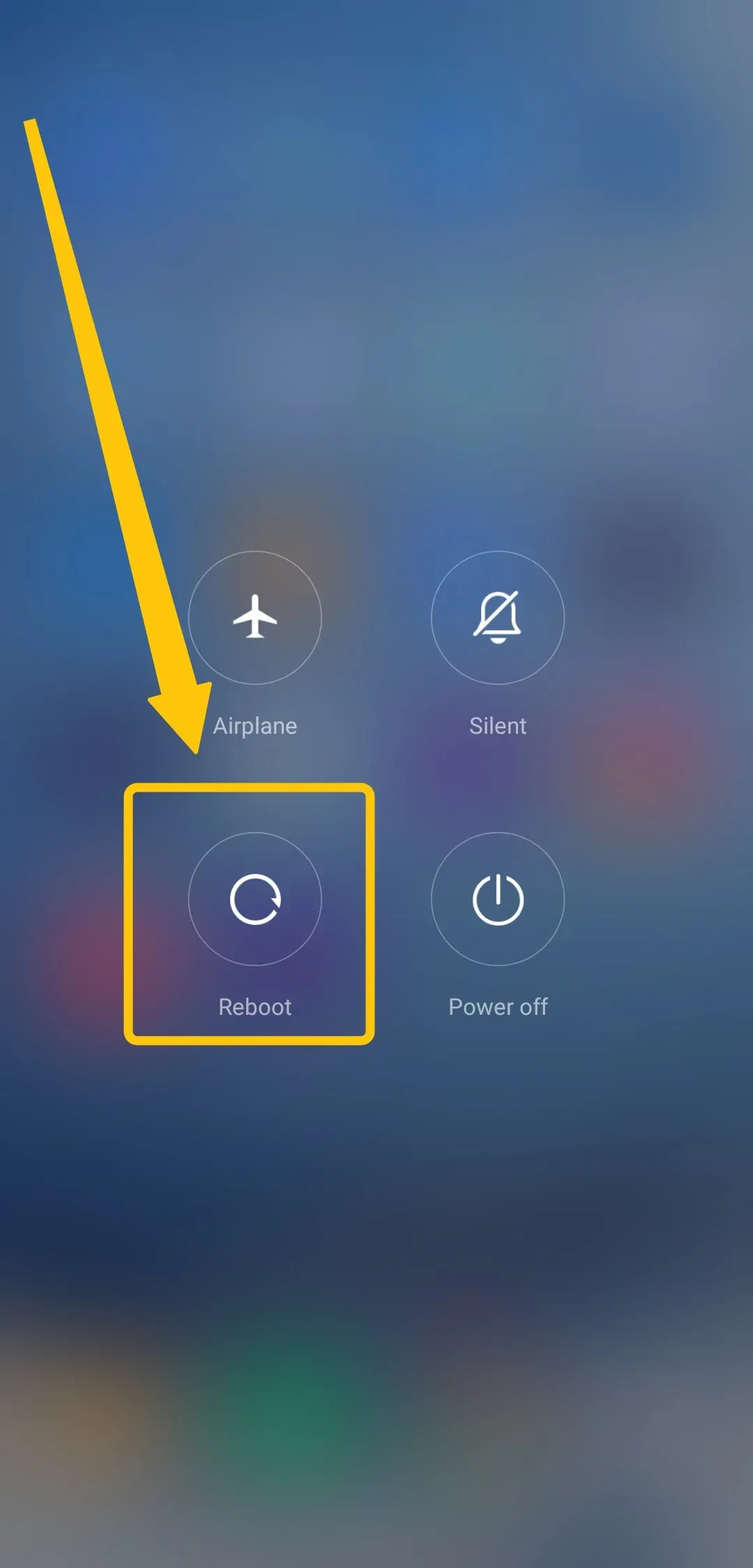
- For Android (Samsung, Google Pixel, etc.): Press and hold the Power button until the power menu appears. Tap Power off or Restart, then keep your device off for about 30 seconds.
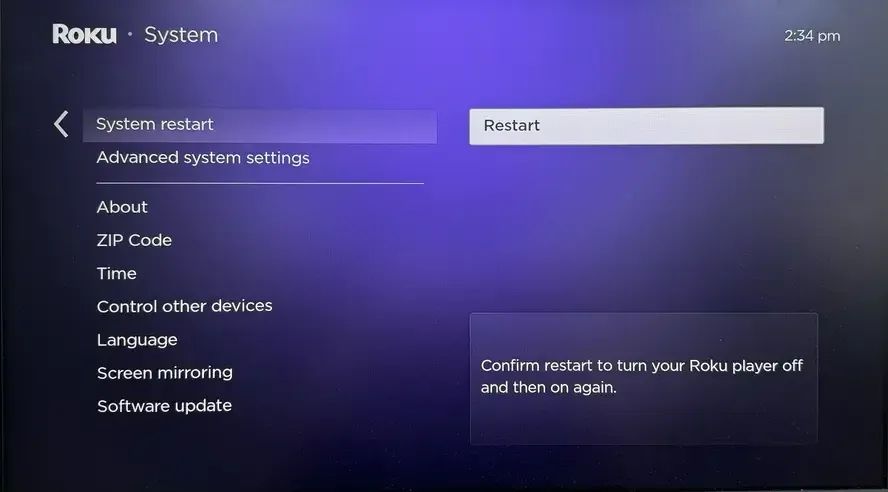
- For Smart TVs (Samsung, LG, Sony, etc.): Unplug the power cord from the back of the TV or from the wall outlet, leave the TV unplugged for at least 60 seconds to ensure a full reset, and reconnect the power cord to the TV and wait for it to fully power on.
#5. Uninstall Disney+
Why can't I cast Disney+ to my TV? Corrupted app data or installation files can interfere with casting functionality. Uninstalling and reinstalling the Disney+ app ensures a fresh start with clean files and default settings, potentially resolving any issues preventing successful casting.
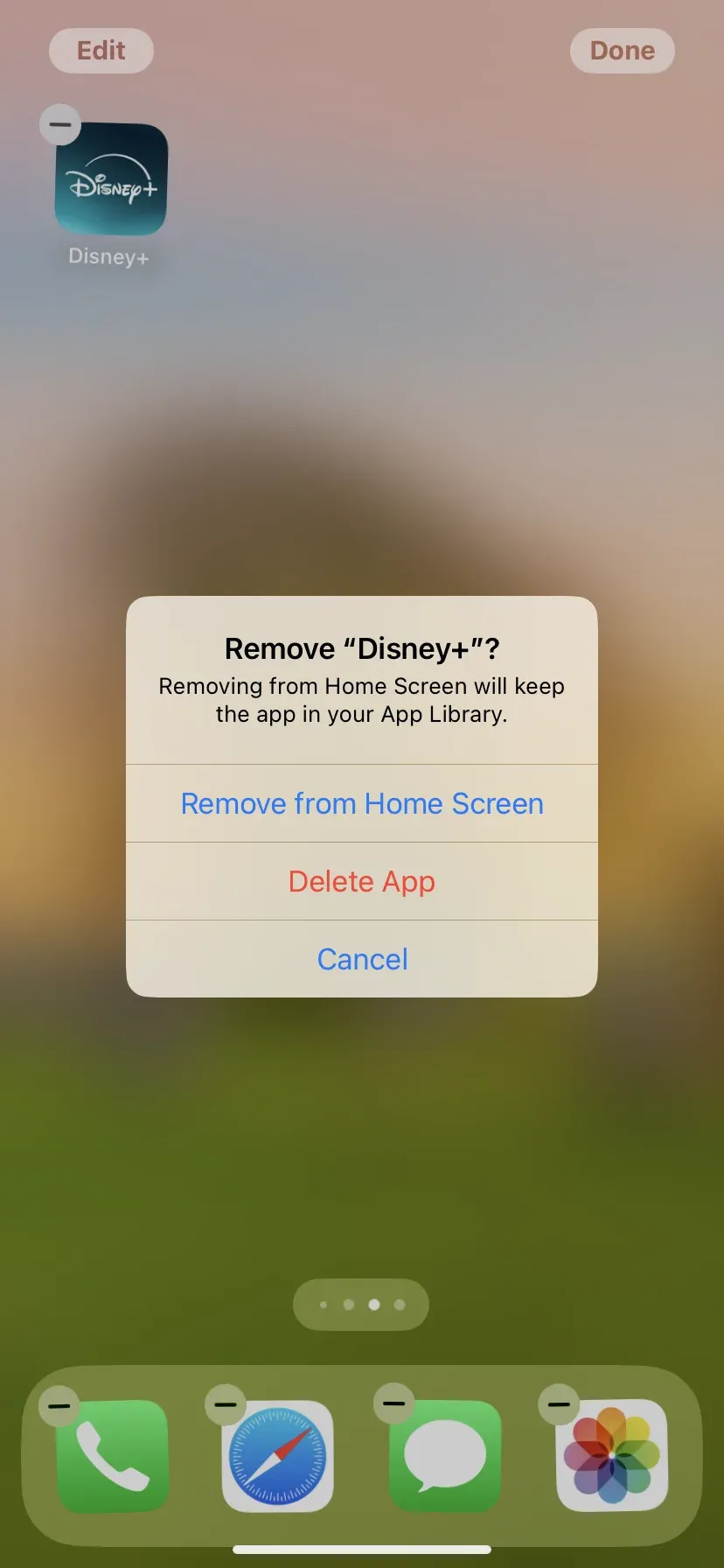
Step 1. Press and hold the Disney+ app icon, select Uninstall or Delete App.
Step 2. Reinstall Disney+ from the App Store/Google Play.
Step 3. Launch the app, log in to your account, and attempt casting.
#6. Try PigeonCast
If Disney Plus continues to resist casting through official methods, third-party screen mirroring apps like PigeonCast offer a reliable workaround. This free app creates a direct screen connection between your device and TV, which streams various content in up to 4K resolution with minimal latency over a WiFi network.
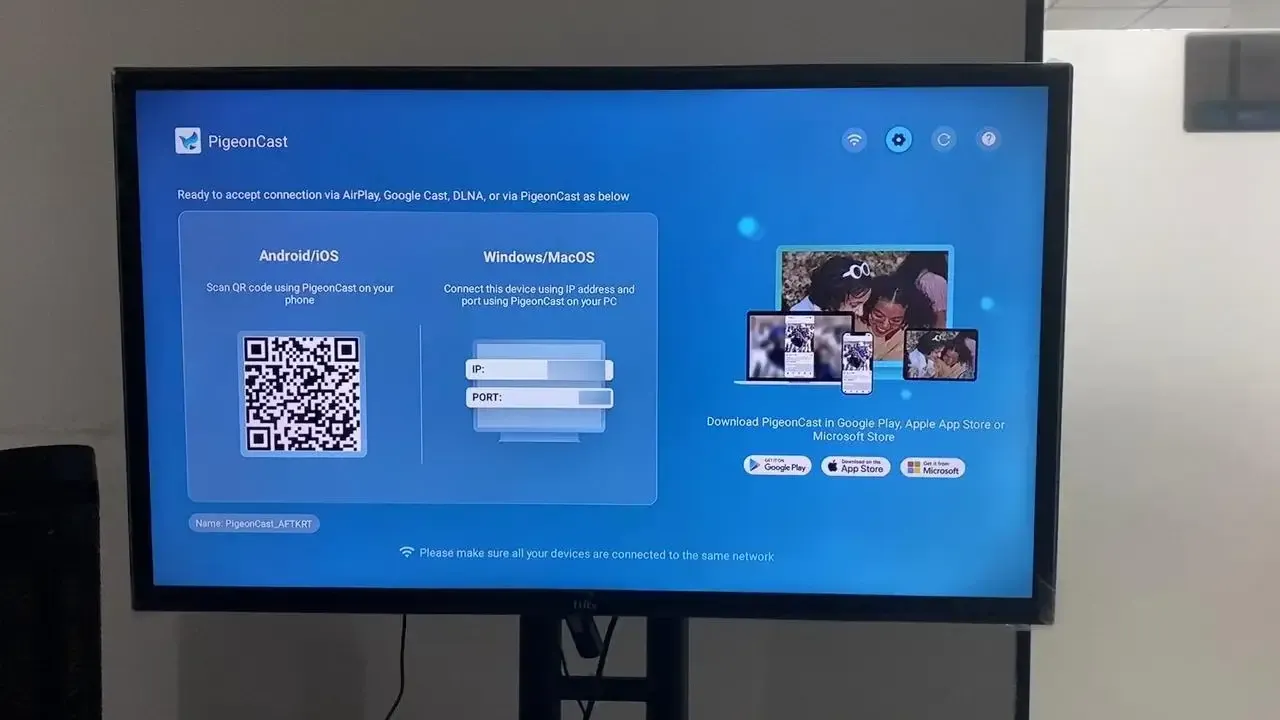
Step 1. Ensure your mobile device and TV are connected to the same wireless network.


Overall Rating:



Step 2. Install PigeonCast on your sender device from the app store, and download PigeonCast on your TV from the app shop. Then launch this app.
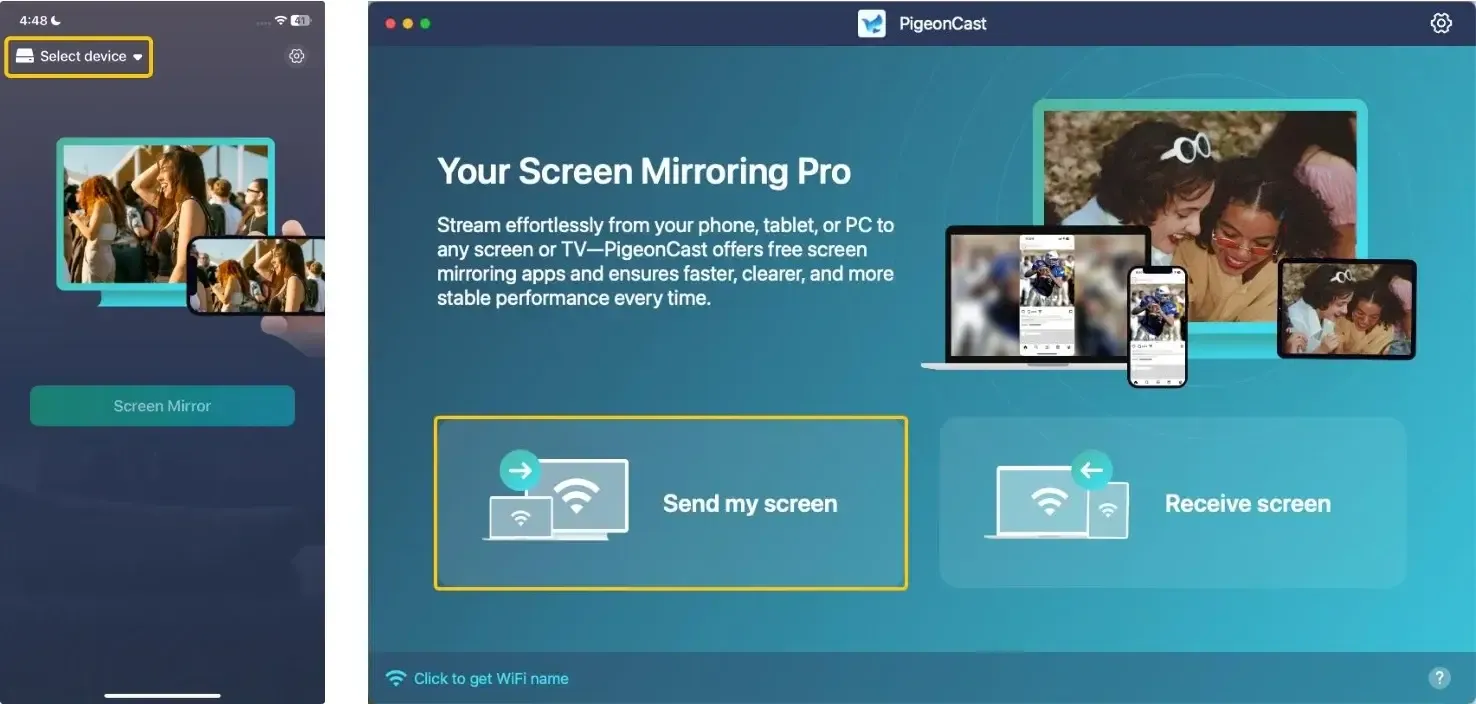
Step 3. On the sender device, tap Select device or Send my screen to choose your TV from the available list. Or you can directly scan the onscreen QR code to build the connection.
Step 4. Enter the onscreen PIN code to confirm your pairing requisition.
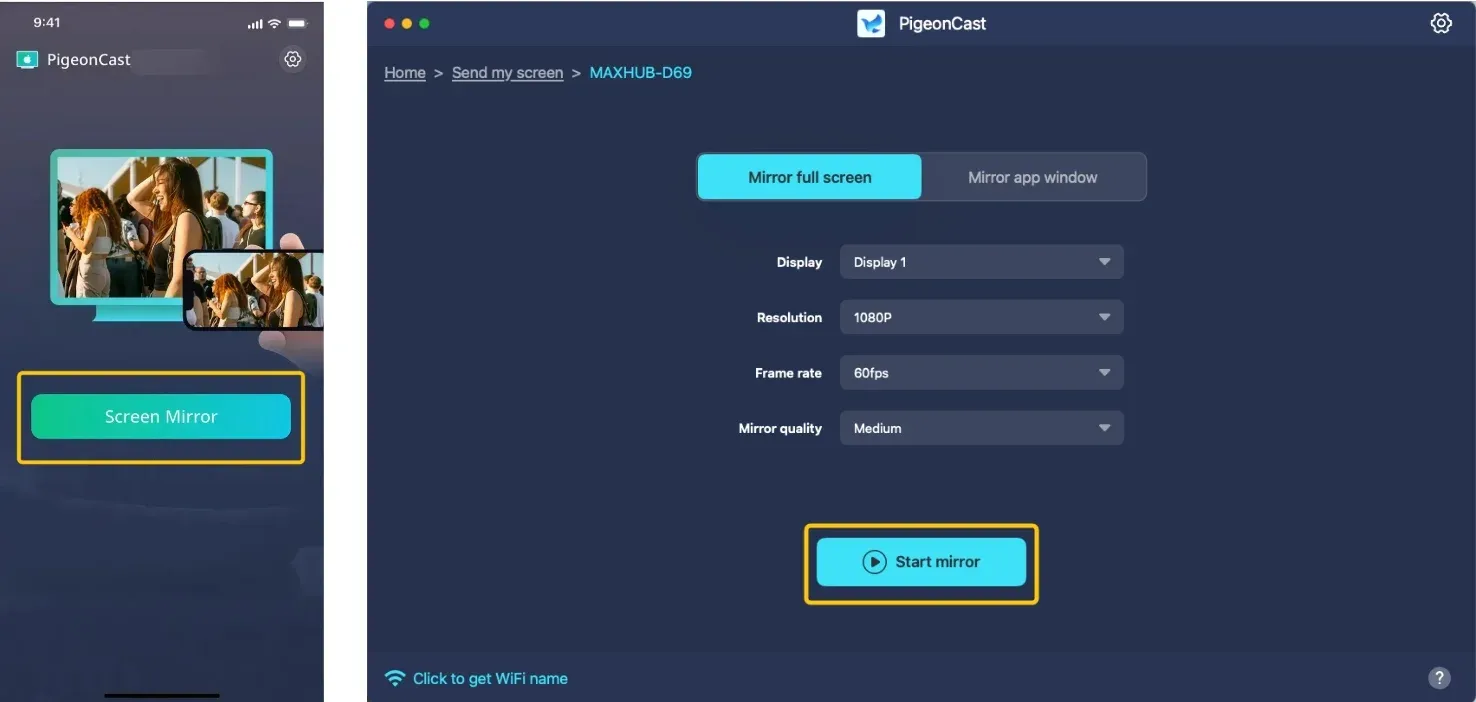
Step 5. When you finish the connection, you can tap Screen Mirror or Start mirror to open the Disney app and begin the mirroring activities.
Bottom Line
If you're asking, "Why can't I screen share Disney Plus?", there are 6 simple steps you can take to resolve the issue. If these steps don't work, third-party apps like PigeonCast can provide a reliable workaround. With these solutions, you'll be back to streaming your favorite Disney+ content in no time.
Disney Plus Won't Cast to TV FAQ
Why can't I no longer cast to my TV?
Here are some reasons why you may no longer be able to cast to your TV:
- Network connection issues
- Outdated software or firmware
- Compatibility problems between devices
- App glitches or errors
- Changes in device settings or updates
- Digital Rights Management (DRM) restrictions on content
- Issues with the casting device (e.g., Chromecast, Roku) or TV itself
Can you no longer cast Disney+?
Yes, you can still cast Disney+ in most cases. The service fully supports casting to compatible devices. If you're experiencing issues, they're likely temporary and solvable through troubleshooting. Disney has not disabled casting functionality generally, though they occasionally adjust DRM settings that might affect specific devices temporarily.
Does Disney block screen mirroring?
Disney Plus does implement DRM protection that can interfere with some screen mirroring methods, particularly those that might bypass content protection. However, most standard screen mirroring (like Chromecast and AirPlay) works when properly configured. The blocking you might experience is usually unintentional—a side effect of DRM rather than an intentional block of mirroring functionality.
How to solve Disney Plus won't cast to Samsung TV?
If Disney+ won't cast to your Samsung TV, here are some steps you can follow to resolve the issue:
- Ensure your Samsung TV supports Disney+ casting. Most newer models do, but if your TV is older, you might need a streaming device like Chromecast or Roku.
- Make sure both your phone/tablet and Samsung TV are connected to the same Wi-Fi network.
- Unplug the TV from the power source, wait 60 seconds, and plug it back in. Power off the device, wait 30 seconds, and then power it back on.
- Go to the App Store (iOS) or Google Play Store (Android) to ensure the app is up to date. Check for the latest software updates under Settings > Support > Software Update.
- On your phone/tablet, uninstall and reinstall the Disney+ app to clear any corrupted data. If using an app on the TV, uninstall and reinstall it.
- If you're using a VPN on your phone or tablet, try disabling it. Disney+ might block casting if it detects a VPN.
- If direct casting isn't working, try using AirPlay (for iPhone/iPad), Smart View (for Samsung devices) to mirror your screen to the TV, or a free universal mirroring app, PigeonCast.
- Ensure no devices are interfering with the Wi-Fi signal, such as large metal objects or routers placed too far from the TV.
Why is Disney Plus AirPlay not working?
Here are the common reasons why Disney+ AirPlay may not be working:
- Incompatible devices (AirPlay or Disney+ app)
- Different Wi-Fi networks for your iPhone/iPad and AirPlay device
- Outdated software on your devices or the Disney+ app
- AirPlay settings are disabled on the receiving device
- App glitches or bugs in Disney+ or AirPlay
- DRM (Digital Rights Management) restrictions on certain content
- Slow or unstable Wi-Fi connection
- AirPlay device connection issues (Apple TV, smart TVs)
- VPN or firewall is blocking the connection
How to fix Disney Plus Chromecast not working?
If Disney+ Chromecast isn't working, here are some common reasons and fixes you can try:
- Ensure your Chromecast and Disney+ app are both up-to-date and compatible with each other. Chromecast 2nd generation or newer should work fine.
- Make sure both your phone/tablet and Chromecast are connected to the same Wi-Fi network. If they are on different networks, casting will fail.
- Unplug Chromecast from the TV and power source, wait 60 seconds, and plug it back in.
- Restart the casting device (turn it off for 30 seconds and then back on).
- Make sure the Disney+ app is updated to the latest version from the App Store (iOS) or Google Play Store (Android).
- Update your Chromecast's firmware via the Google Home app.
- If the app is corrupted or outdated, uninstall and reinstall the Disney+ app on your phone/tablet to clear any data issues.
- On your Android phone/tablet, go to Settings > Apps > Disney+ > Storage, then tap Clear Cache and Clear Data to fix app-related issues.
- If you're using a VPN, try disabling it. Some VPNs can block streaming services from connecting to Chromecast.
- Ensure no other devices are causing interference with the Wi-Fi signal. Move your devices closer to the router if necessary.
- Some content on Disney+ may not be available for casting due to Digital Rights Management (DRM) restrictions. Try casting a different show or movie to check.
Clara Rossi is an experienced technology editor and a seasoned expert in screen mirroring and casting technologies. With a keen eye for detail and a deep understanding of how to seamlessly connect devices, Clara excels at optimizing user experiences for effortless sharing and streaming. Whether you're seeking quick fixes or advanced tips, her expertise and responsiveness ensure that every query is met with a well-informed and efficient solution.