
You’ve got the snacks, the couch is calling, and you’re ready to beam that deep-dive video to the big screen. Then, the inevitable happens: the icon is gone, or worse, your phone just spins in a digital void. It’s frustrating because, frankly, this should just work. When you run into YouTube Chromecast not working iPhone, it’s rarely a hardware death sentence. Usually, it’s just iOS being overprotective or a tiny handshake error between devices.
Let's cut through the generic "restart your router" fluff and get your stream back on track with some actual substance.
Fix 1: Turn on Local Network for YouTube
Ever since Apple tightened the screws on privacy, many apps lost their "vision" by default. If you’re dealing with YouTube not finding Chromecast on iOS, the culprit is often a toggled switch you didn't even know existed. Without this permission, YouTube is effectively blindfolded, unable to see any hardware sharing your Wi-Fi.
Step 1. Open your iPhone Settings > Apps.
Step 2. Scroll down until you find YouTube.
Step 3. Toggle the Local Network switch to ON.
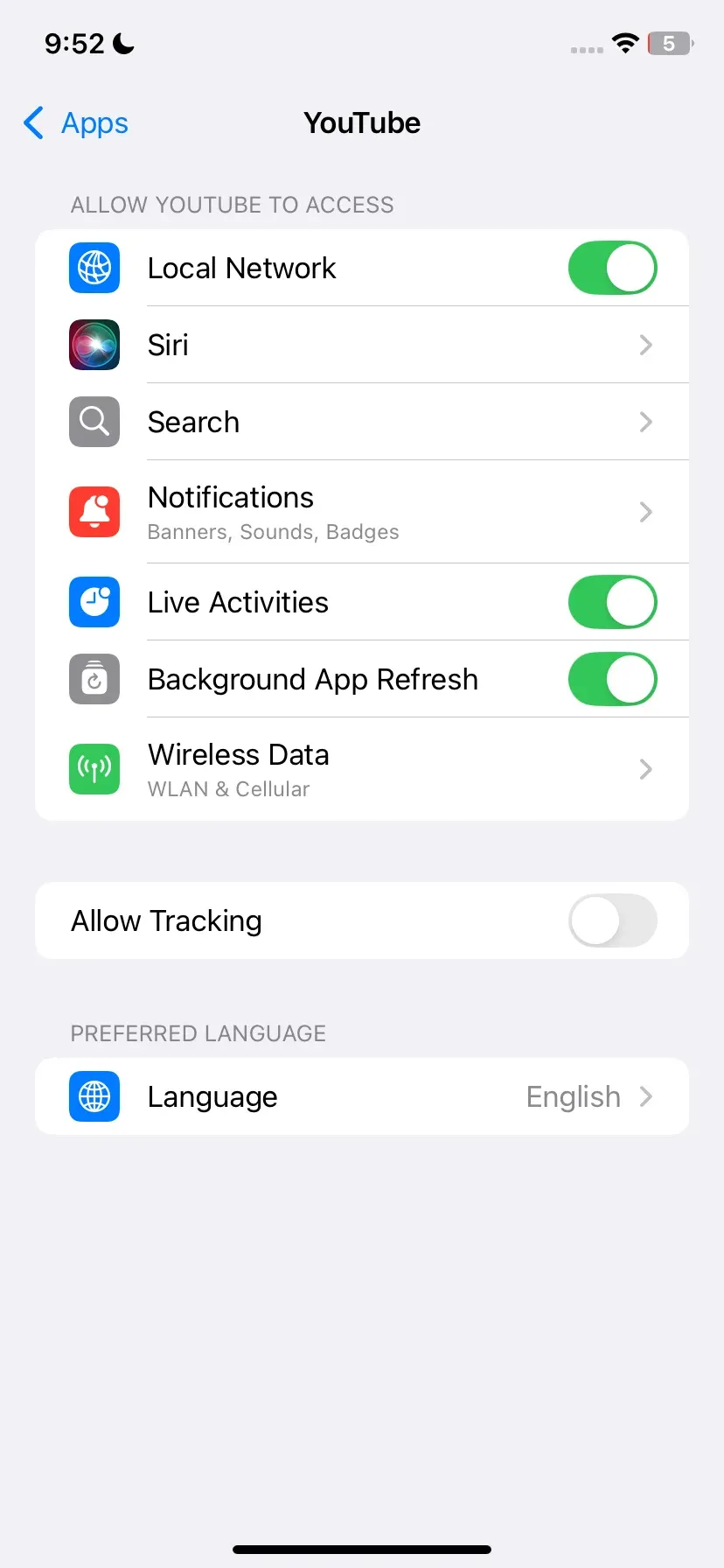
Step 4. Force close the YouTube app and relaunch it.
Did the icon reappear? Most of the time, this one adjustment clears the fog immediately.
Fix 2: Check Network Connection
Sometimes the issue is more visual. A YouTube Cast icon missing iPhone error often stems from a breakdown in the Discovery Protocol (mDNS). If your iPhone and Chromecast are on different Wi-Fi bands (like 2.4GHz vs 5GHz), they might as well be on different planets.
Step 1. Ensure your iPhone isn't accidentally sitting on your "5G" band while the Chromecast is tucked away on the "2.4G" legacy band.
Step 2. Check your router settings. If "Access Point Isolation" is on, your devices are essentially in solitary confinement and cannot communicate.
Fix 3: Use Link with TV Code Feature
When you find yourself unable to cast YouTube from iPhone to Chromecast despite both being on the same network, it’s time to stop relying on automatic discovery and force a manual link. This bypasses the need for the devices to "find" each other wirelessly by using a direct pairing code.
Step 1. Open the YouTube app on your Chromecast/Smart TV.
Step 2. Go to Settings > Link with TV Code. A blue code will pop up.
Step 3. On your iPhone YouTube app, tap your profile picture > Settings > Watch on TV.
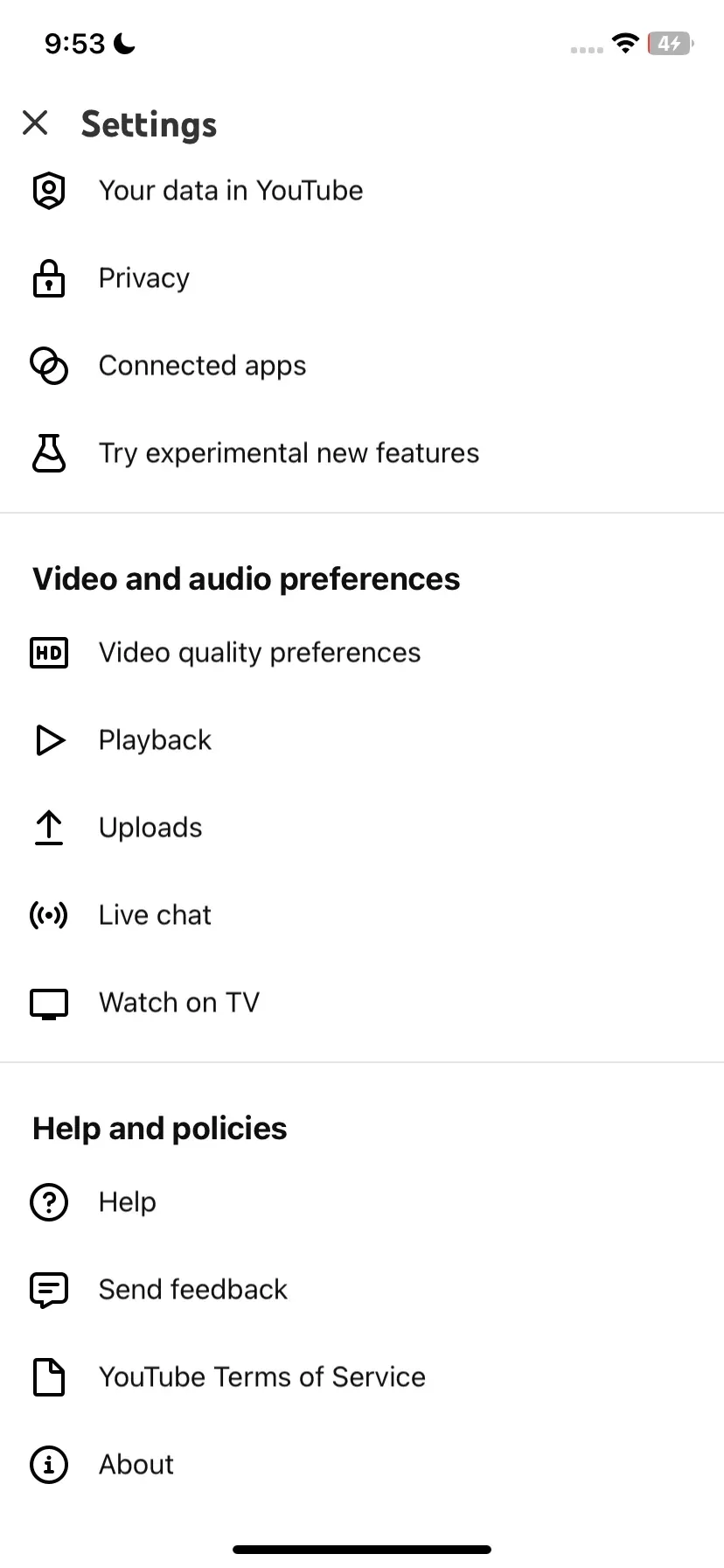
Step 4. Select Enter TV Code and type in the digits shown on your screen.
If the Chromecast connection is restored but videos still will not load, play, or remain on screen, test the YouTube app directly on the television. This helps separate an iPhone discovery problem from a TV-side playback failure. You may need to fix YouTube playback problems on the TV before trying the alternative casting methods below.
Alternative Methods to Watch YouTube on TV
If the native Google Cast protocol does not work with YouTube on iPhone, don't throw the remote at the wall just yet. You have other lanes to take.
Method 1: Screen Mirroring iPhone
While "Casting" sends just the video file, "Mirroring" sends your entire screen. This is a solid fallback if the YouTube app's internal button is broken.
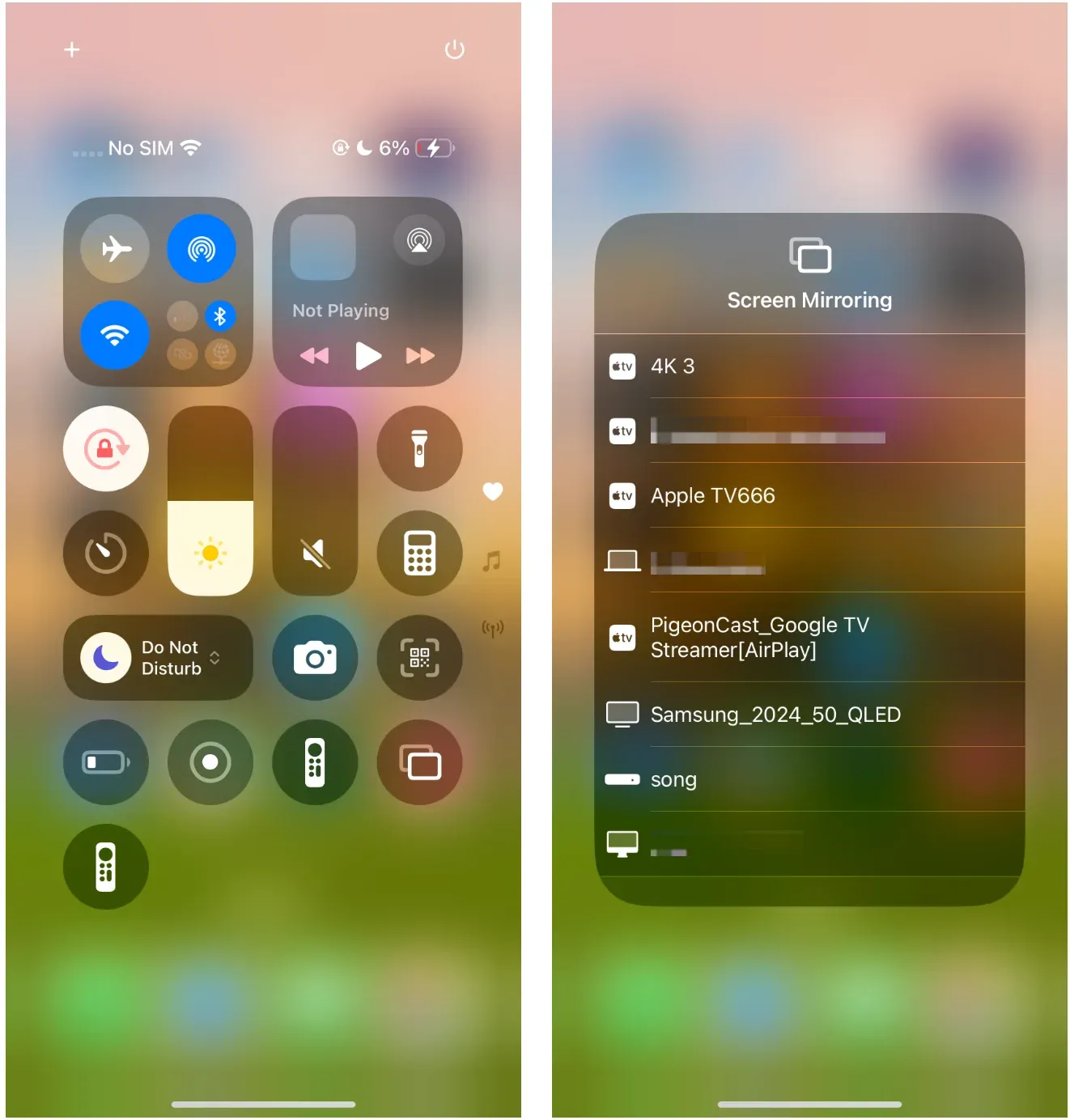
Step 1. Swipe down from the top-right corner to open Control Center.
Step 2. Tap Screen Mirroring (the two overlapping rectangles).
Step 3. Select your AirPlay-compatible TV.
Note: This will mirror your UI, including notifications, so enable Do Not Disturb first!*
Method 2: Use PigeonCast
For users who move between different ecosystems, PigeonCast is the ultimate "Swiss Army Knife" for streaming. Its real strength lies in unlimited compatibility. While Apple’s native tools often snub Windows PCs or non-Apple hardware, PigeonCast bridges your iPhone to almost anything—Windows PC, Android TV, Fire TV, and Apple TV included. It effectively eliminates the "walled garden" frustration by acting as a universal receiver.
Step 1. Download and install PigeonCast on your receiving device (TV, Fire Stick, or PC) and your iPhone.


Overall Rating:



Step 2. Ensure both devices are connected to the same Wi-Fi network.
Step 3. Launch the app on your receiving device to make it visible.
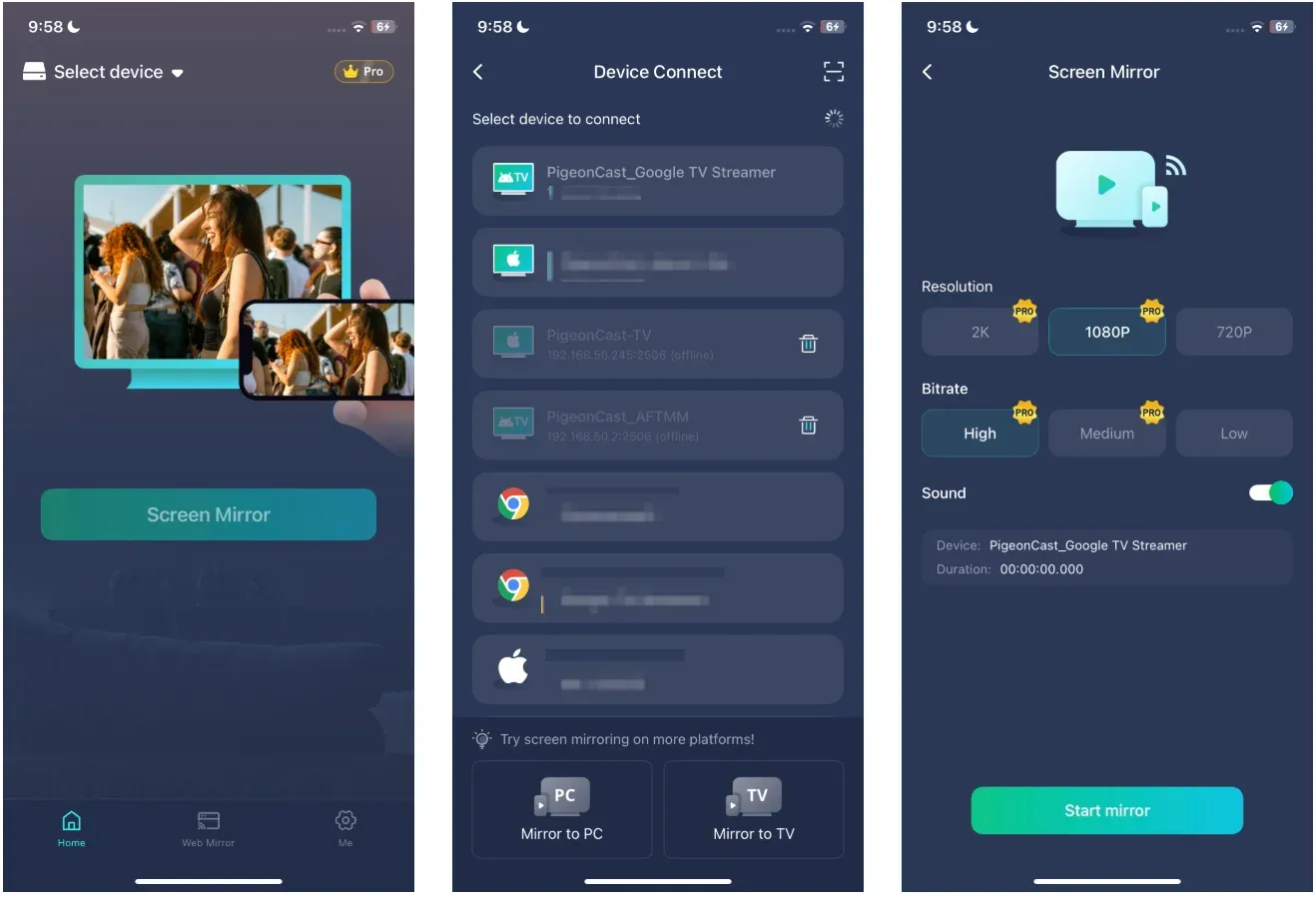
Step 4. On your iPhone, open the PigeonCast app, select your target device from the list, and hit Start Mirroring.
Step 5. Switch over to the YouTube app and enjoy smooth, high-definition playback across any platform.
The End
Fixing a broken connection between your iPhone and Chromecast usually boils down to permission and proximity. Once you've cleared the "Local Network" hurdle and ensured you're on the same frequency, your streaming should be seamless. If all else fails, a manual TV code or a tool like PigeonCast will get those videos onto the big screen where they belong. Happy watching!
YouTube Chromecast Not Working on iPhone FAQ
Why does the cast icon disappear only on my iPhone but works on Android?
Apple’s sandboxing is much stricter. Android devices are built into the Google ecosystem, so they "talk" to Chromecast natively. On an iPhone, you have to manually grant those permissions for the two to play nice.
Can a VPN stop my casting?
Absolutely. When your VPN is active, your iPhone thinks it’s in a data center in London while your Chromecast is in your living room. They won't see each other. Always kill the VPN before hitting that cast button.
Why is my YouTube not finding Chromecast on iOS after an update?
Apple updates often reset privacy permissions or introduce new MAC address randomization features (Private Wi-Fi Address). Try turning off "Private Wi-Fi Address" in your Wi-Fi network settings if discovery fails.
How to cast YouTube from your iPhone to TV?
- Connect both devices to the same Wi-Fi.
- Open the YouTube app and tap the Cast icon (rectangle with Wi-Fi signal) at the top of any video.
- Select your Chromecast or TV from the device list.
Does YouTube allow screen mirroring?
Yes, but not directly through the app. You must use your iPhone's Control Center and tap Screen Mirroring. Unlike "Casting“, which only sends the video, mirroring displays your entire phone screen, including notifications and UI.
Is there a mirror option on YouTube?
No internal "Mirror" button exists. YouTube uses Casting (Google Cast/AirPlay) to send video data. If you need a true mirror, especially for non-Apple devices like Windows PCs or Fire TVs, a third-party bridge like PigeonCast is your best bet to bypass brand-specific connection limits.
Mia Clarke is a technology editor specializing in screen mirroring and casting solutions across multiple platforms. Mia provides clear, practical guides and in-depth insights to help users seamlessly connect their devices. Passionate about enhancing digital experiences, Mia is dedicated to keeping readers updated on the latest trends and tools in cross-platform screen sharing. Whether you’re looking to mirror your smartphone, laptop, or smart TV, Mia’s content delivers reliable, user-friendly advice to simplify your tech setup.