
Casting from a MacBook to Chromecast is easier than it first appears, but the best Chromecast app for MacBook depends heavily on what you want to put on the TV.
Google Chrome already handles basic Chromecast duties, including browser tabs and the Mac screen, so you may not need another app at all. The gaps appear when you want better control over full-screen mirroring, regularly play local video files, or use TVs and streaming devices that do not all rely on Google Cast.
We narrowed the options down to five apps that solve noticeably different problems rather than filling the list with near-identical mirroring tools.
Quick Picks: Best Chromecast Apps for MacBook
| App | Best For | Full-Screen Mirroring | Chromecast | Other TV Platforms | Free Option |
|---|---|---|---|---|---|
| PigeonCast | Mixed TVs and cross-platform casting | Yes | Yes | AirPlay, DLNA, and receiver options | Yes |
| Google Chrome | Free browser and basic screen casting | Yes | Yes | No | Yes |
| AirBeamTV | Dedicated Mac-to-Chromecast mirroring | Yes | Yes | Depends on the AirBeamTV app | Free trial |
| JustStream | Mirroring plus local media streaming | Yes | Yes | AirPlay, DLNA, Roku | Yes |
| Elmedia Player | Playing and casting local video files | No traditional desktop mirroring | Yes | AirPlay, DLNA, Roku | Limited |
There is no reason to install a paid Chromecast app simply because you own a MacBook. If most of what you watch is already inside Chrome, start there. The third-party options become more useful when your casting habits extend beyond a browser tab or a single Chromecast-enabled TV.
1. PigeonCast — Best Overall for Mixed Devices
Best for: MacBook users who cast to different TVs, computers, and streaming devices rather than staying entirely inside the Chromecast ecosystem.
PigeonCast for Mac makes the most sense when Chromecast is only one part of your setup. From a Mac, it can handle screen mirroring while working across protocols including Google Cast, AirPlay, DLNA, and its proprietary protocol.
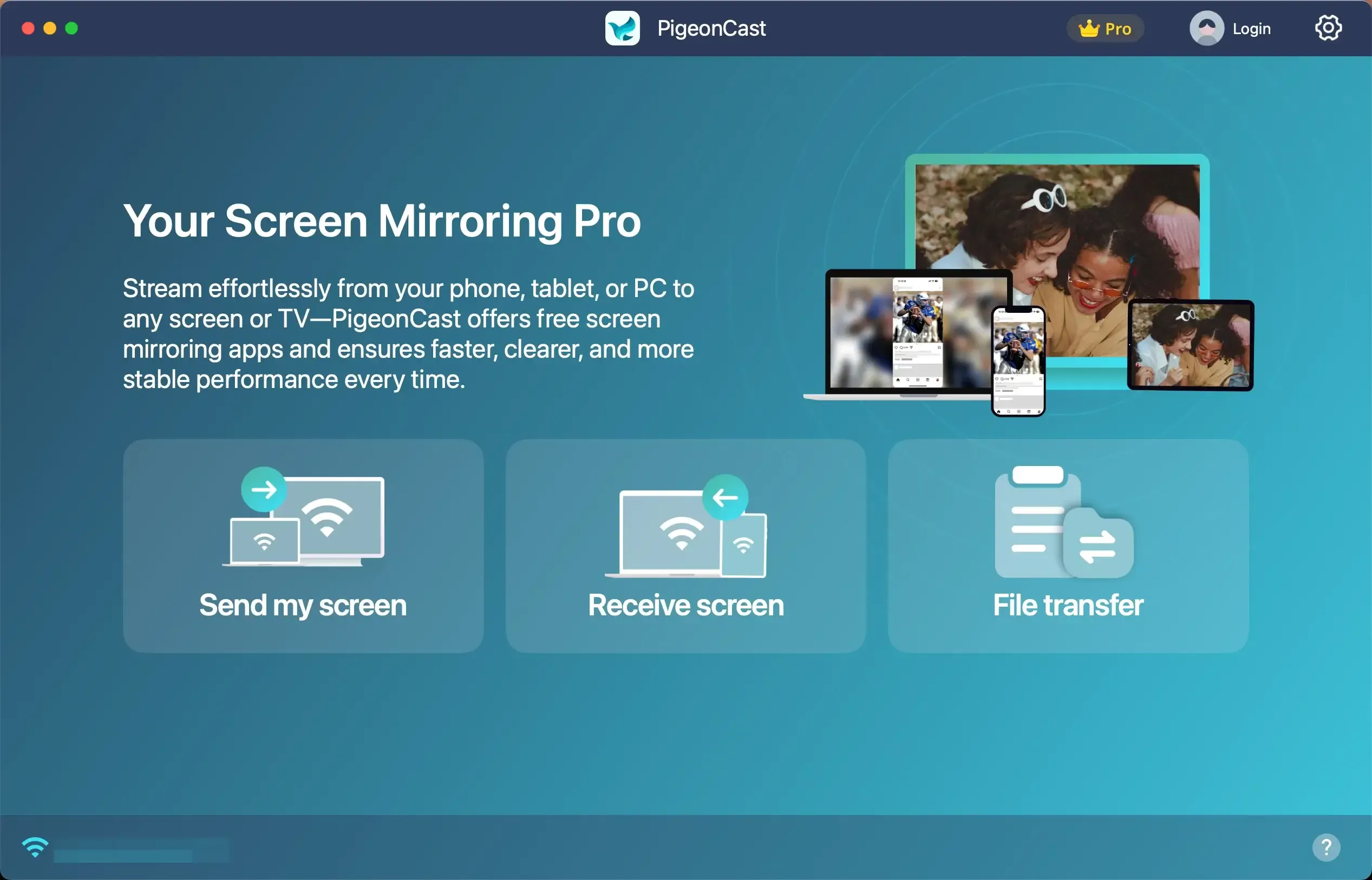
That matters less if you have one Chromecast TV in one room, but considerably more if your next screen happens to be an Fire Stick, Windows PC, or a Smart TV.
That broader device coverage is the main reason we would choose it over a Chromecast-only utility. You do not need to think about which protocol a particular receiver speaks every time you move between screens. The same setup is also useful in households and offices where TVs have accumulated over several years and rarely belong to one neat ecosystem.
PigeonCast can work with receiver apps as well. That gives it another route when the destination does not already support the protocol you need, rather than making TV compatibility the end of the conversation.
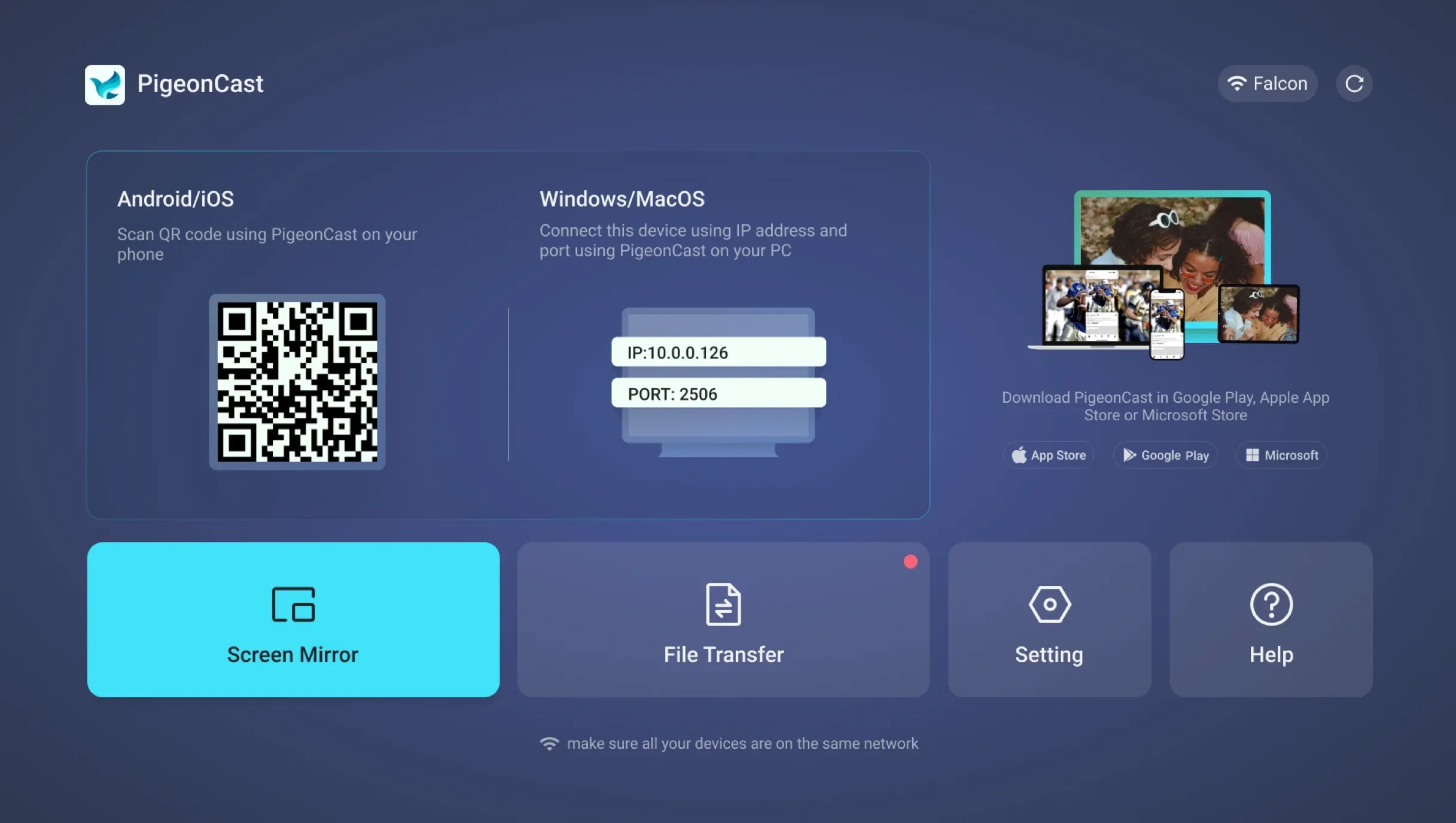
The trade-off is equally clear: if your entire requirement is “mirror this MacBook to this one Chromecast,” much of that flexibility is unnecessary. Chrome may already do enough, while a narrower Chromecast-focused app can feel more purpose-built.
The free version allows five-minute mirroring sessions that can be restarted. Premium removes the session limit and unlocks higher-quality settings, making the free version more useful for checking whether your particular Mac-and-TV combination works before upgrading.
What stands out
- Covers more than Google Cast
- Works well in mixed-device environments
- Supports both sender and receiver-based casting setups
- Better suited to users who move between different screens
Keep in mind
- Overkill if Chromecast is the only receiver you ever use
- Unlimited sessions require Premium
If you regularly move between Chromecast, AirPlay, and other TV environments, PigeonCast is the most versatile choice in this list. If you do not, there are simpler options below.
2. Google Chrome — Best Free Chromecast Option
Best for: Casting websites, online video, browser tabs, or occasional MacBook screen content without installing another app.
Chrome is the option people often overlook while searching for a “Chromecast app for Mac". If the browser is already installed, the casting feature is already there.
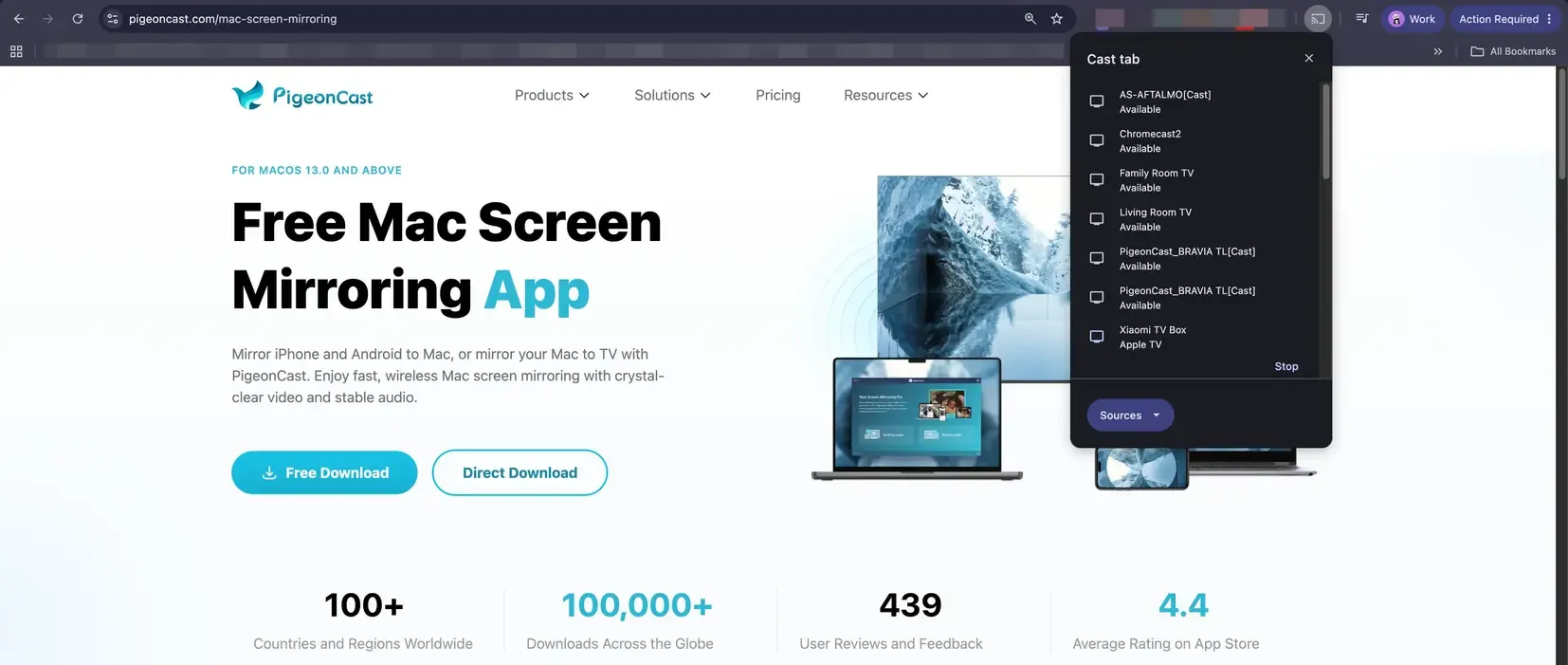
Google currently lets Mac users cast an individual Chrome tab or choose Cast screen to show the entire computer display on a Chromecast, Google TV Streamer, or TV with Google Cast. You can also open a local media file inside Chrome and send that to the TV. Check the guide on How to Cast from Google Chrome.
For YouTube, web video, presentations opened in the browser, and similar content, this is difficult to beat on value. There is no additional software to configure and no subscription decision to make.
The limitation becomes more noticeable with desktop mirroring. Google notes that when a Mac screen is cast, the picture can appear on the TV while computer audio remains on the Mac. Tab casting handles audio more cleanly, so Chrome is much stronger as a browser-casting tool than as a complete Mac desktop mirroring replacement.
That distinction is worth understanding before paying for anything. Someone who watches YouTube in Chrome has very different requirements from someone who wants to mirror editing software, a presentation app, or other desktop content with sound.
What stands out
- Completely free
- Already built into Chrome
- Casts tabs, the Mac screen, and files opened in Chrome
- Excellent first choice for browser-based content
Keep in mind
- Limited to Google Cast-compatible receivers
- Full-screen casting on Mac has audio limitations
- Provides fewer mirroring controls than dedicated apps
For most MacBook owners, Chrome should be the first option to try, not the fallback.
3. AirBeamTV — Best for Dedicated Chromecast Mirroring
Best for: Users who mainly want a conventional MacBook-to-Chromecast screen mirroring app.
AirBeamTV takes a more focused approach. Its Chromecast product is built around getting a phone or computer screen onto Chromecast without requiring an HDMI cable or Apple TV. On Mac, the basic flow is deliberately simple: choose the destination and start mirroring.
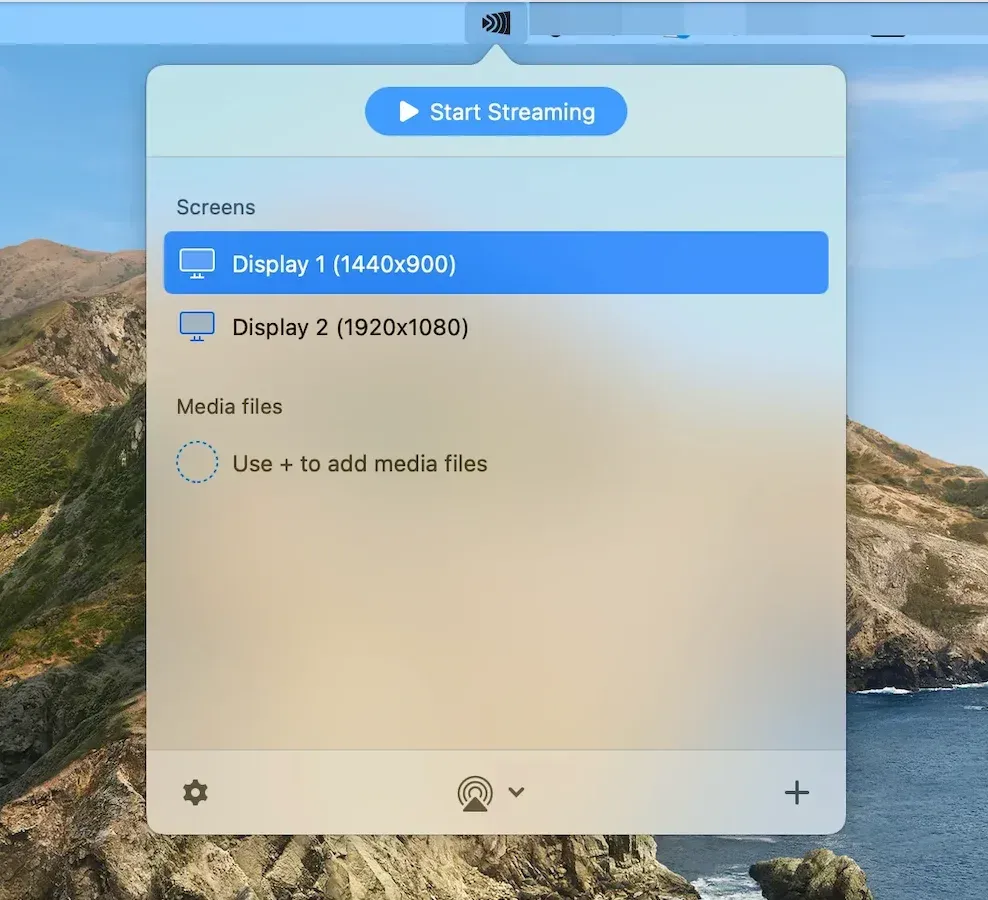
That narrow focus is actually its strongest argument.
If your living-room setup already revolves around Chromecast, you may not care whether an app supports several other protocols. You may simply want a dedicated interface instead of opening Chrome whenever you need to display a presentation, website, photo, or other Mac content on the TV.
AirBeamTV also produces mirroring solutions for a range of television platforms, but its apps are more destination-oriented than an all-in-one protocol approach. In other words, think of it as a family of TV mirroring tools rather than one universal casting environment.
The free version is mainly useful for testing whether the connection works well with your Mac and TV. If pricing matters to your decision, our breakdown of whether AirBeamTV is free explains what is available without paying and where the main restrictions begin.
That approach can be appealing when your receiver rarely changes. It becomes less convenient if you regularly move between Chromecast, Apple TV, different smart TVs, and computers.
There is also an important practical distinction between screen mirroring and direct streaming. Mirroring is useful because the TV shows what you are doing on the Mac, but it remains dependent on the computer and local network throughout the session. For simply playing a folder full of movie files, a media-streaming app such as JustStream or Elmedia can be a more natural fit.
What stands out
- Straightforward Mac-to-TV mirroring workflow
- Strong emphasis on Chromecast and television mirroring
- No separate casting hardware beyond the compatible receiver
- Good fit for a stable, TV-focused setup
Keep in mind
- Less compelling if you regularly move across multiple casting ecosystems
- Primarily valuable for mirroring rather than managing a local media library
AirBeamTV is the choice here for someone who wants a dedicated mirroring tool and does not need the app to solve every possible device combination.
4. JustStream — Best for Mirroring and Local Media Streaming
Best for: Users who alternate between mirroring the Mac screen and sending local movies or other media files directly to a TV.
JustStream sits in an interesting middle ground. It is not merely a screen-mirroring utility, but it is not a full media player in the same sense as Elmedia either.
It can mirror a Mac display to Chromecast, AirPlay, and DLNA receivers, while also streaming local media files. Roku is supported as well. The current free version provides 20 minutes of uninterrupted mirroring or streaming before you need the paid version.
The local-media side is where JustStream becomes more interesting than a basic mirror button. It supports playlists, external and embedded audio tracks, subtitles, and a wide range of video formats. When necessary, unsupported media can be converted while it is being streamed rather than forcing you to convert the file separately before watching it.
Imagine you have several MKV or MOV files stored on your MacBook. You could mirror the player window to the television, but that means your Mac is essentially broadcasting its display for the entire movie. JustStream gives you another workflow designed around the media itself.
At the same time, you still have screen mirroring available when the content cannot simply be added to a playlist. That combination makes JustStream one of the more balanced products here.
There is some setup detail hidden beneath that convenience. Mirroring with sound requires the JustStream Audio Driver, for example, so users expecting every feature to work immediately after opening the app may have an extra step.
What stands out
- Combines full-screen mirroring with local media streaming
- Handles Chromecast, AirPlay and DLNA receivers
- Strong file-format and subtitle support
- Useful for people with a local movie or video collection
Keep in mind
- Some audio mirroring features require an additional driver
- The extra media features are unnecessary if you only mirror occasionally
- Free use is time-limited
JustStream is probably the strongest alternative in this list for someone whose MacBook doubles as a media library.
5. Elmedia Player — Best for Casting Video Files
Best for: People who primarily want to play local media on a Mac and occasionally send it to Chromecast or another TV.
Elmedia Player belongs on this list for a slightly different reason. It is a media player first and a casting tool second.
That changes the experience considerably.
Instead of choosing something on your desktop and mirroring everything around it, you open a movie, video, or audio file inside Elmedia and send that media to the receiving device. Elmedia supports streaming to Google Cast, AirPlay, DLNA, Roku, and compatible smart TVs, while the player itself handles formats such as MKV, WMV, FLAC, and AVI alongside the more familiar MP4 and MOV.
This is particularly useful when the reason you searched for a Chromecast app was simply to get downloaded video from a MacBook onto a television. In that situation, paying for a broader desktop mirroring solution may solve a problem you do not actually have.
The distinction between Elmedia and JustStream is easy to miss because they overlap heavily in receiver support. A useful way to separate them is by where you start: with JustStream, the goal is send or mirror something from the Mac; with Elmedia, the goal is play a media file well, with TV streaming available when needed.
The free edition also deserves a closer look before assuming casting is completely free. Electronic Team currently limits video and audio streaming to AirPlay, Chromecast, and DLNA receivers to five minutes in the free website version; unlimited streaming requires Elmedia Player PRO.
What stands out
- Strong Mac video player as well as a casting tool
- Broad media-format support
- Chromecast, AirPlay, DLNA and Roku streaming
- Makes sense for downloaded movies and local video libraries
Keep in mind
- Not the right choice for general-purpose desktop mirroring
- Unlimited casting requires the paid version
- Many features are irrelevant if all you need is screen sharing
Elmedia is therefore less of a direct PigeonCast or AirBeamTV replacement and more of a specialized answer to one common reason people use Chromecast in the first place.
Best Chromecast Apps for MacBook Compared
Looking at the five apps side by side makes their differences more obvious.
| Feature | PigeonCast | Google Chrome | AirBeamTV | JustStream | Elmedia Player |
|---|---|---|---|---|---|
| Full Mac Screen Mirroring | Yes | Yes | Yes | Yes | No |
| Browser Tab Casting | Through screen mirroring | Yes | Through screen mirroring | Through screen mirroring | No |
| Local Media Streaming | Media casting supported | Basic | Screen-focused | Yes | Yes |
| Google Cast / Chromecast | Yes | Yes | Yes | Yes | Yes |
| AirPlay Support | Yes | No | Separate ecosystem/options | Yes | Yes |
| DLNA Support | Yes | No | Varies by solution | Yes | Yes |
| Best Use | Mixed devices | Web content | Dedicated mirroring | Mirror + media | Local media |
| Free Use | 5-minute sessions | Free | Trial available | 20-minute free use | 5-minute streaming limit* |
*Free limits and product plans can change, so check the developer's current pricing before purchasing.
The comparison also shows why declaring a single app the winner without context is not especially useful. Chrome can be the best option at $0 and still be the wrong tool for someone trying to mirror desktop applications with audio. Elmedia can be excellent for a large MKV library while being a poor recommendation for someone who wants their entire Mac desktop on a television.
“Best” starts to mean something only after the job is clear.
How We Chose the Best Chromecast Apps for MacBook
We focused first on whether an app solves a real Mac-to-TV use case rather than simply including Chromecast somewhere in its feature list.
Full-screen mirroring mattered because it separates dedicated Mac casting software from services that only send individual media files. We also looked at audio handling, receiver compatibility, local media support, free-use restrictions, and what happens when the destination is not a Chromecast.
That last point deserves more weight than it usually gets. A casting app can work perfectly with your current television and become much less useful the moment you try to use it in another room, office, hotel, or home with a different TV platform.
We also avoided ranking apps solely by the number of features they advertise. More protocols and settings are useful only when they remove an actual limitation. A simple Chrome Cast session is still the cleaner solution when all you want is a YouTube tab on a Chromecast-enabled TV.
Which Chromecast App Should You Choose?
Start with Google Chrome if your content already lives in the browser. It costs nothing, takes seconds to try, and handles more than many users realize. There is little reason to install another app until you encounter something Chrome does not handle well.
Choose AirBeamTV if your requirement is more specific: you have a Chromecast or compatible TV and want a dedicated Mac screen-mirroring interface built around that job.
JustStream becomes more attractive when your Mac contains a substantial collection of videos and you want both traditional mirroring and file-based streaming. If local media playback is the main activity rather than screen mirroring itself, Elmedia Player takes that idea further by putting the media player at the center of the experience.
Choose PigeonCast when the receiver is the variable. If today you are casting to Chromecast, tomorrow to an Apple TV, and later to another smart TV or computer, using one cross-platform solution is easier than choosing a new mirroring tool each time the screen changes.


Overall Rating:


That is the real dividing line in this list: some apps are optimized around what you cast, while others are better at handling where you cast it.
Conclusion
The useful question is not really whether a MacBook has a “best Chromecast app.” It is how much of your setup you want that app to solve.
Chromecast-only households have the luxury of keeping things simple: Chrome may already cover most day-to-day casting, and a dedicated mirroring app can fill the remaining gap. Once different TVs, protocols, and destinations enter the picture, compatibility starts to matter more than having another mirror button.
That is also why it is worth choosing for the setup you actually have rather than the longest feature list. A good casting tool should remove decisions from the process. When you sit down with a MacBook and a screen across the room, the ideal experience is not thinking about Google Cast versus AirPlay versus DLNA at all — it is simply being able to put the content where you want it.
Best Chromecast App for MacBook
What is the best free Chromecast app for MacBook?
Google Chrome is the most practical free starting point because Chromecast support is already built into the browser. It can cast a tab, a local file opened in Chrome, or the Mac screen to a compatible Google Cast receiver. Dedicated third-party apps become more useful when you need features Chrome does not handle well, especially broader receiver compatibility or more specialized mirroring and media controls.
Can I Chromecast my entire MacBook screen?
Yes. In Chrome, open the Cast menu, choose Sources, and select Cast screen rather than Cast tab. Dedicated screen-mirroring apps such as PigeonCast, AirBeamTV, and JustStream can also mirror the Mac desktop. One important Chrome limitation is that desktop audio from a Mac may remain on the computer rather than playing through the TV.
Do I need an app to cast from MacBook to Chromecast?
Not necessarily. If you already use Google Chrome, basic Chromecast functionality is available without installing a separate casting app. A third-party app is mainly worth considering when you need different audio behavior, dedicated screen-mirroring controls, local media features, or support for receivers beyond Google Cast.
Which Chromecast app is best for movies stored on a Mac?
JustStream and Elmedia Player are stronger choices for local movie files because both are designed around media streaming rather than simply reproducing everything visible on the Mac screen. JustStream combines this with full desktop mirroring, while Elmedia is better understood as a full media player with TV streaming built in.
Can one Mac casting app work with both Chromecast and Apple TV?
Yes, provided that the app supports both Google Cast and AirPlay. PigeonCast and JustStream are examples of tools designed for multiple receiver technologies, while Chrome's built-in casting feature is centered on Google Cast. This distinction matters if you regularly use more than one television or streaming-device ecosystem.
Is screen mirroring the same as casting a video?
Not quite. Screen mirroring continuously sends what is happening on the Mac display, so opening another window or moving the cursor can appear on the TV as well. Media casting sends the video itself to the receiver and is usually a cleaner choice when you simply want to watch a movie. That is why an app such as Elmedia can be a better fit for local video even though it is not the strongest full-screen mirroring option. See more differences from our guide on Screen Mirroring vs Casting.
Mia Clarke is a technology editor specializing in screen mirroring and casting solutions across multiple platforms. Mia provides clear, practical guides and in-depth insights to help users seamlessly connect their devices. Passionate about enhancing digital experiences, Mia is dedicated to keeping readers updated on the latest trends and tools in cross-platform screen sharing. Whether you’re looking to mirror your smartphone, laptop, or smart TV, Mia’s content delivers reliable, user-friendly advice to simplify your tech setup.