
If your MacBook won't mirror to TV, the problem may come from AirPlay, HDMI, Wi-Fi, display settings, or the TV input source. You may see a black screen, no device in Screen Mirroring, sound without video, or a connection that keeps failing. The good news is that most of these issues are easy to fix. This guide walks you through the common causes and practical fixes so you can mirror your MacBook to a TV smoothly again.
Why Your MacBook Won't Mirror to TV
Your MacBook may fail to mirror to a TV for different reasons, but most of them are easy to check. Start with how you connect your MacBook to the TV, then look at the network, TV settings, and display mode.
| Possible Cause | What It Means |
|---|---|
| AirPlay is not supported or turned off | Your TV may not support AirPlay, or the feature may be disabled in the TV settings. |
| Different Wi-Fi networks | Your MacBook and TV must be on the same Wi-Fi network for wireless mirroring to work. |
| Wrong TV input | If you use HDMI, the TV may be set to the wrong HDMI source. |
| Cable or adapter issue | The HDMI cable may be loose, damaged, or the USB-C adapter may not support video output. |
| Wrong display mode | Your MacBook may use the TV as an extended screen instead of mirroring the display. |
| VPN or firewall block | VPN, firewall, or router settings may stop your MacBook from finding the TV. |
| Outdated system software | Old macOS or TV firmware can cause AirPlay and screen mirroring problems. |
| App playback limits | Some video apps may block mirroring or show a black screen due to content restrictions. |
Once you find the likely cause, you can move to the right fix instead of trying random steps.
How to Fix MacBook Not Mirroring to TV
The fixes below move from simple checks to deeper settings, helping you rule out the most common issues first. Remember to try mirroring your MacBook to the TV again after each fix to see if the problem is solved.
Fix 1. Restart Your MacBook and TV
Restarting both devices is the easiest fix to try when your MacBook won't mirror to TV. It can clear small connection errors that stop AirPlay, HDMI, or screen mirroring from working normally.
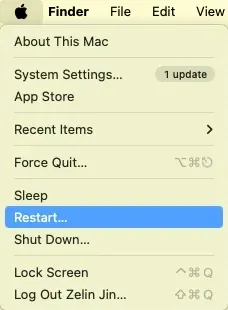
Step 1. Restart your MacBook from the Apple menu.
Step 2. Turn off your TV with the remote, then unplug it from the power source.
Step 3. Wait for about 30 seconds before plugging the TV back in.
Step 4. Turn on your MacBook and connect it to the same Wi-Fi network as your TV.
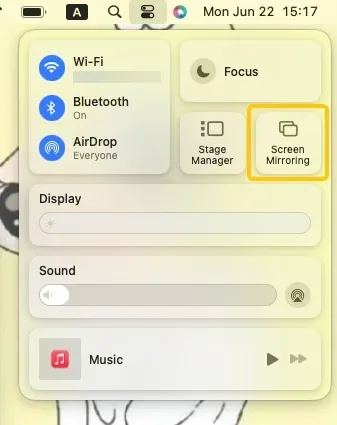
Step 5. Open Control Center on your MacBook, choose Screen Mirroring, and select your TV again.
If you use Apple TV, a streaming stick, or another receiver between your MacBook and the TV, restart that device as well before trying again.
Fix 2. Check Network Issues That Block Screen Mirroring
Even when your MacBook and TV are on the same Wi-Fi, some network settings can still block screen mirroring. VPN, guest Wi-Fi, router isolation, or a weak signal may stop your MacBook from finding the TV or keeping the connection stable.
Step 1. On your MacBook, open System Settings, then turn off any active VPN.
Step 2. Make sure your MacBook and TV are not connected to a Guest Wi-Fi network. Guest networks often block devices from seeing each other.
Step 3. Move your MacBook closer to the TV and router. A weak signal can make the TV disappear from the Screen Mirroring list or cause the connection to drop.
Step 4. Restart your router if the connection keeps failing. Unplug the router, wait about 30 seconds, plug it back in, and wait until the network is fully back online.
Step 5. Open your router settings and look for options like AP Isolation, Client Isolation, Device Isolation, or Wireless Isolation. Turn them off if they are enabled.
Step 6. Reconnect your MacBook and TV to the same Wi-Fi network. Then open Control Center > Screen Mirroring, and select your TV again.
If the TV appears after you turn off VPN, leave guest Wi-Fi, or disable isolation settings, the issue is likely caused by network blocking rather than the MacBook or TV.
Fix 3. Check TV Compatibility and Use Another Mirroring Method
If your TV does not support AirPlay, your MacBook may not find it in the Screen Mirroring list, even when both devices are on the same Wi-Fi. Some smart TVs support AirPlay directly, while other TVs only support Chromecast, DLNA, Miracast, or their own casting features. In that case, you need to choose a mirroring method that works with your TV.
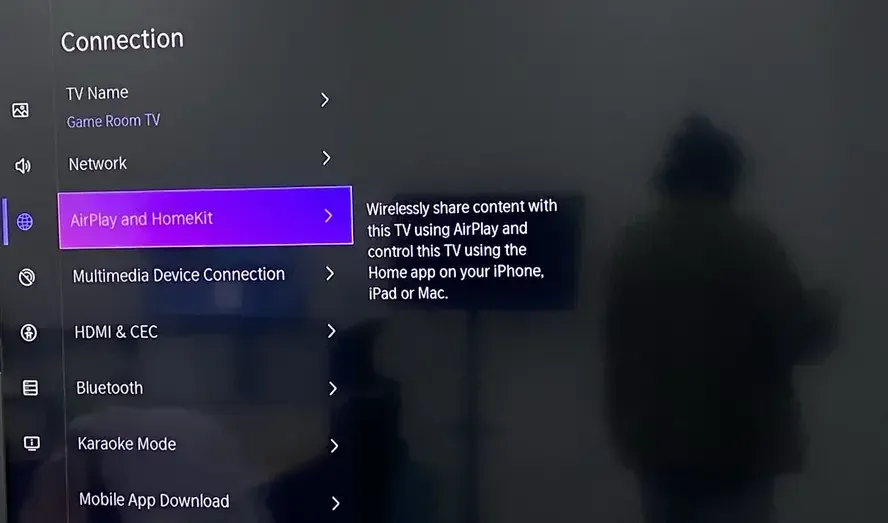
Step 1. Open Settings on your TV and look for Apple AirPlay, AirPlay and HomeKit, Screen Mirroring, Cast, or Connection.
Step 2. If you see Apple AirPlay or AirPlay and HomeKit, turn AirPlay on and allow your MacBook to connect.
Step 3. If your TV does not show any AirPlay option, check whether it supports other casting methods, such as Chromecast or DLNA.
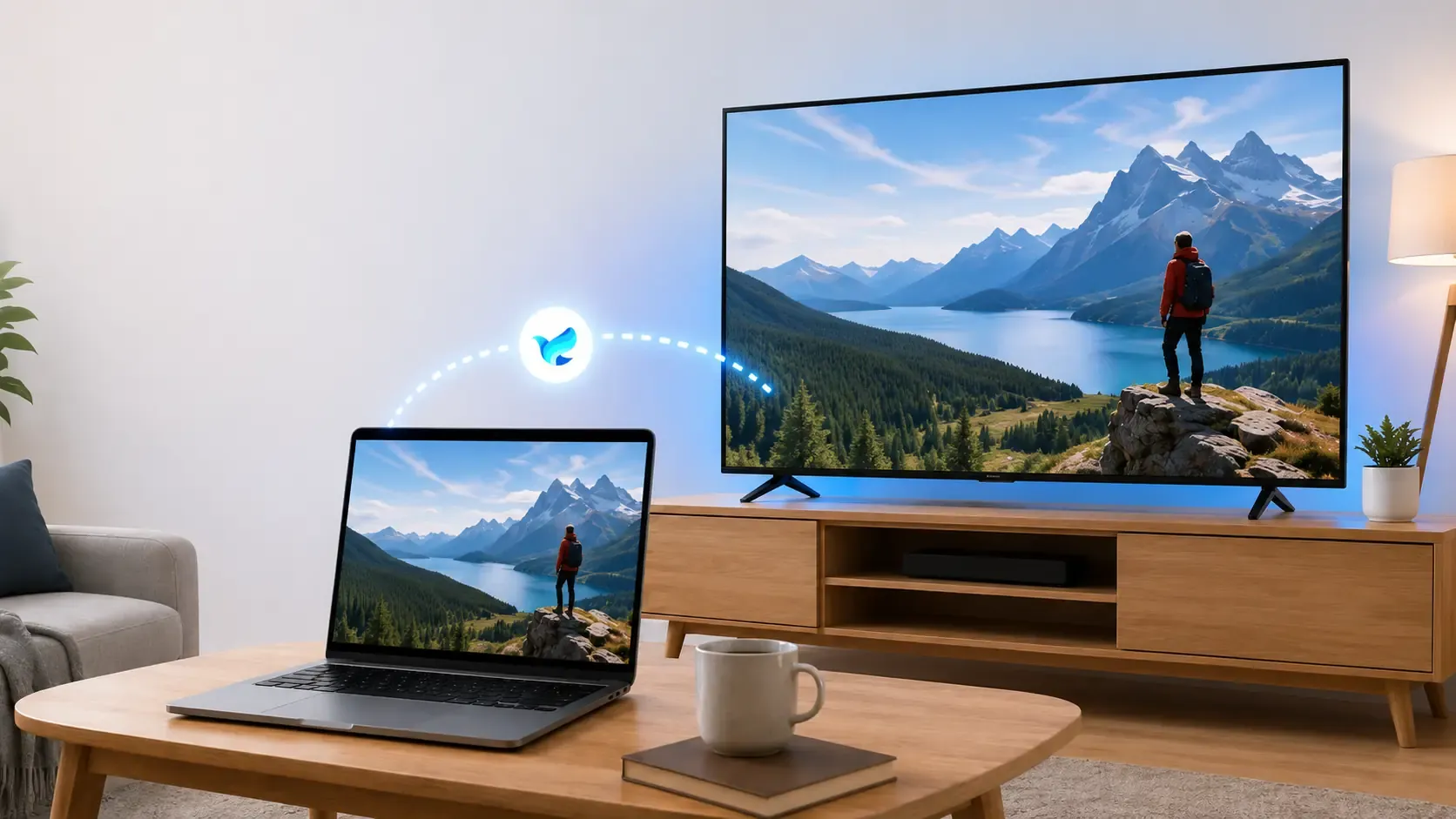
If your TV is not AirPlay compatible, you do not have to rely on HDMI cables or extra adapters. PigeonCast for MacBook screen mirroring gives you another wireless way to mirror your MacBook to a TV, and it supports Mac, smart TVs, AirPlay, Chromecast, and DLNA connections. It also lets you choose between Mirror full screen and Mirror app window, which is useful when you only want to share a presentation, browser, or video instead of your entire desktop.
Step 1. Make sure your MacBook and TV are connected to the same Wi-Fi network.


Overall Rating:



Step 2. Download and install PigeonCast on Mac from the App Store and on your TV from the app shop if available.
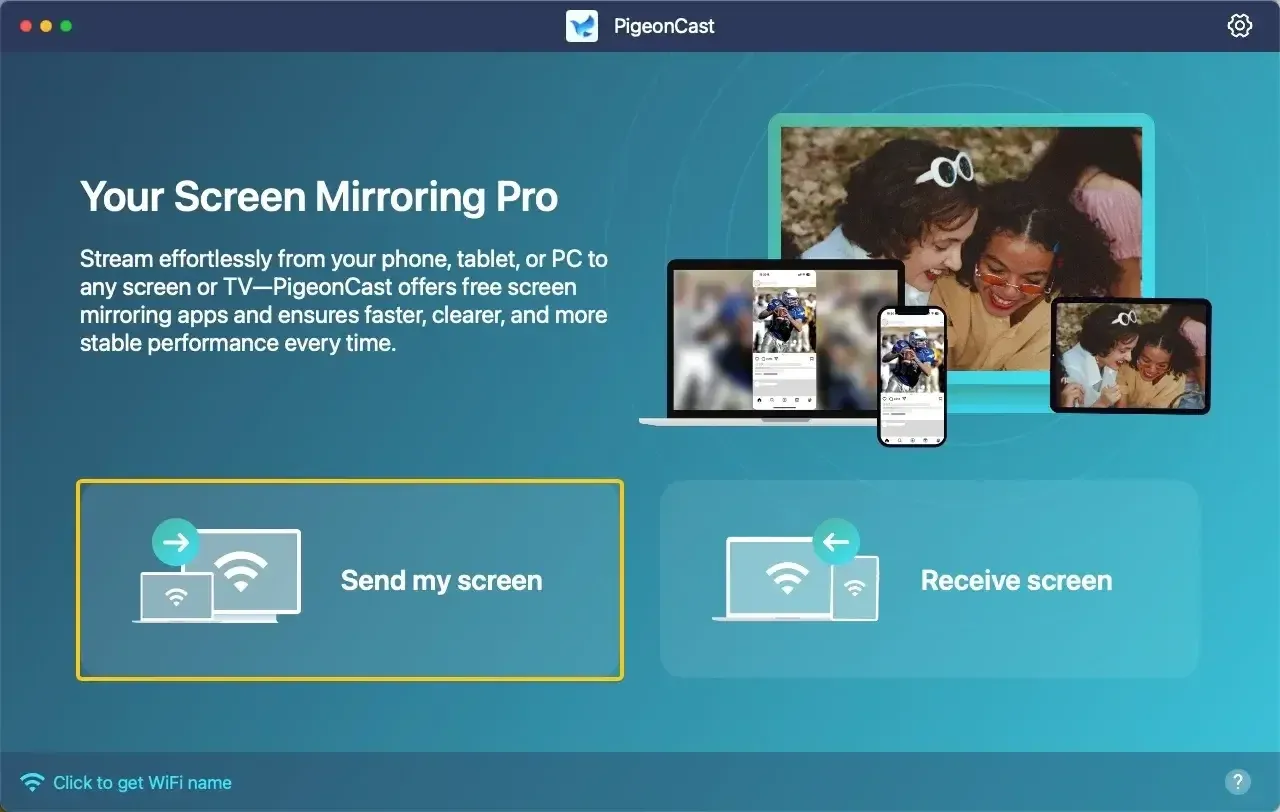
Step 3. Open PigeonCast on your MacBook, click Send my screen to choose your TV from the available list.
Step 4. Enter the onscreen PIN code to confirm the pairing process.
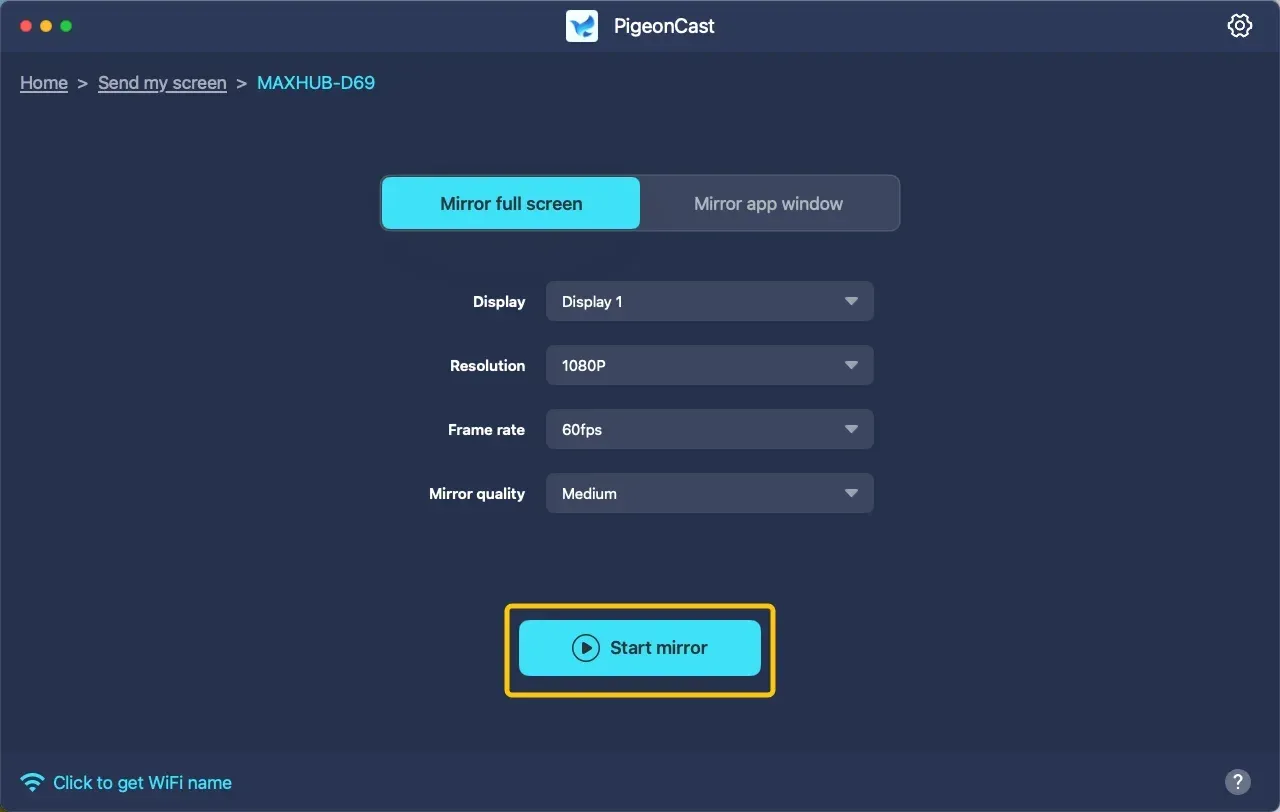
Step 5. When the connection is ready, choose Mirror whole screen or Mirror app windows, then click Start mirror. Your MacBook screen will then appear on the TV.
Fix 4. Check the HDMI Cable and TV Input
If you mirror your MacBook to a TV with an HDMI cable, the issue may come from the cable, adapter, or TV input source. A loose cable or wrong HDMI input can make the TV show no signal even when your MacBook is working normally.
Step 1. Unplug the HDMI cable from both your MacBook adapter and the TV.
Step 2. Plug the HDMI cable back in firmly on both ends.
Step 3. If your MacBook uses a USB-C to HDMI adapter, make sure the adapter supports video output.
Step 4. Use your TV remote to open Input, Source, or Home, depending on your TV model.
Step 5. Select the correct HDMI port. For example, if the cable is plugged into HDMI 2, choose HDMI 2 on the TV.
Step 6. If the TV still shows no signal, try another HDMI port on the TV.
Step 7. Try another HDMI cable or adapter if possible, then reconnect your MacBook to the TV.
Fix 5. Adjust Display Settings on Your MacBook
If your TV is connected but the screen does not mirror correctly, your MacBook may be using the wrong display mode. For example, the TV may work as a second screen instead of showing the same content as your MacBook display.
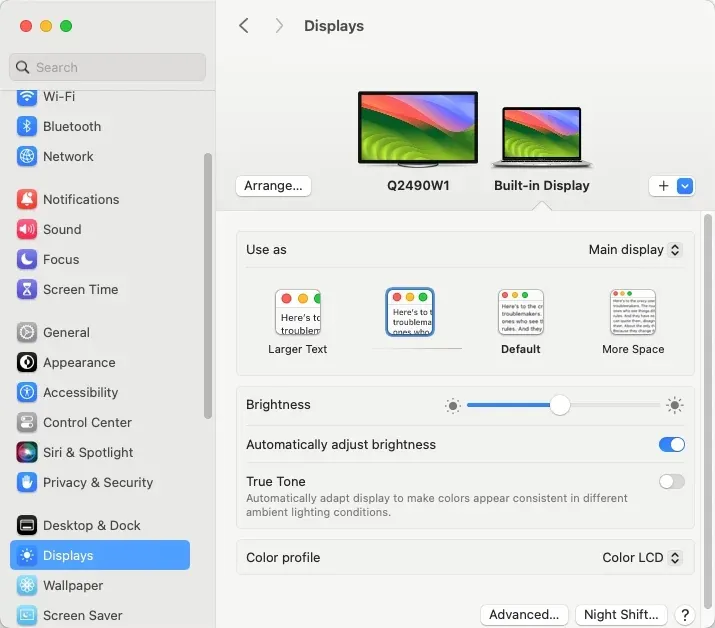
Step 1. Click the Apple menu on your MacBook.
Step 2. Open System Settings > Displays, then select your TV from the display list.
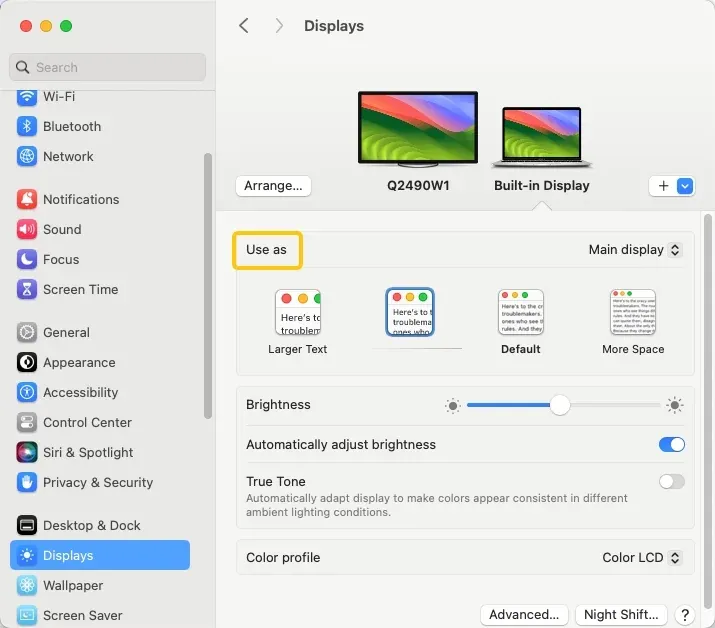
Step 3. Find the Use as option.
Step 4. Choose Mirror Built-in Display if you want the TV to show the same screen as your MacBook.
Step 5. If the image looks stretched, blurry, or cut off, adjust the resolution from the same Displays page.
Step 6. Close System Settings, then try mirroring your MacBook to the TV again.
Fix 6. Update macOS and Your TV Software
Outdated software can cause AirPlay, HDMI detection, and screen mirroring problems. If your MacBook or TV has not been updated for a long time, install the latest available version before trying again.
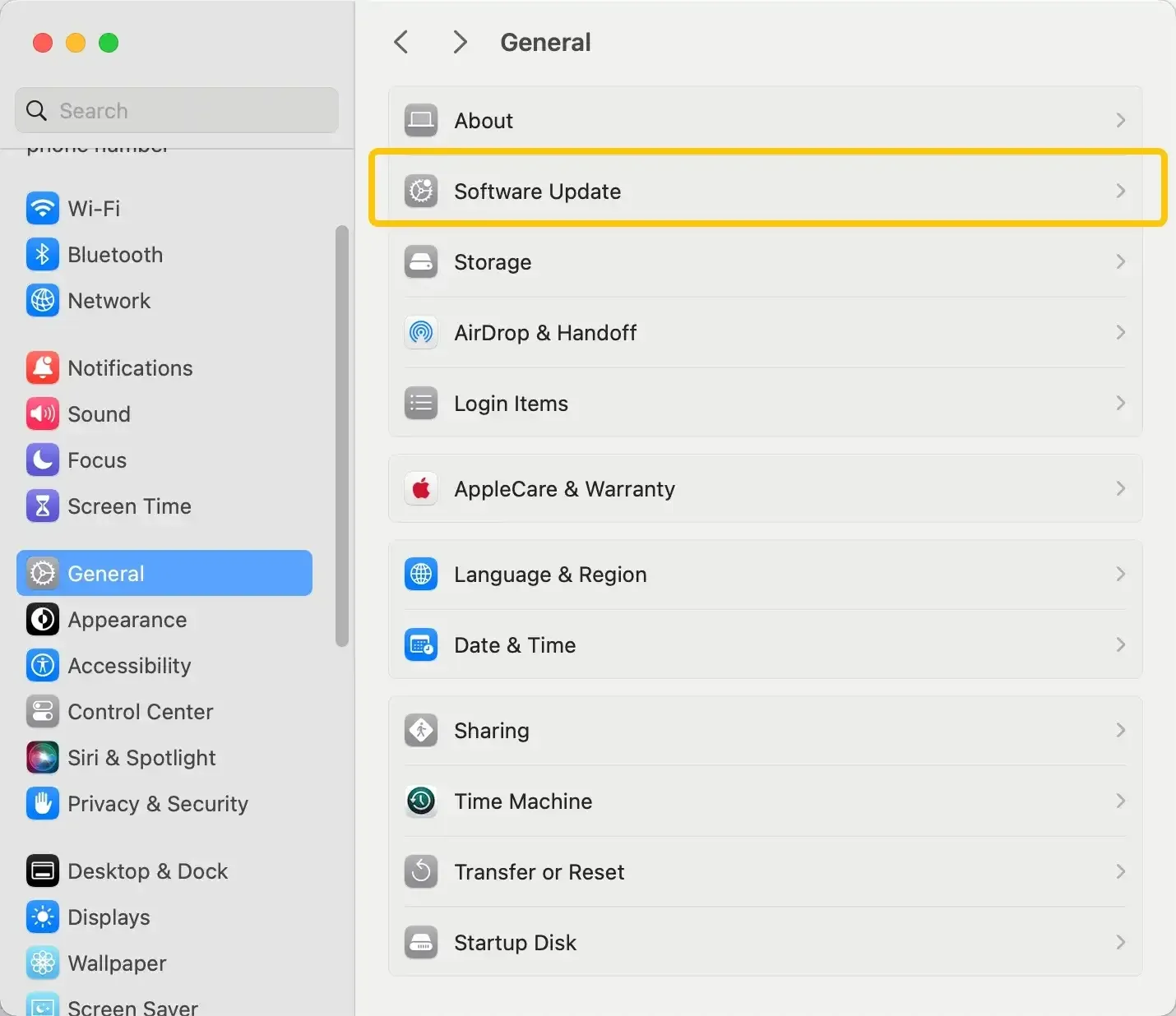
Step 1. On your MacBook, click the Apple menu.
Step 2. Open System Settings > General > Software Update.
Step 3. If an update is available, click Update Now or Upgrade Now and follow the on-screen steps.
Step 4. On your TV, open Settings.
Step 5. Look for Support, System, Device Care, About, or Software Update, depending on your TV brand.
Step 6. Install any available TV system update, then restart both devices.
Step 7. After the updates finish, open Control Center > Screen Mirroring, and try connecting to your TV again.
Fix 7. Check App or Video Playback Limits
If your MacBook connects to the TV but shows a black screen, plays sound only, or fails when you open a certain video app, the issue may come from playback restrictions. Some streaming apps, protected videos, or browser players may block screen mirroring.
Step 1. Stop the video that is not showing correctly on the TV.
Step 2. Open another app, webpage, photo, or local video on your MacBook.
Step 3. Try mirroring that content to the TV.
Step 4. If other content mirrors normally, the problem is likely related to the original app or video.
Step 5. Update the app that fails to mirror, then try again.
Step 6. If you are watching in a browser, switch to another browser and test the same video.
Step 7. If the video still shows a black screen, use the app directly on your TV instead of mirroring it from your MacBook.
This issue does not always mean your MacBook or TV is broken. In many cases, the connection works, but the video source does not allow the content to be mirrored.
Fix 8. Check Firewall or Security Settings
Firewall, antivirus software, or network security tools may stop your MacBook from communicating with your TV. If screen mirroring still fails after checking Wi-Fi, AirPlay, HDMI, and display settings, review these settings on your MacBook.
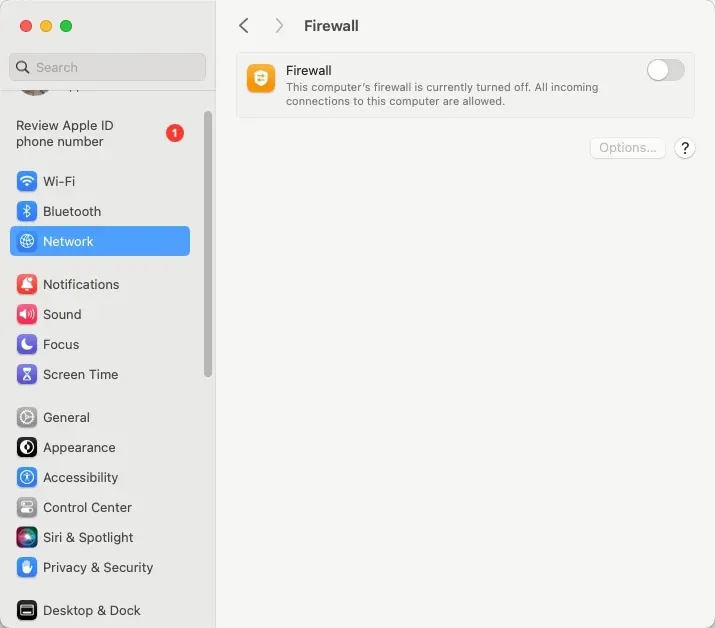
Step 1. Click the Apple menu on your MacBook.
Step 2. Open System Settings > Network > Firewall.
Step 3. If Firewall is turned on, click Options.
Step 4. Make sure settings like Block all incoming connections are not enabled.
Step 5. If you use third-party antivirus, VPN, or network protection software, pause it for a moment and try screen mirroring again.
Step 6. Open Control Center, click Screen Mirroring, and select your TV again.
If screen mirroring works after you pause a security tool, add your mirroring app or local network connection to the allowed list instead of leaving protection turned off.
Fix 9. Forget the TV and Reconnect
If your MacBook connected to the TV before but fails now, the saved connection may have a temporary error. Forgetting the old connection and pairing again can help your MacBook build a fresh screen mirroring connection.
Step 1. On your MacBook, open Control Center.
Step 2. Click Screen Mirroring and stop the current connection if it is still active.
Step 3. Restart your MacBook and TV.
Step 4. On your TV, open Settings and go to the AirPlay or Screen Mirroring section.
Step 5. Remove your MacBook from the allowed or remembered devices list if your TV shows one.
Step 6. Turn AirPlay or Screen Mirroring off, then turn it back on.
Step 7. On your MacBook, open Control Center again and click Screen Mirroring.
Step 8. Select your TV and enter the code shown on the TV screen if asked.
If your TV still does not appear, the issue may be caused by device compatibility, router settings, or a hardware connection problem.
Closing Words
MacBook screen mirroring is easier to fix when you follow the right order. Check the basic connection first, then review your TV compatibility, cable setup, display mode, updates, and security settings. If AirPlay still does not work with your TV, PigeonCast can help you mirror your MacBook wirelessly without depending on the built-in Screen Mirroring option alone.
MacBook Won't Mirror to TV FAQ
Can all smart TVs mirror a MacBook?
No. A smart TV does not always mean it can mirror a MacBook directly. Your TV needs AirPlay support for built-in Mac screen mirroring. If it only supports Chromecast, DLNA, or another casting system, you may need a different mirroring method.
Do I need Apple TV to mirror a MacBook to a TV?
No. Apple TV is one option, but it is not the only one. You can use an AirPlay-compatible smart TV, an HDMI connection, or a wireless mirroring tool like PigeonCast, depending on what your TV supports.
Is HDMI better than AirPlay for MacBook screen mirroring?
HDMI is usually more stable because it uses a cable, but it is less flexible. AirPlay and wireless mirroring are easier when you want fewer cables, quick setup, or more freedom to move your MacBook around.
Why does screen mirroring work on one TV but not another?
Different TVs support different casting technologies. One TV may support AirPlay, while another may only support Chromecast, DLNA, or brand-specific casting. That is why the same MacBook can mirror to one TV but not appear on another.
Can I mirror only one window from my MacBook to a TV?
Built-in Mac screen mirroring usually mirrors the full display or extends the screen. If you want more control, such as sharing one app window instead of the whole screen, you may need a mirroring tool such as PigeonCast that supports window-based casting.
Does MacBook screen mirroring need internet?
For local screen mirroring, your MacBook and TV mainly need to be on the same local network. A working internet connection may still be needed for streaming apps, software updates, or online video playback.
Clara Rossi is an experienced technology editor and a seasoned expert in screen mirroring and casting technologies. With a keen eye for detail and a deep understanding of how to seamlessly connect devices, Clara excels at optimizing user experiences for effortless sharing and streaming. Whether you're seeking quick fixes or advanced tips, her expertise and responsiveness ensure that every query is met with a well-informed and efficient solution.