
If you want to connect MacBook to iMac, the first thing to know is that there are two very different goals: use the iMac as a display for your MacBook and mirror your MacBook screen to the iMac wirelessly. Those are not the same feature, and Apple handles them in different ways.
The modern answer is usually AirPlay to Mac. That lets a supported iMac receive a mirrored or streamed view from a MacBook. If you want the iMac to behave like a wired monitor, that only works with older iMac models that support Target Display Mode, and Apple limits that feature to older hardware and older macOS versions.
So if you have a recent iMac, you should start by checking AirPlay Receiver. If you have an older iMac and want a cable-based setup, check Target Display Mode instead.
The Fast Answer Before You Change Any Settings
Here is the short version, with the main compatibility split first so you do not waste time on cables, adapters, or settings that cannot change the result:
- A newer iMac can often receive a MacBook screen over AirPlay.
- A newer iMac usually cannot be used as a normal wired monitor for a MacBook.
- Target Display Mode only works on certain older iMac models.
- If your iMac is not supported for either option, you need a different screen sharing tool instead of a built-in Apple display feature.
That one distinction saves a lot of time. Many people search for "use iMac as monitor for MacBook" when what they really need is screen mirroring, not a true external monitor connection.
Decide Which Kind of Mac-to-iMac Connection You Want
Before you start, pick the result you actually want, because the right method depends on whether you need true monitor behavior, simple screen mirroring, or a larger screen for occasional viewing.
A lot of failed setups happen when people buy a cable for a newer iMac that cannot use Target Display Mode, or spend time changing AirPlay settings when what they really want is a wired second display. If you define the goal first, you can rule out the wrong option in a minute.
You Want the iMac to Act like a Monitor
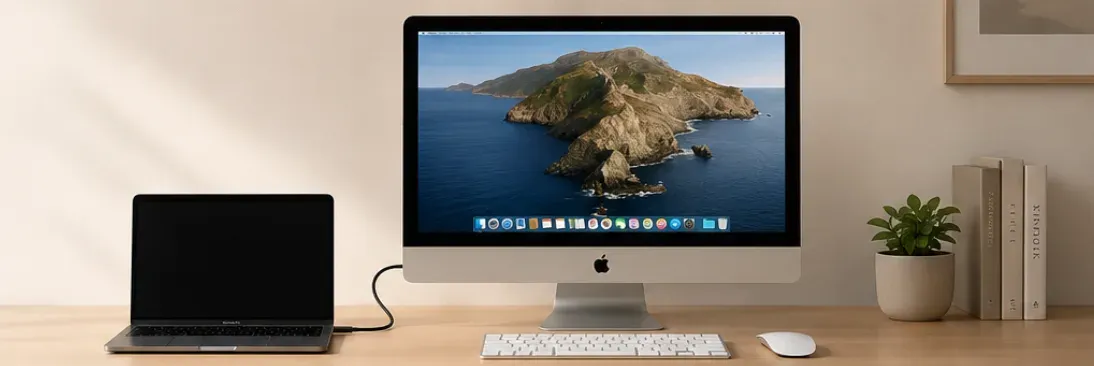
This is the more limited case. Apple only supports it on older iMac models through Target Display Mode. If your iMac is a newer model, this option is usually off the table.
You Want to Mirror the MacBook Screen to the iMac
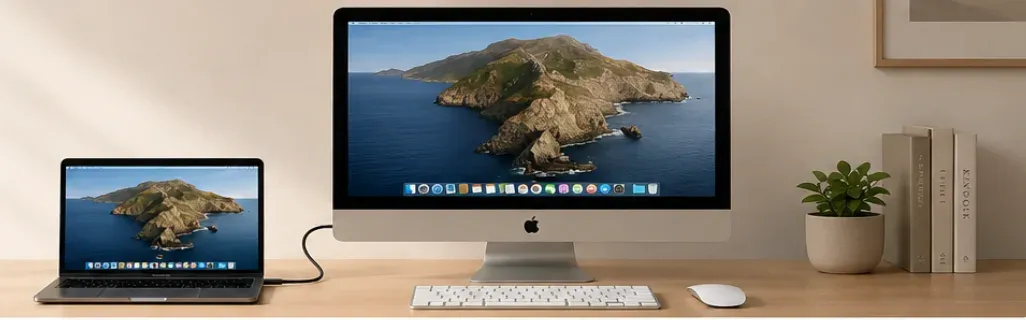
This is the more realistic option for most people in 2026. If your iMac supports AirPlay to Mac, you can show your MacBook screen on the iMac without turning the iMac into a regular cable-connected monitor.
You Want to Extend Your Desktop
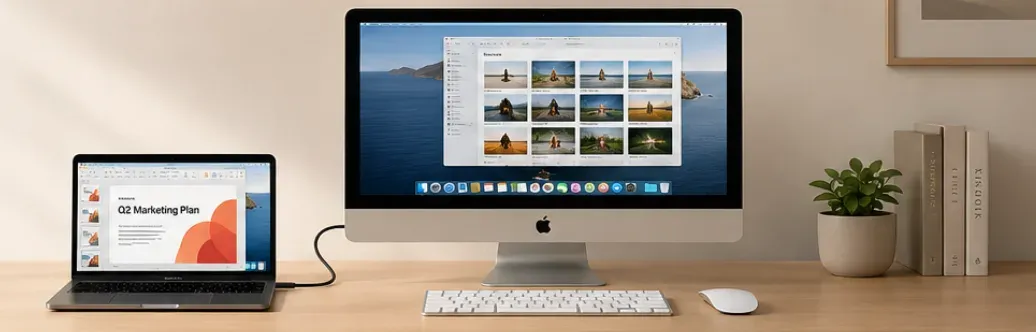
This is where people often get stuck. Some readers want a second-screen setup, not simple mirroring. AirPlay can help in some Mac-to-Mac cases, but it does not mean every iMac can replace a dedicated external monitor in the same way a Studio Display or other monitor can.
If your work depends on low delay, stable wired video, or full monitor behavior, check your iMac model carefully before you buy any cable or adapter.
Can You Use an iMac as a Monitor for a MacBook?
Sometimes, but only in a narrow set of cases. The confusion usually comes from treating "show my MacBook on the iMac" and "turn the iMac into a real monitor" as the same thing. Apple treats them as different features, and only one of them is still realistic on most newer iMacs.
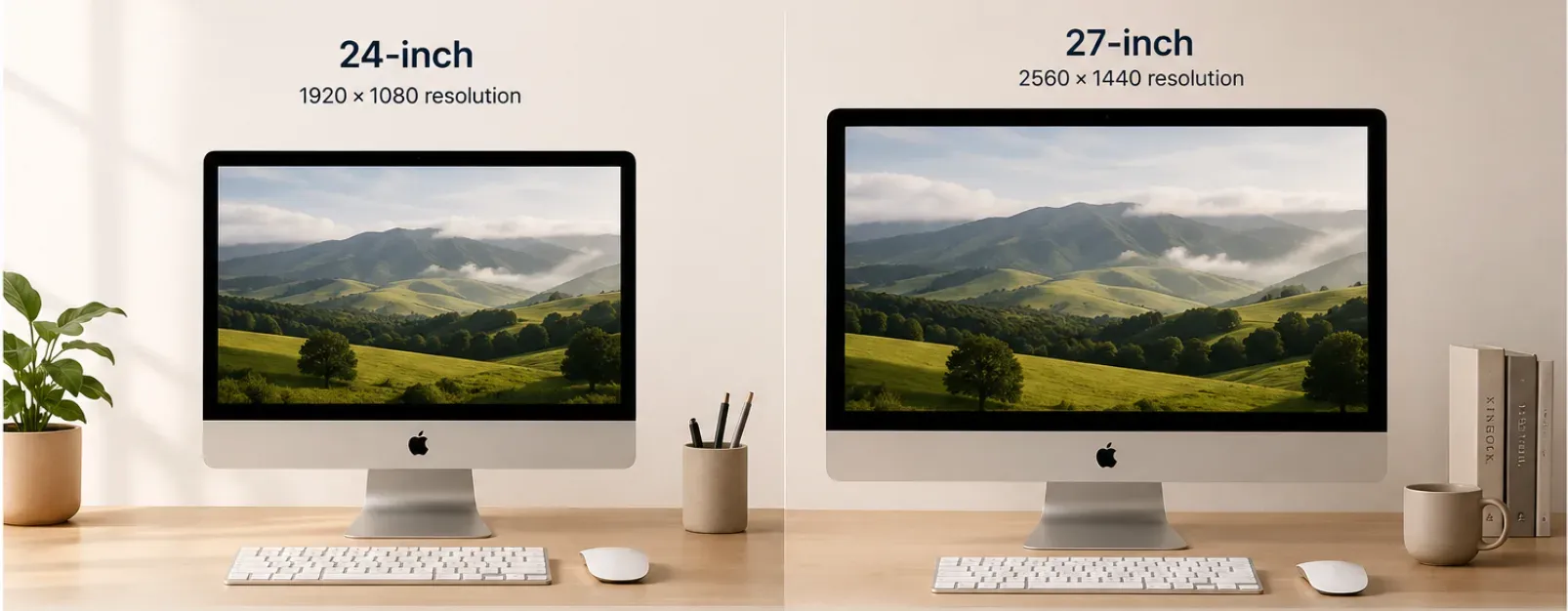
Apple's current Target Display Mode support page says this feature is limited to older iMac models and older software. The iMac used as a display must be one of these:
- a 24-inch or 27-inch iMac introduced in 2009 or 2010, using macOS High Sierra 10.13.6 or earlier
- an iMac introduced in 2011, 2012, 2013, or mid 2014, also using macOS High Sierra 10.13.6 or earlier
Apple also says the cable matters:
- 2009 and 2010 iMac models require a Mini DisplayPort cable
- 2011 to mid-2014 iMac models require a Thunderbolt or Thunderbolt 2 cable
If your iMac is newer than that, Apple does not support using it as a standard MacBook monitor through Target Display Mode.
That is why many newer iMac owners think something is broken when the real issue is simple: the feature does not exist on that model.
How to Check If Your iMac Can Receive AirPlay From a MacBook
If your goal is screen mirroring, AirPlay is the first thing to check.
Apple's current Continuity requirements page says AirPlay from Mac works on:
- iMac Pro
- Mac mini introduced in 2020 or later
- all other Mac models introduced in 2018 or later
For the receiving iMac, that means an iMac introduced in 2019 or later, or an iMac Pro, is the main supported group for full AirPlay to Mac use on macOS Monterey 12 or later.
Apple also notes that some older Macs can still receive AirPlay at lower video resolution when AirPlay Receiver is turned on and the access setting is broad enough, but that is not the main setup Apple lists as fully supported.
Use this quick check on the iMac:
- it is running macOS Monterey 12 or later
- it supports AirPlay to Mac
- Wi-Fi is turned on
- AirPlay Receiver is enabled
- both Macs are on the same local network for the easiest first test
If any of those are missing, the iMac may not appear on the MacBook at all.
How to Mirror a MacBook to an iMac With AirPlay
If the iMac is supported, using AirPlay on the iMac is the easiest built-in way to connect the two Macs. It is also the method that makes the most sense for people who want a quick presentation screen, a larger view for casual work, or a simple Apple-to-Apple connection without buying older cables that may not help on newer hardware.
Step 1: Turn On AirPlay Receiver on the iMac
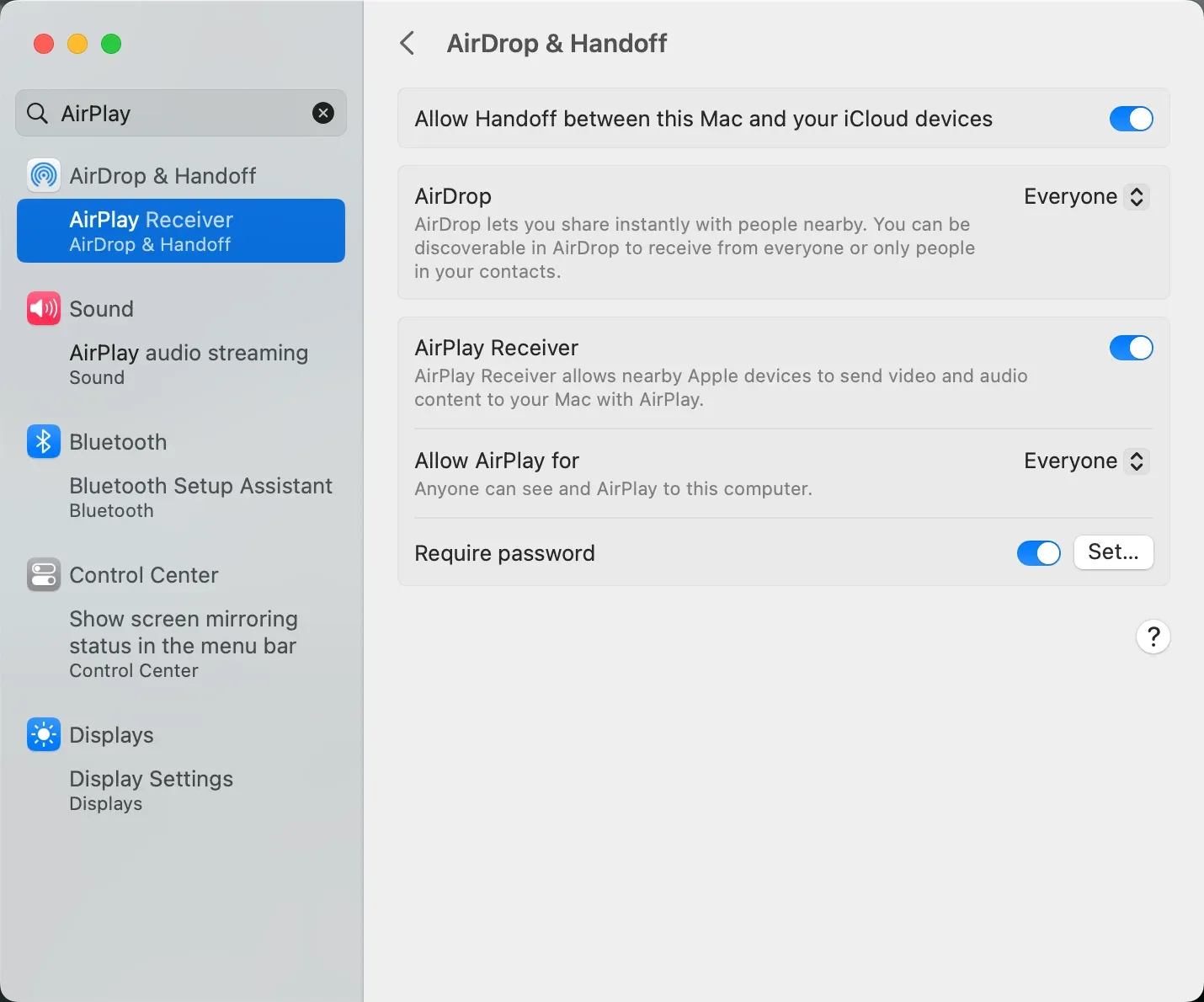
On macOS Ventura or later:
Step 1. Open System Settings.
Step 2. Click General.
Step 3. Click AirDrop & Handoff or AirDrop & Continuity, depending on the label shown on your Mac.
Step 4. Turn on AirPlay Receiver.
On macOS Monterey:
Step 1. Open System Preferences.
Step 2. Click Sharing.
Step 3. Turn on AirPlay Receiver.
Then choose who can send to this iMac:
- Current User if both Macs use the same Apple Account
- Anyone on the Same Network if you want the cleanest first test
- Everyone only if you really need wider visibility
If the iMac does not show up later, this is the first setting to revisit.
Step 2: Connect From the MacBook
On the MacBook:
Step 1. Open Control Center.
Step 2. Click Screen Mirroring.
Step 3. Select the iMac from the list.
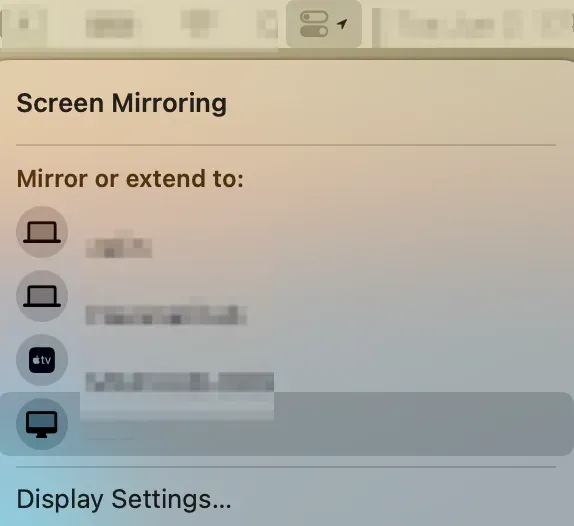
Step 4. Enter the code shown on the iMac if you are prompted.
Once connected, test a few simple things right away:
- whether the picture fills the screen the way you expect
- whether the text is readable
- whether audio is playing from the correct Mac
For a meeting, demo, or casual viewing, this is often enough.
What AirPlay Is Good For and What It Is Not
AirPlay is useful when you want:
- a clean Apple-to-Apple screen share
- a wireless way to show your MacBook on a larger iMac screen
- a quick setup without extra hardware
AirPlay is less ideal when you want:
- the iMac to behave exactly like a normal wired monitor
- the lowest possible delay
- a setup for fast-paced gaming or color-critical work
That matters because many readers use the word "connect" when they actually need a production-ready second display. If your real goal is editing with very low delay, keeping window movement smooth, or treating the iMac like a normal external monitor all day, AirPlay may feel good enough for testing but still fall short in daily use.
How to Use Target Display Mode on an Older iMac
If you have the right older hardware, Target Display Mode is still the Apple-supported way to use an iMac as a display for another Mac.
Apple's support page says both Macs must meet the system requirements, and the iMac must stay on macOS High Sierra 10.13.6 or earlier.
Here is the basic setup. It sounds simple, but every step depends on model year, cable type, and macOS version, so this method is only worth trying after you confirm the iMac is actually in Apple's supported group:
Step 1. Connect the MacBook to the iMac with the correct cable.
Step 2. Start both Macs and sign in.
Step 3. On the iMac, press Command-F2.
If it works, the iMac will switch into Target Display Mode and show the MacBook screen.
Apple also notes a few limits:
- apps open on the iMac stay open in the background
- the other Mac cannot use the iMac camera or ports
- some keyboards do not trigger the mode correctly
If Command-F2 does not work, Apple says you may need Command-Fn-F2 depending on the keyboard settings.
Why Many Newer iMac Setups Fail
The most common problem is not a bad cable or a hidden setting. It is a model mismatch.
These are the usual reasons, and most of them can be checked in a minute without buying anything new:
- the iMac is too new for Target Display Mode
- the iMac is too old or the wrong model for full AirPlay to Mac support
- AirPlay Receiver is turned off
- both Macs are not on the same local network
- a VPN or guest Wi-Fi is blocking local device discovery
That is why the compatibility check should come before anything else.
Fixes to Try If the iMac Does Not Show Up
If you are trying the AirPlay method and the iMac is missing from the list, work through this order:
- Confirm the iMac supports AirPlay to Mac.
- Confirm the iMac is running macOS Monterey 12 or later.
- Turn on AirPlay Receiver.
- Change the access setting to Anyone on the Same Network for testing.
- Make sure both Macs have Wi-Fi on.
- Make sure both Macs are on the same local network.
- Turn off any VPN for the first test.
- Restart Wi-Fi or restart both Macs if the list still looks stale.
If you are trying the older cable-based option, check these instead:
- Confirm the iMac is one of the supported 2009 to mid-2014 models.
- Confirm the iMac is still on macOS High Sierra 10.13.6 or earlier.
- Confirm you are using the right Mini DisplayPort or Thunderbolt-family cable.
- Try Command-F2 again from the iMac keyboard.
What to Do If Your iMac Cannot Work Natively
If your iMac does not support Target Display Mode and does not fit the AirPlay setup you need, the built-in Apple choices may not get you all the way there.
That is where a separate screen mirroring tool can make more sense. A lightweight screen mirroring app like PigeonCast is one option if you want to mirror a MacBook to another Mac without relying entirely on Apple's built-in receiver limits.
This makes the most sense when the native Apple option fails for a hardware reason, not just because one setting was missed:
- your iMac is outside Apple's supported display rules
- you still want a Mac-to-Mac screen share
- you care more about getting the screen onto the iMac than turning the iMac into a true wired monitor
That is not the first answer for this article, but it is the practical next answer when Apple's own features do not fit the hardware in front of you.
If you want to mirror Mac to Mac with PigeonCast, the setup is short:
Step 1. Install the Mac Screen Mirroring app on both the MacBook and the iMac.


Overall Rating:


Step 2. Keep both Macs on the same Wi-Fi network.
Step 3. Open PigeonCast on both devices and click Receive screen on your iMac.
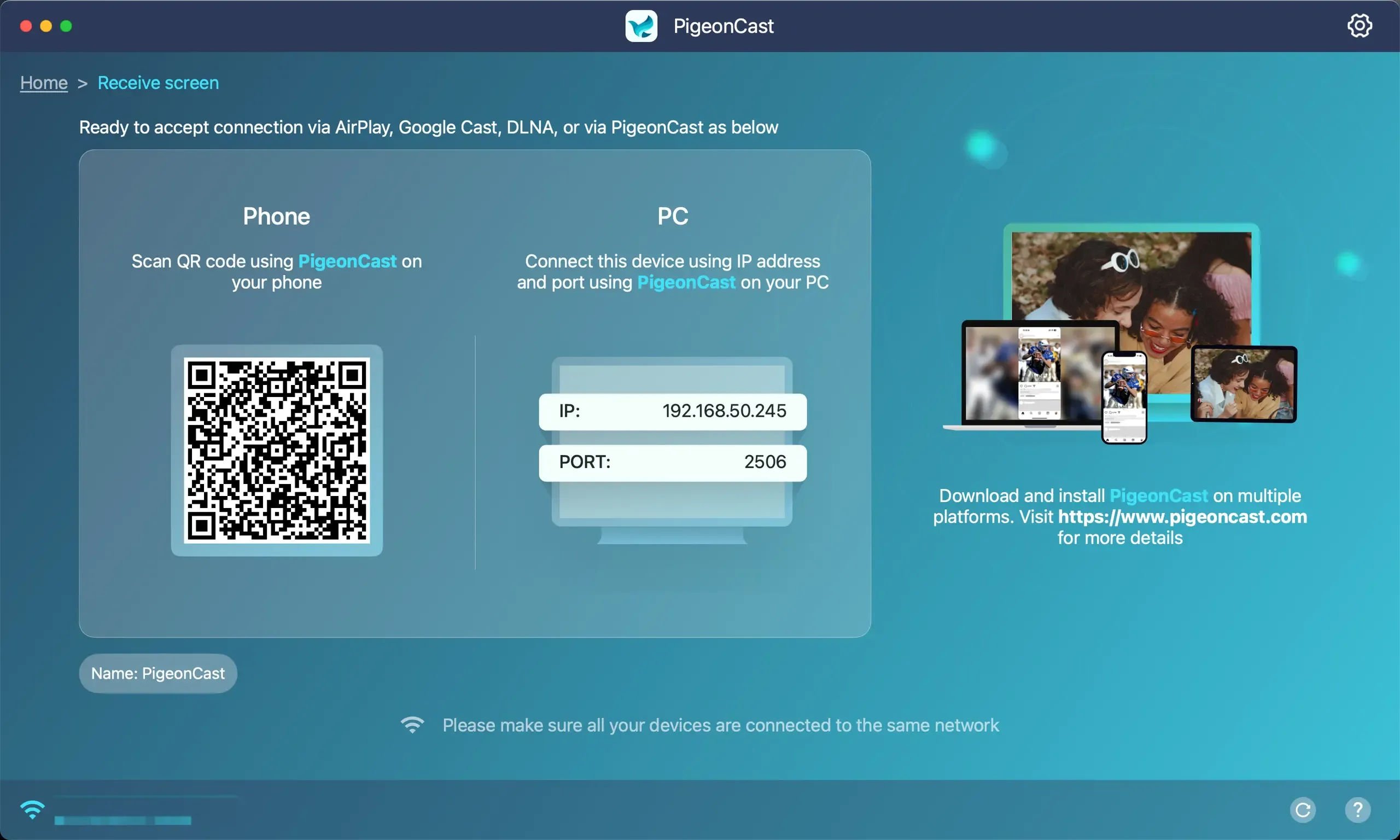
Step 4. On your MacBook, click Send my screen.
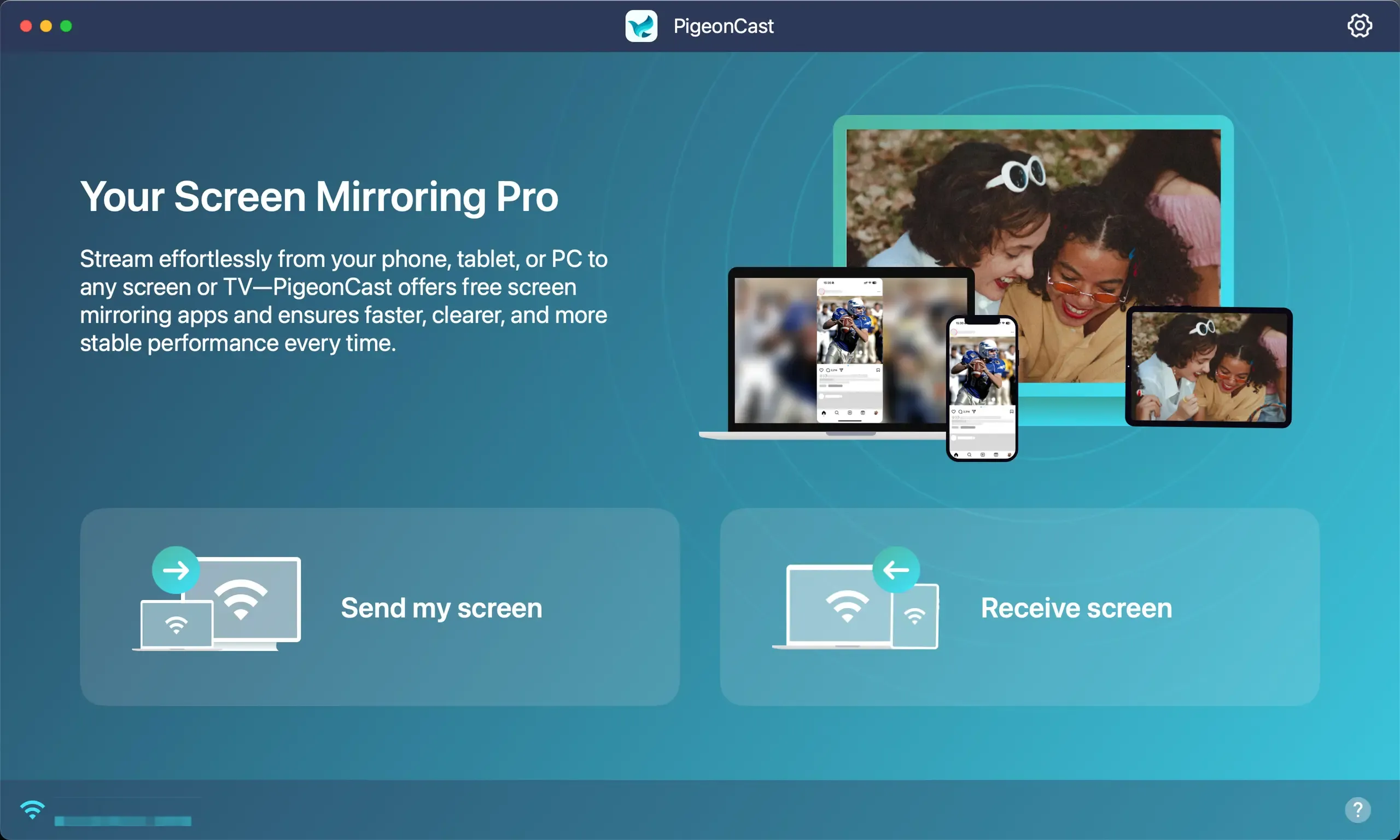
Step 5. Select the iMac from the MacBook, then start screen mirroring.
This is the better fit when your goal is simply to get the MacBook screen onto the iMac without depending on AirPlay Receiver support or older Target Display Mode hardware.
Which Method Should You Choose?
Choose AirPlay if:
- your iMac supports AirPlay to Mac
- you want quick wireless screen mirroring
- you do not need strict monitor-like behavior
Choose Target Display Mode if:
- you own one of the older supported iMac models
- the iMac is still on macOS High Sierra 10.13.6 or earlier
- you want the closest thing to using the iMac as a real MacBook display
Choose another screen sharing tool if:
- your iMac fits neither Apple option
- you want a simpler Mac-to-Mac mirroring setup
- your goal is screen sharing, not a true monitor replacement
Final Answer
Yes, you can connect a MacBook to an iMac, but the method depends entirely on what "connect" means for your setup. The important part is identifying early whether you need wireless viewing, real monitor behavior, or simply a workable way to get the MacBook screen onto the iMac.
If you want screen mirroring, start with AirPlay Receiver on a supported iMac. If you want to use the iMac as a wired monitor, only certain older iMac models can still do that through Target Display Mode. If your iMac fits neither case, stop troubleshooting early and switch to a different screen sharing tool instead of assuming the built-in Apple feature is hiding somewhere in settings.
FAQ
Can I use a 2021 or 2023 iMac as a monitor for a MacBook?
No, a 2021 or 2023 iMac cannot work as a traditional wired monitor for a MacBook through Apple's Target Display Mode. Apple limits that feature to certain older iMac models, so on newer iMacs the realistic built-in option is usually AirPlay screen mirroring rather than true monitor-style display input.
Can I screen mirror a MacBook to an iMac?
Yes, you can screen mirror a MacBook to an iMac if the receiving iMac supports AirPlay to Mac and has AirPlay Receiver turned on. In practice, this works best on iMac models Apple lists in its main supported group, with both Macs on the same local network and Wi-Fi enabled for easy discovery.
Why is my iMac not showing up in Screen Mirroring?
The most common reason is that the iMac does not meet AirPlay to Mac requirements or AirPlay Receiver is turned off. It can also happen when the two Macs are on different network segments, a VPN is blocking local discovery, or the receiver access setting is too restrictive for the first connection.
Is AirPlay the same as using an iMac as a second monitor?
No, AirPlay is not the same as using an iMac as a standard second monitor for a MacBook. AirPlay is Apple's wireless screen sharing feature, so it is useful for mirroring and light display use, but it does not give every iMac the same kind of direct video input behavior as a true external monitor.
Mia Clarke is a technology editor specializing in screen mirroring and casting solutions across multiple platforms. Mia provides clear, practical guides and in-depth insights to help users seamlessly connect their devices. Passionate about enhancing digital experiences, Mia is dedicated to keeping readers updated on the latest trends and tools in cross-platform screen sharing. Whether you’re looking to mirror your smartphone, laptop, or smart TV, Mia’s content delivers reliable, user-friendly advice to simplify your tech setup.