

If you are looking into JustStream, you probably want a simple way to get content from your Mac onto a TV.
That could mean playing a local video file on a bigger screen, mirroring your Mac display, or using your TV as a larger viewing device without plugging in an HDMI cable. On paper, JustStream is built for exactly that kind of Mac-to-TV use.
But before you choose it, it is worth asking one thing: do you only need to cast from a Mac, or do you also need to mirror from phones, Windows PCs, browsers, or different TV platforms?
This review looks at what JustStream does well, where it may feel limited, and when a more flexible screen mirroring app like PigeonCast makes more sense for a mixed-device setup.
Quick Answer: Is JustStream Worth Using?
Yes, JustStream is worth using if you mainly need a Mac-to-TV streaming app.
It is a good fit when your videos are on a Mac and you want to watch them on a TV, or when you want to mirror your Mac screen to a larger display. For that specific use, JustStream is easy to understand and focused enough.
However, it is not the best choice if you want one app for different devices. JustStream is mainly a Mac-focused tool, so it may feel limited if you also need to mirror from iPhone, Android, Windows, TV devices, or a browser.
So the answer depends on your setup: choose JustStream if you only need simple Mac-to-TV streaming; choose PigeonCast if you want to mirror across more devices, or if you also want your Mac to receive screen mirroring from iPhone, Android, or Windows.
What Is JustStream?
JustStream is a Mac app from Electronic Team. It is mainly used to send content from a Mac to a TV or another compatible big-screen device.
The app focuses on two common needs: playing local video files from your Mac on a TV, and mirroring your Mac screen to a larger display. This makes it useful when your main device is a Mac and you want an easier way to watch or show Mac content on a bigger screen.
The basic workflow is simple. Your Mac works as the sending device, while the receiver is usually an Apple TV, Chromecast, smart TV, AirPlay-compatible screen, or DLNA-supported device on the same Wi-Fi network.
That is the key thing to understand about JustStream. It is mainly a Mac-to-TV tool. It is not designed as a full casting app for every device you own, such as iPhone, Android, Windows, TV devices, and browsers.
What Can You Do with JustStream?
JustStream is mainly built for two Mac-to-TV tasks: streaming local media files and mirroring your Mac screen. Here is what that means in real use.
Stream Local Videos from Mac to TV
One of the most useful things JustStream can do is play local video files from your Mac on a TV.
This is helpful if you have downloaded movies, saved videos, or other media files stored on your Mac and want to watch them on a larger screen. Instead of copying files to a USB drive or checking whether your TV can open the file format directly, you can stream the video from your Mac to a compatible receiver.
For users with a local video library, this is where JustStream makes the most sense. It gives you a simple Mac-to-TV streaming path without extra cables or manual file transfers.
Mirror Mac to Apple TV, Chromecast, and Smart TVs
JustStream can also mirror your Mac screen to a bigger display. This means your TV shows what is happening on your Mac screen, instead of only playing one selected video file.
This is useful for browser tabs, presentations, photos, apps, documents, and general desktop viewing. If you want to show your full Mac screen on a TV, this is the feature that matters most.
JustStream supports common receiver types such as Apple TV, Chromecast, compatible smart TVs, AirPlay-supported screens, and DLNA-capable devices. For Mac users, that gives you several ways to send your screen or media to a larger display, depending on what devices are available on the same network.
However, this compatibility mainly works in one direction: from Mac to a bigger screen. It does not turn JustStream into a full cross-device mirroring app for phone-to-TV, Windows-to-TV, or phone-to-Mac use.
How to Use JustStream to Mirror Mac to TV
Using JustStream is fairly simple if your Mac and TV can find each other on the same network.
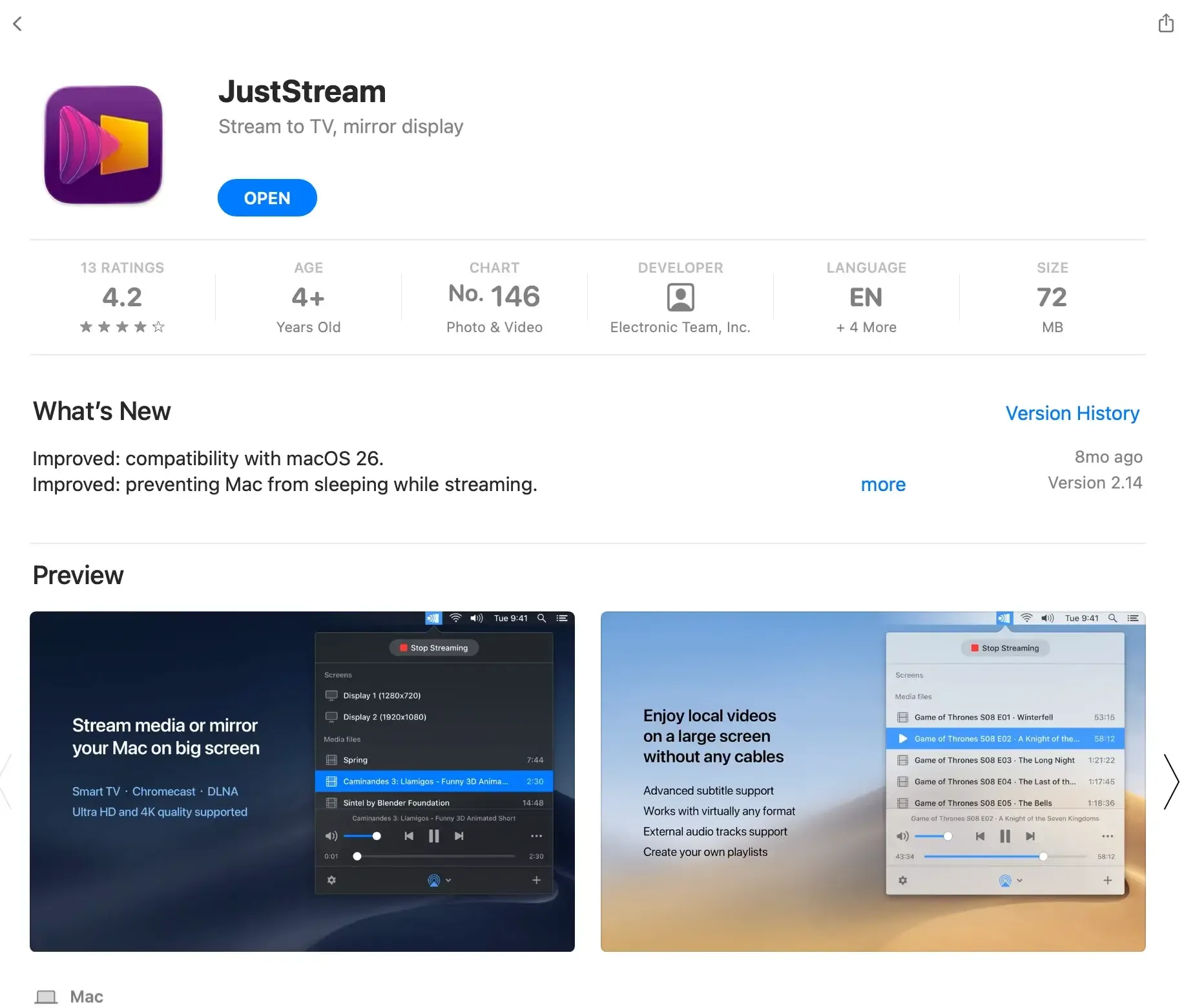
Step 1. Install JustStream on your Mac from the Mac App Store.
Step 2. Connect your Mac and TV, Apple TV, Chromecast, or other receiver to the same Wi-Fi network.
Step 3. Open JustStream on your Mac.
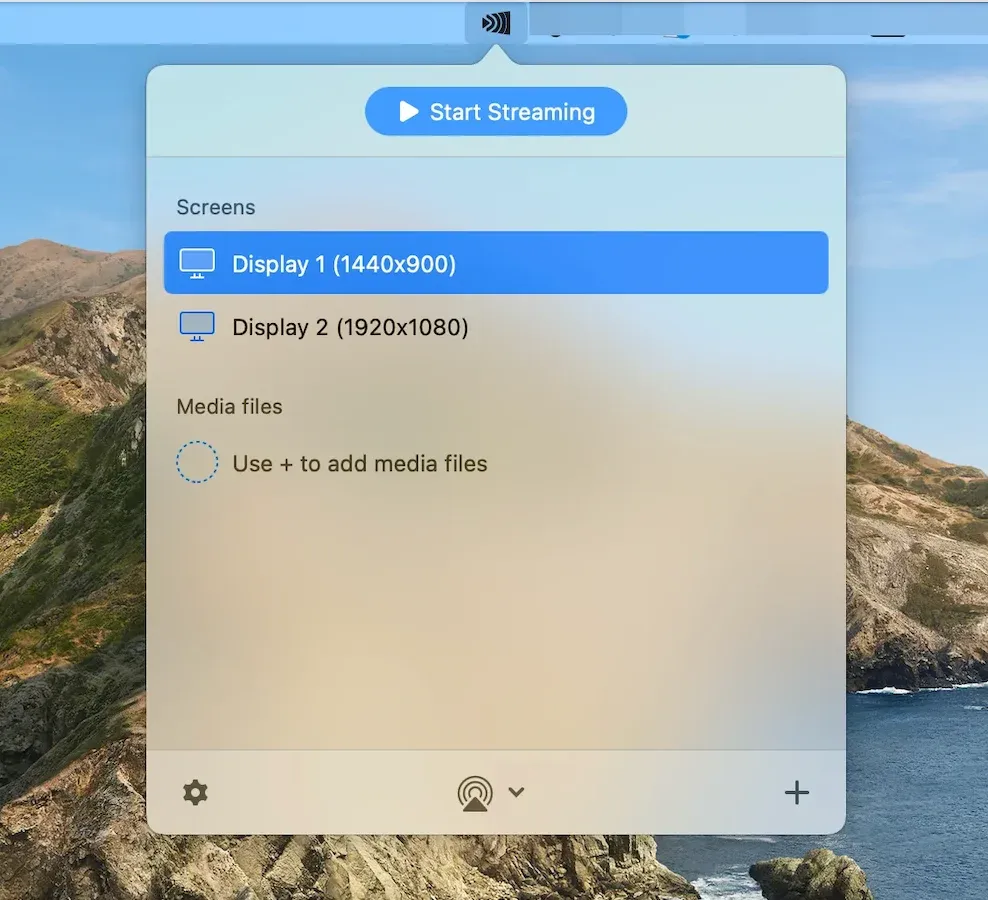
Step 4. Choose whether you want to stream a local video file or mirror your Mac screen.
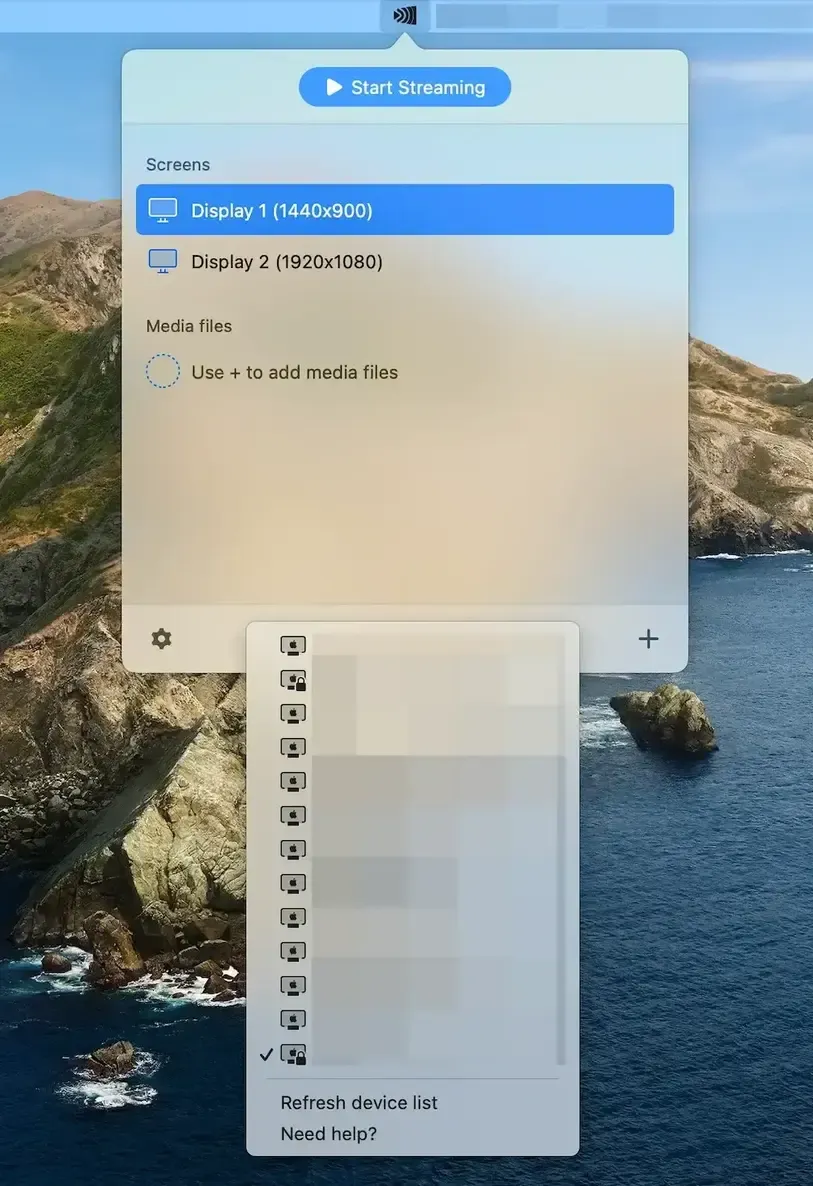
Step 5. Select your TV or receiver from the device list from the menu next to the AirPlay icon.
Step 6. Click Start Streaming and wait for the connection.
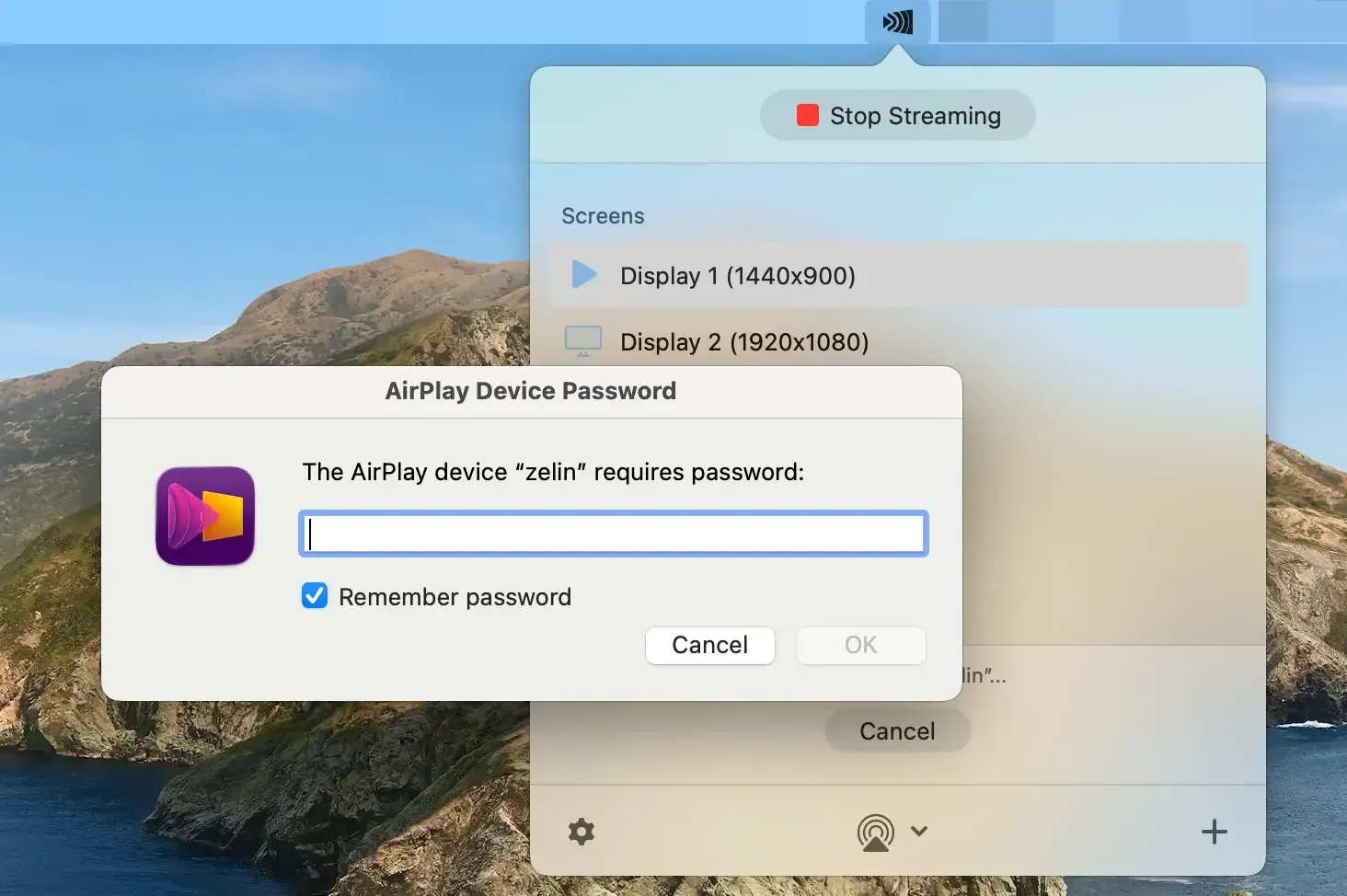
Step 7. Enter the password if required and see if your Mac file or screen appear on the large screen.
JustStream App Pros and Cons
JustStream is easier to judge when you look at what it is built for: sending content from a Mac to a TV. For that job, it has clear advantages. But if you need wider device support, the limits also become clear.
| Pros | Cons |
|---|---|
| Simple Mac-to-TV streaming | Mainly useful for Mac users |
| Supports local video streaming | Not ideal for phone-to-TV mirroring |
| Can mirror a Mac screen to a larger display | Less flexible for iPhone, Android, and Windows users |
| Works with Apple TV, Chromecast, smart TVs, and DLNA devices | Depends on receiver compatibility and network stability |
| Easier to understand than some all-in-one casting tools | Not built for a full mixed-device setup |
Overall, JustStream is a practical app for Mac users who mainly want to stream videos or mirror a Mac screen to a TV. Its main limit is not the Mac-to-TV use case itself, but what happens when your setup includes more devices.
For example, you may also need to mirror an iPhone, cast from Android, share a Windows screen, or connect to different TV platforms at home. In that case, JustStream can feel too narrow, and it makes sense to compare it with a screen mirroring app that can handle more than one direction, including Mac-to-TV and phone-to-Mac mirroring.
Best JustStream Alternative for Cross-Device Screen Mirroring
The best JustStream alternative for users who need more than Mac-to-TV streaming is PigeonCast.
JustStream is useful when your Mac is the only sending device. PigeonCast goes further because it supports more screen mirroring directions. You can use it to mirror a Mac to a TV, but you can also use your Mac as a receiver for content from other devices.
For example, you can mirror an iPhone or Android phone to a Mac, share a Windows screen to a Mac, or use PigeonCast with supported TV devices and browser receivers. This makes it more useful if your Mac is not always the source device, but sometimes the screen you want to receive content on.
That difference matters in everyday use. You may start with a simple Mac-to-TV need, but later want to show a phone screen on your Mac, cast a work laptop to a bigger display, or connect across different platforms without changing tools. PigeonCast gives you that extra room without making the workflow complicated.
How to Use PigeonCast for Mac Screen Mirroring
You can use the Mac screen mirroring app in two common ways: mirror your Mac to another screen, or turn your Mac into the receiving screen.


Overall Rating:


To mirror your Mac to a TV:
Step 1. Install PigeonCast on your Mac and the supported TV device.
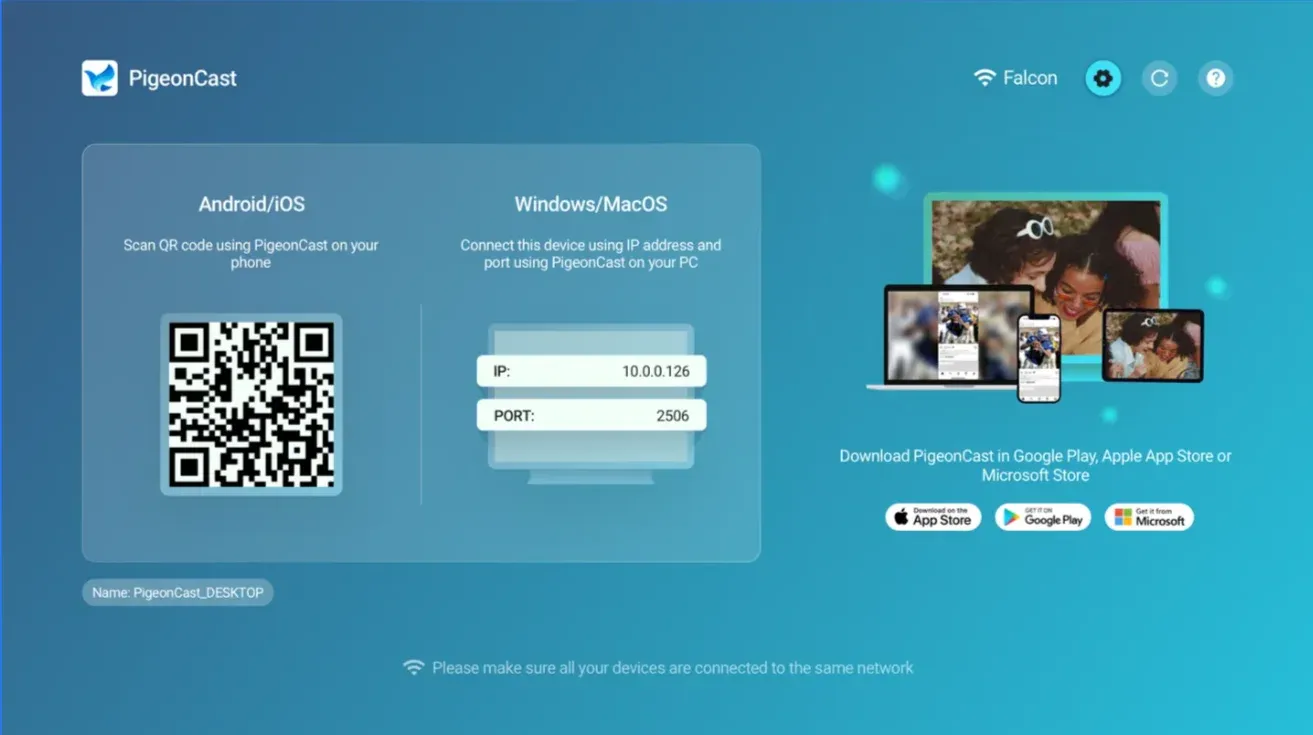
Step 2. Make sure both devices are connected to the same Wi-Fi network.
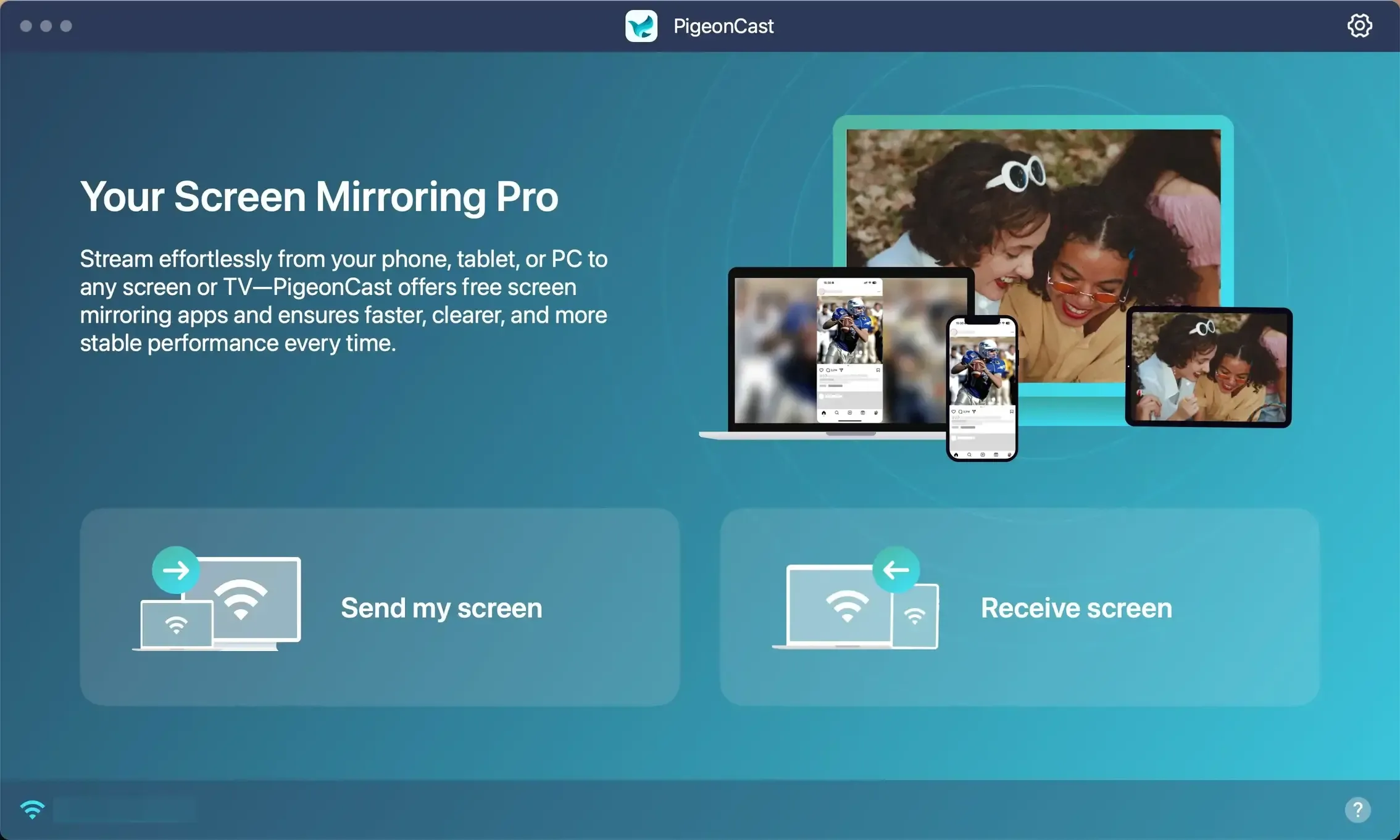
Step 3. Open PigeonCast, click Send my screen, and choose the target screen to start mirroring.
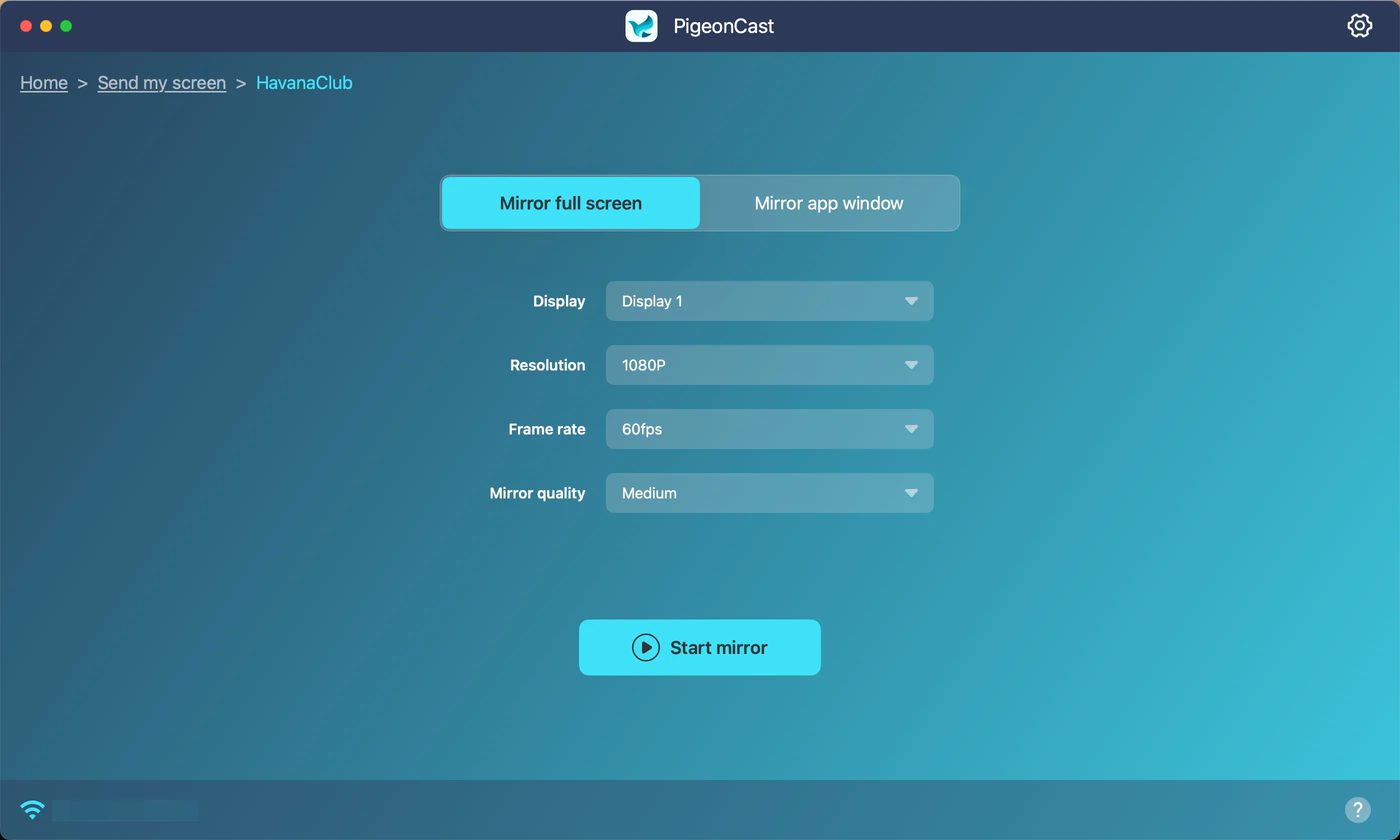
Step 4. Click Start mirror and your Mac screen displays on the connected TV.
To use your Mac as a receiver:
Step 1. Open PigeonCast on your Mac, click Receive screen, wait for incoming connections.
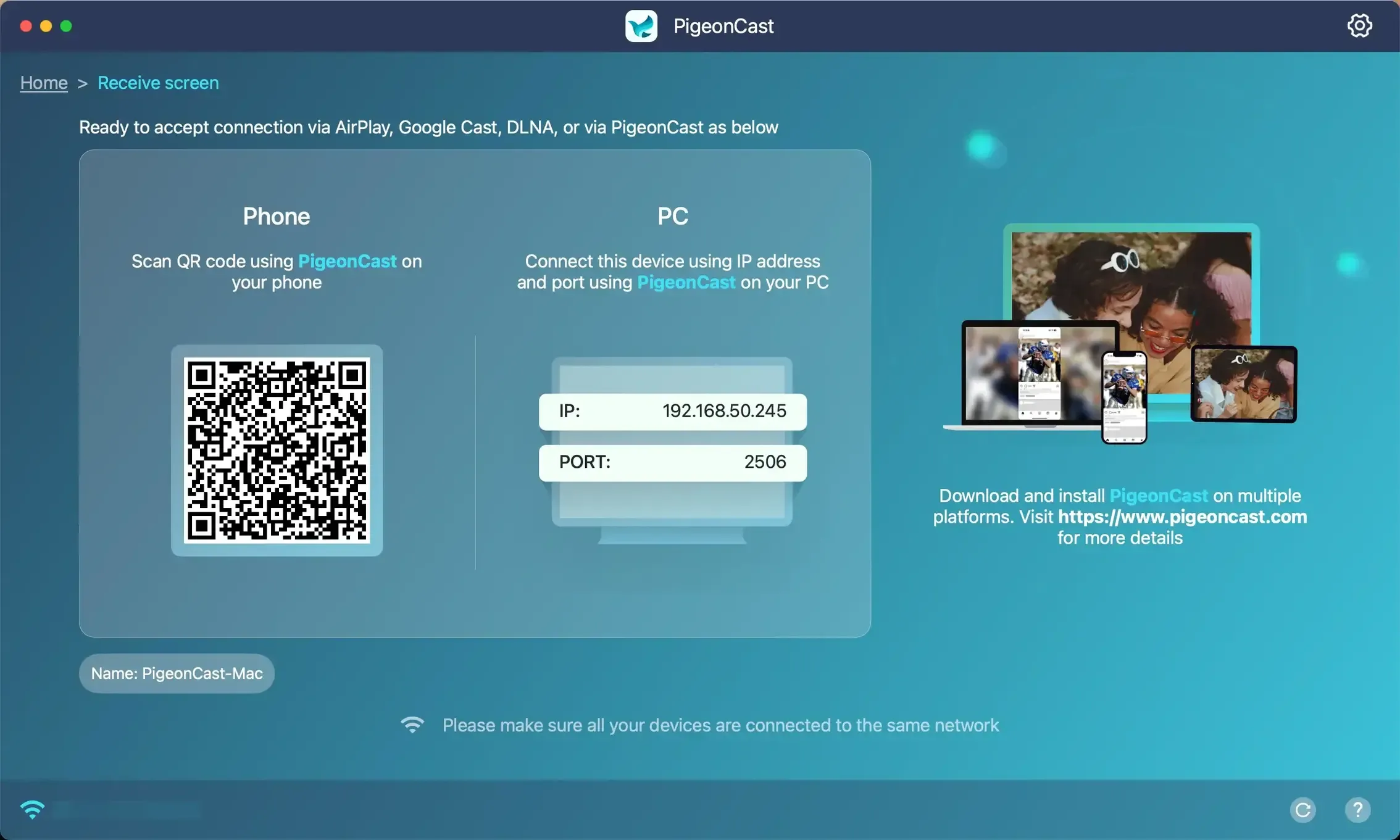
Step 2. Install PigeonCast on your sending device like iPhone, Android, or PC and open it.
Overall Rating:


Step 3. Choose your Mac from the sending device and start screen mirroring.
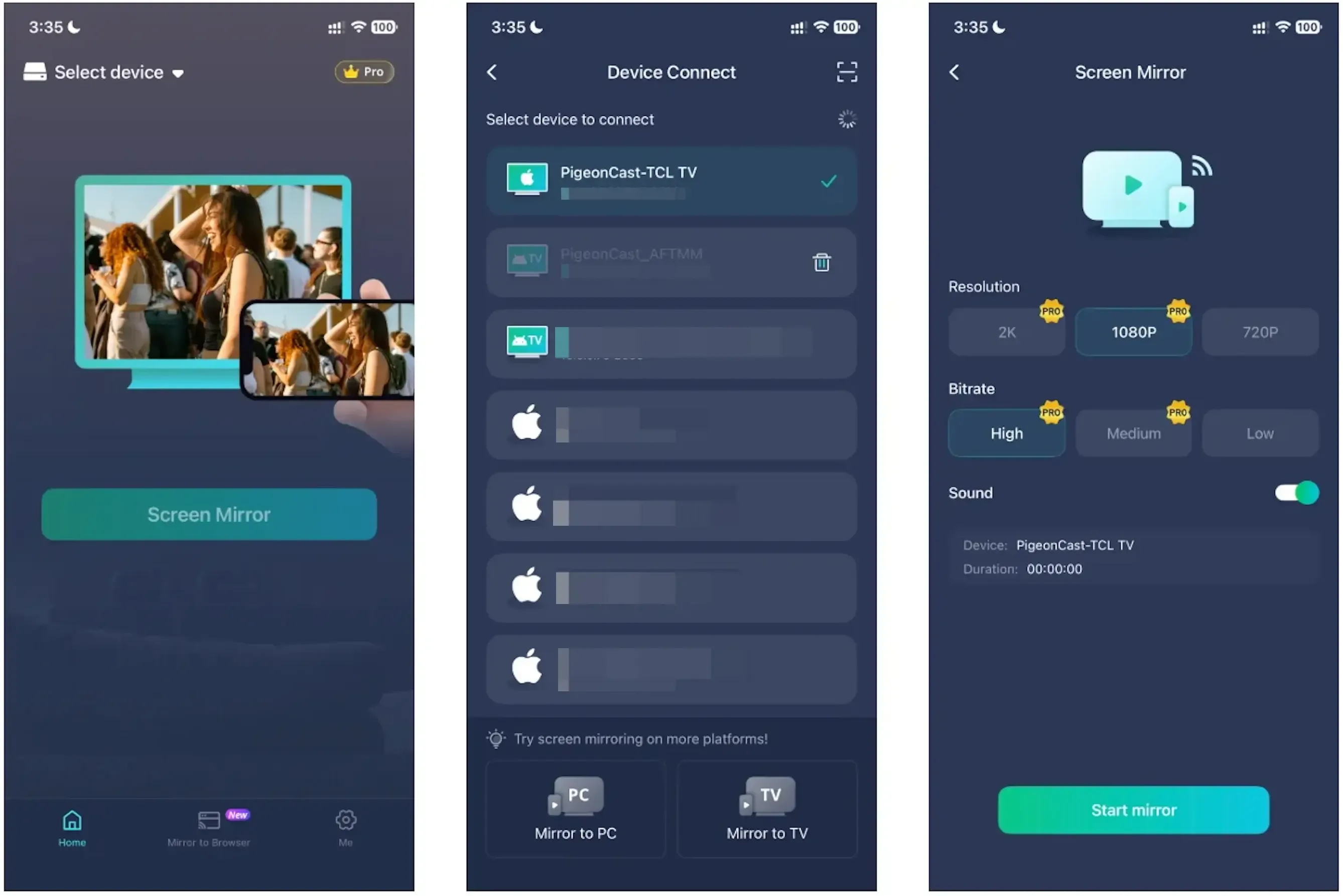
This makes PigeonCast useful in both directions. You can send your Mac screen to a TV when you want a bigger display, or receive a phone or computer screen on your Mac when that is the easier screen to use.
JustStream vs PigeonCast: Which One Should You Choose?
This comparison is less about which app has more features and more about how you plan to use your devices.
| Category | JustStream | PigeonCast |
|---|---|---|
| Main purpose | Stream or mirror from Mac to TV | Mirror and cast across phones, computers, TVs, and browsers |
| Mac role | Mac works mainly as the sender | Mac can work as both sender and receiver |
| Best use case | Playing Mac videos on a TV or mirroring a Mac screen | Mirroring Mac to TV, phone to Mac, Windows to Mac, or device to TV |
| Device coverage | Mainly Mac-centered | iPhone, Android, Windows, Mac, TVs, and browser receivers |
| Better fit for | Mac-first users with one main casting need | Users who switch between different devices and screens |
-
Choose JustStream if your main goal is to stream local videos from a Mac or mirror your Mac screen to a TV.
-
Choose PigeonCast if you want more ways to connect your devices. It is especially useful when you want Mac-to-TV mirroring, but also want your Mac to receive screen mirroring from iPhone, Android, or Windows devices.
Final Words
A Mac-to-TV app can feel like enough when the task is simple. You open a video on your Mac, send it to the TV, and enjoy it on a bigger screen.
But everyday screen mirroring is often less predictable than that. One day you may want to stream a movie from your Mac. Another day, someone may want to show photos from an iPhone, cast a workout video from Android, share a Windows screen, or use the Mac itself as the display.
That is where the choice becomes less about one casting task and more about the setup you want to live with. If your screen mirroring needs stay simple, JustStream can do the job. If your devices change from day to day, PigeonCast gives you more room to move without rethinking the whole workflow each time.
JustStream FAQ
Is JustStream free?
No, JustStream is not a fully free app. It should be treated as a paid Mac utility rather than a free casting tool. As of July 6, 2026, some listings show JustStream or JustStream PRO around the $19.95 to $19.99 range, but pricing may change by store, region, version, or promotion. It is best to check the official product page or Mac App Store before you buy.
Is JustStream only for Mac?
Yes, in practical use, JustStream is mainly a Mac app. Its core job is to send local media or a mirrored Mac display from a Mac to compatible TVs and receivers. It is not designed as a broad casting app that lets every device send to every other device.
What is the alternative to JustStream?
A good JustStream alternative is PigeonCast, especially if you want more than Mac-to-TV streaming. JustStream is useful when your Mac is the main sending device. PigeonCast is a better fit if you also want to mirror across iPhone, Android, Windows, Mac, TVs, and browsers, or use your Mac as a receiving screen.
Does JustStream work without Wi-Fi?
No, JustStream normally needs your Mac and the receiving device to be on the same local network. If your TV, Apple TV, Chromecast, or smart TV does not appear in the device list, the first thing to check is whether both devices are connected to the same Wi-Fi network.
Can JustStream mirror protected streaming apps like Netflix?
Not always. Like many screen mirroring and casting tools, JustStream may not work reliably with protected video from services that use DRM restrictions. If a streaming app blocks external display, casting, or screen recording, you may see a black screen, no video, or playback limits.
Why is my TV not showing up in JustStream?
The most common reasons are Wi-Fi issues, receiver compatibility, network isolation, or the TV and Mac not being on the same network. You can try restarting the app, checking Wi-Fi, disabling VPN temporarily, updating the TV firmware, and making sure the receiver supports the casting method you are using.
Mia Clarke is a technology editor specializing in screen mirroring and casting solutions across multiple platforms. Mia provides clear, practical guides and in-depth insights to help users seamlessly connect their devices. Passionate about enhancing digital experiences, Mia is dedicated to keeping readers updated on the latest trends and tools in cross-platform screen sharing. Whether you’re looking to mirror your smartphone, laptop, or smart TV, Mia’s content delivers reliable, user-friendly advice to simplify your tech setup.