
If you wonder how to make iPhone Mirroring full screen on Mac, the short answer is yes, you can put the iPhone Mirroring app into macOS full-screen mode and make the mirrored iPhone view larger. But there is an important limit: full screen on Mac does not always mean the iPhone image will stretch edge to edge across the whole display. In many cases, the iPhone view keeps its original aspect ratio, so you may still see empty space around the mirrored screen even when the app itself is full screen.
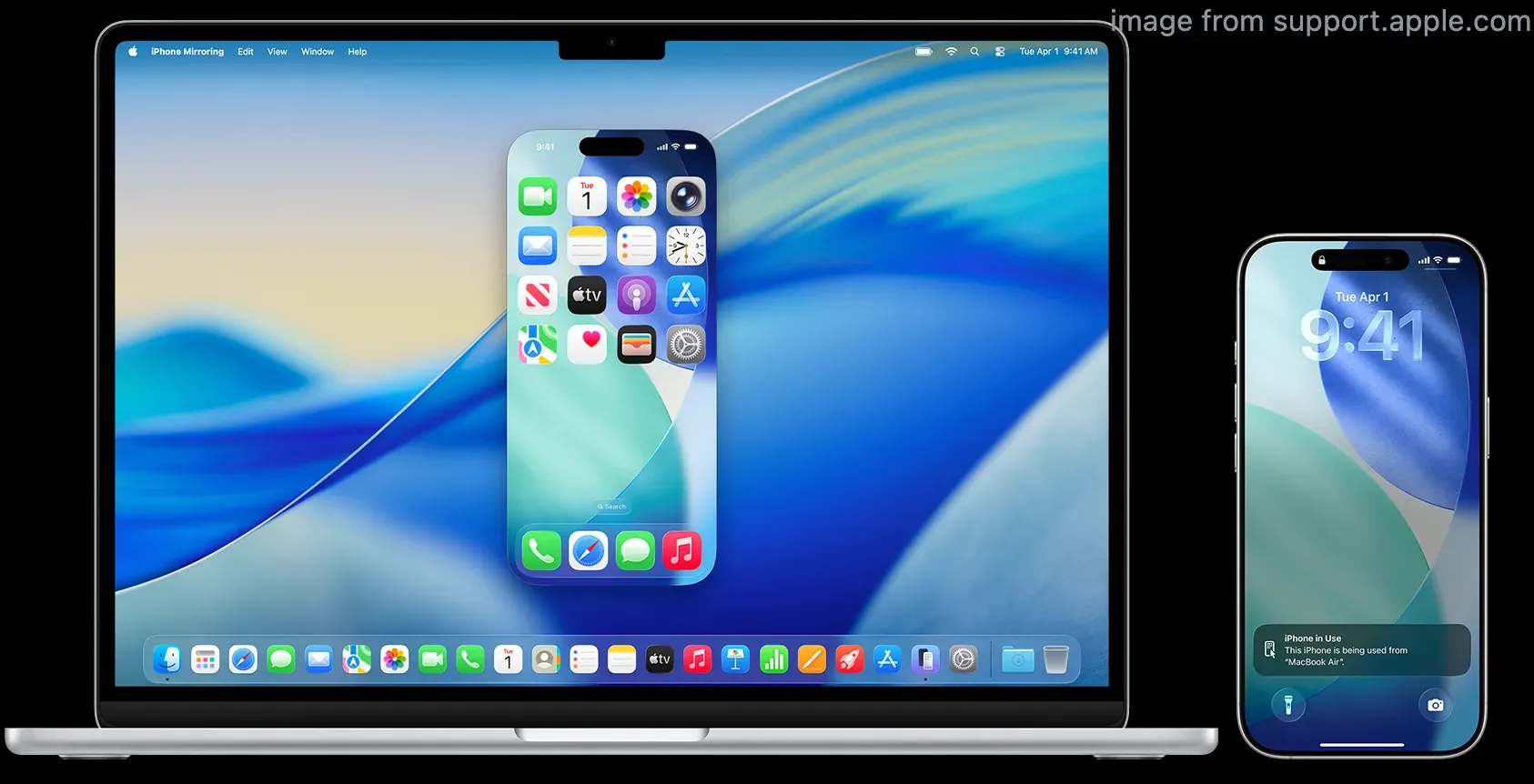
That distinction matters because when you look for this fix, you may mean three slightly different things:
- put the iPhone Mirroring app into full-screen mode on Mac
- make the mirrored iPhone window bigger
- get the iPhone display to fill as much of the Mac screen as possible
This guide focuses on the built-in Apple workflow first, then explains when AirPlay or a separate screen mirroring app makes more sense.
What Full Screen Means for iPhone Mirroring on Mac
Before changing settings, it helps to separate two ideas that sound the same but are not.
Full-screen app mode means the iPhone Mirroring app takes over your Mac display like other Mac apps do. On Mac, you can usually enter full screen by clicking the green window button or using the app’s full-screen option.
Full-screen iPhone image is different. In Apple’s iPhone Mirroring instructions, you can move the window and resize it with View > Larger, Actual Size, or Smaller. What Apple does not promise is automatic stretching that fills your whole Mac display. In practice, the iPhone screen usually keeps its phone-shaped proportions.
That is why you may feel like full screen is not working when it is actually working, just with aspect-ratio limits.
How to Make iPhone Mirroring Full Screen on Mac
If iPhone Mirroring is already set up on your Mac, the process is short.
Step 1: Open iPhone Mirroring on Your Mac
Open iPhone Mirroring from the Dock, Applications folder, or Spotlight on your Mac. Right now, Apple lists the feature for Macs running macOS Sequoia 15 or later.
If the app does not connect, fix that first. Based on Apple’s current setup requirements, you need:
- a Mac with Apple silicon or a Mac with the Apple T2 Security Chip
- macOS Sequoia 15 or later
- an iPhone running iOS 18 or later
- the same Apple Account on both devices with two-factor authentication
- Wi-Fi and Bluetooth turned on
- the iPhone locked and near the Mac
Step 2: Make the iPhone Mirroring Window Larger
If you specifically searched how to make screen mirroring bigger on Mac, this is the step that matters most.
Once your iPhone appears on the Mac, use Apple’s built-in size controls:
- click View > Larger
- press Command-Plus (+) to enlarge the mirrored view
- use View > Actual Size if you want to reset it
- use View > Smaller if the window becomes awkward to place
This is the first fix to try if the mirrored iPhone screen looks too small on your Mac desktop.
Step 3: Put the App in Full-Screen Mode
After enlarging the window, put the app itself into full screen. If your exact question is how to full screen iPhone mirroring on Mac, this is the core action:
- click the green button in the top-left corner of the iPhone Mirroring window
- or move your pointer over the green button and choose Full Screen > Entire Screen
- on many Macs, Control-Command-F also toggles full screen for supported apps
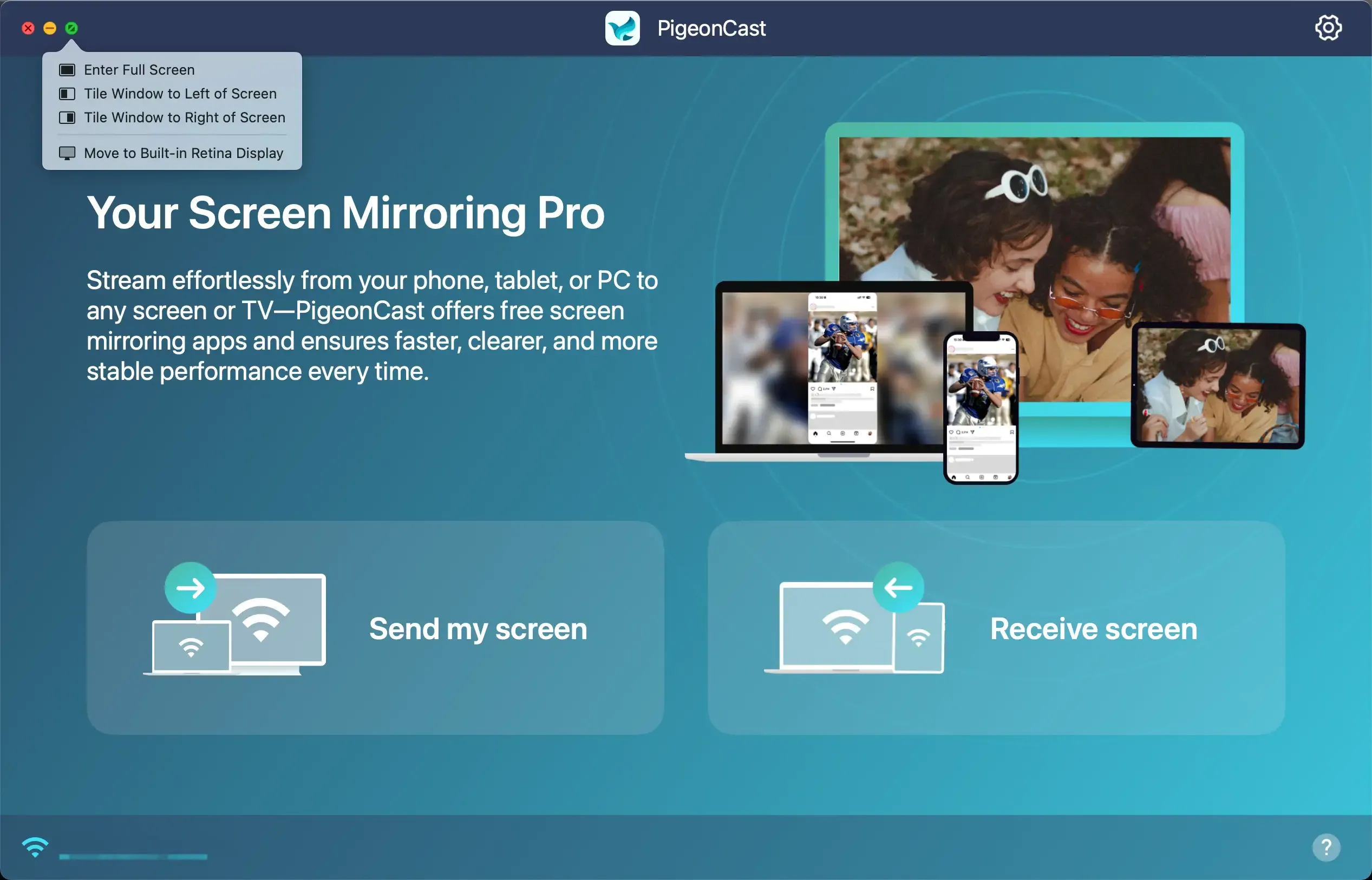
This gives the mirrored iPhone view the largest possible workspace on your Mac and removes most desktop distractions.
Step 4: Rotate Content That Supports Landscape
Apple notes that iPhone Mirroring automatically switches between portrait and landscape when the iPhone app you are using requires it. That matters because some apps look much larger once they enter landscape mode.
If you are watching a video or using an app that supports landscape, rotate the content on iPhone or open landscape media inside the mirrored session. That often makes the screen feel much closer to full screen, even though the app still preserves the original display shape.
Why iPhone Mirroring May Not Fill the Entire Mac Screen
If the app is full screen but the iPhone image still does not cover the whole Mac display, that is usually normal behavior rather than a bug.
The iPhone Screen Keeps Its Shape
Your iPhone has a tall phone aspect ratio. Your Mac screen is usually wider. Because of that mismatch, the mirrored iPhone screen often sits inside the larger Mac window area instead of stretching edge to edge.
This is the main reason you can search for iPhone full screen on Mac and think something is broken when it is really just a display-shape limit.
Some Apps Stay Portrait Until Their Content Changes
Even if your Mac window is large, a portrait app on iPhone may still look narrow. Apple explains that iPhone Mirroring changes between portrait and landscape when the app requires it, not whenever you want a wider shape.
So if the app you are mirroring is inherently vertical, full-screen mode on the Mac will not magically turn it into a wide-screen layout.
macOS Full Screen Is Not the Same as Zoom or Stretch
Putting a Mac app in full screen only changes the app window state. It does not promise that the content inside that window will distort to match your display.
If your goal is simply to get the largest readable iPhone view on your Mac, full screen plus View > Larger is the correct built-in method. If your goal is true presentation-style fill, the Apple workflow may feel limited.
Other Mac Window Layout Features Can Make It Look Smaller
If you are using Split View, window tiling, Stage Manager, or a crowded multi-window desktop, the mirrored iPhone can feel smaller than it should. Exit those layouts first, then reopen iPhone Mirroring in a clean full-screen space.
How to Fix iPhone Mirroring Full Screen Not Working on Mac
If the window will not enlarge properly, refuses to go full screen, or disconnects before you can use it, work through these checks in order.
Restart the Mirroring Session
Quit iPhone Mirroring on your Mac and open it again. Apple also notes that the session stops if you unlock your iPhone, so keep the phone locked while you mirror it from the Mac.
Update macOS and iPhone Software
At the moment, Apple still requires macOS Sequoia 15 or later and iOS 18 or later for iPhone Mirroring. If either device is behind, update both and restart them before testing again.
Check Continuity Requirements Again
Apple’s current checklist for iPhone Mirroring includes:
- the same Apple Account on both devices
- two-factor authentication
- Wi-Fi turned on
- Bluetooth turned on
- the iPhone locked and nearby
If one of those conditions changes, your Mac may fail to reconnect or the mirroring session may behave inconsistently.
Make Sure Your Mac Is Not Busy With Conflicting Apple Features
Apple also notes that iPhone Mirroring cannot be used while your Mac is sharing its internet connection or using AirPlay or Sidecar. That means a different Apple display workflow can block the one you are trying to use now.
Check VPN, Firewall, or Third-Party Security Tools
Apple’s troubleshooting guidance also mentions that VPN tools, third-party security software, or firewall settings that block incoming connections can interfere with iPhone Mirroring. If your session keeps failing before you can enlarge or full-screen it, test again with those tools disabled temporarily.
Revoke Access and Set It Up Again
If nothing else works, Apple explains that you can revoke access inside iPhone Mirroring > Settings on your Mac, then set up mirroring again from scratch. That is often faster than repeatedly forcing a broken pairing to reconnect.
When AirPlay Is Better Than iPhone Mirroring
Sometimes you do not actually need to control the iPhone from your Mac. You just want the phone screen to appear as large as possible on a bigger display.
In that case, AirPlay can be the better fit because your goal is viewing rather than interacting with the phone through the Mac desktop. Apple’s iPhone Mirroring support page explicitly points you to AirPlay if you only want to view the iPhone screen or streamed video on an AirPlay-compatible device.
That does not mean AirPlay is always better. It just means the tools solve slightly different problems:
- iPhone Mirroring is better when you want to control the iPhone from the Mac
- AirPlay is better when you mainly want playback or viewing on a compatible display
When a Third-Party App Makes More Sense
If you want a larger, cleaner, or more flexible mirrored view than Apple’s built-in iPhone Mirroring window gives you, a separate screen mirroring app can be the easier path.
That is especially true when:
- you do not want to depend on the iPhone Mirroring app window behavior
- you want a simpler device-to-device pairing flow
- you need more flexibility across iPhone, Mac, TV, or other screens
- your main priority is getting the phone view bigger on another screen, not controlling iPhone inside macOS
If Apple’s built-in workflow still feels too constrained, PigeonCast is a practical alternative to test. It makes more sense when your goal is not just to open iPhone Mirroring full screen on Mac, but to get a straightforward large-screen mirroring workflow across devices.
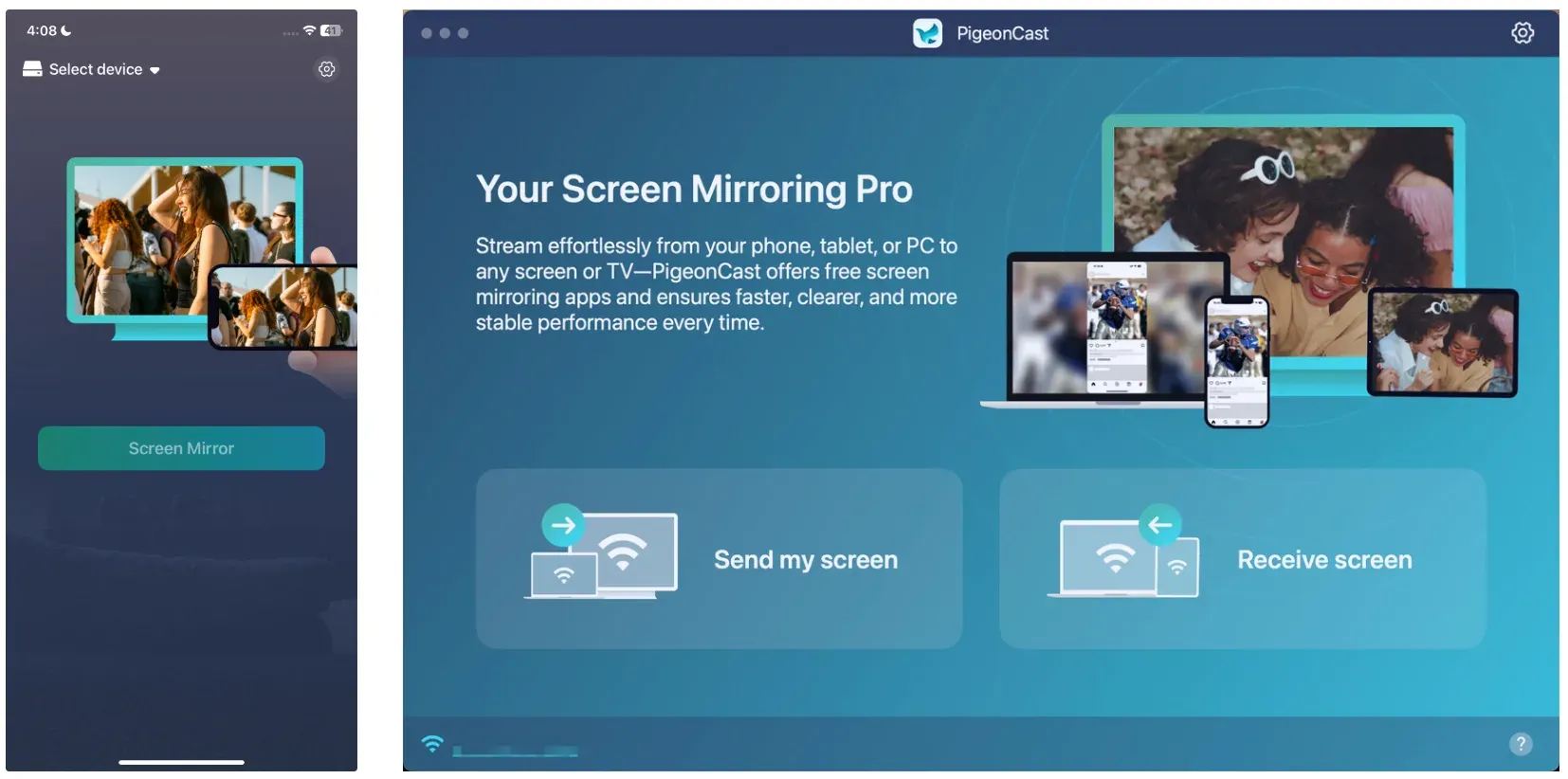


Overall Rating:


PigeonCast is the better fit when:
- Apple’s built-in window still feels too small for your use case
- you want a cross-device mirroring workflow beyond one Apple-only setup
- you want to move quickly instead of tuning Mac window behavior
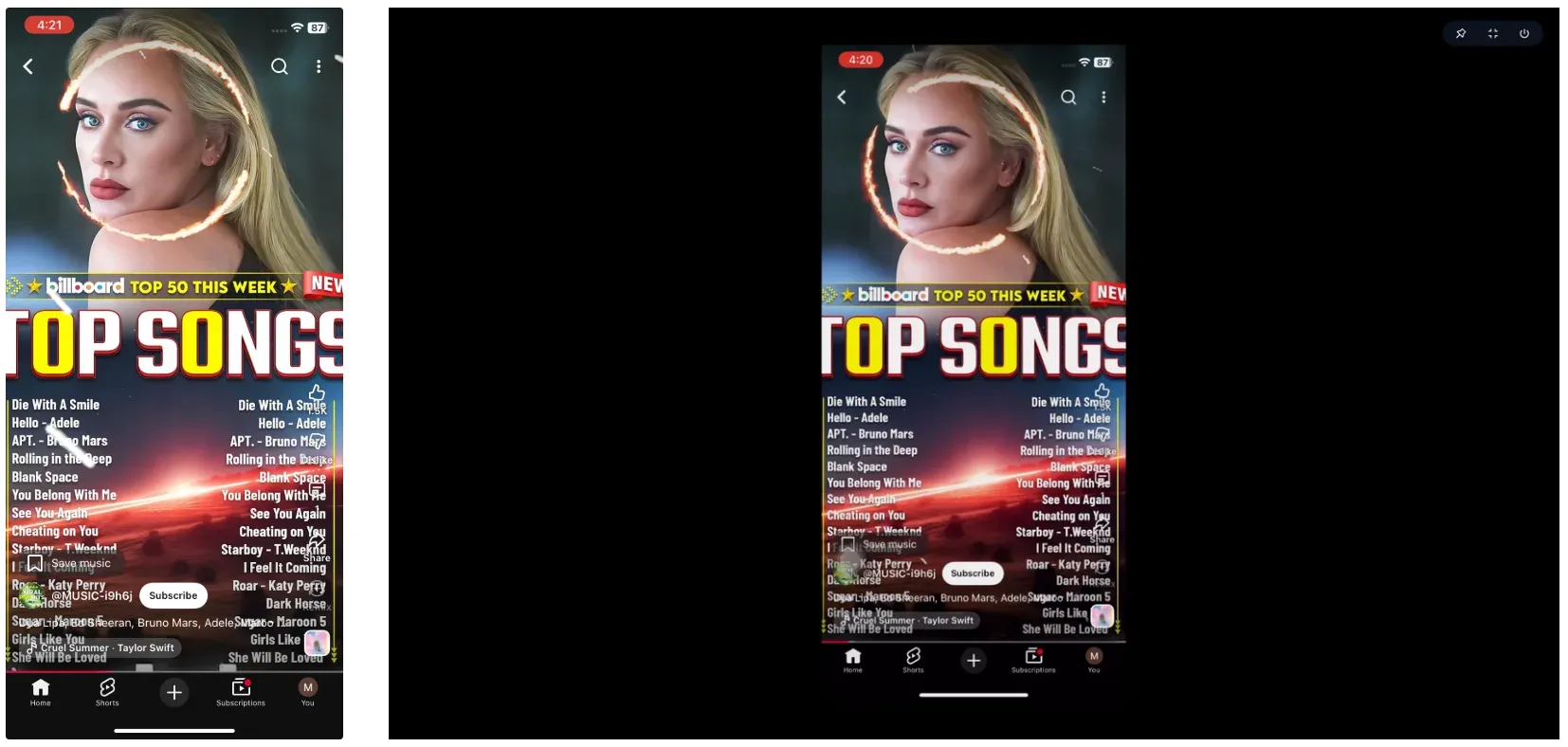
The main point is simple: if full screen on Mac still does not look the way you expect after using Apple’s larger view controls and macOS full-screen mode, the limitation may be the native workflow itself rather than a hidden setting you missed.
Conclusion
If your goal is simply to learn how to full screen iPhone mirroring on Mac, the built-in answer is straightforward: open iPhone Mirroring, use View > Larger, then switch the app into macOS full-screen mode. If your goal is how to make screen mirroring bigger on Mac, those same built-in controls are the first thing you should try.
At the same time, you should expect one limitation: your iPhone screen usually keeps its original shape, so full screen on your Mac does not always mean edge-to-edge fill. If you want the biggest possible native view, use larger window controls, full-screen mode, and landscape-friendly content. If that still feels too restricted for your setup, switching to AirPlay or a third-party app like PigeonCast is the more practical next step.
How to Make iPhone Mirroring Full Screen on Mac FAQ
Can I make iPhone Mirroring truly edge to edge on Mac?
Not always. You can make the app full screen on your Mac, but Apple mainly promises window resizing and automatic portrait or landscape switching where the iPhone app requires it. In many cases, the mirrored iPhone image still keeps its original shape instead of filling the entire Mac display edge to edge.
Why is my iPhone Mirroring window full screen but still small?
That usually happens because your iPhone content is still using a portrait layout or because the mirrored display is preserving the iPhone’s aspect ratio. Try View > Larger, then test with landscape-friendly content such as video playback.
Is iPhone Mirroring the same as AirPlay on Mac?
No. Apple treats them as different features. iPhone Mirroring is for using and controlling your iPhone from the Mac. AirPlay is the better fit when you mainly want to view the iPhone screen or streamed video on a compatible display.
What do I need for iPhone Mirroring to work on Mac?
Apple says you need a compatible Mac running macOS Sequoia 15 or later, an iPhone running iOS 18 or later, the same Apple Account with two-factor authentication, Wi-Fi and Bluetooth enabled, and the iPhone locked and near the Mac.
Why does iPhone Mirroring stop when I unlock my iPhone?
Apple’s guidance says the mirroring session ends when you unlock your iPhone. That is expected behavior, so keep the phone locked while using iPhone Mirroring from the Mac.
Mia Clarke is a technology editor specializing in screen mirroring and casting solutions across multiple platforms. Mia provides clear, practical guides and in-depth insights to help users seamlessly connect their devices. Passionate about enhancing digital experiences, Mia is dedicated to keeping readers updated on the latest trends and tools in cross-platform screen sharing. Whether you’re looking to mirror your smartphone, laptop, or smart TV, Mia’s content delivers reliable, user-friendly advice to simplify your tech setup.