
If you've recently purchased an AnyCast dongle, you might be feeling a bit of "buyer's confusion". On paper, it's the perfect budget-friendly solution for mirroring your phone to a TV. In reality, the tiny instruction manual in the box is often poorly translated and difficult to follow.
The truth is that AnyCast isn't a single product made by one company; it's a generic category of hardware. This universal AnyCast setup guide works for most AnyCast models (M9, M100, K-series, etc.). This guide is designed to cut through the noise and provide a setup process that actually works, while explaining why you might run into certain "roadblocks".
What Is AnyCast and How It Works
AnyCast is a wireless display receiver (often called a “dongle”) that plugs into your TV’s HDMI port. It is frequently mistaken for a Google Chromecast, and the confusion is understandable.
Early AnyCast models were designed to look almost identical to the first-generation Chromecast: a small, round or oval HDMI dongle with a short cable and USB power. Because of this visual similarity, many users assume AnyCast works the same way as Chromecast. In reality, they operate very differently.
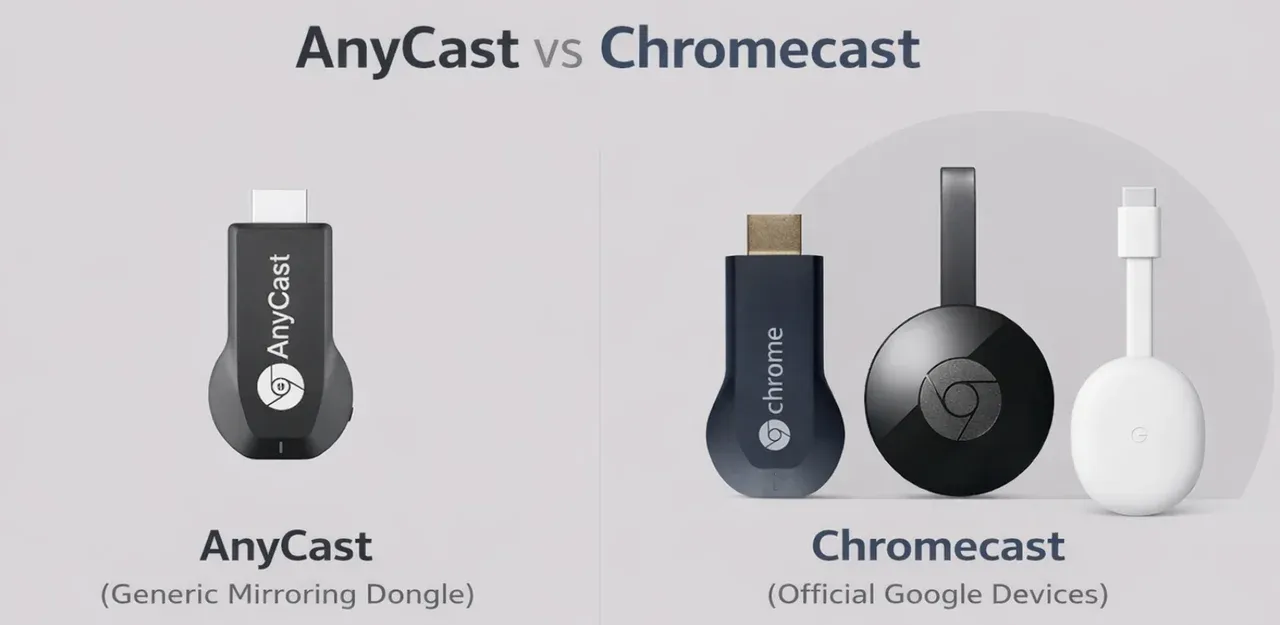
While modern Chromecast devices run their own operating system and stream content directly from the internet, AnyCast acts as a screen-mirroring bridge. It does not run apps or fetch content on its own. Instead, it simply reflects what is already playing on your phone, tablet, or computer.
AnyCast relies on three main technologies to function:
-
Miracast: Used by most Android phones and Windows PCs.
-
DLNA: Used for pushing specific media files (like a video in a gallery) to the screen.
-
AirPlay: An unofficial implementation used to connect iPhones, iPads, and Macs.
How to Setup AnyCast on TV
Regardless of which specific model you have, the physical connection and software handshake usually follow these three steps. This AnyCast setup guide works for most AnyCast models.
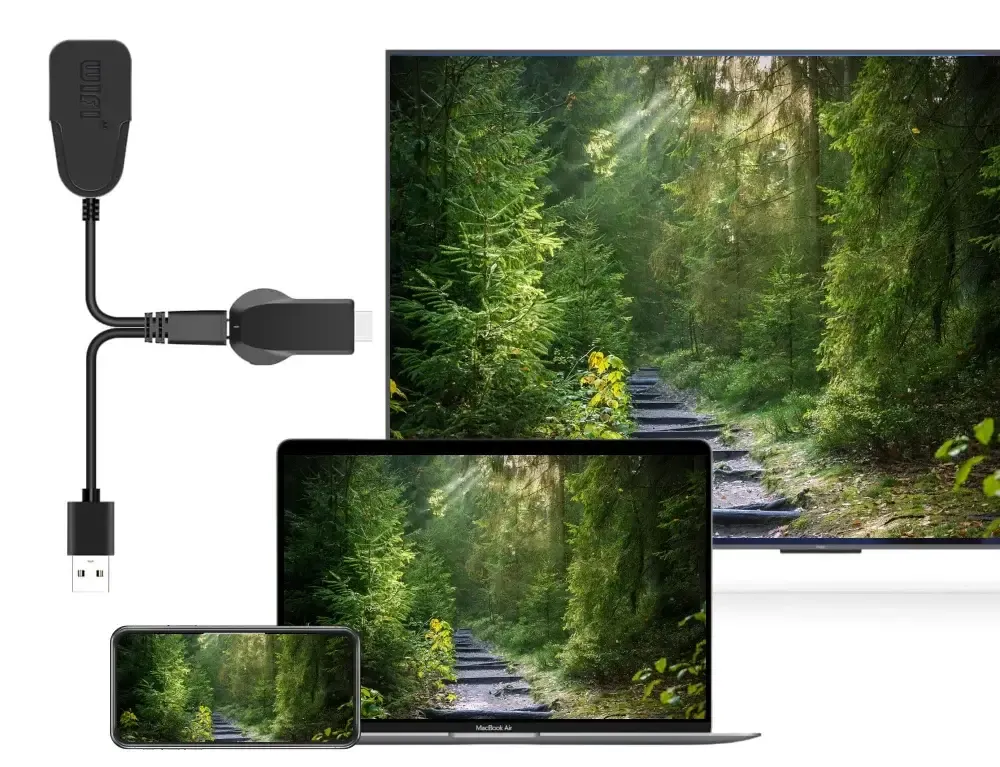
Step 1: Plug AnyCast into Your TV
-
Plug the AnyCast dongle into an empty HDMI port on your TV.
-
Connect the included USB cable to the back of the dongle.
-
Plug the other end into a USB port on your TV or, ideally, a 5V/1A wall adapter (Tip: TV USB ports often don't provide enough power, which causes the dongle to reboot or lag).
-
Switch your TV to the correct HDMI input.
-
You should see a blue or white "AnyCast" home screen displaying an SSID (Wi-Fi Name) and a Password (PSK).
Step 2: Connect AnyCast to Wi-Fi
To keep your phone online while mirroring, you must link the dongle to your router.
-
On your phone, go to Wi-Fi settings and connect to the network name shown on your TV screen (e.g., AnyCast-XXXX). Enter the password shown on the TV (usually 12345678).
-
Open a web browser on your phone and type the IP address shown on the TV screen. This is usually 192.168.49.1.
-
Select your home Wi-Fi network from the list and enter your password.
-
Wait for the AnyCast to reboot. It is now connected to your local network.
Step 3: Cast from Your Device (Android, iPhone, PC, Mac)
Now that the dongle is on your home network, you can start mirroring from Android devices, iPhones, Macs, or Windows PCs. Here's how to use AnyCast:
-
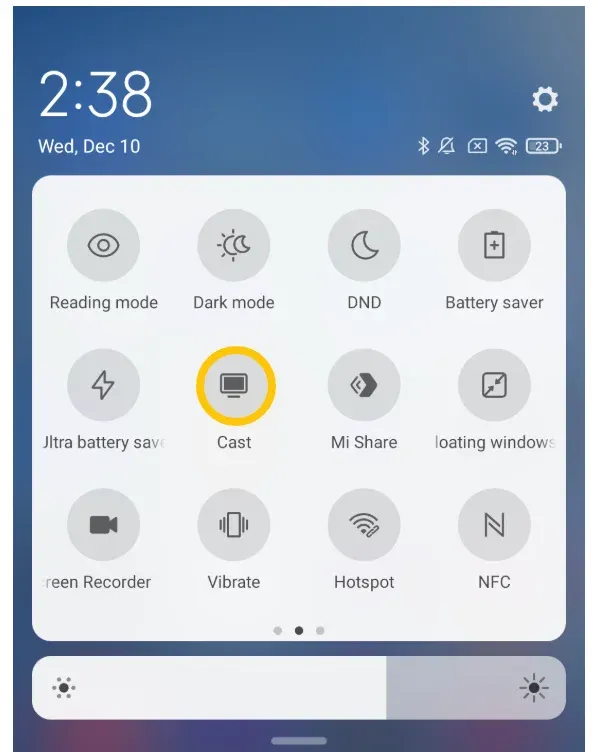
Connect AnyCast to Android:
-
Swipe down the Quick Settings menu.
-
Look for Cast, Smart View, Wireless Display, or Screen Mirroring.
-
Select the AnyCast device.
-
-
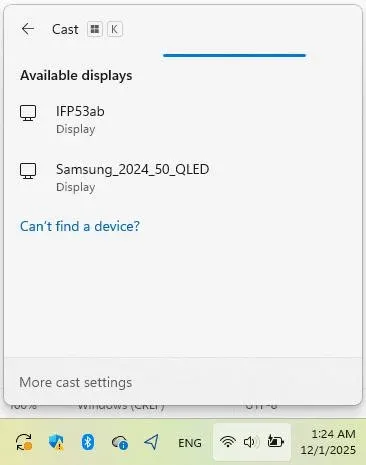
Connect AnyCast to Windows 10/11 PC:
-
Press Windows + K shortcut.
-
Select the AnyCast name from the sidebar.
-
-
Connect AnyCast to iPhone/iPad/Mac:
-
Access the Control Center.
-
Choose Screen Mirroring.
-
Select the AnyCast name.
-
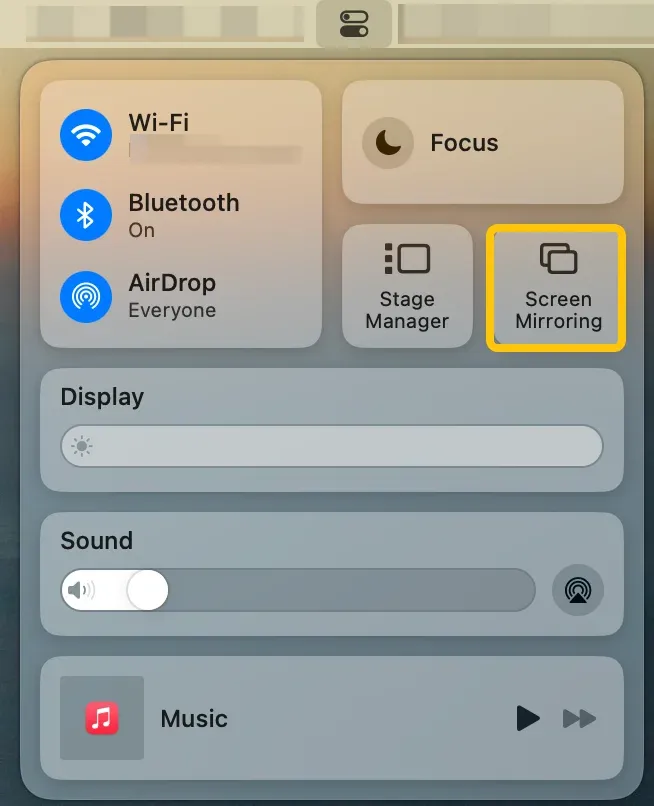
Tip: Some models have a physical Mode Switch Button. If your iPhone can't find the device, press the button on the dongle to switch to "AirPlay/iOS" mode.
Common AnyCast Setup Problems
If you are struggling with AnyCast setup, it is likely due to one of these technical limitations:
-
Netflix/YouTube Not Working: This is the most common complaint. Most AnyCast dongles do not support DRM (Digital Rights Management). This means encrypted content from Netflix, Disney+, or Amazon Prime will show a black screen while the audio plays.
-
AnyCast Not Showing Up: This is usually a power issue. If the USB cable is plugged into a low-power TV port, the Wi-Fi chip inside the dongle won't stay active.
-
Screen Lag or Delay: AnyCast uses the 2.4GHz Wi-Fi band, which is very crowded. If your neighbors are all on their Wi-Fi, your video will stutter.
-
Unofficial AirPlay: Since Apple doesn't officially license AirPlay to these cheap dongles, Apple updates can sometimes "break" the connection until the AnyCast manufacturer releases a firmware update.
Is AnyCast Worth Using in 2026
Whether this device is right for you depends entirely on your use case.
AnyCast is "good enough" if:
-
Casual users: Sharing vacation photos or home videos with family.
-
Presentations: Displaying non-video content like PowerPoints or PDFs.
-
Offline use: Mirroring in environments without a router (using a direct Peer-to-Peer connection).
You should look for AnyCast alternatives if:
-
Streaming users: You want to watch Netflix, HBO, or Amazon Prime.
-
Gamers: The latency (input lag) is too high for fast-paced mobile games.
-
Power users: You want a stable, high-definition "set it and forget it" experience.
A More Stable Alternative to AnyCast
If the hardware-dongle approach is proving too unstable or complicated, you might find that software-based receivers are a better fit. Instead of buying a cheap piece of hardware that may fail, you can use a receiver app on a device you already own.
The free PigeonCast receiver is a robust alternative that runs on your existing computer or TV.
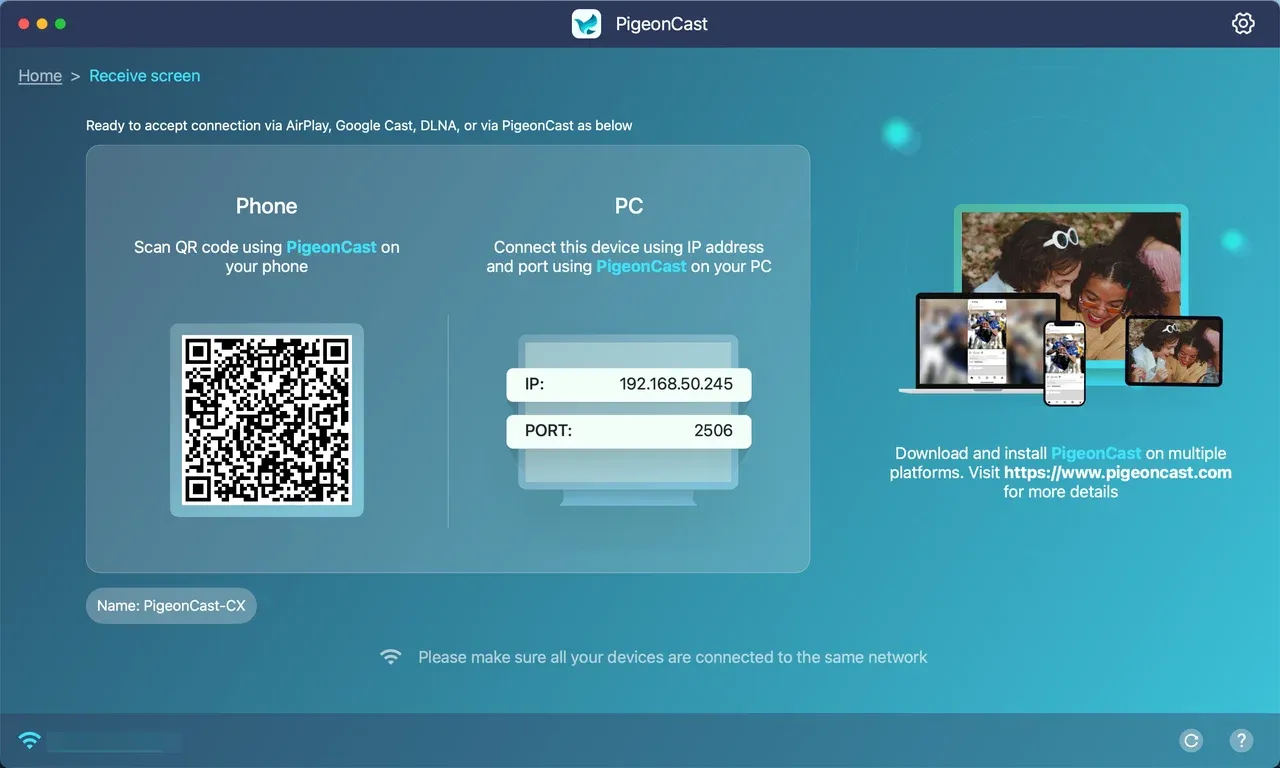
Why it often works better than AnyCast:
-
Universal Compatibility: It naturally supports AirPlay, Google Cast, and DLNA without needing to flip physical switches on a dongle.
-
Multi-platform Support: It works with Android, iPhone, iPad, Windows PC, Mac, smart TV, and streaming box for effortless cross-platform streaming.
-
HD Screen Mirroring: It delivers smooth and reliable screen mirroring with support for high-resolution displays.
-
Clean Interface with No Cost: It is free to use without ads or time limit.
How to use this screen mirroring app:
Step 1. On your device, go to the app store, search for it, and download.
Step 2. Once installed, open it on your computer or TV.


Overall Rating:



Step 3. Ensure your sending device is on the same Wi-Fi network as your computer or TV.
Step 4. On the sending device, enable screen mirroring or tap the cast icon on a video platform.
Step 5. Choose the PigeonCast name from the list.
Step 6. View on the large screen.
PigeonCast is best suited for users who already own a PC or smart TV and want stable screen mirroring without relying on low-cost hardware dongles.
AnyCast vs. Chromecast vs. Software Receiver
While AnyCast, Chromecast, and software-based receivers can all put content on a bigger screen, they work in very different ways.
| Feature | AnyCast | Chromecast | Software Receiver (PigeonCast) |
|---|---|---|---|
| Screen Mirroring | Yes | Limited | Yes |
| App Streaming (DRM) | No | Yes | Depends on protocol |
| AirPlay Support | Unofficial | No | Yes |
| Google Cast Support | Limited | Yes | Yes |
| Hardware Required | Dongle | Dongle | No |
| Stability | Low | High (streaming) | High (mirroring) |
Conclusion
Setting up an AnyCast dongle can be a test of patience, but it remains a viable budget option for simple screen sharing. By ensuring you have a strong power source and understanding the DRM limitations, you can avoid the most common frustrations. However, if you require stability for streaming or work, moving toward a software-based solution like PigeonCast or a dedicated streaming device like Chromecast is a much more reliable path in 2026.
AnyCast Setup FAQs
Does AnyCast work with iPhone?
Yes, but it uses an unofficial AirPlay protocol. You usually have to switch the dongle to "AirPlay mode" using the physical button on the device.
Why is AnyCast so laggy?
It is usually caused by 2.4GHz frequency interference or the dongle overheating. Try using a wall plug for power instead of the TV's USB port.
Can AnyCast work without Wi-Fi?
Yes. You can connect your phone directly to the AnyCast's own Wi-Fi signal. However, your phone may lose its internet connection unless you have "Cellular Data" enabled and your phone allows "Wi-Fi without internet."
AnyCast vs. Chromecast: Which is better?
Chromecast is significantly better for streaming apps (Netflix, YouTube). AnyCast is better for simple, offline screen mirroring where you don't have a Google account or internet access.
Best AnyCast alternative for PC or TV?
If you have a PC or a Smart TV, using a software receiver like PigeonCast is often more reliable than using a $15 hardware dongle.
Why does AnyCast disconnect frequently?
This is usually due to overheating or power fluctuations. If the dongle feels hot to the touch or is plugged into a weak USB port, the connection will drop. Switch to a wall power adapter to improve stability.
Does AnyCast support 1080p or 4K?
Most standard AnyCast models support up to 1080p at 30fps. While some newer "4K" models exist, they often struggle with the processing power required to maintain that resolution smoothly.
Can AnyCast mirror with sound?
Yes, it supports audio mirroring via the HDMI connection. If you have no sound, ensure your TV isn't muted and that your phone's "Media Volume" is turned up.
Mia Clarke is a technology editor specializing in screen mirroring and casting solutions across multiple platforms. Mia provides clear, practical guides and in-depth insights to help users seamlessly connect their devices. Passionate about enhancing digital experiences, Mia is dedicated to keeping readers updated on the latest trends and tools in cross-platform screen sharing. Whether you’re looking to mirror your smartphone, laptop, or smart TV, Mia’s content delivers reliable, user-friendly advice to simplify your tech setup.