
AirPin helps an Android TV, TV box, projector, or PC receive screen mirroring from another device. It can be useful when your screen does not have built-in casting support, but its cost, device support, and setup limits are worth checking first. This guide explains what AirPin does and helps you decide whether it fits your casting needs.
What Is AirPin
AirPin is a screen mirroring and media streaming receiver app. It is usually installed on the device that receives the cast, such as an Android TV, TV box, projector, Android tablet, or PC. After AirPin runs on the receiving device, your phone or computer can try to find it through supported casting methods such as AirPlay or DLNA.
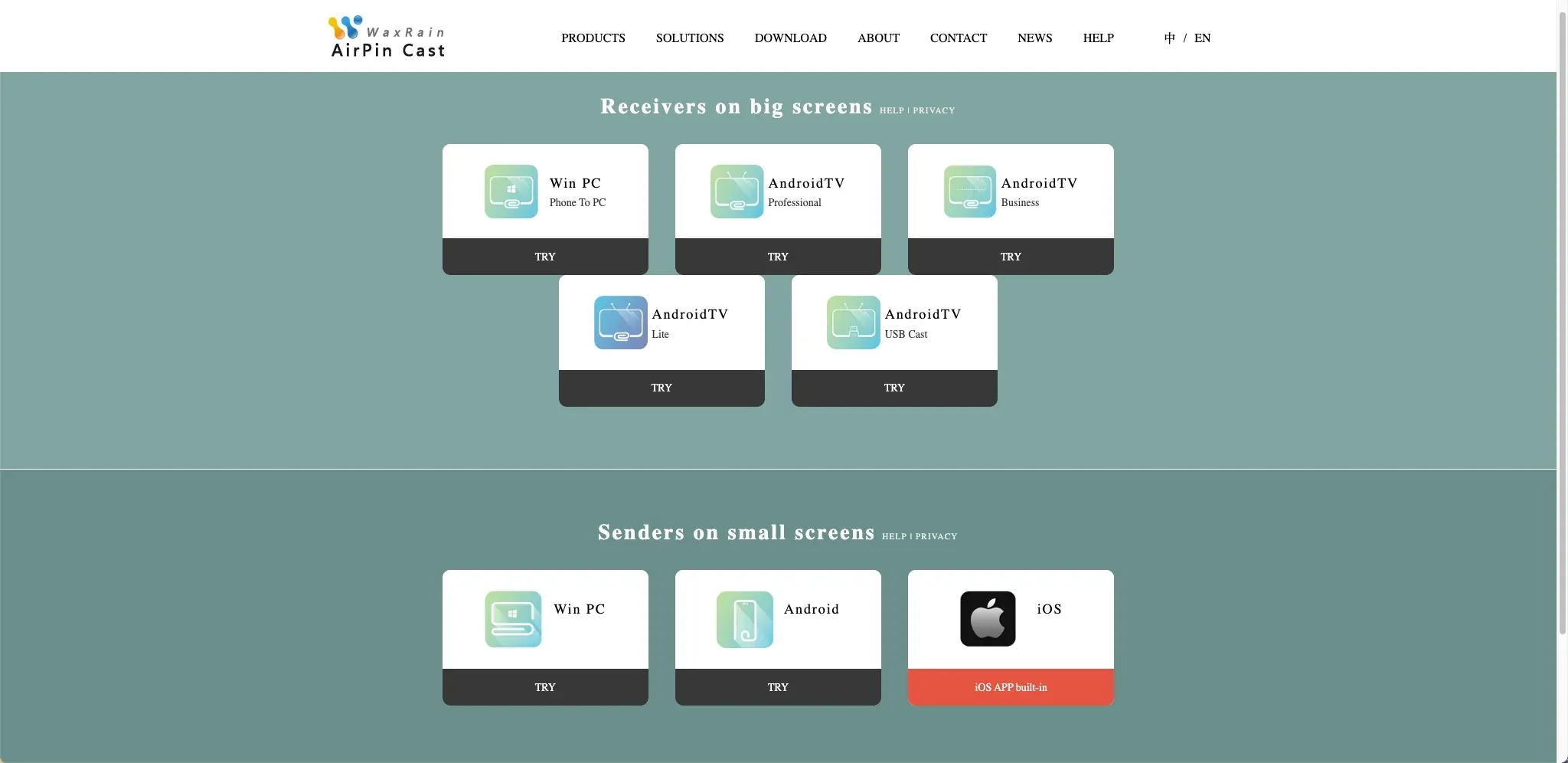
In simple terms, AirPin is not mainly the app you use to start casting from your phone. It works more like a receiver that helps another screen accept mirroring or media streaming. This is useful if your TV or projector does not already support the casting method you want to use.
What Does AirPin Cost
AirPin has several versions on Google Play, so the cost depends on which one you choose. At the time of writing, AirPin STD is listed at $3.99, and AirPin PRO is listed at $4.99. AirPin also has ad-supported STD and PRO versions with ads and in-app purchases, so a free-to-install listing may still include ads or locked features. Prices may vary by region and store.
| AirPin Version | Cost Type | What It Means |
|---|---|---|
| AirPin STD | Paid | Displays one device screen at a time |
| AirPin PRO | Paid | Displays up to 4 device screens at the same time |
| AirPin STD ad | Free to install with ads and in-app purchases | Lets you try the STD version, but banner ads and feature unlocks may apply |
| AirPin PRO ad | Free to install with ads and in-app purchases | Lets you try the PRO version, but multi-screen features may require ad removal and unlocking |
For simple one-screen mirroring, AirPin STD may be enough. If you need multiple screens, compare AirPin PRO or the PRO ad version before you pay.
What Devices Does AirPin Support
AirPin mainly works on the receiving side. It can be installed on Android phones, tablets, TVs, set-top boxes, and projectors, and WaxRain also describes AirPin as an Android/Windows app that can work as a receiver on Android devices or Windows PCs.
| Your Setup | Does AirPin Fit | What to Check |
|---|---|---|
| iPhone or iPad to Android TV | Yes | The Android TV must run AirPin as the receiver |
| Android phone to Android TV | Yes | Both devices need compatible casting or DLNA support |
| Windows PC to Android TV | Possible | AirPin mentions Windows and PC mirroring support, but setup may vary |
| Android projector | Yes | The projector must support Android app installation |
| Windows PC as receiver | Possible | WaxRain describes Windows PC receiver support |
| Non-Android smart TV | Limited | AirPin may not install directly on closed TV systems |
In short, AirPin is easier to use when the receiving screen can install Android apps or supported Windows software. If the TV system is closed and cannot run AirPin, you will need another way to make the connection.
What Are the Limits of AirPin
AirPin can be useful when you only need a receiver on an Android-based screen or Windows PC. However, it may not fit every screen mirroring setup, especially if your devices use different systems. Here are the main limits to check before you rely on AirPin:
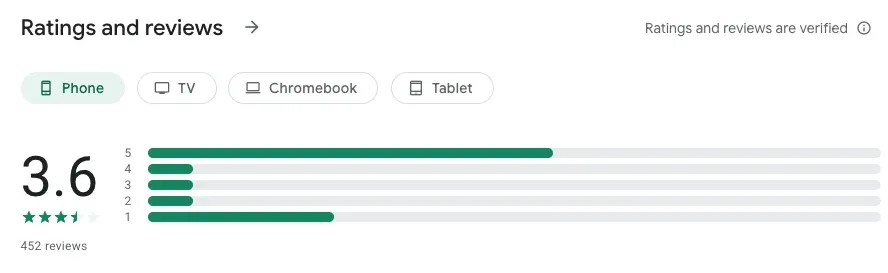
- The receiving device must be able to install or run AirPin.
- Both devices usually need to stay on the same local network.
- Device discovery may fail if your router blocks local connections.
- iPhone, Android, Windows, and Mac may need different casting paths.
- The ad-supported versions may include ads or locked features.
- Some streaming apps may block screen mirroring and show a black screen.
- AirPin is receiver-focused, so it may feel less direct if you want one tool for multiple phones, computers, and TV systems.
These limits do not mean AirPin is a bad choice. They simply show that AirPin works best when your main need is adding receiver support to a compatible device.
Use PigeonCast for Easier Cross-Device Mirroring
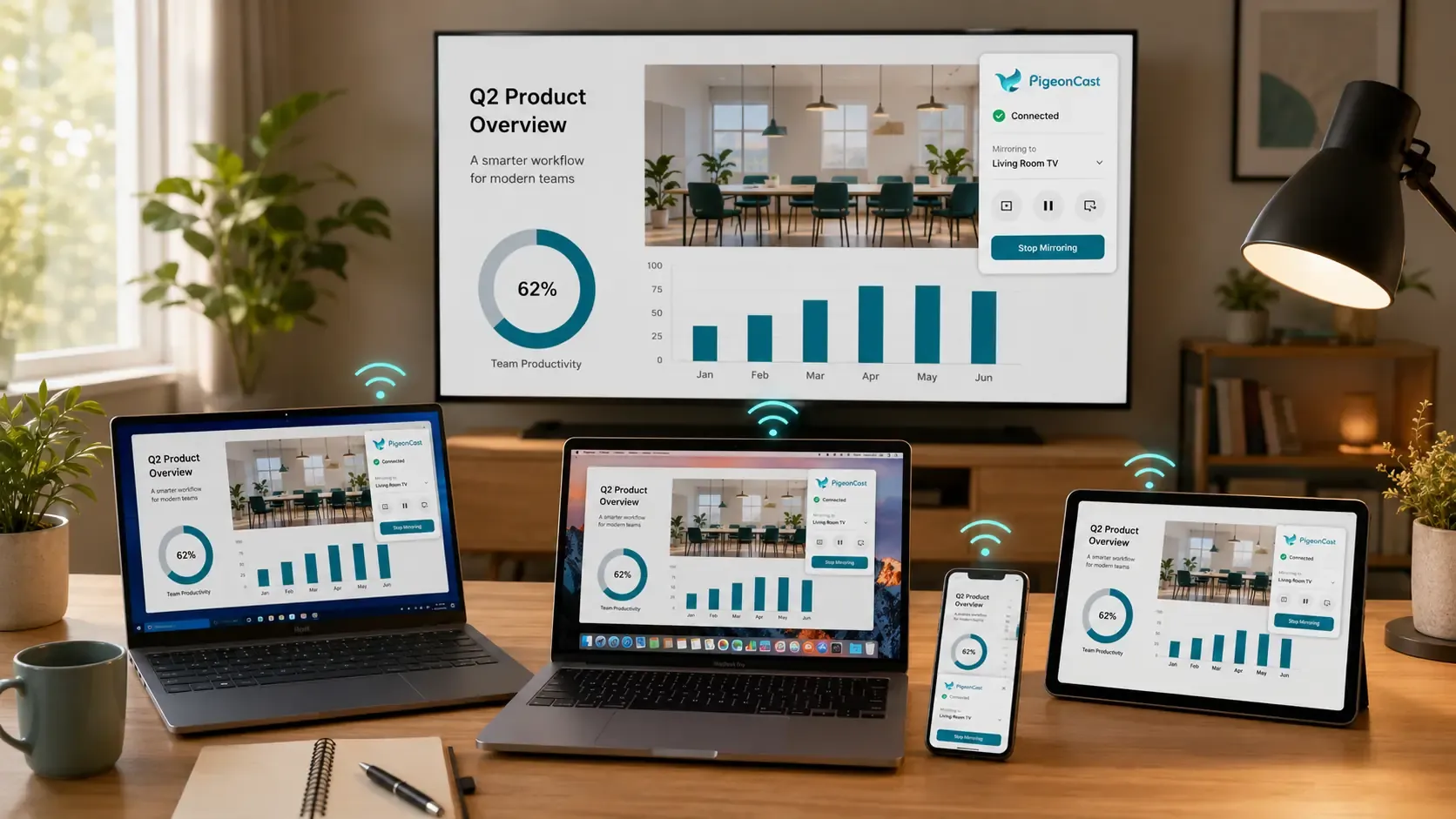
AirPin is useful when you need an Android device or Windows PC to work as a casting receiver. If you want to mirror from phones and computers to more TV setups, PigeonCast is easier to manage. It supports casting from iPhone, Android, Windows, and Mac to supported TV devices, including Apple TV and Android TV.
| What You Want to Do | How PigeonCast Helps |
|---|---|
| Mirror a phone to a TV | Cast iPhone or Android screens to a larger display |
| Share a computer screen | Mirror Windows or Mac to a TV, projector, or streaming device |
| Cast to more TV setups | Mirror from iPhone, Android, Windows, or Mac to supported Apple TV and Android TV devices |
| Show more than videos | Mirror browser pages, apps, photos, slides, or your full screen |
| Switch between casting methods | Use AirPlay, DLNA, or Google Cast based on your device |
PigeonCast is a better fit when you do not want your setup to depend on only one receiver app. It gives you a clearer way to mirror across common home, office, classroom, and presentation scenes.


Overall Rating:



AirPin vs PigeonCast
AirPin and PigeonCast are built for different needs. AirPin mainly helps Android devices and Windows PCs work as casting receivers, while PigeonCast is better for users who want to mirror from phones and computers to more TV setups.
| Need | AirPin | PigeonCast |
|---|---|---|
| Add receiver support to an Android TV, box, projector, or PC | Good fit | Not the main reason to choose it |
| Mirror from phones or computers to different TV setups | Depends on the Android or Windows receiver | Better fit |
| Use AirPlay-style casting | Supported | Supported |
| Use DLNA streaming | Supported | Supported |
| Use Google Cast | Not the main focus | Supported |
| Manage mixed home, office, or classroom devices | More limited | Easier to manage |
In short, choose AirPin if your main problem is adding receiver support to one Android device or Windows PC. Choose PigeonCast if you want an easier way to mirror from phones and computers to different TV devices, especially across home, office, classroom, or presentation setups.
To Sum Up
AirPin is a practical receiver tool when the missing part in your setup is an Android-based screen or PC that can accept casting. Its value depends on how simple your setup is: one receiver, one local network, and a supported casting path. For mixed devices or less predictable connections, PigeonCast gives you a clearer way to mirror screens across different systems.
AirPin FAQ
Is AirPin free?
AirPin is not fully free. It has paid versions, such as AirPin STD and AirPin PRO, and it also has ad-supported versions with in-app purchases. The ad-supported option may let you try the app first, but ads or locked features can still affect the experience. Always check the current app store listing in your region before installing.
Is AirPin the same as AirPlay?
No. AirPlay is Apple's wireless casting technology, while AirPin is a receiver app that can make an Android-based device or PC appear as a casting target. If you use an iPhone, AirPin does not replace the Screen Mirroring button in Control Center. It only gives your iPhone another receiver to connect to when both devices can find each other on the same network.
Does AirPin work without Wi-Fi?
AirPin is mainly designed for local network casting, so a normal Wi-Fi network is the easiest setup. A phone hotspot or wired Ethernet may work in some cases, but both devices still need a way to discover each other. If you want the most reliable no-Wi-Fi option, HDMI is usually better, especially for travel, hotel TVs, or unstable networks.
Why is AirPin not showing up on my phone?
The most common reason is that your phone cannot discover the receiver. Check whether AirPin is open on the receiving device, both devices are connected to the same network, and your router is not using guest mode or AP isolation. VPN apps, firewall settings, weak Wi-Fi, and Android TV boxes that close background apps can also stop AirPin from appearing.
Can AirPin mirror Netflix or other streaming apps?
Not always. Apps like Netflix, Disney+, Hulu, and Prime Video may block screen mirroring due to content protection. When that happens, the TV may show a black screen, frozen image, or audio without video. The better option is to install the streaming app directly on your TV or use the app's built-in cast button if your TV supports it.
Is AirPin worth using?
AirPin is worth using if your main problem is that an Android TV box, Android projector, or PC needs receiver support. It works better in a simple setup where the receiving device can run AirPin, both devices stay on the same local network, and you mainly need AirPlay or DLNA-style casting. If your devices come from different systems and you often switch between phone, computer, and TV mirroring, a cross-device tool may be easier.
What can I use instead of AirPin?
If your TV already supports AirPlay or Google Cast, the built-in casting option may be enough. If wireless discovery keeps failing, HDMI is the most stable wired choice. If you want wireless screen mirroring from iPhone, Android, Windows, or Mac to supported Apple TV and Android TV devices, PigeonCast is a better fit than a receiver-only app.
Clara Rossi is an experienced technology editor and a seasoned expert in screen mirroring and casting technologies. With a keen eye for detail and a deep understanding of how to seamlessly connect devices, Clara excels at optimizing user experiences for effortless sharing and streaming. Whether you're seeking quick fixes or advanced tips, her expertise and responsiveness ensure that every query is met with a well-informed and efficient solution.