
If you are wondering is MirrorMeister free, the short answer is: not fully. MirrorMeister is usually free to download and test, but full and uninterrupted use normally requires a paid plan.
This question often shows up right before a class, meeting, or movie night when you need casting to work now. In this guide, you will see what is usually free, what is usually paid, and exactly when to use native free casting or a third-party option like PigeonCast.
Is MirrorMeister Free or Paid?
The fastest way to evaluate MirrorMeister is to separate access from long-term use. You can often start without paying, but sustained use usually depends on a subscription or a paid unlock. The practical recommendation order is: validate trial behavior first, then decide if paid continuity is worth it for your weekly usage.
As of March 24, 2026, official signals point to this model:
-
MirrorMeister is available to install from app stores.
-
A free MirrorMeister free trial or test period may be available.
-
Unlimited access is tied to paid options such as MirrorMeister subscription or one-time purchase.
Source alignment:
-
Apple App Store listing: MirrorMeister on App Store (apps.apple.com/us/app/mirrormeister-screen-mirroring/id1474077410)
-
Google Play listing: MirrorMeister on Google Play (play.google.com/store/apps/details?id=com.meisterapps.mirrormeister)
-
Official support page: Buy MirrorMeister (mirrormeister.com/support/ios/buy-mirrormeister/)
Because app policies can change by region, platform, and update, treat the store page as the final source of truth for your account. The core answer in this article is an inference from those source signals, not a fixed universal price rule.
What You Get in the Free Version vs Paid Version
Many users search pricing only after a cast session fails or gets interrupted. A clearer approach is to map your task first, then decide whether the free experience is enough for your routine. The table below gives an evergreen decision frame without locking to price numbers that may change.
| Area | Free version (typical) | Paid version (typical) | Why this matters |
|---|---|---|---|
| Access | App download and basic trial access | Ongoing access | Helps you test before spending |
| Session continuity | May be limited by trial period or feature gates | Longer, stable use | Important for meetings and classes |
| Ads/interruption level | May include interruptions | Fewer interruptions | Affects viewing comfort |
| Feature scope | Core mirroring checks | Broader feature access | Useful for frequent or multi-device users |
| Decision risk | Good for short validation | Better for repeat usage | Reduces setup changes every session |
If your use case is one quick presentation, testing first can be enough. If you cast several times a week, paid continuity usually avoids repeated setup friction and mid-session interruptions.
How to Try MirrorMeister Before Paying
Testing correctly saves both time and money. Most users who feel stuck skip environment checks, then blame the app too early. Use this sequence once, and you can decide with confidence whether MirrorMeister fits your setup or whether a MirrorMeister alternative is the better long-term path.
Step 1. Confirm compatibility before install.
Check sender device, receiver type, and network context. Verify that your TV, dongle, or receiver path is supported for your platform.
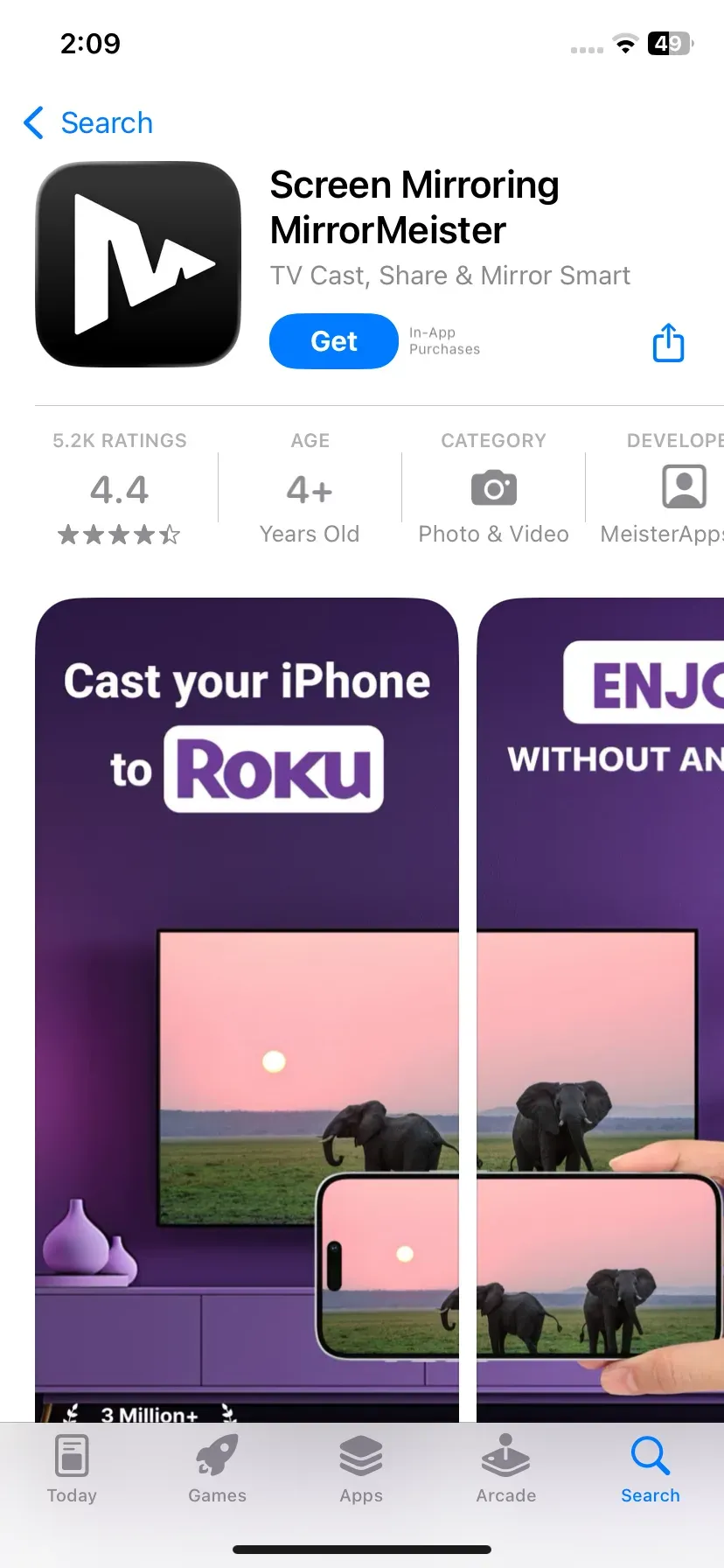
Step 2. Install from the official store page.
Use the direct App Store or Google Play entry to avoid copycat apps and outdated builds.
Step 3. Run one controlled test session.
Start with a short local video and one app mirror test. This reveals baseline stability before you move into troubleshooting or paid-streaming scenarios.
Step 4. Note trial limits in real use.
Track any interruption points, access limits, or paywall moments during your normal routine.
Step 5. Compare trial behavior with your weekly needs.
If you cast rarely, trial-level behavior may be enough. If you cast often, continuity becomes the deciding factor.
Step 6. Review billing and cancellation terms before upgrade.
Check duration, renewal timing, and cancellation path in your store account so you stay in control.
If your session is urgent and the free path blocks progress, move to a native free method immediately and return to pricing decisions later.
Free MirrorMeister Alternatives: AirPlay, Chromecast, Miracast, and PigeonCast
If MirrorMeister pricing or trial limits do not fit your workflow, you still have strong free paths. The best results come from picking the method that matches your devices first, then running a short baseline test instead of random retries. Use this section as a practical chooser for a MirrorMeister alternative that works with your real setup.
| Method | Best fit | Common fail trigger | Main tradeoff |
|---|---|---|---|
| AirPlay | iPhone/iPad/Mac to AirPlay-enabled TV | Devices on different networks, AirPlay disabled | Works best inside Apple-focused setups |
| Chromecast | Android/Chrome/app casting to Cast-enabled receiver | App lacks cast support, receiver not discoverable | Full desktop mirroring may vary by device |
| Miracast | Windows wireless display and full-screen mirror use | Wireless display compatibility gaps | Less consistent on mixed ecosystems |
| PigeonCast | Mixed-device casting when native discovery is unstable | Network path mismatch, quality settings not tuned | Adds one more app to manage |
AirPlay (iPhone and Mac)
AirPlay is usually the fastest free option when both sides already live in the Apple ecosystem. It is a good first choice for home streaming, quick demos, and class sessions where iPhone or Mac is the sender.
Step 1. Connect sender and receiver to the same stable Wi-Fi network.
Step 2. Enable AirPlay on the TV or receiver and confirm device visibility.
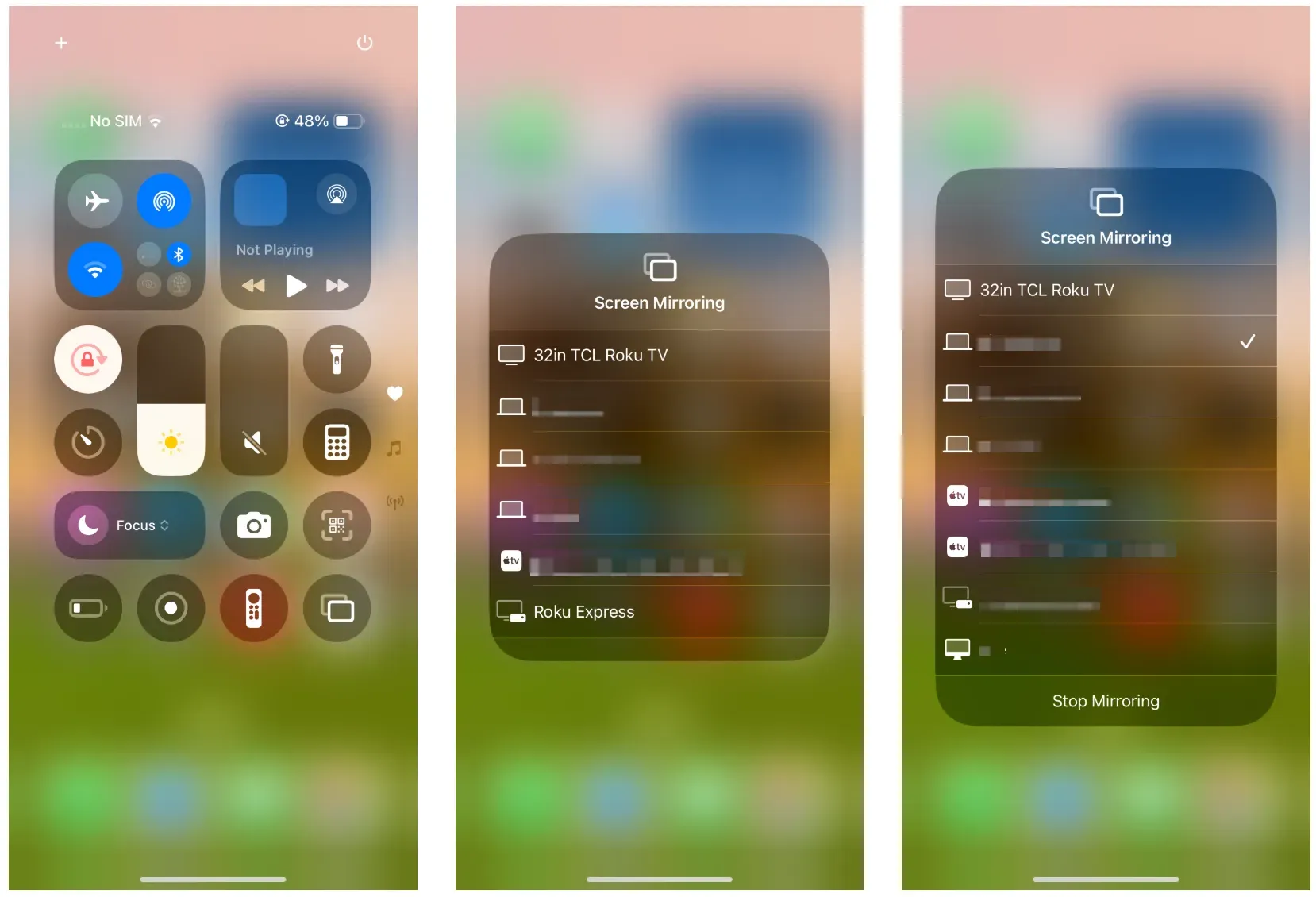
Step 3. Start mirroring from Control Center > Screen Mirroring, then test with a short local clip.
Chromecast (Android and Chrome)
Chromecast is often better when your content comes from cast-enabled apps or Chrome tabs. It also works well for families that use mixed Android and browser workflows.
Step 1. Put sender and Chromecast receiver on the same network and open a cast-supported app.
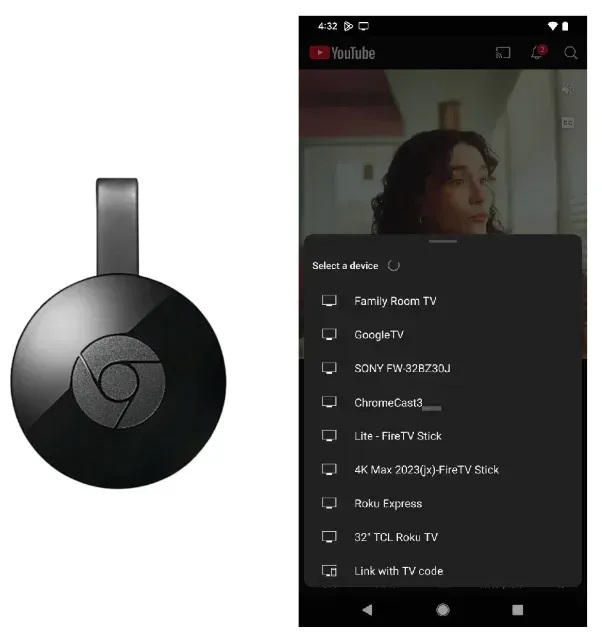
Step 2. Tap the Cast icon, choose the correct receiver, and start playback.
Step 3. If you need browser casting, use Chrome menu cast and verify video plus audio sync.
Miracast (Android and Windows)
Miracast is a practical free path for Windows users who need full-screen desktop mirroring. It is useful for slides, training screens, and workflows where app-level cast buttons are not available.
Step 1. Confirm Windows wireless display support and open the Win + K connect panel.
Step 2. Select your receiver and approve pairing prompts on both sides.
Step 3. Test with local content before protected streaming apps to separate connectivity from DRM behavior.
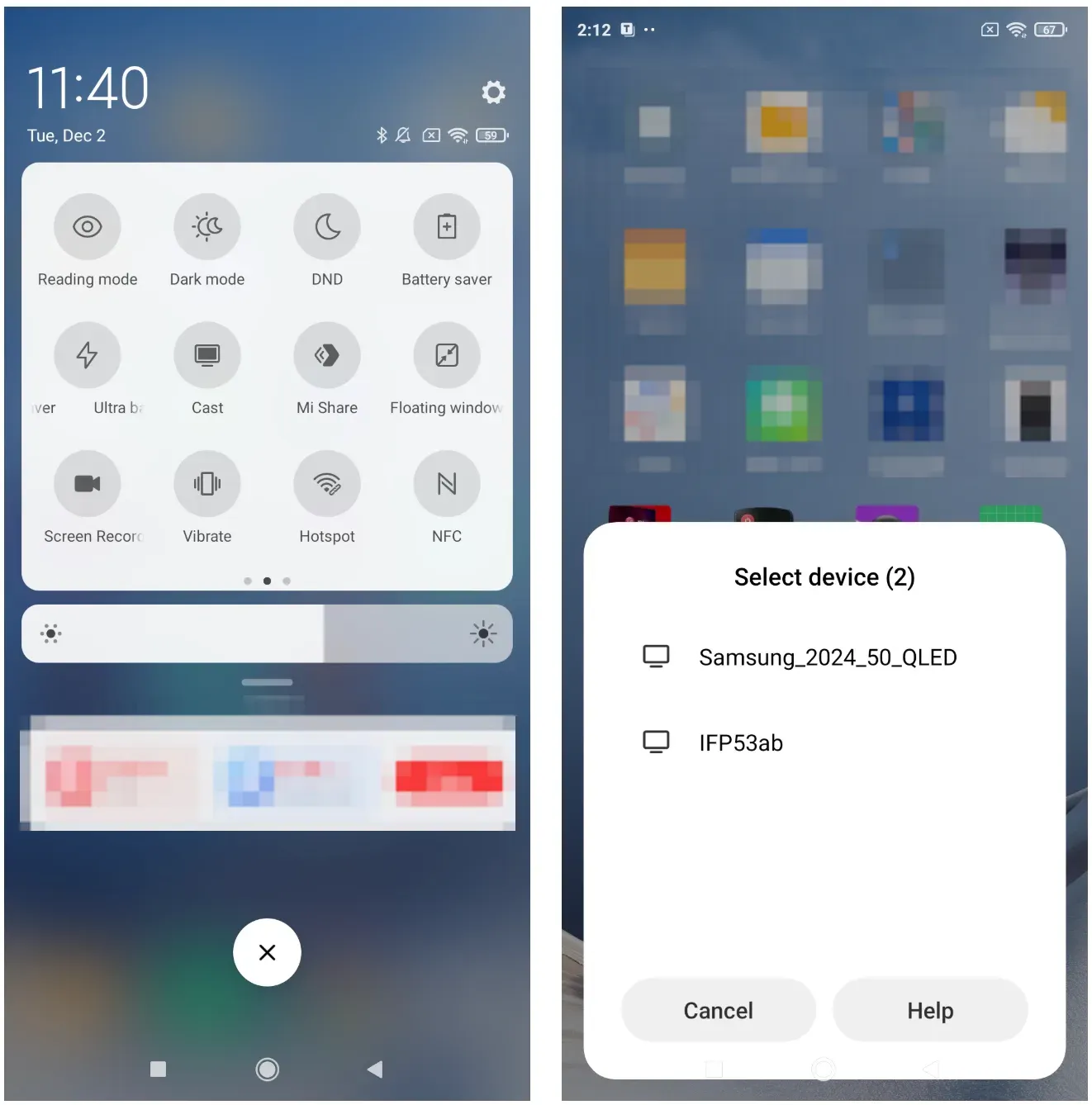
PigeonCast (Almost All Devices)
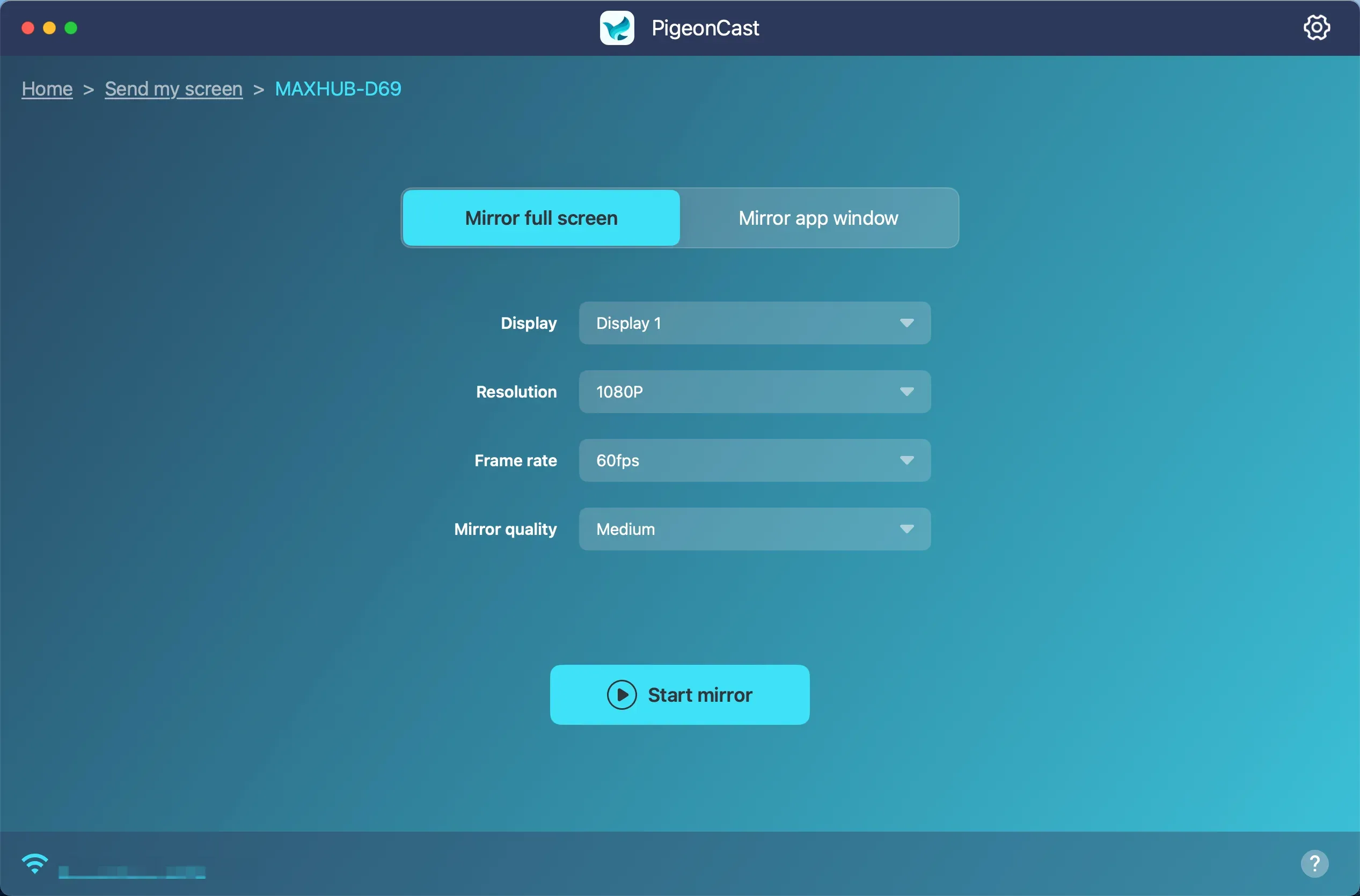
PigeonCast is a practical free screen mirroring option for laptop users. It also works on mobile devices, though the free version may include ads or some limitations. It is particularly useful when native mirroring methods are not available or fail to connect reliably.
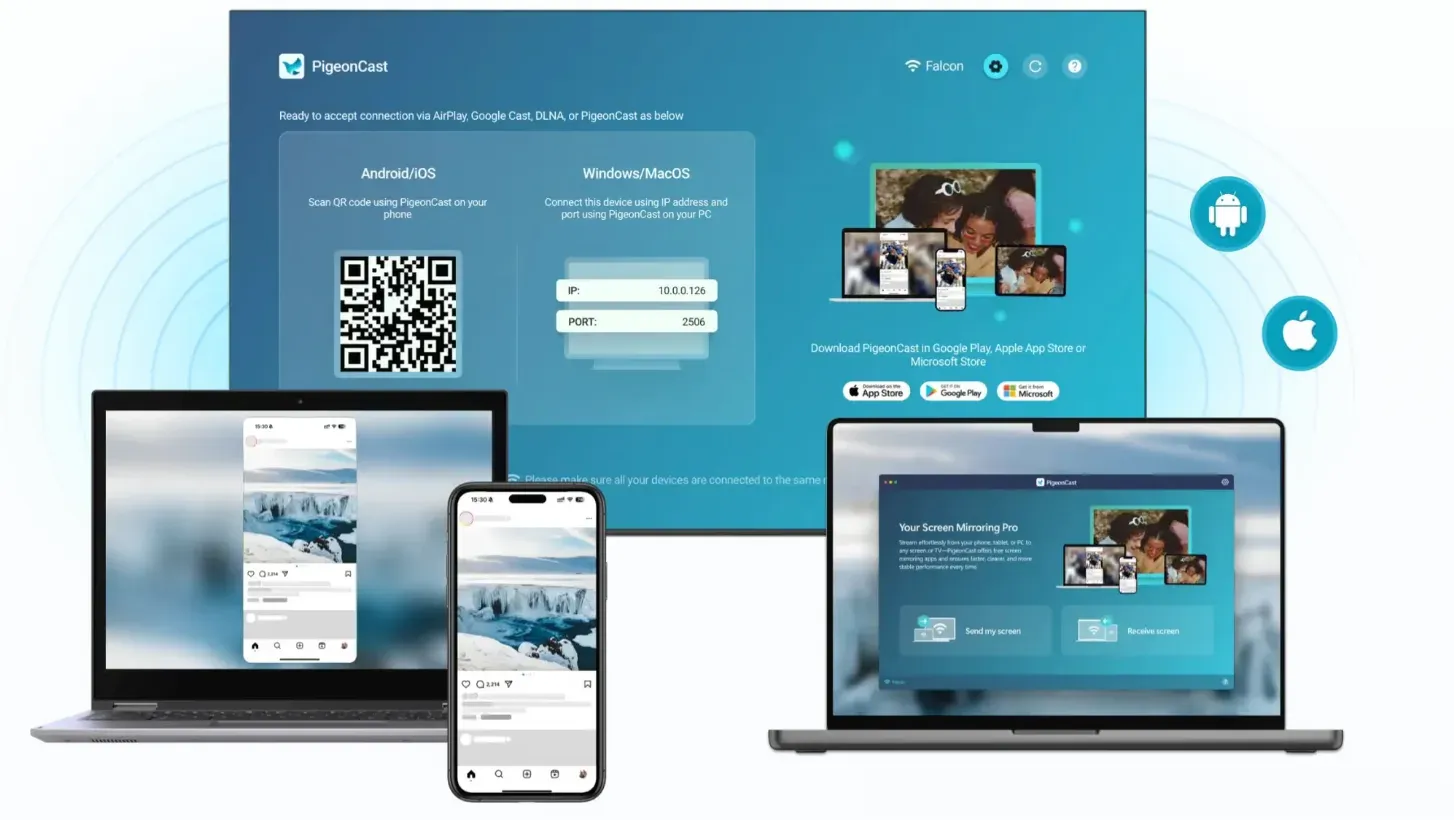
Step 1. Install PigeonCast on the sender and receiver and open it.


Overall Rating:



Step 2. Confirm both devices are on a compatible network path and selectable in-app.
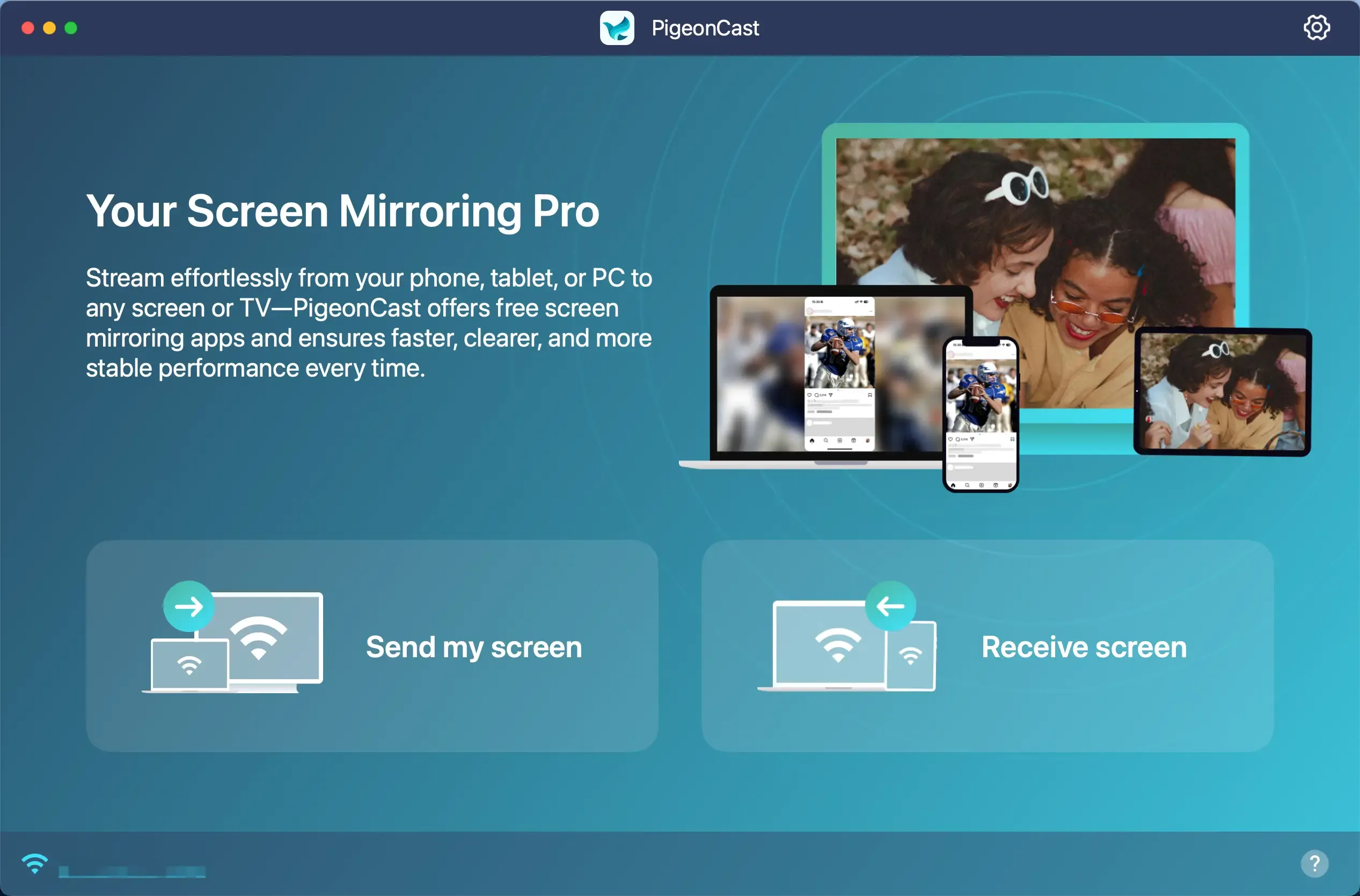
Step 3. Click the Send my Screen option on your laptop.
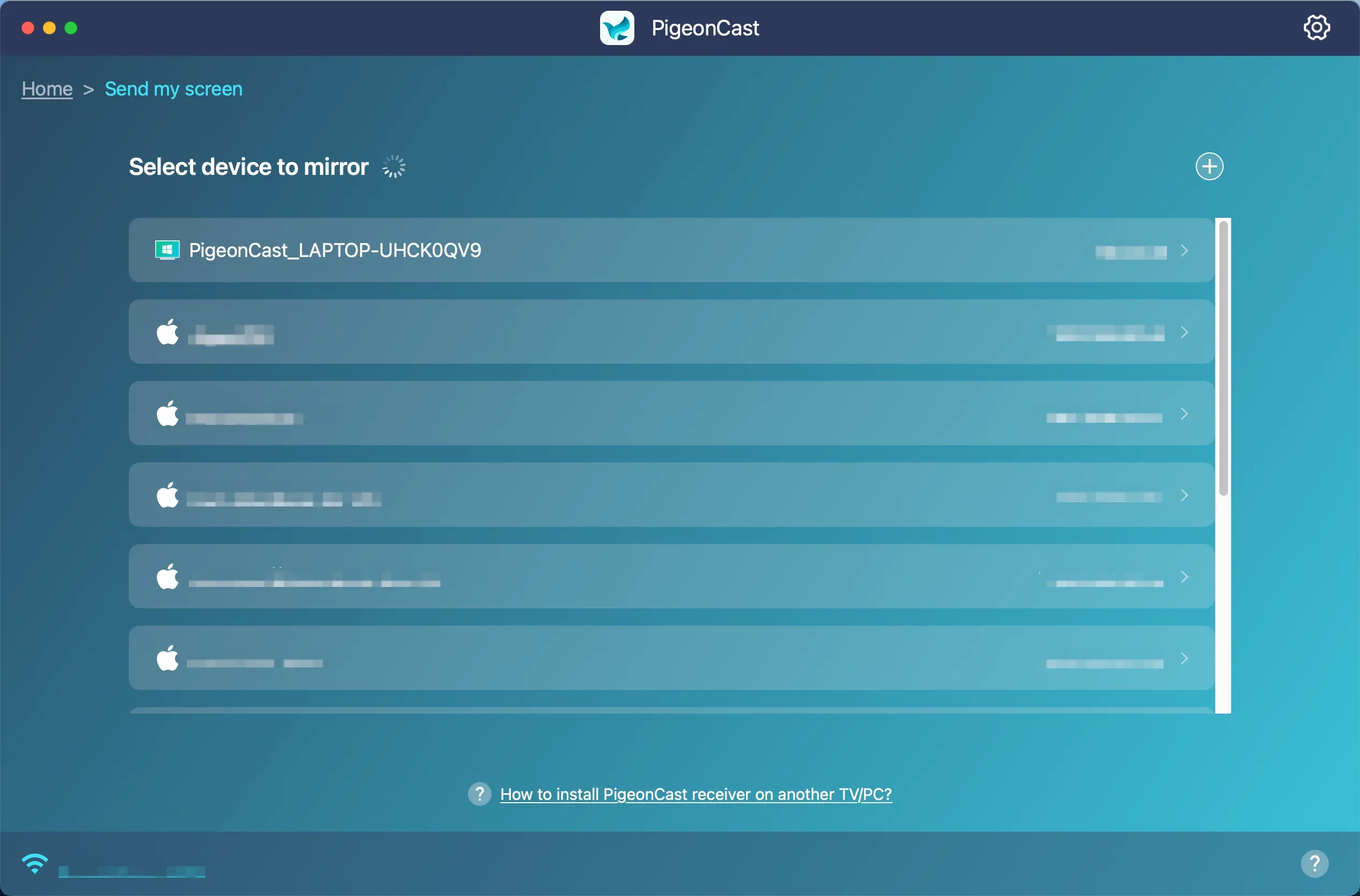
Step 4. Choose the receiver from the device list.
Step 5. Click Start mirror.
Conclusion
So, is Mirrormeister free? It is usually free to try, but not fully free for ongoing unlimited use. The best decision is to validate your own store terms, test one real session, and choose the path that gives stable results with the least friction.
For most beginners, the winning order is simple: test MirrorMeister first, prefer native free casting when compatible, and keep PigeonCast as a continuity option for urgent sessions.
Is MirrorMeister Free FAQ
Is MirrorMeister free forever?
Treat MirrorMeister as free to test, not always free forever. Check your current App Store or Google Play terms because trial access and paid unlock rules can change by region and update cycle.
Is MirrorMeister free to download on iPhone and Android?
Start by checking your platform store listing. In most cases, the app is free to install, but usage limits and paid upgrades are handled through in-app purchase terms.
Does MirrorMeister have a free trial?
Look for trial wording directly in the store listing and official support pages before you begin. If a free trial is offered, run one full real-world cast test during that period so your decision is based on your own setup.
What is included in MirrorMeister Pro?
Use the current in-app plan details as your reference because feature bundles can change over time. In general, paid tiers are positioned for broader access and fewer interruptions compared with trial-level use.
What if MirrorMeister is not free long term and I still need casting?
Use a native free method first when your device pair supports it. If native setup fails and your task is urgent, switch to an alternative option like PigeonCast to restore casting now, then revisit your long-term app choice.
Is MirrorMeister free for Netflix or other protected apps?
Do not assume protected streaming behavior will match local media mirroring. Test with local content first, then verify app-specific casting policies on your target platform, since DRM rules can affect what mirrors correctly.
Mia Clarke is a technology editor specializing in screen mirroring and casting solutions across multiple platforms. Mia provides clear, practical guides and in-depth insights to help users seamlessly connect their devices. Passionate about enhancing digital experiences, Mia is dedicated to keeping readers updated on the latest trends and tools in cross-platform screen sharing. Whether you’re looking to mirror your smartphone, laptop, or smart TV, Mia’s content delivers reliable, user-friendly advice to simplify your tech setup.