
Finding a reliable ApowerMirror Alternative in 2025 can be challenging, as most screen mirroring tools vary in compatibility, features, and performance. While ApowwerMirror remains popular, users often look for free options without watermarks, ads, or connection limits. This guide reviews 9 of the best apps like ApowerMirror, helping you choose the most suitable tool for your devices and needs.
What Is ApowerMirror?
ApowerMirror is a popular screen mirroring application that allows users to cast their mobile devices’ screens onto a computer or TV. It supports Android and iOS devices, offering high-quality mirroring through Wi-Fi or USB connections.
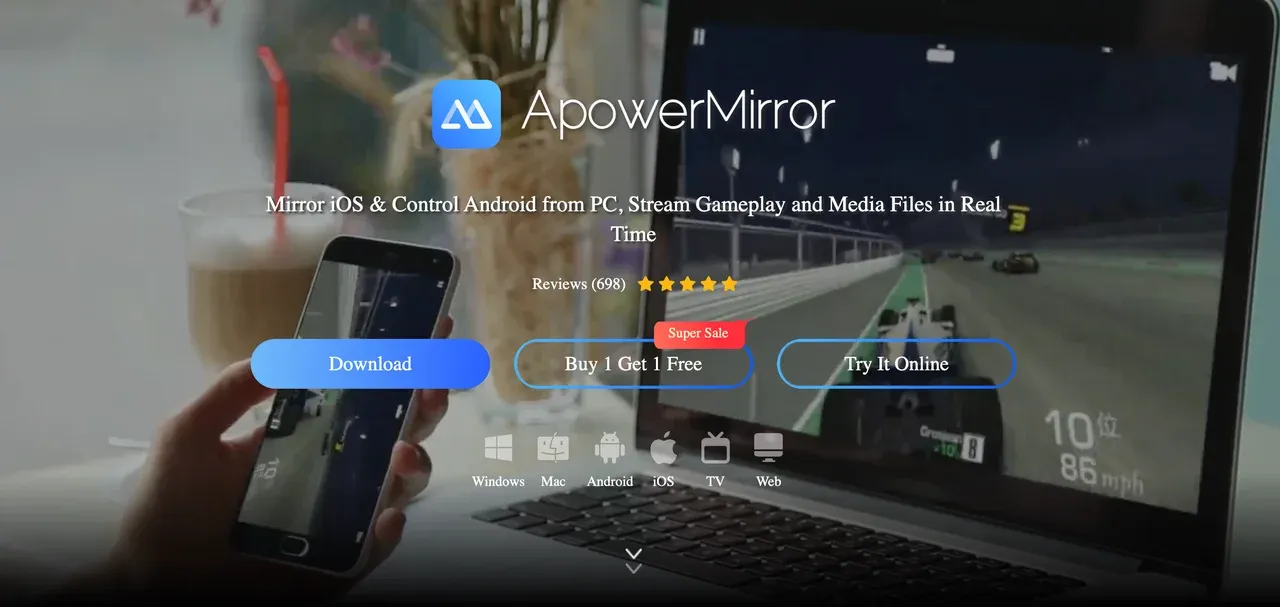
ApowerMirror enables users to stream videos, play games, or share presentations from their phones to larger screens. The app also provides screen recording, remote control, and multi-device mirroring features.
While it is widely used for personal and professional purposes, users may seek alternatives due to limitations such as the premium subscription, watermarks, or occasional connection issues. Below are the top alternatives to ApowerMirror that provide similar or better functionality without the downsides.
#1. PigeonCast [Free]
PigeonCast is a free, high-performance ApowerMirror replacement built for users who need smooth, ad-free wireless mirroring. It enables full HD and even 4K screen projection between phones, computers, and smart TVs with zero lag or watermark. Designed for both productivity and entertainment, it supports multi-device connections through AirPlay, Google Cast, and DLNA standards.
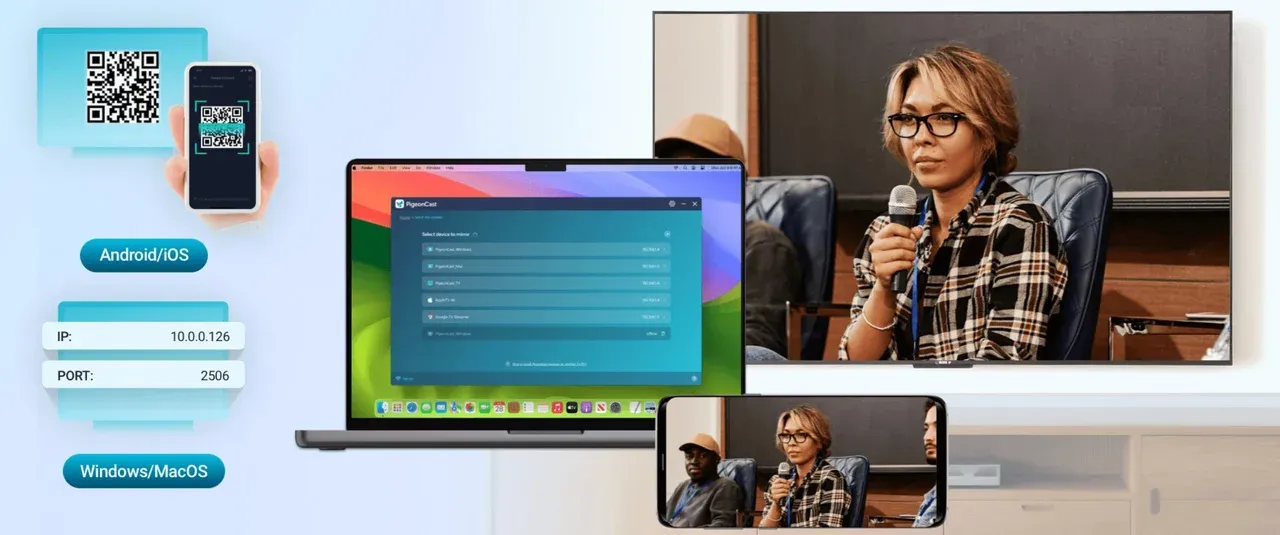
Unlike most screen mirroring apps, PigeonCast removes common restrictions such as upgrade prompts and feature locks. It's 100% free and secure, relying on encrypted local connections instead of cloud transfers. This makes it ideal for classrooms, offices, and home streaming environments where privacy and reliability are essential.
Main features:
- 100% free with zero paywalls or upgrade prompts.
- Works with iPhone, Android, Windows, macOS, and smart TVs (Google TV, Android TV, Apple TV).
- Supports AirPlay, Google Cast, and DLNA for maximum flexibility.
- Delivers ultra-low latency streaming ideal for gaming, live demos, or movie playback.
- Secure local connection with end-to-end encryption to protect your privacy.
- Connects easily via QR code or IP input, no cables required.
Pros:
- Completely free and ad-free.
- Cross-platform support with strong compatibility.
- High-definition mirroring with minimal delay.
- Lightweight and easy to install.
Cons:
- Requires both devices to share the same Wi-Fi network.
- Advanced features like whiteboard and annotation are still under development.
How to use PigeonCast:

PigeonCast Screen Mirroring
Overall Rating:



- Download and install PigeonCast on your devices (like a mobile phone and a Windows or macOS computer).
- Connect your devices to the same Wi-Fi network.
- Open the app on both devices and select your PC or TV from the available list.
- Tap the Start button, and your screen appears instantly.
Best for: Users seeking a free ApowerMirror alternative with full HD mirroring and complete cross-platform compatibility.
#2. LetsView
LetsView is a user-friendly and feature-rich alternative to ApowerMirror, offering wireless screen mirroring with powerful extras such as annotation tools, whiteboard mode, and recording. It's widely used by teachers, presenters, and students who need to explain concepts interactively during meetings or online classes.
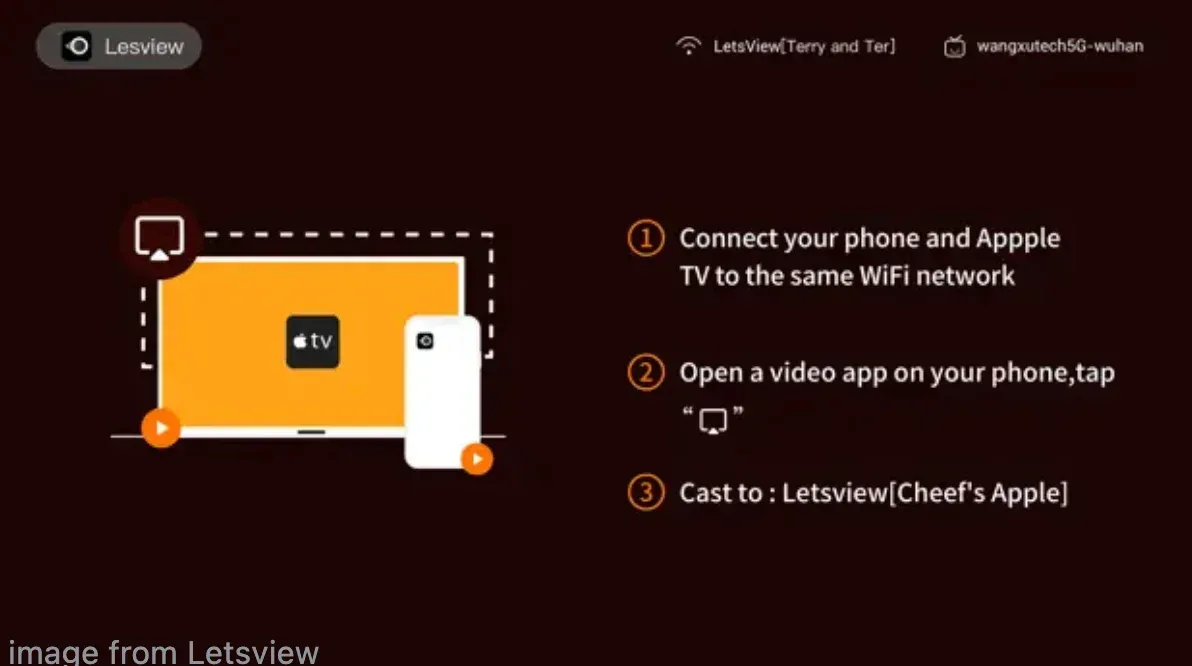
The app's clean interface, compatibility with all major systems, and QR-code pairing make setup simple and fast. While the free version includes ads, LetsView's versatility and reliability make it one of the best free screen mirroring apps like ApowerMirror.
Main features:
- Supports Windows, macOS, Android, and iOS.
- Enables mirroring via Wi-Fi, PIN, or QR code.
- Offers built-in whiteboard and annotation features.
- Includes screen recording and screenshot capture.
- Optional PC audio sharing for full multimedia projection.
Pros:
- Completely free to use.
- Great for teachers and presenters who need drawing tools.
- Works smoothly on most networks.
- Supports multiple connection methods.
Cons:
- Slight lag on low-speed Wi-Fi.
- Ads appear in free mode.
How to use LetsView:
- Install LetsView on both your phone and computer.
- Connect both devices to the same Wi-Fi.
- Tap Mirror and select your target device.
- Confirm the connection to start projecting.
Best for: Teachers and business users who want a free screen mirroring app like ApowerMirror with built-in collaboration tools.
#3. LonelyScreen
LonelyScreen turns your PC or Mac into an AirPlay receiver, allowing iPhone and iPad users to mirror their screens effortlessly without cables or extra apps. It's especially useful for educators, developers, and video creators who want to demo iOS apps or record their screen on a bigger display.
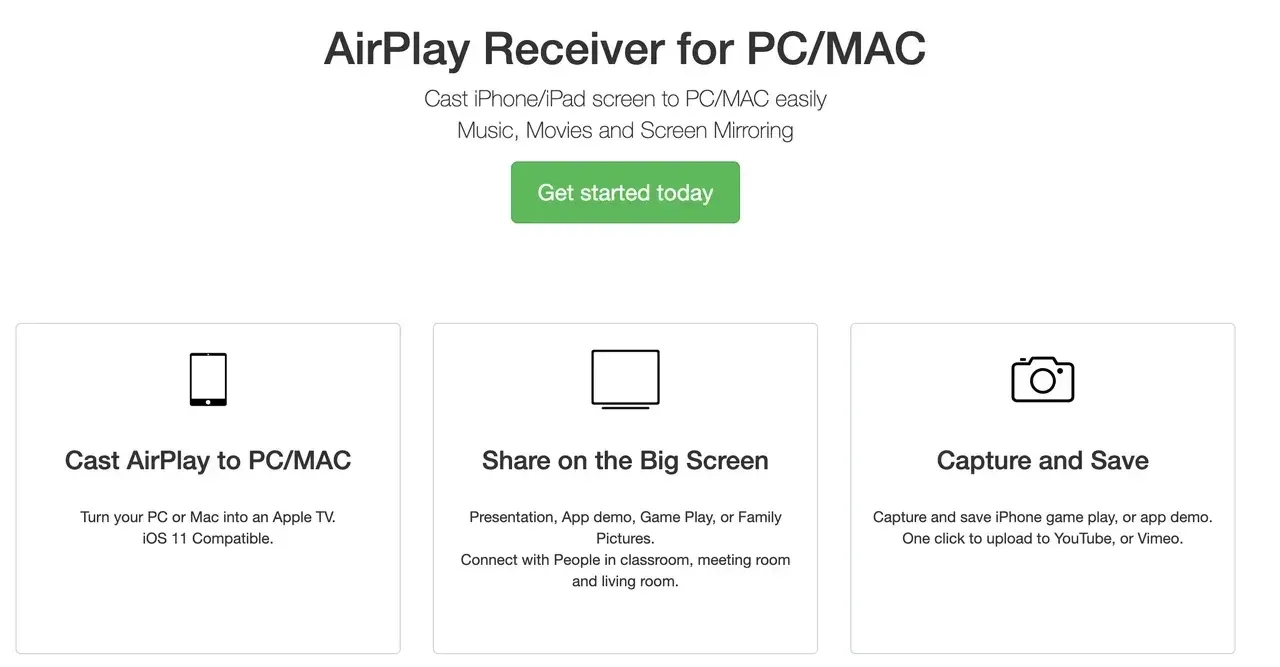
Though it lacks Android compatibility, LonelyScreen is a simple and effective ApowerMirror replacement for iOS, offering plug-and-play mirroring with minimal setup. Its simplicity and focus on AirPlay performance make it a dependable choice for Apple users.
Main features:
- Converts your computer into an AirPlay receiver.
- Supports iPhone and iPad screen mirroring to PC/Mac.
- Ideal for live demonstrations or screen recording.
- Simple one-click setup, no cables or drivers required.
Pros:
- Quick and intuitive setup.
- Works flawlessly with iOS AirPlay.
- Supports screen recording via native tools (QuickTime or OBS).
- Reliable performance for Apple ecosystems.
Cons:
- No Android support.
- Limited customization and no built-in recording in the free version.
How to use LonelyScreen:
- Install LonelyScreen on your computer.
- Launch it, and your PC becomes an AirPlay receiver.
- On your iPhone, open Control Center > Screen Mirroring.
- Select LonelyScreen from the list.
Best for: iPhone users needing a simple, cable-free alternative to ApowerMirror for quick AirPlay mirroring.
#4. Reflector
Reflector is a premium-grade screen mirroring app like ApowerMirror favored by professionals and educators. It supports AirPlay, Google Cast, and Miracast, allowing multiple devices to connect simultaneously. It's ideal for classrooms, hybrid meetings, and team demos.
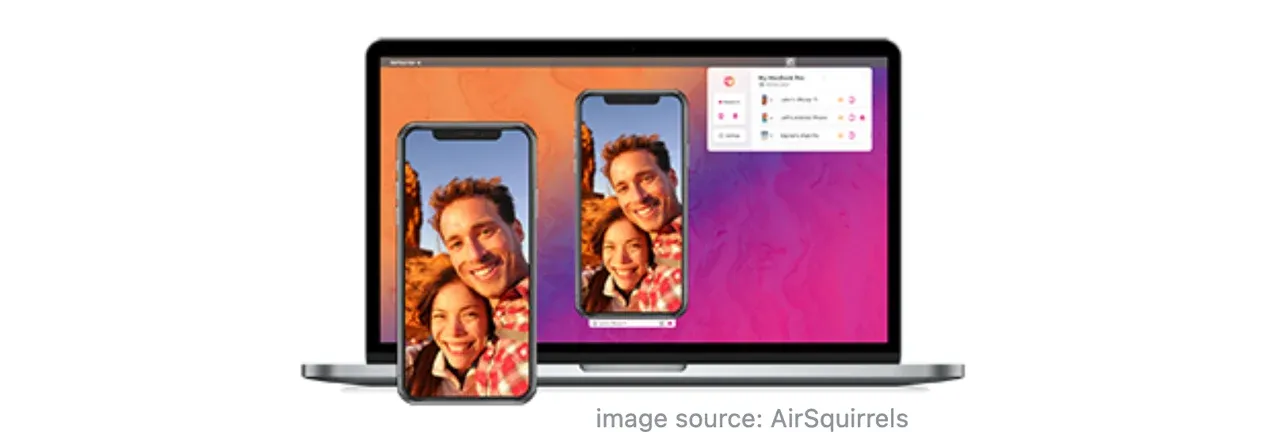
This app excels in customization: you can record, frame, and arrange multiple mirrored screens on one display. While it's a paid tool, its stability and advanced options justify the cost for professional users.
Main features:
- Supports AirPlay, Google Cast, and Miracast simultaneously.
- Allows multiple devices to mirror at once.
- Offers on-screen layout management and recording.
- Includes security options like password protection and network control.
- Works with Windows, macOS, and Chromebook.
Pros:
- Great for multi-user or enterprise environments.
- Records mirrored sessions easily.
- Customizable display layouts.
- Secure connection options.
Cons:
- Paid software after trial period.
- Requires stronger hardware for multiple connections.
How to use Reflector:
- Download Reflector on your PC or Mac.
- Enable casting on your phone (AirPlay, Cast, or Miracast).
- Choose your computer name to connect.
- Manage device layout from the Reflector dashboard.
Best for: Professional users, teachers, and presenters who need a reliable ApowerMirror alternative for multi-device management.
#5. AirDroid Cast
AirDroid Cast combines wireless mirroring and remote control in a single solution, a true ApowerMirror replacement that extends beyond local projection. It allows users to share screens, control devices, and communicate through two-way audio.
Because it supports both local Wi-Fi and remote connections, it's excellent for remote presentations, IT support, and cross-platform management. However, its advanced functions require a paid upgrade for heavy users.
Main features:
- Supports Windows, macOS, iOS, Android, and web browsers.
- Offers remote control, two-way audio, and file sharing.
- Works via QR code, casting code, or USB connection.
- Provides both local and remote casting options.
Pros:
- Remote control capability sets it apart.
- Works even over long distances via internet.
- High-quality mirroring for meetings or troubleshooting.
Cons:
- Some advanced features require a premium plan.
- May consume more bandwidth during HD streaming.
How to use AirDroid Cast:
- Install AirDroid Cast on your devices or open the web version.
- Scan the on-screen QR code or enter the casting code.
- Allow permissions to start mirroring or remote control.
Best for: Remote workers or tech support teams seeking a feature-rich ApowerMirror alternative with remote control capability.
#6. Mirroring360
Mirroring360 provides a dependable and scalable solution for mirroring across classrooms and workplaces. It supports both wireless and wired casting, making it a solid ApowerMirror replacement for business use.
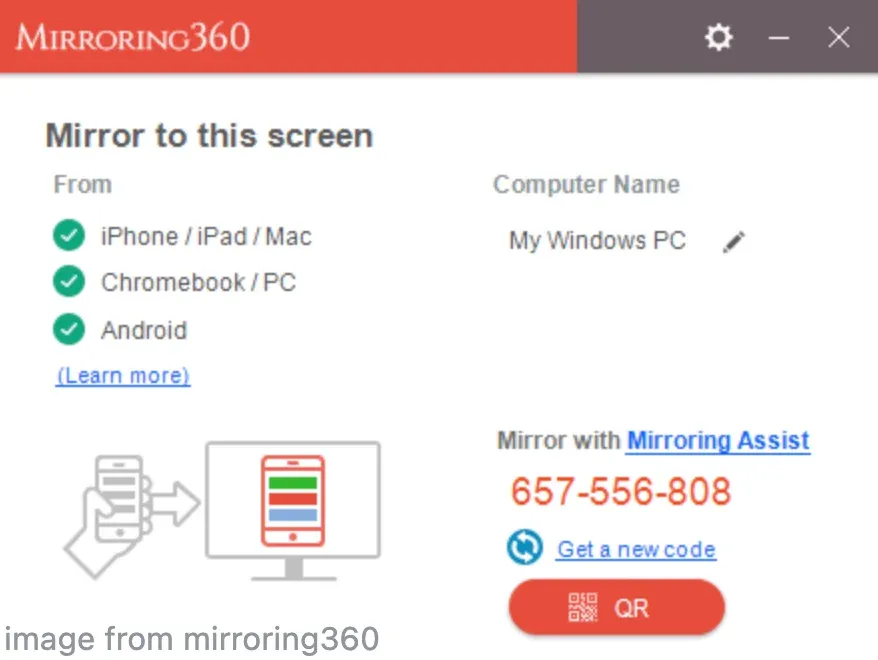
The app's standout feature is its ability to broadcast your screen to multiple viewers simultaneously, perfect for large meetings or webinars. While its design feels dated, its performance remains reliable.
Main features:
- Works with Windows, macOS, and Chromebook.
- Supports AirPlay, Google Cast, and Miracast.
- Allows broadcasting to up to 40 participants with Mirroring360 Sender.
- Stable, low-latency performance optimized for education.
Pros:
- Excellent for classrooms or group meetings.
- Reliable connection quality.
- Broadcast mode ideal for large audiences.
Cons:
- One-time purchase required after trial.
- Interface looks outdated compared to newer apps.
How to use Mirroring360:
- Install Mirroring360 on your PC or Mac.
- On your mobile, select Cast or AirPlay, then choose your computer.
- The screen appears on your desktop immediately.
Best for: Teachers, trainers, and office users needing a stable, enterprise-grade replacement for ApowerMirror.
#7. AirMore
AirMore stands out as a web-based ApowerMirror alternative that requires no installation on your computer. It lets users mirror, manage files, and even back up content directly from a browser.
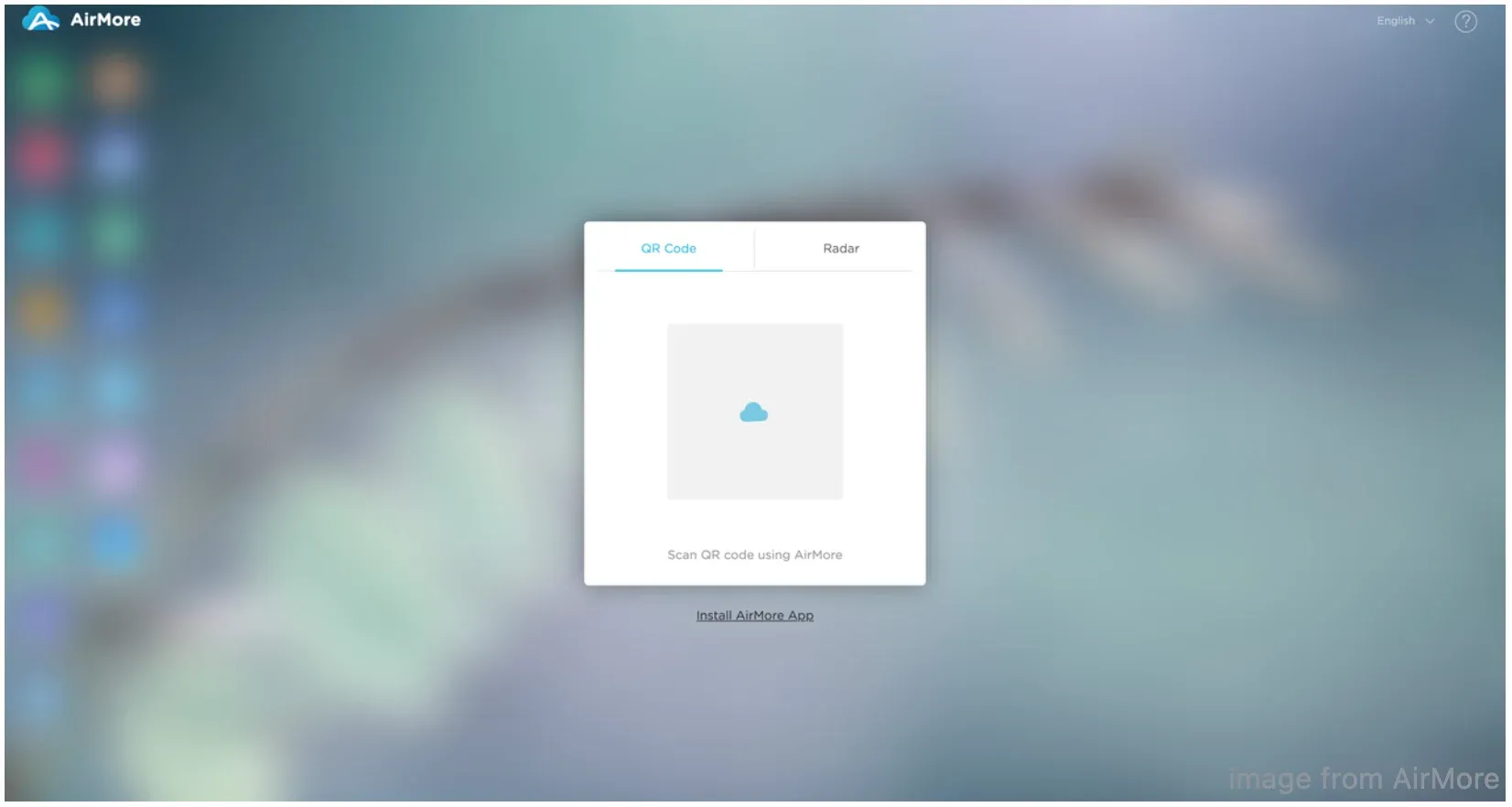
Because it runs entirely online, AirMore is perfect for quick mirroring tasks or presentations where you can't install software. However, performance depends heavily on network stability.
Main features:
- Works directly from browsers, no software needed.
- Compatible with Windows, macOS, Android, and iOS.
- Offers file transfer, contact management, and screen mirroring.
- Uses QR code connection for quick pairing.
Pros:
- Works via browser (no software needed).
- Supports Windows, macOS, Android, and iOS.
- Offers wireless file transfer and contact management.
Cons:
- Performance depends heavily on Wi-Fi quality.
- Uses cloud connections, which may raise privacy concerns.
How to use AirMore:
- Open AirMore Web on your computer.
- Launch the AirMore app on your phone and scan the QR code.
- Select Reflector to start mirroring your screen.
Best for: Users who want to mirror phone to PC without ApowerMirror or installation — ideal for quick sharing sessions.
#8. AnyViewer
AnyViewer focuses on secure remote access and screen sharing, positioning itself as a professional ApowerMirror replacement for business and tech support scenarios. It enables file transfer, remote desktop access, and chat communication in one app.
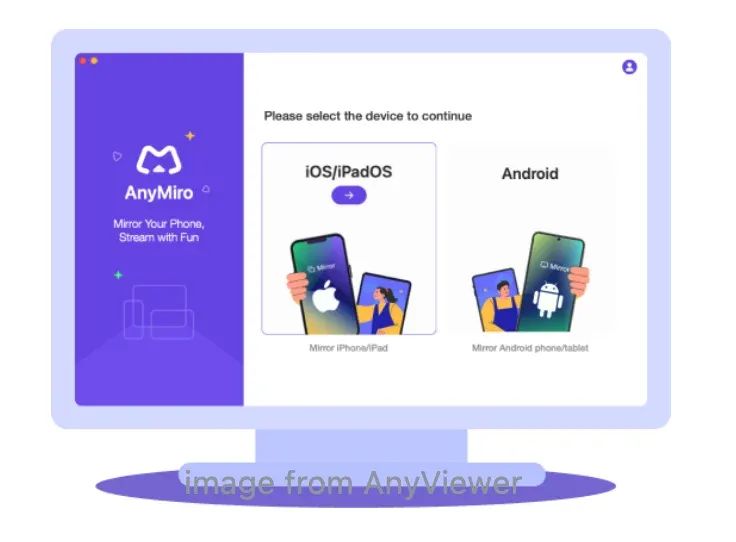
Its strong encryption and multi-platform support make it a safe option for corporate users. Although it's more remote-control oriented than entertainment-focused, it's highly effective for collaboration and troubleshooting.
Main features:
- Works on Windows, Android, and iOS.
- Provides remote access, file transfer, and live chat.
- Offers strong end-to-end encryption for secure sessions.
- Supports unattended access for quick troubleshooting.
Pros:
- Available for Windows, Android, and iOS.
- Offers file transfer and live chat during sessions.
- End-to-end encrypted for data safety.
Cons:
- Interface less intuitive for beginners.
- Primarily remote desktop software, not designed for real-time streaming.
How to use AnyViewer:
- Download AnyViewer on both devices.
- Log in with the same account or share session ID.
- Click Connect and approve the access request.
Best for: IT professionals, remote support, or secure business use, as it is a professional ApowerMirror replacement with strong encryption.
#9. X-Mirage
X-Mirage is a polished ApowerMirror alternative that acts as a universal receiver for AirPlay and Google Cast. It supports mirroring from iPhones, iPads, Android devices, and Chromebooks to Windows or macOS.
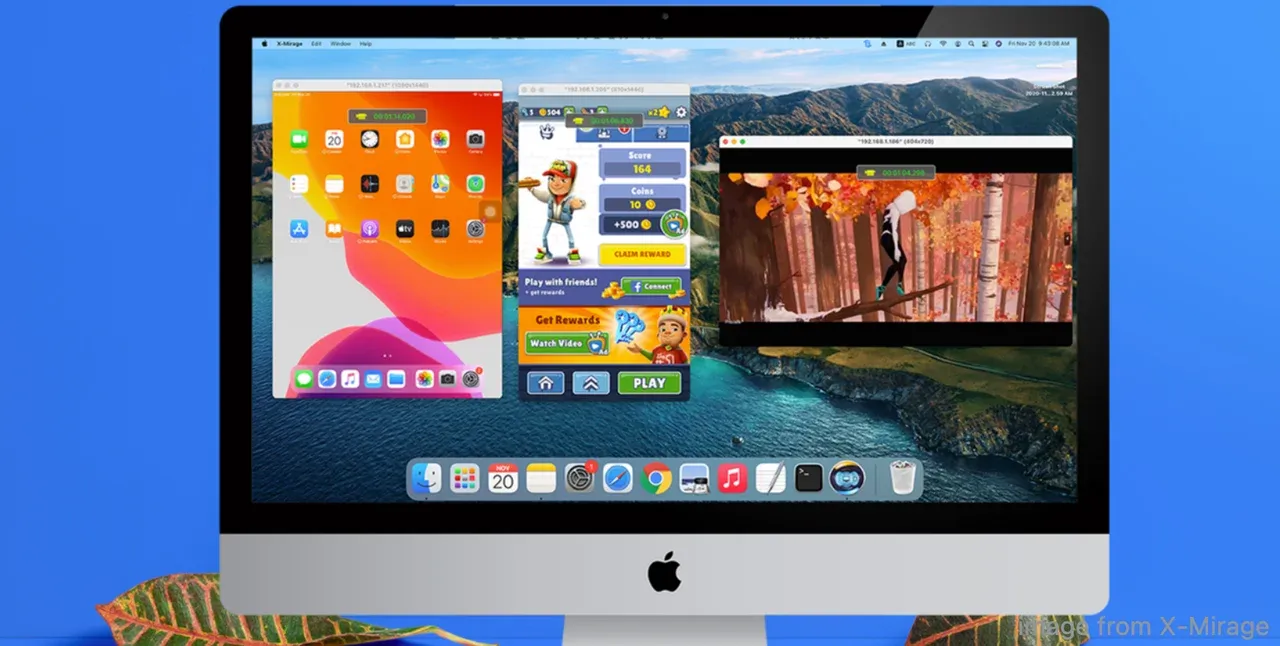
It's particularly appealing for creators who need 4K-quality mirroring with built-in recording and audio capture. The interface is clean, and the multi-device support makes it ideal for presentations or media playback.
Main features:
- Supports both AirPlay (iOS/macOS) and Google Cast (Android/Chromebook).
- Allows multiple device connections simultaneously.
- Offers screen recording, audio capture, and HD output.
- Available for Windows and macOS.
Pros:
- Dual protocol support (AirPlay + Google Cast).
- 4K quality mirroring and smooth recording.
- Stable and professional user experience.
Cons:
- Paid license required after trial.
- No remote-control functions.
How to use X-Mirage:
- Download and install X-Mirage on your Mac or Windows PC and launch it.
- Make sure your computer and mobile device are on the same Wi-Fi network.
- On your mobile phone, enable the casting or mirroring feature, and choose the X-Mirage receiver.
Best for: Users who prioritize HD screen mirroring and recording. X-Mirage is a premium alternative to ApowerMirror for creatives and educators.
9 ApowerMirror Alternatives: Which Is the Best
Choosing the best ApowerMirror alternative depends on your device mix, whether you need recording or remote-control features, and how important privacy and cost are. Below is a compact comparison across compatibility, supported protocols, connection methods, video quality, security and cost to help you pick quickly.
| ApowerMirror Alternative | Compatibility | Protocol Supported | Connection Method | Video Quality | Ease of Use | Recording & Control | Security | Cost | Ads / Limitations | Best For | Overall Rating (⭐ out of 5) |
|---|---|---|---|---|---|---|---|---|---|---|---|
| PigeonCast | Windows, macOS, Android, iOS, Smart TVs (Google TV, Android TV, Apple TV) | AirPlay, Google Cast, DLNA | Wi-Fi (same network), QR code scan, IP address input | 1080p (supports 4K in many setups); low latency | ⭐⭐⭐⭐⭐ | No native screen recording or remote control | Encrypted local casting; no cloud relay | Free (no premium, no ads) | None | Users wanting free, private, cross-platform HD mirroring | ⭐⭐⭐⭐⭐ |
| LetsView | Windows, macOS, Android, iOS | AirPlay, Miracast | Wi-Fi, QR code | 1080p; minor delay on weak networks | ⭐⭐⭐⭐ | Built-in screen recording & annotation (free); recordings may include watermark in some cases | Basic local encryption | Free | Occasional ads; possible watermark in recordings | Teachers, presenters, collaborative use | ⭐⭐⭐⭐ |
| LonelyScreen | Windows, macOS | AirPlay | Wi-Fi (same network) | 1080p; generally smooth for iOS devices | ⭐⭐⭐⭐ | Simple mirroring; recording possible via PC tools (QuickTime/OBS); no remote control | Depends on local AirPlay/network security | Freemium (trial / paid upgrade) | Ads in free/trial versions | Quick iPhone/iPad → PC mirroring and app demos | ⭐⭐⭐⭐ |
| Reflector | Windows, macOS | AirPlay, Google Cast, Miracast | Wi-Fi / local network | 1080p; stable with multiple devices | ⭐⭐⭐⭐ | Built-in recording, layout control, multi-device display | Password protection and session controls | Paid (license after trial) | None (trial limitations) | Classrooms, multi-device presentations, professional demos | ⭐⭐⭐⭐ |
| AirDroid Cast | Windows, macOS, Android, iOS, Web | Proprietary (AirDroid/WebRTC) | Wi-Fi, USB, QR code, casting code, web link | 1080p (depends on network); variable bandwidth needs | ⭐⭐⭐⭐ | Remote control (two-way), screen sharing, some recording (advanced features may be premium) | AES / encrypted remote sessions (for web/remote casting) | Freemium (some features premium) | Free limits on resolution/controls | Remote support, remote presentations, cross-network casting | ⭐⭐⭐⭐ |
| Mirroring360 | Windows, macOS, Chromebook | AirPlay, Miracast, Google Cast | Wi-Fi / local network | 1080p; optimized for broadcasting | ⭐⭐⭐ | Recording and broadcast mode to many viewers | Moderate security; local broadcasting | Paid (license after trial) | Trial limitations | Large classrooms, webinars, group broadcasts | ⭐⭐⭐ |
| AirMore | Browser-based (Windows, macOS) + Android, iOS | Browser/Web-based (HTTP/WebRTC) | Browser + QR code pairing | 720p–1080p (network dependent) | ⭐⭐⭐⭐ | No advanced built-in recording; supports file transfer and media streaming | Cloud link / browser relay — less private than local only | Free (some features limited) | Dependent on internet/Wi-Fi; potential cloud routing | Quick file transfer + mirror without installing desktop apps | ⭐⭐⭐ |
| AnyViewer | Windows, Android, iOS | Proprietary remote protocol | Internet (account/session ID), LAN | 1080p capable (optimized for remote access) | ⭐⭐⭐ | Full remote control, file transfer, unattended access | End-to-end encryption | Freemium (free + premium tiers) | UI learning curve for novices | Secure IT support, remote admin and helpdesk | ⭐⭐⭐⭐ |
| X-Mirage | Windows, macOS | AirPlay + Google Cast | Wi-Fi (same network) | Up to 4K / high quality; great for recording | ⭐⭐⭐⭐ | Built-in screen recording and audio capture; multi-device reception | Local AirPlay/Google Cast security (no cloud by default) | Paid (trial then license) | Trial limitations | Creators, presenters needing high-quality recording | ⭐⭐⭐⭐ |
In short, among these alternatives to ApowerMirror, PigeonCast stands out for free, ad-free HD mirroring; tools like Reflector and X-Mirage shine for professional recording and multi-device classrooms.
Conclusion
Choosing the right ApowerMirror alternative depends largely on your specific needs, whether it's seamless HD mirroring, multi-device support, or additional features like remote control and recording. For most users looking for a free, ad-free ApowerMirror replacement, PigeonCast offers the most well-rounded experience with zero ads, zero watermarks, and reliable cross-platform support.
If you're in need of more professional features like multi-device management or recording, tools like Reflector or X-Mirage provide enhanced performance with advanced options, though at a cost.
Ultimately, whether you're a teacher, IT professional, or gamer, there's a suitable ApowerMirror alternative for everyone based on specific needs and budget.
ApowerMirror Alternative FAQs
Why is ApowerMirror not working?
ApowerMirror can encounter issues due to various reasons, such as outdated drivers, poor Wi-Fi connection, or incompatibility between devices. Common problems include the app not detecting your device, mirroring lag, or connection drops. To resolve these, ensure both devices are on the same network, update drivers and software, and check for any firewall or security settings blocking the connection. If these steps don't work, try an alternative.
Why use PigeonCast for screen mirroring?
PigeonCast is a free, high-quality screen mirroring tool that provides ad-free, 4K mirroring with minimal latency across all major platforms. Its ease of use, local encrypted connections, and multi-device compatibility make it ideal for personal or professional use.
What is better than ApowerMirror?
PigeonCast stands out as the best free ApowerMirror replacement, offering superior performance, security, and ease of use. For more advanced features like screen recording and multi-device management, Reflector is a strong alternative.
Is there any free screen mirroring?
Yes, many smart devices include built-in free screen mirroring options such as AirPlay on iPhones, Cast on Google Pixel, and Miracast on Windows PCs. However, these native tools typically do not support cross-platform connections. In contrast, third-party apps like PigeonCast offer free and cross-platform mirroring, allowing seamless casting between iPhone, Android, Windows, macOS, and Smart TVs.
What is the free alternative to AirDroid Cast?
PigeonCast offers a free, seamless alternative to AirDroid Cast, with similar screen mirroring features and a much simpler interface, minus the remote control and premium options.
How secure is LetsView?
LetsView provides basic encryption for screen mirroring but is primarily designed for home or educational use. While it ensures data stays within the local network, its cloud-based recording option may pose slight privacy concerns for some users.
What is the best mirroring app?
The best mirroring app depends on your needs. For free, ad-free mirroring, PigeonCast is the most reliable option. For advanced features like recording and multi-device support, Reflector or X-Mirage may be better suited for your professional requirements.
Can screen mirroring be tracked?
Typically, screen mirroring done over local Wi-Fi networks (as with PigeonCast, LetsView, and others) is not tracked by third parties. However, cloud-based services or apps with internet access may store session data, which can potentially be monitored or tracked by the app provider.
Mia Clarke is a technology editor specializing in screen mirroring and casting solutions across multiple platforms. Mia provides clear, practical guides and in-depth insights to help users seamlessly connect their devices. Passionate about enhancing digital experiences, Mia is dedicated to keeping readers updated on the latest trends and tools in cross-platform screen sharing. Whether you’re looking to mirror your smartphone, laptop, or smart TV, Mia’s content delivers reliable, user-friendly advice to simplify your tech setup.