

AirPlay security is generally solid for everyday home use because supported AirPlay connections use encryption, and receivers can require approval, a code, or limited access before playback starts. The bigger risks usually come from overly broad receiver settings, shared or poorly isolated local networks, and receiving devices that no longer get security updates.
Quick Answer: Is AirPlay Secure?
Yes. AirPlay is generally secure on a private home network when the sender and receiver are updated and new connections require a code, password, or approval.
The main risks come from shared local networks, overly broad receiver access, outdated third-party receivers, and full-screen mirroring that exposes notifications or other private content.
How AirPlay Security Works
AirPlay is not protected by only one control. Its security comes from a combination of encrypted transport, receiver-side approval, and access settings that decide who can reach the receiver.
AES Encryption
AirPlay uses AES encryption to help protect content when an iPhone, iPad, or Mac mirrors or streams to Apple TV. That matters because it lowers the chance that the media stream itself can be read directly in transit during a supported session.
This is the part behind the common question "is AirPlay encrypted?" In Apple-centered setups that follow the supported workflow, the answer is generally yes. That said, encryption alone does not answer the whole security question, because a secure stream can still start on the wrong receiver if access controls are too loose.
Connection Codes and Device Verification
AirPlay also uses approval controls to limit who can start a session. On Apple TV, the first AirPlay connection can show an onscreen password, and Apple also documents device verification settings that require authentication on the initial connection.
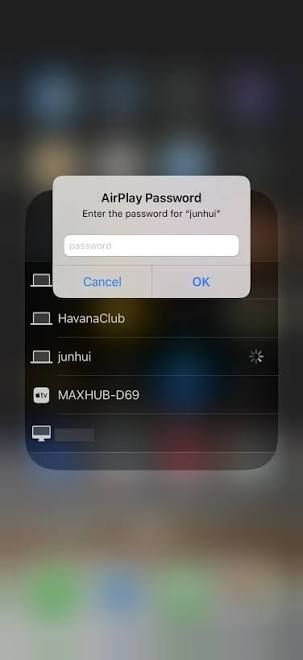
Different receivers may handle approval differently. Depending on the device, you may see a one-time onscreen code, a fixed password, device verification, or a confirmation step tied to the receiver settings.
These checks matter because they are not just pairing convenience. They help block ordinary unauthorized connection attempts from nearby devices.
Receiver Discovery and Access
A device being able to see an AirPlay receiver is not the same as being able to play content through it. Discovery only means the receiver is visible on the local network or supported peer-to-peer path. Actual access still depends on the receiver's permissions and approval settings.
That distinction is important because many AirPlay worries are really access-control worries. A visible receiver with strict approval is different from a visible receiver that allows broad access with minimal friction.
When AirPlay Is Generally Safe
AirPlay is generally safest on a private, well-managed network with updated devices and narrow receiver permissions.
That covers the most common Apple use case:
- an iPhone, iPad, or Mac as the sender
- Apple TV, a supported Mac, or a modern AirPlay-compatible TV as the receiver
- the same household Wi-Fi
- a receiver that asks for approval when a new device connects
In that setup, the primary risk is usually not remote interception from the public internet. Local misuse, broad receiver visibility, and outdated receiving devices are more realistic concerns.
AirPlay is generally a low-risk option when:
- the network is private and password-protected
- the receiver is limited to the current user, household members, or the same local network as needed
- new sessions require a code, password, or confirmation
- both the sender and receiver still receive updates
Where AirPlay Security Risks Appear
AirPlay risk is less about the feature existing at all and more about where it is used and what device is acting as the receiver.
Shared or Poorly Isolated Networks
The highest-risk environment is not simply "guest Wi-Fi." In many guest networks, client isolation blocks local device discovery, which usually means AirPlay fails rather than becoming easier to attack.
The more important risk is a shared or poorly isolated network where unrelated devices can discover one another. That can happen in hotels, dorms, conference spaces, apartment common networks, and some office environments. In those cases, the problem is not that AirPlay is internet-exposed. The problem is that too many local devices may be able to see or reach the receiver.
If the network allows broad local discovery, nearby users may trigger connection prompts or attempt to send content to the wrong display. That is why AirPlay should be treated more cautiously on shared networks than on a normal home router.
Outdated Third-Party Receivers
The receiving device can be the weak point even when the iPhone or Mac is fully updated.
Apple released fixes for multiple AirPlay-related vulnerabilities in 2025 and provided updated AirPlay SDKs to third-party manufacturers. Apple devices can receive fixes through system updates, while TVs, speakers, and receiver apps still depend on their manufacturers to release updated firmware.
That does not mean every third-party receiver is unsafe. It means old receivers with unclear update support deserve more caution, especially if they stay on shared networks or remain visible all the time.
If you are unsure whether the TV is using native AirPlay support or another receiver path, check the model and support status before assuming it is still maintained.
Broad Receiver Access
AirPlay becomes easier to misuse when the receiver is visible to too many devices or accepts connections too loosely.
This is where settings matter more than theory. A receiver open to everyone or anyone on the local network creates more opportunity for accidental playback, unwanted prompts, and interrupted sessions than a receiver restricted to the current user or approved household members.
Full-Screen Privacy Exposure
Not every AirPlay risk is about the transport itself. Some of it is plain screen privacy.
Full-screen mirroring can expose notifications, messages, browser tabs, and unrelated apps because the entire screen is being shared. Direct media playback usually exposes less on-screen information because the media is sent to the receiver while other private content stays on the sending device.
That does not automatically make direct playback "more secure" at the protocol level. It does usually make it more private in practice when both options are available.
AirPlay Security Settings to Check
Receiver Access
Different AirPlay receivers do not use one identical menu.
On a Mac acting as an AirPlay receiver, access can typically be limited to the current user, users on the same network, or broader groups, depending on the macOS version.
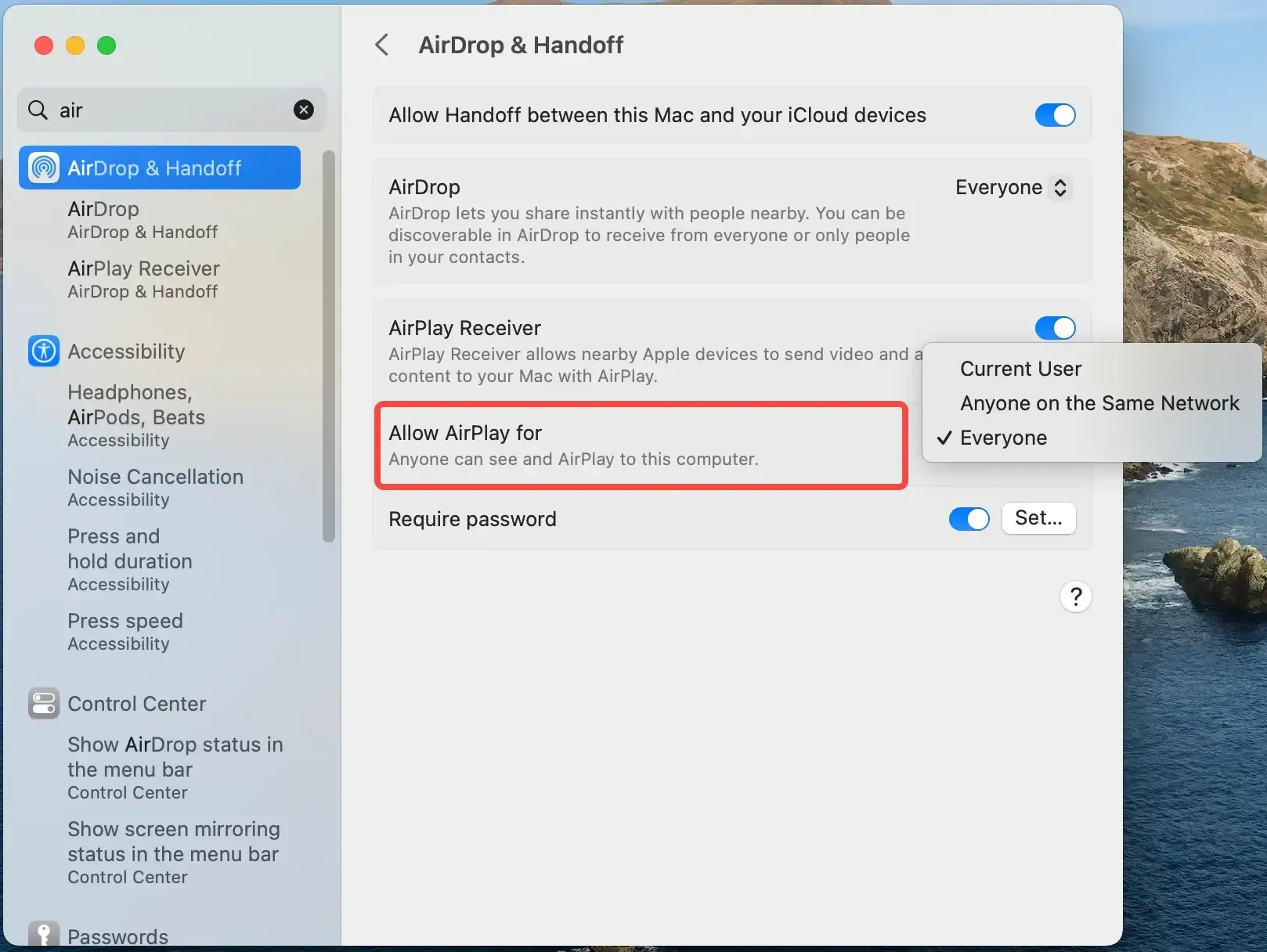
On Apple TV, the receiver access options may include Everyone, Anyone on the Same Network, and Only People Sharing This Home, along with password-related controls. Use the narrowest option that still fits your household.
Codes, Passwords, and Verification
Approval controls can appear in several forms, and they should not be treated as the same feature with different names.
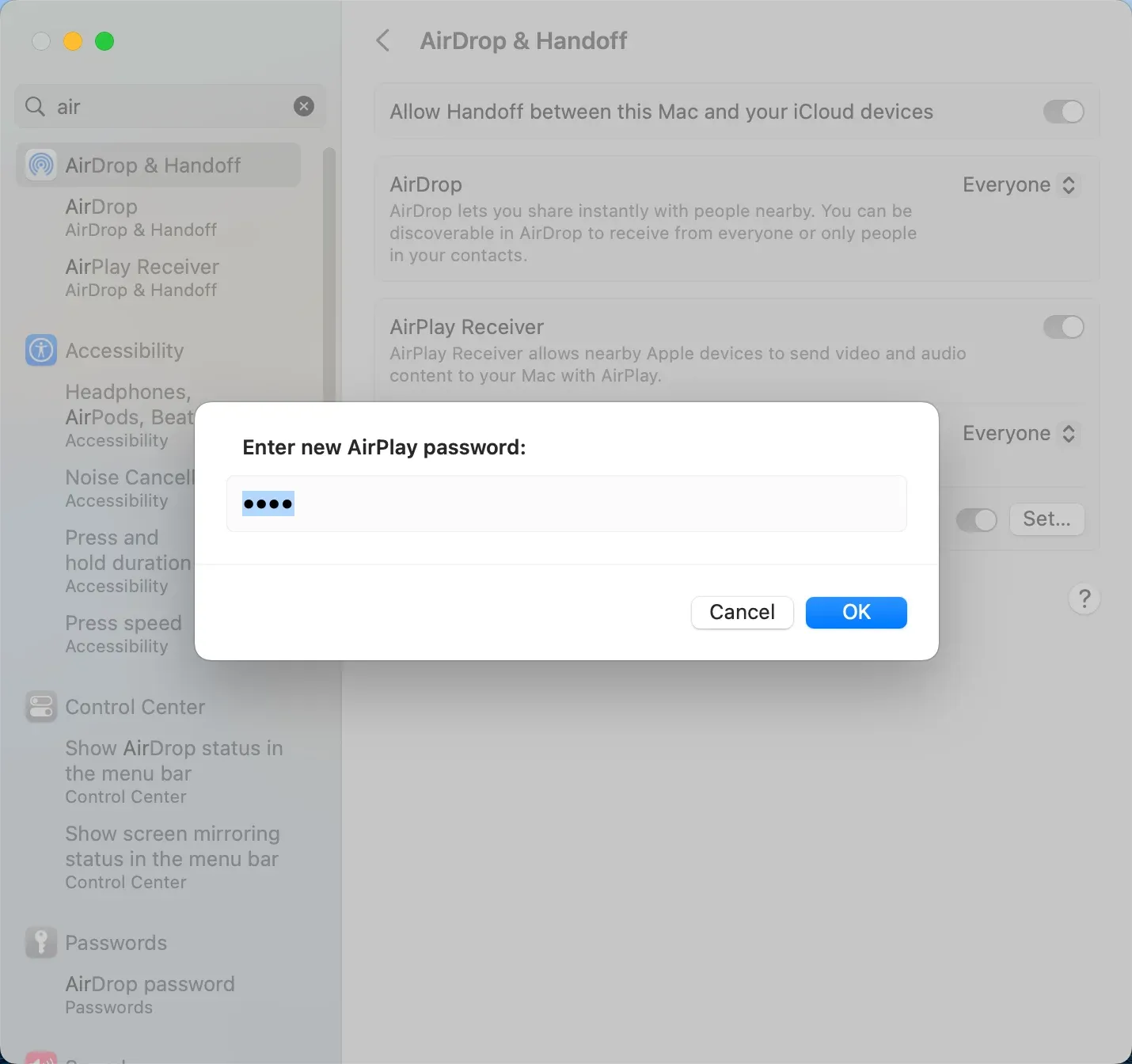
- Onscreen code or device verification: A code appears on the receiver and must be entered on the sending device, often on the first connection
- Receiver password: A fixed password is required before a sender can stream or mirror
Under normal, fully updated configurations, a receiver that requires a code, password, or confirmation should block ordinary unauthorized connection attempts. If the receiver supports one of these approval steps, leaving it enabled is usually the safer choice.
AirPlay Receiver On or Off
If a device does not need to remain available as a receiver, turn the receiver feature off.
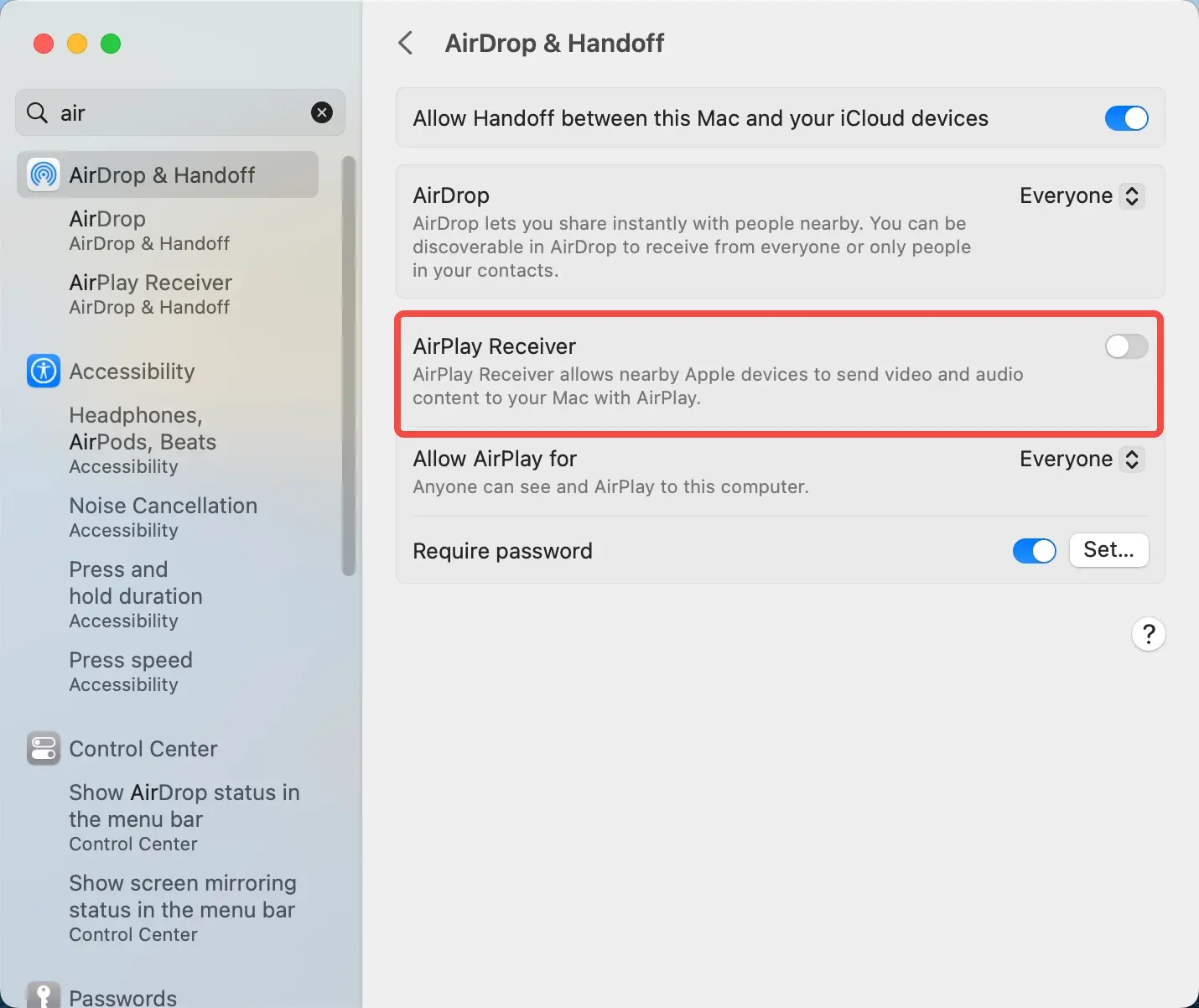
This is especially useful on Macs and TVs that stay powered on but are not used for AirPlay every day. When AirPlay Receiver is disabled, the device should no longer appear as an available AirPlay destination.
Software and Firmware Updates
Both sides matter. Update the sender, but pay even closer attention to the receiver.
For Apple hardware, that usually means keeping iPhone, iPad, Mac, or Apple TV current. For third-party TVs, speakers, and receiver apps, it means checking whether the vendor still ships firmware or SDK-based fixes. A working AirPlay receiver is not automatically a well-maintained one.
AirPlay Security Checklist
| Setting | Recommended choice |
|---|---|
| Receiver access | Use the narrowest option that fits the household |
| New-device approval | Require a code, password, or confirmation when available |
| Receiver status | Turn AirPlay Receiver off when it is not needed |
| Software | Update both sender and receiver |
| Shared networks | Avoid mirroring sensitive content |
| Playback mode | Prefer direct playback over full-screen mirroring when possible |
A More Flexible Way to Mirror Across Devices
AirPlay works well in updated Apple-centered setups. But it may feel limiting when a household or workplace uses iPhone, Android, Windows, Mac, and several types of TVs or streaming devices.
A dedicated screen mirroring app can provide a more consistent connection process across those platforms. Instead of relying only on native AirPlay discovery, users may be able to select a receiver, scan a QR code, or enter a PIN to start mirroring.
PigeonCast is a cross-platform screen mirroring app for phones, computers, TVs, and browsers. Its main advantage here is broader compatibility and a more explicit connection setup.
How to mirror your screen with PigeonCast:
Step 1. Install or open PigeonCast on both devices.


Overall Rating:



Step 2. Connect the devices to the same Wi-Fi network.
Step 3. Select the receiving device from the list or scan the QR code.
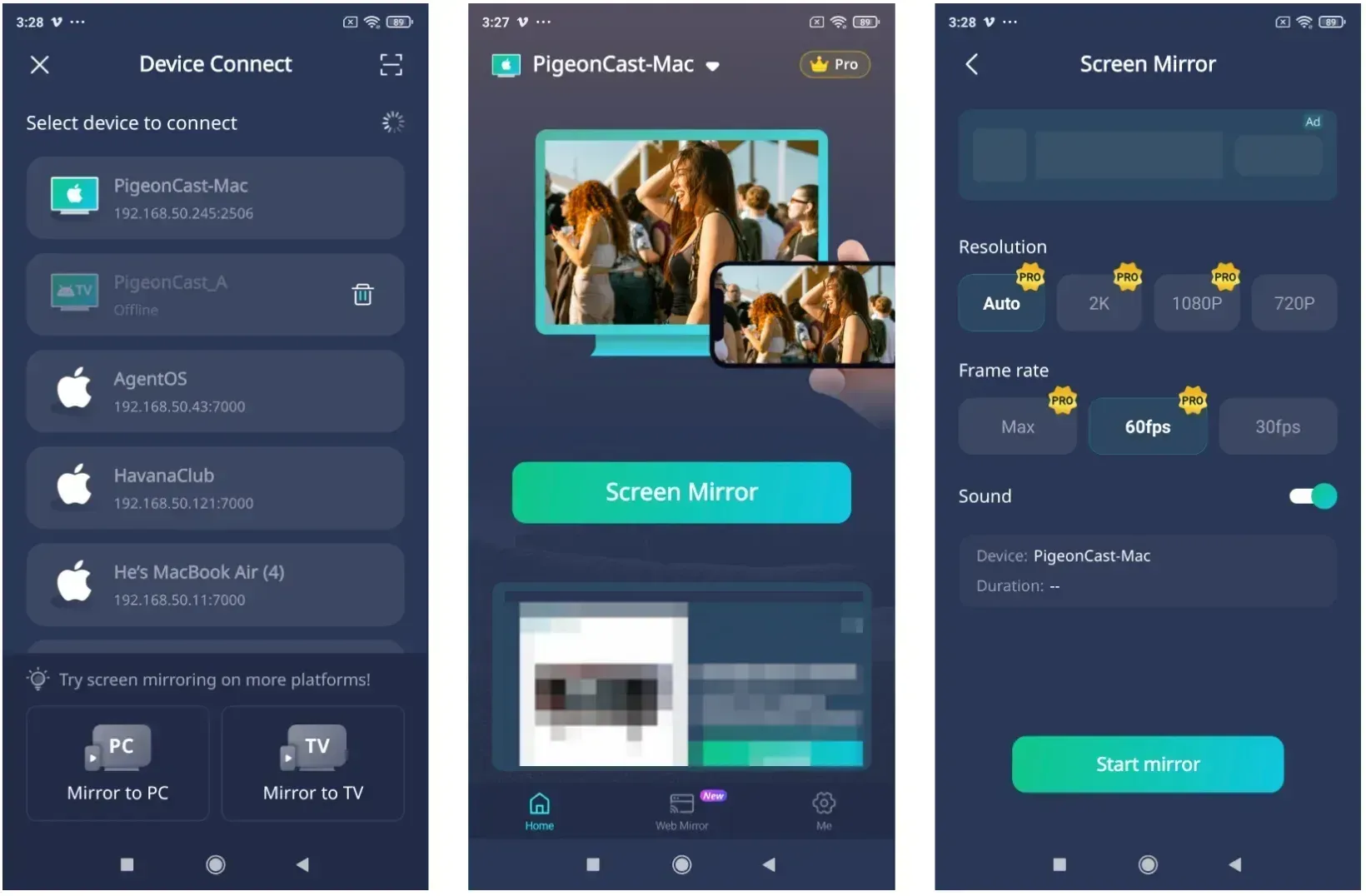
Step 4. Tap Start Mirroring to share your screen.
Conclusion
AirPlay is generally safe for everyday use when the network is trusted, receiver access is restricted, and both devices remain updated. Before starting a session, check who can discover the receiver, whether a code or approval step is required, and whether the receiving device still gets updates.
For sensitive content, direct media playback is usually preferable to full-screen mirroring whenever both options are available because it exposes less unrelated on-screen information.
AirPlay Security FAQ
Is AirPlay secure on home Wi-Fi?
Usually yes. On a private home network with updated devices and narrow receiver permissions, AirPlay is generally a low-risk option for normal streaming and mirroring.
Is AirPlay encrypted?
In supported Apple-centered setups, Apple says AirPlay uses AES encryption to help protect mirrored or streamed content sent from an iPhone, iPad, or Mac to Apple TV. Encryption is one part of the security model, but approval settings still matter.
Can someone access my AirPlay without permission?
Not normally when the receiver requires a code, password, or approval. However, a receiver with broad access settings or outdated software may be more exposed to unwanted connection attempts.
Is AirPlay safe on public Wi-Fi?
Not by default. The main concern is not the public internet itself, but shared local environments where unrelated devices may be able to discover the receiver or trigger connection prompts. Some public or guest networks isolate devices completely, in which case AirPlay may simply fail to find the receiver.
Does an AirPlay code or password actually help?
Yes. An onscreen code, password, or device-verification step is one of the most useful protections because it reduces ordinary unauthorized access from nearby devices on the same local environment.
Should I turn off AirPlay Receiver on my Mac?
If you rarely use AirPlay, yes. Turning AirPlay off when it is not needed reduces discovery and removes one more available receiver from the network.
Is screen mirroring less private than direct playback?
Usually yes. Direct playback normally shows only the chosen media on the receiver, while full-screen mirroring can expose notifications, messages, tabs, and other unrelated screen content.
Mia Clarke is a technology editor specializing in screen mirroring and casting solutions across multiple platforms. Mia provides clear, practical guides and in-depth insights to help users seamlessly connect their devices. Passionate about enhancing digital experiences, Mia is dedicated to keeping readers updated on the latest trends and tools in cross-platform screen sharing. Whether you’re looking to mirror your smartphone, laptop, or smart TV, Mia’s content delivers reliable, user-friendly advice to simplify your tech setup.