
AirParrot is a screen mirroring and casting app for Mac and Windows. Instead of working as a TV feature or a phone Cast button, it runs on your computer and sends the screen to supported receivers such as Apple TV, Chromecast, Reflector, and compatible display devices. If you are not sure whether AirParrot fits your setup, this guide explains what it does, how it works, and when another option may be easier to use.
What Is AirParrot
AirParrot is wireless screen mirroring software for Mac and Windows computers. It runs on your computer and sends the screen to a supported receiver, such as Apple TV, Chromecast, Reflector, or another compatible display device on the same network. In simple terms, AirParrot is mainly used when you want to:
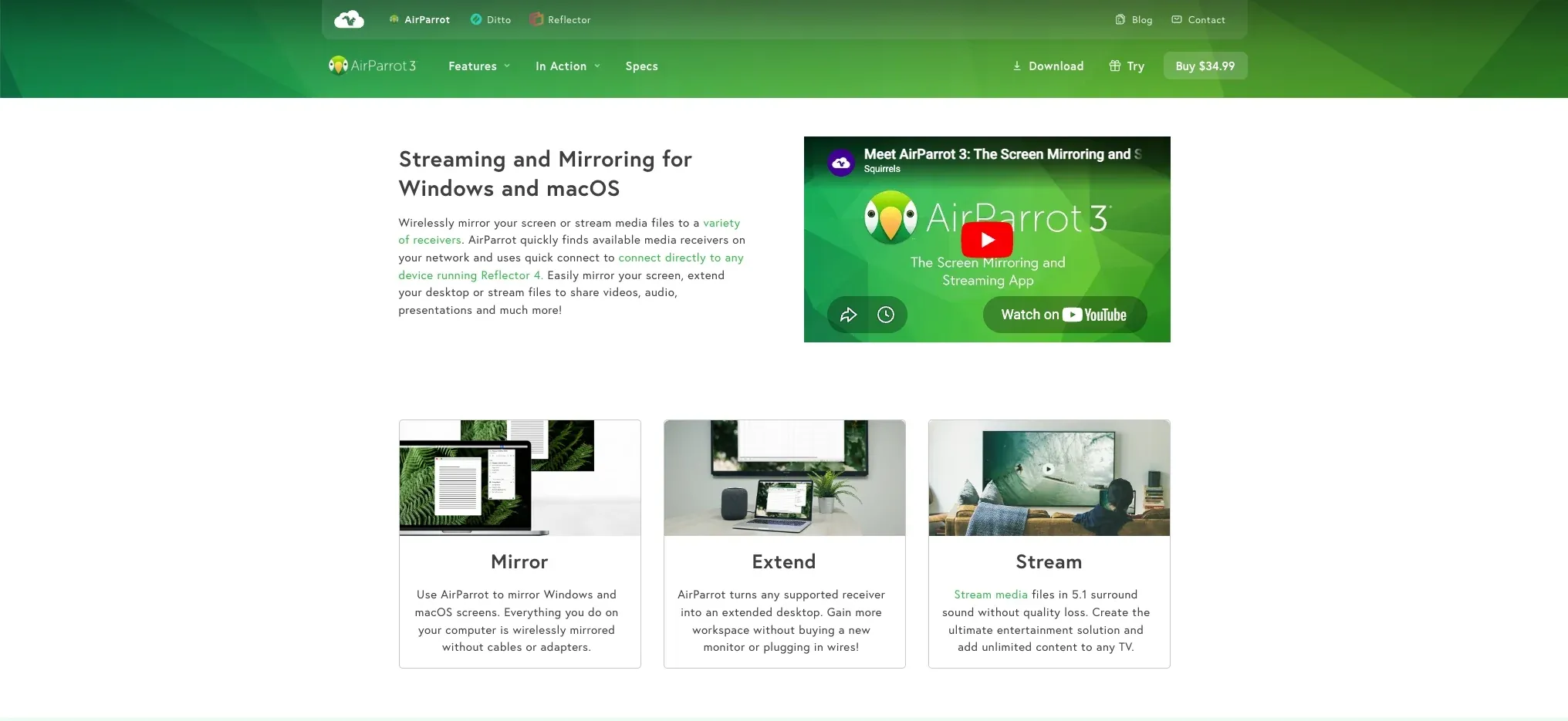
- mirror a Mac or Windows screen to a larger display;
- show one app window instead of the full desktop;
- stream media from your computer to a receiver;
- use a TV, projector, or meeting screen without an HDMI cable.
The key point is that AirParrot starts from the computer side. Your Mac or Windows PC is the sending device, while the receiver displays the content. That makes it useful for meetings, classrooms, home viewing, and desktop sharing, but it is not mainly designed as a phone-to-TV mirroring app.
AirParrot Compatibility: Devices and Receivers
AirParrot works best when you use a Mac or Windows computer as the sending device. The receiver can be an Apple TV, Chromecast, Reflector, or another display device that supports a compatible receiving method. If you are trying to mirror directly from a phone, AirParrot is usually not the right tool.
| Device or Platform | AirParrot Support |
|---|---|
| Mac | Supported as a sending device |
| Windows PC | Supported as a sending device |
| iPhone / iPad | Remote control only, not the main sending device |
| Android phone | Not supported as the main sending device |
| Apple TV | Supported as a receiver |
| Chromecast | Supported as a receiver |
| Reflector | Supported as a receiver |
| Smart TV | Depends on AirPlay, Google Cast, or compatible receiver support |
AirParrot Pros and Cons
AirParrot works well when your goal is clear: mirror or stream from a Mac or Windows computer to a compatible receiver. Its advantages are strongest in computer-to-display setups, while most limits come from receiver compatibility, network discovery, and the fact that it is not built as a phone mirroring app.
| Pros | Cons |
|---|---|
| Supports both Mac and Windows as sending devices | Does not work as a main sending app for iPhone or Android |
| Can mirror the full desktop, a single app window, or media files | Receiver support depends on Apple TV, Chromecast, Reflector, AirPlay, Google Cast, or similar compatibility |
| Can send content to multiple receivers at the same time | Multi-receiver mirroring depends on network quality and receiver performance |
| Supports desktop extension, which is useful for presentations and second-screen setups | Devices may not appear if they are on different subnets, VLANs, guest networks, or blocked by local network settings |
| Works with Apple TV, Chromecast, Reflector, and some AirPlay/Cast-compatible smart TVs | Not every smart TV can receive AirParrot directly, even if it supports some form of screen mirroring |
| Reduces the need for HDMI cables in meetings, classrooms, and home viewing setups | Wireless performance can still be affected by WiFi strength, router settings, distance, and network congestion |
| Useful when macOS or Windows built-in casting options are limited | Less suitable if you need one app for iPhone, Android, computers, and TV devices |
What Can You Do with AirParrot
AirParrot gives Mac and Windows users several ways to send computer content to a larger screen. Instead of only duplicating your full desktop, you can choose what to share and how it appears on the receiver.
- Mirror Your Full Screen
You can mirror your entire Mac or Windows screen to a supported TV, projector, or receiver. This is useful for slide decks, browser pages, online meetings, software demos, and other moments when the larger display should show exactly what is on your computer.
- Share One App Window
If you do not want to expose your whole desktop, AirParrot can mirror a specific app window. This is helpful when you need to present one document, browser tab, video player, or meeting window while keeping other apps, files, and notifications off the shared screen.
- Extend Your Desktop
AirParrot can also use a supported receiver as an extended display. Instead of showing the same content on both screens, you can place different windows on your computer and the second display. This works well for presentations, teaching, and multitasking.
- Stream Media Files
If you only want to play a local video or audio file, AirParrot can stream media to a supported receiver without showing every action on your desktop. This is more focused than full screen mirroring and can be useful for home viewing, classrooms, or meeting rooms.
- Mirror to Multiple Receivers
AirParrot can send content to more than one receiver at the same time. For example, you can mirror a presentation to multiple displays in a classroom, office, or larger viewing space. This is a useful advantage over basic built-in casting tools, but the result still depends on your WiFi quality and the receivers you use.
When Is AirParrot a Good Choice
AirParrot is a good choice when your mirroring setup starts from a Mac or Windows computer. It is especially useful when you already use Apple TV, Chromecast, Reflector, or another compatible receiver and need more control than basic built-in casting options can offer. You may find AirParrot useful in these situations:
- You need to mirror, extend, or stream from a computer during a meeting, class, or presentation.
- You want to send the same computer screen to multiple receivers in a larger room.
- You prefer sharing one app window instead of exposing your entire desktop.
- You want to stream media files from your computer without showing every desktop action.
- You use AirParrot Remote on iPhone or iPad to control the computer-side mirroring from across the room.
AirParrot Remote is worth noting, but it should not be confused with phone screen mirroring. It lets an iPhone or iPad control AirParrot on your computer, start mirroring or streaming, manage playlists, and control the computer remotely. It does not turn your iPhone or iPad into the main screen-mirroring sender.
How Much Does AirParrot Cost
AirParrot is a paid app, not a subscription service. According to the Squirrels store, AirParrot 3 is sold as a one-time purchase, with one license per device and no recurring fees. The store also lists a 30-day money-back guarantee and separate options for Universal, Mac Only, and Windows Only licenses.
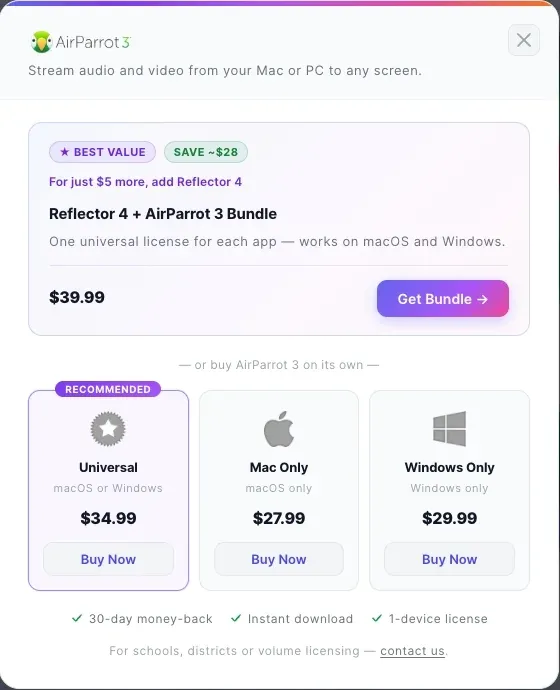
For schools, districts, or organizations that need multiple licenses, Squirrels offers volume pricing through its sales team. If you only need screen mirroring on one Mac or Windows computer, a single AirParrot license may be enough. If you also need Reflector or want both sending and receiving tools, Squirrels also sells a Reflector 4 + AirParrot 3 bundle.
When AirParrot May Not Be Enough
AirParrot may not be the best fit if your main goal is phone-to-TV mirroring. If you want to mirror an iPhone or Android phone directly to a TV, AirParrot is not designed as the main sending app for that job. It may also feel limited in mixed-device setups. For example, switching between iPhone, Android, Windows, Mac, Apple TV, Android TV, and Google TV can be harder if you rely on a computer-first tool. If your TV does not appear as a receiver, or if you often switch between phone and computer mirroring, a cross-device screen mirroring app may be easier to manage.
Best AirParrot Alternative for Cross-Device Mirroring
AirParrot works best when your main sending device is a Mac or Windows computer. If your setup also includes phones, tablets, and TV devices, PigeonCast is a more flexible choice for cross-device screen mirroring.
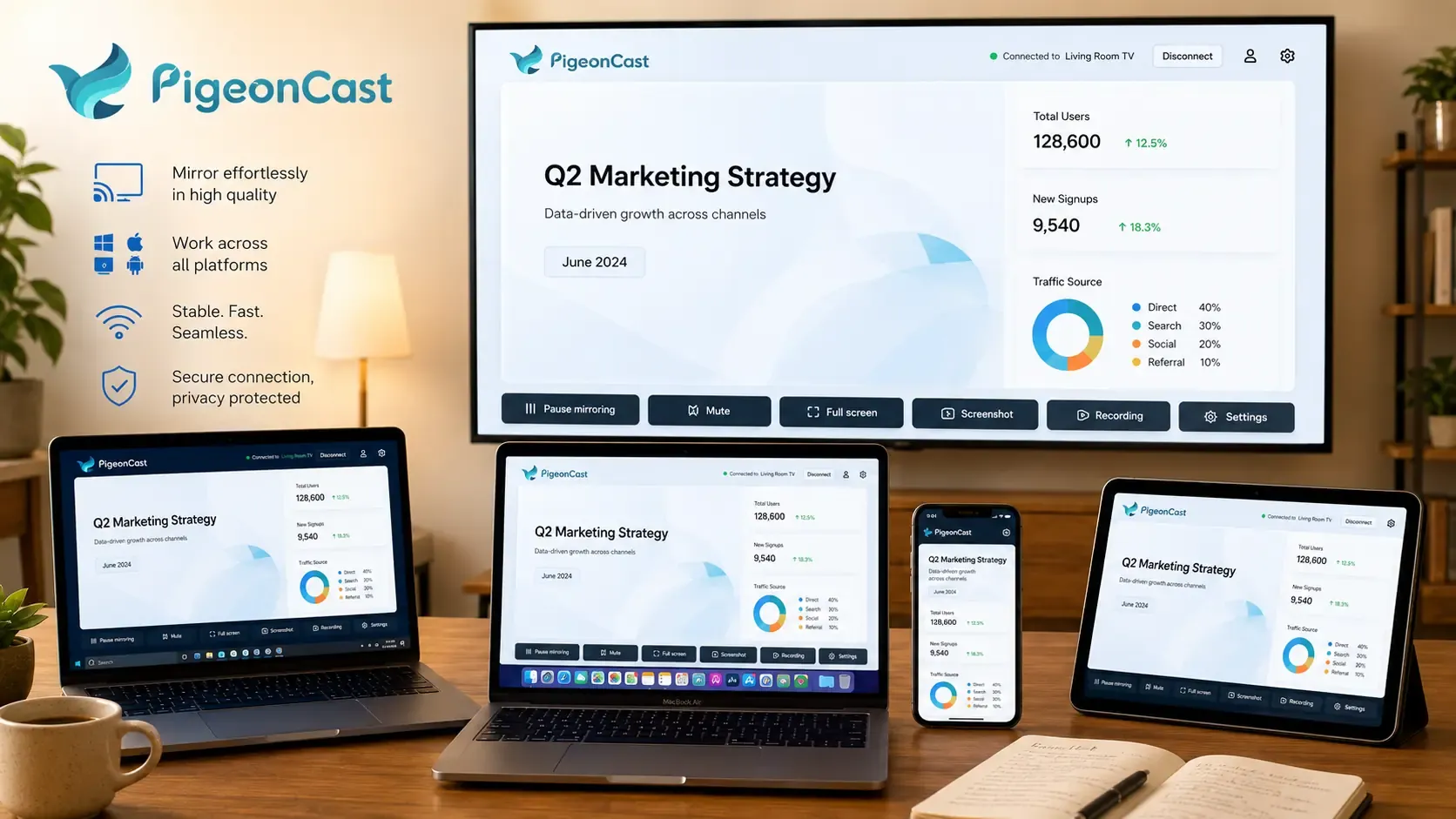
PigeonCast lets you mirror from iPhone, Android, Windows, and Mac to a larger screen without using cables or extra hardware. It also supports TV-side devices such as Android TV and Apple TV, making it useful when you switch between phone-to-TV, computer-to-TV, and tablet-to-TV mirroring. You can use PigeonCast when you need to:


Overall Rating:



- mirror an iPhone, Android phone, tablet, Windows PC, or Mac;
- cast to Android TV, Apple TV, or other supported display devices;
- share videos, photos, apps, games, slides, or browser pages on a bigger screen;
- use AirPlay, Google Cast, or DLNA in one setup;
- start mirroring over the same Wi-Fi without HDMI cables or adapters.
To start, install PigeonCast on the devices you want to connect, make sure they are on the same Wi-Fi network, choose the target screen, and start mirroring. This makes it easier to manage mixed-device setups where AirParrot's computer-first design may feel limited.
AirParrot vs PigeonCast
AirParrot and PigeonCast both help you send content to a larger screen, but they are built around different use cases. AirParrot is stronger when your setup starts from a Mac or Windows computer and you want advanced computer-to-receiver mirroring or media streaming. PigeonCast is easier to manage when you need cross-device screen mirroring.
| Feature | AirParrot | PigeonCast |
|---|---|---|
| Main use | Mirror, extend, or stream from Mac and Windows computers | Mirror across phones, tablets, computers, TVs, and supported receivers |
| iPhone / iPad support | AirParrot Remote can control the desktop app, but iPhone/iPad is not the main screen sender | Supported as sending devices |
| Android support | Not supported as the main sending device | Supported as a sending device |
| Windows support | Supported as a sending device | Supported as both a sender and receiver in supported setups |
| Mac support | Supported as a sending device | Supported as a sending device |
| TV-side support | Apple TV, Chromecast, Reflector, and compatible receivers | Apple TV, Android TV, Google TV, and supported display devices |
| Receiver role | Mainly sends from computer to compatible receivers | Can work across sending and receiving devices depending on the platform installed |
| Protocol support | Works with compatible AirPlay and Google Cast receivers | Supports AirPlay, Google Cast, and DLNA |
| Media streaming | Strong for computer media streaming, including supported 4K media streaming features | Suitable for sharing videos, photos, apps, browser pages, and presentations across devices |
| Multi-receiver mirroring | Can connect to multiple receivers at the same time | Better focused on flexible cross-device mirroring rather than computer-to-many-receiver presentation setups |
| Remote control | AirParrot Remote supports iPhone/iPad control, playlists, live previews, and computer control | Focuses on direct device mirroring and casting across platforms |
| Best fit | Meetings, classrooms, desktop sharing, media streaming, and computer-based presentations | Home viewing, phone-to-TV mirroring, computer-to-TV mirroring, mixed-device setups, and everyday screen sharing |
Bottom Line
AirParrot is a good choice for mirroring, extending, or streaming from a Mac or Windows computer to a compatible receiver. It works well for presentations, classrooms, meetings, media playback, and multi-display setups. If you mainly need phone-to-TV mirroring or a simpler way to connect different device types, a cross-device mirroring app may be easier to use.
AirParrot FAQ
Is AirParrot worth it?
AirParrot is worth it if you often present, teach, or share content from a Mac or Windows computer and need more control than basic built-in casting. It is less necessary if you only cast occasionally or mainly mirror from a phone. Before buying, check whether your receiver is supported and whether your network allows device discovery.
Does AirParrot need Wi-Fi?
Yes, AirParrot usually needs a local network connection to find and connect to receivers. For the best result, keep your computer and receiver on the same Wi-Fi network, avoid guest networks, and turn off VPN if devices do not appear. A weak or crowded network can also cause delay, blurry playback, or dropped connections.
Is AirParrot safe to use?
AirParrot is a legitimate screen mirroring app from Squirrels, the company behind Reflector. The bigger safety issue is not the app itself, but what you choose to share on the larger screen. If you mirror your full desktop, private tabs, notifications, emails, or files may appear. Use app-window sharing when you only want to show one specific item.
Can AirParrot mirror to two TVs at once?
Yes, AirParrot can send content to multiple receivers at the same time when the setup supports it. This can be useful in classrooms, offices, or event spaces with more than one display. However, multi-receiver mirroring puts more pressure on the network, so a strong router and stable receivers are important.
Why does AirParrot disconnect during mirroring?
Disconnections usually come from unstable Wi-Fi, receiver sleep settings, VPN use, firewall rules, or too much network traffic. Long video playback and multiple receivers can also make the connection less stable. Restarting the receiver, keeping devices closer to the router, and closing heavy downloads can help.
Does AirParrot support 4K?
AirParrot supports 4K media streaming in supported setups, but that does not mean every mirrored session will play in 4K. The final quality depends on your computer, receiver, media file, network speed, and selected mode. If playback becomes unstable, lowering the resolution may give a smoother result.
Clara Rossi is an experienced technology editor and a seasoned expert in screen mirroring and casting technologies. With a keen eye for detail and a deep understanding of how to seamlessly connect devices, Clara excels at optimizing user experiences for effortless sharing and streaming. Whether you're seeking quick fixes or advanced tips, her expertise and responsiveness ensure that every query is met with a well-informed and efficient solution.