
Watching videos, sharing photos, or giving a presentation feels very different on a big screen. If you have ever wondered how to connect your tablet to your TV wirelessly, the good news is that you have several practical options.
The right method depends on two things. What tablet you use, and what your TV supports. Some setups work instantly. Others need a small workaround. In this guide, you will learn how to connect tablet to TV, whether you use an iPad, an Android tablet, or a Windows tablet, and how to choose the method that actually works for your setup.
Can You Connect a Tablet to a TV Wirelessly?
Yes, you can stream tablet to TV without cables. However, the experience depends on how well your tablet and TV work together.
Most modern tablets support wireless screen sharing, but they do so in different ways:
- iPads rely on AirPlay
- Android tablets use built-in casting or Miracast
- Microsoft tablets use Miracast
- Some setups require cross-platform screen mirroring apps, like PigeonCast
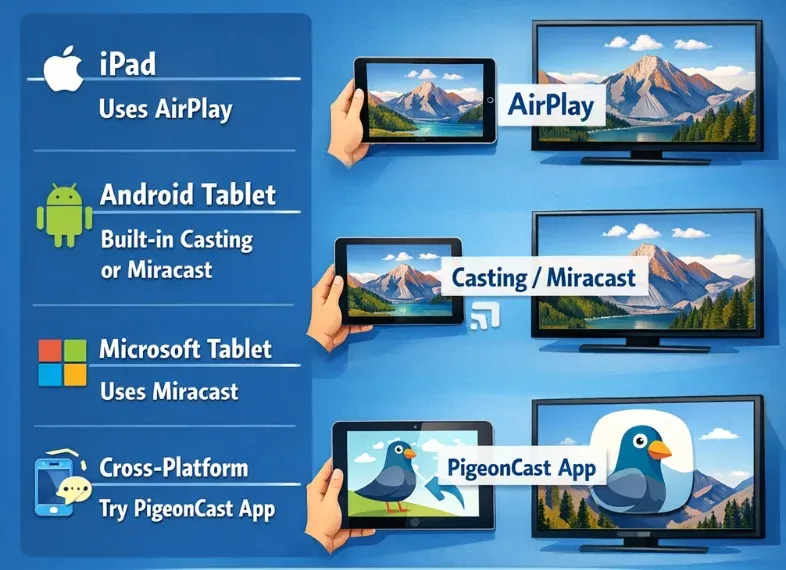
The key factor is compatibility. TVs only recognize certain wireless protocols, such as AirPlay, Cast, or Miracast. When both devices support the same protocol, the connection is usually quick and stable, so how to watch tablet on TV becomes straightforward. If they do not, a third-party screen mirroring solution is often the easiest way forward.
How to Connect an iPad to a TV Wirelessly
If you use an iPad, AirPlay is usually the easiest way to mirror tablet to TV. For a smooth wireless connection, what you need:
- An iPad running a recent version of iPadOS
- A TV that supports AirPlay or an Apple TV
- Both devices on the same Wi-Fi network
How to mirror iPad to TV with AirPlay:
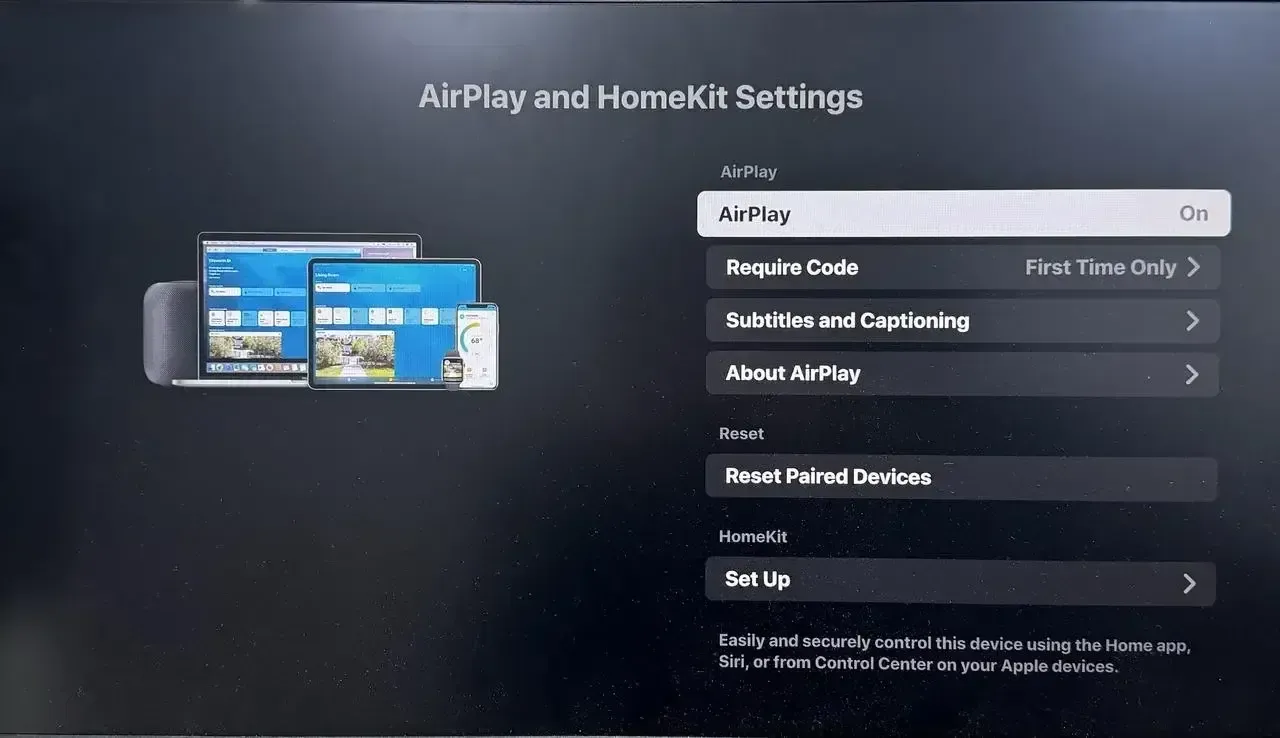
Step 1. Turn on your TV and make sure AirPlay is enabled.
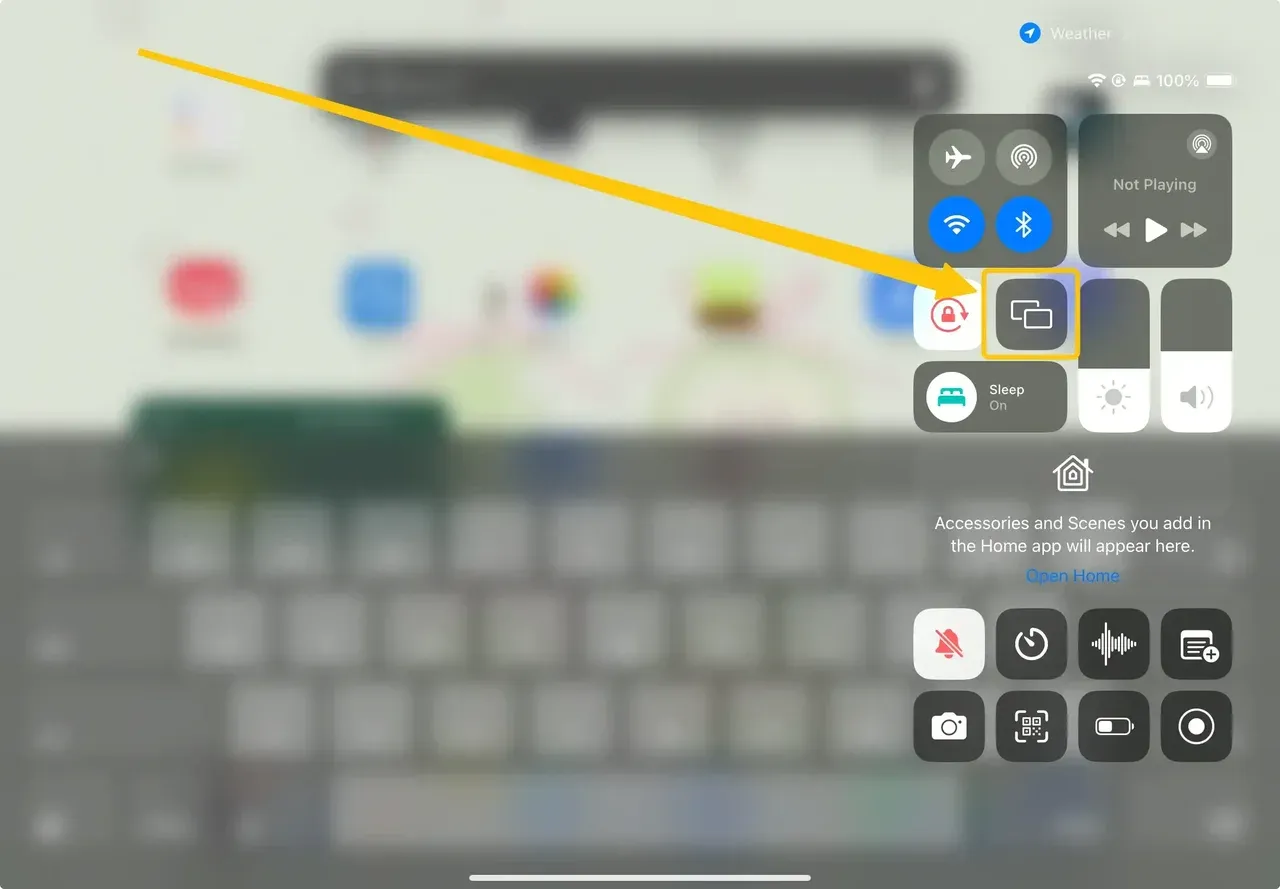
 Step 2. Open Control Center on your iPad.
Step 3. Tap Screen Mirroring.
Step 4. Select your TV from the list.
Step 5. Within seconds, your screen appears on the TV
This method works well for videos, photos, and presentations. If your TV does not support AirPlay, the Screen Mirroring option may never show up. And when AirPlay does not connect to TV, even on supported models, using another wireless solution can save you time and frustration.
How to Connect an Android Tablet to a TV Wirelessly
Android tablets offer more than one way to cast tablet to TV, but support varies by brand and TV model.
Option 1: Cast Tablet to TV Using Built-In Cast
Many Android tablets include a Cast or Screen Cast feature and connect to Chromecast or Android TV devices wirelessly.
How to cast from tablet to TV:
Step 1. Connect your tablet and TV to the same Wi-Fi network.
Step 2. Open Settings on your tablet.
Step 3. Look for Cast, Screen Cast, or Smart View.
Step 4. Enable casting and choose your TV.
Option 2: Mirror Tablet to TV with Miracast
Miracast allows direct screen mirroring from a tablet to a compatible TV without extra hardware.
Here is how to hook up tablet to TV wirelessly via Miracast:
Step 1. Enable Wireless Display or Miracast on your TV.
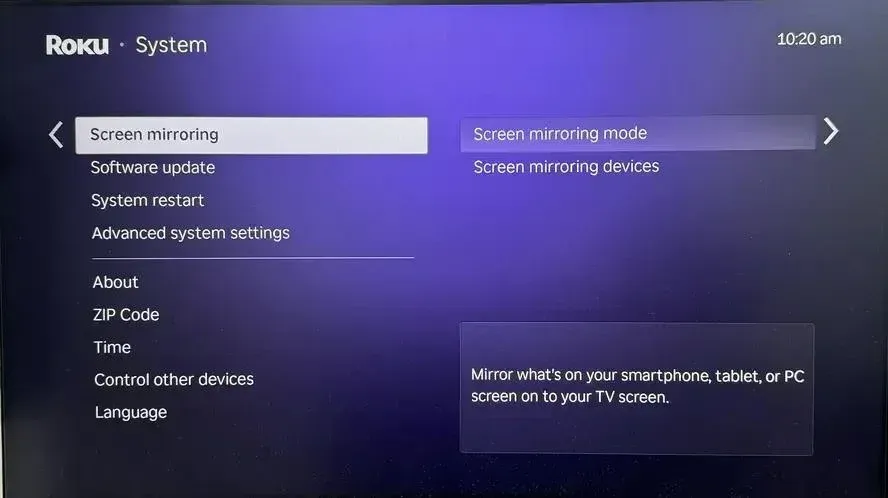
Step 2. Open Screen Mirroring on your tablet.
Step 3. Choose your TV from the list of available devices.
How to Connect a Windows Tablet to a TV Wirelessly
Most Windows tablets support Miracast, which allows you to mirror your screen directly to a compatible TV.
Here's how to mirror tablet to TV:
Step 1. Turn on your TV and enable Miracast or Wireless Display.
Step 2. On your Windows tablet, open Settings.
Step 3. Go to System and select Display.
Step 4. Click Connect to a wireless display.
Step 5. Choose your TV from the list.
If the connection succeeds, your Windows tablet screen will appear on the TV instantly.
How to Connect Any Tablet to Any TV Using a Screen Mirroring App
If your tablet and TV do not support the same protocol, a third-party app is often the most reliable way to stream tablet to TV.
Why apps work better in mixed setups:
- No strict ecosystem limits
- Works with iPad and Android tablets
- Supports more TV brands and models
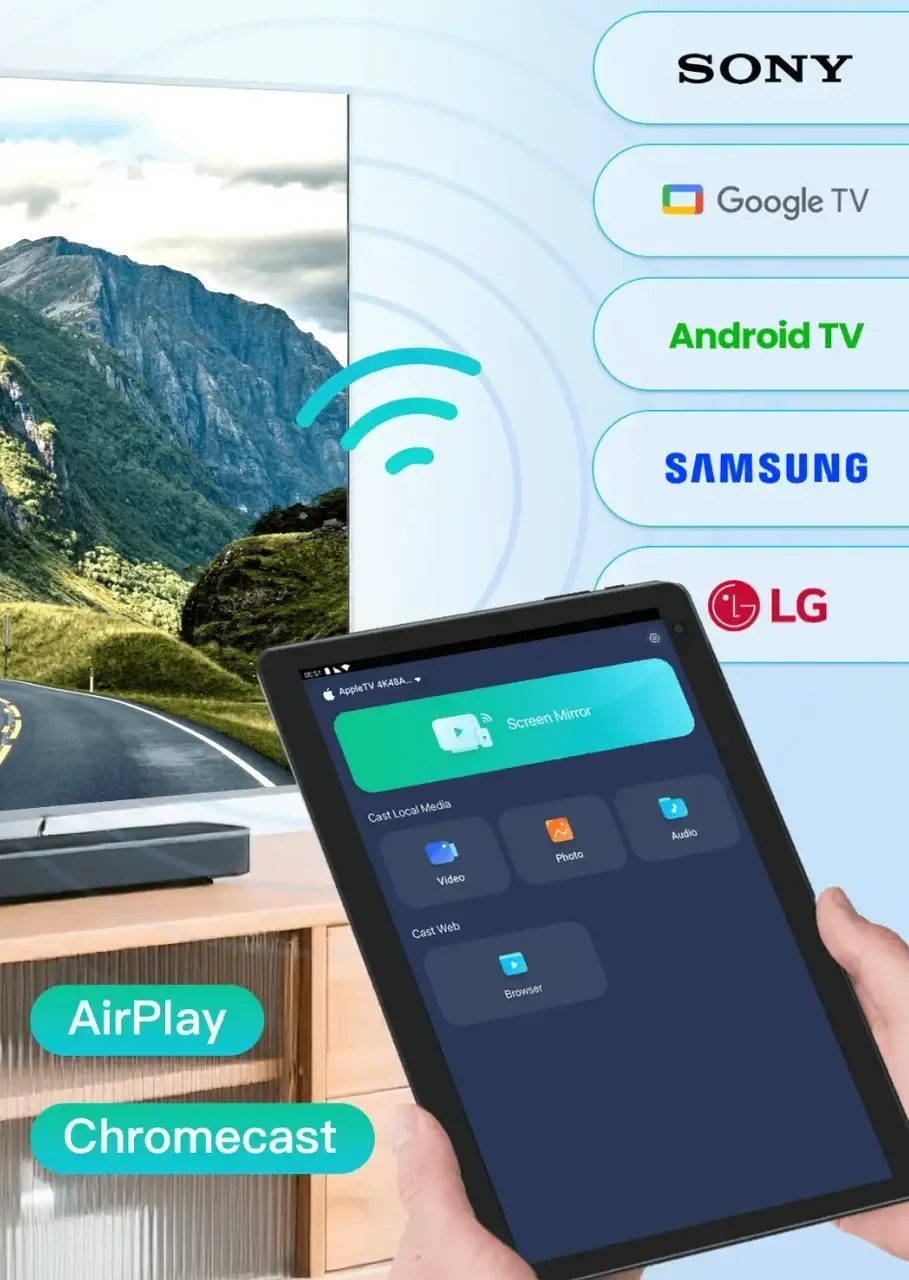
Free screen mirroring apps like PigeonCast are designed to bridge these gaps. Here's how to cast tablet to TV using it:
Step 1. Download and install PigeonCast on your tablet and TV and launch the app.


Overall Rating:



Step 2. Connect both devices to the same network.
Step 3. On your tablet, choose your PigeonCast-enabled TV from the device list.
Step 4. Once connected, tap Screen Mirror, and you can watch your tablet content on your TV.
Final Thoughts
Learning how to connect tablet to TV wirelessly is easier once you know which method fits your devices. AirPlay works great for iPads. Android tablets offer more options but less consistency. When compatibility becomes confusing, a dedicated screen mirroring app often simplifies everything.
Choose the method that matches your setup, and you will spend less time troubleshooting and more time enjoying your content on the big screen.
How to Connect Your Tablet to Your TV Wirelessly FAQs
Can I connect my tablet to my TV via Bluetooth?
Yes, but Bluetooth is not designed for screen mirroring. It works well for audio devices like speakers or headphones, but it lacks sufficient bandwidth to transmit video or mirror a tablet screen. To connect a tablet to a TV wirelessly, you need Wi-Fi-based technologies such as AirPlay, Cast, Miracast, or a screen mirroring app.
How to set up wireless connection on TV?
Start by checking your TV’s settings menu for options like Screen Mirroring, AirPlay, Cast, or Wireless Display. Enable the feature that matches your tablet’s system. Make sure the TV is connected to the same Wi-Fi network as your phone, tablet, or laptop. Once enabled, the TV should appear as an available device when you try to cast or mirror your tablet screen.
Can I connect a tablet to a TV without Wi-Fi?
In some cases, yes. Certain Android tablets and Windows tablets support Miracast, which creates a direct wireless connection without a router. However, performance can be inconsistent, and many TVs do not fully support it. For smoother and more reliable results, a shared Wi-Fi network is still the preferred option.
Why can't I mirror my tablet to my TV?
This usually comes down to compatibility. Your tablet and TV may not support the same wireless protocol, or the feature may be disabled on one of the devices. Network issues, outdated software, or unsupported TV models can also prevent screen mirroring from working properly.
Is wireless screen mirroring good for watching videos?
Yes, wireless screen mirroring works well for watching videos, especially on modern TVs with stable Wi-Fi connections. Video quality and smoothness depend on your network speed and the method you use. App-based solutions and built-in casting typically perform better than older wireless display standards.
How do I watch tablet on TV without buying extra hardware?
The easiest way is to use the wireless features already built into your tablet and TV, such as AirPlay or Cast. If those are not supported, a screen mirroring app can help you watch tablet on TV without needing cables, adapters, or streaming devices.
Mia Clarke is a technology editor specializing in screen mirroring and casting solutions across multiple platforms. Mia provides clear, practical guides and in-depth insights to help users seamlessly connect their devices. Passionate about enhancing digital experiences, Mia is dedicated to keeping readers updated on the latest trends and tools in cross-platform screen sharing. Whether you’re looking to mirror your smartphone, laptop, or smart TV, Mia’s content delivers reliable, user-friendly advice to simplify your tech setup.