Screen Mirroring Android Phone to Windows PC (Google Cast)
BeginnerMarch 19, 2026
This guide walks through how to mirror your screen from Android Phone to Windows PC via Google Cast protocol.
Step-by-Step Guide
1
Download and install PigeonCast App on your Windows as receiver, you can choose either method to install
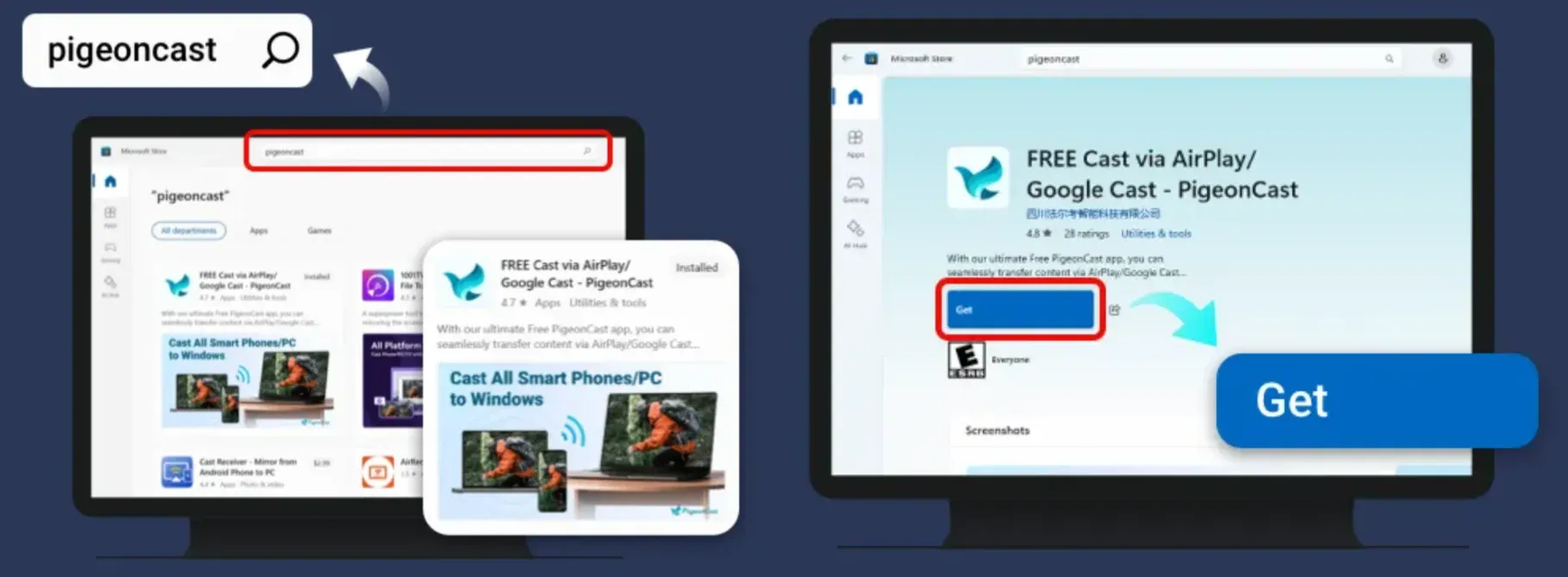
Method 1: Search the term PigeonCast on Microsoft Store and click the Get button.
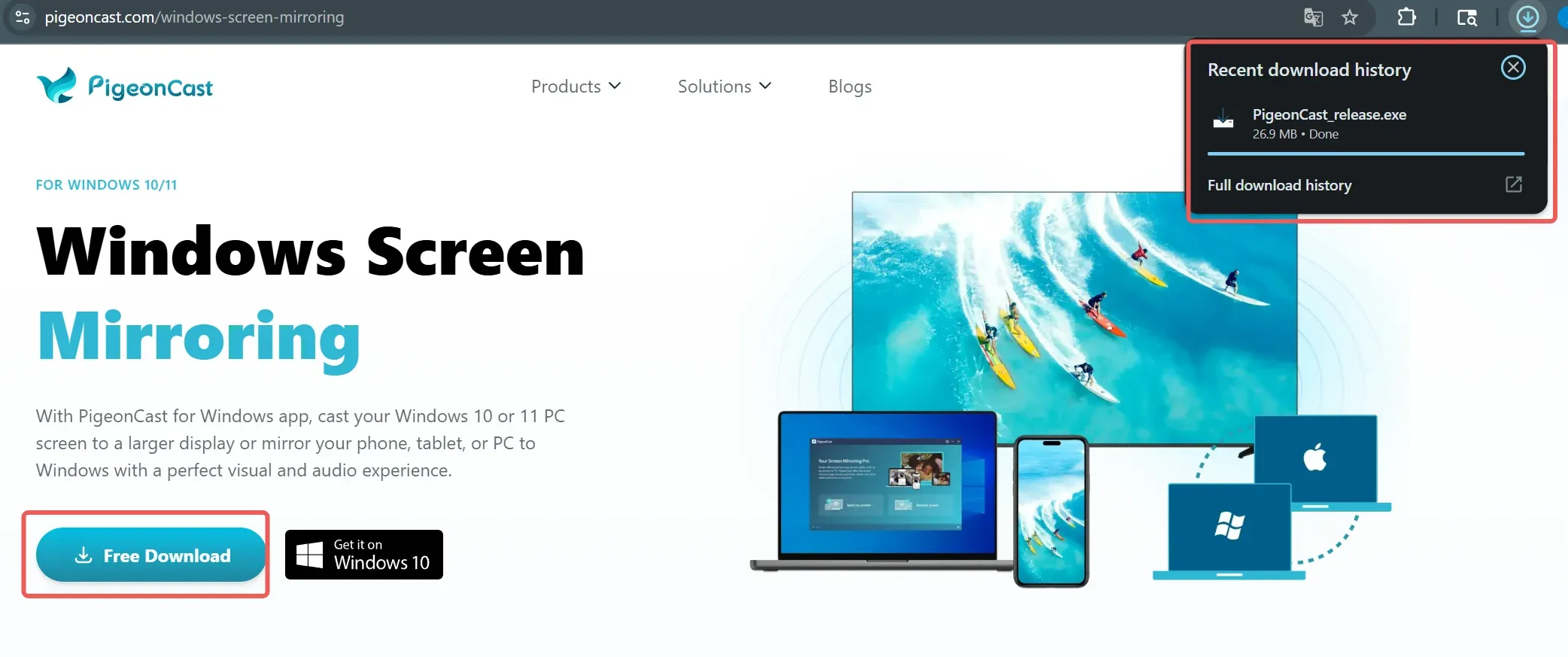
Method 2: Download the PigeonCast Installation Package directly, run the .exe file and follow the setup guide.
2
Make sure your Android phone and Windows PC are connected to the same Wi-Fi network, open PigeonCast App on both devices
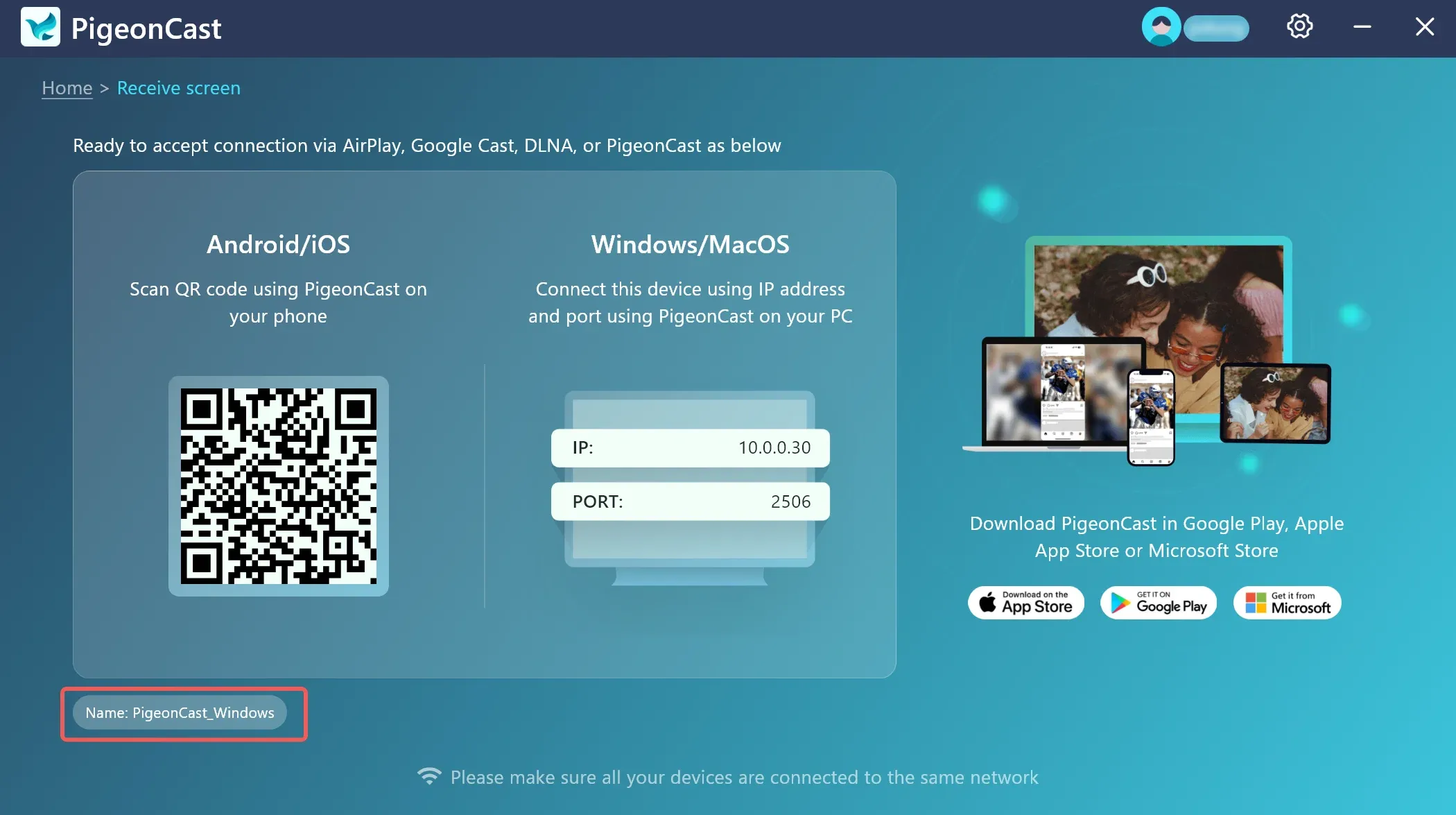
Step 1: Click the Receive screen on Windows PigeonCast App.
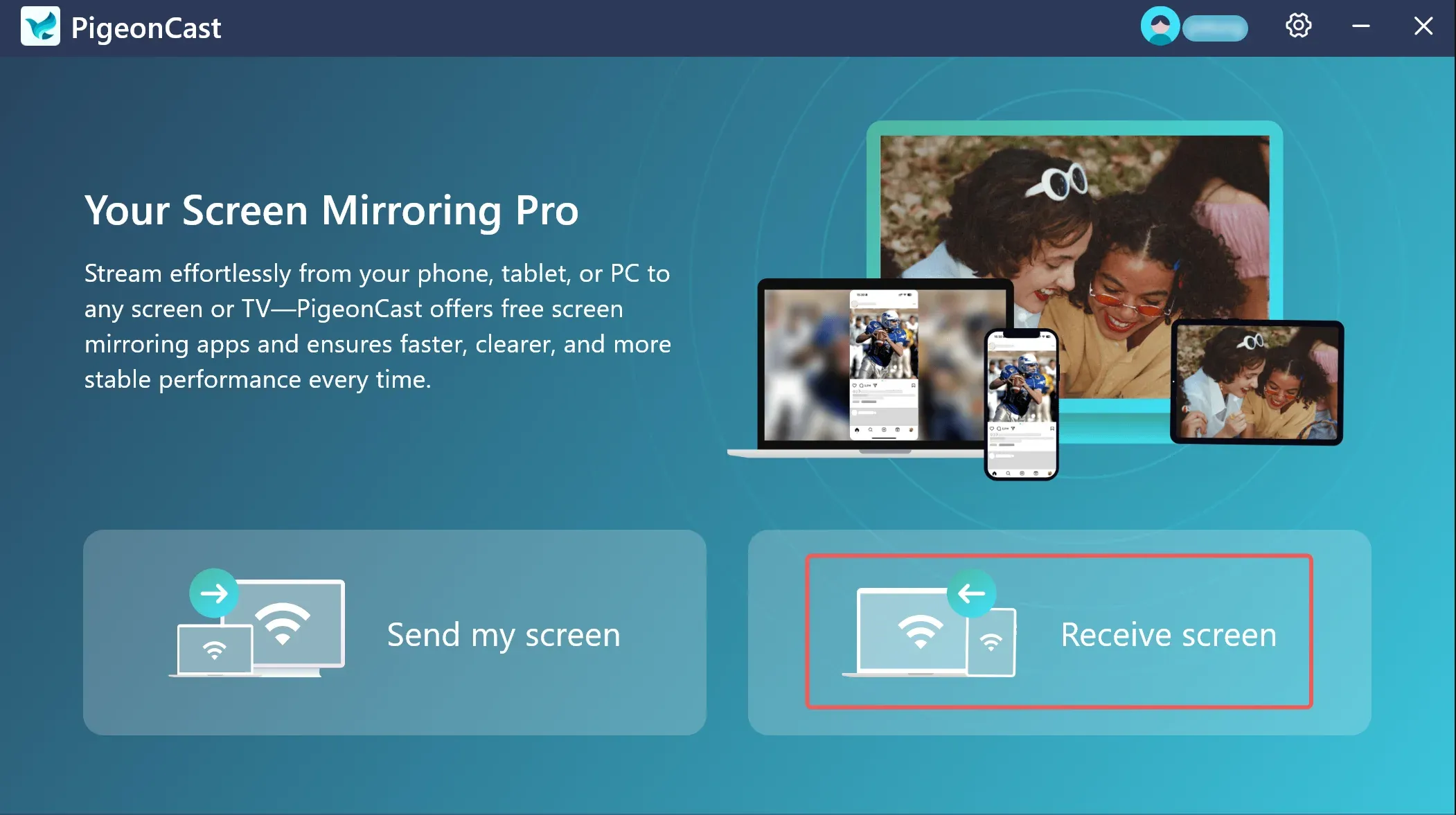
Step 2: Identify the name of your Windows PC.
3
Start mirroring
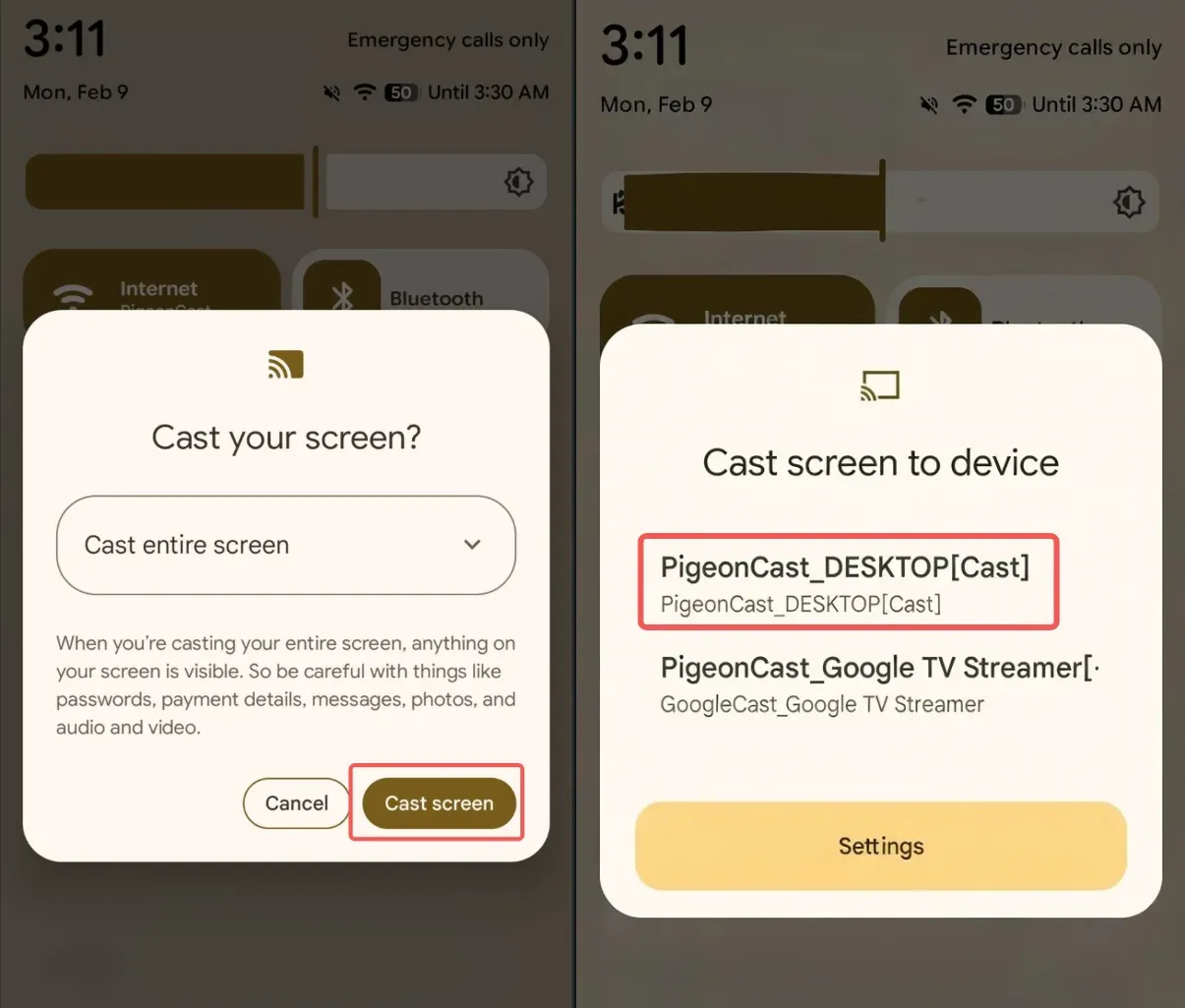
Step 1: On the main screen of your phone, swipe down and launch the Quick Settings panel, find and tap the Screen Mirroring button. (image below uses Google Pixel phone as an example)
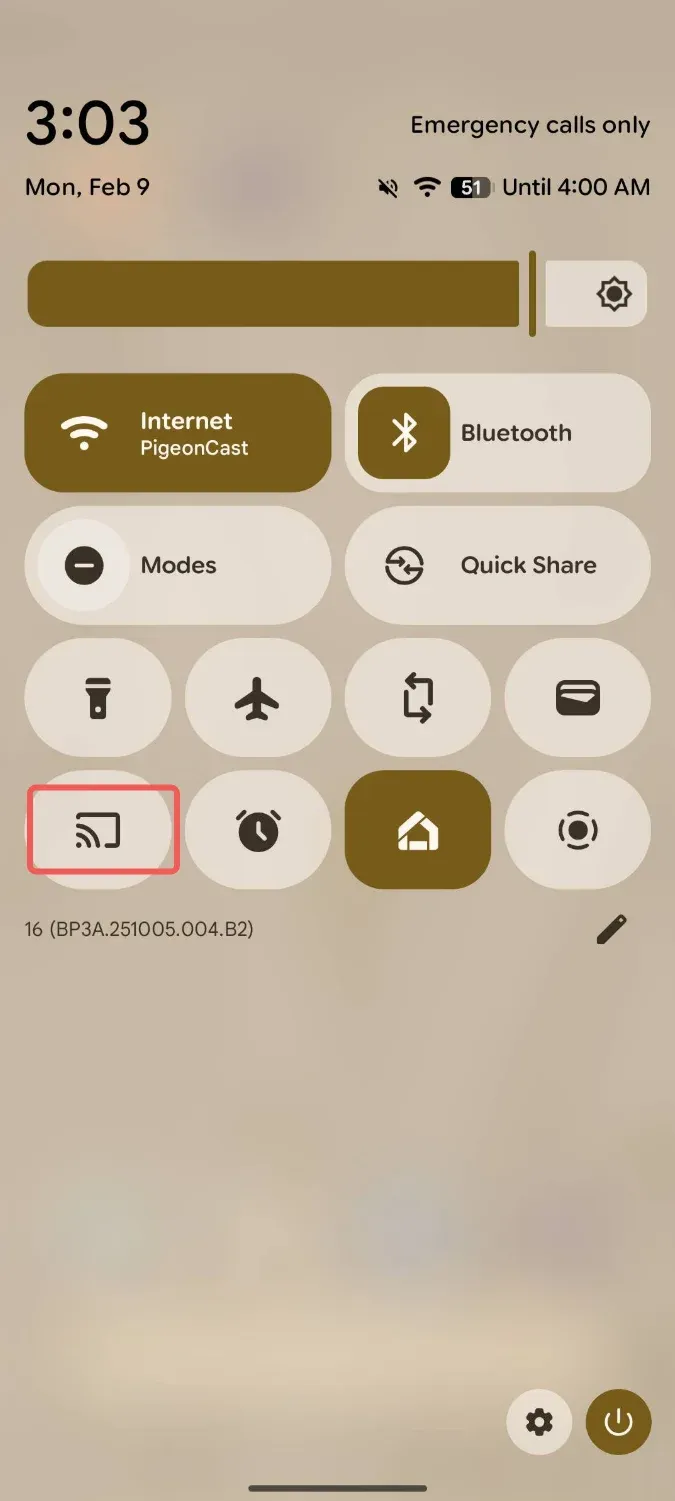
Step 2: Select the Windows PC's name from the detected devices list, and start screen mirroring.