
Screen Mirroring Android Phone to Android TV (PigeonCast)
This guide walks through how to mirror your screen from Android to Android TV using PigeonCast protocol.
Step-by-Step Guide
Download and install the PigeonCast App as a sender
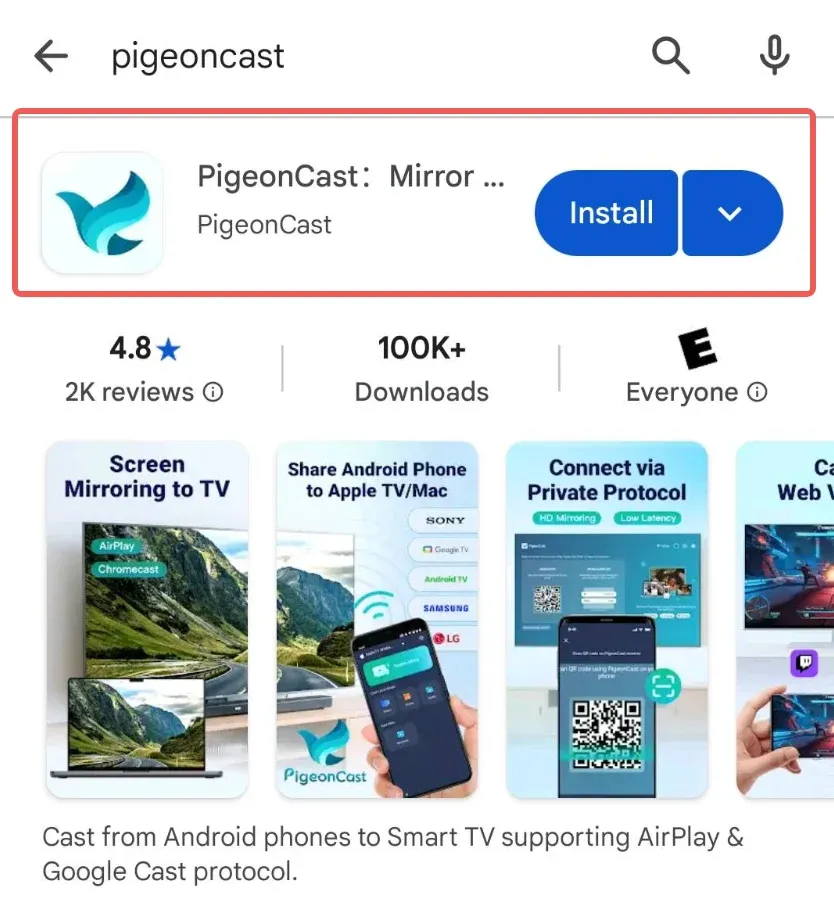
Install PigeonCast app from Google Play Store.
Install PigeonCast on your Android TV as a receiver
There are two methods of installation:
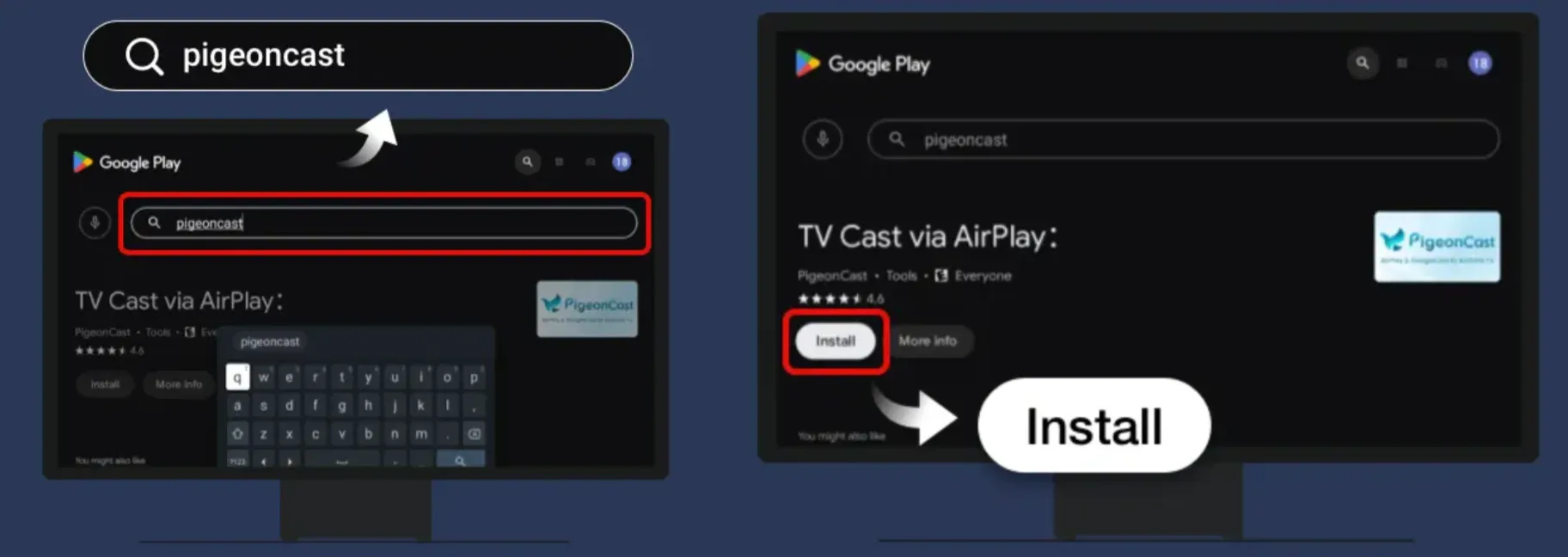
Method 1: Search the term PigeonCast on Google Play Store and install.
Method 2: Download APK package of PigeonCast for TV, copy it to a USB flash drive, and plug the flash drive on your TV and install it.
Connect the devices with either method below
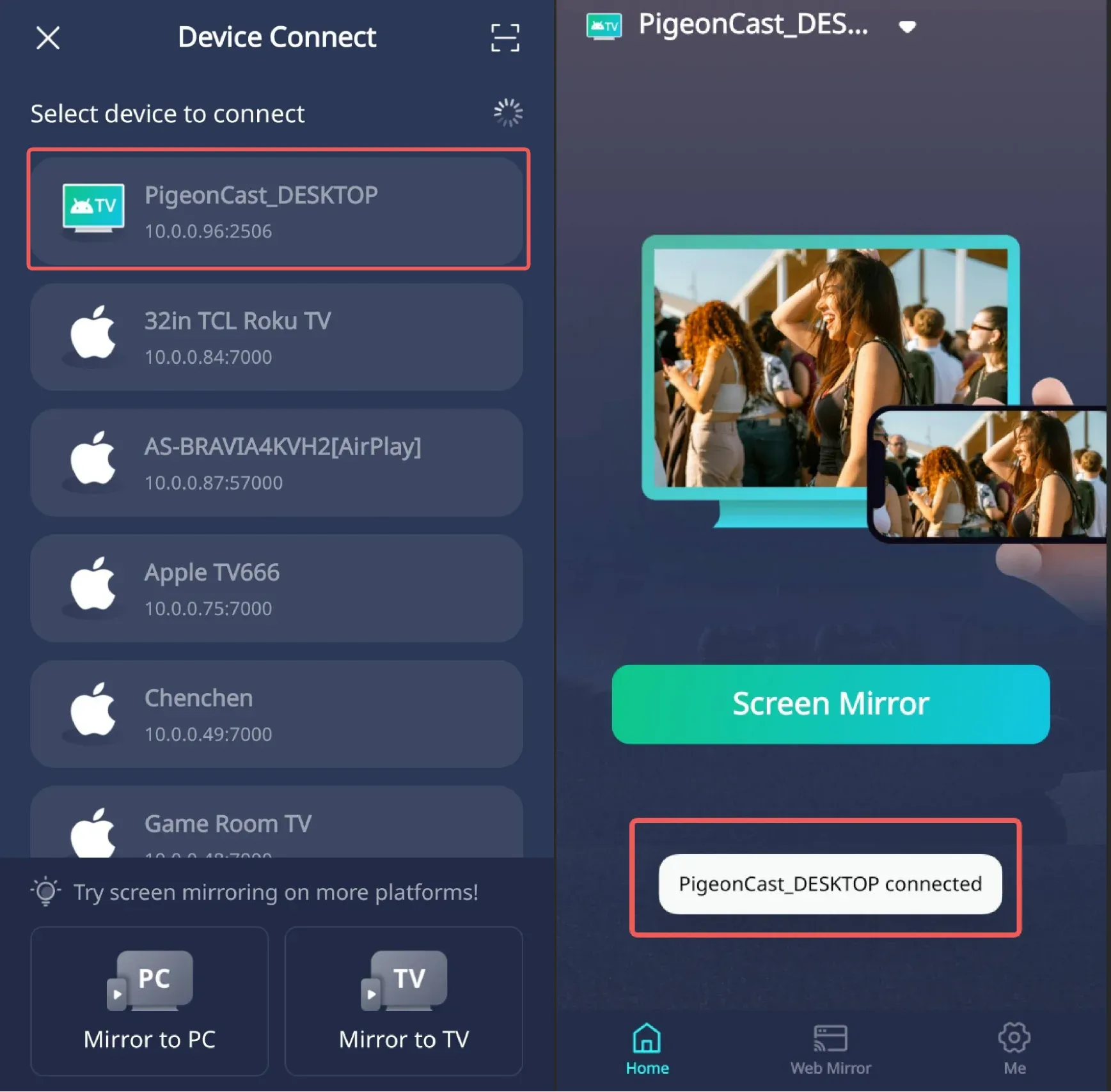
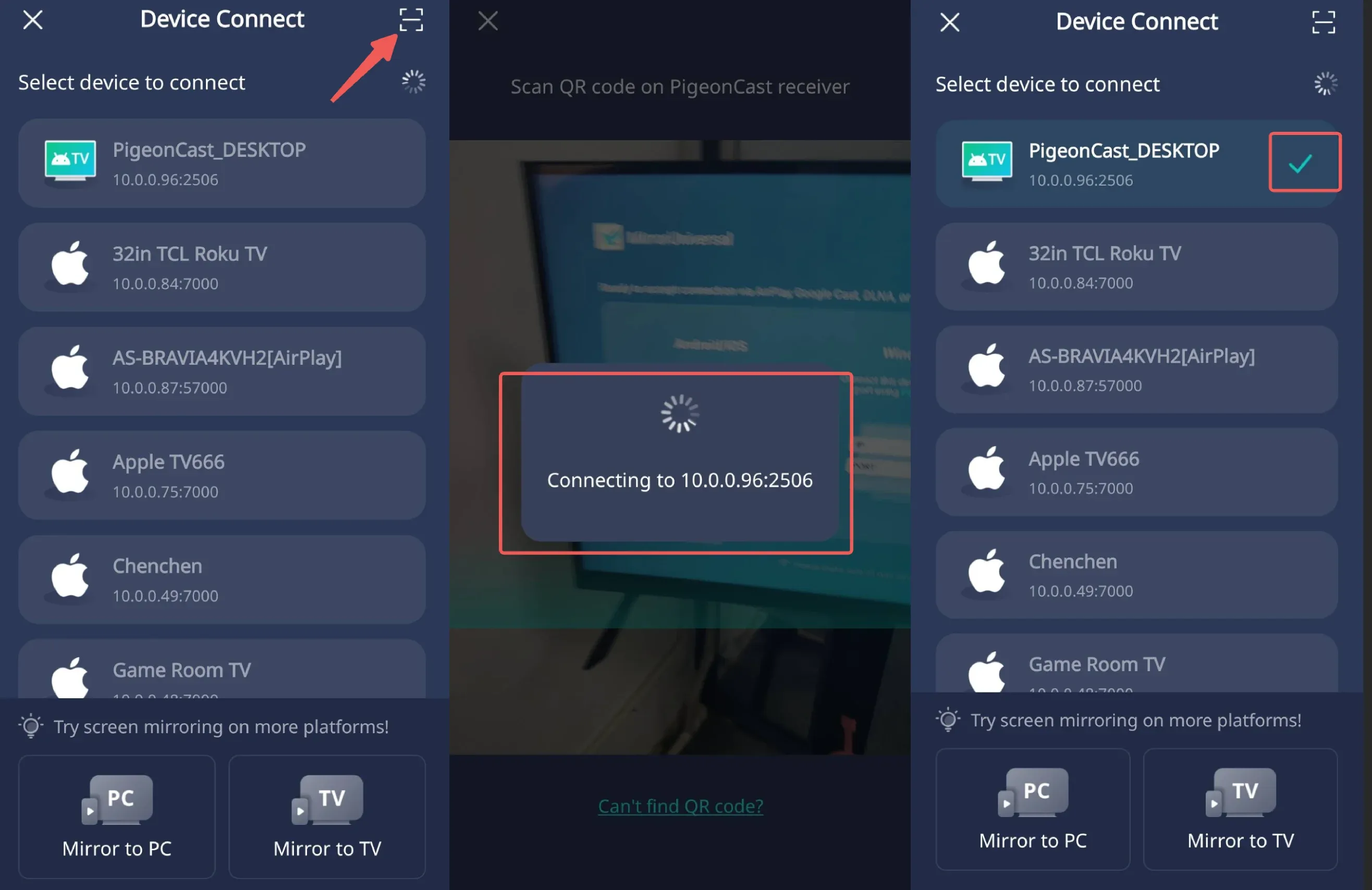
Method 1: Search for available devices and connect: identify the name of your TV receiver, and find the name on your Android phone (sender), click it and it will be connected.
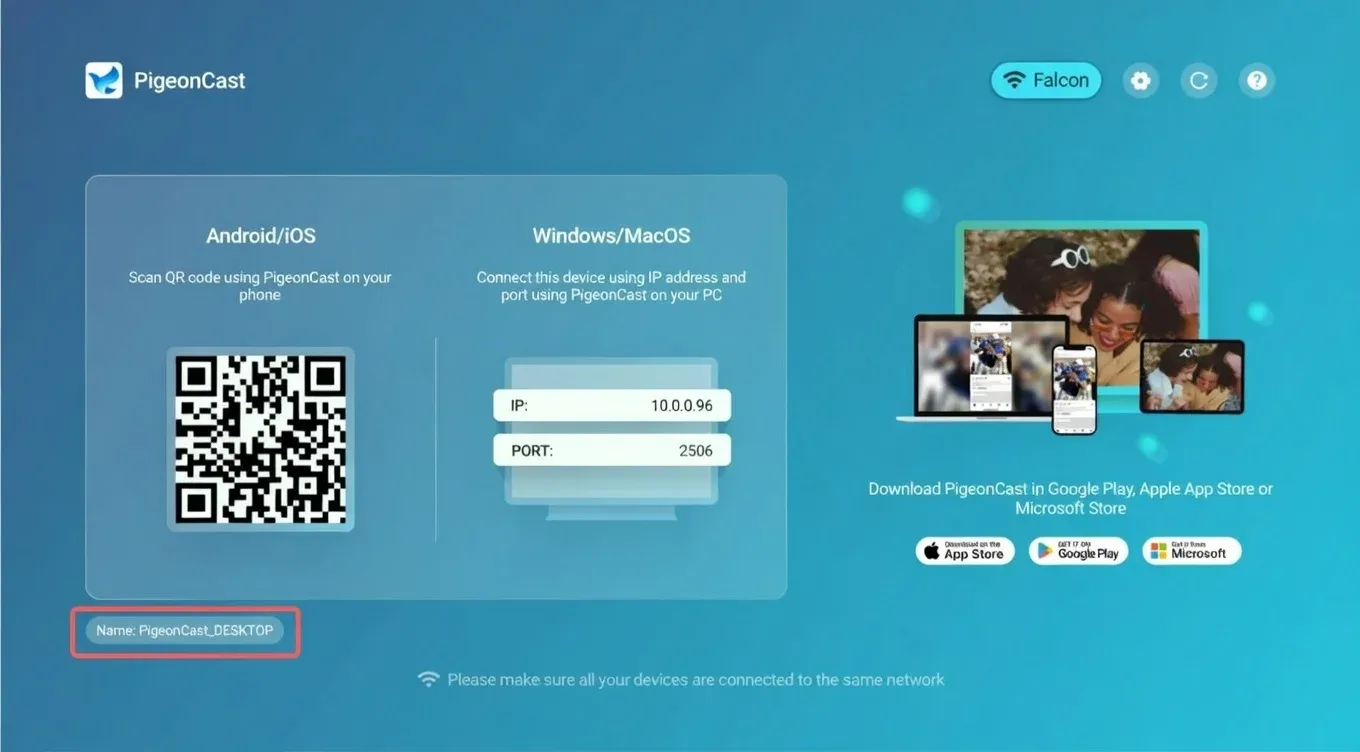
Method 2: Connect the device by scanning the QR Code: tap the scan button on your Android phone, scan the QR Code appears on the left side of the TV receiver home page, then the connection will be established.
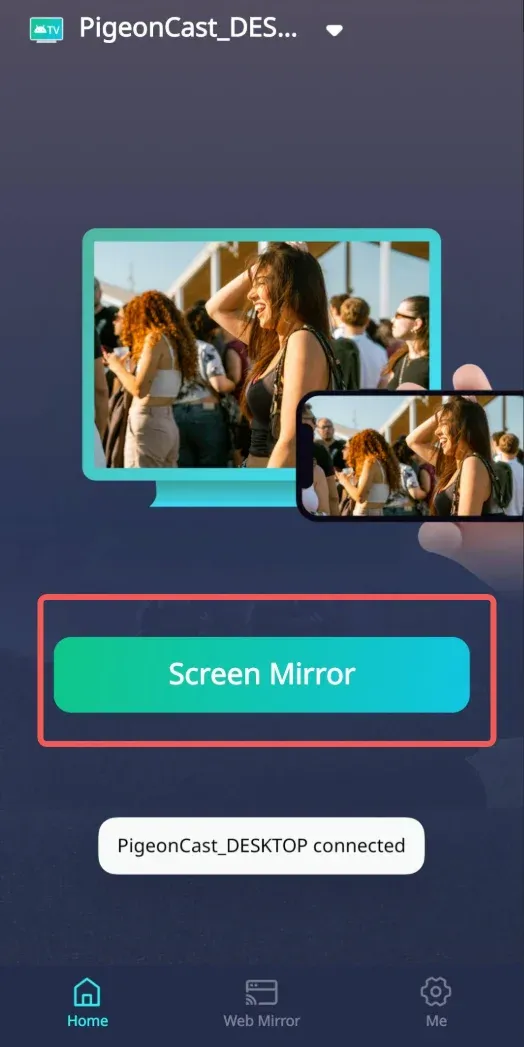
Start screen mirroring
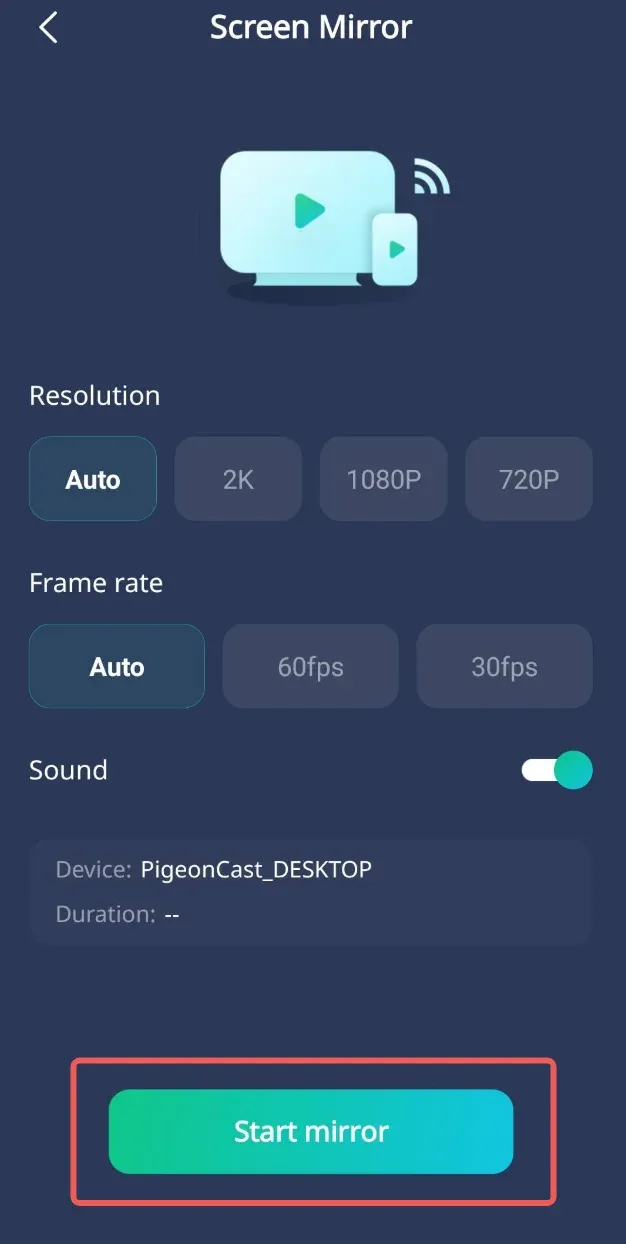
Step 1: Tap Screen mirror button.
Step 2: Select the screen mirroring quality parameters, PigeonCast supports high quality screen mirroring up to 2K/60FPS.
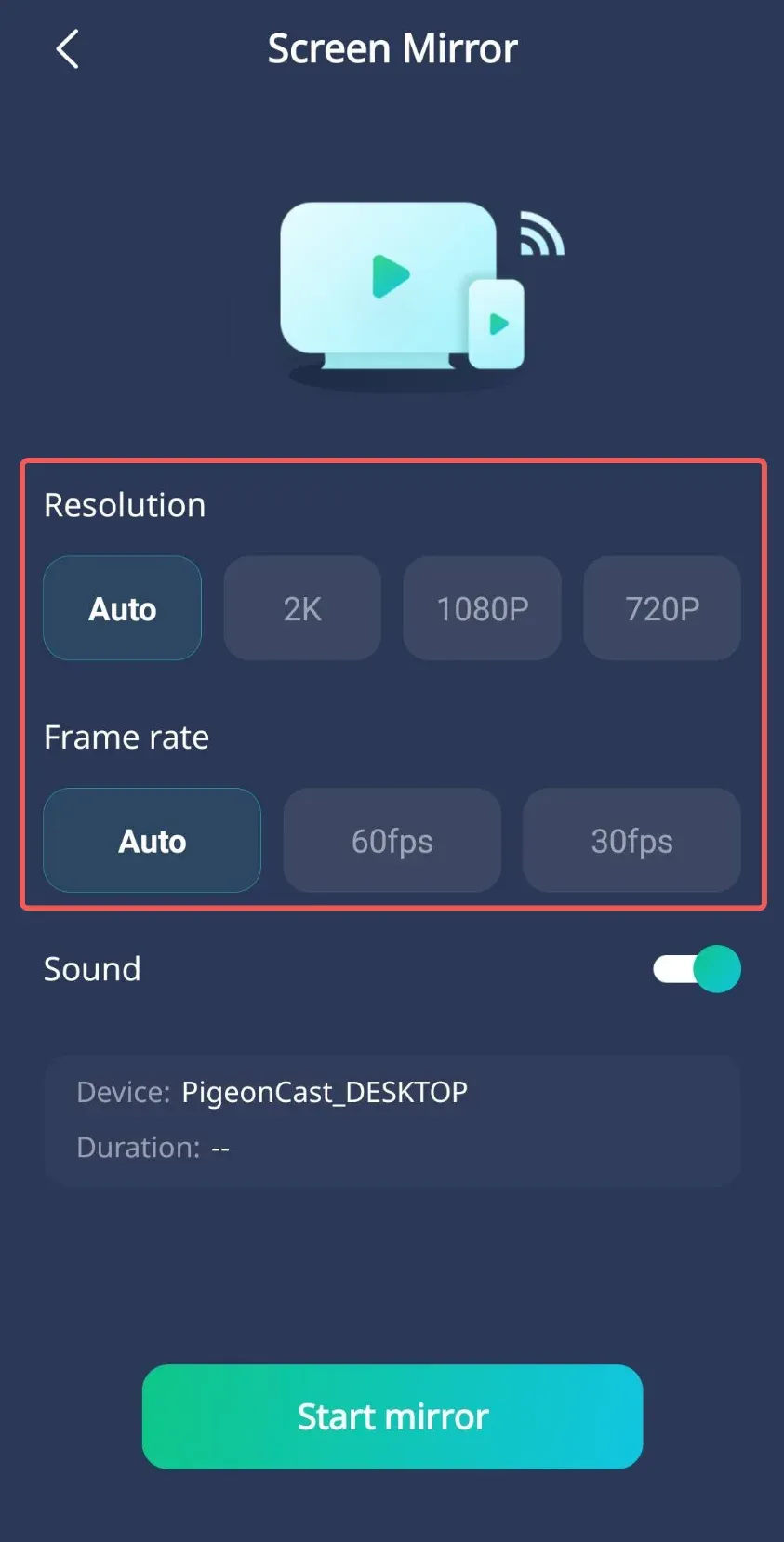
Note: screen mirroring fluency depends on stability of your network and performance of your device.
Step 3: Turn on Sound switch.
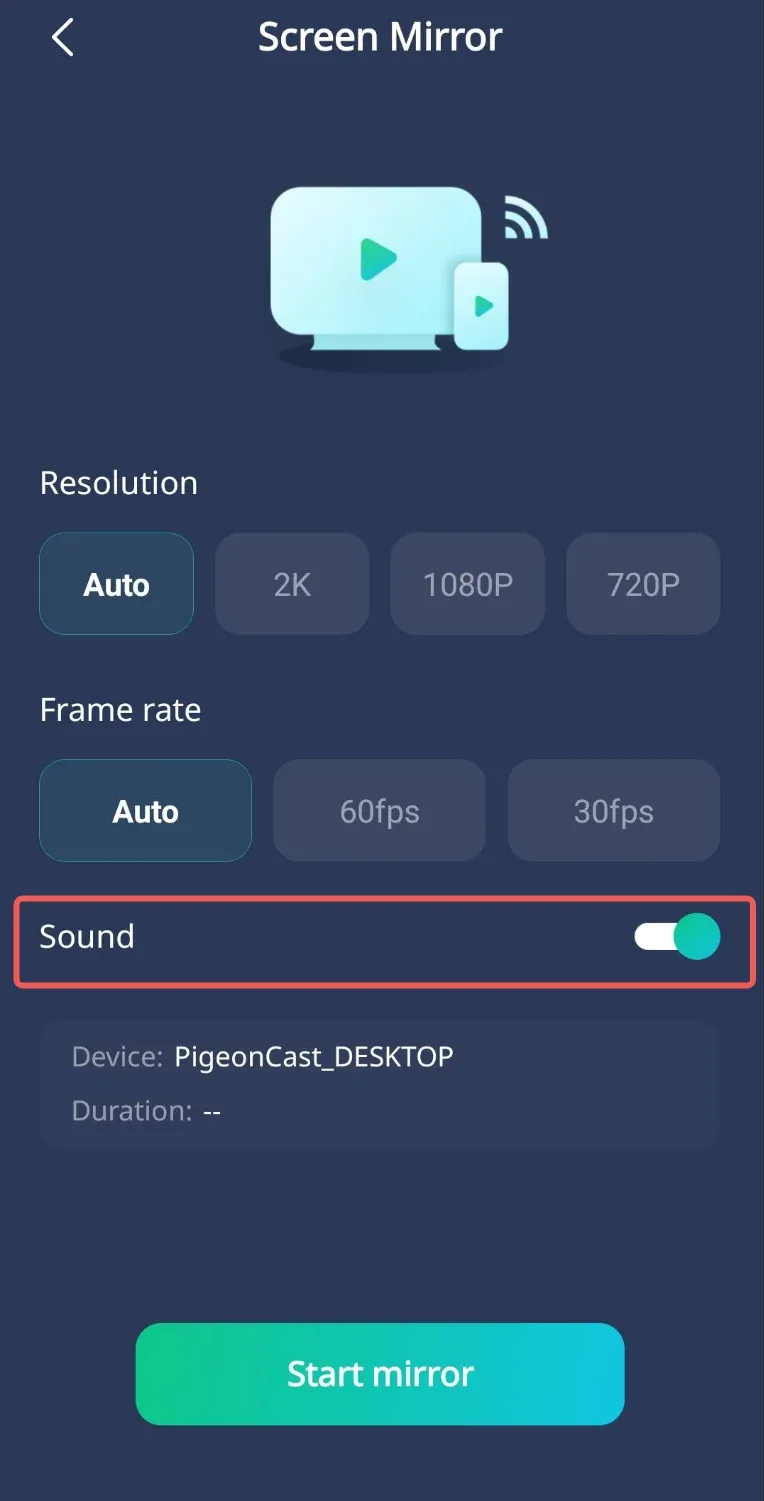
Note: if you don't want to hear sound on TV, just leave the switch OFF.
Step 4: Tap Start mirror button, and your Android phone screen and sound will be synced to your TV receiver.
Note: do NOT turn off your phone screen while screen mirroring.
Note: PigeonCast App only transmits signals between your devices, we will NOT collect any private data.