
Screen Mirroring Android Phone to Windows PC (PigeonCast)
This guide walks through how to mirror your screen from Android Phone to Windows PC via PigeonCast protocol.
Step-by-Step Guide
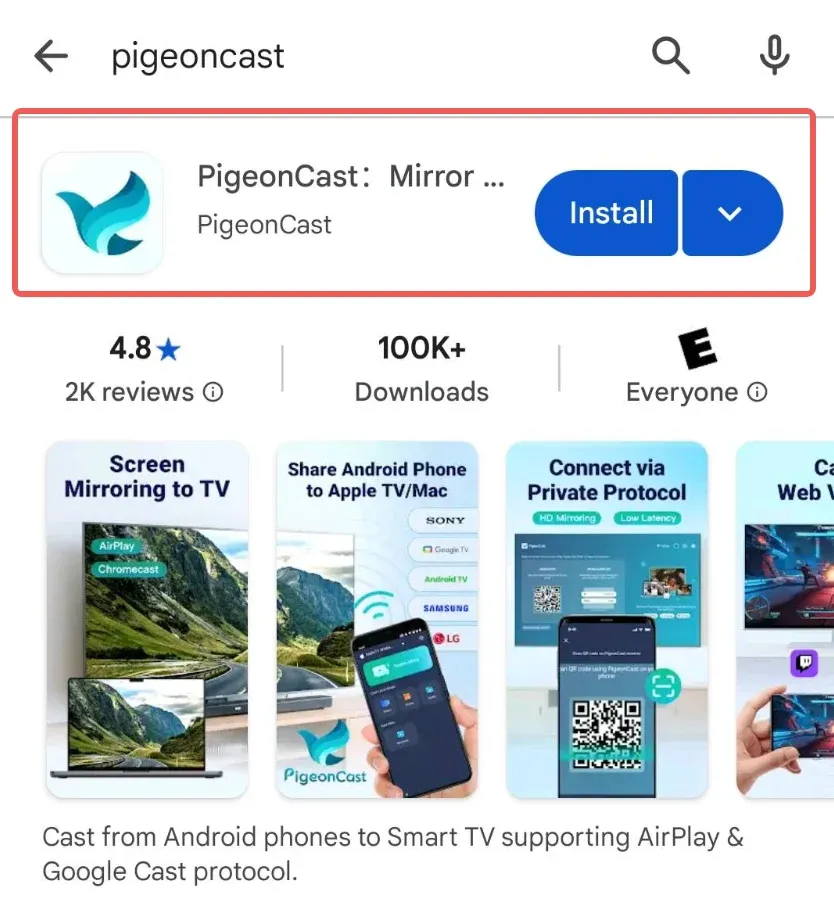
Download and install the PigeonCast App on your Android phone as sender
Install PigeonCast app from Google Play Store.
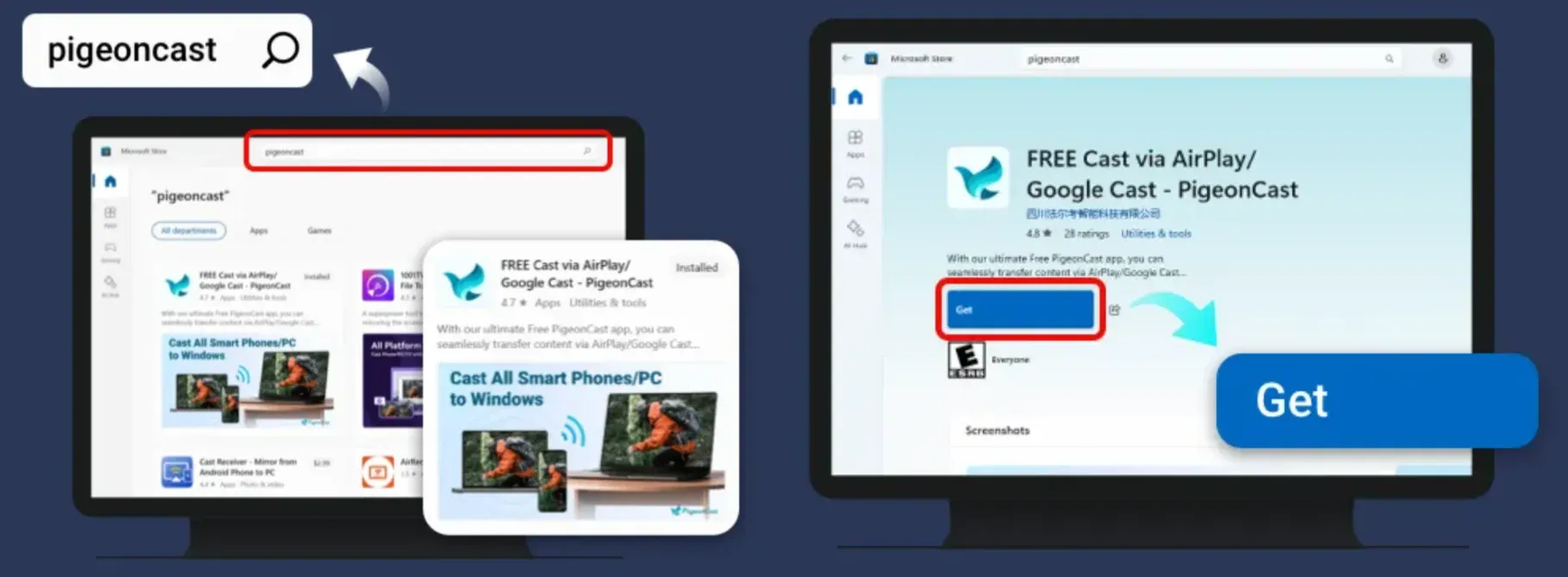
Download and install PigeonCast App on your Windows as receiver, you can choose either method to install
Method 1: Search the term PigeonCast on Microsoft Store and click the Get button.
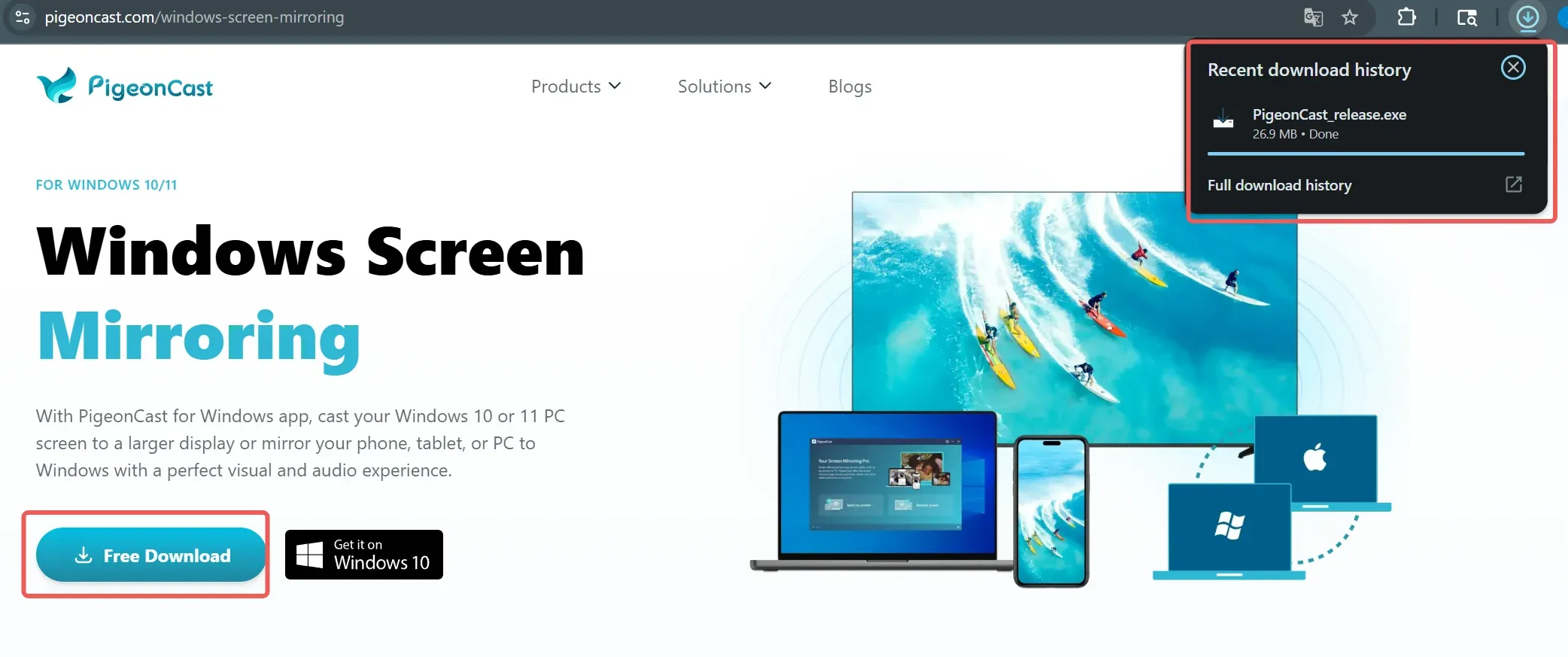
Method 2: Download the PigeonCast Installation Package directly, run the .exe file and follow the setup guide.
Make sure your Android phone and Windows PC are connected to the same Wi-Fi network, open PigeonCast App on both devices
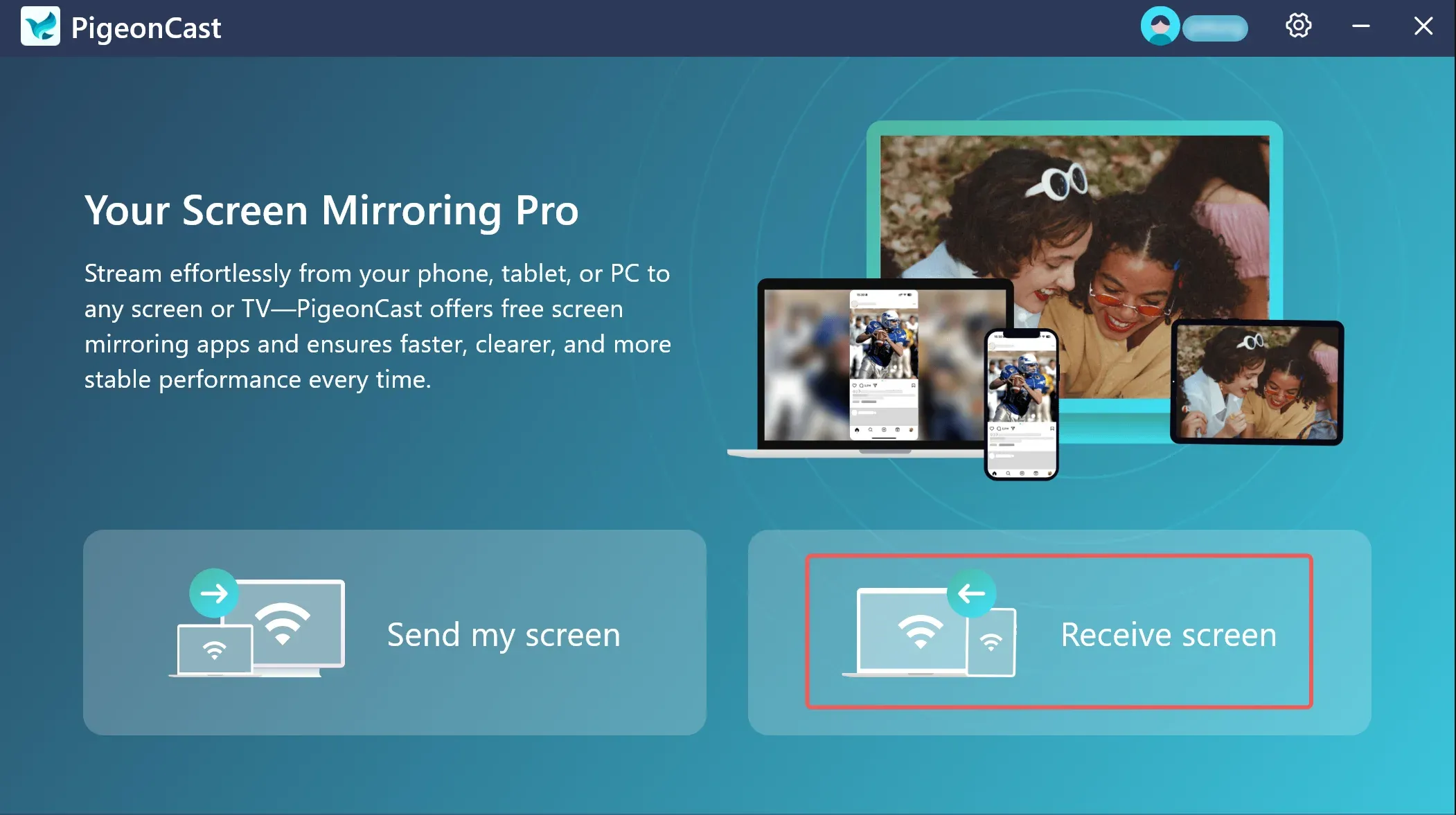
Step 1: Click the Receive screen on Windows PigeonCast App.
Step 2: Identify the name of your Windows PC.
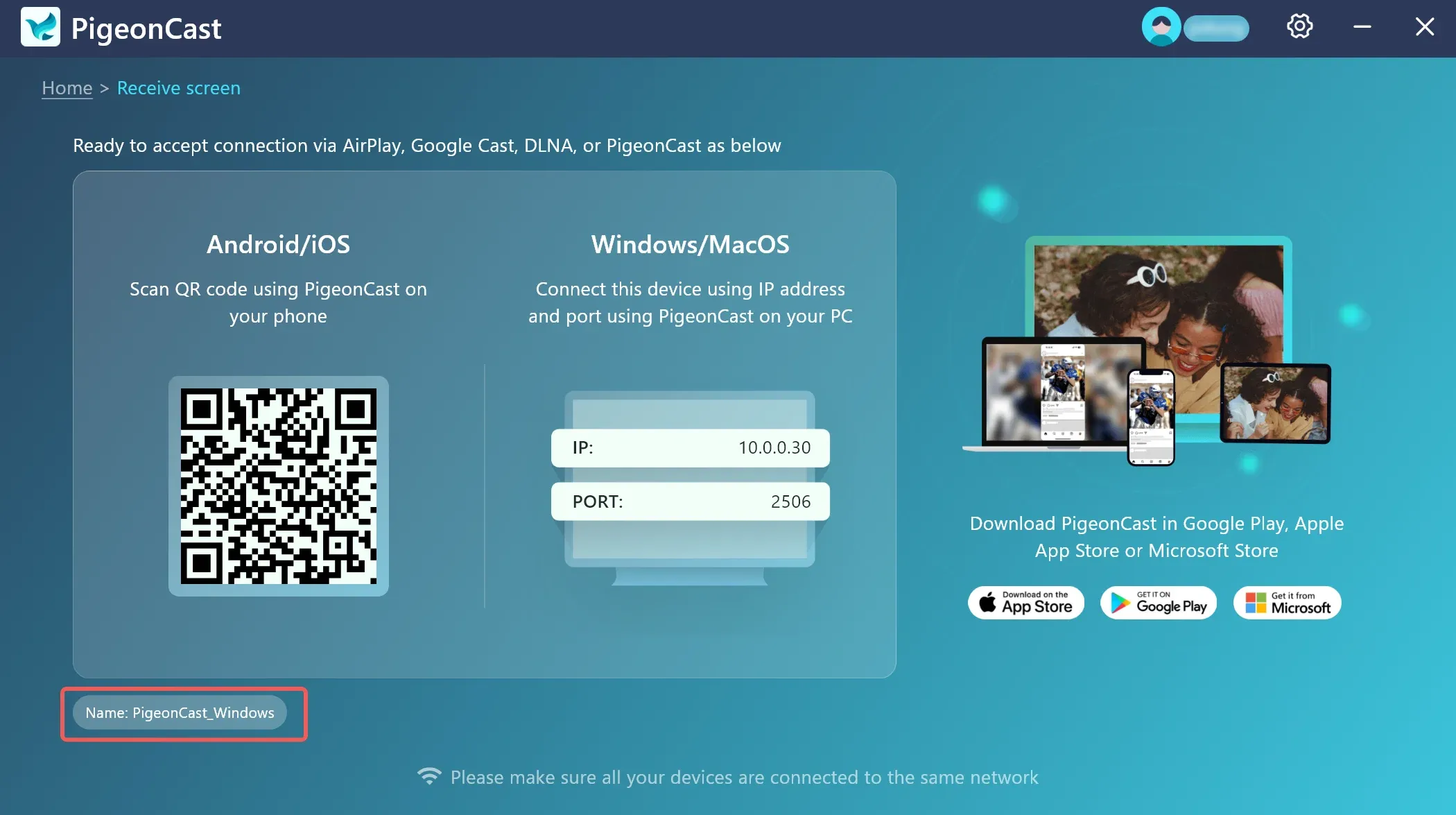
Connect devices with either method below
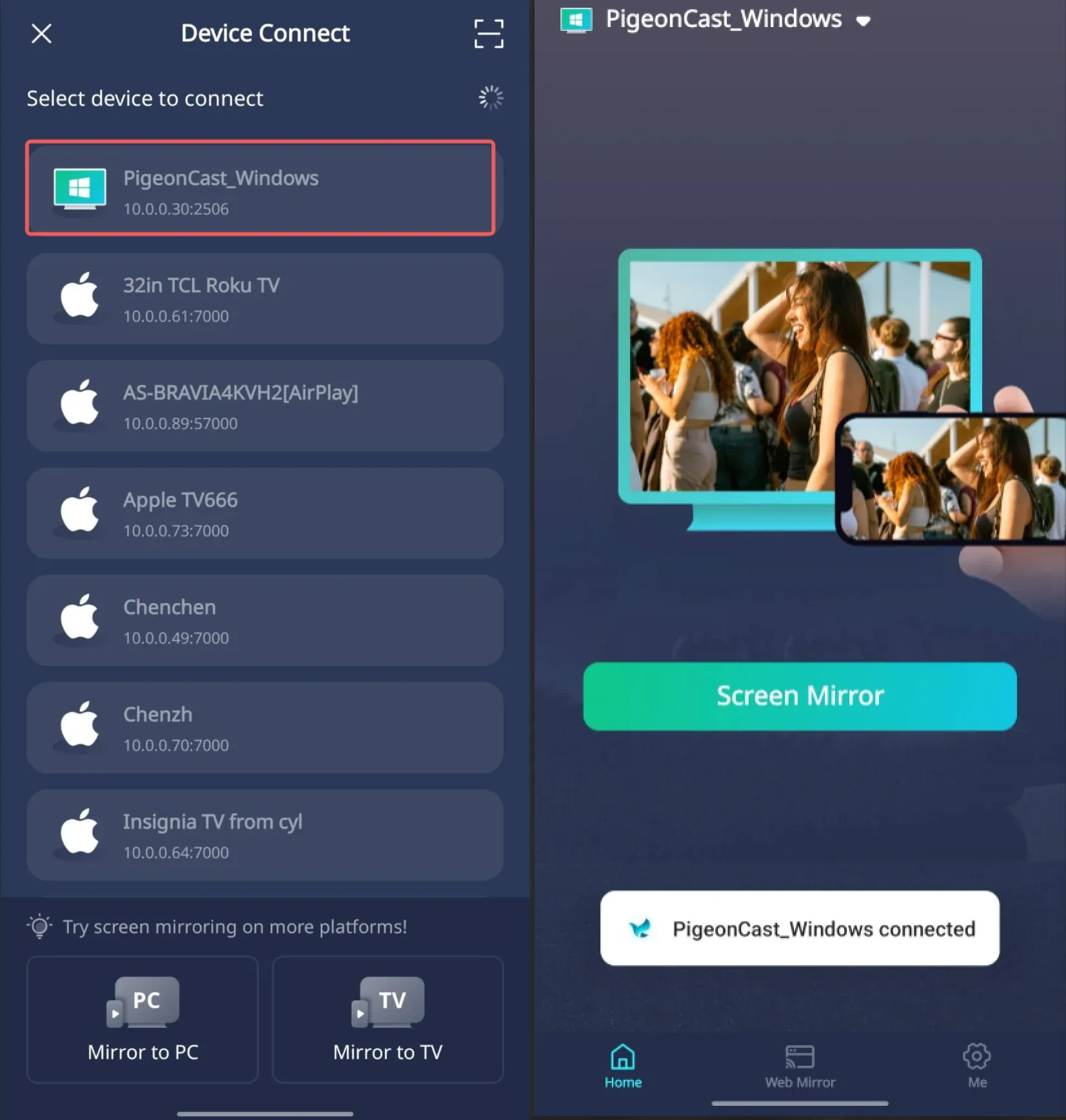
Method 1: Search for device and connect: find and select your Windows PC's name on your Android phone and connection will be established automatically.
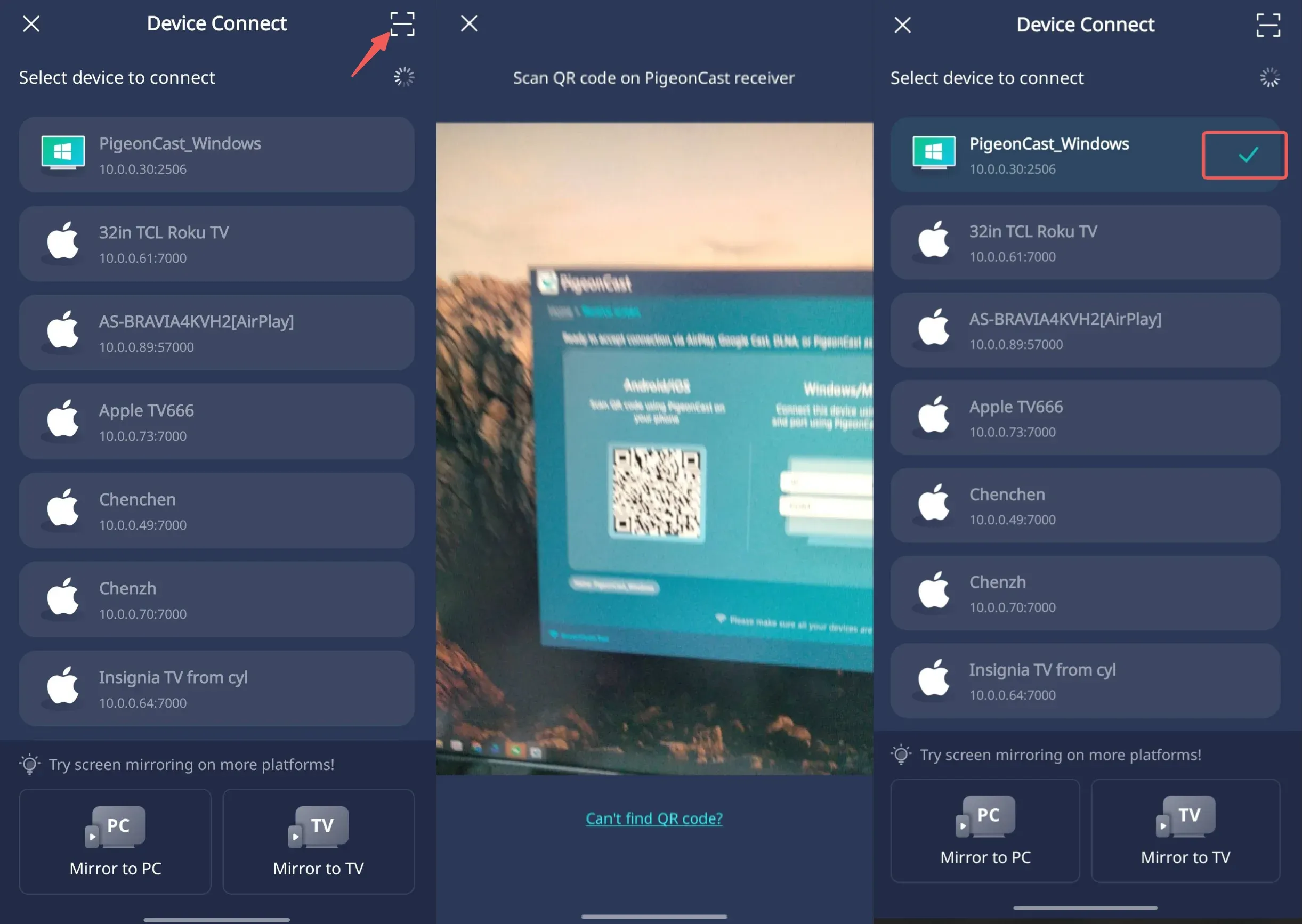
Method 2: Connect by scanning QR Code: click the Scan button and scan the code that appears on your Windows PC screen.
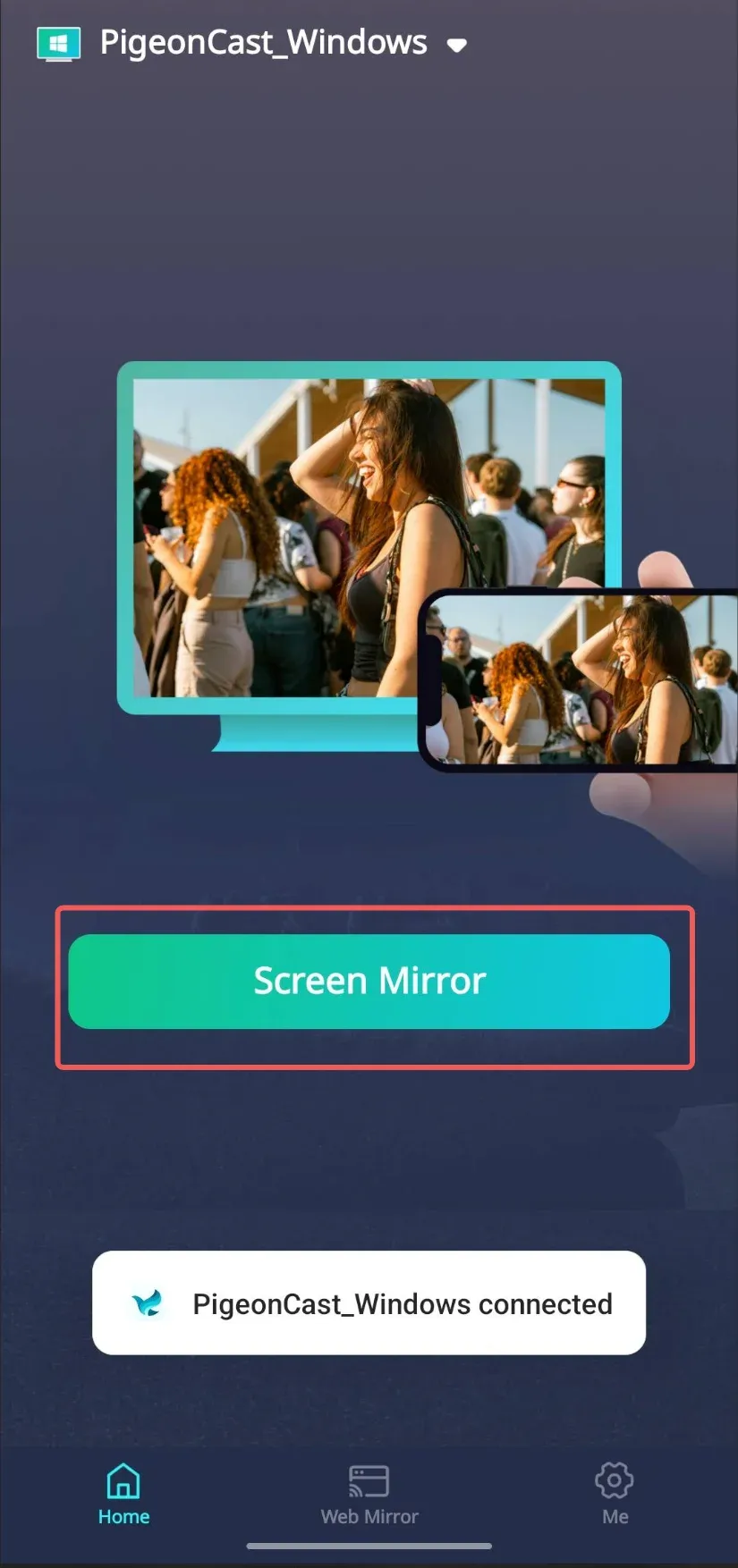
Start screen mirroring
Step 1: Tap Screen mirror button.
Step 2: Select the screen mirroring quality parameters, PigeonCast supports high quality screen mirroring up to 2K/60FPS.
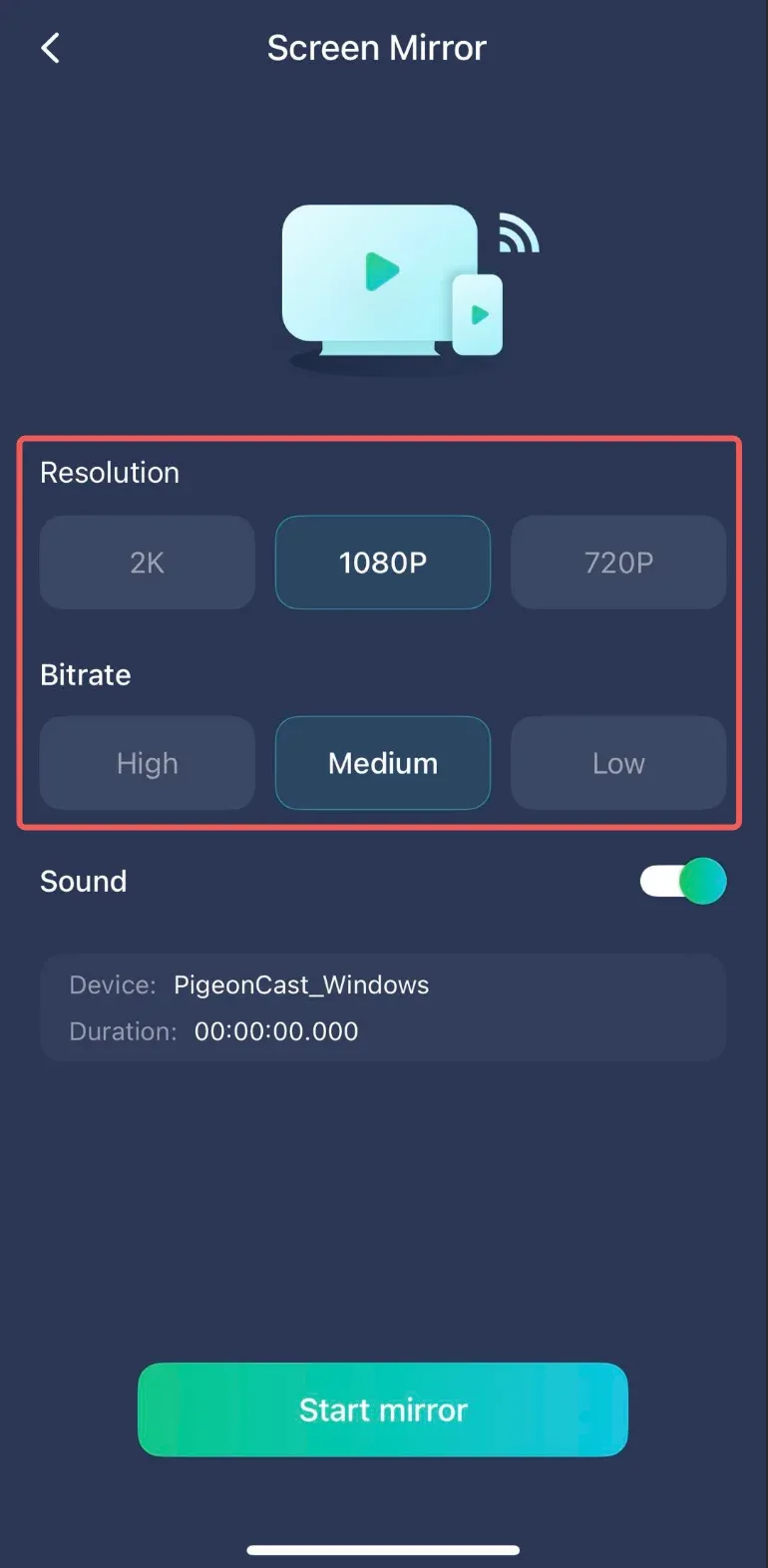
Note: screen mirroring fluency depends on stability of your network and performance of your device.
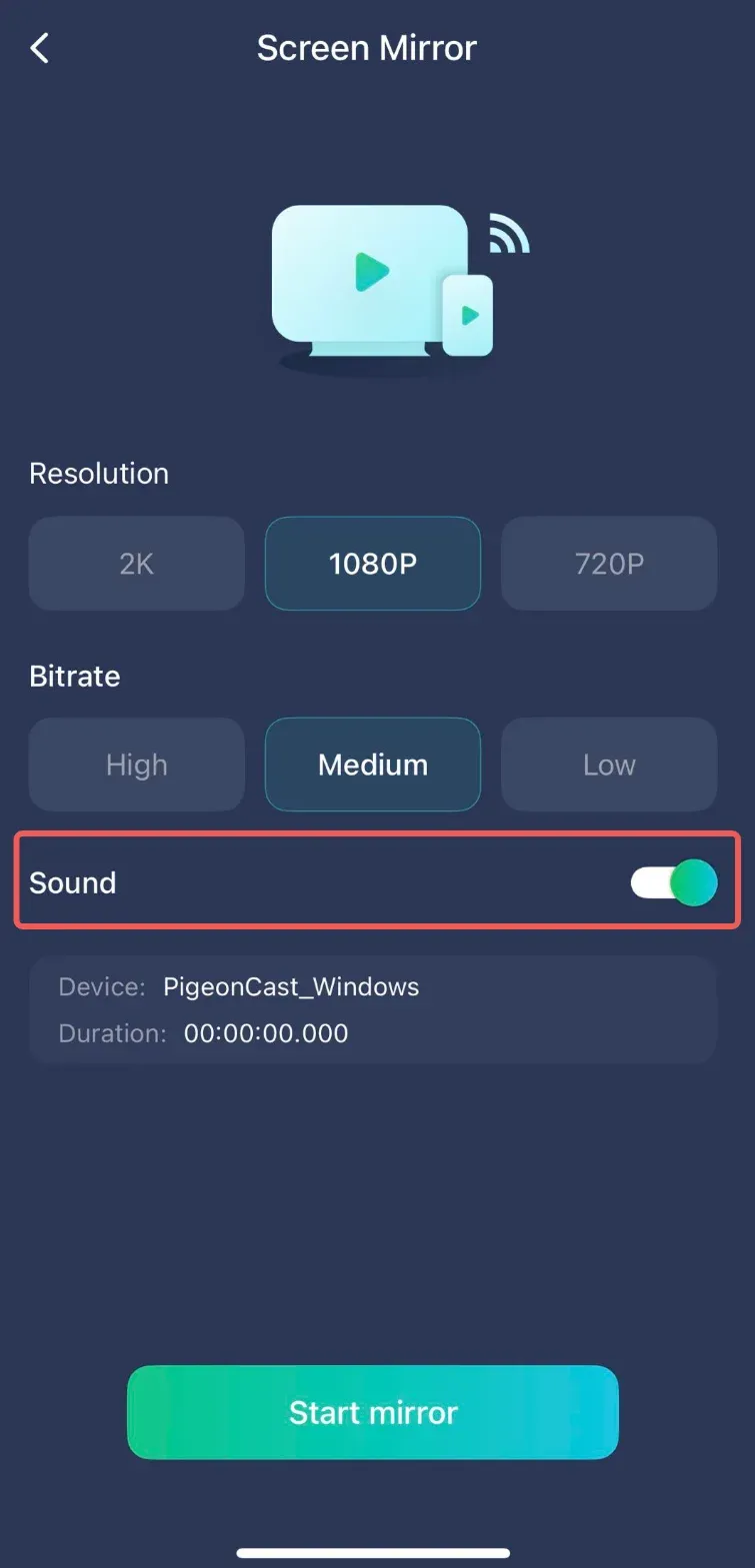
Step 3: Turn on Sound switch (if you don't want your Windows PC to receive sound, keep it OFF)
Step 4: Click Start mirror button, and your Android phone screen and sound will be synced to your Windows PC.
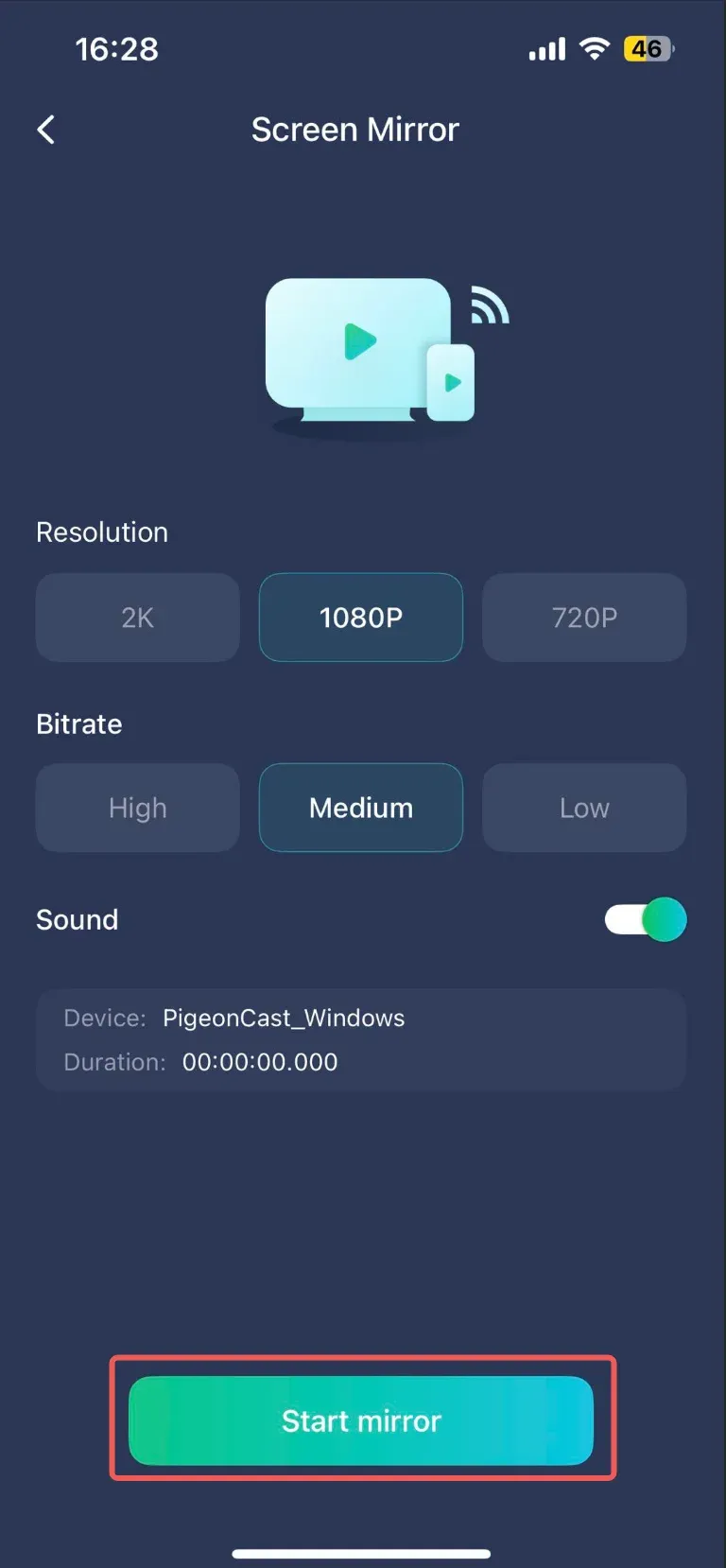
Note: do NOT turn off your phone screen while screen mirroring.
Note: PigeonCast App only transmits signals between your devices, we will NOT collect any private data.