Screen Mirroring Browser to Android TV
This guide walks through how to mirror your screen from a browser on PC to Android TV using AirPlay/Google Cast protocol.
Step-by-Step Guide
Download a browser that supports AirPlay/Google Cast protocol
Only some browsers have screen mirroring feature, e.g., Chrome, Edge, Safari, etc.
Install PigeonCast on your Android TV as a receiver
There are two methods of installation:
Method 1: Search the term PigeonCast on Google Play Store and install.
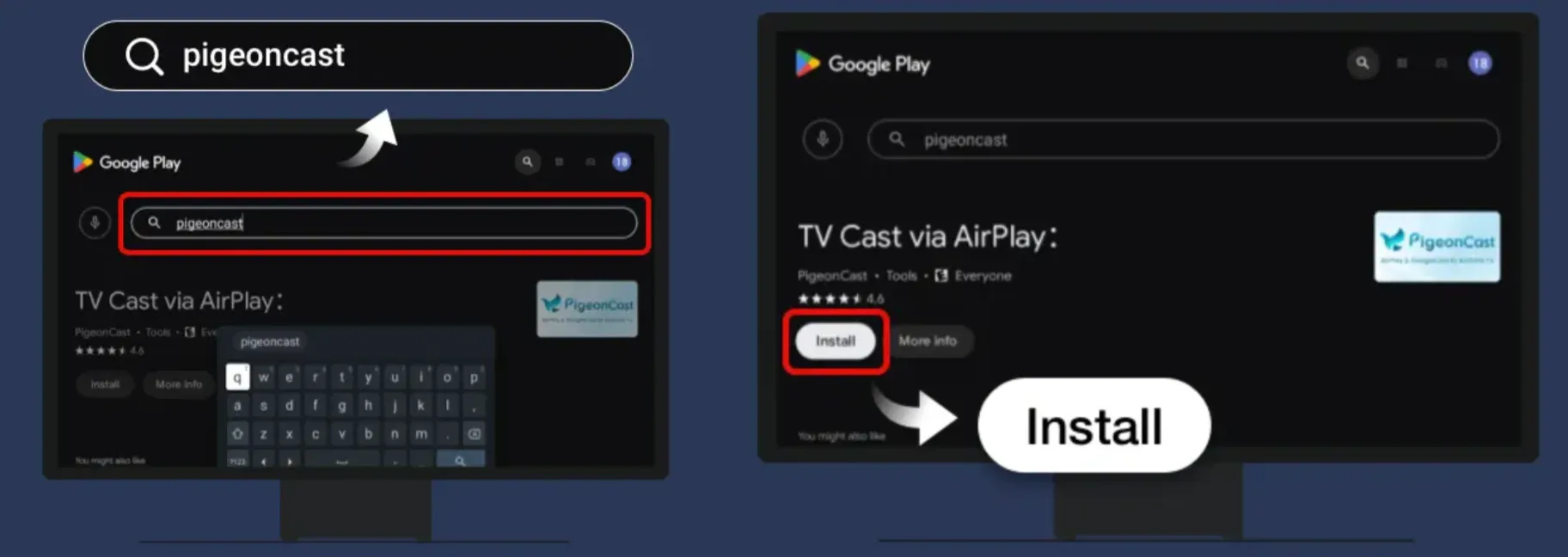
Method 2: Download APK package of PigeonCast for TV, copy it to a USB flash drive, and plug the flash drive on your TV and install it.
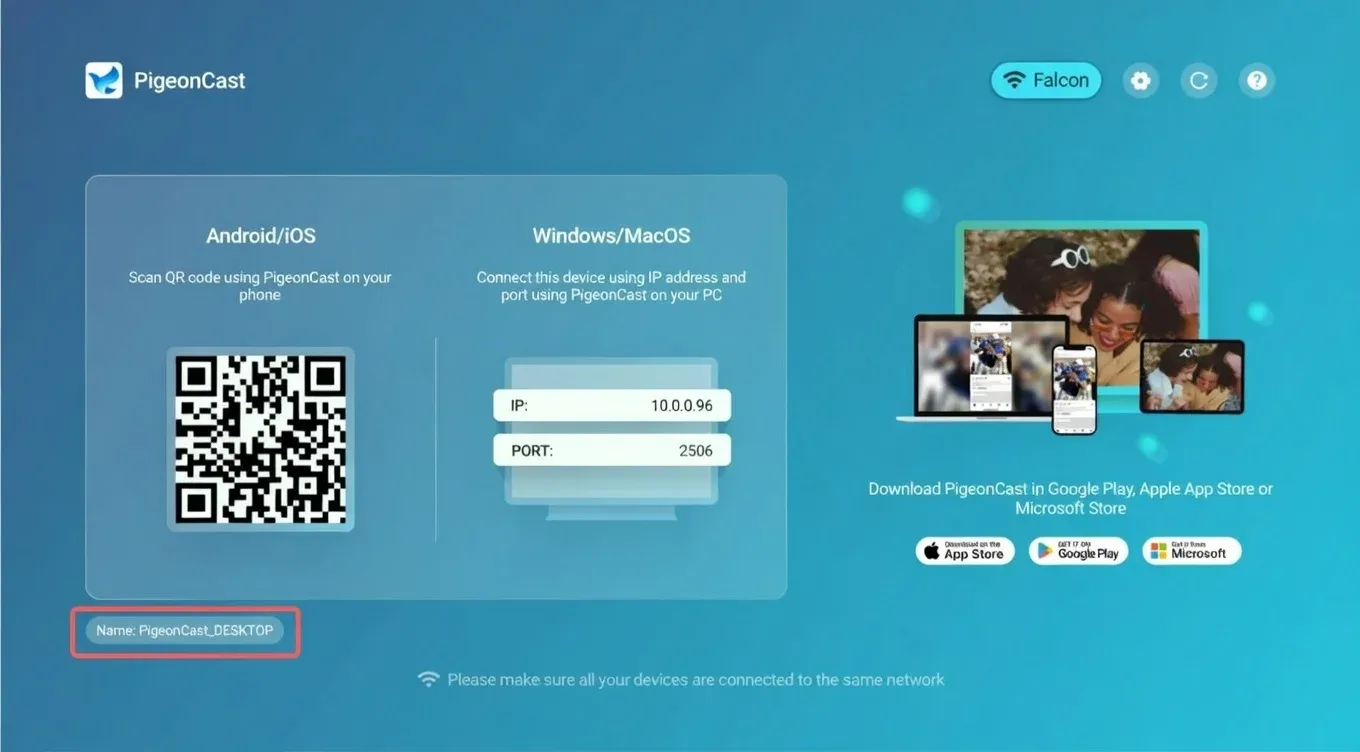
Make sure your PC and Android TV are connected to the same Wi-Fi network, open PigeonCast App on your Android TV, and identify your TV's name
Open the browser on your PC, in this example we'll use Google Chrome:
Step 1: Click More icon (with three dots), select Cast, save, and share.
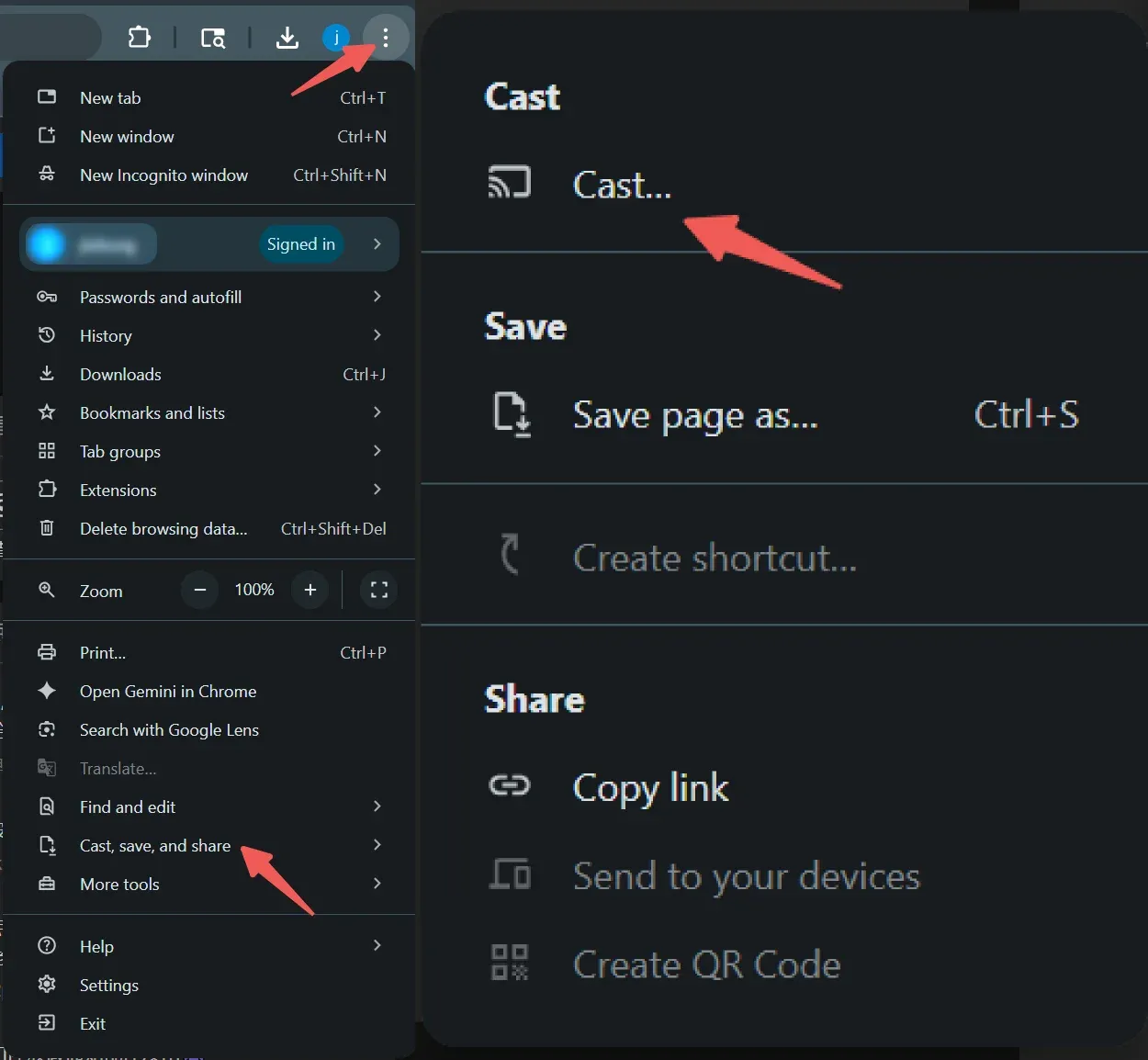
Step 2: Click Cast... with icon.
Start screen mirroring
Step 1: Find and select your TV's name from the browser's cast devices list, and the current tab of your browser will appear on your Android TV.
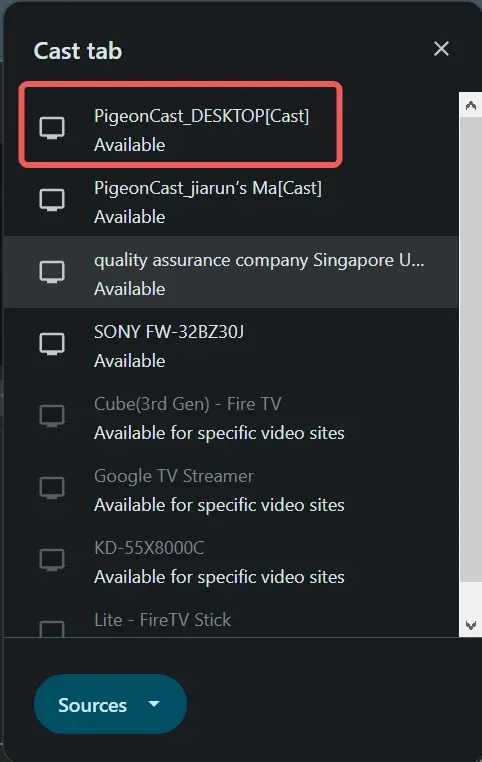
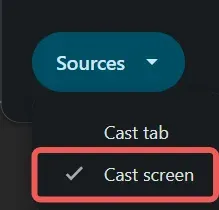
Step 2: If you want to cast the whole PC screen, you can change the Sources to Cast screen.