
Screen Mirroring iPhone/iPad to TV with AirPlay/Google Cast
This guide walks through how to mirror your screen from iPhone/iPad to TV that supports AirPlay/Google Cast protocol, such as LG TV, Samsung TV, TCL TV, Sony TV, Roku TV, etc.
Step-by-Step Guide
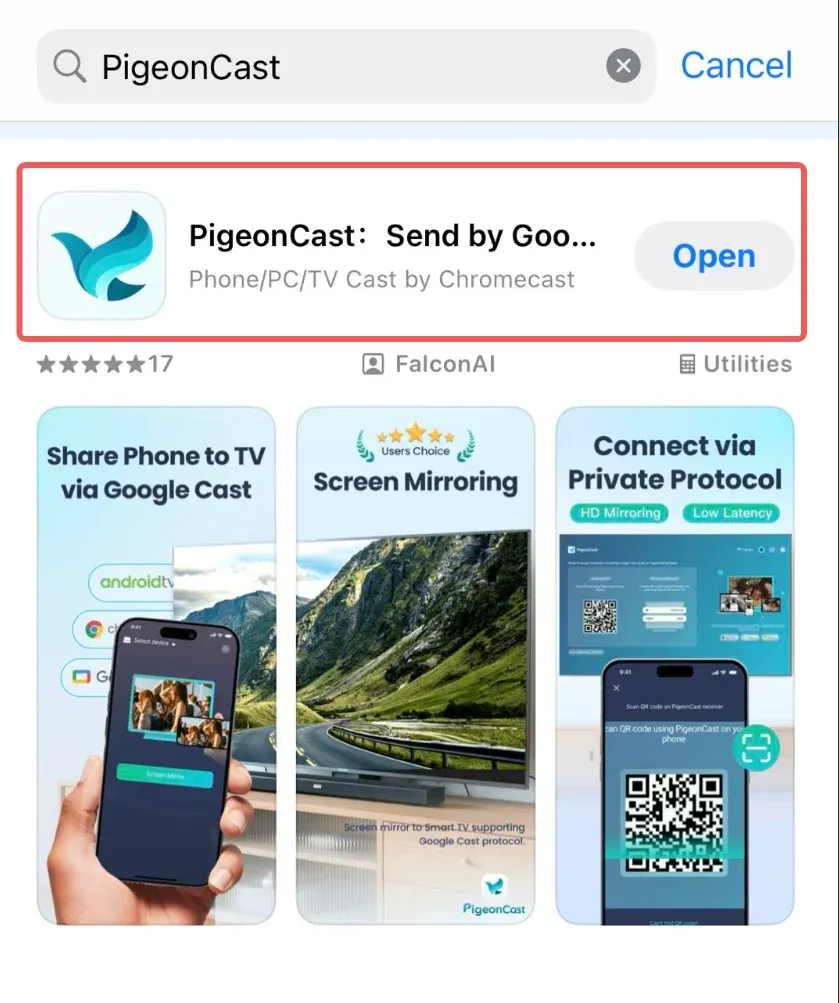
Download PigeonCast App on your iPhone or iPad as sender
Download PigeonCast for iOS from App Store.
Turn on your TV that supports AirPlay/Google TV
Note: only a part of LG/Samsung/TCL/Sony TV supports either AirPlay or Google Cast.
Search and connect device
Find your TV's name from the detected devices list in PigeonCast app, select it and connection will be established.
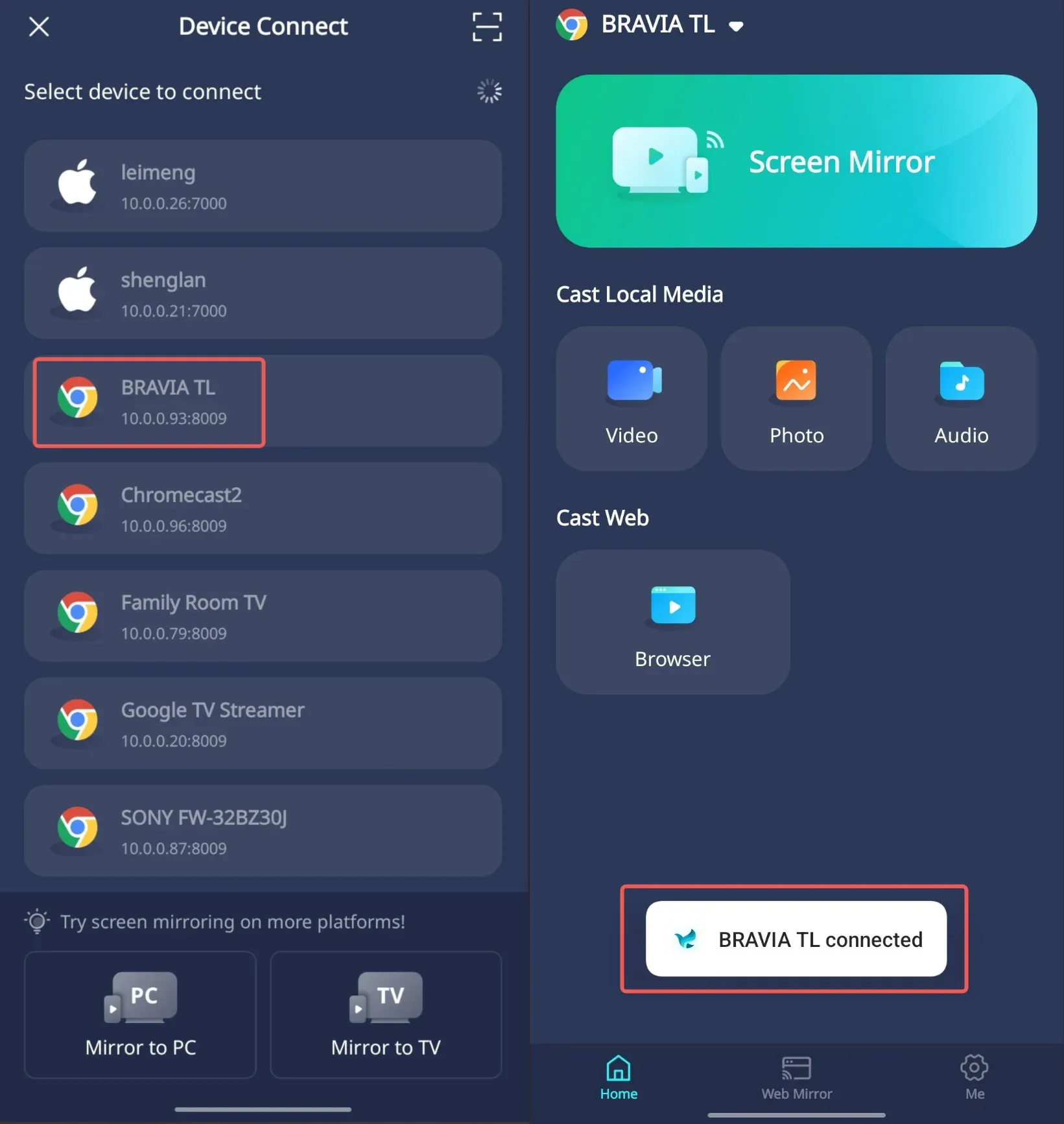
Example here is a Sony TV named
BRAVIA TL, connected through Google Cast protocol
Start screen mirroring
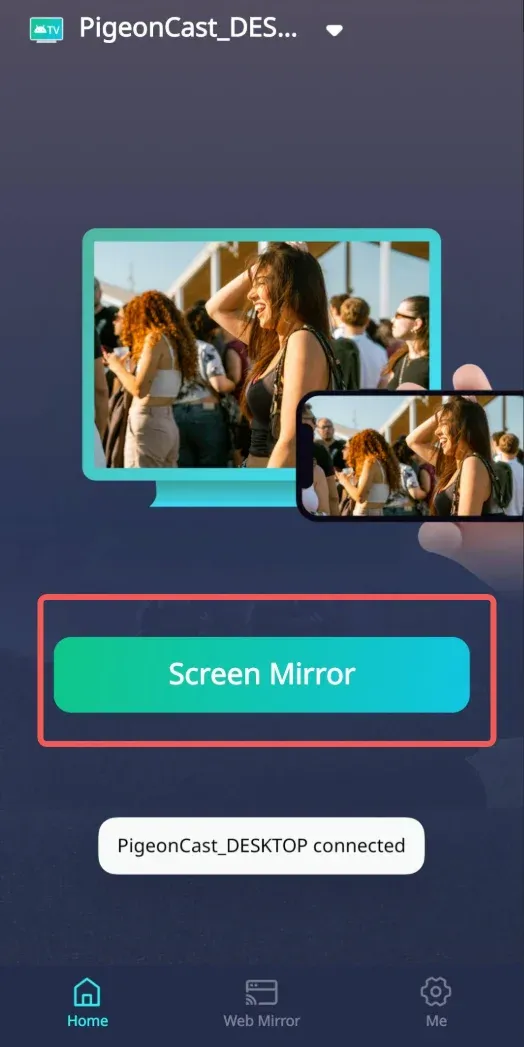
Step 1: Tap Screen Mirror button.
Step 2: Select the screen mirroring quality parameters, PigeonCast supports high quality screen mirroring up to 2K/60FPS.
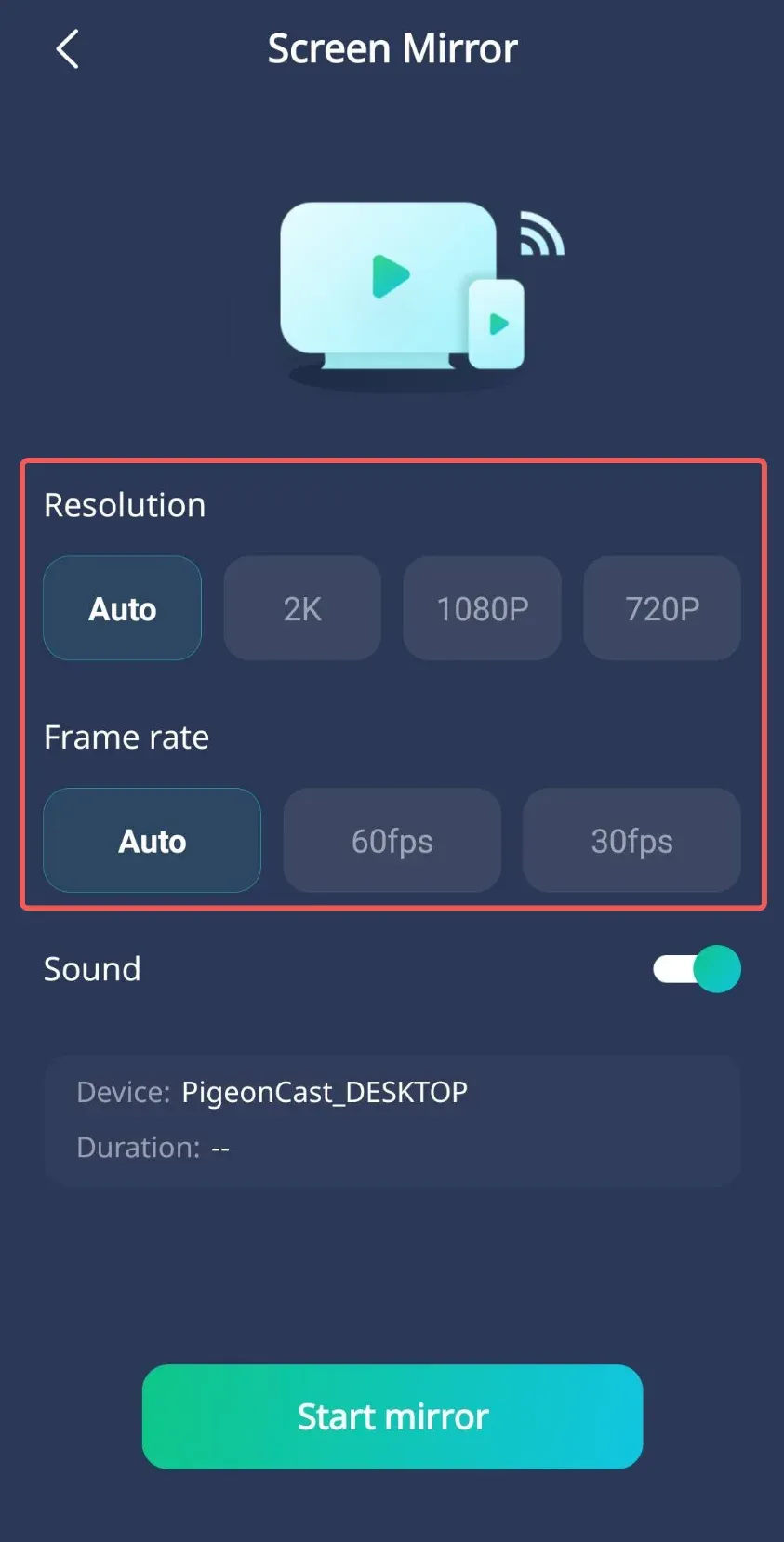
Note: screen mirroring fluency depends on stability of your network and performance of your device.
Step 3: Turn ON the Sound switch
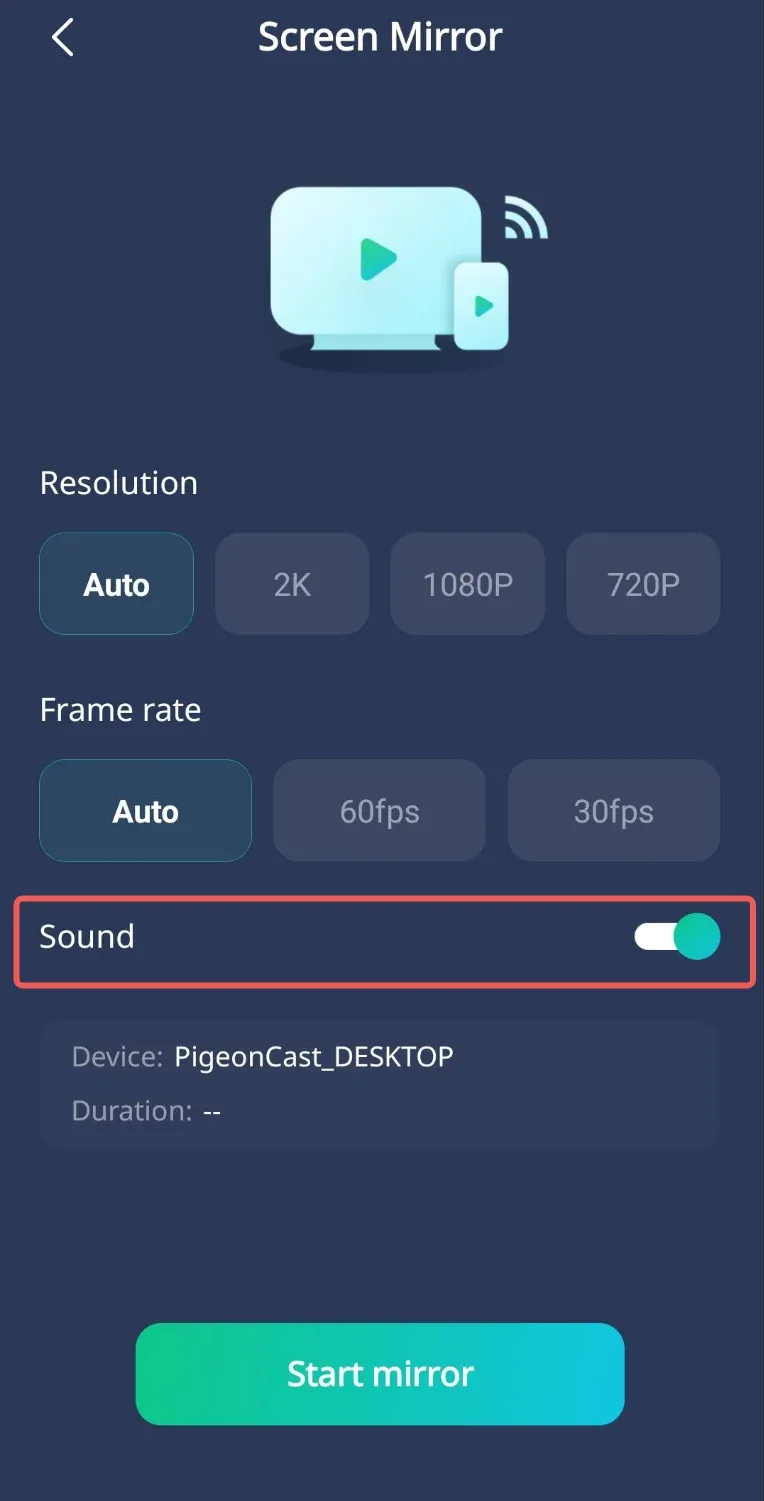
Note: if you don't want to hear sound on TV, just leave the switch OFF.
Step 4: Tap the Start mirror button, and your iPhone/iPad screen and sound will sync to your Smart TV.
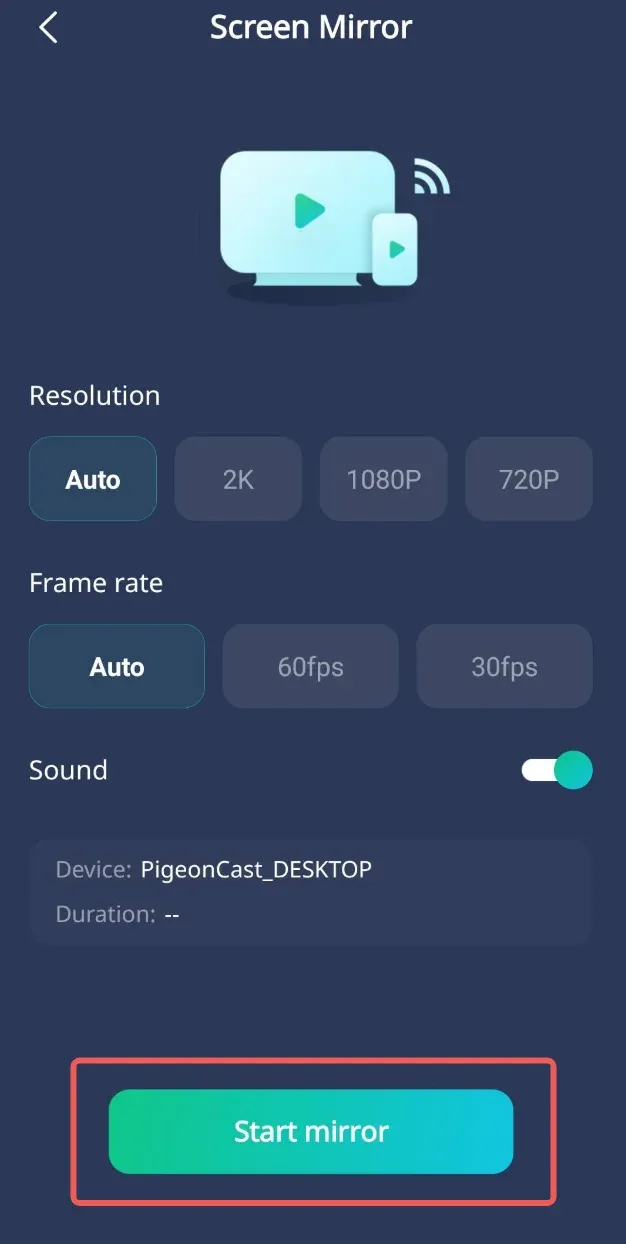
Note: do NOT turn off your phone screen while screen mirroring.
Note: PigeonCast App only transmits signals between your devices, we will NOT collect any private data.