Screen Mirroring Windows PC to TV with AirPlay/Google Cast
This guide walks through how to mirror your screen from Windows PC to TV that supports AirPlay/Google Cast protocol.
Step-by-Step Guide
Download and install PigeonCast App on your Windows as sender, you can choose either method to install
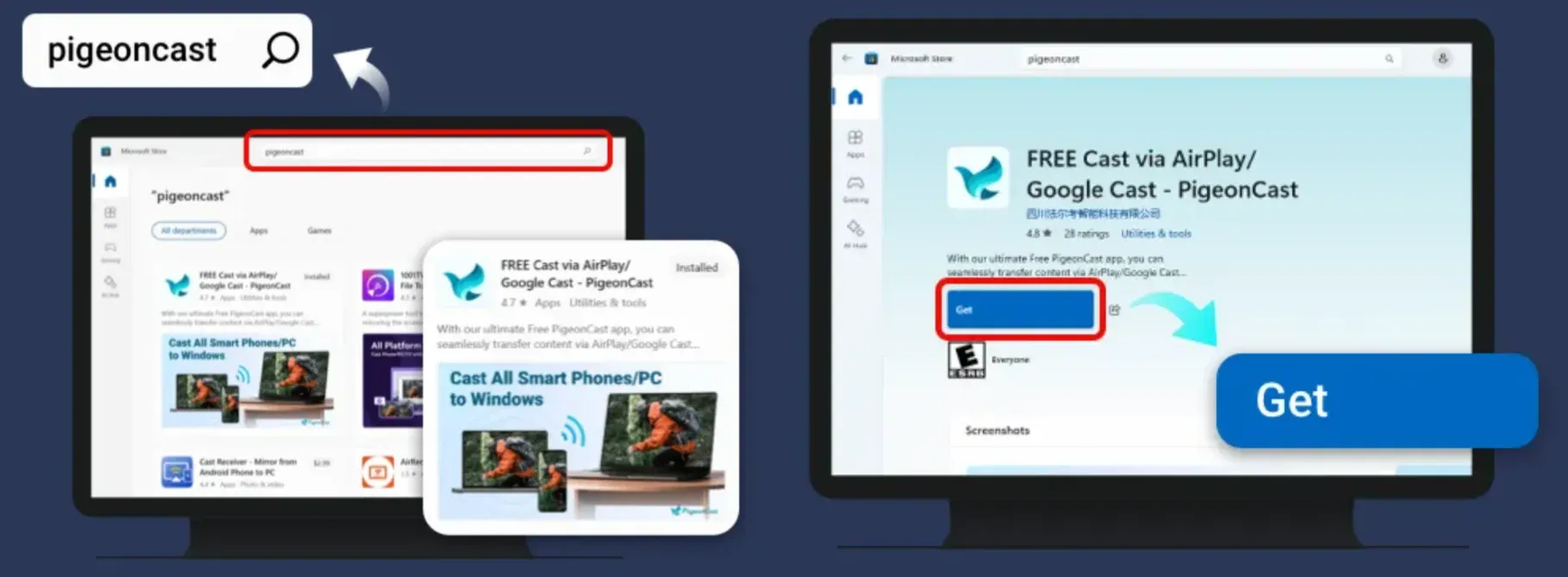
Method 1: Search the term PigeonCast on Microsoft Store and click the Get button.
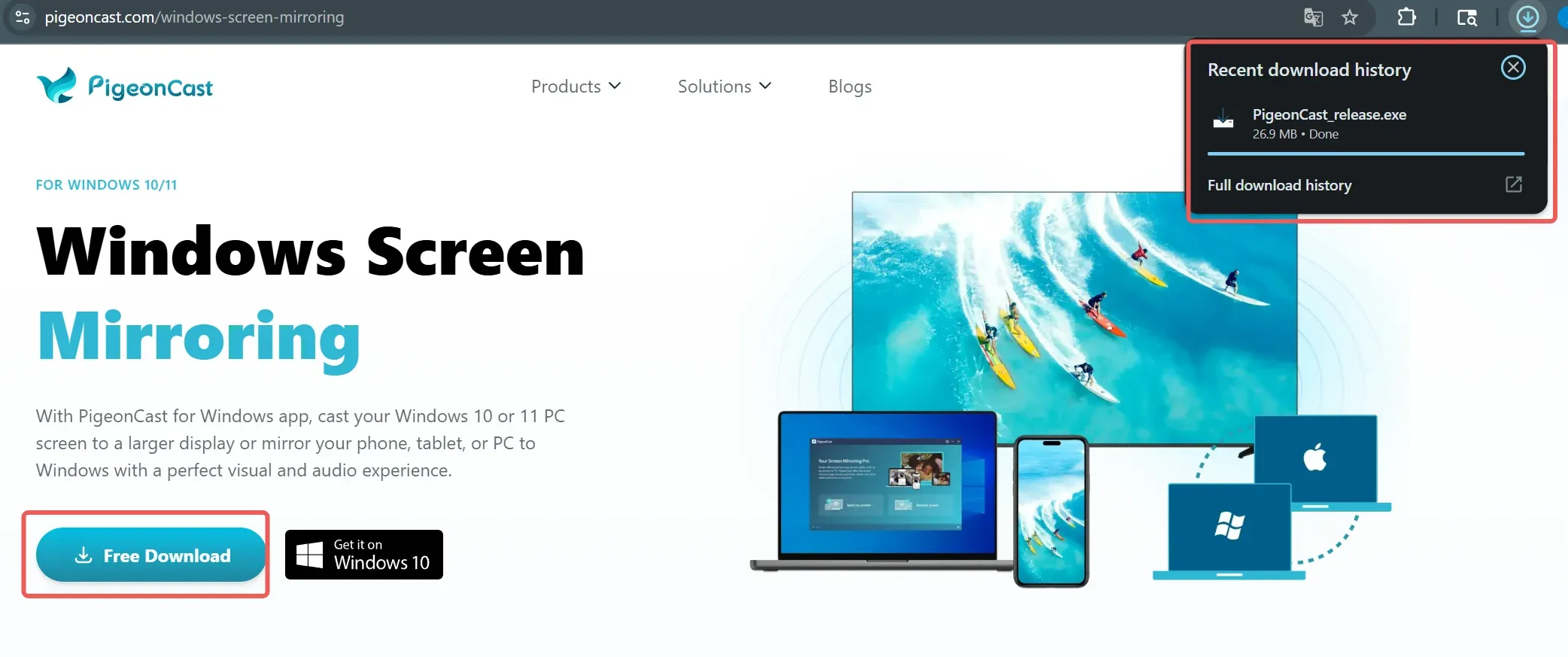
Method 2: Download the PigeonCast Installation Package directly, run the .exe file and follow the setup guide.
Turn on your TV that supports AirPlay/Google TV
Note: only a part of LG/Samsung/TCL/Sony TV supports either AirPlay or Google Cast.
Make sure your Windows PC and your TV are connected to the same Wi-Fi network, open PigeonCast App on your Windows PC
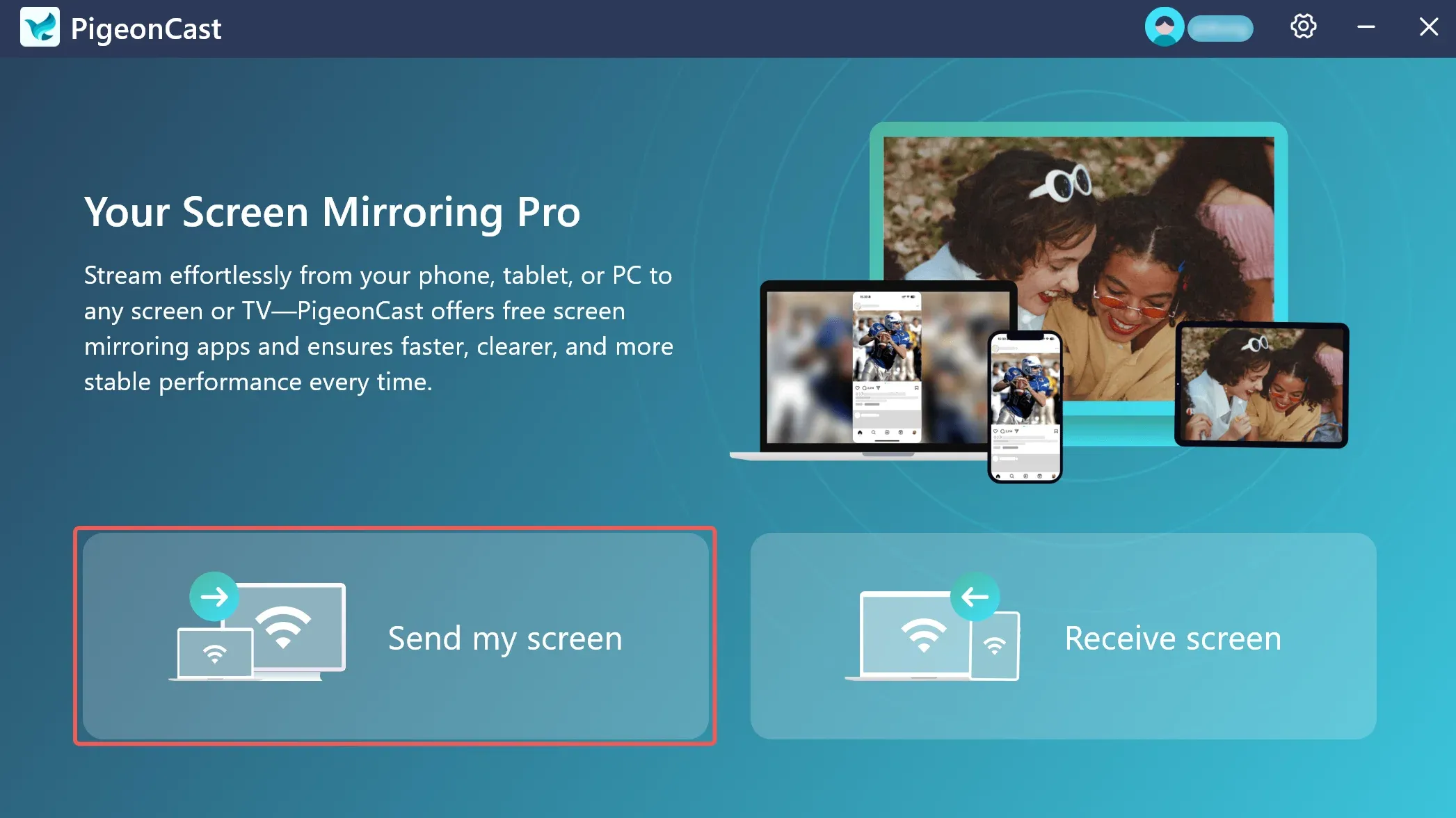
Click the Send my screen on your Windows PigeonCast App screen.
Search for available devices and connect
Find and select the TV's name on detected devices list, and the connection will be established.
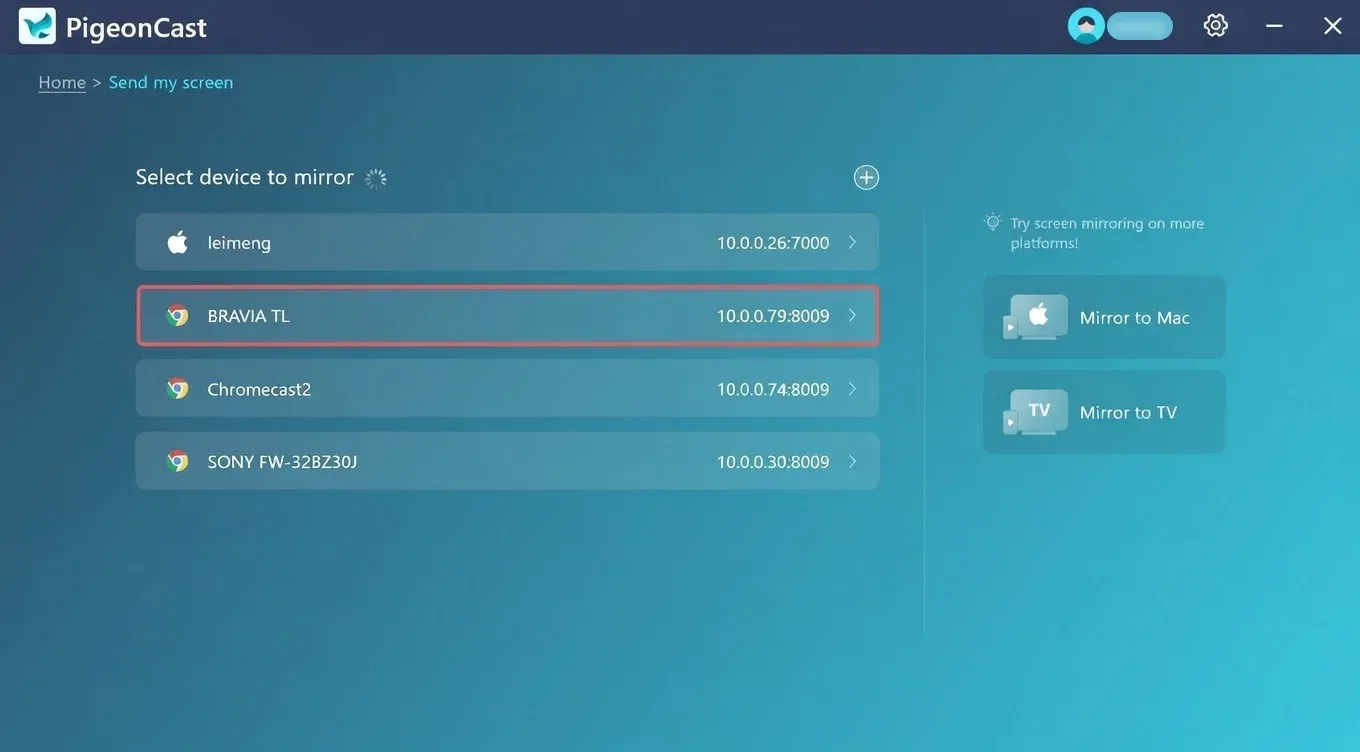
Note: Example here is a Sony TV named
BRAVIA TL, connected through Google Cast protocol
Start screen mirroring
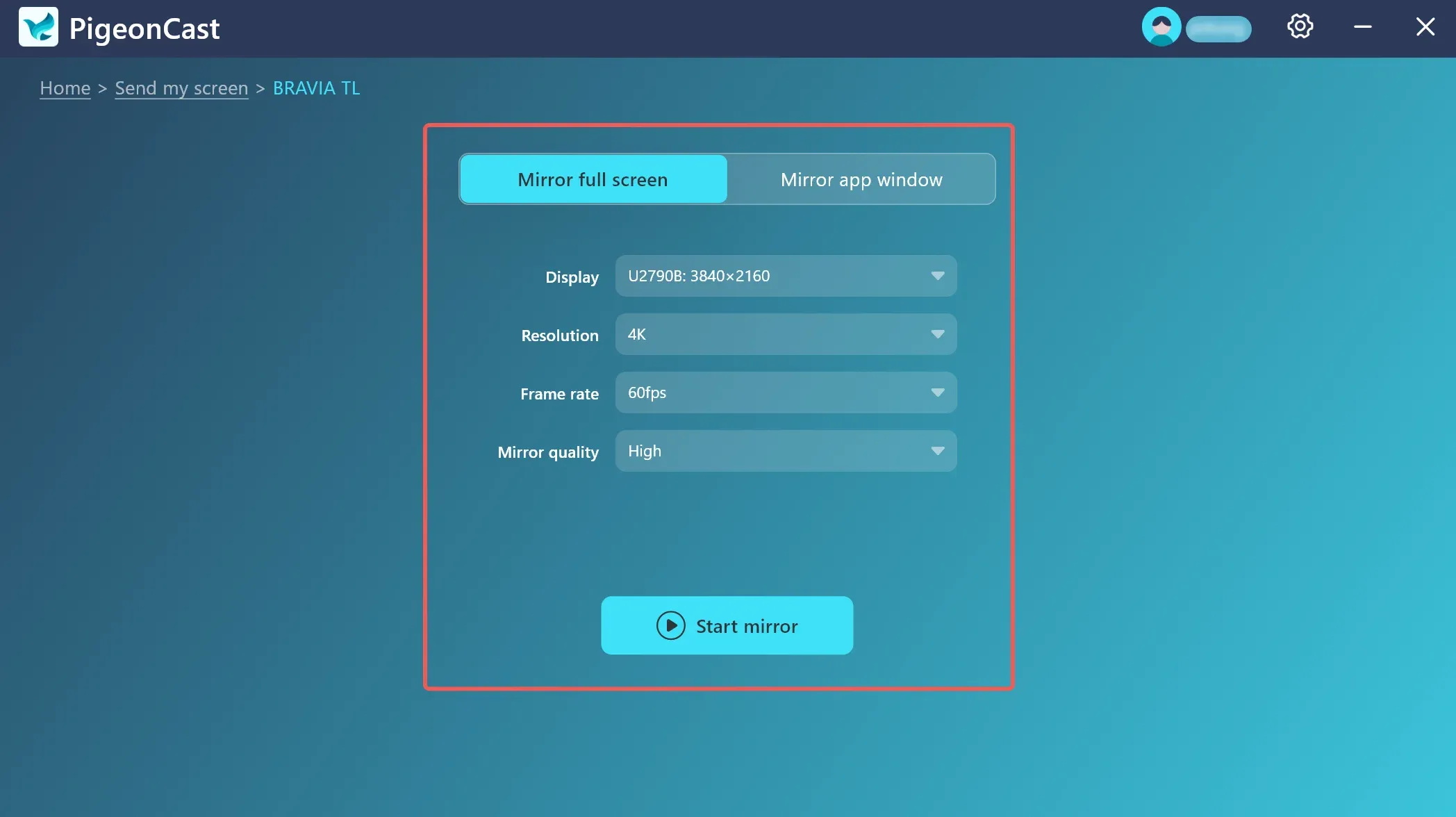
As default, it will be Mirror full screen mode, and you can choose screen mirroring parameters as you wish, including:
Step 1: Display: Which screen you want your TV to display.
Step 2: Resolution: You can choose from 4K, 2K, 1080p, 720p.
Step 3: Frame Rate: You can choose between 60FPS and 30FPS.
Step 4: Mirror quality: You can choose from High, Medium, Low.
Note: screen mirroring fluency depends on stability of your network and performance of your device.
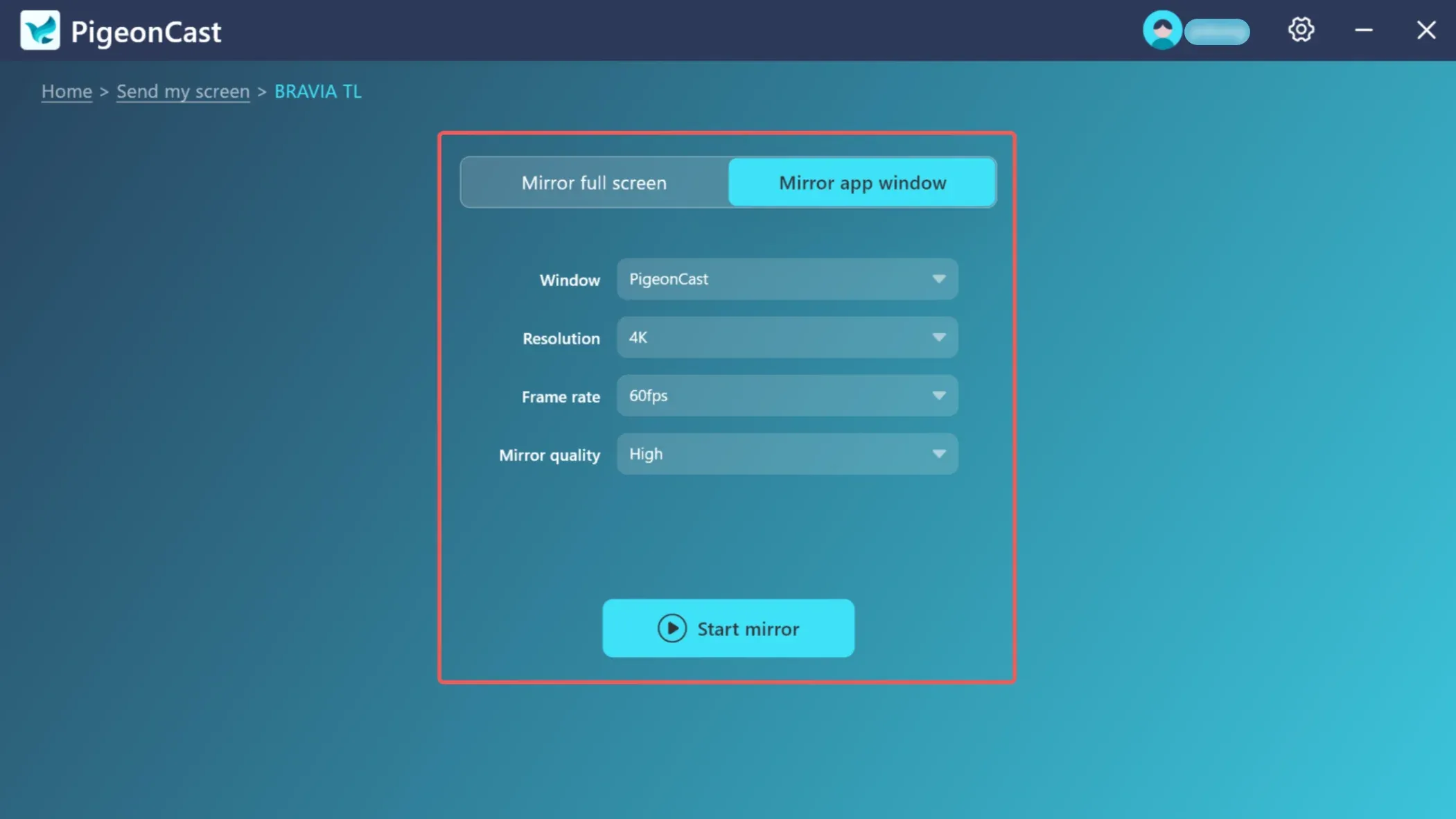
When switching to Mirror app window mode, only one window will be screen mirror to your TV, and you can also choose screen mirroring parameters as you wish, including:
Step 1: Resolution: You can choose from 4K, 2K, 1080p, 720p.
Step 2: Frame Rate: You can choose between 60FPS and 30FPS.
Step 3: Mirror quality: You can choose from High, Medium, Low.
Note: screen mirroring fluency depends on stability of your network and performance of your device.
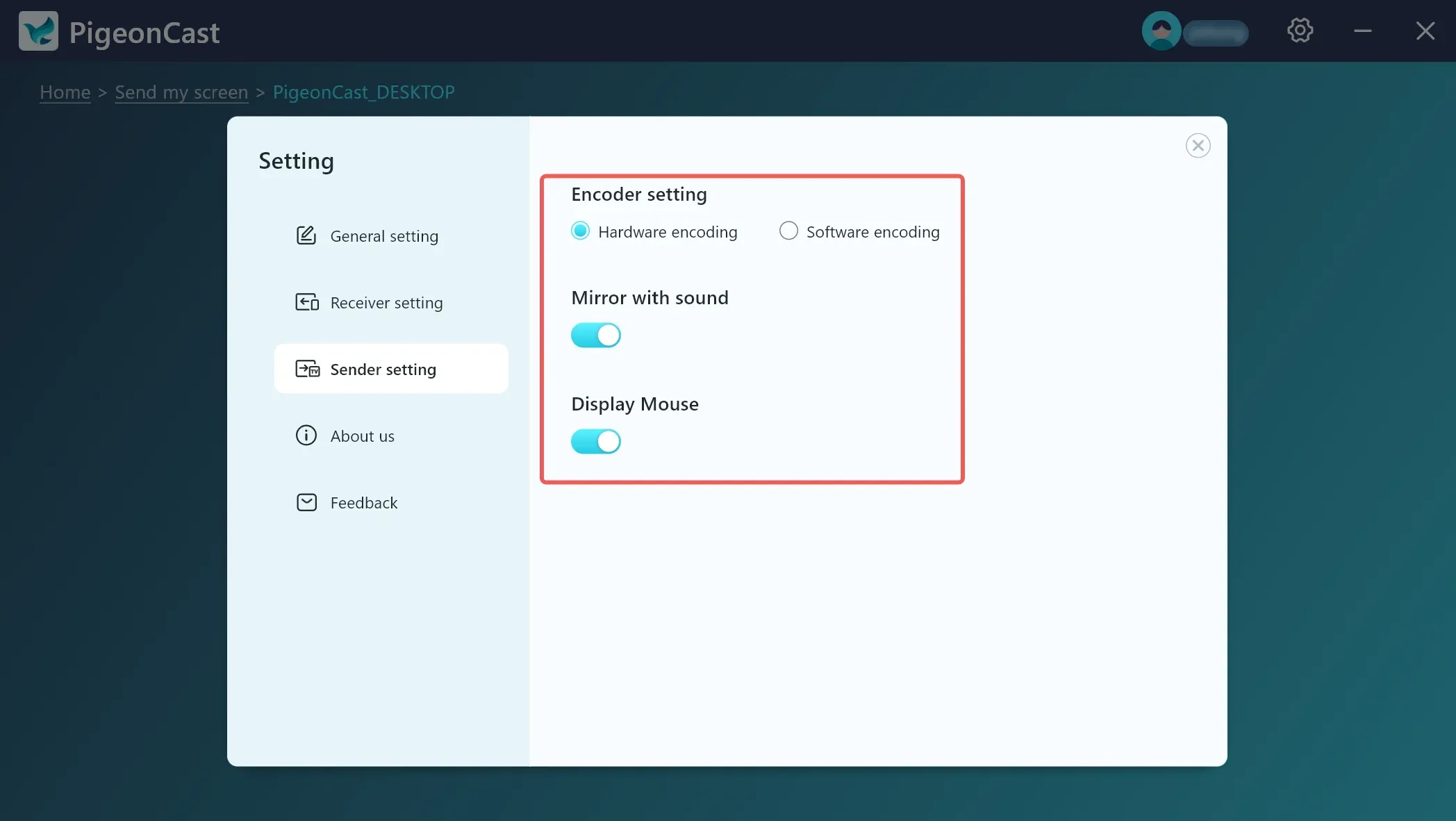
You can modify the corresponding sender settings according to your requirements
Step 1: Encoder setting: you can choose between Hardware encoding and Software encoding.
Note: different device has different performance, choose the one that suit your device better.
Step 2: Mirror with sound: if you want to turn off the sound, just keep the switch OFF.
Step 3: Display Mouse: if you don't want to display mouse cursor on receiver, just keep the switch OFF.