How to Transfer Files Between an Android Phone and Windows
This guide explains how to use PigeonCast to transfer files between an Android phone and a Windows PC over the same Wi-Fi network.
Step-by-Step Guide
Download and Install PigeonCast on Your Android Phone
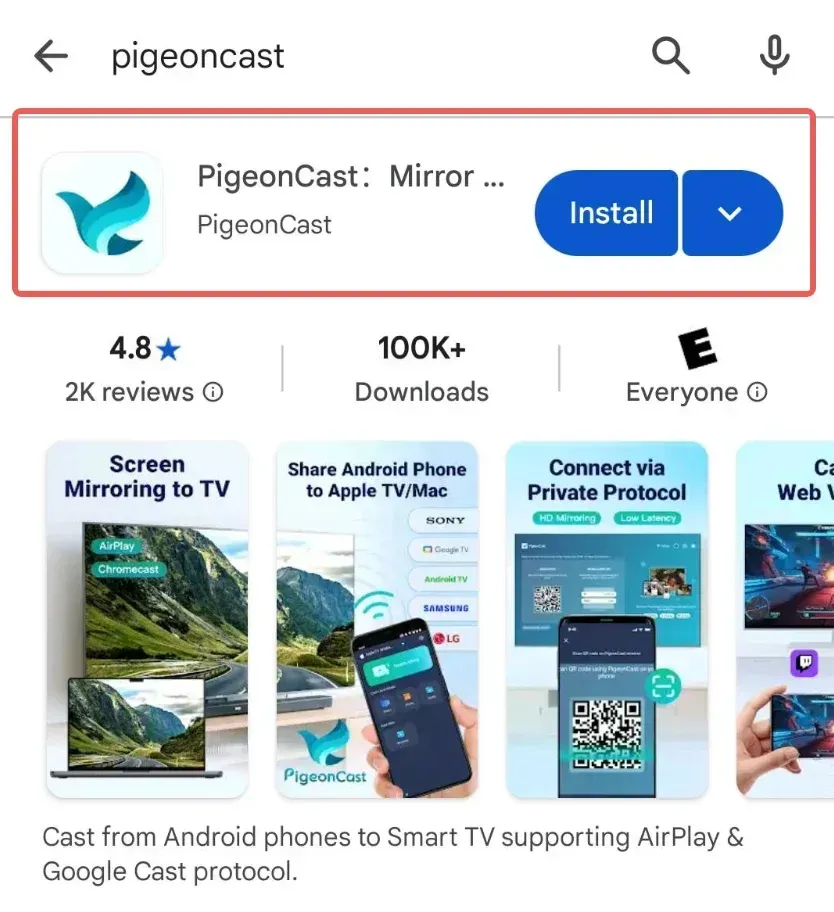
Install the PigeonCast app from the Google Play Store. The Android phone will initially be used as the sending device.
Download and Install PigeonCast on Your Windows PC
The Windows PC will initially be used as the receiving device. Choose one of the following installation methods:
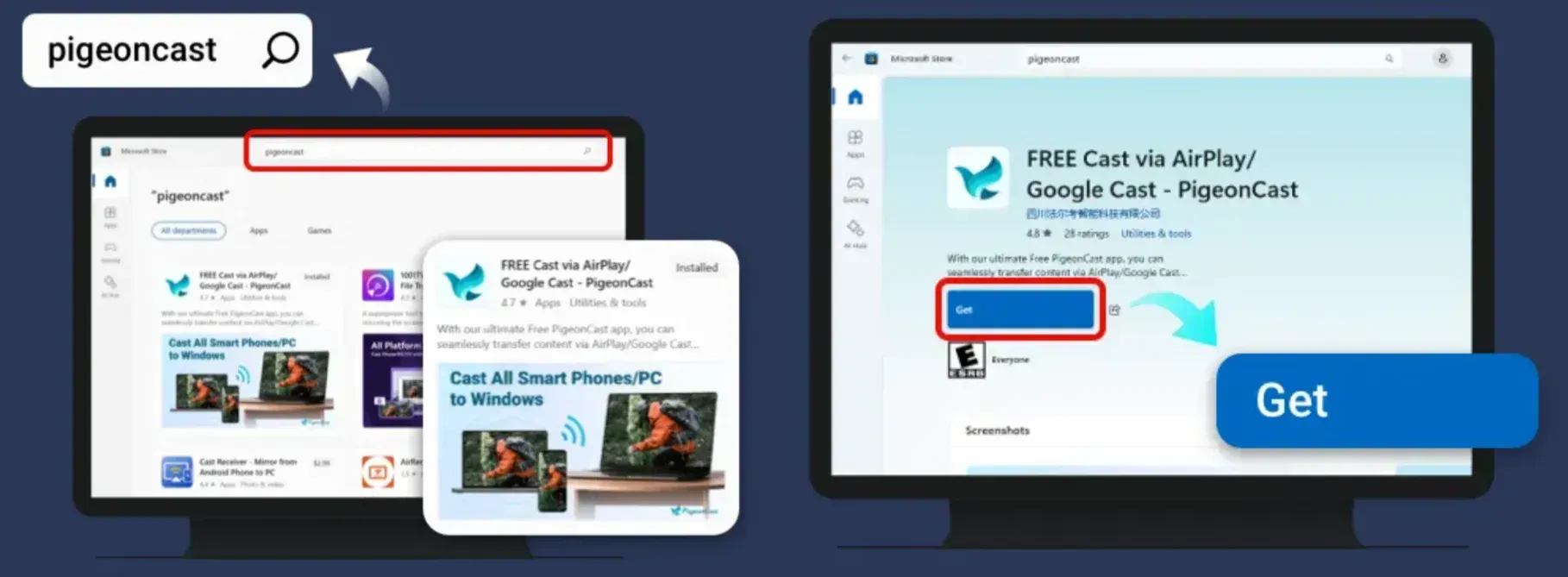
Method 1: Install from the Microsoft Store
Search for PigeonCast in the Microsoft Store, and then click Get.
Install PigeonCast with the Windows installation package
Method 2: Install with the Windows Installation Package
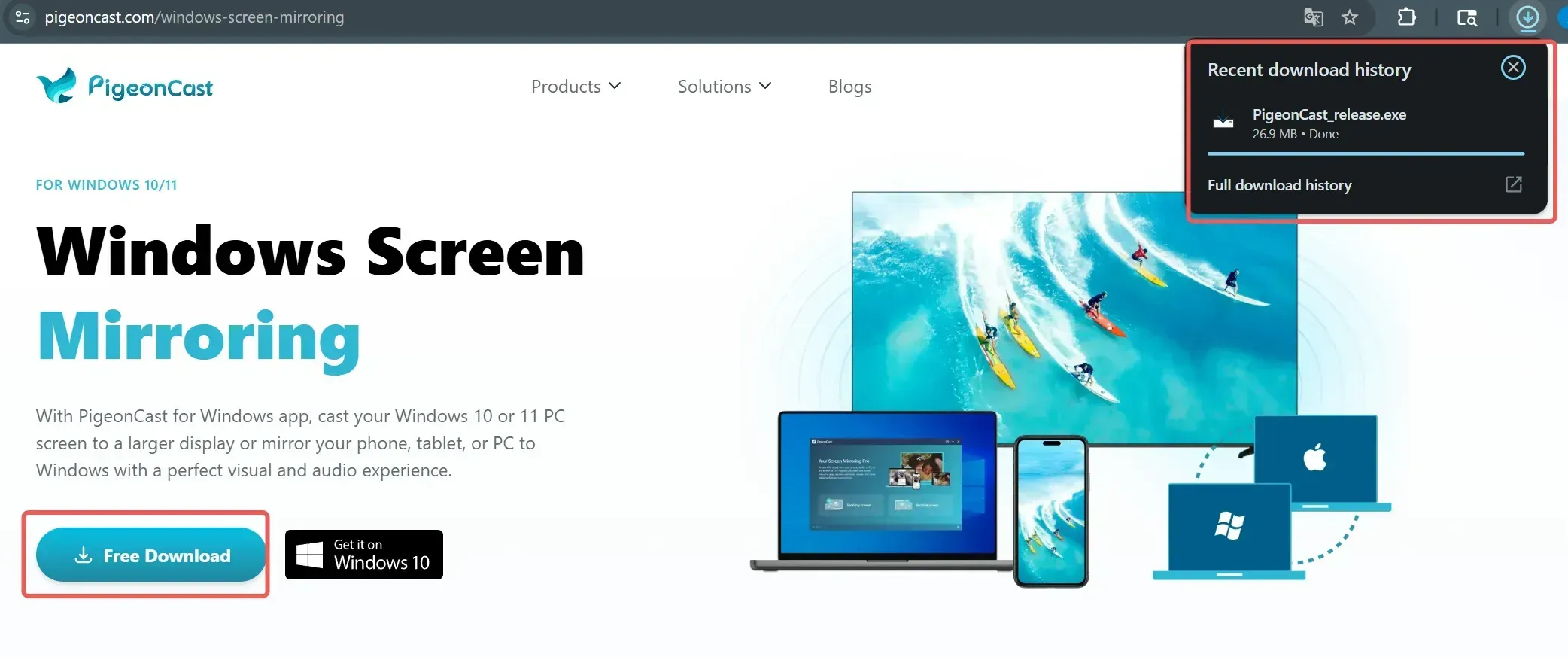
Download the PigeonCast installation package, run the .exe file, and follow the setup guide.
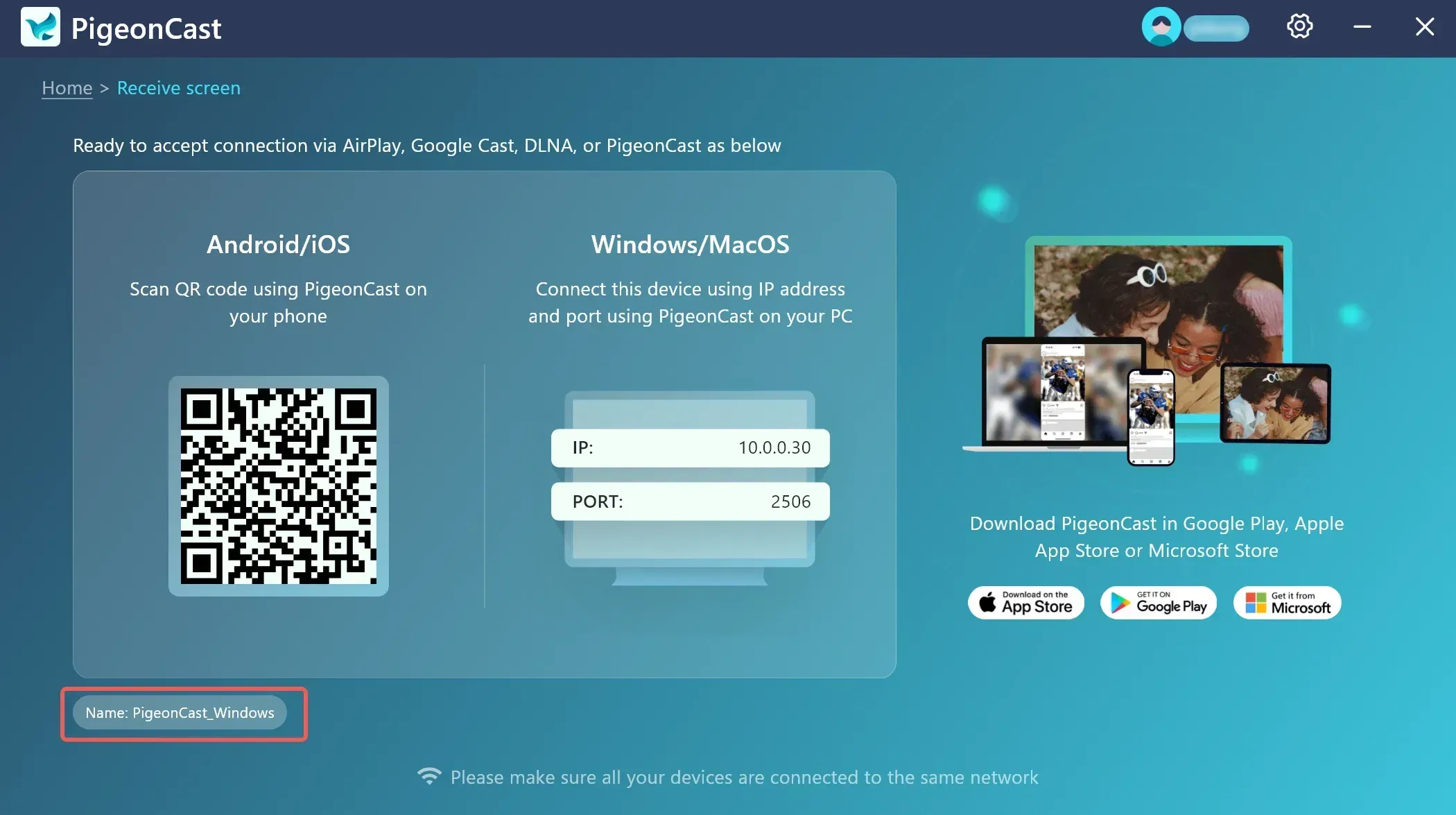
Check the Network and Windows Device Name
Make sure your Android phone and Windows PC are connected to the same Wi-Fi network, and then open PigeonCast on both devices.
- On the Windows PC, open the PigeonCast Receive screen.
- Note the receiver name displayed for the Windows PC.
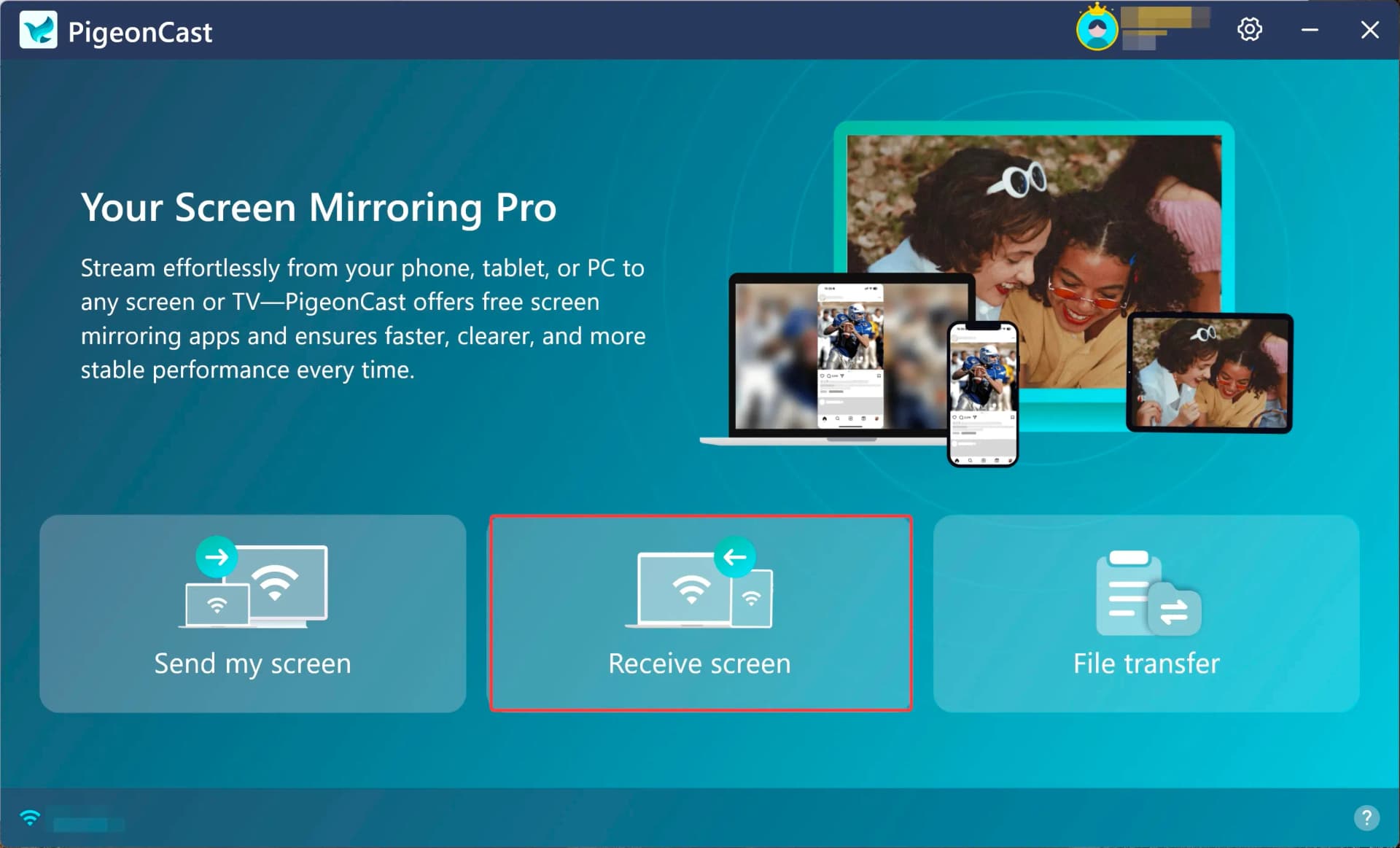
View the Windows receiver name
View the Windows receiver name.
Connect Your Android Phone to Windows
Choose one of the following connection methods:
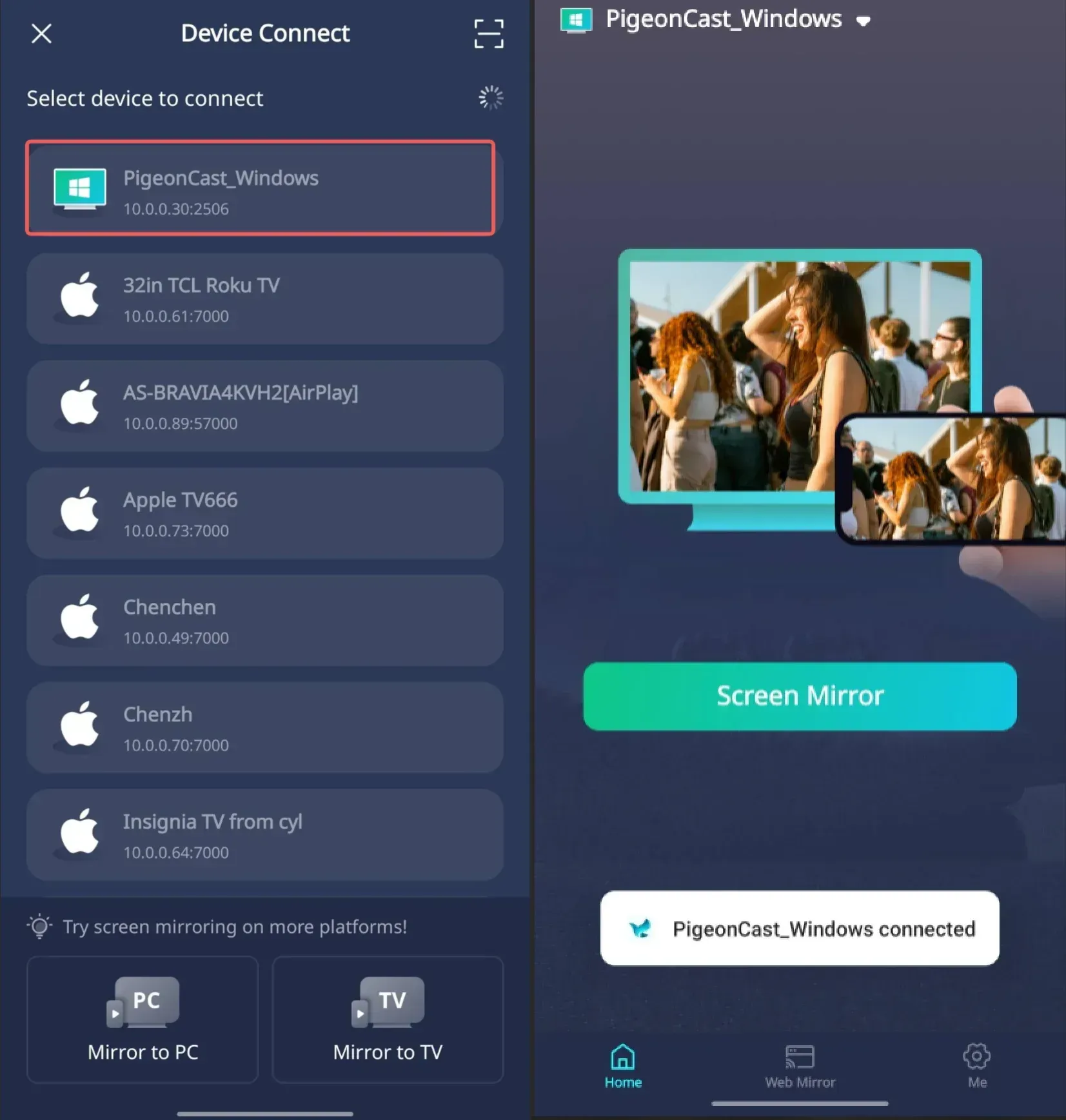
Method 1: Search for the Windows PC
On the Android phone, find and select the Windows PC's receiver name. The connection will be established automatically.
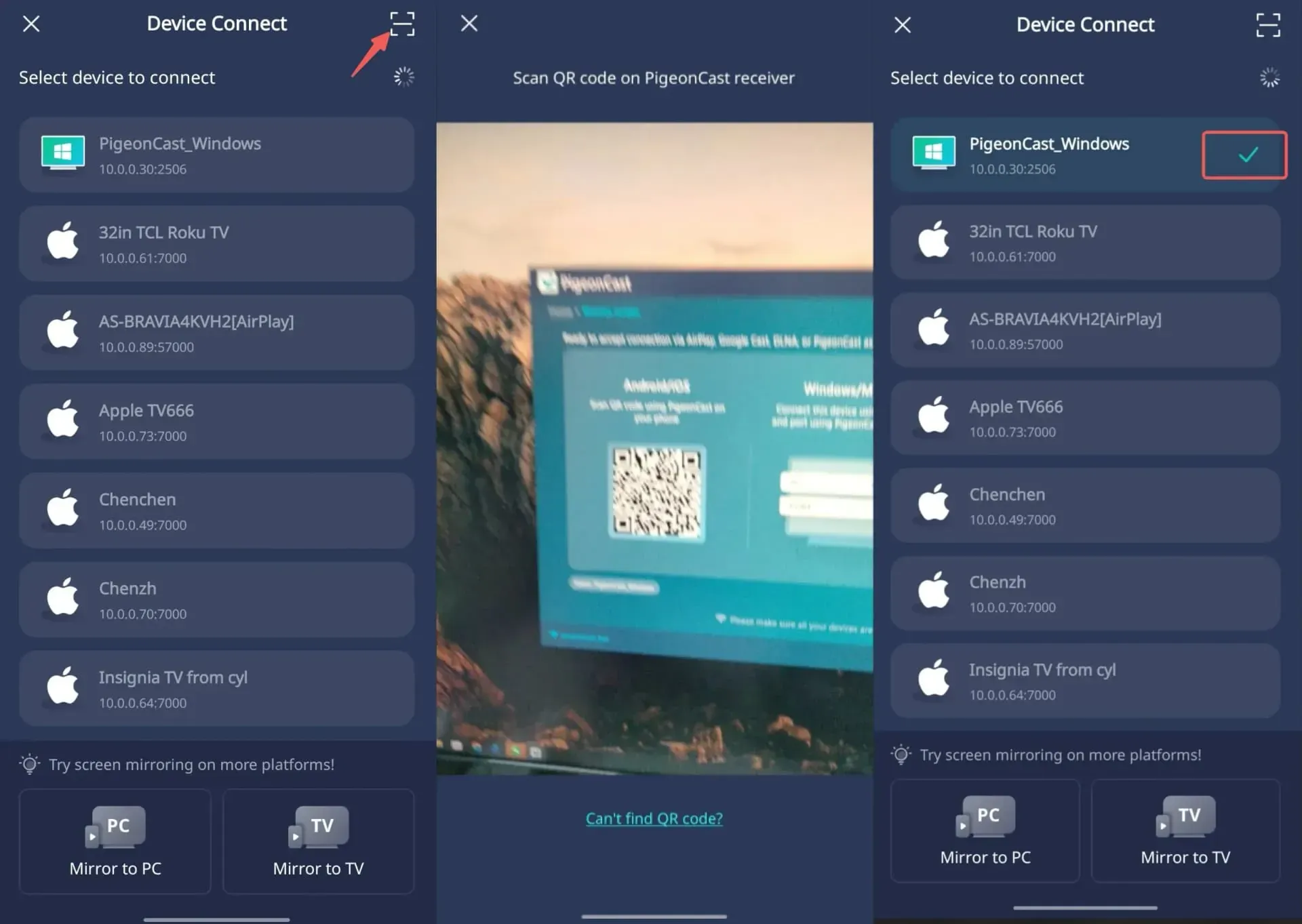
Scan the Windows QR code with an Android phone
Method 2: Scan the QR Code
On the Android phone, tap the scan button and scan the QR code displayed on the Windows PC.
Transfer Files Between Android and Windows
After the devices are connected, tap File Transfer on the Android phone.
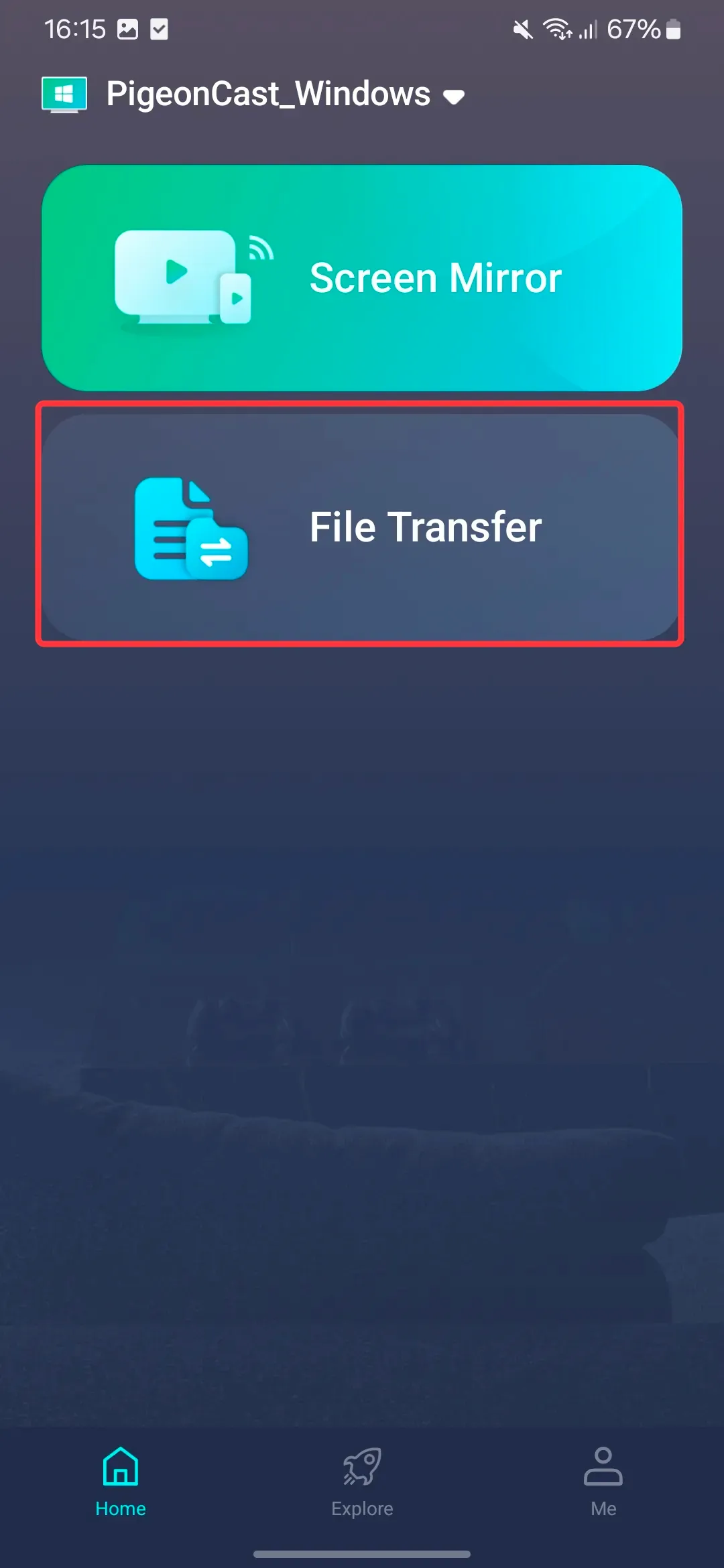
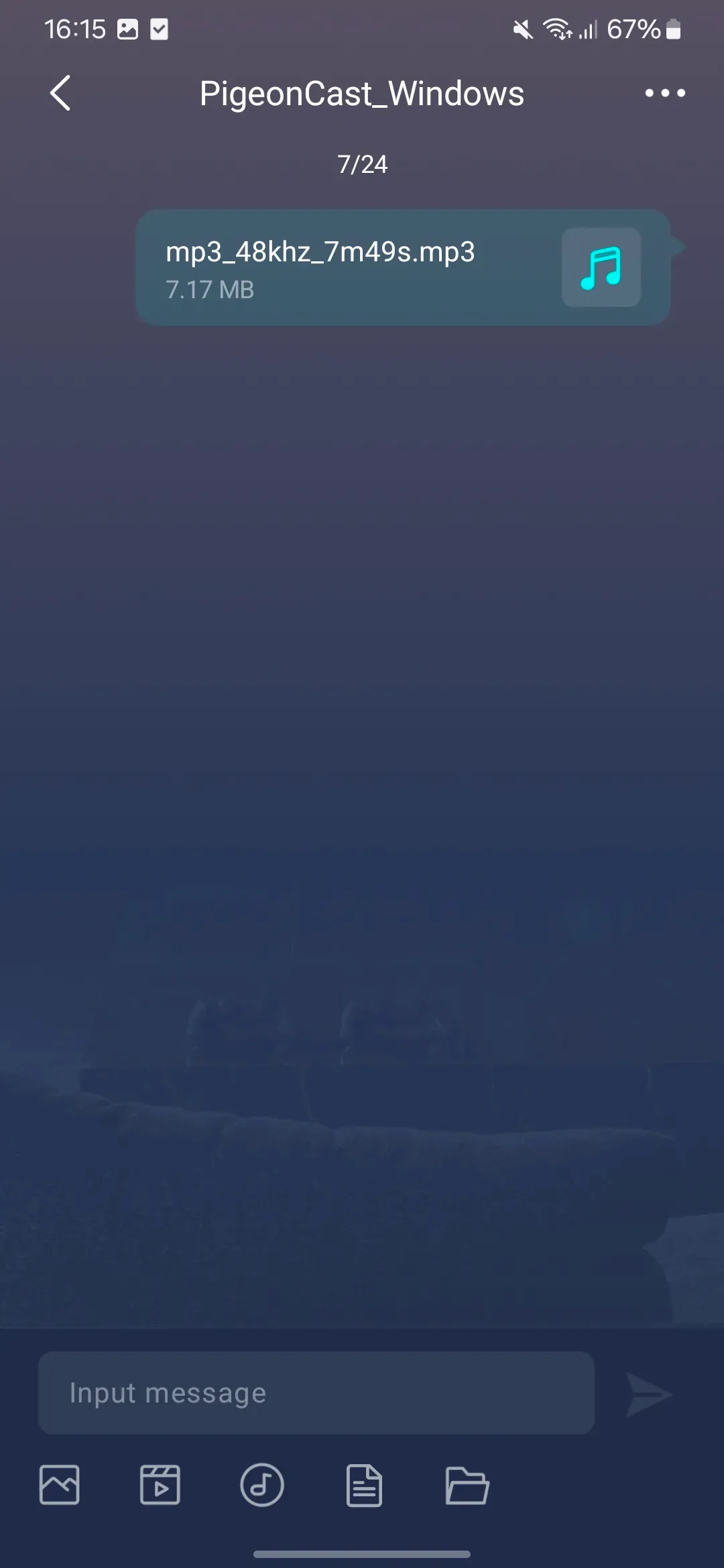
Send files from Android to Windows
Use the input box at the bottom to send a message, or select a file type to choose and send files.
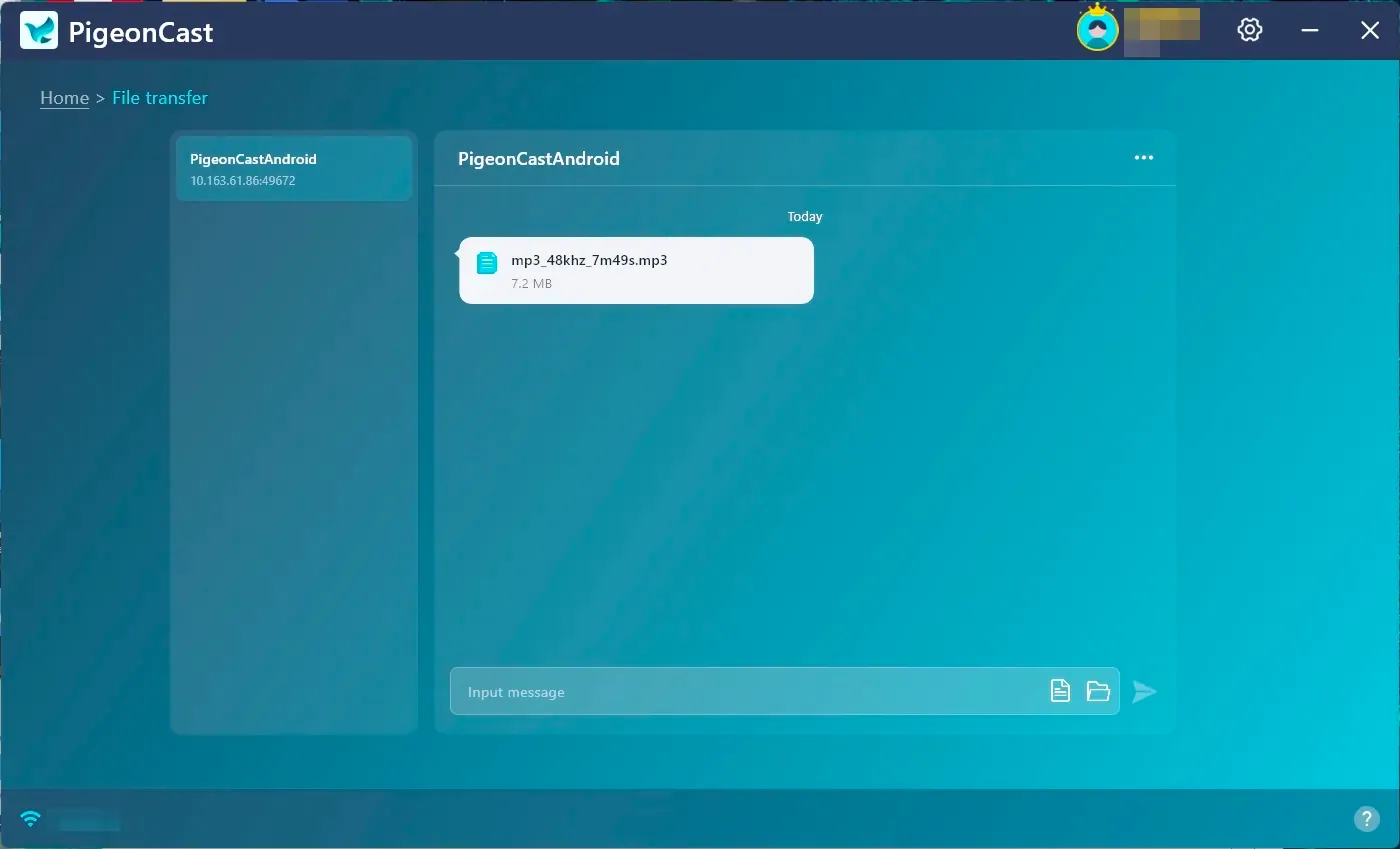
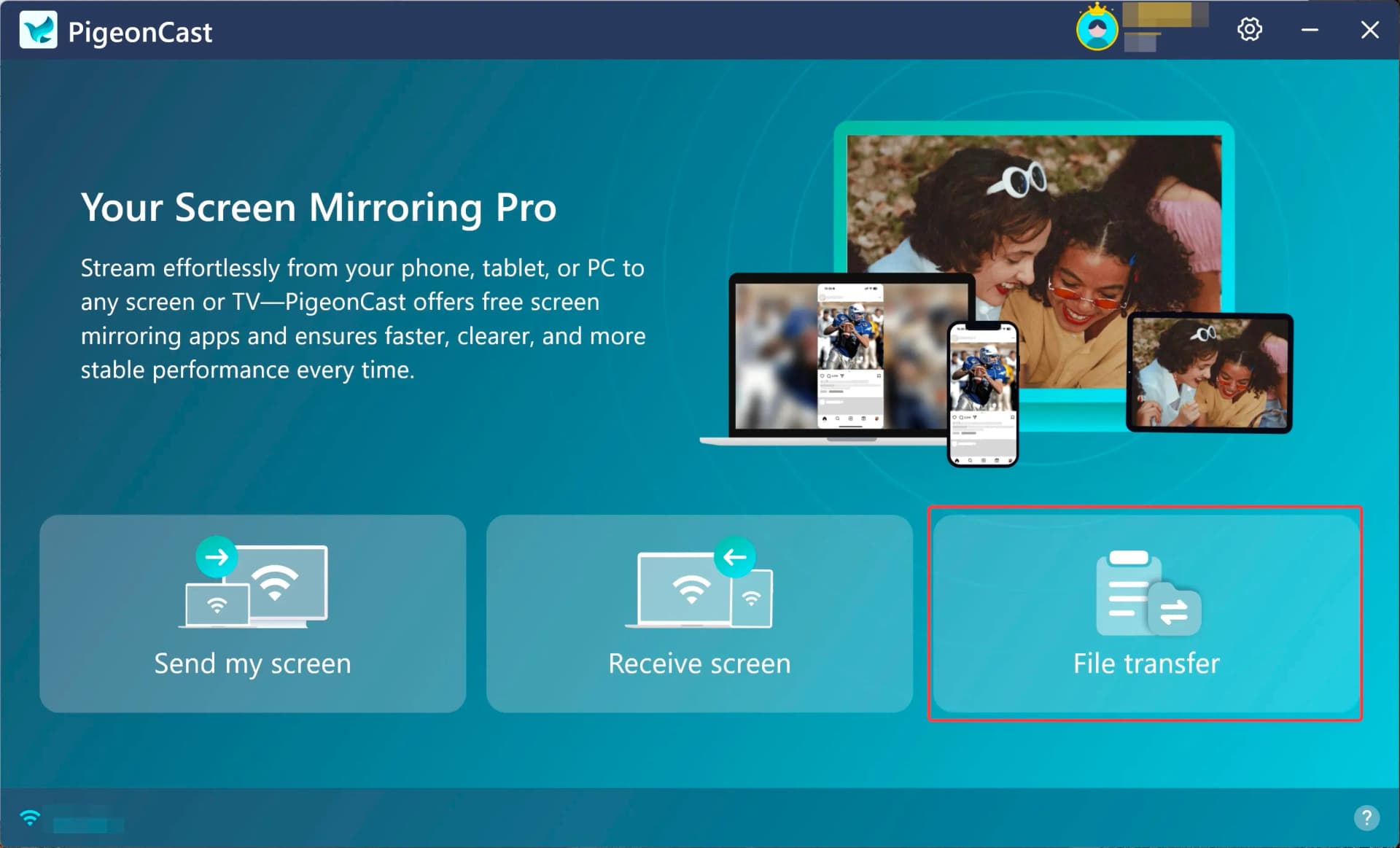
Open file transfer on Windows
On the Windows PC, open File Transfer to view the received files. You can also select files on Windows and send them back to the connected Android phone.
View transferred files on Windows
View transferred files on Windows.