How to Transfer Files from an Android Phone to an Android TV
This guide explains how to use PigeonCast to transfer images, videos, audio, files, and folders from an Android phone to an Android TV over the same network.
Step-by-Step Guide
Install PigeonCast on Your Android Phone
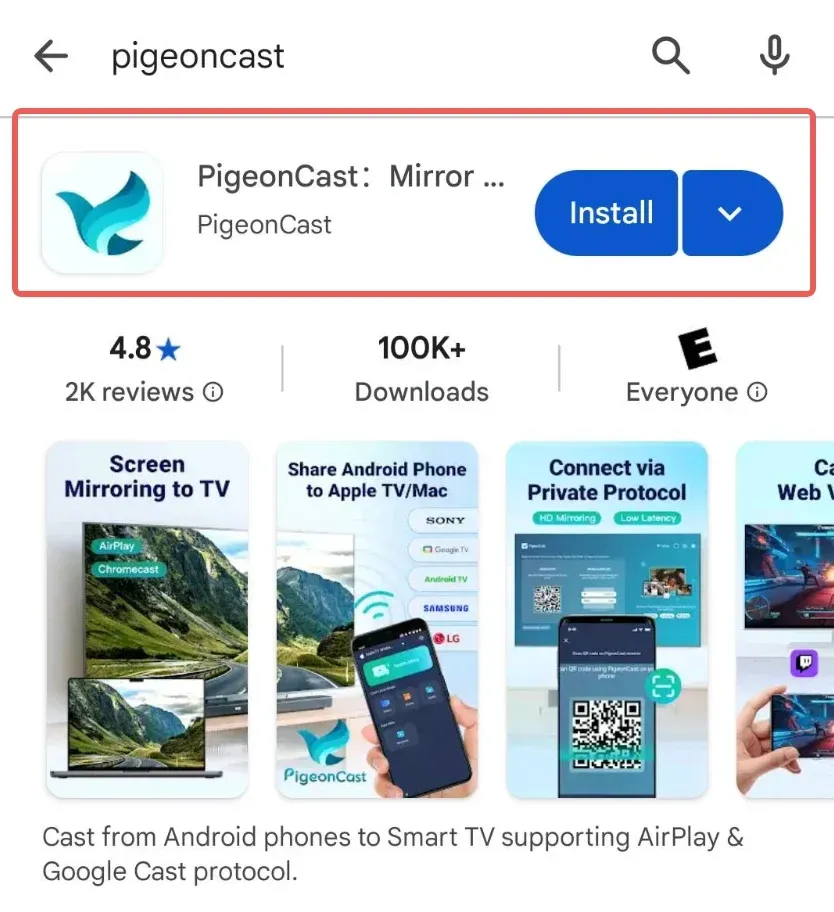
Install the PigeonCast app from the Google Play Store on your Android phone. This phone will be the sending device.
Install PigeonCast on Your Android TV
Use your Android TV as the receiving device. Choose either installation method:
Method 1: Install from Google Play
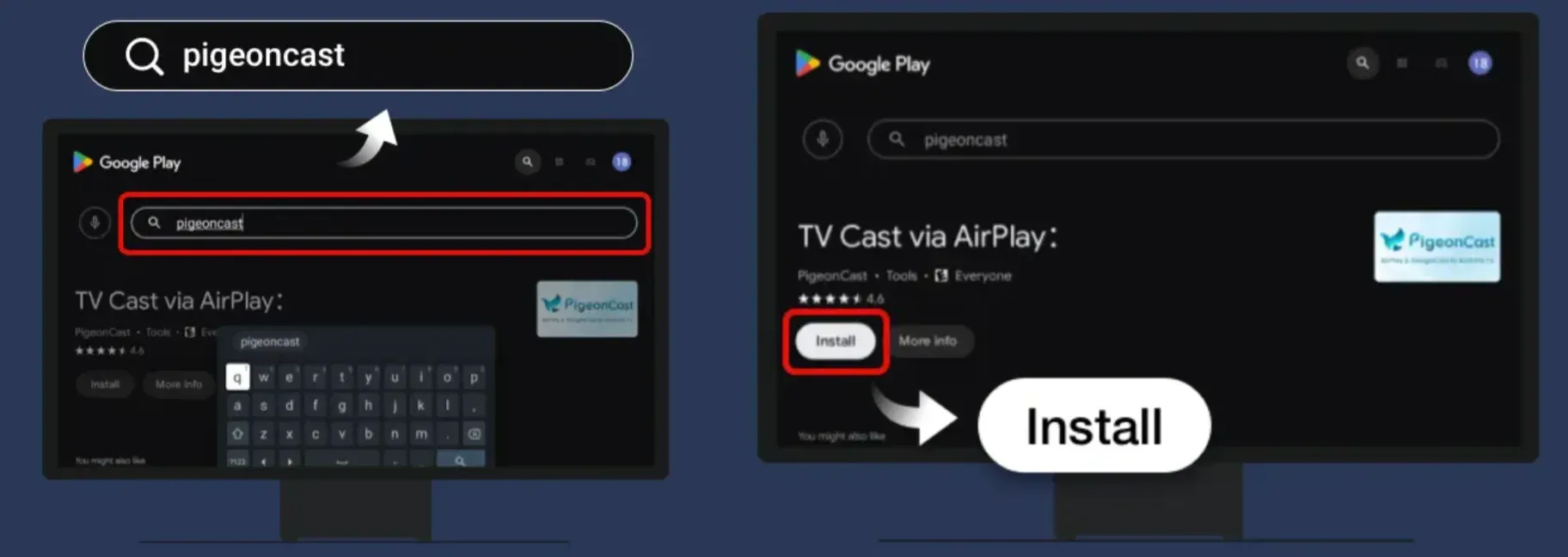
Search for PigeonCast in the Google Play Store on your Android TV, then install the app.
Method 2: Install with an APK
Download the PigeonCast for TV APK, copy it to a USB flash drive, connect the flash drive to your TV, and install the APK.
Find the Receiver Name on Your Android TV
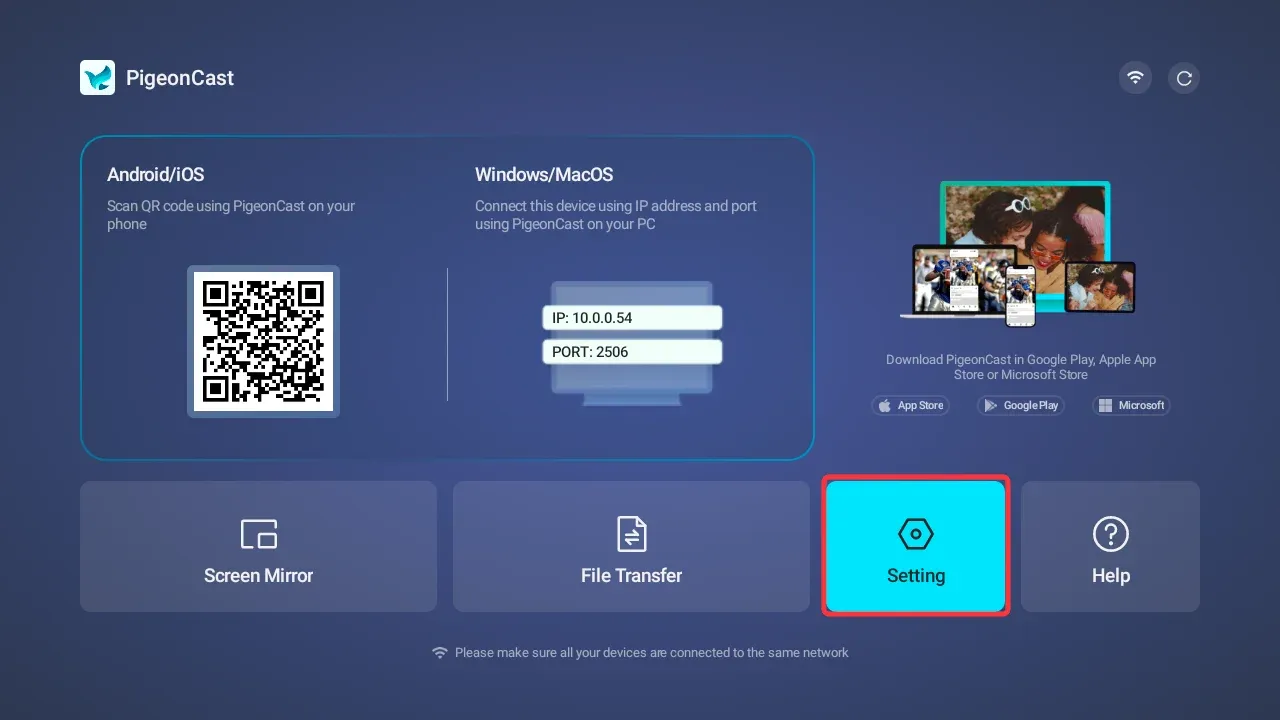
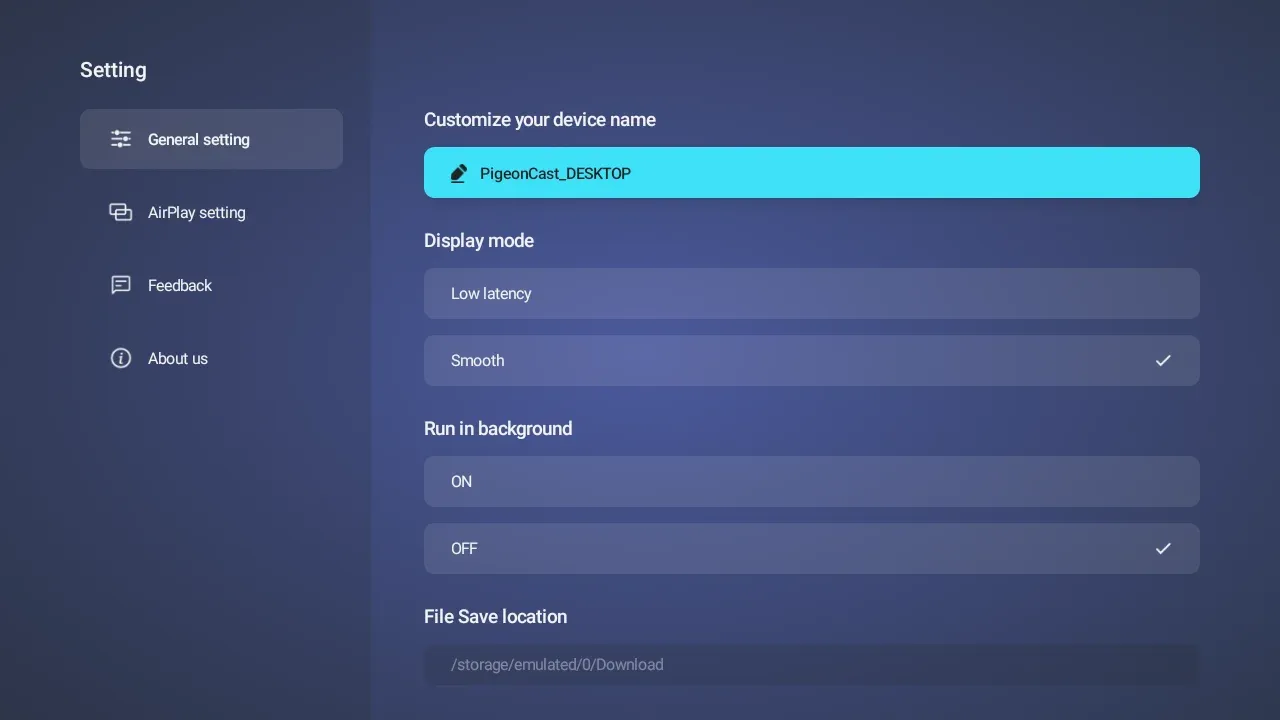
Open PigeonCast on both devices. On the Android TV, open the PigeonCast Settings page and note the receiver name. You will use this name to identify the correct TV from your phone.
Search for Your Android TV on Your Phone
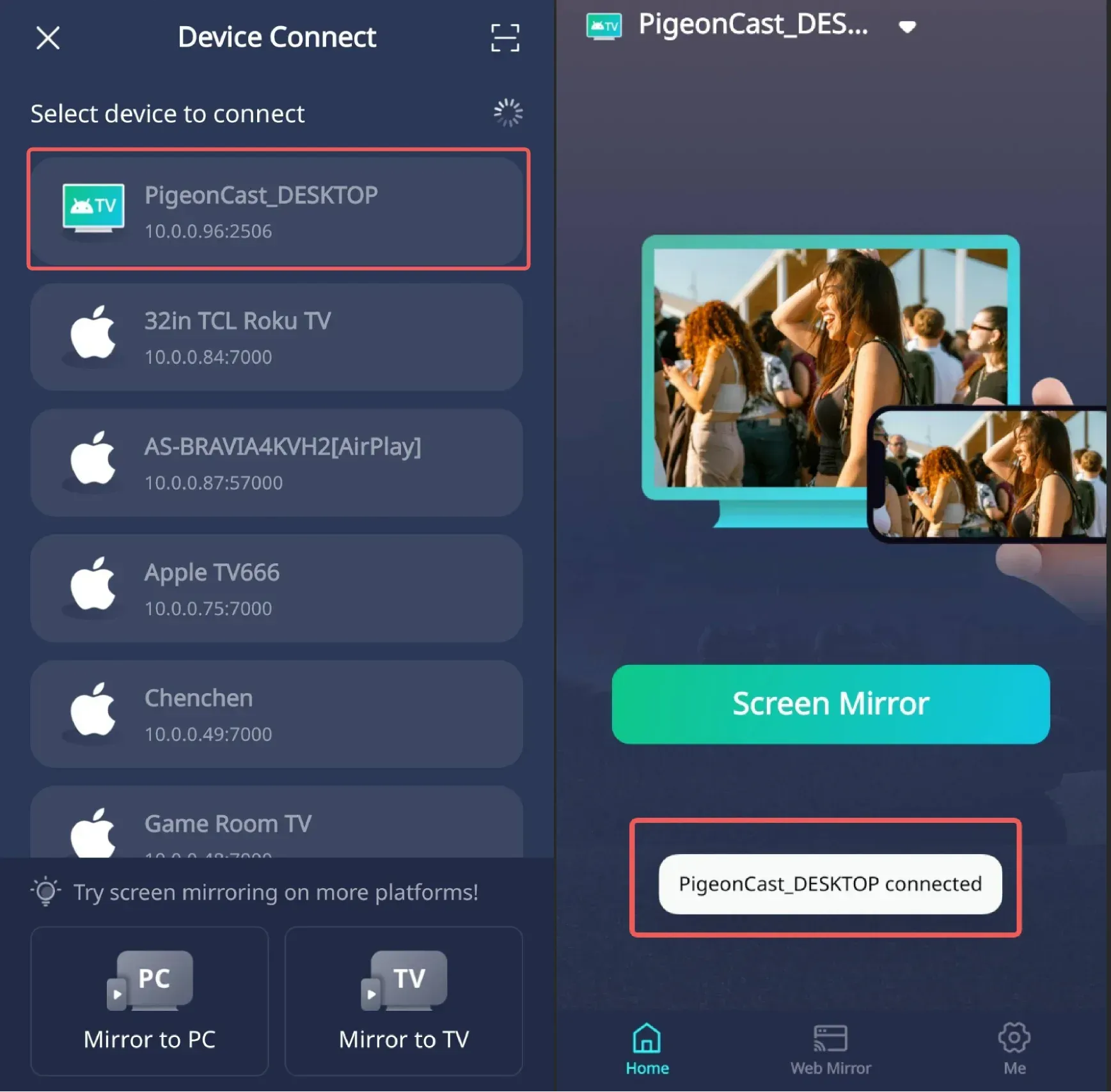
In PigeonCast on the Android phone, search for available devices on the same network. Find the receiver name shown by your Android TV.
Select and Connect to Your Android TV
Select the matching TV receiver name on your Android phone and wait for PigeonCast to establish the connection.
Connect by Scanning the QR Code
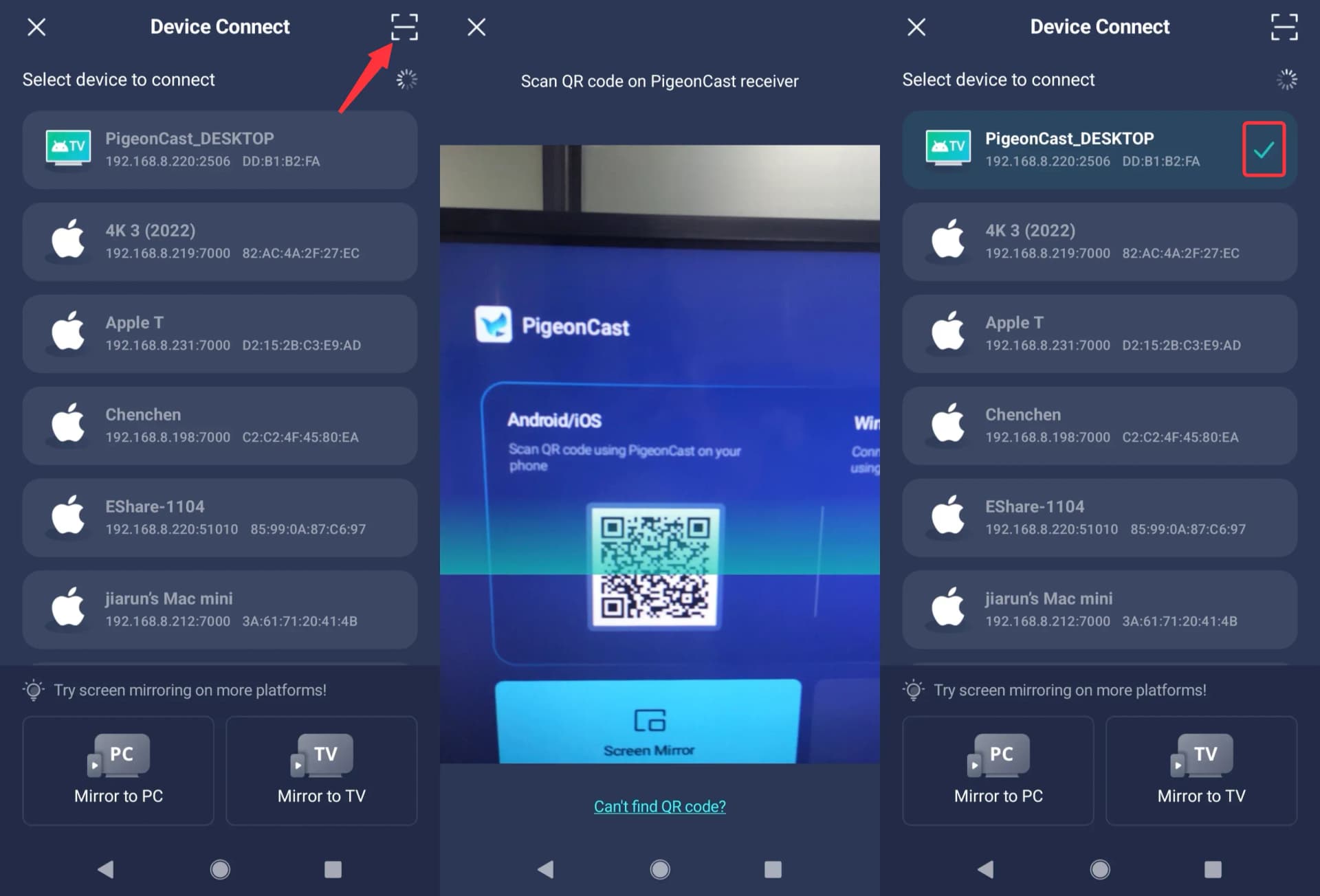
As an alternative to device discovery, tap the scan button in PigeonCast on the Android phone. Scan the QR code shown on the left side of the PigeonCast home page on the Android TV, then wait for the connection to be established.
Open File Transfer on Your Android Phone
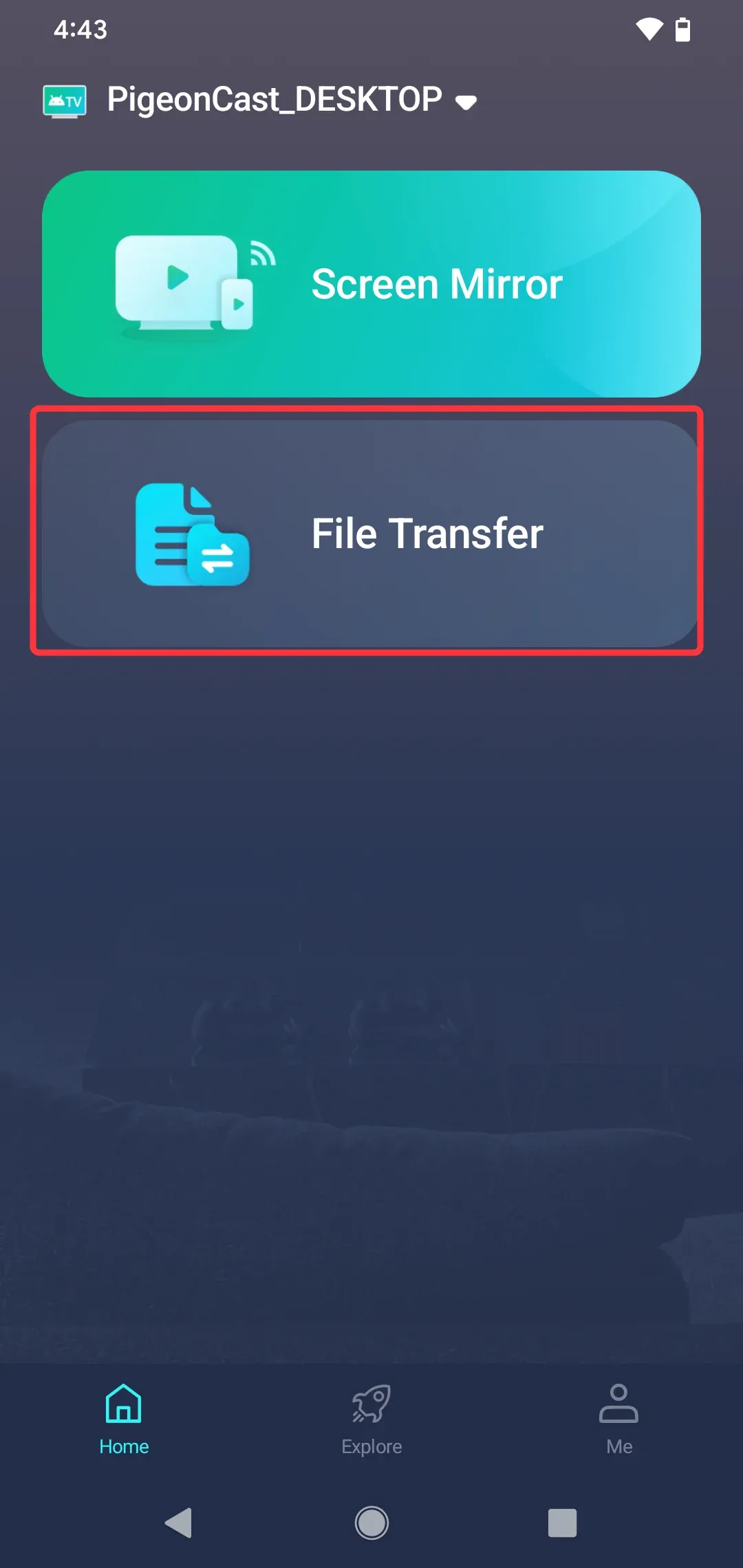
After the devices are connected, tap the file transfer button in PigeonCast on your Android phone.
Choose the Type of Content to Transfer
Select the content type from the options at the bottom of the screen. PigeonCast supports:
- Images
- Videos
- Audio
- Files
- Folders
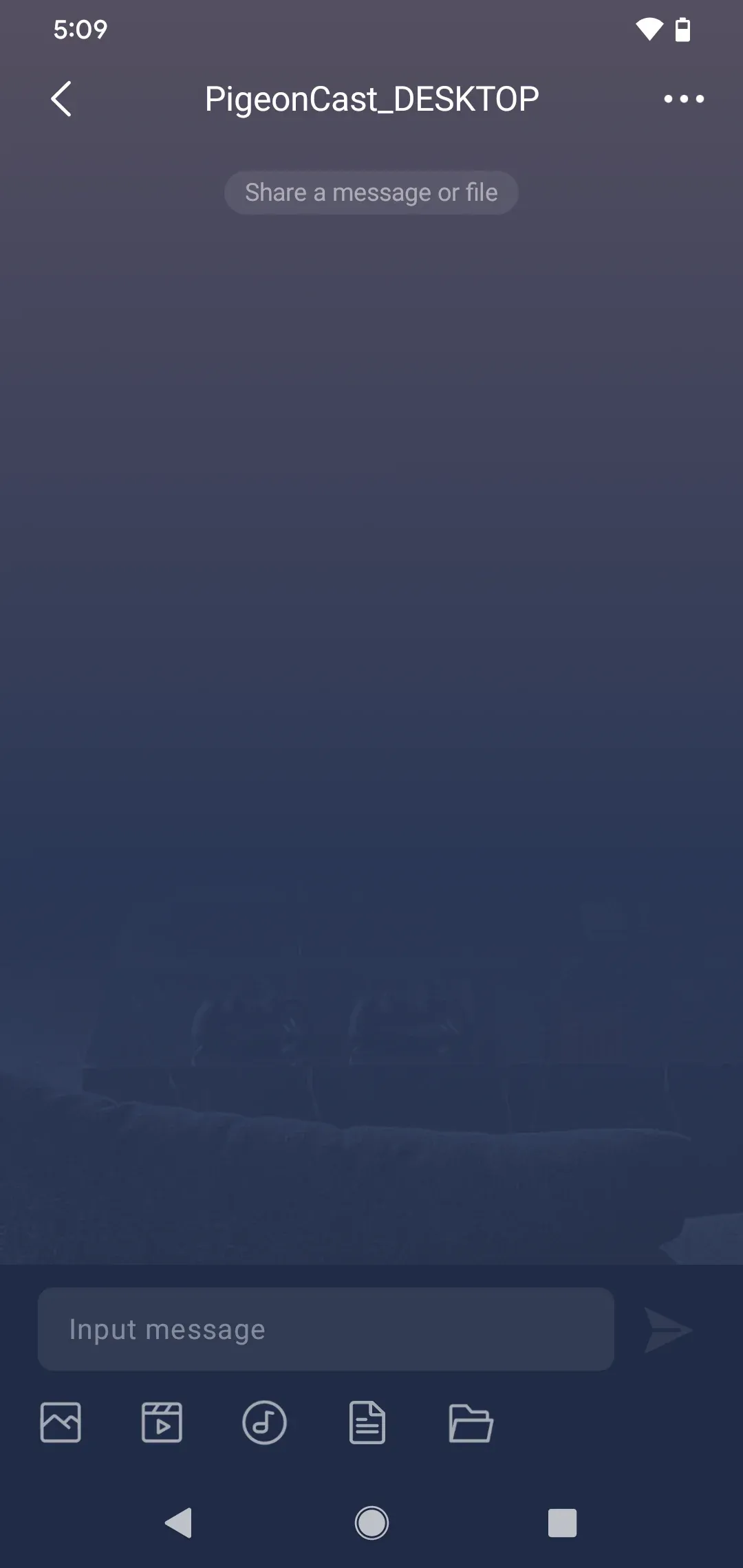
Select the Files You Want to Transfer
Browse the selected content type and choose the files or folders you want to transfer from the Android phone to the Android TV.
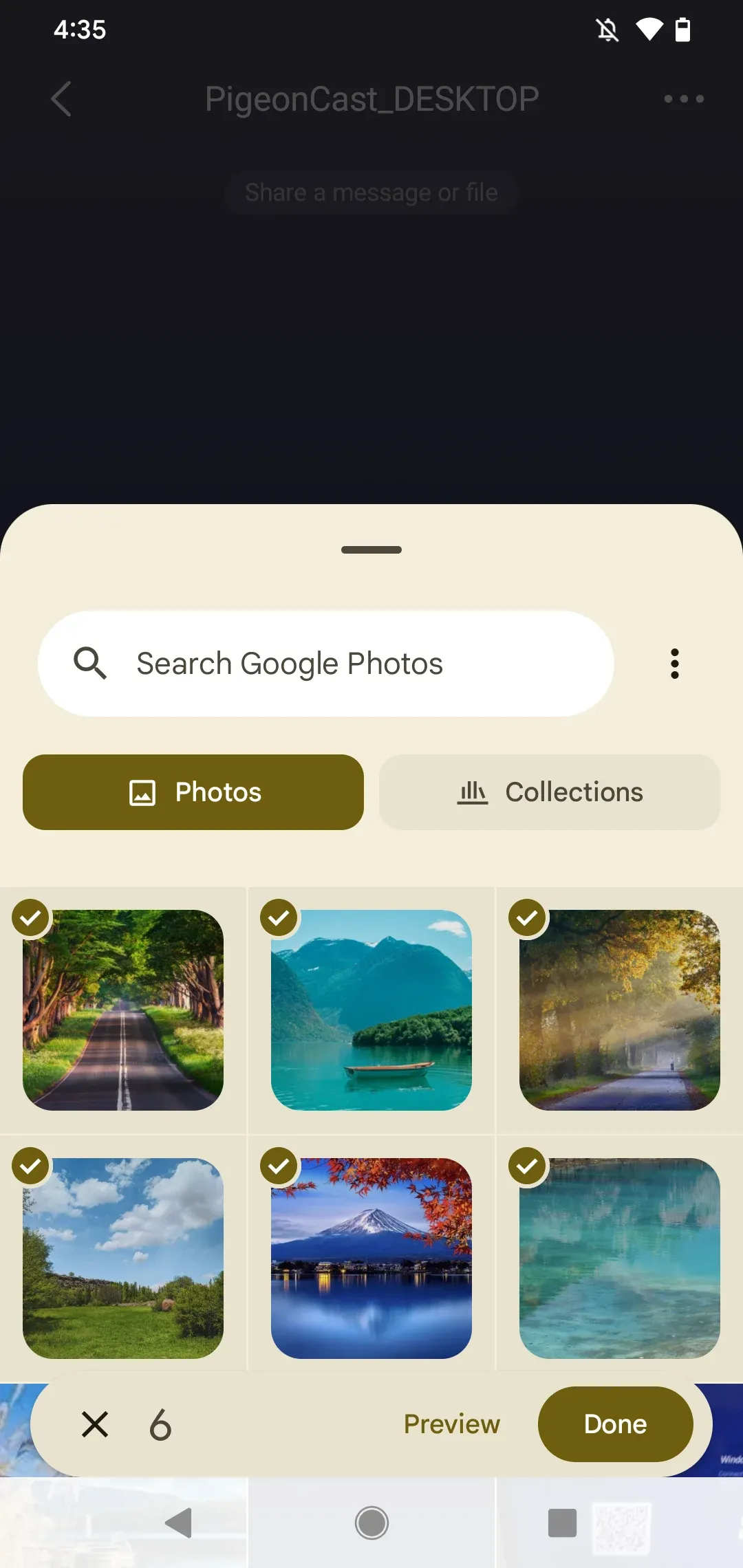
Send the Selected Files
After selecting the content, tap Done to send the selected files or folders to the Android TV.
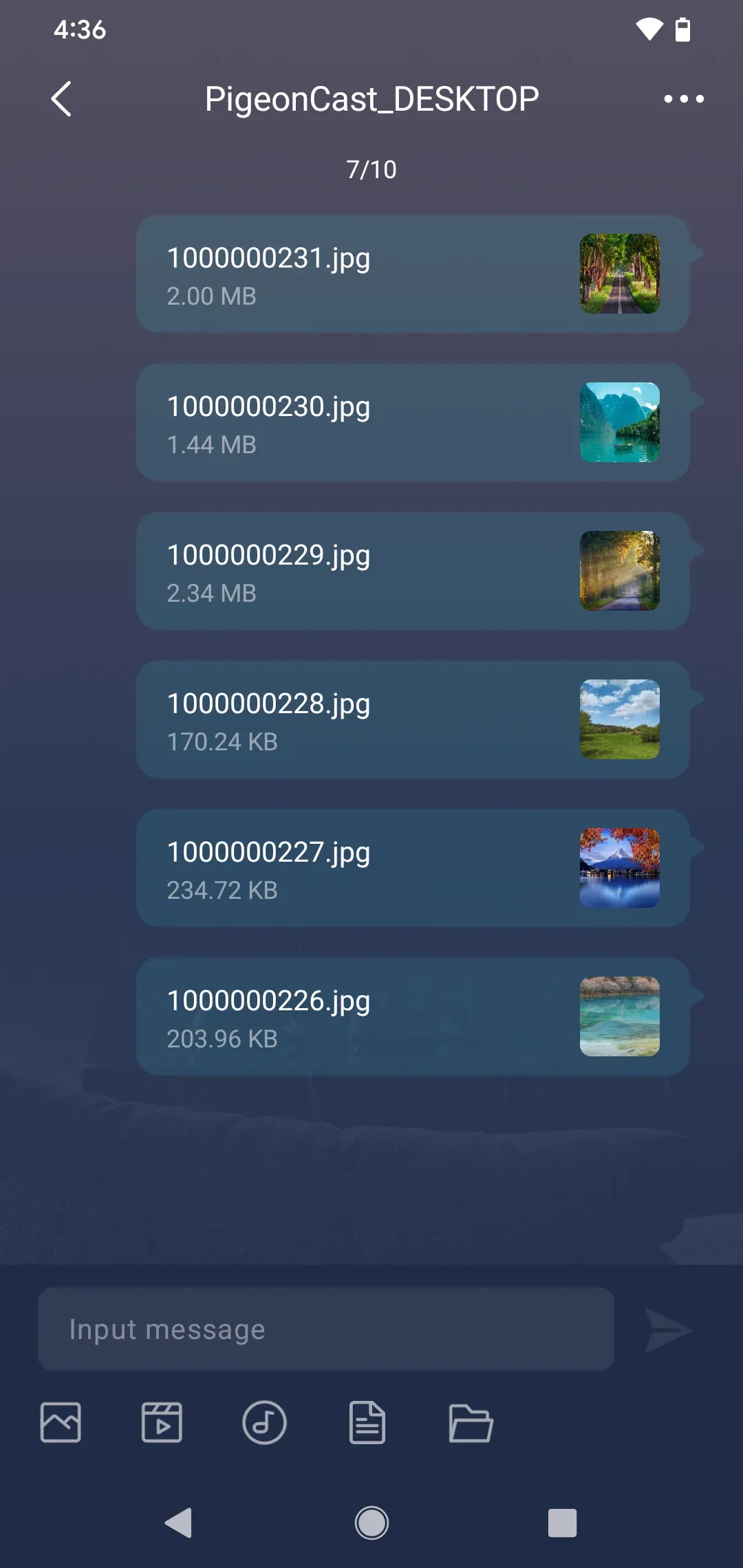
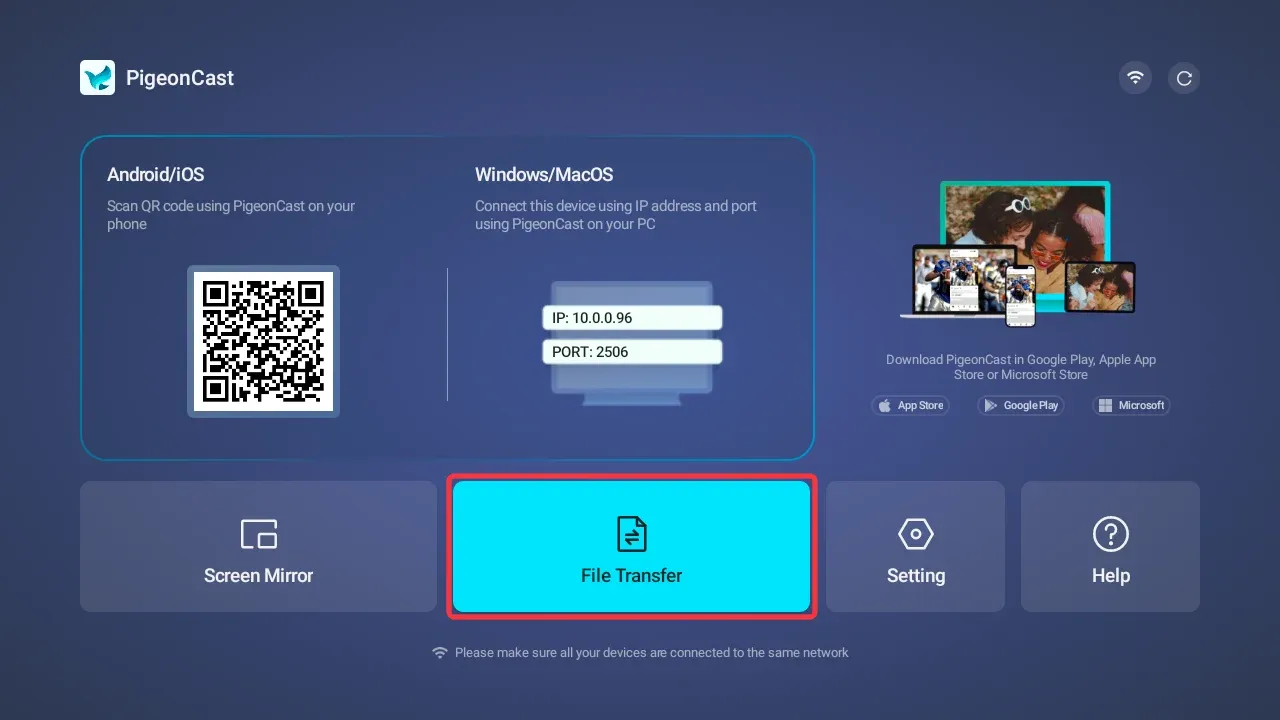
Open File Transfer on Your Android TV
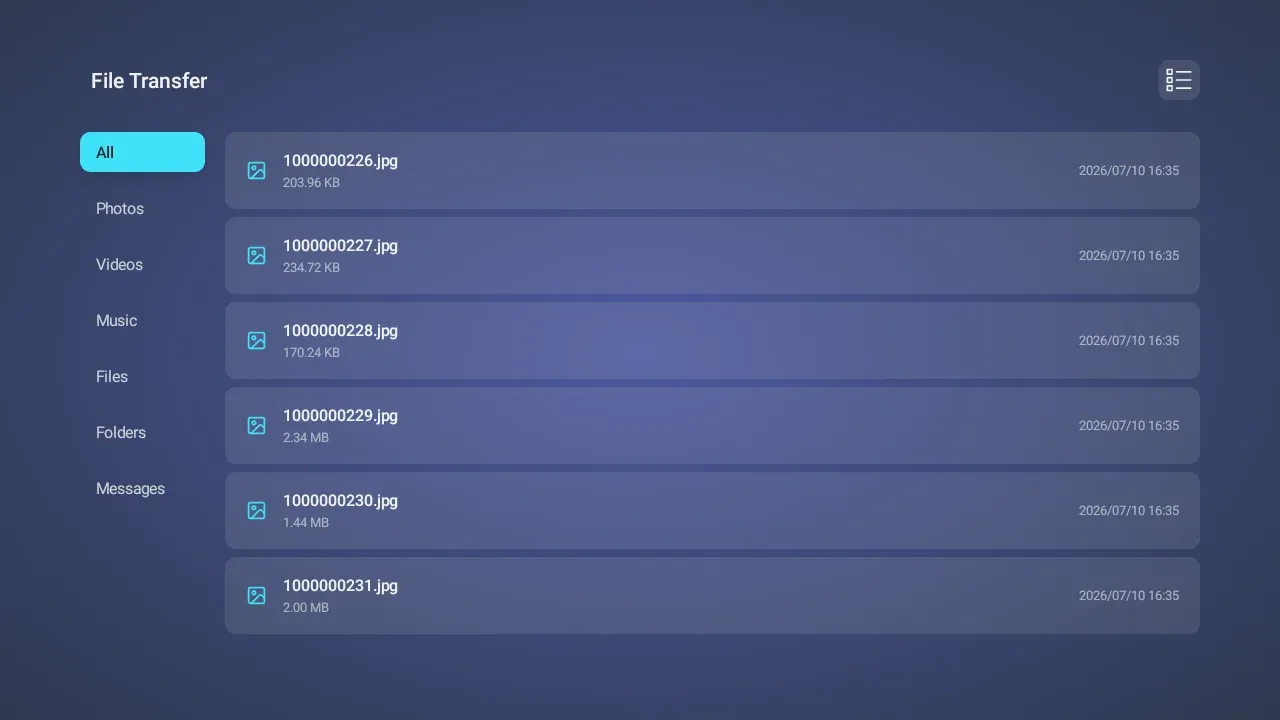
On the Android TV, tap the file transfer button to open the transfer view. This screen shows files that are currently being transferred as well as files already received.
View the Transferred Files
Review the transferred files on the Android TV after the transfer finishes. The received images, videos, audio, files, or folders are available in the file transfer view.